Page 320 of 563

For longer, trouble-free operation, keep the
top of the battery clean and dry. Also, make
certain the battery cables are always tightly
fastened to the battery terminals.
If you see any corrosion on the battery or
terminals, remove the cables from the
terminals and clean with a wire brush. You
can neutralize the acid with a solution of
baking soda and water.
When a battery replacement is required, the
battery should only be replaced with a Ford
recommended replacement battery that
matches the electrical requirements of the
vehicle.
Because your vehicle
’s engine is
electronically-controlled by a computer,
some engine control settings are maintained
by power from the low voltage battery. Some
engine computer settings, like the idle trim
and fuel trim strategy, optimize the
driveability and performance of the engine. Some other computer settings, like the clock
and radio station presets, are also maintained
in memory by power from the low voltage
battery. When a technician disconnects and
connects the low voltage battery, these
settings are erased.
Note:
Until you switch the ignition to the on
position, you will receive a message in your
information display stating that your vehicle
is not in park.
Complete the following procedure in order
to restore the settings:
1. With the vehicle at a complete stop, set the parking brake.
2. Shift the transmission into P.
3. Turn off all accessories.
4. Step on the brake pedal and start the vehicle. 5. Run the engine until it reaches normal
operating temperature. While the engine
is warming up, complete the following:
Reset the clock. See Audio System
(page 388). Reset the power windows
bounce-back feature. See Windows and
Mirrors (page 100).
Reset the radio station
presets. See Audio System (page 388).
6. Allow the engine to idle for at least one minute. If the engine turns off, step on
the accelerator to start the engine.
7. While the engine is running, step on the brake pedal and shift the transmission to
N.
8. Allow the engine to run for at least one minute by pressing on the accelerator
pedal.
9. Drive your vehicle at least 10 miles (16 kilometers) to completely relearn the idle
and fuel trim strategy.
Note: Certain features may not operate if
the Battery Monitor System is not reset with
a scan tool following a jump start or battery
replacement. Normal electrical accessory
operation should resume after your vehicle
is left undisturbed for 8 hours.
317
MKX (CD9) Canada/United States of America, enUSA, ASO/OGC Review Maintenance
Page 396 of 563
Menu Item
Item
Phone
A
Navigation
B
Climate
C
Settings
D Menu Item
Item
Home
E
Information
F
Entertainment
G This system uses a four-corner strategy to
provide quick access to several vehicle
features and settings. The touchscreen
provides easy interaction with your cell
phone, entertainment, information and
system settings. The corners display active
modes within the menus, for example; your
cell phone's status.
Note:
Some features are not available while
your vehicle is moving.
393
MKX (CD9) Canada/United States of America, enUSA, ASO/OGC Review MyLincoln Touch™AB
GCDFE
E161891
Page 418 of 563
Action and Description
Menu Item
Have the system use guidance prompts.
Navigation Preferences
Have the system automatically fill-in State/Province information.
Have the system automatically avoid traffic concerns or allow you to acc\
ept or decline an alternative
route.
Traffic Preferences
Have the system automatically alert you to traffic concerns that occur o\
n your route.
Have the system display accident icons.
Have the system display traffic jam icons.
Have the system display closed roads.
Have the system display areas where road work occurs.
Have the system display incident icons.
Have the system display areas where difficult driving conditions may occ\
ur.
Have the system display areas where snow and ice on the road may occur.
Have the system display any smog alerts.
Have the system display weather warnings.
415
MKX (CD9) Canada/United States of America, enUSA, ASO/OGC Review MyLincoln Touch™
Page 428 of 563

Action and Description
Menu Item
Treble
Set Balance and Fade
DSP
Occupancy Mode
Speed Compensated Volume
This allows you to select a category of music you would like to search for. You can then choose to either
seek or scan for the stations playing that category.
Set PTY for Seek / Scan
This allows you to view the information broadcast by FM stations.
RDS Text Display
AST (Autostore) allows you to have the system automatically store the si\
x strongest stations in your current
location.
AST
This feature is available when HD Radio is on, and allows you to tag a song to download later. When you
select On, TAG appears on-screen when HD Radio is active. You can touch TAG to save the information
of the song that is playing. When you plug in your portable music player\
, the information transfers, if
supported by your device. When you are connected to iTunes, the tags appear to remind you of the songs
you would like to download. See HD Radio information later in this chapter.
TAG Button
Note: Your vehicle may not have all these sound settings.
425
MKX (CD9) Canada/United States of America, enUSA, ASO/OGC Review MyLincoln Touch™
Page 445 of 563
Sound
You can adjust the settings for:
Action and Description
Menu Item
Bass
Sound Settings
Midrange
Treble
Set Balance and Fade
DSP
EQ Mode
Speed Compensated Volume
Allows you to select more settings, which is under Media Player. See Settings (page 403).
Media Player Settings
Displays software and firmware information about the currently connected\
media device.
Device Information
Indexes your device when you connect it for the first time and each time the \
content changes (for example
adding or removing tracks) to make sure you have the latest voice commands available for all media on
the device.
Update Media Index
Note: Your vehicle may not have all these sound settings.
442
MKX (CD9) Canada/United States of America, enUSA, ASO/OGC Review MyLincoln Touch™
Page 450 of 563
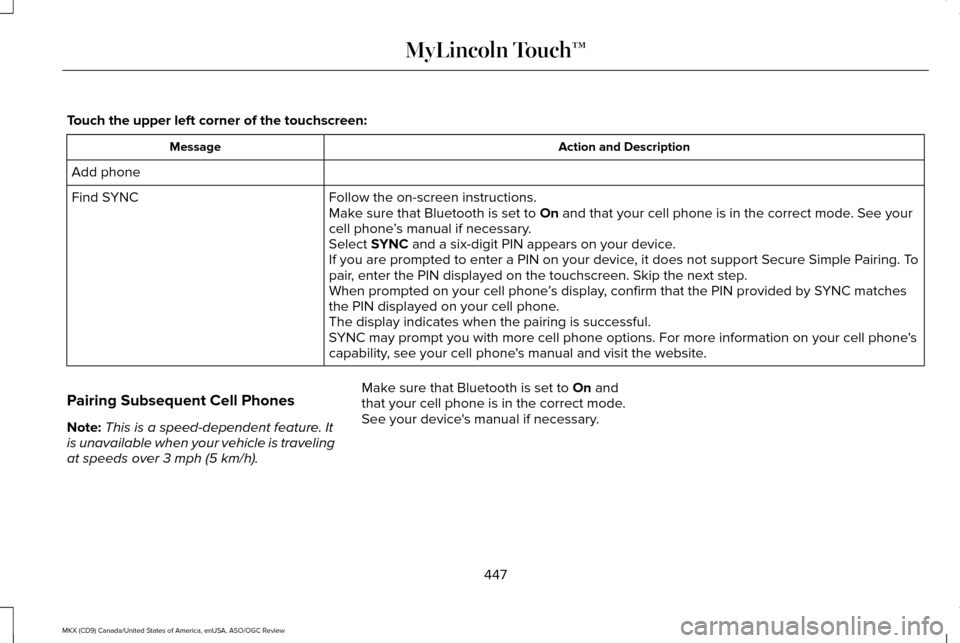
Touch the upper left corner of the touchscreen:
Action and Description
Message
Add phone Follow the on-screen instructions.
Find SYNC
Make sure that Bluetooth is set to On and that your cell phone is in the correct mode. See your
cell phone ’s manual if necessary.
Select
SYNC and a six-digit PIN appears on your device.
If you are prompted to enter a PIN on your device, it does not support Secure Simple Pairing. To
pair, enter the PIN displayed on the touchscreen. Skip the next step.
When prompted on your cell phone ’s display, confirm that the PIN provided by SYNC matches
the PIN displayed on your cell phone.
The display indicates when the pairing is successful.
SYNC may prompt you with more cell phone options. For more information on\
your cell phone's
capability, see your cell phone's manual and visit the website.
Pairing Subsequent Cell Phones
Note: This is a speed-dependent feature. It
is unavailable when your vehicle is traveling
at speeds over
3 mph (5 km/h). Make sure that Bluetooth is set to
On and
that your cell phone is in the correct mode.
See your device's manual if necessary.
447
MKX (CD9) Canada/United States of America, enUSA, ASO/OGC Review MyLincoln Touch™
Page 451 of 563
To pair a subsequent cell phone, select:
Action and Description
Menu Item
Phone
Settings
Bluetooth Devices
Add Device Follow the on-screen instructions.
Find SYNC
Make sure that Bluetooth is set to On and that your cell phone is in the correct mode. See your
cell phone ’s manual if necessary.
Select
SYNC and a six-digit PIN appears on your device.
If you are prompted to enter a PIN on your device, it does not support Secure Simple Pairing. To
pair, enter the PIN displayed on the touchscreen. Skip the next step.
When prompted on your cell phone ’s display, confirm that the PIN provided by SYNC matches
the PIN displayed on your cell phone.
The display indicates when the pairing is successful.
SYNC may prompt you with more cell phone options. For more information on\
your cell phone's
capability, see your cell phone's manual and visit the website.
Making Calls 448
MKX (CD9) Canada/United States of America, enUSA, ASO/OGC Review MyLincoln Touch™E142599
Page 452 of 563

Press the voice button and say a command
similar to the following:
Voice command
Call
Dial
You can say the name of a person from your
phone book to call or a say a number to dial.
For example "Call Jenny" or "Dial 867-5309". To end the call or exit phone
mode, press and hold the phone
button.
Receiving Calls
During an incoming call, an audible tone
sounds. Call information appears in the
display if it is available. To accept the call, select:
Message
Accept
Note: You can also accept the call by
pressing the phone button on the steering
wheel. To reject the call, select:
Message
Reject
Note: You can also reject the call by
pressing the phone button on the steering
wheel.
Ignore the call by doing nothing. SYNC logs
it as a missed call.
Phone Menu Options
Press the top left corner on the touchscreen
to select from the following options: Action and Description
Menu Item
Touch this button to access the on-screen numerical pad to enter a number\
and place a call. During
an active call, you can also choose any of these options:
Phone
Mute Call
Hold Call
449
MKX (CD9) Canada/United States of America, enUSA, ASO/OGC Review MyLincoln Touch™E142632 E142632


