Page 421 of 660
421
RX450h_U_OM0E013U
5
Interior features
5-4. Using the storage features
List of storage features
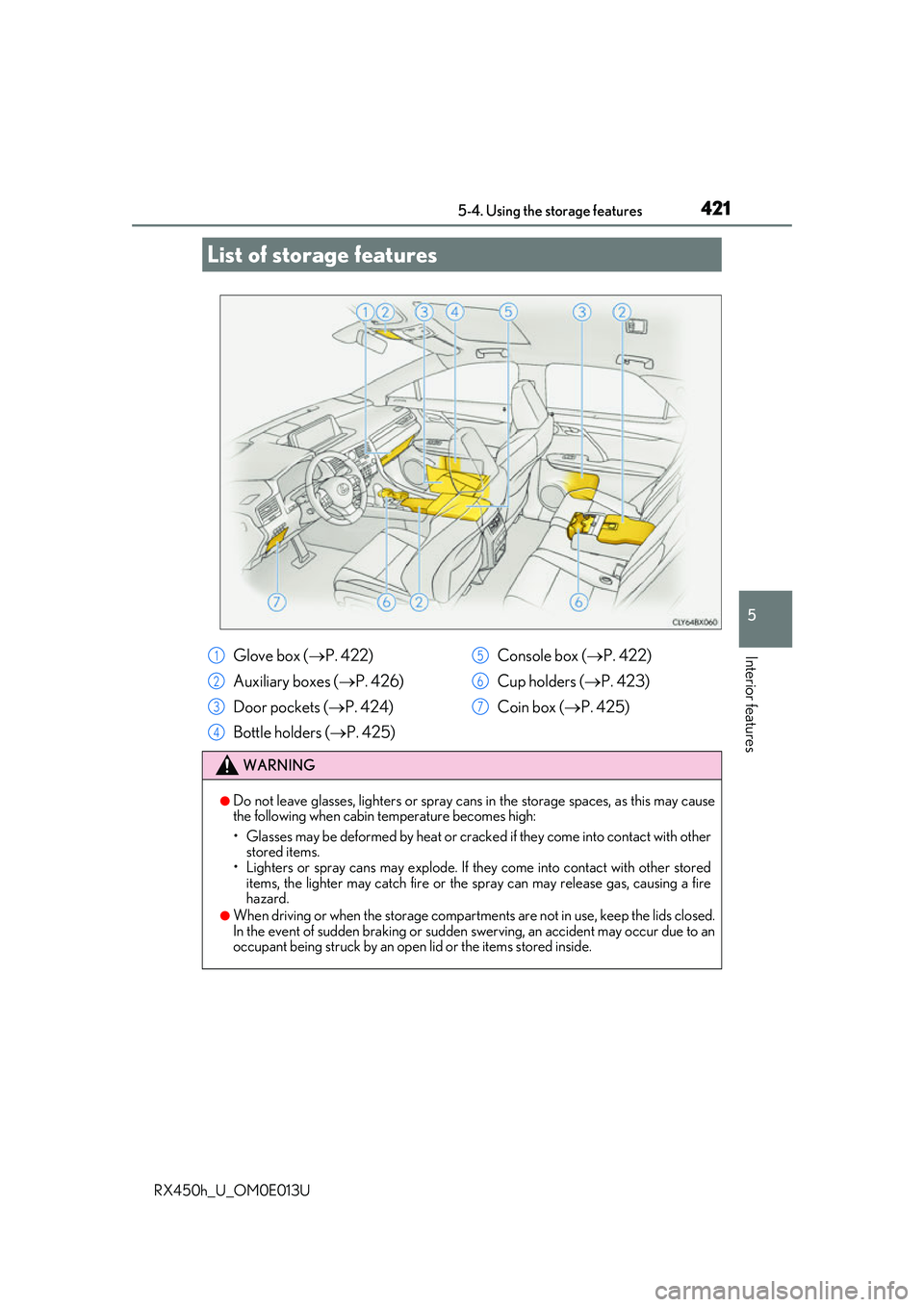
Glove box (P. 422)
Auxiliary boxes ( P. 426)
Door pockets ( P. 424)
Bottle holders ( P. 425) Console box (
P. 422)
Cup holders ( P. 423)
Coin box ( P. 425)
WARNING
●Do not leave glasses, lighters or spray cans in the storage spaces, as this may cause
the following when cabin temperature becomes high:
• Glasses may be deformed by heat or cracke d if they come into contact with other
stored items.
• Lighters or spray cans may explode. If they come into contact with other stored items, the lighter may catch fire or the spray can may release gas, causing a fire
hazard.
●When driving or when the storage compartments are not in use, keep the lids closed.
In the event of sudden braking or sudden swerving, an accident may occur due to an
occupant being struck by an open lid or the items stored inside.
1
2
3
4
5
6
7
Page 422 of 660
4225-4. Using the storage features
RX450h_U_OM0E013U
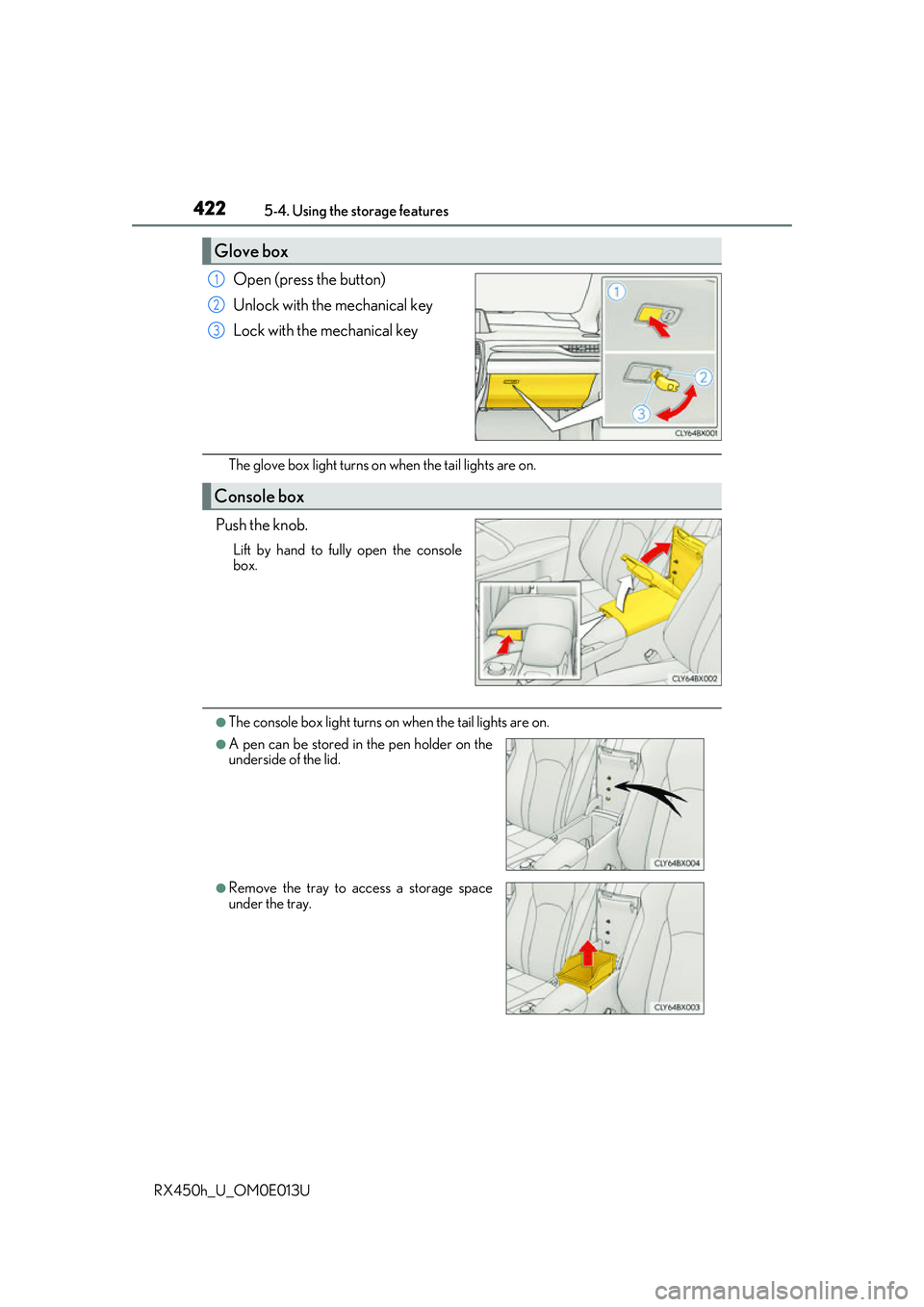
Open (press the button)
Unlock with the mechanical key
Lock with the mechanical key
The glove box light turns on when the tail lights are on.
Push the knob.
Lift by hand to fully open the console
box.
●The console box light turns on when the tail lights are on.
Glove box
1
2
3
Console box
●A pen can be stored in the pen holder on the
underside of the lid.
●Remove the tray to access a storage space
under the tray.
Page 432 of 660
432
RX450h_U_OM0E013U5-5. Using the other interior features
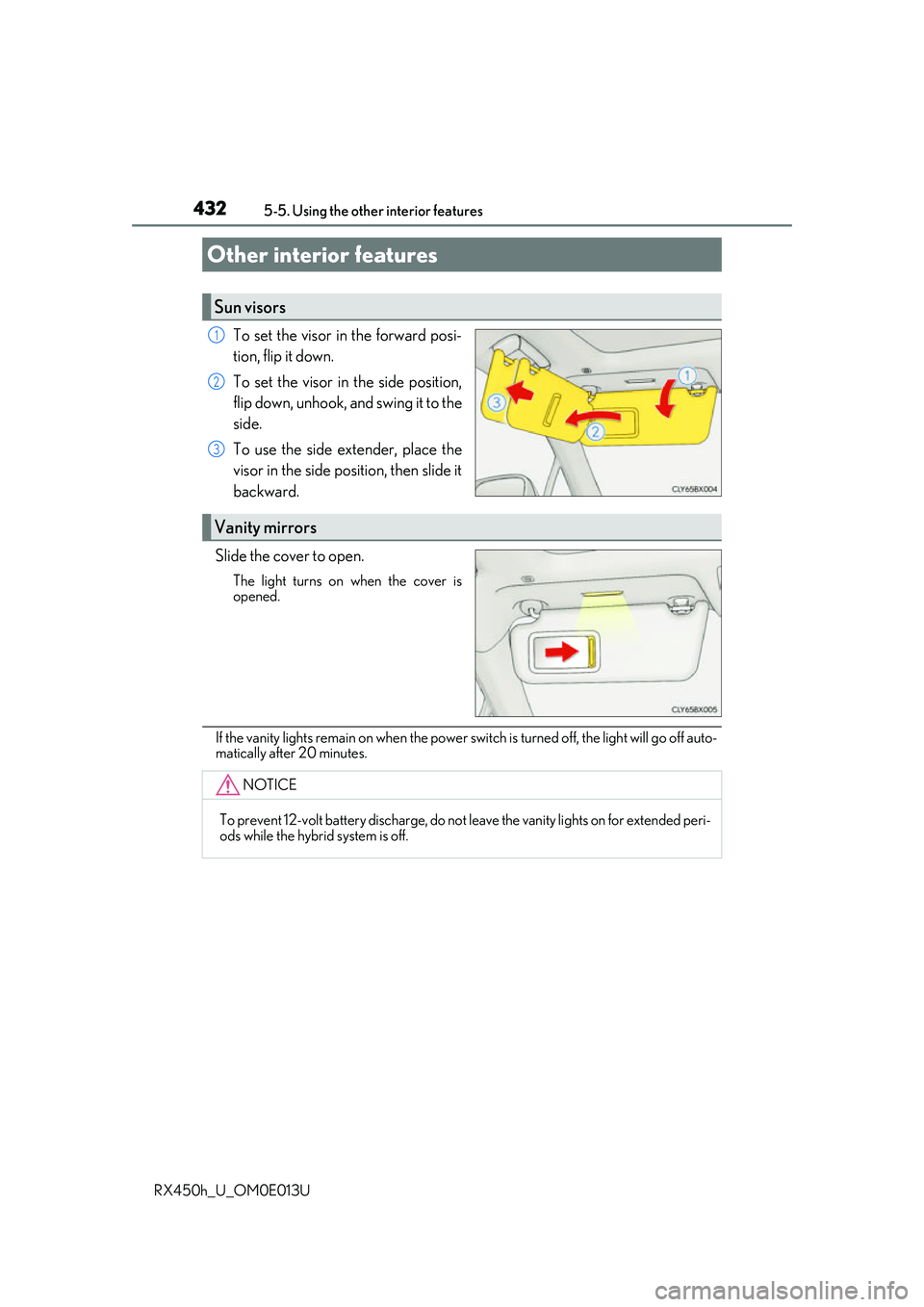
To set the visor in the forward posi-
tion, flip it down.
To set the visor in the side position,
flip down, unhook, and swing it to the
side.
To use the side extender, place the
visor in the side position, then slide it
backward.
Slide the cover to open.
The light turns on when the cover is
opened.
If the vanity lights remain on when the power switch is turned off, the light will go off auto-
matically after 20 minutes.
Other interior features
Sun visors
1
2
3
Vanity mirrors
NOTICE
To prevent 12-volt battery discharge, do not leave the vanity lights on for extended peri-
ods while the hybrid system is off.
Page 434 of 660

4345-5. Using the other interior features
RX450h_U_OM0E013U
■Name for all parts Power supply switch
Operation indicator light
Charge area
■Using the wireless chargerPress the power supply switch of
the wireless charger.
Pressing the switch again turns the
wireless charger off.
When turned on, the operation indi-
cator light (green) comes on.
When the power switch is turned off,
the on/off state of the wireless char-
ger will be memorized.
Place a portable device on the
charging area with its charging
surface facing down.
While charging, the operation indi-
cator light (orange) will be illumi-
nated.
If charging does not begin, move the
portable device as close to the cen-
ter of the charging area as possible.
When charging is complete, the operatio n indicator light (green) will illuminate.
●Recharging function
• If a certain amount of time has elapsed since charging completed and the portable device has not been moved, the wireless charger will
restart charging.
• If the portable device is moved with in the charging area, charging will
stop temporarily then restart.
1
2
3
1
2
Page 435 of 660
4355-5. Using the other interior features
5
Interior features
RX450h_U_OM0E013U
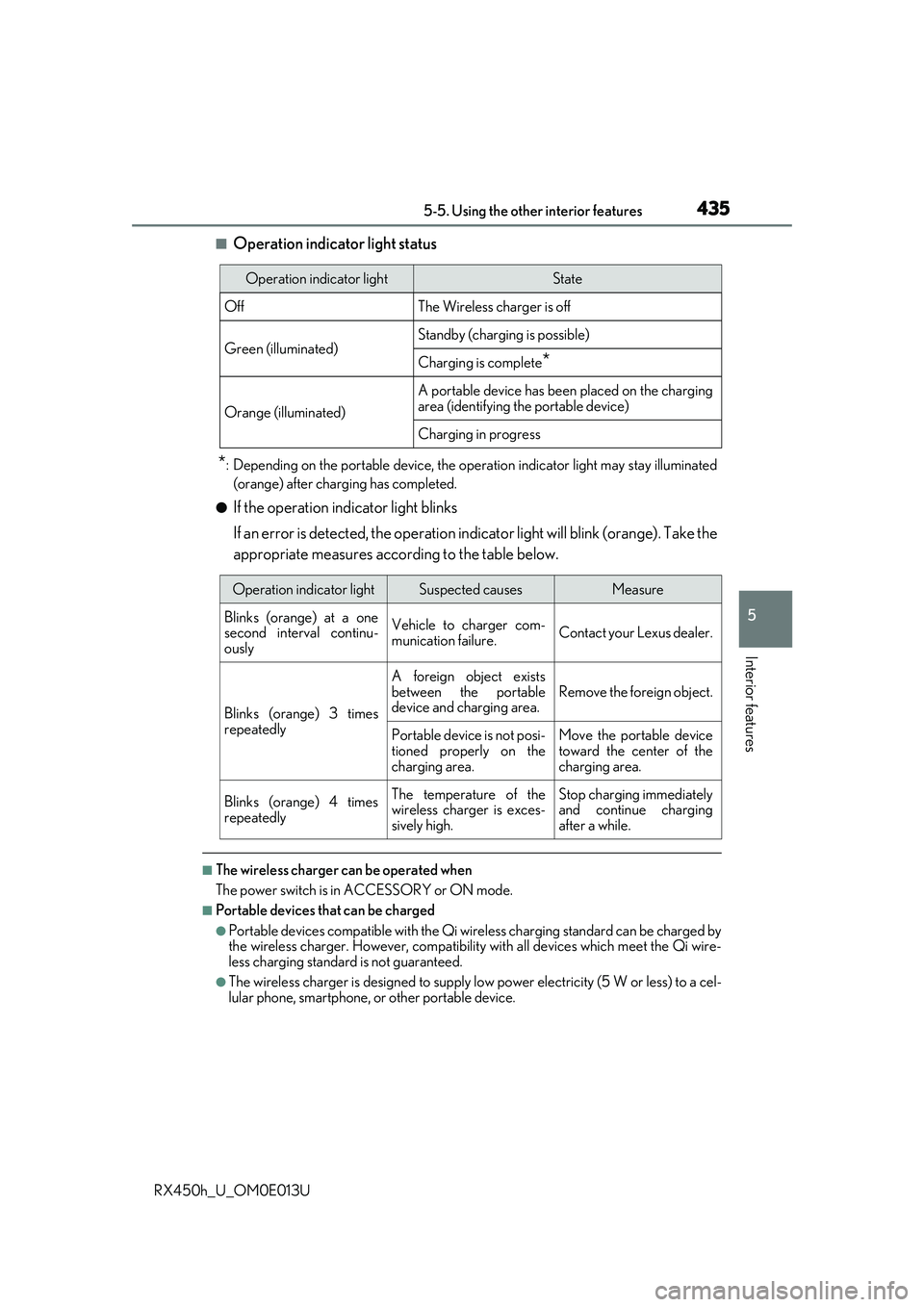
■Operation indicator light status
*: Depending on the portable device, the operation indicator light may stay illuminated
(orange) after charging has completed.
●If the operation indicator light blinks
If an error is detected, the operation in dicator light will blink (orange). Take the
appropriate measures according to the table below.
■The wireless charger can be operated when
The power switch is in ACCESSORY or ON mode.
■Portable devices t hat can be charged
●Portable devices compatible with the Qi wireless charging standard can be charged by
the wireless charger. However, compatibility with all devices which meet the Qi wire-
less charging standard is not guaranteed.
●The wireless charger is designed to supply low power electricity (5 W or less) to a cel-
lular phone, smartphone, or other portable device.
Operation indicator lightState
OffThe Wireless charger is off
Green (illuminated)Standby (charging is possible)
Charging is complete*
Orange (illuminated)
A portable device has been placed on the charging
area (identifying the portable device)
Charging in progress
Operation indicator lightSuspected causesMeasure
Blinks (orange) at a one
second interval continu-
ously Vehicle to charger com-
munication failure.
Contact your Lexus dealer.
Blinks (orange) 3 times
repeatedly A foreign object exists
between the portable
device and charging area.
Remove the foreign object.
Portable device is not posi-
tioned properly on the
charging area. Move the portable device
toward the center of the
charging area.
Blinks (orange) 4 times
repeatedly The temperature of the
wireless charger is exces-
sively high.Stop charging immediately
and continue charging
after a while.
Page 439 of 660
4395-5. Using the other interior features
5
Interior features
RX450h_U_OM0E013U
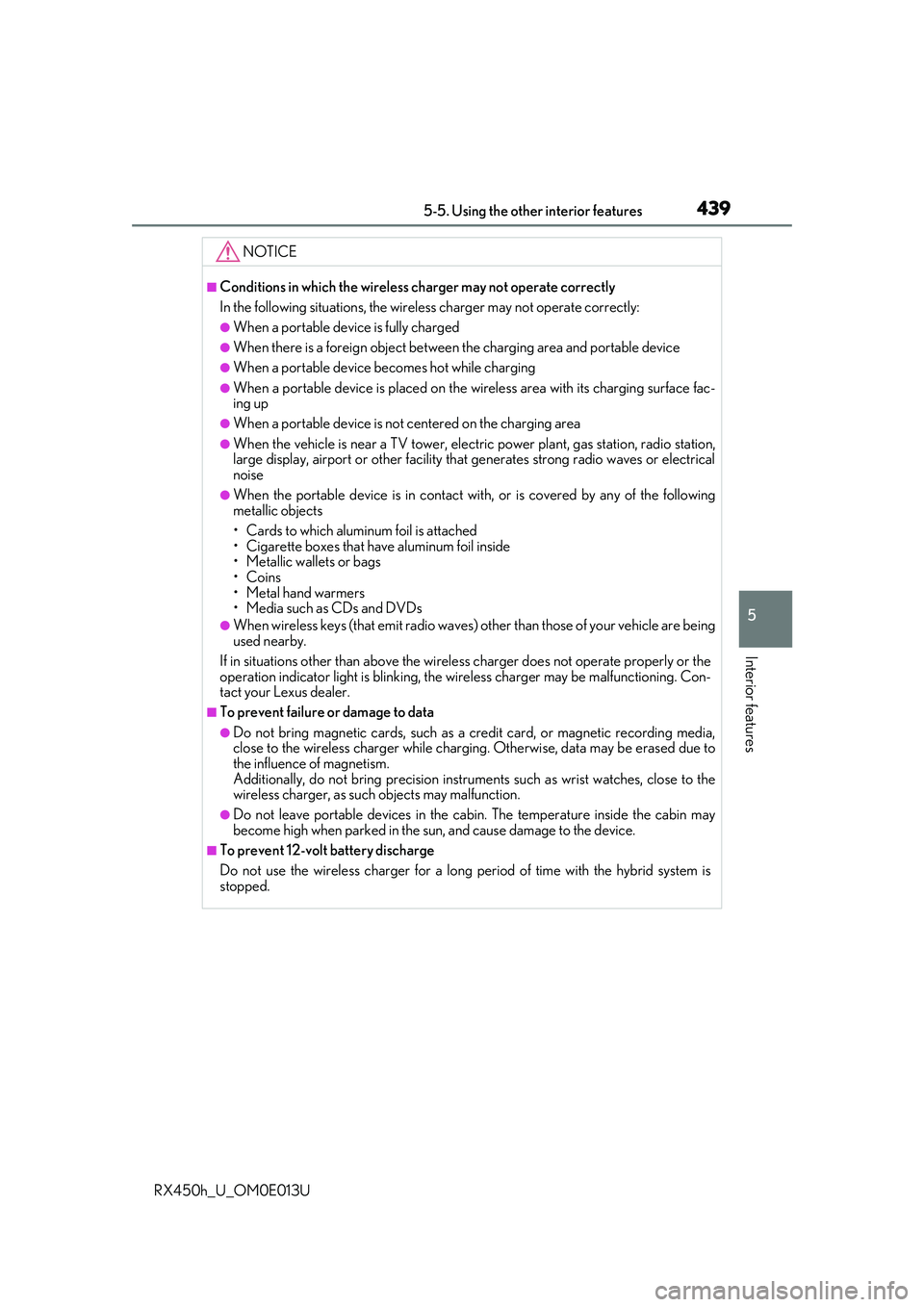
NOTICE
■Conditions in which the wireless charger may not operate correctly
In the following situations, the wireless charger may not operate correctly:
●When a portable device is fully charged
●When there is a foreign object between the charging area and portable device
●When a portable device becomes hot while charging
●When a portable device is placed on the wireless area with its charging surface fac-
ing up
●When a portable device is not centered on the charging area
●When the vehicle is near a TV tower, electric power plant, gas station, radio station,
large display, airport or other facility that generates strong radio waves or electrical
noise
●When the portable device is in contact with, or is covered by any of the following
metallic objects
• Cards to which aluminum foil is attached
• Cigarette boxes that have aluminum foil inside
• Metallic wallets or bags
• Coins
• Metal hand warmers
• Media such as CDs and DVDs
●When wireless keys (that emit radio waves) other than those of your vehicle are being
used nearby.
If in situations other than above the wirele ss charger does not operate properly or the
operation indicator light is blinking, the wireless charger may be malfunctioning. Con-
tact your Lexus dealer.
■To prevent failure or damage to data
●Do not bring magnetic cards, such as a cr edit card, or magnetic recording media,
close to the wireless charger while charging. Otherwise, data may be erased due to
the influence of magnetism.
Additionally, do not bring pr ecision instruments such as wrist watches, close to the
wireless charger, as such objects may malfunction.
●Do not leave portable devices in the cab in. The temperature inside the cabin may
become high when parked in the sun, and cause damage to the device.
■To prevent 12-volt battery discharge
Do not use the wireless charger for a long pe riod of time with the hybrid system is
stopped.
Page 443 of 660
4435-5. Using the other interior features
5
Interior features
RX450h_U_OM0E013U
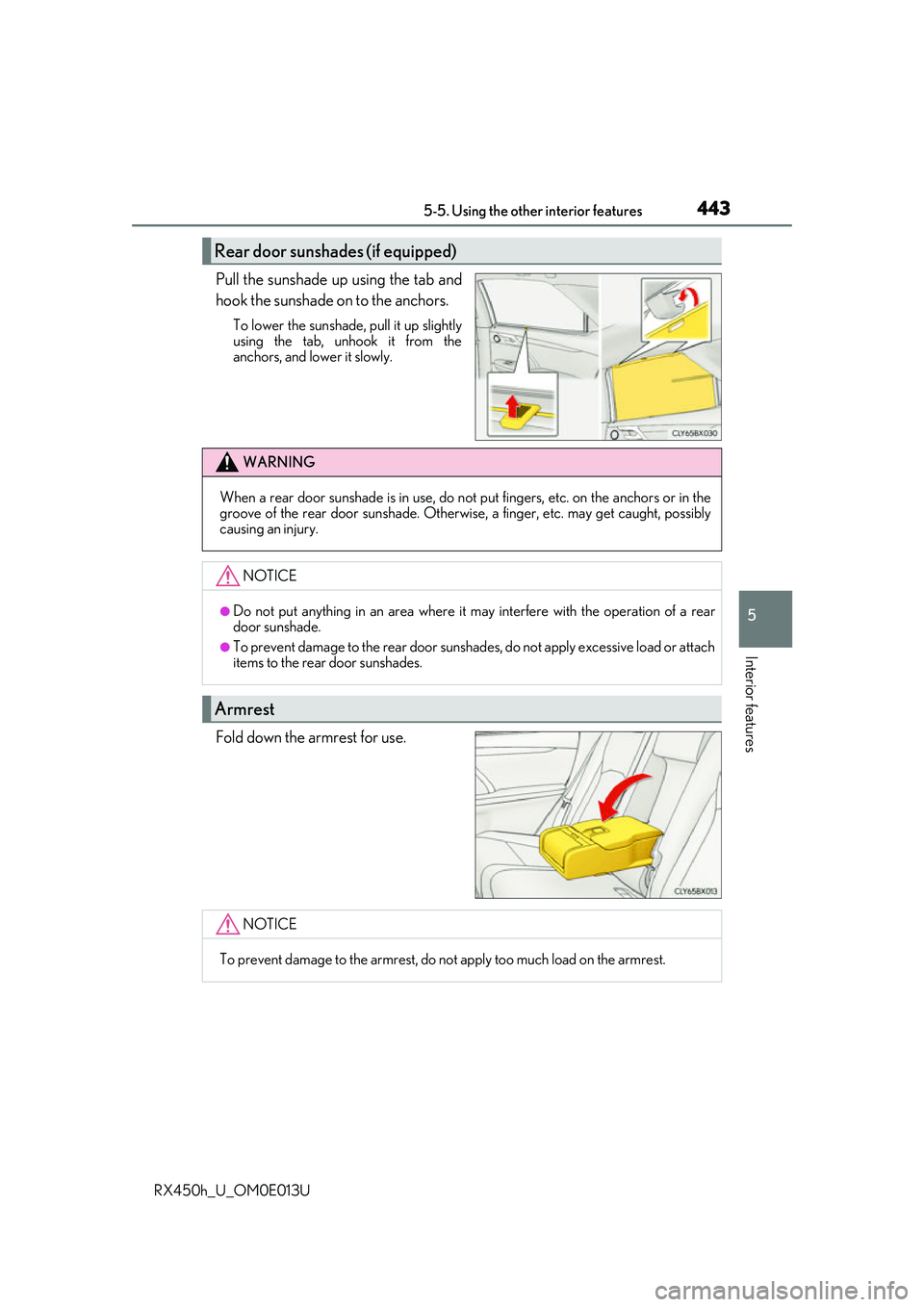
Pull the sunshade up using the tab and
hook the sunshade on to the anchors.
To lower the sunshade, pull it up slightly
using the tab, unhook it from the
anchors, and lower it slowly.
Fold down the armrest for use.
Rear door sunshades (if equipped)
WARNING
When a rear door sunshade is in use, do not put fingers, etc. on the anchors or in the
groove of the rear door suns hade. Otherwise, a finger, etc. may get caught, possibly
causing an injury.
NOTICE
●Do not put anything in an area where it may interfere with the operation of a rear
door sunshade.
●To prevent damage to the rear door sunshades, do not apply excessive load or attach
items to the rear door sunshades.
Armrest
NOTICE
To prevent damage to the armrest, do not apply too much load on the armrest.
Page 445 of 660
4455-5. Using the other interior features
5
Interior features
RX450h_U_OM0E013U
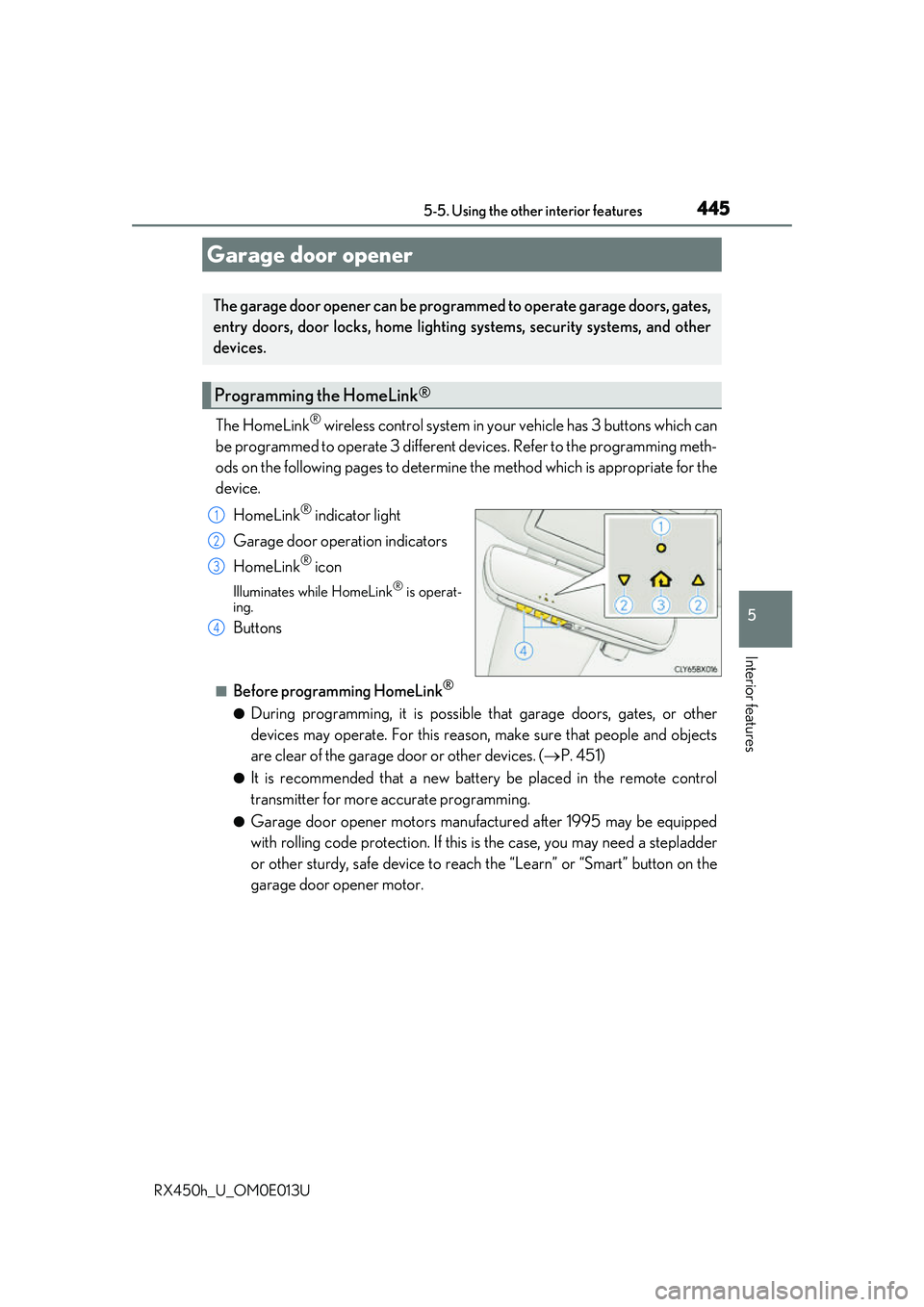
The HomeLink® wireless control system in your vehicle has 3 buttons which can
be programmed to operate 3 different de vices. Refer to the programming meth-
ods on the following pages to determine the method which is appropriate for the
device.
HomeLink
® indicator light
Garage door operation indicators
HomeLink
® icon
Illuminates while HomeLink® is operat-
ing.
Buttons
■Before programming HomeLink®
●During programming, it is possible that garage doors, gates, or other
devices may operate. For this reason, make sure that people and objects
are clear of the garage door or other devices. ( P. 451)
●It is recommended that a new batter y be placed in the remote control
transmitter for more accurate programming.
●Garage door opener motors manufa ctured after 1995 may be equipped
with rolling code protection. If this is the case, you may need a stepladder
or other sturdy, safe device to reach the “Learn” or “Smart” button on the
garage door opener motor.
Garage door opener
The garage door opener can be programmed to operate garage doors, gates,
entry doors, door locks, home lightin g systems, security systems, and other
devices.
Programming the HomeLink®
1
2
3
4