Page 286 of 501
4199
Features of your vehicle
CLOCK SETTINGS
Press the key Select [Clock]
through TUNE knob or key
Select menu through TUNE knob
Clock Settings
This menu is used to set the time.
Select [Clock Settings] Set throughTUNE knob Press TUNE knob
❈Adjust the number currently in
focus to set the [hour] and press
the tune knob to set the [minute]
and [AM/PM].
Calendar Settings
This menu is used to set the date
(MM/DD/YYYY).
Select [Calendar Settings] Set through
TUNE knob Press TUNE knob
❈Adjust the number currently in
focus to make the settings and
press the tune knob to move to the
next setting. (Set in order of
Year/Month/Day)
Time Format
This function is used to set the
12/24 hour time format of the
audio system. Select [Time
Format] Set 12Hr / 24Hr through
TUNEknob
Clock Display when Power is OFF
Select [Clock Disp.(Pwr Off) Set
/through TUNEknob
: Displays time/date on screen
: Turn off.Off
On
OffOn
3
SETUPCLOCK
Page 287 of 501
![KIA Sportage 2016 QL / 4.G Owners Manual Features of your vehicle
200
4
SYSTEM SETTINGS
Press the key Select
[System] Select menu through
TUNE knob
Memory Information
Displays currently used memory and
total system memory.
Select [Memory](/manual-img/2/2981/w960_2981-286.png "KIA Sportage 2016 QL / 4.G Owners Manual Features of your vehicle
200
4
SYSTEM SETTINGS
Press the key Select
[System] Select menu through
TUNE knob
Memory Information
Displays currently used memory and
total system memory.
Select [Memory")
Features of your vehicle
200
4
SYSTEM SETTINGS
Press the key Select
[System] Select menu through
TUNE knob
Memory Information
Displays currently used memory and
total system memory.
Select [Memory Information] OK
The currently used memory is dis-
played on the left side while the total
system memory is displayed on the
right side.
Prompt Feedback
This feature is used to change voice
command feedback between Normal
and Expert modes.
Select [Prompt Feedback] Set
through
TUNEknob
: This mode is for beginner
users and provides detailed instruc-
tions during voice command opera-
tion. : This mode is for expert users
and omits some information during
voice command operation. (When
using Expert mode, guidance
instructions can be heard through
the [Help] or [Menu] commands.
Language
This menu is used to set the display
and voice recognition language.
Select [Language]
Set through TUNE knob
❈ The system will reboot after the
language is changed.
❈ Language support by region
- English, Francais, Espanol
SETUPCLOCK
Page 300 of 501
4213
Features of your vehicle
Bluetooth®Wireless Technology
AUDIO
What is Bluetooth®Wireless
Technology
?
Bluetooth®Wireless Technology allows
devices to be connected in a short dis-
tance, including hands-free devices,
stereo headsets, wireless remote con-
trollers, etc. For more infor mation, visit
theBluetooth®Wireless Technologywebsite atwww.Bluetooth.com
Before using Bluetooth®Wireless
Technology audio features
Bluetooth®Wireless Technology
audio may not be supported depend-
ing on the compatibility of your
Bluetooth®Wireless Technology
mobile phone.
Bluetooth®Wireless
Technology audio, you must first
pair and connect the
Bluetooth®
Wireless Technology mobile phone.
Bluetooth®word mark and
logos are registered trademarks
owned by Bluetooth SIG, Inc. and
any use of such marks by Kia is
under license. Other trademarks
and trade names are those of their
respective owners. A Bluetooth®
enabled cell phone is required to
use
Bluetooth®Wireless Technology
Bluetooth®Wireless Technology
audio can be used only when the
[Audio Streaming] of Phone is turned .
❈ Setting Bluetooth®Wireless Technology
Audio Streaming : Press the
key Select [Phone] Select
[Audio Streaming] through the
TUNE knob Set
/OffOn
SETUPCLOCK
On
WARNING
Driving while distracted can
result in a loss of vehicle control
that may lead to an accident,
severe personal injury, and
death. The driver’s primary
responsibility is in the safe and
legal operation of a vehicle, and
use of any handheld devices,
other equipment, or vehicle sys-
tems which take the driver’s
eyes, attention and focus away
from the safe operation of a vehi-
cle or which are not permissible
by law should never be used dur-
ing operation of the vehicle.
Page 306 of 501
![KIA Sportage 2016 QL / 4.G Owners Manual 4219
Features of your vehicle
Pairing through [PHONE]
Setup
Press the key Select
[Phone] Select [Pair Phone]
Select TUNE knob
1. The following steps are the sameas those described in the section
"W](/manual-img/2/2981/w960_2981-305.png "KIA Sportage 2016 QL / 4.G Owners Manual 4219
Features of your vehicle
Pairing through [PHONE]
Setup
Press the key Select
[Phone] Select [Pair Phone]
Select TUNE knob
1. The following steps are the sameas those described in the section
\"W")
4219
Features of your vehicle
Pairing through [PHONE]
Setup
Press the key Select
[Phone] Select [Pair Phone]
Select TUNE knob
1. The following steps are the sameas those described in the section
"When No Devices have been
Paired" on the previous page.
Bluetooth®Wireless Technology
features supported within the vehi-
cle are as follows. Some features
may not be supported depending
on your
Bluetooth®Wireless
Technology device.
- Outgoing/Incoming Handsfree calls
- Operations during a call (Switch to Private, Switch to call waiting,
MIC on/off)
- Downloading Call History
- Downloading Mobile Contacts
-
Bluetooth®Wireless Technology
device auto connection
- Bluetooth Audio Streaming
Bluetooth®Wireless
Technology devices can be paired
to the Car Handsfree system.
one
Bluetooth®Wireless
Technology device can be connect-
ed at a time.
while a
Bluetooth®Wireless
Technology device is connected.
Bluetooth®Wireless
Technology Handsfree and
Bluetooth audio related features
are supported.
possible only within devices that
support Handsfree or audio fea-
tures, such as a
Bluetooth®
Wireless Technology mobile phone
or a Bluetooth audio device.
Bluetooth®Wireless
Technology device becomes dis-
connected due to being out of com-
munication range, turning the
device OFF, or a
Bluetooth®
Wireless Technology communica-
tion error, corresponding
Bluetooth®
Wireless Technology devices are
automatically searched and recon-
nected.
due to communication errors
between the car Handsfree and the
Bluetooth®Wireless Technology
device, reset the device by turning
off and back on again. Upon reset-
ting
Bluetooth®Wireless
Technology device, the system will
be restored.
SETUPCLOCK
Page 307 of 501
Features of your vehicle
220
4
tacts download request is sent
once to the mobile phone. Some
mobile phones may require confir-
mation upon receiving a download
request, ensure your mobile phone
accepts the connection. Refer to
your phones user’s manual for
additional information regarding
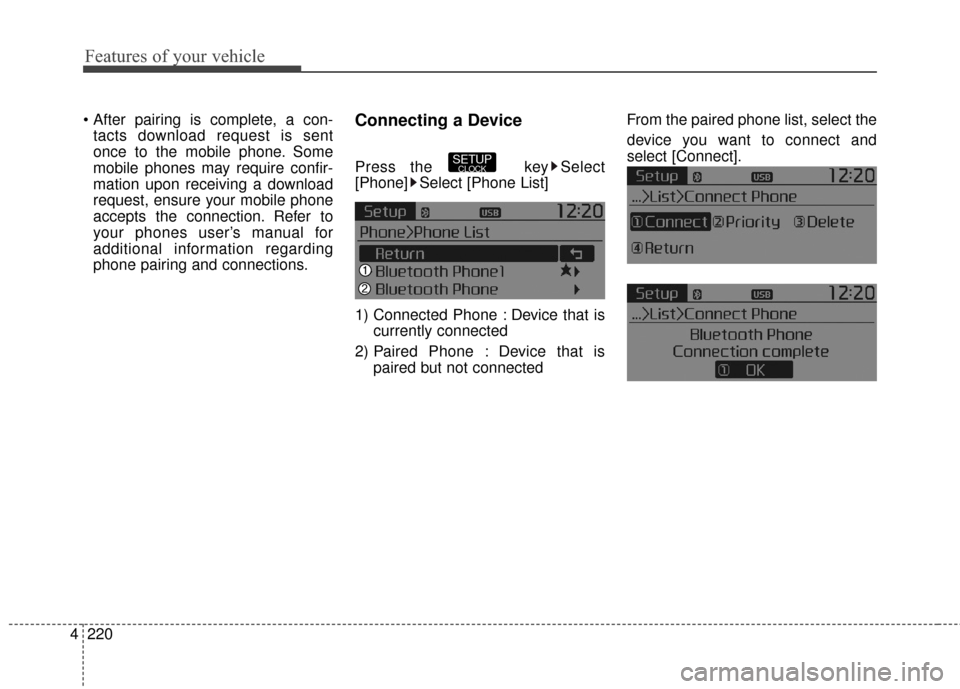
phone pairing and connections.Connecting a Device
Press the key Select
[Phone] Select [Phone List]
1) Connected Phone : Device that is currently connected
2) Paired Phone : Device that is paired but not connected From the paired phone list, select the
device you want to connect and
select [Connect].SETUPCLOCK
Page 308 of 501
4221
Features of your vehicle
Changing Priority
What is Priority?
It is possible to pair up to five
Bluetooth®Wireless Technology
devices with the car audio system.
The "Change Priority" feature is used
to set the connection priority of
paired phones.
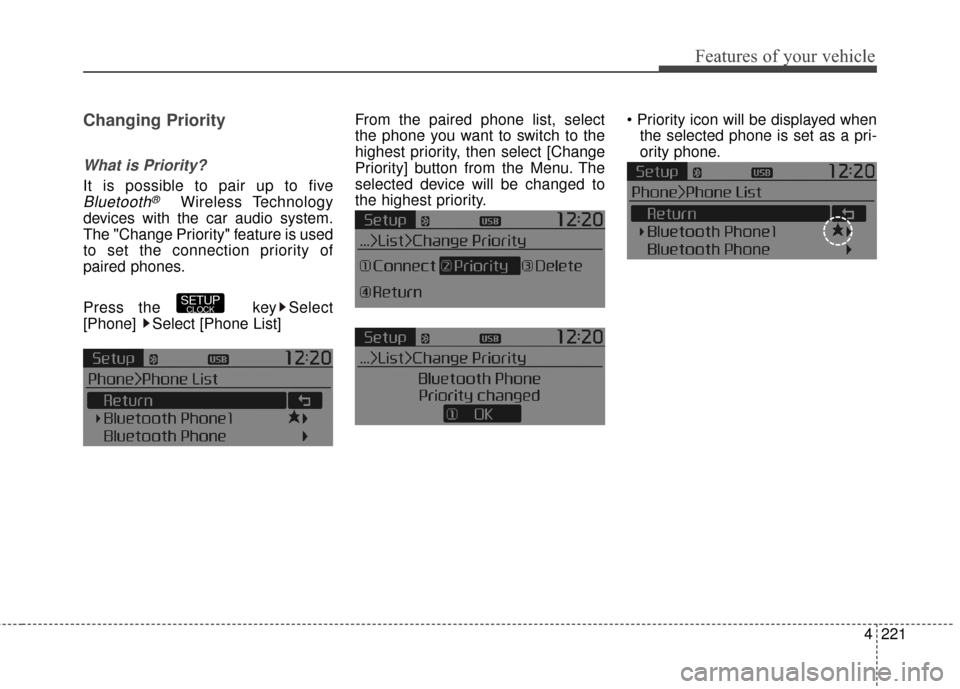
Press the key Select
[Phone] Select [Phone List] From the paired phone list, select
the phone you want to switch to the
highest priority
, then select [Change
Priority] button from the Menu. The
selected device will be changed to
the highest priority.
the selected phone is set as a pri-
ority phone.
SETUPCLOCK
Page 309 of 501
Features of your vehicle
222
4
Disconnecting a Device
Press the key Select
[Phone] Select [Phone List]
From the paired phone list, select the
currently connected device and
select [Disconnect] button.
Deleting a Device
Press the key Select
[Phone] Select [Phone List]
From the paired phone list, select the
device you want to delete and select
[Delete] button.
nected device, the device will auto-
matically be disconnected to pro-
ceed with the deleting process.
Bluetooth®Wireless
Technology device is deleted, the
device’s call history and contacts
data will also be deleted.
must pair the device again.
SETUPCLOCKSETUPCLOCK
Page 313 of 501
Features of your vehicle
226
4
Bluetooth®Wireless
Technology Setting
The Bluetooth®word mark and logos
are registered trademarks owned by
Bluetooth SIG, Inc. and any use of
such marks by Kia is under license.
Other trademarks and trade names
are those of their respective owners.
A
Bluetooth®enabled cell phone is
required to use
Bluetooth®Wireless
Technology
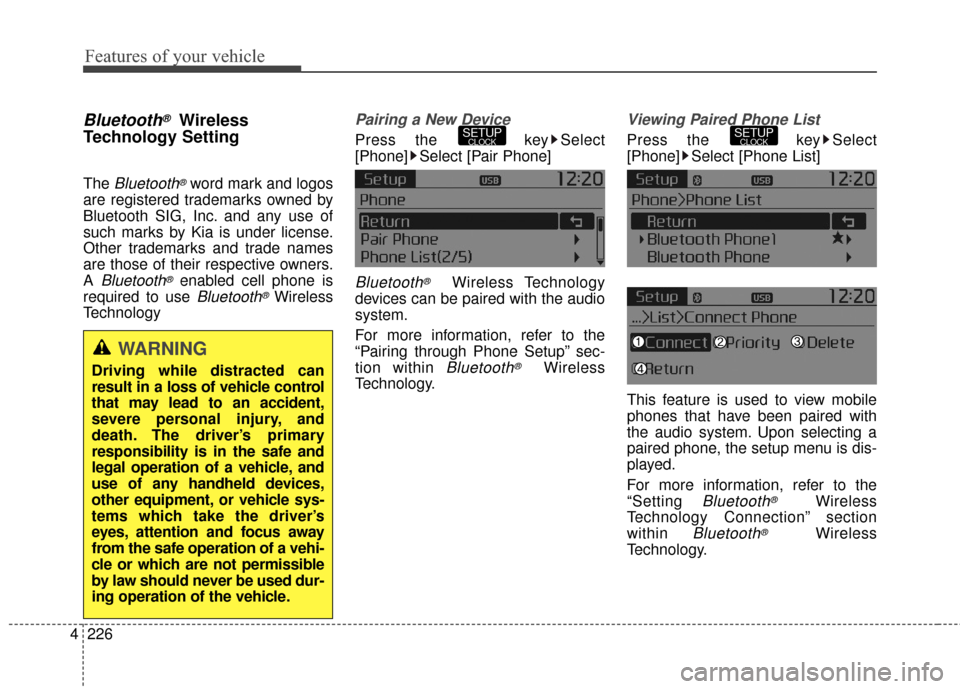
Pairing a New Device
Press the key Select
[Phone] Select [Pair Phone]
Bluetooth®Wireless Technology
devices can be paired with the audio
system.
For more information, refer to the
“Pairing through Phone Setup” sec-
tion within
Bluetooth®Wireless
Technology.
Viewing Paired Phone List
Press the key Select
[Phone] Select [Phone List]
This feature is used to view mobile
phones that have been paired with
the audio system. Upon selecting a
paired phone, the setup menu is dis-
played.
For more information, refer to the
“Setting
Bluetooth®Wireless
Technology Connection” section
within
Bluetooth®Wireless
Technology.
SETUPCLOCKSETUPCLOCK
WARNING
Driving while distracted can
result in a loss of vehicle control
that may lead to an accident,
severe personal injury, and
death. The driver’s primary
responsibility is in the safe and
legal operation of a vehicle, and
use of any handheld devices,
other equipment, or vehicle sys-
tems which take the driver’s
eyes, attention and focus away
from the safe operation of a vehi-
cle or which are not permissible
by law should never be used dur-
ing operation of the vehicle.
![KIA Sportage 2016 QL / 4.G Owners Manual 4199
Features of your vehicle
CLOCK SETTINGS
Press the key Select [Clock]
through TUNE knob or key
Select menu through TUNE knob
Clock Settings
This menu is used to set the time.
Select [Clock Set](/manual-img/2/2981/w960_2981-285.png "KIA Sportage 2016 QL / 4.G Owners Manual 4199
Features of your vehicle
CLOCK SETTINGS
Press the key Select [Clock]
through TUNE knob or key
Select menu through TUNE knob
Clock Settings
This menu is used to set the time.
Select [Clock Set")
![KIA Sportage 2016 QL / 4.G Owners Manual Features of your vehicle
222
4
Disconnecting a Device
Press the key Select
[Phone] Select [Phone List]
From the paired phone list, select the
currently connected device and
select [Disconnect] button](/manual-img/2/2981/w960_2981-308.png "KIA Sportage 2016 QL / 4.G Owners Manual Features of your vehicle
222
4
Disconnecting a Device
Press the key Select
[Phone] Select [Phone List]
From the paired phone list, select the
currently connected device and
select [Disconnect] button")