Page 269 of 565

4185
Features of your vehicle
(7)
It sets the screen Off
➟Screen On ➟
Screen Off
❈Audio operation is maintained and
only the screen will be turned Off.
In the screen Off state, press any
key to turn the screen On again.
(8)
Radio Mode
- Shortly press the key : Previews each broadcast for 5 seconds
each. - Press and hold the key (over 0.8
seconds): Previews the broadcasts
saved in Preset ~ for 5
seconds each.
❈ Press the key again to
continue listening to the current
frequency.
❈ SAT Radio does not support the
Preset scan feature.
CD, USB, My Music mode
- Shortly press the key (under 0.8 seconds): Previews each song
(file) for 10 seconds each.
❈ Press the key again to
continue listening to the current
song (file).
(9)
Moves to the Display, Sound, Clock,
Phone, System setting modes.
(10)
Displays menus for the current mode.
❈ iPod
®List : Move to parent category (11) TUNE knob
Radio mode : Changes frequency by
turning the knob left/right.
CD, USB, iPod
®, My Music mode:
Searches songs (files) by turning the
knob left/right.
❈ When the desired song is dis-
played, press the knob to play the
song.
Moves focus in all selection menus
and selects menus.
(12) ,
Radio Mode
- SIRIUS
™RADIO : Category Search
MP3, CD, USB mode : Folder Search
(13) ~ (Preset)
Radio Mode: Saves frequencies
(channels) or receives saved fre-
quencies (channels)
CD, USB, iPod
®, My Music mode
- : Repeat
- : Random
In the Radio, Media, Setup, and
Menu pop up screen, the number
menu is selected.
2 RDM
1 RPT
61
FOLDERCAT
MENU
SETUPCLOCK
SCAN
SCAN
61
SCAN
DISP
UM CAN (ENG) 4b (Audio).qxp 11/7/2014 3:01 PM Page 185
Page 271 of 565
4187
Features of your vehicle
SOUND SETTINGS
Press the key Select [Sound]
through TUNE knob or key
Select menu through TUNE knob
Sound Settings
This menu allows you to set the
‘Bass, Middle, Treble’ and the Sound
Fader and Balance.
Select [Sound Settings] Select
menu through
TUNE knobTu r n
TUNE knobleft/right to set
Bass, Middle, Treble : Selects the sound tone.
Fader, Balance : Moves the sound fader and balance.
Default : Restores default settings.
❈ Back : While adjusting values,
pressing the TUNE knob will
restore the parent menu. Speed Dependent Volume Control
This feature is used to automatically
control the volume level according to
the speed of the vehicle.
Select [Speed Dependent Vol.] Set
[Off/On] of
TUNEknob
Voice Recognition Volume
Adjusts voice recognition volume.
Select [Voice Recognition Vol.] Set
volume of
TUNEknob
2 RDM
SETUPCLOCK
UM CAN (ENG) 4b (Audio).qxp 11/7/2014 3:01 PM Page 187
Page 278 of 565

Features of your vehicle
194
4
Preset
Press the key ~
Shortly pressing the key (under 0.8
seconds): Plays the frequency
saved in the corresponding key.
Pressing and holding the key (over 0.8 seconds): Pressing and holding
the desired key from ~
will save the current broadcast to
the selected key and sound a
BEEP.
✽ ✽ Troubleshooting
1. Antenna Error
If this message is displayed, the
antenna or antenna cable is bro-
ken or unplugged. Please consult
with your Kia dealership.
2. No Signal If this message is displayed, it
means that the antenna is covered
and that the SIRIUS™ Satellite
Radio signal is not available.
Ensure the antenna is uncovered
and has a clear view of the sky.
Tune
Rotate TUNE knob : Changes
the channel number or scrolls cat-
egory list.
Press TUNE knob : Selects the menu.
Menu
Select category menu through the
TUNE knob Press the
key Select [ Info] through the TUNE knob or key
Info (Information)
Displays the Artist/Song info of the
current song.
1 RPT
MENU
61
61RADIO
UM CAN (ENG) 4b (Audio).qxp 11/7/2014 3:01 PM Page 194
Page 297 of 565

4213
Features of your vehicle
When an incoming call pop-up isdisplayed, most Audio and SETUP
mode features are disabled. Only
the call volume will operate.
The telephone number may not be properly displayed in some mobile
phones.
When a call is answered with the mobile phone, the call mode will
automatically revert to Private
mode.Favorites
Press the key Select
[Favorites]
1) Saved favorite contact : Connects call upon selection
2) To add favorite : Downloaded con- tacts can be saved as favorite.
To save Favorite, contacts should be downloaded.
Contact saved in Favorites will not be automatically updated if the
contact has been updated in the
phone. To update Favorites, delete
the Favorite and create a new
Favorite.
Call History
Press the key Select [Call
History]
A list of incoming, outgoing and
missed calls is displayed.
Call history may not be saved in the callhistory list in some mobile phones.
Calls received with hidden caller ID will not be saved in the call history list.
Calling through the call history is not possible when there is no call history
stored or a
Bluetooth®Wireless
Technology phone is not connected.
Up to 50 received, dialed and missed calls are stored in Call History.
Time of received/dialed calls and call time information are not stored in Call
History.
PHONE PHONE
UM CAN (ENG) 4b (Audio).qxp 11/7/2014 3:02 PM Page 213
Page 300 of 565
Features of your vehicle
216
4
1) Connect/Disconnect Phone :
Connect/ disconnects currently
selected phone
2) Change Priority : Sets currently selected phone to highest connec-
tion priority
3) Delete : Deletes the currentlyselected phone
4) Return : Moves to the previous screen
To learn more about whether your mobile phone supports contacts
downloads, refer to your mobile
phone user’s manual.
The contacts for only the connect- ed phone can be downloaded
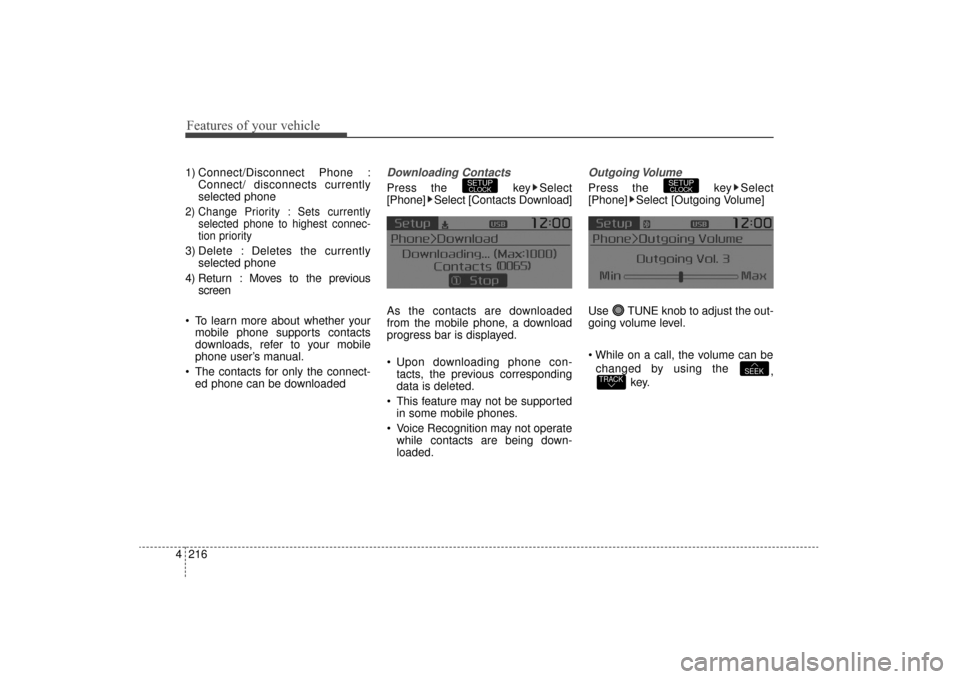
Downloading Contacts
Press the key Select
[Phone] Select [Contacts Download]
As the contacts are downloaded
from the mobile phone, a download
progress bar is displayed.
Upon downloading phone con-tacts, the previous corresponding
data is deleted.
This feature may not be supported in some mobile phones.
Voice Recognition may not operate while contacts are being down-
loaded.
Outgoing Volume
Press the key Select
[Phone] Select [Outgoing Volume]
Use TUNE knob to adjust the out-
going volume level.
changed by using the ,
key.
TRACKSEEK
SETUPCLOCKSETUPCLOCK
UM CAN (ENG) 4b (Audio).qxp 11/7/2014 3:02 PM Page 216
Page 305 of 565

4221
Features of your vehicle
Voice Command List
These commands can be used in most operations. (However a few commands may not beavailable during certain operations)
Command Function
More Help Provides guidance on commands that can be
used anywhere in the system.
Help Provides guidance on commands that can be
used within the current mode.
Call Calls saved in Contacts
Ex) Call “John Smith”
Call Calls to the number that is saved as "Mobile" in Contacts
Ex) Call "John Smith" on Mobile
Call Calls to the number that is saved as "Office" in Contacts
Ex) Call "John Smith" in Office
Call Calls to the number that is saved as "Home" in Contacts
Ex) Call "John Smith" at Home
Call Calls to the number that is saved as "Other" in Contacts
Ex) Call "John Smith" on Other
Phone Provides guidance on Phone related com- mands. After saying this command, say
“Favorites”,“Call History”, “Contacts” or ”Dial
Number” execute corresponding functions.
Favorites Displays the Favorite screen.
Call History Displays the Call History screen.
Command Function
Contacts Displays the Contacts screen. After saying this command, say the name of a contact
saved in the Contacts to automatically con-
nect the call.
Dial Number Displays the Dial number screen. After saying this command, you can say the number that
you want to call.
RedialConnects the most recently called number.
Tutorial Provides guidance on how to use voice
recognition and Bluetooth®connections
When listening to the radio, displays the next
radio screen. (FM1➟FM2➟AM➟SAT1➟SAT2➟SAT3➟FM1)
Radio
When listening to a different mode, displays
the most recently played radio screen.
When currently listening to the FM radio,
maintains the current state.
When listening to a different mode, displaysthe most recently played FM screen.
FM1(FM One) Displays the FM1 screen.
FM2(FM Two) Displays the FM2 screen.
AM Displays the AM screen.
on Mobile
in Office at Home
on Other
UM CAN (ENG) 4b (Audio).qxp 11/7/2014 3:02 PM Page 221
Page 316 of 565

55
Driving your vehicle
WARNING- Check sur-roundings
Always check the surrounding
areas near your vehicle for peo-
ple, especially children, before
putting a vehicle into D (Drive)
or R (Reverse).
WARNING- Fire risk
When you intend to park or stop
the vehicle with the engine on,
be careful not to depress the
accelerator pedal for a long
period of time. It may overheat
the engine or exhaust system
and cause fire.WARNING- Loose objects
Securely store items in your
vehicle. When you make a sud-
den stop or turn the steering
wheel rapidly, loose objects
may drop on the floor and it
could interfere with the opera-
tion of the foot pedals, possibly
causing an accident.WARNING- Driving while intoxicated
Do not drive while intoxicated.
Drinking and driving is danger-
ous. Even a small amount of
alcohol will affect your reflexes,
perceptions and judgment.
Driving while under the influ-
ence of drugs is as dangerous
as or more dangerous than driv-
ing drunk.
UM CAN (ENG) 5.QXP 12/1/2014 1:01 PM Page 5
Page 334 of 565

523
Driving your vehicle
You must consciously take theeffort to learn how to corner in a
AWD vehicle. Do not rely on your
experience in conventional FWD
vehicles in choosing a safe corner-
ing speed in AWD mode. For
starters, you must drive more slow-
ly in AWD.
Drive carefully off-road because your vehicle may be damaged by
rocks or roots of trees. Become
familiar with the off-road conditions
where you are going to drive
before you begin driving. Always hold the steering wheel
firmly when you are driving off-
road.
Make sure all passengers are wearing seat belts.
If you need to drive in the water, stop your vehicle, set your transfer
to the AWD LOCK mode and drive
at less than 8 km/h (5 mph).
WARNING- Steeringwheel
Do not grab the inside of the
steering wheel when you are
driving off-road. You may hurt
your arm by a sudden steering
maneuver or from steering
wheel rebound due to impact
with objects on the ground.
WARNING- Wind danger
Drive slowly in heavy winds.
The vehicle's higher center of
gravity decreases your steering
control capacity.
OUMA054053
WARNING - AWD
Reduce speed when you turn
corners. The center of gravity of
AWD vehicles is higher than
that of conventional FWD vehi-
cles, making them more likely to
roll over when you turn corners
too fast.
UM CAN (ENG) 5.QXP 12/1/2014 1:02 PM Page 23
![KIA Sorento 2016 3.G Owners Manual 4187
Features of your vehicle
SOUND SETTINGS
Press the key Select [Sound]
through TUNE knob or key
Select menu through TUNE knob
Sound Settings
This menu allows you to set the
‘Bass, Middle, Tre](/manual-img/2/2978/w960_2978-270.png "KIA Sorento 2016 3.G Owners Manual 4187
Features of your vehicle
SOUND SETTINGS
Press the key Select [Sound]
through TUNE knob or key
Select menu through TUNE knob
Sound Settings
This menu allows you to set the
‘Bass, Middle, Tre")