Page 354 of 644
Features of your vehicle
252
4
1) Connect/Disconnect Phone :
Connect/ disconnects currently
selected phone
2) Change Priority : Sets currently selected phone to highest connec-
tion priority
3) Delete : Deletes the currently selected phone
4) Return : Moves to the previous screen
To learn more about whether your mobile phone supports contacts
downloads, refer to your mobile
phone user’s manual.
The contacts for only the connect- ed phone can be downloadedDownloading Contacts
Press the keySelect
[Phone] Select [Contacts Download]
As the contacts are downloaded
from the mobile phone, a download
progress bar is displayed.
Upon downloading phone con- tacts, the previous corresponding
data is deleted.
This feature may not be supported in some mobile phones.
Voice Recognition may not operate while contacts are being down-
loaded.
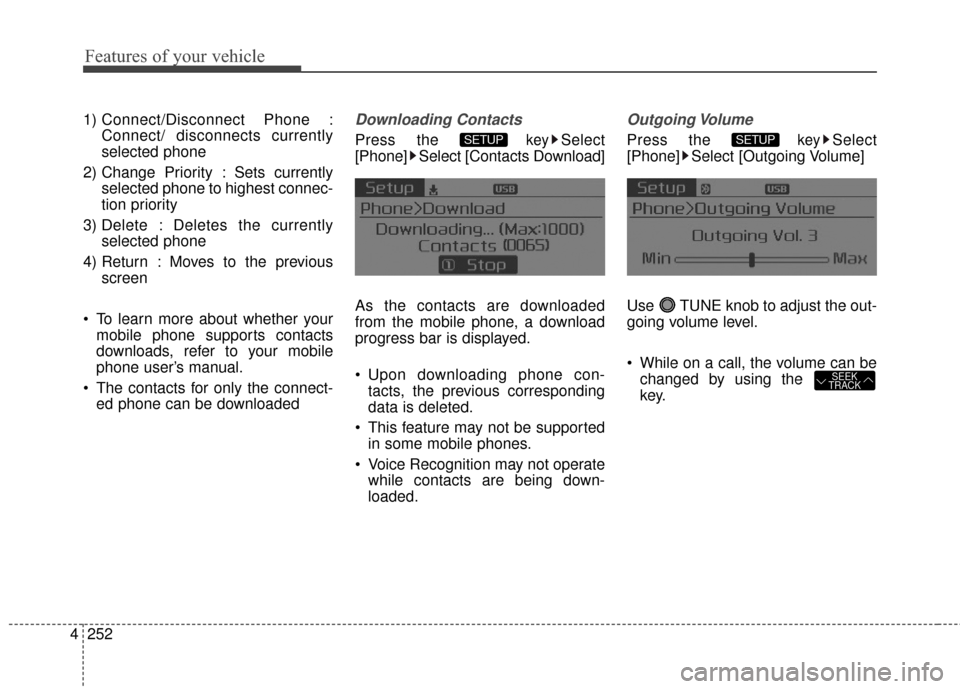
Outgoing Volume
Press the keySelect
[Phone] Select [Outgoing Volume]
Use TUNE knob to adjust the out-
going volume level.
While on a call, the volume can be changed by using the
key.
SEEK
TRACK
SETUPSETUP
Page 359 of 644
4257
Features of your vehicle
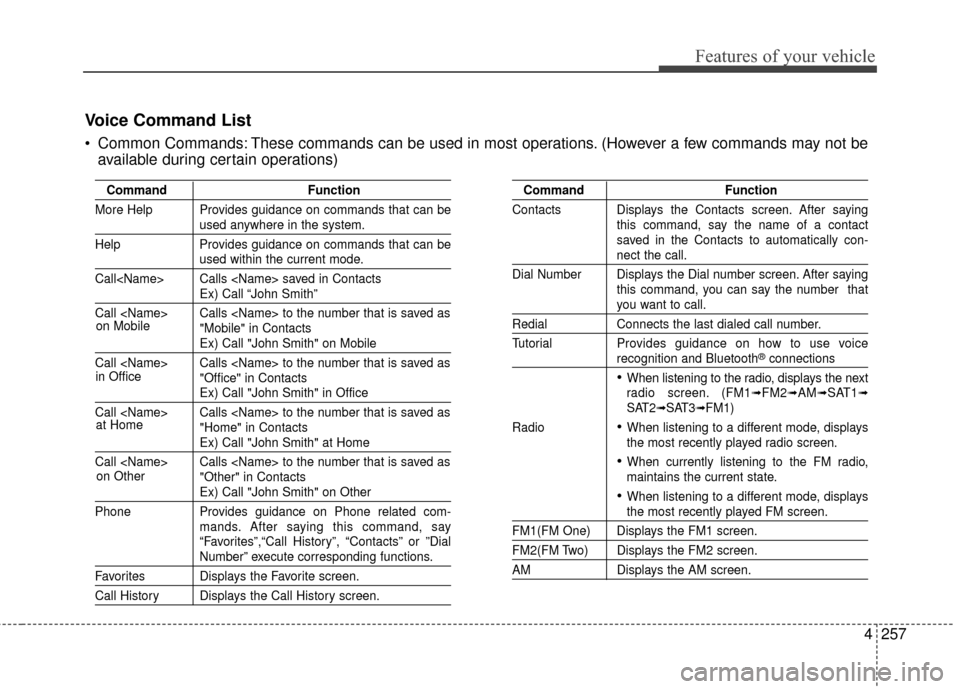
Voice Command List
Common Commands: These commands can be used in most operations. (However a few commands may not beavailable during certain operations)
Command Function
More Help Provides guidance on commands that can be
used anywhere in the system.
Help Provides guidance on commands that can be
used within the current mode.
Call Calls saved in Contacts
Ex) Call “John Smith”
Call Calls to the number that is saved as "Mobile" in Contacts
Ex) Call "John Smith" on Mobile
Call Calls to the number that is saved as "Office" in Contacts
Ex) Call "John Smith" in Office
Call Calls to the number that is saved as "Home" in Contacts
Ex) Call "John Smith" at Home
Call Calls to the number that is saved as "Other" in Contacts
Ex) Call "John Smith" on Other
Phone Provides guidance on Phone related com- mands. After saying this command, say
“Favorites”,“Call History”, “Contacts” or ”Dial
Number” execute corresponding functions.
Favorites Displays the Favorite screen.
Call History Displays the Call History screen.
Command Function
Contacts Displays the Contacts screen. After saying this command, say the name of a contact
saved in the Contacts to automatically con-
nect the call.
Dial Number Displays the Dial number screen. After saying this command, you can say the number that
you want to call.
RedialConnects the last dialed call number.
Tutorial Provides guidance on how to use voice
recognition and Bluetooth®connections
When listening to the radio, displays the next
radio screen. (FM1➟FM2➟AM➟SAT1➟SAT2➟SAT3➟FM1)
Radio
When listening to a different mode, displays
the most recently played radio screen.
When currently listening to the FM radio,
maintains the current state.
When listening to a different mode, displaysthe most recently played FM screen.
FM1(FM One) Displays the FM1 screen.
FM2(FM Two) Displays the FM2 screen.
AM Displays the AM screen.
on Mobile
in Office at Home
on Other
Page 360 of 644
Features of your vehicle
258
4
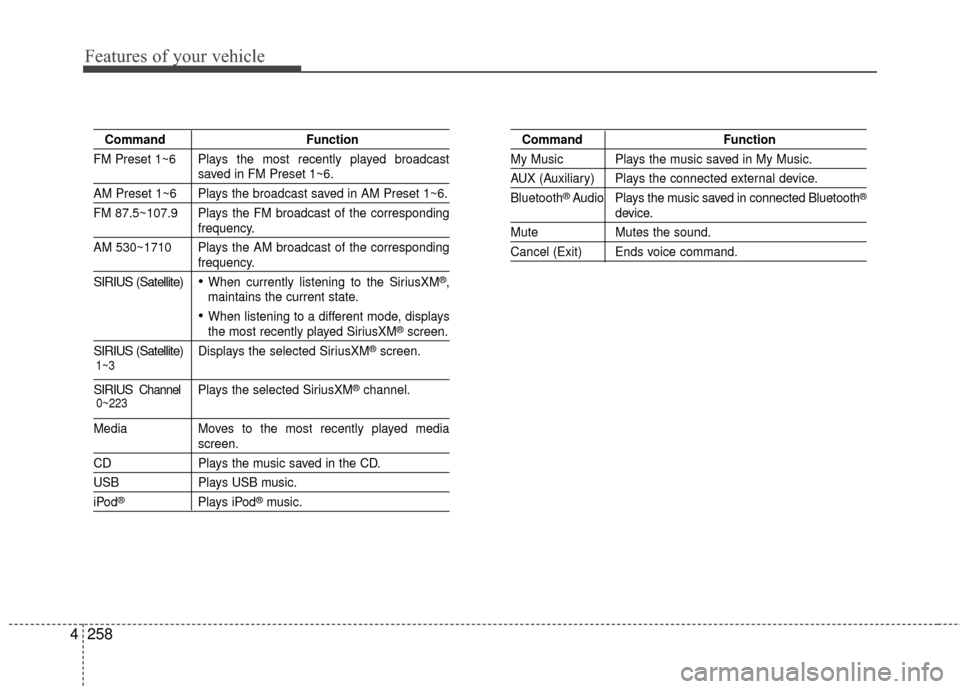
Command Function
FM Preset 1~6 Plays the most recently played broadcast
saved in FM Preset 1~6.
AM Preset 1~6 Plays the broadcast saved in AM Preset 1~6.
FM 87.5~107.9 Plays the FM broadcast of the corresponding
frequency.
AM 530~1710 Plays the AM broadcast of the corresponding
frequency.
SIRIUS (Satellite)When currently listening to the SiriusXM®,
maintains the current state.
When listening to a different mode, displaysthe most recently played SiriusXM®screen.
SIRIUS (Satellite)Displays the selected SiriusXM®screen.
SIRIUSChannel P l ay s the selected SiriusXM®channel.
Media Moves to the most recently played mediascreen.
CD Plays the music saved in the CD.
USBPlays USB music.
iPod®Plays iPod®music.
Command Function
My Music Plays the music saved in My Music.
AUX (Auxiliary) Plays the connected external device.
Bluetooth
®Audio Plays the music saved in connected Bluetooth®
device.
Mute Mutes the sound.
Cancel (Exit) Ends voice command.
0~223
1~3
Page 364 of 644

Features of your vehicle
262
4
Command Function
PlayPlays the currently paused song.
PausePauses the current song.
Bluetooth®Wireless Technology A udio Commands:
Commands available during
Bluetooth®Wireless
Technology audio streaming from mobile phone oper-
ation Command Operation iPod
®is a registered trademark of Apple Inc. iPod®
mobile digital device sold separately. The
Bluetooth®word mark and logos are registered
trademarks owned by Bluetooth SIG, Inc. and any
use of such marks by Kia is under license.
SiriusXM services require a subscription sold sep-
arately, or as a package, by Sirius XM Radio Inc. If
you decide to continue service after your trial, the
subscription plan you choose will automatically
renew thereafter and you will be charged according
to your chosen payment method at then-current
rates. Fees and taxes apply. To cancel you must call
SiriusXM at 1-866-635-2349. See SiriusXM
Customer Agreement for complete terms at
www.siriusxm.com. SiriusXM U.S. satellite and data
services are available only in the 48 contiguous
USA, DC and PR (with coverage limitations).
SiriusXM satellite service is also available in
Canada; see www.siriusxm.ca. All fees and pro-
gramming subject to change. Sirius, XM and all
related marks and logos are trademarks of Sirius
XM Radio Inc. Android™ is a trademark of Google,
Inc. BlackBerry is a registered trademark of
Research In Motion Limited (RIM). All other marks,
channel names and logos are the property of their
respective owners. All rights reserved.
Page 372 of 644
![KIA Sedona 2016 3.G Owners Manual Features of your vehicle
270
4
SYSTEM SETTINGS
Press the key Select
[System] Select menu through
TUNE knob
Memory Information
Displays currently used memory and
total system memory.
Select [Memory](/manual-img/2/2977/w960_2977-371.png "KIA Sedona 2016 3.G Owners Manual Features of your vehicle
270
4
SYSTEM SETTINGS
Press the key Select
[System] Select menu through
TUNE knob
Memory Information
Displays currently used memory and
total system memory.
Select [Memory")
Features of your vehicle
270
4
SYSTEM SETTINGS
Press the key Select
[System] Select menu through
TUNE knob
Memory Information
Displays currently used memory and
total system memory.
Select [Memory Information] OK
The currently used memory is dis-
played on the left side while the total
system memory is displayed on the
right side.
Prompt Feedback
This feature is used to change voice
command feedback between Normal
and Expert modes.
Select [Prompt Feedback] Set
through
TUNEknob
On : This mode is for beginner users and provides detailed instructions
during voice command operation. This mode is for expert users
and omits some information during
voice command operation. (When
using Expert mode, guidance
instructions can be heard through
the [Help] or [Menu] commands.
Language
This menu is used to set the display
and voice recognition language.
Select [Language]
Set through TUNE knob
❈ The system will reboot after the
language is changed.
❈ Language support by region
- English, Francais, Espanol
SETUP
Page 373 of 644
4271
Features of your vehicle
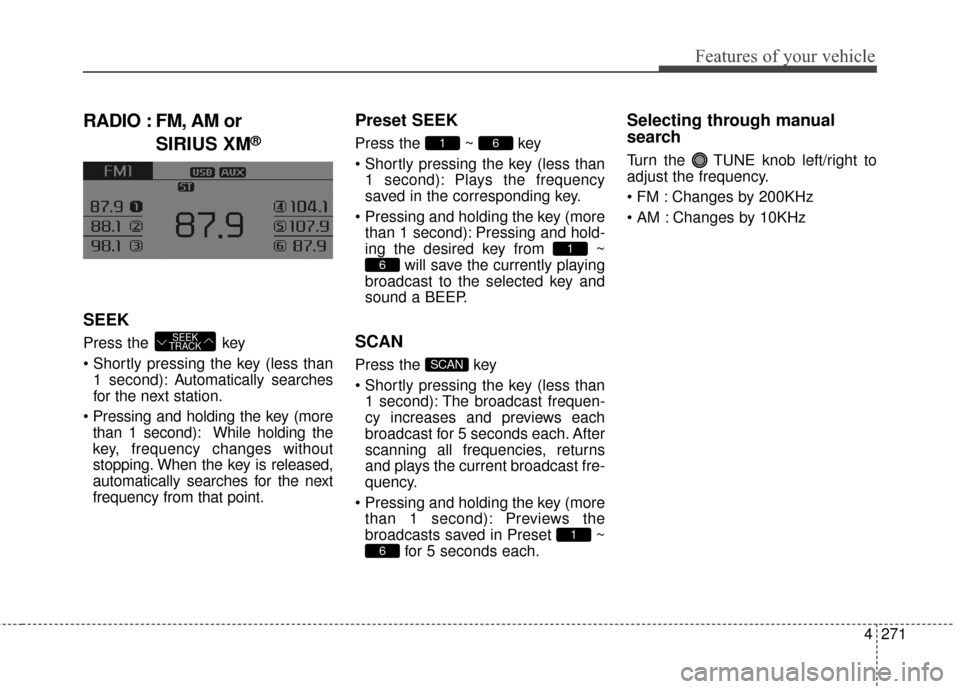
RADIO : FM, AM orSIRIUS XM
®
SEEK
Press the key
1 second): A utomatically searches
for the next station.
than 1 second): While holding the
key, frequency changes without
stopping. When the key is released,
automatically searches for the next
frequency from that point.
Preset SEEK
Press the ~ key
1 second): Plays the frequency
saved in the corresponding key.
than 1 second): Pressing and hold-
ing the desired key from ~ will save the currently playing
broadcast to the selected key and
sound a BEEP.
SCAN
Press the key
1 second): The broadcast frequen-
cy increases and previews each
broadcast for 5 seconds each. After
scanning all frequencies, returns
and plays the current broadcast fre-
quency.
than 1 second): Previews the
broadcasts saved in Preset ~ for 5 seconds each.
Selecting through manual
search
Turn the TUNE knob left/right to
adjust the frequency.
Changes by 200KHz
Changes by 10KHz
6
1
SCAN
6
1
61
SEEK
TRACK
Page 377 of 644
4275
Features of your vehicle
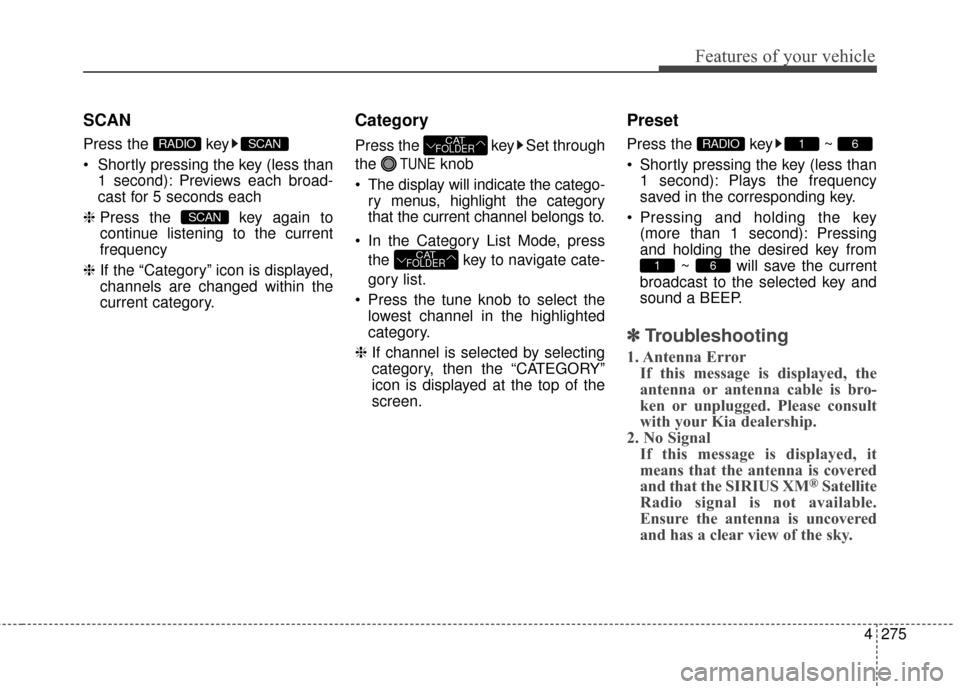
SCAN
Press the key
1 second): Previews each broad-
cast for 5 seconds each
❈ Press the key again to
continue listening to the current
frequency
❈ If the “Category” icon is displayed,
channels are changed within the
current category.
Category
Press the key Set through
the
TUNEknob
The display will indicate the catego- ry menus, highlight the category
that the current channel belongs to.
In the Category List Mode, press the key to navigate cate-
gory list.
Press the tune knob to select the lowest channel in the highlighted
category.
❈ If channel is selected by selecting
category, then the “CATEGORY”
icon is displayed at the top of the
screen.
Preset
Press the key ~
Shortly pressing the key (less than
1 second): Plays the frequency
saved in the corresponding key.
Pressing and holding the key (more than 1 second): Pressing
and holding the desired key from ~ will save the current
broadcast to the selected key and
sound a BEEP.
✽ ✽ Troubleshooting
1. Antenna Error
If this message is displayed, the
antenna or antenna cable is bro-
ken or unplugged. Please consult
with your Kia dealership.
2. No Signal If this message is displayed, it
means that the antenna is covered
and that the SIRIUS XM
®Satellite
Radio signal is not available.
Ensure the antenna is uncovered
and has a clear view of the sky.
61
61RADIO
CATFOLDER
CATFOLDER
SCAN
SCANRADIO
Page 387 of 644
4285
Features of your vehicle
Bluetooth®Wireless Technology
AUDIO (for Type A-1)
What is Bluetooth®Wireless
Technology
?
Bluetooth®Wireless Technology
allows devices to be connected in a
short distance, including hands-free
devices, stereo headsets, wireless
remote controllers, etc. For more
information, visit
the Bluetooth®
Wireless Technologywebsite at
www.Bluetooth.com
Before using Bluetooth®Wireless
Technology audio features
Bluetooth®Wireless Technology
audio may not be supported
depending on the compatibility of
your
Bluetooth®Wireless Technology
mobile phone.
Bluetooth®Wireless
Technology audio, you must first
pair and connect the
Bluetooth®
Wireless Technology mobile phone. The
Bluetooth®word mark and
logos are registered trademarks
owned by Bluetooth SIG, Inc. and
any use of such marks by Kia is
under license. Other trademarks
and trade names are those of their
respective owners. A Bluetooth
®
enabled cell phone is required to
use
Bluetooth®Wireless Technology.
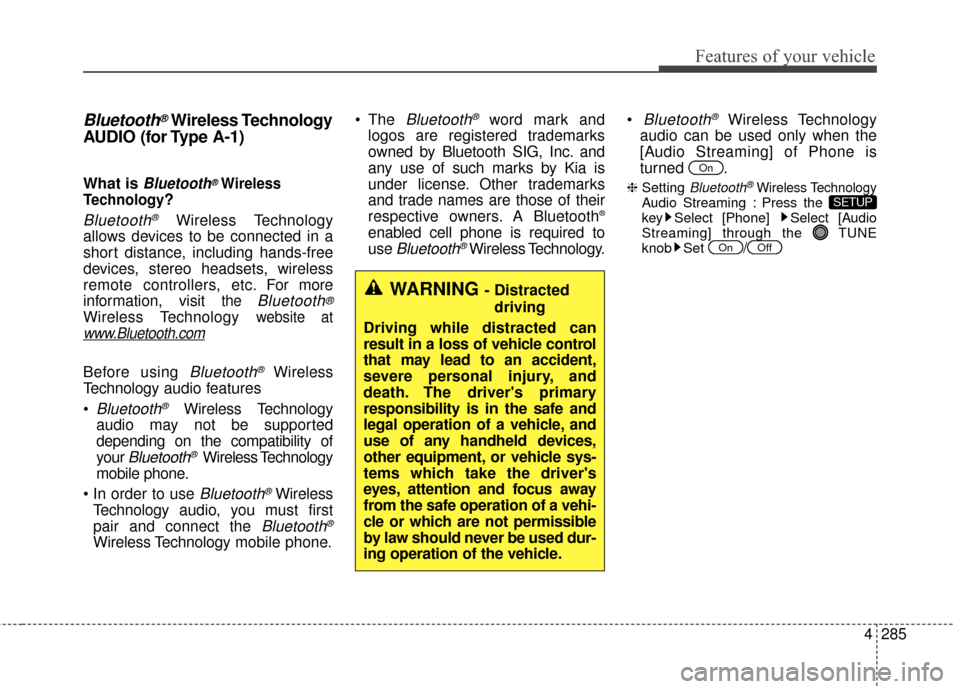
Bluetooth®Wireless Technology
audio can be used only when the
[Audio Streaming] of Phone is
turned .
❈ Setting Bluetooth®Wireless TechnologyAudio Streaming : Press the
key Select [Phone] Select [Audio
Streaming] through the TUNE
knob Set
/OffOn
SETUP
On
WARNING - Distracted
driving
Driving while distracted can
result in a loss of vehicle control
that may lead to an accident,
severe personal injury, and
death. The driver's primary
responsibility is in the safe and
legal operation of a vehicle, and
use of any handheld devices,
other equipment, or vehicle sys-
tems which take the driver's
eyes, attention and focus away
from the safe operation of a vehi-
cle or which are not permissible
by law should never be used dur-
ing operation of the vehicle.