Page 442 of 723
4. Each time you give a Voice Command, you must firstpush either the VR or Phone button, wait until after
the beep, then say your Voice Command.
5. You can interrupt the help message or system prompts by pushing the VR or Phone button and saying a Voice
Command from current category.
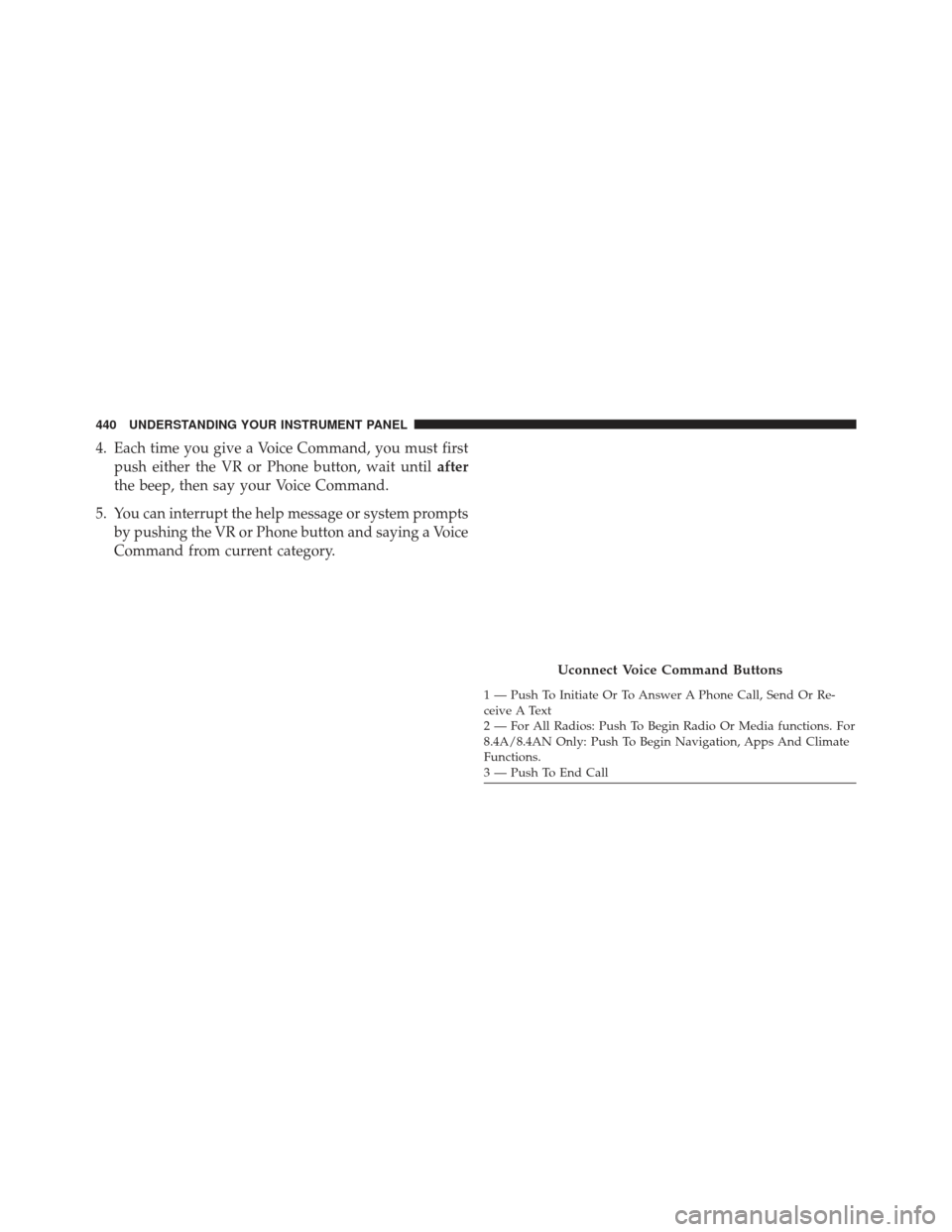
Uconnect Voice Command Buttons
1 — Push To Initiate Or To Answer A Phone Call, Send Or Re-
ceive A Text
2 — For All Radios: Push To Begin Radio Or Media functions. For
8.4A/8.4AN Only: Push To Begin Navigation, Apps And Climate
Functions.
3 — Push To End Call
440 UNDERSTANDING YOUR INSTRUMENT PANEL
Page 449 of 723
Navigation (8.4A/8.4AN)
The Uconnect navigation feature helps you save time and
become more productive when you know exactly how to
get to where you want to go. (Navigation is optional on
the Uconnect 8.4A system. See your dealer to activate
navigation at any time.)1. To enter a destination, push the VR button
. After
the beep, say:
• For the 8.4A Uconnect System, say: “Enter state.”
• For the 8.4AN Uconnect System, say: “Find address
800 Chrysler Drive Auburn Hills, Michigan.”
2. Then follow the system prompts.
TIP: To start a POI search, push the VR button
. After
the beep, say: “ Find nearestcoffee shop.”
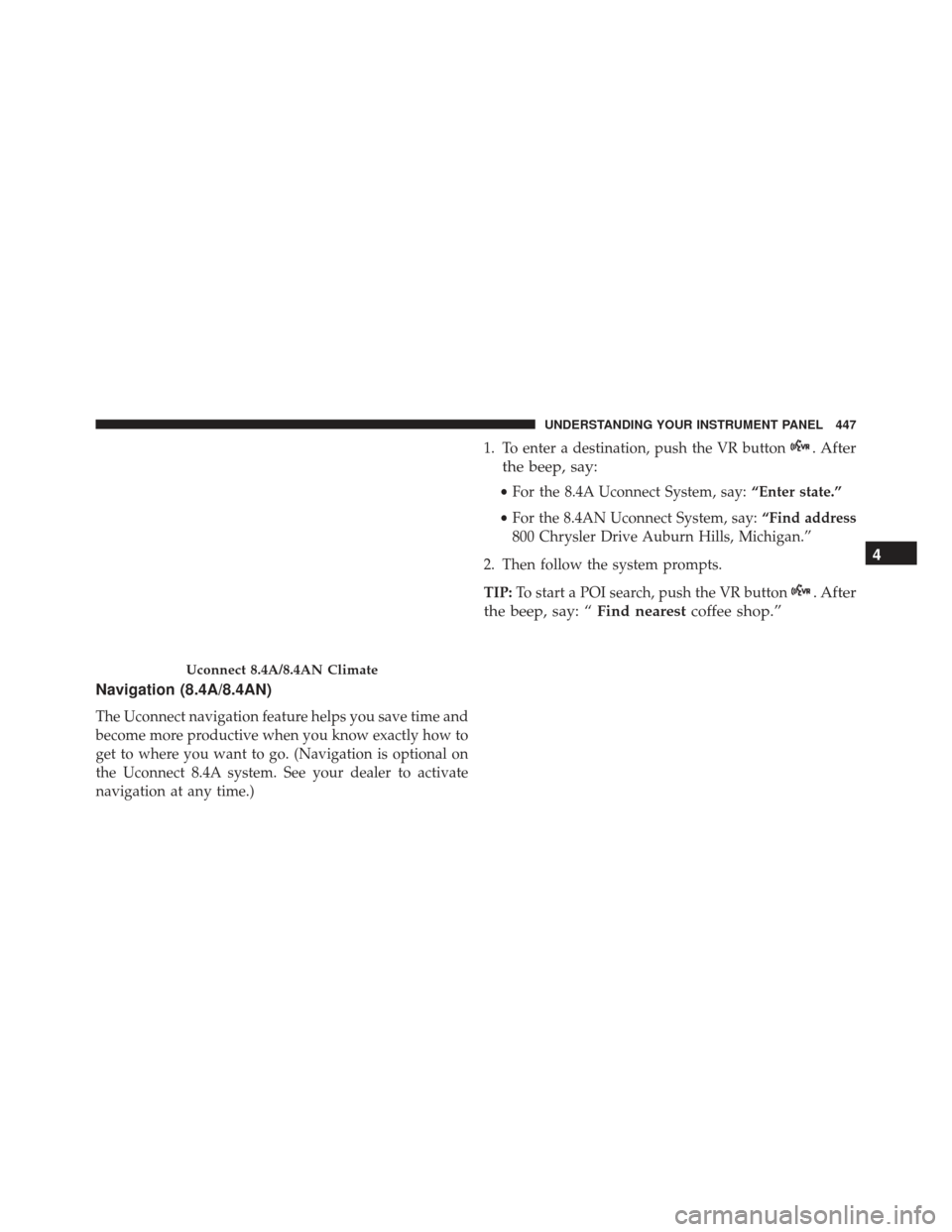
Uconnect 8.4A/8.4AN Climate
4
UNDERSTANDING YOUR INSTRUMENT PANEL 447
Page 450 of 723
Uconnect Access (8.4A/8.4AN)
WARNING!
ALWAYS obey traffic laws and pay attention to the
road. Some Uconnect Access services, including 9-1-1
and Assist, will NOT work without an operable 1X
(voice/data) or 3G (data) network connection.
NOTE: Your vehicle may be transmitting data as autho-
rized by the subscriber.
An included trial and/or subscription is required to take
advantage of the Uconnect Access services in the next
section of this guide. To register with Uconnect Access,
press the Apps button on the 8.4-inch touchscreen to get
started. Detailed registration instructions can be found
on the next page.
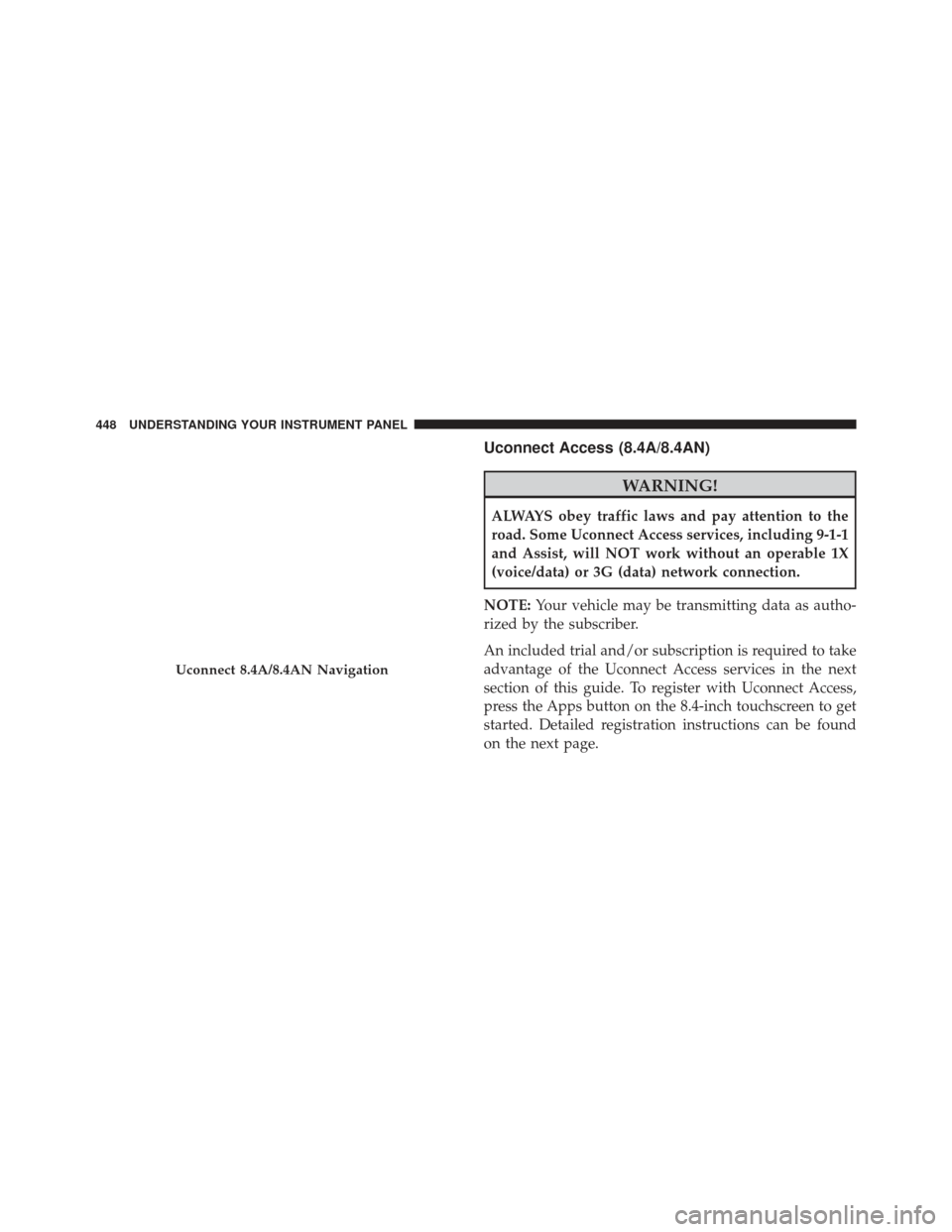
Uconnect 8.4A/8.4AN Navigation
448 UNDERSTANDING YOUR INSTRUMENT PANEL
Page 453 of 723
To link your internet radio accounts:
1. Download the Uconnect Access App to your mobiledevice.
2. Press the Via Mobile icon on the navigation bar at the bottom of the app. 3. Press the app you’d like to connect to your vehicle.
4. Enter your login information for the selected app and
press Link.
5. Next time you’re in your vehicle, enable Bluetooth, pair your phone and select the Via Mobile app you
want to play from the Uconnect touchscreen to stream
your personalized music.
NOTE:
• You can also complete this process on the web. Simply
visit moparownerconnect.com log in and click Set Up
Via Mobile Profile (under Quick Links).
• Once you download the app to your compatible
mobile device, you will also be able to start your
vehicle and lock/unlock its doors from virtually any-
where.
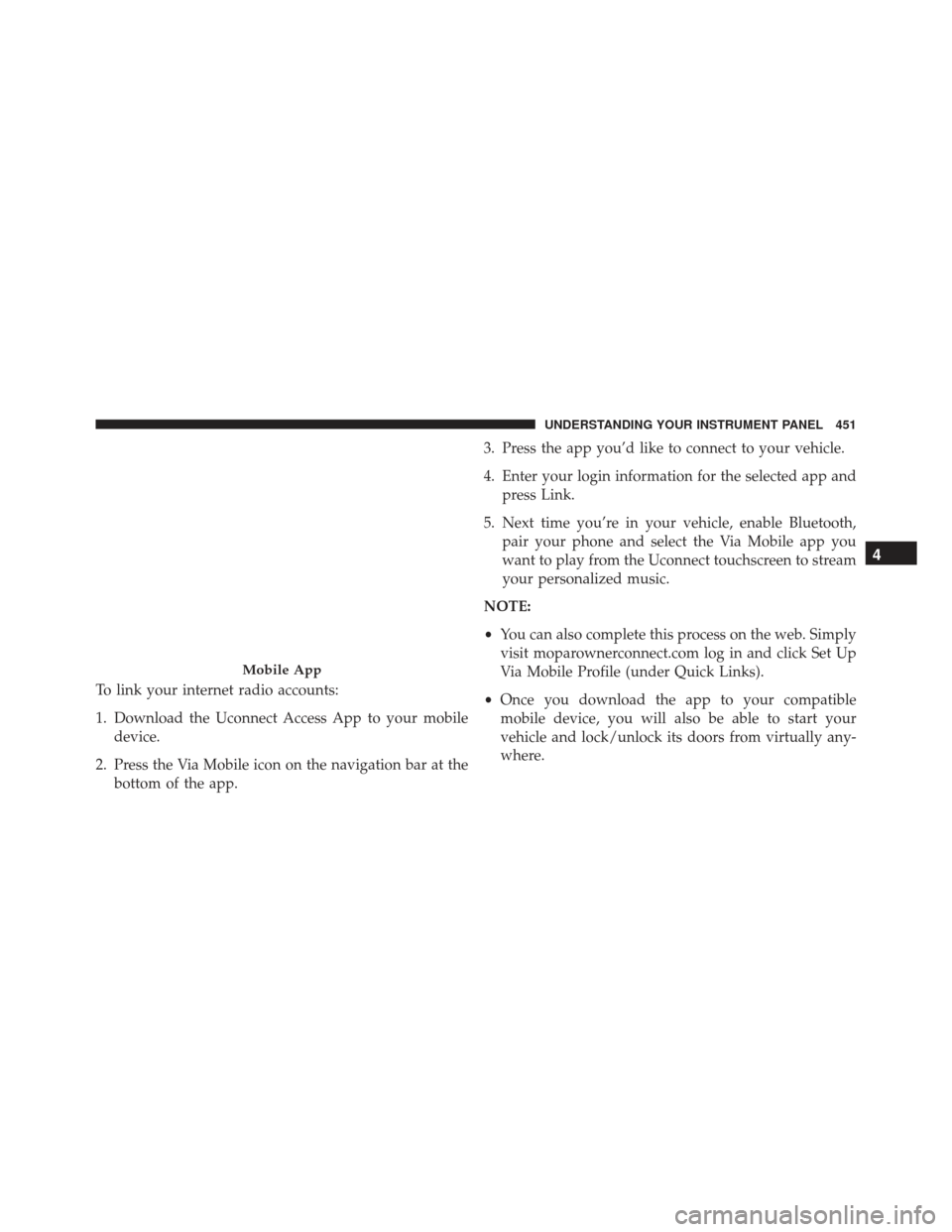
Mobile App
4
UNDERSTANDING YOUR INSTRUMENT PANEL 451