Page 373 of 642
4-110
Multimedia System
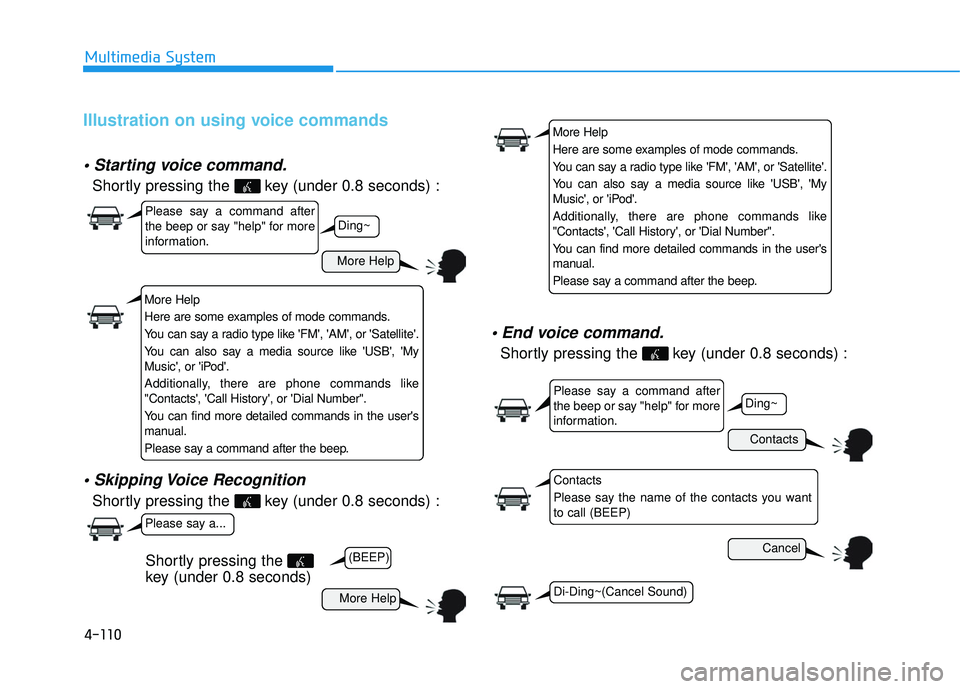
Illustration on using voice commands
Shortly pressing the key (under 0.8 seconds) :
Shortly pressing the key (under 0.8 seconds) :
Shortly pressing the key (under 0.8 seconds) :
More Help
Contacts
Cancel
More Help
Please say a command after
the beep or say "help" for more
information.
Please say a command after
the beep or say "help" for more
information.
Please say a...
Contacts
Please say the name of the contacts you want to call (BEEP)
Ding~
(BEEP)
Ding~
Di-Ding~(Cancel Sound)
Shortly pressing the
key (under 0.8 seconds)
More Help
Here are some examples of mode commands.
You can say a radio type like 'FM', 'AM', or 'Satellite'.
You can also say a media source like 'USB', 'My
Music', or 'iPod'.
Additionally, there are phone commands like
"Contacts', 'Call History', or 'Dial Number".
You can find more detailed commands in the user's
manual.
Please say a command after the beep.
More Help
Here are some examples of mode commands.
You can say a radio type like 'FM', 'AM', or 'Satellite'.
You can also say a media source like 'USB', 'My
Music', or 'iPod'.
Additionally, there are phone commands like
"Contacts', 'Call History', or 'Dial Number".
You can find more detailed commands in the user's
manual.
Please say a command after the beep.
Page 374 of 642
4-111
Multimedia System
4
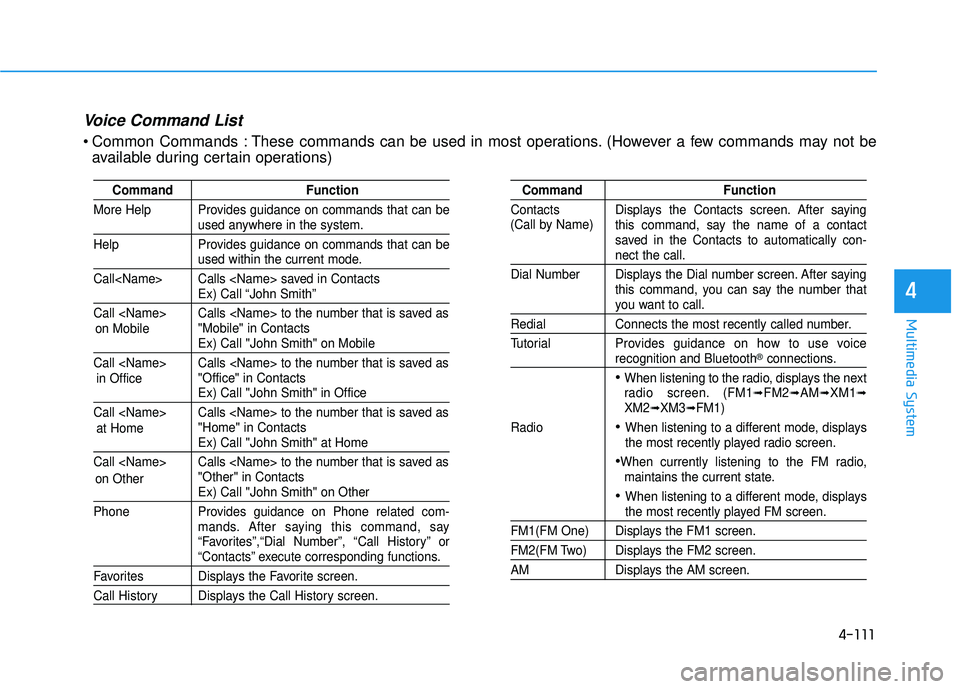
Command Function
More Help Provides guidance on commands that can be
used anywhere in the system.
Help Provides guidance on commands that can be
used within the current mode.
Call Calls saved in Contacts
Ex) Call “John Smith”
Call Calls to the number that is saved as "Mobile" in Contacts
Ex) Call "John Smith" on Mobile
Call Calls to the number that is saved as "Office" in Contacts
Ex) Call "John Smith" in Office
Call Calls to the number that is saved as "Home" in Contacts
Ex) Call "John Smith" at Home
Call Calls to the number that is saved as "Other" in Contacts
Ex) Call "John Smith" on Other
Phone Provides guidance on Phone related com- mands. After saying this command, say
“Favorites”,“Dial Number”, “Call History” or
“Contacts” execute corresponding functions.
Favorites Displays the Favorite screen.
Call History Displays the Call History screen.
Command Function
Contacts Displays the Contacts screen. After saying this command, say the name of a contact
saved in the Contacts to automatically con-
nect the call.
Dial Number Displays the Dial number screen. After saying this command, you can say the number that
you want to call.
Redial Connects the most recently called number.
Tutorial Pro vides guidance on how to use voice
recognition and Bluetooth®connections.
When listening to the radio, displays the next
radio screen. (FM1➟FM2➟AM➟XM1➟XM2➟XM3➟FM1)
Radio
When listening to a different mode, displays
the most recently played radio screen.
When currently listening to the FM radio, maintains the current state.
When listening to a different mode, displaysthe most recently played FM screen.
FM1(FM One) Displays the FM1 screen.
FM2(FM Two) Displays the FM2 screen.
AM Displays the AM screen.
(Call by Name)
Voice Command List
Common Commands : These commands can be used in most operations. (However a few commands may not be
available during certain operations)
on Mobile
in Officeat Home
on Other
Page 378 of 642
4-115
Multimedia System
4
Information
SiriusXM™ service requires a sub-
scription, sold separately, after 3-
month trial included with vehicle pur-
chase. If you decide to continue your
SiriusXM™ service at the end of your
trial subscription, the plan you choose
will automatically renew and bill at
then-current rates until you call us at
1-866-635-2349 to cancel. See our
Customer Agreement for complete
terms at www.siriusxm.com. Other
fees and taxes apply. All fees and pro-
gramming are subject to change.
Sirius satellite service is available only
to those at least 18 and older in the 48
contiguous USA, D.C., and PR (with
coverage limitations). Our Internet
radio service is available throughout
our satellite service area and in AK
and HI. Certain channels are not
available on our Internet radio service
or on mobile devices. SiriusXM™
Traffic available in select markets. See
siriusxm.com/traffic for more infor-
mation. © 2013 Sirius XM™ Radio
Inc. Sirius, XM™ and all related
marks and logos are trademarks of
Sirius XM™ Radio Inc. (Continued)(Continued)
iPod®is a registered trademark of
Apple Inc.
iPod
®mobile digital device sold sepa-
rately. The Bluetooth®word mark and
logos are registered trademarks
owned by Bluetooth SIG, Inc. and any
use of such marks by Hyundai is
under license. A Bluetooth
®enabled
cell phone is required to use
Bluetooth
®wireless technology. All
rights reserved.
i
Page 379 of 642
4-116
Multimedia System
SSeettuu pp
Starting Mode
Press the key to display the Setup screen.
You can select and control options
related to [Display], [Sound], [Clock/Calendar], [Phone] and [System].
Display Settings
Adjusting the Brightness
Press the key Select
[Display] Select [Brightness]
Use the , buttons to adjust the
screen brightness or set the
Brightness on Automatic, Day, or
Night mode.
Press the button to reset.
1) Automatic : Adjusts the brightness
automatically
2) Day : Always maintains the bright- ness on high
3) Night : Always maintains the brightness on low
Mode Pop up
Press the key Select
[Display] Select [Mode Pop up]
This feature is used to display the
Mode Pop up screen when entering
radio and media modes.
When this feature is turned on, pressing the or key
will display the Mode Pop up screen.
Information
The media Mode Pop up screen can be
displayed only when two or more
media modes have been connected.
i
MEDIA RADIO
SETUP
Default
SETUPSETUP
![HYUNDAI TUCSON 2016 Owners Manual 4-116
Multimedia System
SSeettuu pp
Starting Mode
Press the key to display the Setup screen.
You can select and control options
related to [Display], [Sound], [Clock/Calendar], [Phone] and [System]](/manual-img/35/56201/w960_56201-378.png "HYUNDAI TUCSON 2016 Owners Manual 4-116
Multimedia System
SSeettuu pp
Starting Mode
Press the key to display the Setup screen.
You can select and control options
related to [Display], [Sound], [Clock/Calendar], [Phone] and [System]")