Page 256 of 642
3-158
Convenient features of your vehicle
With Audio system
Whenever the battery terminals or
related fuses are disconnected, you
must reset the time.
To set the time:The ignition switch must be in the
ACC position or the ON position.
To adjust the time, AM/PM, and date:
Press the SETUP CLOCK button (1)
over 2 seconds to select the time
screen. Then, the number flashes on
the LCD display. Rotate the volume
knob (2) to the right to adjust the
time. Re-press the volume knob (2)
to save it.
Repeat the above procedure to
adjust time, AM/PM and date. It pro-
ceeds in the following order. “Hour
Minute AM/PM Year
Month Date”
With Navigation system
The driver can adjust the time in the
AVN (Audio, Video, and Navigation)system.
For more information, refer to the
CAR MULTI MEDIA SYSTEM.
OTL045260OTL045261
Page 266 of 642
4-3
Multimedia System
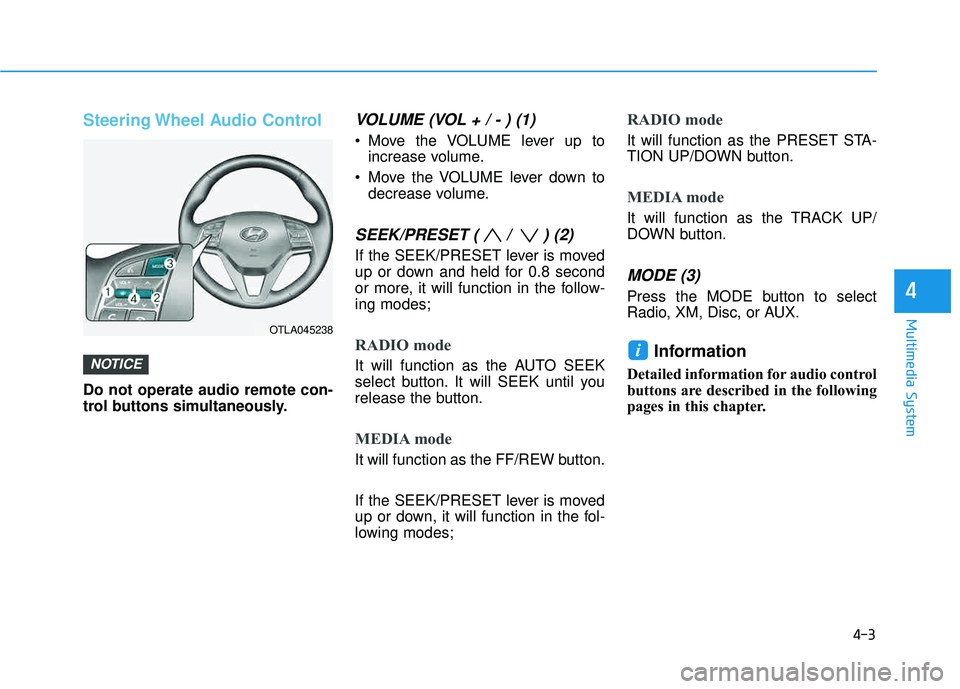
Steering Wheel Audio Control
Do not operate audio remote con-
trol buttons simultaneously.
VOLUME (VOL + / - ) (1)
Move the VOLUME lever up toincrease volume.
Move the VOLUME lever down to decrease volume.
SEEK/PRESET ( / ) (2)
If the SEEK/PRESET lever is moved
up or down and held for 0.8 second
or more, it will function in the follow-ing modes;
RADIO mode
It will function as the AUTO SEEK
select button. It will SEEK until you
release the button.
MEDIA mode
It will function as the FF/REW button.
If the SEEK/PRESET lever is moved
up or down, it will function in the fol-
lowing modes;
RADIO mode
It will function as the PRESET STA-
TION UP/DOWN button.
MEDIA mode
It will function as the TRACK UP/
DOWN button.
MODE (3)
Press the MODE button to select
Radio, XM, Disc, or AUX.
Information
Detailed information for audio control
buttons are described in the following
pages in this chapter.
iNOTICE
4
OTLA045238
Page 267 of 642
4-4
Audio / Video / Navigation
System (AVN)
Detailed information for the AVN sys-
tem is described in a separately sup-
plied manual.
Bluetooth®Wireless
Technology Hands-FreeYou can use the phone wirelessly by using the
Bluetooth®Wireless
Technology.
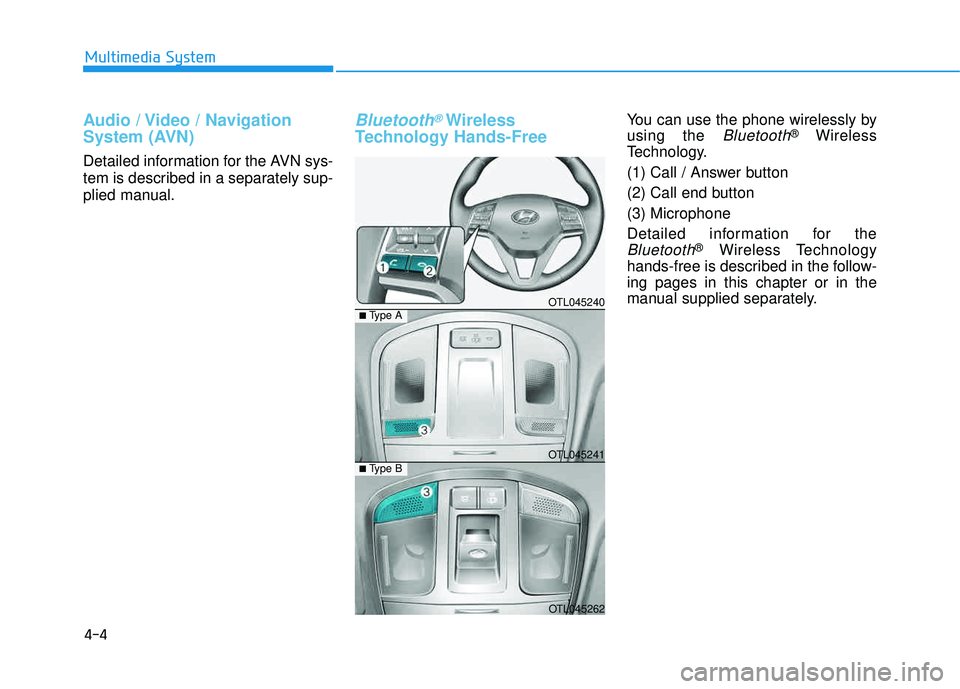
(1) Call / Answer button
(2) Call end button (3) Microphone
Detailed information for the
Bluetooth®Wireless Technology
hands-free is described in the follow- ing pages in this chapter or in the
manual supplied separately.
Multimedia System
OTL045240
OTL045241
OTL045262
■ Type B
■Type A
Page 285 of 642
4-22
Multimedia System
RRaadd iioo MM ooddee
Basic Mode Screen
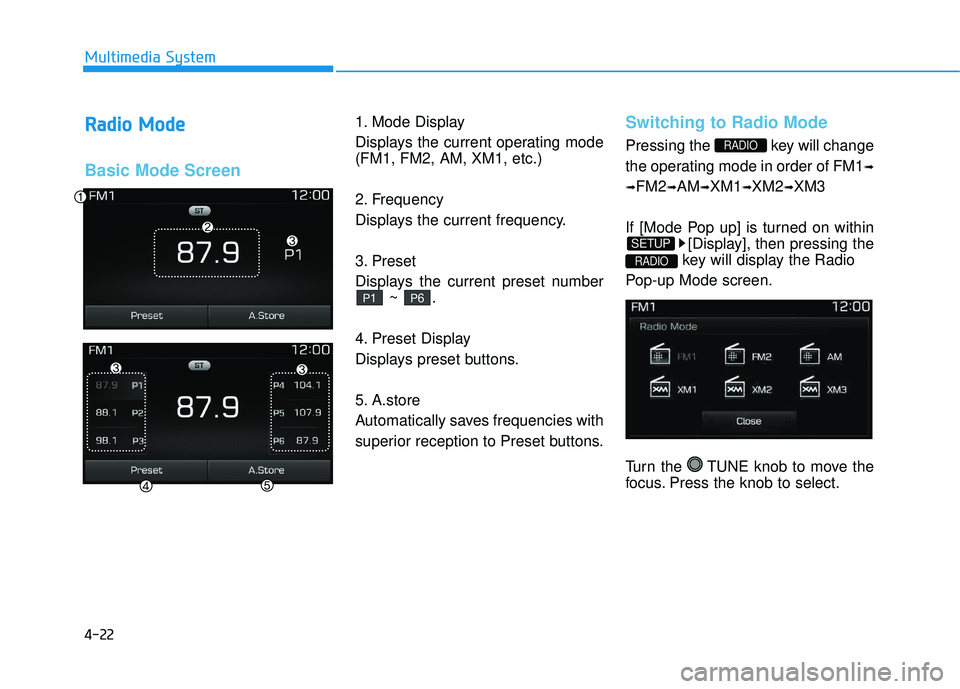
1. Mode Display
Displays the current operating mode (FM1, FM2, AM, XM1, etc.)
2. Frequency
Displays the current frequency.
3. Preset
Displays the current preset number
~ .
4. Preset Display
Displays preset buttons.
5. A.store
Automatically saves frequencies with
superior reception to Preset buttons.Switching to Radio Mode
Pressing the key will change
the operating mode in order of FM1 ➟
➟ FM2
➟AM ➟XM1 ➟XM2 ➟XM3
If [Mode Pop up] is turned on within [Display], then pressing the
key will display the Radio
Pop-up Mode screen.
Turn the TUNE knob to move the
focus. Press the knob to select.
RADIO
SETUP
RADIO
P6P1
Page 286 of 642
4-23
Multimedia System
4
Searching Radio Frequencies
Using Seek
Press the , key to
play the previous/next frequency.
Using TUNE
Turn the TUNE knob to select the
desired frequency.
Using Radio Mode
Selecting Presets/Saving
Presets
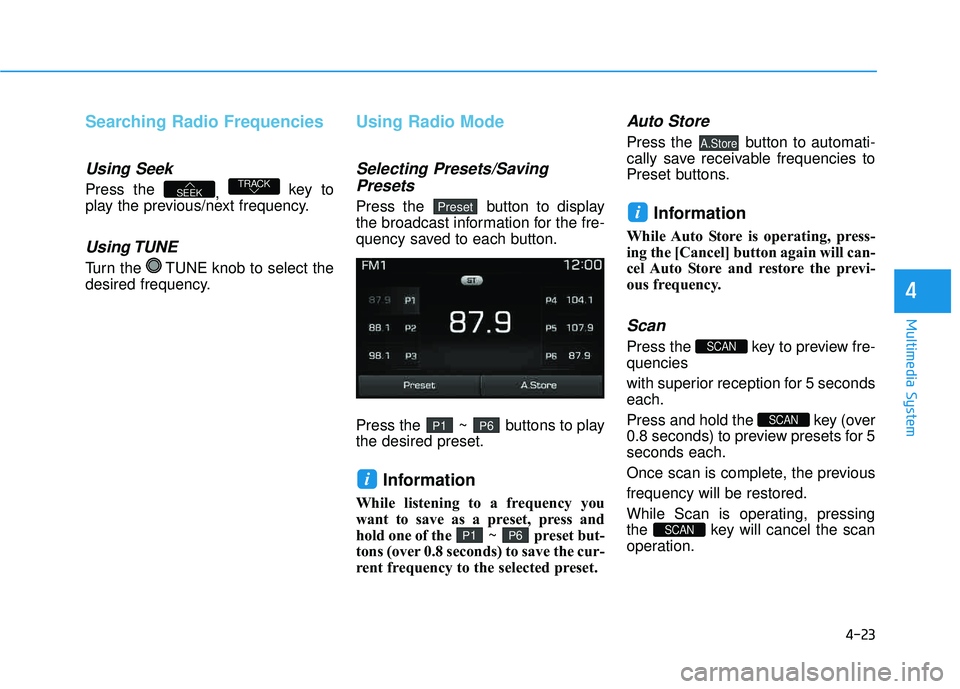
Press the button to display
the broadcast information for the fre-
quency saved to each button.
Press the ~ buttons to play the desired preset.
Information
While listening to a frequency you
want to save as a preset, press and
hold one of the ~ preset but-
tons (over 0.8 seconds) to save the cur-
rent frequency to the selected preset.
Auto Store
Press the button to automati-
cally save receivable frequencies to
Preset buttons.
Information
While Auto Store is operating, press-
ing the [Cancel] button again will can-
cel Auto Store and restore the previ-
ous frequency.
Scan
Press the key to preview fre-quencies
with superior reception for 5 seconds each.
Press and hold the key (over
0.8 seconds) to preview presets for 5seconds each.
Once scan is complete, the previous frequency will be restored.
While Scan is operating, pressing
the key will cancel the scan
operation.
SCAN
SCAN
SCAN
i
A.Store
P6P1
i
P6P1
Preset
TRACKSEEK
Page 291 of 642
4-28
Multimedia System
Selecting Presets/SavingPresets
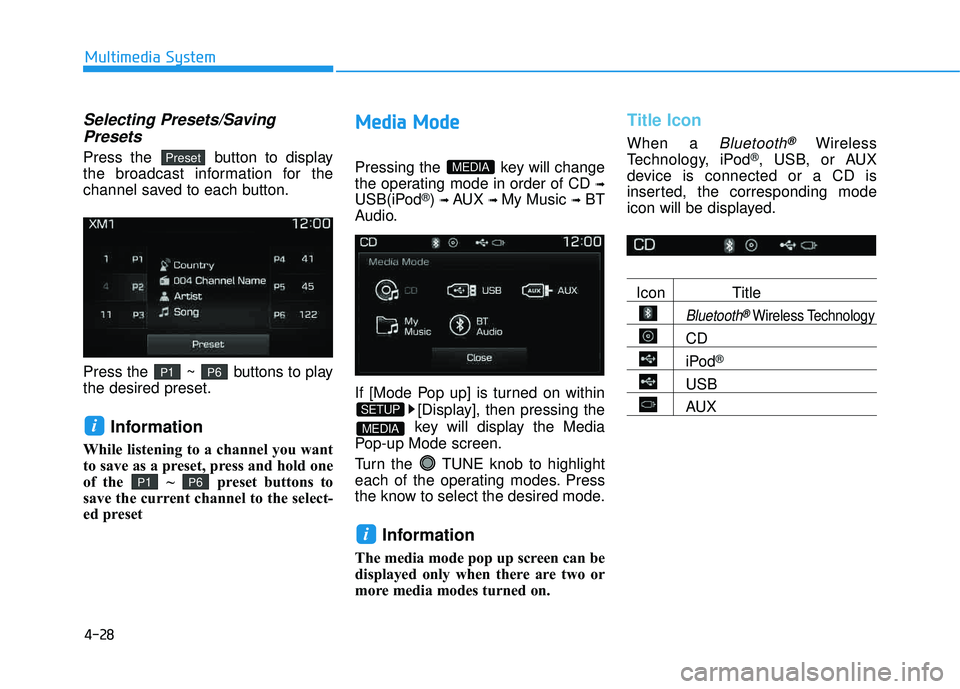
Press the button to display
the broadcast information for the
channel saved to each button.
Press the ~ buttons to play the desired preset.
Information
While listening to a channel you want
to save as a preset, press and hold one
of the ~ preset buttons to
save the current channel to the select-
ed preset
MM eedd iiaa MM ooddee
Pressing the key will change
the operating mode in order of CD
➟
USB(iPod®) ➟ AUX ➟ My Music ➟BT
Audio.
If [Mode Pop up] is turned on within
[Display], then pressing the
key will display the Media
Pop-up Mode screen.
Turn the TUNE knob to highlight
each of the operating modes. Press
the know to select the desired mode.
Information
The media mode pop up screen can be
displayed only when there are two or
more media modes turned on.
Title Icon
When a Bluetooth®Wireless
Technology, iPod®, USB, or AUX
device is connected or a CD is
inserted, the corresponding mode
icon will be displayed.
Icon Title
Bluetooth®Wireless Technology
CD
iPod®
USB
AUX
i
MEDIA
SETUP
MEDIA
P6P1
i
P6P1
Preset
Page 292 of 642
4-29
Multimedia System
4
AAuuddiioo CC DD MM ooddee
Using Audio CD Mode
Playing/Pausing CD Tracks
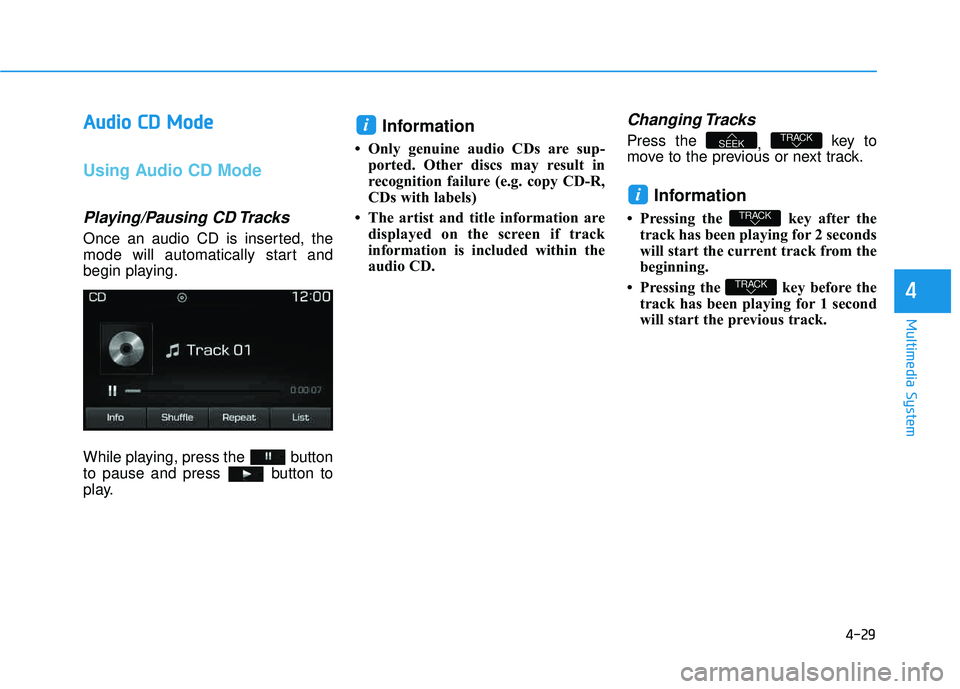
Once an audio CD is inserted, the
mode will automatically start and
begin playing.
While playing, press the button
to pause and press button to
play.
Information
Only genuine audio CDs are sup-
ported. Other discs may result in
recognition failure (e.g. copy CD-R,
CDs with labels)
The artist and title information are displayed on the screen if track
information is included within the
audio CD.
Changing Tracks
Press the , key to
move to the previous or next track.
Information
Pressing the key after the track has been playing for 2 seconds
will start the current track from the
beginning.
Pressing the key before the track has been playing for 1 second
will start the previous track.
TRACK
TRACK
i
TRACKSEEK
i
Page 293 of 642
4-30
Multimedia System
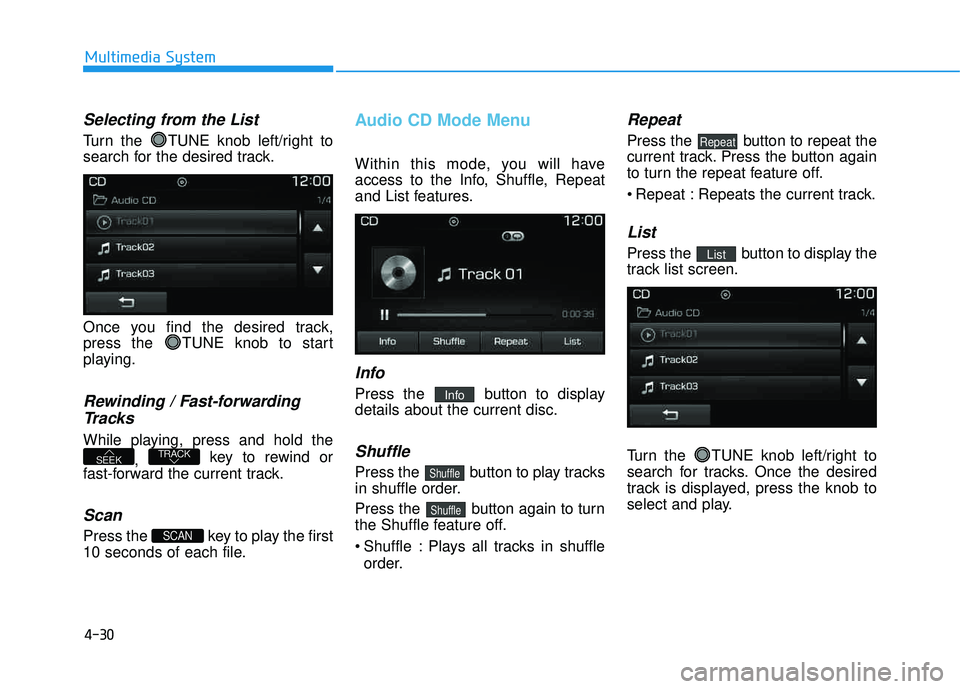
Selecting from the List
Turn the TUNE knob left/right to
search for the desired track.
Once you find the desired track,
press the TUNE knob to start
playing.
Rewinding / Fast-forwardingTracks
While playing, press and hold the
, key to rewind or
fast-forward the current track.
Scan
Press the key to play the first
10 seconds of each file.
Audio CD Mode Menu
Within this mode, you will have
access to the Info, Shuffle, Repeat
and List features.
Info
Press the button to displaydetails about the current disc.
Shuffle
Press the button to play tracks
in shuffle order.
Press the button again to turn
the Shuffle feature off.
Shuffle : Plays all tracks in shuffle order.
Repeat
Press the button to repeat the
current track. Press the button again
to turn the repeat feature off.
Repeat : Repeats the current track.
List
Press the button to display the
track list screen.
Turn the TUNE knob left/right to
search for tracks. Once the desired
track is displayed, press the knob to
select and play.List
Repeat
Shuffle
Shuffle
Info
SCAN
TRACKSEEK