Page 207 of 550
Features of your vehicle122
4Air conditioning system operation tips
If the vehicle has been parked in direct
sunlight during hot weather, open the
windows for a short time to let the hot
air inside the vehicle escape.
To help reduce moisture inside of the windows on rainy or humid days,
decrease the humidity inside the vehi-
cle by operating the air conditioning
system.
During air conditioning system opera- tion, you may occasionally notice a
slight change in engine speed as the
air conditioning compressor cycles.
This is a normal system operation
characteristic.
Use the air conditioning system every month only for a few minutes to ensure
maximum system performance. When using the air conditioning sys-
tem, you may notice clear water drip-
ping (or even puddling) on the ground
under the passenger side of the vehi-
cle. This is a normal system operation
characteristic.
Operating the air conditioning system in the recirculated air position provides
maximum cooling, however, continual
operation in this mode may cause the
air inside the vehicle to become stale.
During cooling operation, you may occasionally notice a misty air flow
because of rapid cooling and humid air
intake. This is a normal system opera-
tion characteristic.
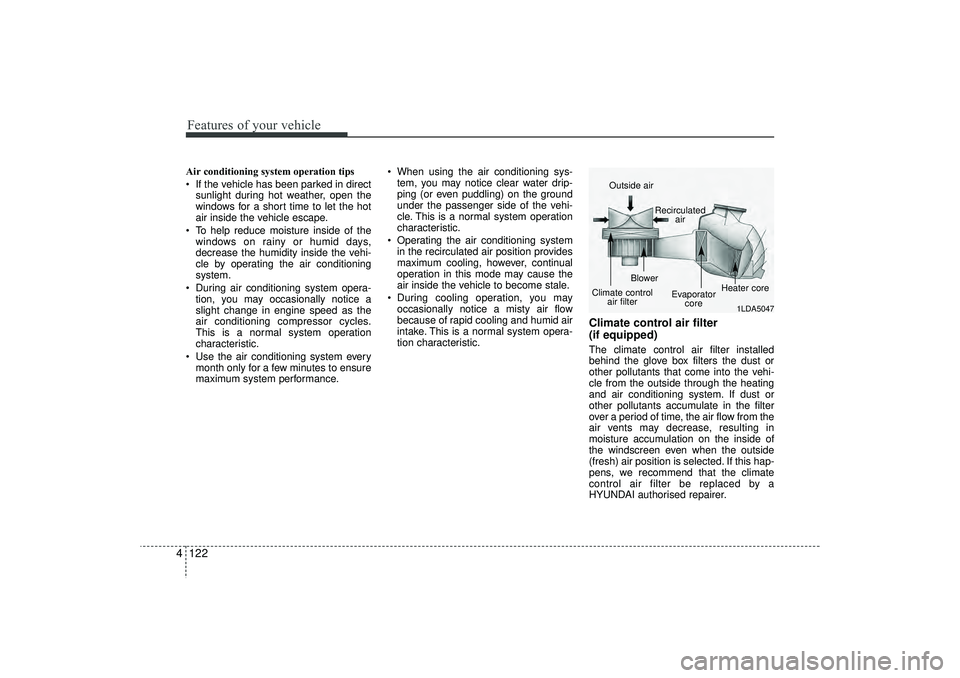
Climate control air filter
(if equipped)The climate control air filter installed
behind the glove box filters the dust or
other pollutants that come into the vehi-
cle from the outside through the heating
and air conditioning system. If dust or
other pollutants accumulate in the filter
over a period of time, the air flow from the
air vents may decrease, resulting in
moisture accumulation on the inside of
the windscreen even when the outside
(fresh) air position is selected. If this hap-
pens, we recommend that the climate
control air filter be replaced by a
HYUNDAI authorised repairer.
1LDA5047
Outside air
Recirculatedair
Climate control air filter Blower
Evaporatorcore Heater core
EL(FL) UK 4A.QXP 2/9/2015 9:08 PM Page 122
Page 239 of 550
Features of your vehicle154
4✽
✽
NOTICE -
USING THE iPod
®
DEVICE
• Some iPod
®models may not sup-
port communication protocol and
files may not properly play.
Supported iPod
®models:
- iPod
®Mini
- iPod®4th (Photo) ~ 6th (Classic)
generation
- iPod®Nano 1st~4th generation
- iPod®Touch 1st~2nd generation
• The order of search or playback of songs in the iPod
®can be different
from the order searched in the
audio system.
• If the iPod
®
disabled due to its
own malfunction, reset the iPod
®.
(Reset: Refer to iPod
®manual)
• An iPod
®
may not operate nor-
mally on low battery. (Continued)(Continued)
• Some
iPod
®
devices, such as the
iPhone
®, can be connected through
the Bluetooth
®Wireless Technology
interface. The device must have
audio Bluetooth
®
Wireless
Technology capability (such as for
stereo headphone Bluetooth
®
Wireless Technology ). The device
can play, but it will not be con-
trolled by the audio system.
• To use iPod
®
features within the
audio, use the cable provided upon
purchasing an iPod
®d device.
• Skipping or improper operation may occur depending on the characteris-
tics of your iPod
®/iPhone
®device.
• If your iPhone
®is connected to both
the Bluetooth
®Wireless Technology
and USB, the sound may not be prop-
erly played. In your iPhone
®, select
the Dock connector or Bluetooth
®
Wireless Technology to change the
sound output (source). (Continued)
(Continued)
• When connecting
iPod
®
with the
iPod
®Power Cable, insert the connec-
tor to the multimedia socket complete-
ly. If not inserted completely, communi-
cations between
iPod
®and audio may
be interrupted.
• When adjusting the sound effects of the
iPod
®and the audio system, the
sound effects of both devices will over-
lap and might reduce or distort the
quality of the sound.
• Deactivate (turn off) the equalizer function of an
iPod
®when adjusting
the audio system’s volume, and turn
off the equalizer of the audio system
when using the equalizer of an
iPod
®.
• When not using
iPod
®with car audio,
detach the
iPod
®cable from
iPod
®.
Otherwise,
iPod
®
may remain in
accessory mode, and may not work
properly.
EL(FL) UK 4B AUDIO.QXP 3/13/2015 4:19 PM Page 154
Page 241 of 550
Features of your vehicle156
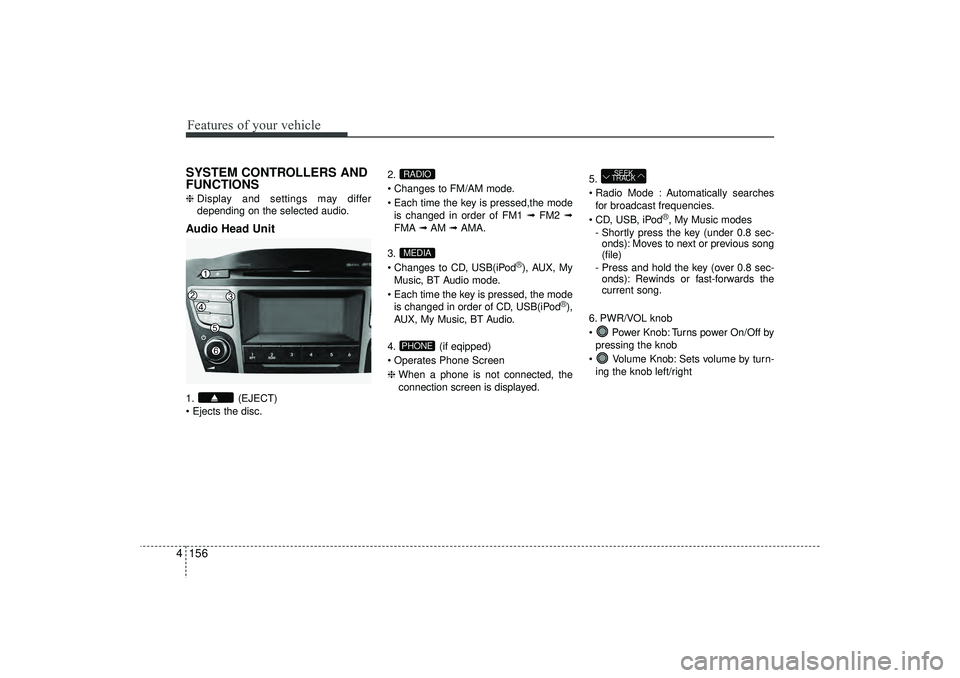
4SYSTEM CONTROLLERS AND
FUNCTIONS❈ Display and settings may differ
depending on the selected audio.Audio Head Unit1. (EJECT)
Ejects the disc. 2.
Changes to FM/AM mode.
Each time the key is pressed,the mode
is changed in order of FM1 ➟ FM2 ➟
FMA ➟AM ➟AMA.
3.
Changes to CD, USB(iPod
®), AUX, My
Music, BT Audio mode.
Each time the key is pressed, the mode is changed in order of CD, USB(iPod
®),
AUX, My Music, BT Audio.
4. (if eqipped)
Operates Phone Screen
❈ When a phone is not connected, the
connection screen is displayed. 5.
Radio Mode : Automatically searches
for broadcast frequencies.
CD, USB, iPod
®, My Music modes
- Shortly press the key (under 0.8 sec- onds): Moves to next or previous song
(file)
- Press and hold the key (over 0.8 sec- onds): Rewinds or fast-forwards the
current song.
6. PWR/VOL knob
Power Knob: Turns power On/Off by pressing the knob
Volume Knob: Sets volume by turn- ing the knob left/right
SEEK
TRACK
PHONEMEDIARADIO
EL(FL) UK 4B AUDIO.QXP 3/13/2015 4:19 PM Page 156
Page 243 of 550
Features of your vehicle158
413. TUNE knob
Radio mode : Changes frequency by
turning the knob left/right
CD, USB, iPod
®, My Music mode:
Searches songs (files) by turning the
knob left/right
❈ When the desired song is displayed,
press the knob to play the song.
Moves focus in all selection menus and selects menus
14.
Changes to FM mode.
Each time the key is pressed, the modechanged in order of FM1 ➟ FM2 ➟ FMA.
15.
Changes to AM mode.
Each time the key is pressed, the mode changed in order of AM ➟AMA.
AMFM
EL(FL) UK 4B AUDIO.QXP 3/13/2015 4:19 PM Page 158
Page 244 of 550
4 159
Features of your vehicle
SETUP - AC100ELEE, AC110ELEE
Display SettingsPress the key Select [Display]
through TUNE knob or key
Select menu through TUNE knob
Mode Pop up[Mode Pop up] Changes . selec-
tion mode
During On state, press the orkey to display the mode
change pop up screen.
When the pop up screen is displayed, use the TUNE knob or keys
~ to select the desired mode.Scroll text [Scroll text] Set / : Maintains scroll
: Scrolls only one (1) time.
Song InfoWhen playing an MP3 file, select the
desired display info from ‘Folder/File’ or
‘Album/Artist/Song’.
Sound SettingsPress the key Select [Sound]
through TUNE knob or key
Select menu through TUNE knob
2
RDM
SETUP
CLOCK
OffOn
Off
On
6
1
MEDIA
RADIOOn
1
RPT
SETUP
CLOCK
EL(FL) UK 4B AUDIO.QXP 3/13/2015 4:19 PM Page 159
Page 262 of 550
![HYUNDAI IX35 2016 Owners Manual 4 177
Features of your vehicle
Delete AllPress the key Set [ Del.All]
through the TUNE knob or key.
Deletes all songs of My Music.Delete SelectionPress the key Set [ Del.Sel]
through the TUNE kno](/manual-img/35/56235/w960_56235-261.png "HYUNDAI IX35 2016 Owners Manual 4 177
Features of your vehicle
Delete AllPress the key Set [ Del.All]
through the TUNE knob or key.
Deletes all songs of My Music.Delete SelectionPress the key Set [ Del.Sel]
through the TUNE kno")
4 177
Features of your vehicle
Delete AllPress the key Set [ Del.All]
through the TUNE knob or key.
Deletes all songs of My Music.Delete SelectionPress the key Set [ Del.Sel]
through the TUNE knob or key.
Songs within My Music are selected and
deleted.
➀ Select the songs you wish to delete
from the list. ➁
After selecting, press the key
and select the delete menu.
✽ ✽
NOTICE - Using the My
Music• Even if memory is available, a maxi-
mum of 6,000 songs can be stored.
• The same song can be copied up to 1,000 times.
• Memory info can be checked in the System menu of Setup.
AUXAUX is used to play external MEDIA cur-
rently connected with the AUX terminal.
AUX mode will automatically start when
an external device is connected with the
AUX terminal.
If an external device is connected, you
can also press the key to change
to AUX mode.
❈ AUX mode cannot be started unless
there is an external device connected
to the AUX terminal.✽ ✽
NOTICE -
USING THE AUX
Fully insert the AUX cable into the AUX
terminal for use.
MEDIA
MENU
6
MENU
5
MENU
EL(FL) UK 4B AUDIO.QXP 3/13/2015 4:19 PM Page 177
Page 278 of 550
4 193
Features of your vehicle
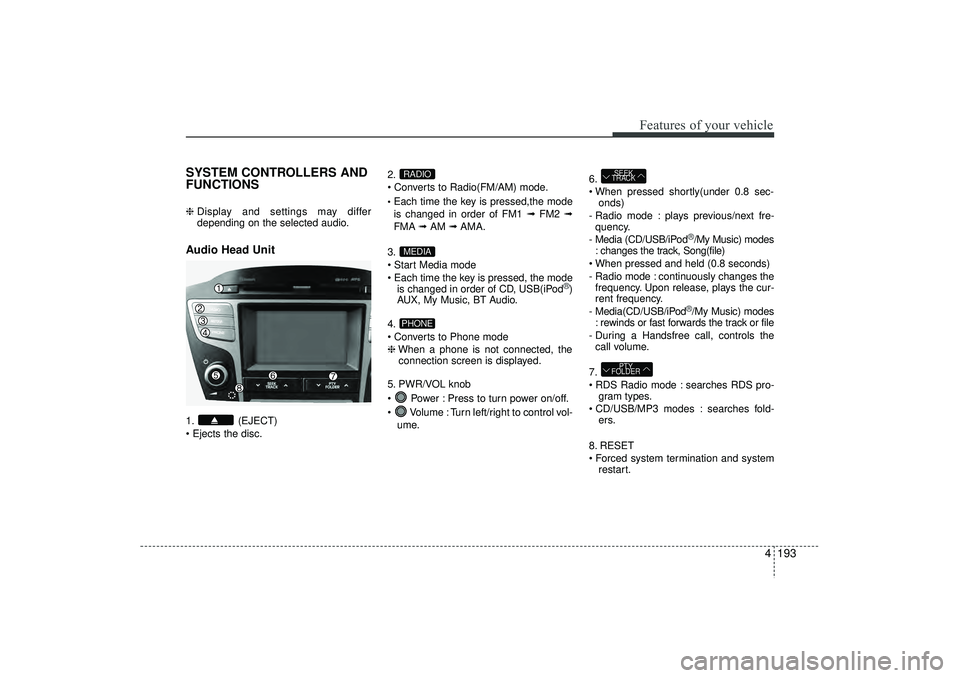
SYSTEM CONTROLLERS AND
FUNCTIONS ❈ Display and settings may differ
depending on the selected audio.Audio Head Unit 1. (EJECT)
Ejects the disc. 2.
Converts to Radio(FM/AM) mode.
Each time the key is pressed,the mode
is changed in order of FM1 ➟
FM2 ➟
FMA ➟AM ➟AMA.
3.
Start Media mode
Each time the key is pressed, the mode is changed in order of CD, USB(iPod
®)
AUX, My Music, BT Audio.
4.
Converts to Phone mode
❈ When a phone is not connected, the
connection screen is displayed.
5. PWR/VOL knob
Power : Press to turn power on/off.
Volume : Turn left/right to control vol- ume. 6.
When pressed shortly(under 0.8 sec-
onds)
- Radio mode : plays previous/next fre- quency.
- Media (CD/USB/iPod
®/My Music) modes
: changes the track, Song(file)
When pressed and held (0.8 seconds)
- Radio mode : continuously changes the frequency. Upon release, plays the cur-
rent frequency.
- Media(CD/USB/iPod®/My Music) modes
: rewinds or fast forwards the track or file
- During a Handsfree call, controls the call volume.
7.
RDS Radio mode : searches RDS pro- gram types.
CD/USB/MP3 modes : searches fold- ers.
8. RESET
Forced system termination and system restart.
PTY
FOLDERSEEK
TRACK
PHONEMEDIARADIO
EL(FL) UK 4B AUDIO.QXP 3/13/2015 4:19 PM Page 193
Page 279 of 550
Features of your vehicle194
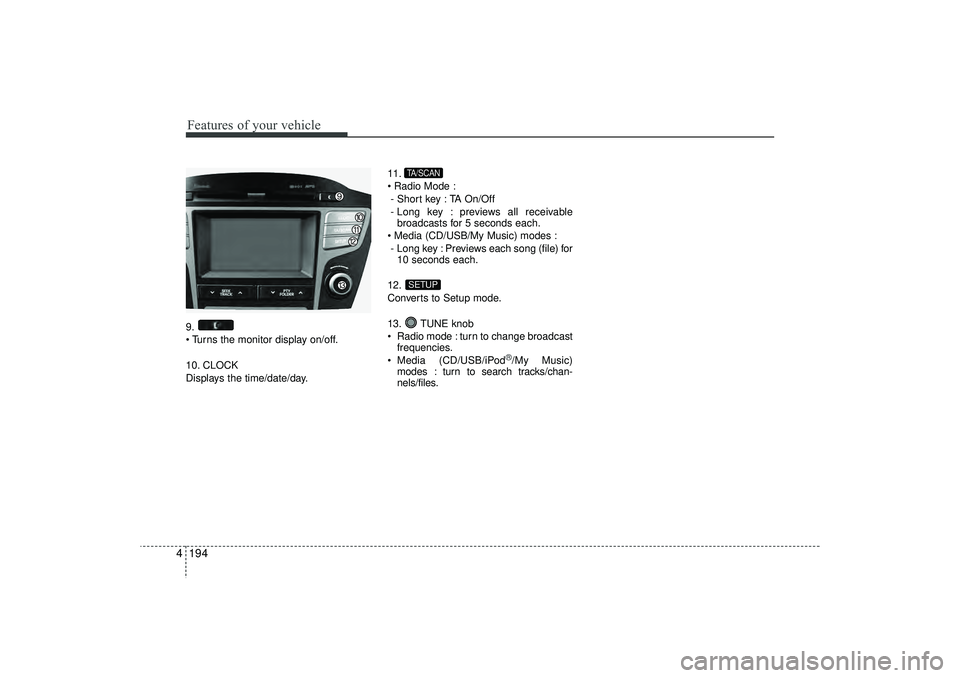
49.
Turns the monitor display on/off.
10. CLOCK
Displays the time/date/day. 11.
Radio Mode :
- Short key : TA On/Off
- Long key : previews all receivable broadcasts for 5 seconds each.
Media (CD/USB/My Music) modes : - Long key : Previews each song (file) for 10 seconds each.
12.
Converts to Setup mode.
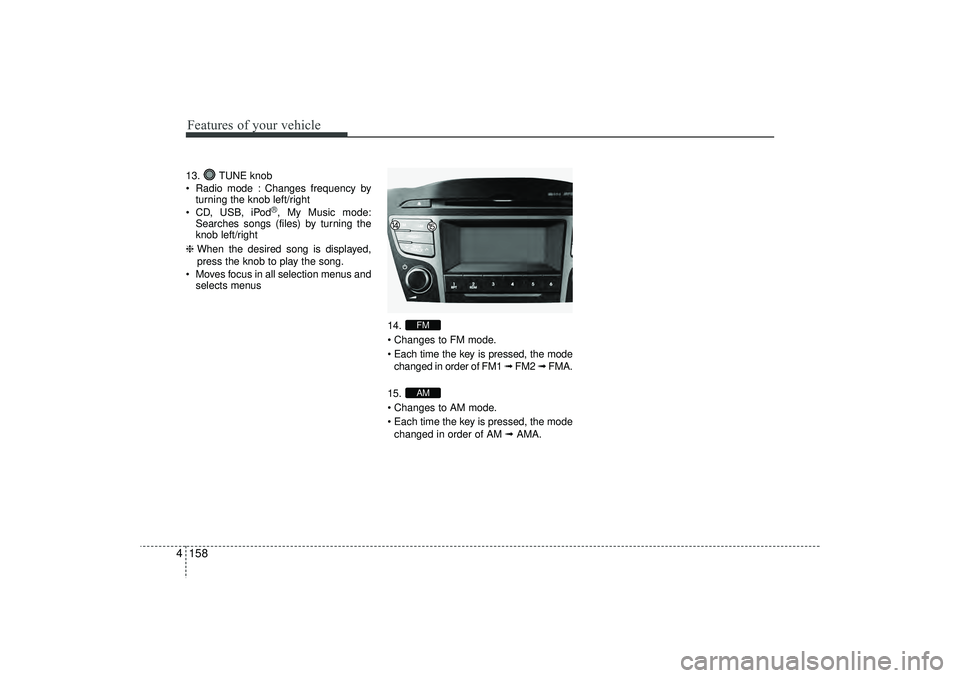
13. TUNE knob
Radio mode : turn to change broadcast frequencies.
Media (CD/USB/iPod
®/My Music)
modes : turn to search tracks/chan-
nels/files.
SETUPTA/SCAN
EL(FL) UK 4B AUDIO.QXP 3/13/2015 4:19 PM Page 194
![HYUNDAI IX35 2016 Owners Manual 4 159
Features of your vehicle
SETUP - AC100ELEE, AC110ELEE
Display SettingsPress the key Select [Display]
through TUNE knob or key
Select menu through TUNE knob
Mode Pop up[Mode Pop up] Changes](/manual-img/35/56235/w960_56235-243.png "HYUNDAI IX35 2016 Owners Manual 4 159
Features of your vehicle
SETUP - AC100ELEE, AC110ELEE
Display SettingsPress the key Select [Display]
through TUNE knob or key
Select menu through TUNE knob
Mode Pop up[Mode Pop up] Changes")