2016 Hyundai Elantra GT ECU
[x] Cancel search: ECUPage 281 of 546

Features of your vehicle
194
4
Voice Command List
Common Commands: These commands can be used in most operations. (However a few commands may not be
available during certain operations)
Command Function
More Help Provides guidance on commands that can be
used anywhere in the system.
Help Provides guidance on commands that can be
used within the current mode.
Call
Ex) Call “John Smith”
Call
Ex) Call “John Smith” on Mobile
Call
Ex) Call “John Smith” in Office
Call
Ex) Call “John Smith” at Home
Call
Ex) Call “John Smith” on Other
Phone Provides guidance on Phone related com- mands. After saying this command, say
“Favorites”, “Call History”, “Contacts” or ”Dial
Number” execute corresponding functions.
Favorites Displays the Favorite screen.
Call History Displays the Call History screen.
Command Function
Contacts Displays the Contacts screen. After saying this command, say the name of a contact
saved in the Contacts to automatically con-
nect the call.
Dial Number Displays the Dial number screen. After saying this command, you can say the number that
you want to call.
RedialConnects the last dialed call number.
Tutorial Provides guidance on how to use voice
recognition and Bluetooth®connections.
When listening to the radio, displays the
next radio screen. (FM1➟FM2➟AM➟XM1➟XM2➟XM3➟FM1)
Radio
When listening to a different mode, displays
the most recently played radio screen.
When currently listening to the FM radio,
maintains the current state.
When listening to a different mode, displaysthe most recently played FM screen.
FM1(FM One) Displays the FM1 screen.
FM2(FM Two) Displays the FM2 screen.
AM Displays the AM screen.
(Call by Name)
on Mobile
in Officeat Home
on Other
Page 287 of 546

Features of your vehicle
200
4
Blue Link®
Hyundai aims to offer differentiated
customer values through a
‘Connected Car Life,’ which is to pro-
vide consumers with fast and reliable
IT technology. As consumers’
lifestyles become more and more
mobile in thanks to remarkable
advances in smart phones, tablet
PCs and overall wireless telecommu-
nication, new lifestyle patterns
demand seamless connection
between one’s office, home, out-
doors and automobiles.
Automobile companies are now
faced with the task of shifting their
paradigm from vehicle-centered
services to customer value-centered
services, with the ultimate goal of
securing global leadership in the
field of vehicle IT and telematics. Hyundai Motor plans to achieve this
by realizing a terminal platform flexi-
ble to changes in IT technology,
cooperating with global IT compa-
nies, creating an eco-system and
providing the latest contents & serv-
ices based on an open environment.
Using the Room Mirror Key
Selecting the room mirror key will
allow you to make service required
inquiries, POI info searches, and
emergency rescues by connecting to
the Blue Link Center.
Such features can be used only after
subscribing to the Blue Link service.
➀
(Blue Link Center)
Makes requests for Blue Link service
related inquiries and consultations.
A call is connected to the Blue Link
ser-vice center employee.
Re-pressing the key will end the call.
This feature does not operate when
you are on a
Bluetooth®Wireless
Technology phone call.
Page 321 of 546

Features of your vehicle
234
4
Pairing Key / Key
on the Steering Remote
Controller
When No Devices have been
Paired
1. Press the key or the key on the steering remote con-
troller. The following screen is dis-
played. 2. Select [OK] button to enter the
Pair Phone screen.
1) Car Name : Name of device as shown when searching from your
Bluetooth®Wireless Technology
device
2) Passkey : Passkey used to pair the device
3. From your
Bluetooth®Wireless
Technology device (i.e. Mobile
Phone), search and select your
car audio system. [Non SSP supported device]
(SSP: Secure Simple Pairing)
4. After a few moments, a screen is
displayed where the passkey is
entered.
Hear, enter the passkey “0000” to
pair your
Bluetooth®Wireless
Technology device with the car
audio system.
[SSP supported device]
4. After a few moments, a screen is displayed 6 digits passkey .
Hear, check the passkey on your
Bluetooth®Wireless Technology
device and confirm.
5. Once pairing is complete, the fol- lowing screen is displayed.
PHONE
PHONE
Page 335 of 546
Features of your vehicle
248
4
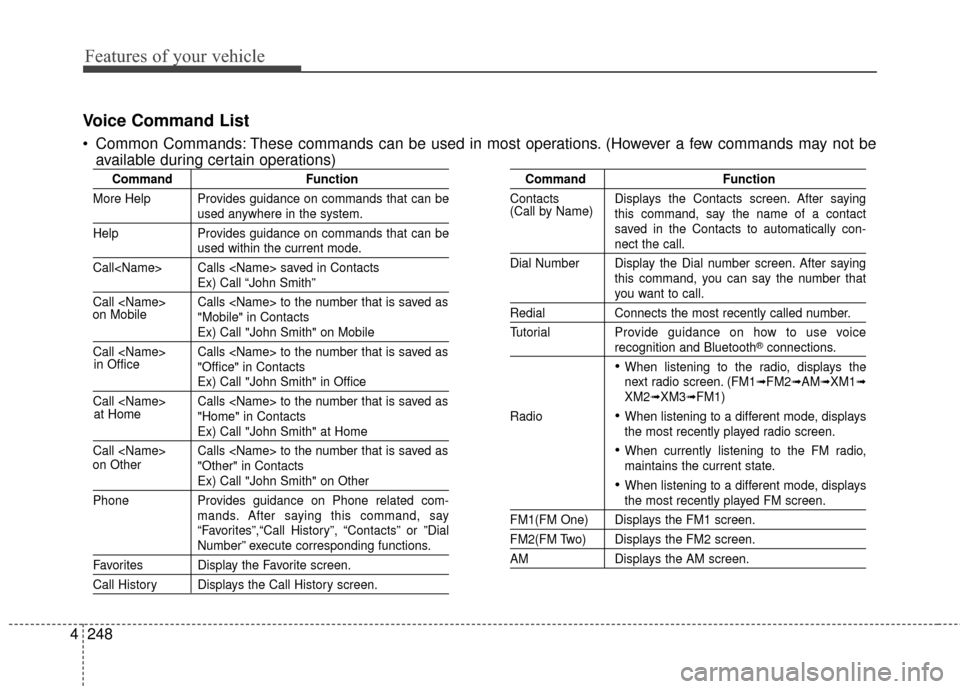
Voice Command List
Common Commands: These commands can be used in most operations. (However a few commands may not be
available during certain operations)
Command Function
More Help Provides guidance on commands that can be
used anywhere in the system.
Help Provides guidance on commands that can be
used within the current mode.
Call
Ex) Call “John Smith”
Call
Ex) Call "John Smith" on Mobile
Call
Ex) Call "John Smith" in Office
Call
Ex) Call "John Smith" at Home
Call
Ex) Call "John Smith" on Other
Phone Provides guidance on Phone related com- mands. After saying this command, say
“Favorites”,“Call History”, “Contacts” or ”Dial
Number” execute corresponding functions.
Favorites Display the Favorite screen.
Call History Displays the Call History screen.
Command Function
Contacts Displays the Contacts screen. After saying this command, say the name of a contact
saved in the Contacts to automatically con-
nect the call.
Dial Number Display the Dial number screen. After saying this command, you can say the number that
you want to call.
RedialConnects the most recently called number.
Tutorial Pro vide guidance on how to use voice
recognition and Bluetooth®connections.
When listening to the radio, displays the
next radio screen. (FM1➟FM2➟AM➟XM1➟XM2➟XM3➟FM1)
Radio
When listening to a different mode, displays
the most recently played radio screen.
When currently listening to the FM radio,
maintains the current state.
When listening to a different mode, displaysthe most recently played FM screen.
FM1(FM One) Displays the FM1 screen.
FM2(FM Two) Displays the FM2 screen.
AM Displays the AM screen.
(Call by Name)
on Mobile
in Officeat Home
on Other
Page 340 of 546
4253
Features of your vehicle
Blue Link®
Hyundai aims to offer differentiated
customer values through a
‘Connected Car Life,’ which is to pro-
vide consumers with fast and reliable
IT technology. As consumers’
lifestyles become more and more
mobile in thanks to remarkable
advances in smart phones, tablet
PCs and overall wireless telecommu-
nication, new lifestyle patterns
demand seamless connection
between one’s office, home, out-
doors and automobiles.
Automobile companies are now
faced with the task of shifting their
paradigm from vehicle-centered
services to customer value-centered
services, with the ultimate goal of
securing global leadership in the
field of vehicle IT and telematics.Hyundai Motor plans to achieve this
by realizing a terminal platform flexi-
ble to changes in IT technology,
cooperating with global IT compa-
nies, creating an eco-system and
providing the latest contents & serv-
ices based on an open environment.
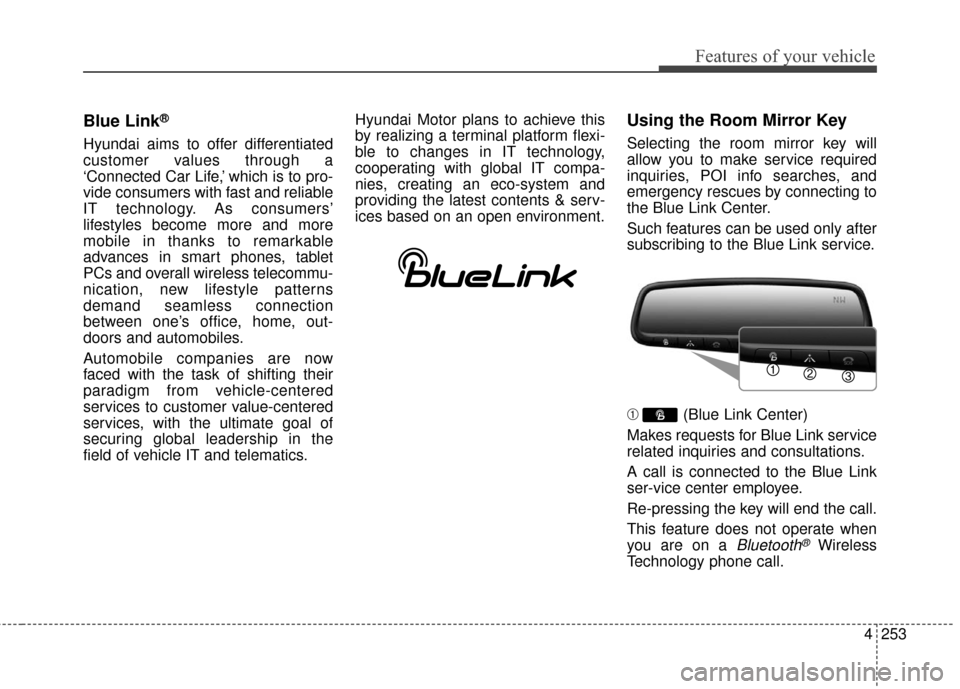
Using the Room Mirror Key
Selecting the room mirror key will
allow you to make service required
inquiries, POI info searches, and
emergency rescues by connecting to
the Blue Link Center.
Such features can be used only after
subscribing to the Blue Link service.
➀
(Blue Link Center)
Makes requests for Blue Link service
related inquiries and consultations.
A call is connected to the Blue Link
ser-vice center employee.
Re-pressing the key will end the call.
This feature does not operate when
you are on a
Bluetooth®Wireless
Technology phone call.
Page 365 of 546

Driving your vehicle
20
5
Sports mode
Whether the vehicle is stationary or
in motion, sports mode is selected by
pushing the shift lever from the D
(Drive) position into the manual gate.
To return to D (Drive) range opera-
tion, push the shift lever back into the
main gate.
In sports mode, moving the shift
lever backwards and forwards will
allow you to make gearshifts rapidly.
Up (+) : Push the lever forward
once to shift up one gear.
Down (-) : Pull the lever backwards once to shift down one
gear.
✽ ✽NOTICE
• In sports mode, the driver must
execute upshifts in accordance
with road conditions.
• In sports mode, only the 6 forward gears can be selected. To reverse
or park the vehicle, move the shift
lever to the R (Reverse) or P
(Park) position as required.
• In sports mode, downshifts are made automatically when the
vehicle slows down. When the
vehicle stops, 1st gear is automati-
cally selected.
• In sports mode, when the engine rpm approaches the red zone, the
transaxle will upshift automatically.
• To maintain the required levels of vehicle performance and safety,
the system may not execute cer-
tain gearshifts when the shift lever
is operated.
• When accelerating from a stop on a slippery road, push the shift lever
forward into the +(up) position.
This causes the transaxle to shift
into the 2nd gear which is better for
smooth driving on a slippery road.
Push the shift lever to the -(down)
side to shift back to the 1st gear.
Shift lock system
For your safety, the automatic
transaxle has a shift lock system
which prevents shifting the transaxle
from P (Park) or N (Neutral) into R
(Reverse) unless the brake pedal is
depressed.
To shift the transaxle from P (Park) or
N (Neutral) into R (Reverse):
1. Depress and hold the brake pedal.
2. Start the engine or turn the ignition
switch to the ON position.
3. Move the shift lever.
WARNING
Always fully depress the brake
pedal before and while shifting
out of the P (Park) position into
another position to avoid inad-
vertent motion of the vehicle
which could injure persons in
or around the car.
OGD051013
+ (UP)
- (DOWN)
Sports mode
Page 372 of 546

527
Driving your vehicle
Check the brake warning light by
turning the ignition switch ON (do not
start the engine). This light will be
illuminated when the parking brake is
applied with the ignition switch in the
START or ON position.
Before driving, be sure the parking
brake is fully released and the brake
warning light is off.
If the brake warning light remains on
after the parking brake is released
while the engine is running, there may
be a malfunction in the brake system.
Immediate attention is necessary.If at all possible, cease driving the
vehicle immediately. If that is not pos-
sible, use extreme caution while
operating the vehicle and only con-
tinue to drive the vehicle until you
can reach a safe location or repair
shop.
WARNING
To prevent unintentional
movement when stopped and
leaving the vehicle, do not use
the gearshift lever in place of
the parking brake. Set the
parking brake AND make sure
the gearshift lever is securely
positioned in 1st (First) gear
or R (Reverse) for manual
transaxle equipped vehicles
and in P (Park) for automatic
transaxle equipped vehicles.
Never allow anyone who is unfamiliar with the vehicle to
touch the parking brake. If the
parking brake is released
unintentionally, serious injury
may occur.
All vehicles should always have the parking brake fully
engaged when parking to
avoid inadvertent movement
of the vehicle which can injure
occupants or pedestrians.
W-75
Page 402 of 546

557
Driving your vehicle
WARNING
Overloading your vehicle cancause heat buildup in your
vehicle's tires and possible
tire failure that could lead to a
crash.
Overloading your vehicle can cause increased stopping dis-
tances that could lead to a
crash.
A crash resulting from poor handling, vehicle damage, tire
failure, or increased stopping
distances could result in seri-
ous injury or death.
WARNING - Loose cargo
Items you carry inside your
vehicle can strike and injure
occupants in a sudden stop or
turn, or in a crash.
Put items in the cargo area of your vehicle. Try to spread the
weight evenly.
Never stack items, like suit- cases, inside the vehicle
above the tops of the seats.
Do not leave an unsecured child restraint in your vehicle.
When you carry something inside the vehicle, secure it.
Do not drive with a seat folded down unless necessary.CAUTION
Overloading your vehicle may cause damage. Repairs wouldnot be covered by your war-ranty. Do not overload yourvehicle.
Using heavier suspension components to get addeddurability might not changeyour weight ratings. Ask yourdealer to help you load yourvehicle the right way.