Page 271 of 661
270
uuAudio System Basic Operation uPlaying SiriusXM ® Radio
Features
Playing SiriusXM ® Radio
*1:Some or all of the lists may not be displayed.
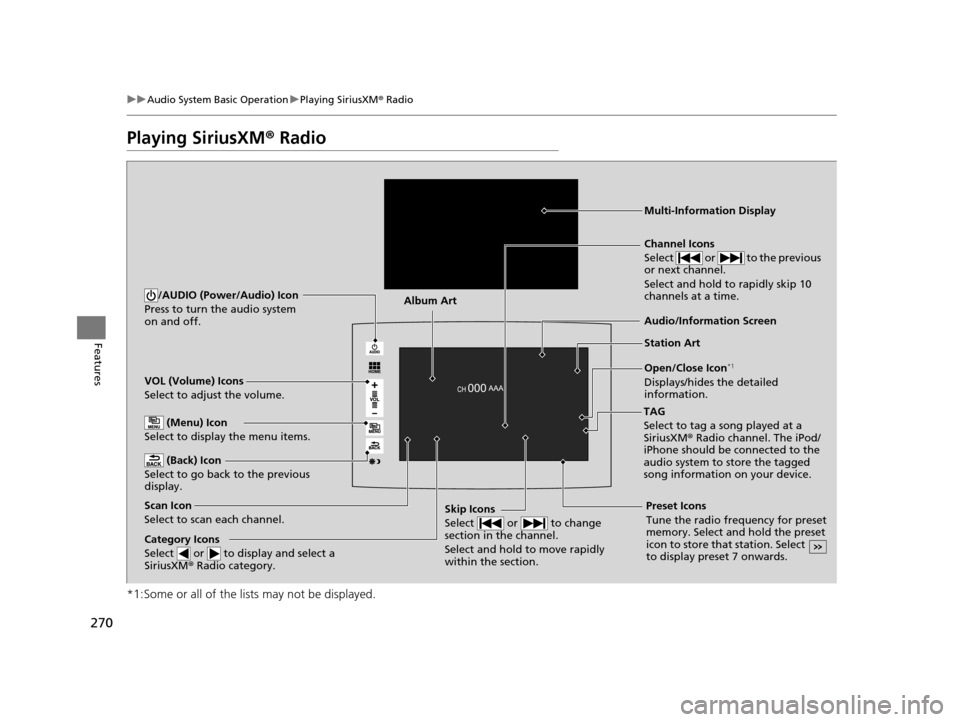
VOL (Volume) Icons
Select to adjust the volume.
(Back) Icon
Select to go back to the previous
display.
Channel Icons
Select or to the previous
or next channel.
Select and hold to rapidly skip 10
channels at a time.
/AUDIO (Power/Audio) Icon
Press to turn the audio system
on and off.
Open/Close Icon*1
Displays/hides the detailed
information.
(Menu) Icon
Select to display the menu items.
TAG
Select to tag a song played at a
SiriusXM® Radio channel. The iPod/
iPhone should be connected to the
audio system to store the tagged
song information on your device.
Category Icons
Select or to display and select a
SiriusXM ® Radio category.
Audio/Information Screen
Scan Icon
Select to scan each channel. Preset Icons
Tune the radio frequency for preset
memory. Select and hold the preset
icon to store that station. Select
to display preset 7 onwards.Skip Icons
Select or to change
section in the channel.
Select and hold to move rapidly
within the section.
Multi-Information Display
Album Art
Station Art
16 PILOT-31TG76000.book 270 ページ 2015年6月15日 月曜日 午前11時30分
Page 272 of 661
Continued271
uuAudio System Basic Operation uPlaying SiriusXM ® Radio
Features
1. Select .
2. Select Tune Mode .
3. Select Channel Mode or Category Mode .
■To Change the Tune Mode1Playing SiriusXM ® Radio
In the channel mode, all available channels are
selectable. In the categor y mode, you can select a
channel within a ca tegory (Jazz, Rock, Classical, etc.).
There may be instances when SiriusXM ® Radio does
not broadcast all the data fi elds (artist name, title).
This does not indicate a problem with your audio
system.
SiriusXM ® Radio stations load in ascending order,
which can take about a minute. Once they have
loaded you will be able to scroll up or down to make
your selections.
Switching the Audio Mode
Press the SOURCE button on the steering wheel or
select SOURCE on the screen.
2 Audio Remote Controls P. 222
Tune Start:
When you change to a preset channel, a song being
played on that channel restarts from the beginning
with this function. This can be turned on or off from
the Audio settings screen.
2 Customized Features P. 349
16 PILOT-31TG76000.book 271 ページ 2015年6月15日 月曜日 午前11時30分
Page 273 of 661
uuAudio System Basic Operation uPlaying SiriusXM ® Radio
272
Features
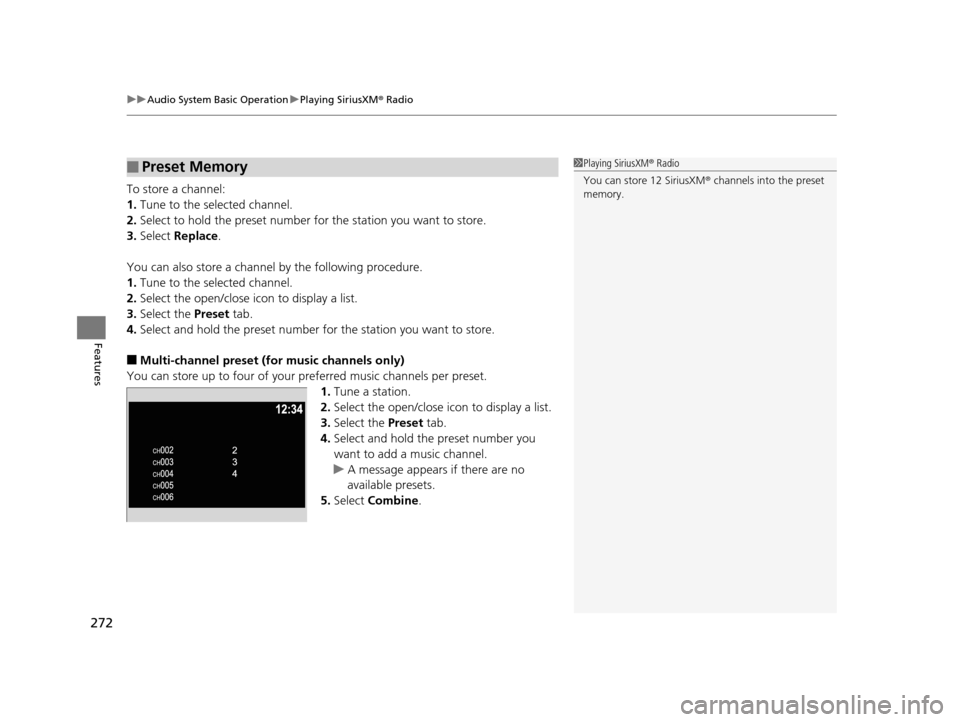
To store a channel:
1. Tune to the selected channel.
2. Select to hold the preset number for the station you want to store.
3. Select Replace .
You can also store a channel by the following procedure.
1. Tune to the selected channel.
2. Select the open/close ic on to display a list.
3. Select the Preset tab.
4. Select and hold the preset number for the station you want to store.
■Multi-channel preset (for music channels only)
You can store up to four of your pr eferred music channels per preset.
1. Tune a station.
2. Select the open/close ic on to display a list.
3. Select the Preset tab.
4. Select and hold the preset number you
want to add a music channel.
u A message appears if there are no
available presets.
5. Select Combine .
■Preset Memory1Playing SiriusXM ® Radio
You can store 12 SiriusXM ® channels into the preset
memory.
16 PILOT-31TG76000.book 272 ページ 2015年6月15日 月曜日 午前11時30分
Page 275 of 661
uuAudio System Basic Operation uPlaying SiriusXM ® Radio
274
Features
The system can record up to the last 60 minutes broadcast of your currently tuned
channel as well as the last 30 minutes broadcast of preset channels, starting from
the moment you turn the vehicle on. If yo u tuned to preset channel, the system
records up to 60 minutes of a broadcast instead of up to 30 minutes. You can
rewind and replay the last 30 or 60 minutes of a broadcast.
1. Select .
2. Select Playback Position.
3. Move the gauge to the posi tion you want to replay.
To play or pause on playback mode:
1. Select .
2. Select Play/Pause .
■Returning to real-time broadcast
1. Select .
2. Select Play Live Broadcast .
■Replay Function1Replay Function
The system starts storing broadcast in memory when
the power mode is turned ON. You can go back to
the program from that point.
You can no longer repl ay any program once the
power mode is turned off as it erases memory.
You can check how long the program has been
stored in memory from th e audio/information screen.
After 30 or 60 minutes of recording the system will
automatically start deleting the oldest data.
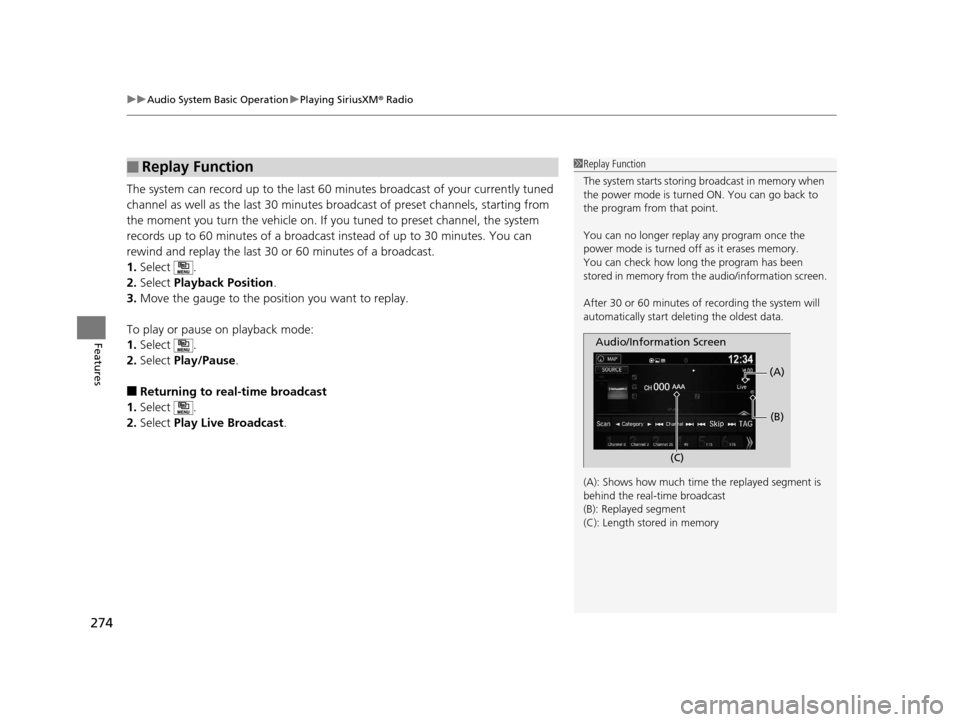
(A): Shows how much time the replayed segment is
behind the real-time broadcast
(B): Replayed segment
(C): Length stored in memory
Audio/Information Screen
(C) (B)
(A)
16 PILOT-31TG76000.book 274 ページ 2015年6月15日 月曜日 午前11時30分
Page 278 of 661
277
uuAudio System Basic Operation uPlaying SiriusXM ® Radio
Features
Sample each channel on the selected mode for 10 seconds.
1. Select Scan.
2. Select Scan Channels.
u You can select the desired channel by songs using Scan Songs in Presets.
To turn off scan, select Cancel.
If your iPhone/iPod is connected to the US B port, you can store the TAG information.
If the iPod/iPhone is not connected to the audio system, the information is stored in
the audio system tempor arily. Once the device is conn ected to the system, data is
transferred to the iPod/iPhone.
To store the TAG information to the iP od/iPhone, or the audio system, select TAG.
Displays the TAG information saved to the audio system.
1. Select .
2. Select Tagged Song List .
■Scan
■Tag Song to Device
■Tagged Song List
1Scan
The “Scan Songs in Preset s” function is based on
TuneScan
TM technology of SiriusXM ®.
The “Featured Channels ” function is based on
Featured Favorites
TM technology of SiriusXM ®.
TuneScan
TM and Featured FavoritesTM are registered
trademarks of SiriusXM ® Radio, Inc.
16 PILOT-31TG76000.book 277 ページ 2015年6月15日 月曜日 午前11時30分
Page 308 of 661
307
uuAudio Error Messages uAndroid/Apps
Features
Android/Apps
If an error occurs while using the audio system or apps, you may see the following
error messages. If you cannot clear the error message, contact a dealer.
*1:****part is variable characters, and will change depending upon where an error
occurs.
Error MessageSolution
Unfortunately, **** has
stopped.Error has occurred within app, select OK on the screen to close the app.
**** is not responding.
Would you like to close it?
App is not responding.
Select Wait if you can wait for a response from app a little lo nger. If it does not respond even if you keep
waiting, select OK to close the app and start it up. If the error message continues, perform Factory Data
Reset .
2Defaulting All the Settings P. 377
Models with Display Audio
16 PILOT-31TG76000.book 307 ページ 2015年6月15日 月曜日 午前11時30分
Page 323 of 661
322
uuBlu-ray/DVD Rear Entertainment System*uPlaying a DVD/Blu-rayTM*
Features
■Adjusting the Screen
1.Press the SETUP button on the remote to
display the SETUP screen.
2. Select Display Adjust and then press the
ENTER button on the remote.
3. Select the setting you want.
The following items are available:
• Brightness : Adjusts the screen's brightness.
• Contrast : Adjusts the screen's contrast.
• Black Level : Adjusts the screen's black level.
• Color : Adjusts the screen's color strength.
• Tint : Adjusts the screen's hue.
• Reset : Resets all the settings to their factory default.
16 PILOT-31TG76000.book 322 ページ 2015年6月15日 月曜日 午前11時30分
Page 349 of 661
348
uuCustomized Features u
Features
*1:Default Setting
Setup
GroupCustomizable FeaturesDescriptionSelectable Settings
Phone
Setup
Bluetooth
Setup
Add New DevicePairs a new phone to HFL.
2 Phone Setup P. 387—
Connect a Phone
Pairs a new phone or connects a paired phone
to HFL.
2Phone Setup P. 387
—
Connect an Audio
DeviceConnects a Bluetooth® Audio device to HFL.—
Disconnect All DevicesDisconnects a paired phone from HFL.—
Delete DeviceDeletes a paired phone.—
Pass-KeyChanges a pairing code.—
Speed DialEdits, adds or deletes a speed dial entry.
2Speed Dial P. 396—
RingtoneSelects the ring tone.Fixed*1/Mobile Phone
Caller ID InfoPrioritizes the caller’s name or phone number
as the caller ID.Name Priority*1/ Number
Priority
System ClearCancels/Resets all customized items in the
Phone Setup group as default.—
16 PILOT-31TG76000.book 348 ページ 2015年6月15日 月曜日 午前11時30分