Page 264 of 661
263
uuAudio System Basic Operation uVoice Control Operation
Continued
Features
■Voice Help
You can see a list of the available
commands on the screen.
• Useful Commands
• Phone Commands
• Audio Commands
• On Screen Commands
• Music Search Commands
• General Commands
• Climate Control Commands
• All Commands
• Voice Settings
• Getting Started
The system accepts these commands on the
voice portal top screen.
• Call
• Call
• What time is it?
• What is today's date?
■Useful Commands
The system accepts these commands on the
dedicated screen for the voice recognition
of the phone.
• Call by Number
• Call by Name
• Call
• Call
The system accepts these commands on the
dedicated screen for the voice recognition
of the audio.
■Radio FM Commands
• Radio tune to <87.7-107.9> FM
• Radio tune to <87.7 -107.9> HD <1-8>
FM
• Radio FM preset <1-12>
■Radio AM Commands
• Radio tune to <530-1710> AM
• Radio AM preset <1-6>
■Radio SXM Commands
• SXM channel <1-999>
• SXM channel
■Phone Commands
■Audio Commands
•Radio SXM preset <1-12>
■DISC Commands
• DISC play
• DISC play track <1-30>
■Pandora Commands*
•Pandora play
■iPod Commands
• iPod play
• iPod play track <1-30>
• Music Search
• What album is this?
• What am I listening to?
■USB Commands
• USB play
• USB play track <1-30>
• Music Search
• What album is this?
• What am I listening to?
■Bluetooth ® audio Commands
• Bluetooth ® audio play
NOTE:
Bluetooth ® Audio commands may not work
on some phones or Bluetooth® Audio
devices.
* Not available on all models
16 PILOT-31TG76000.book 263 ページ 2015年6月15日 月曜日 午前11時30分
Page 266 of 661
265
uuAudio System Basic Operation uPlaying AM/FM Radio
Continued
Features
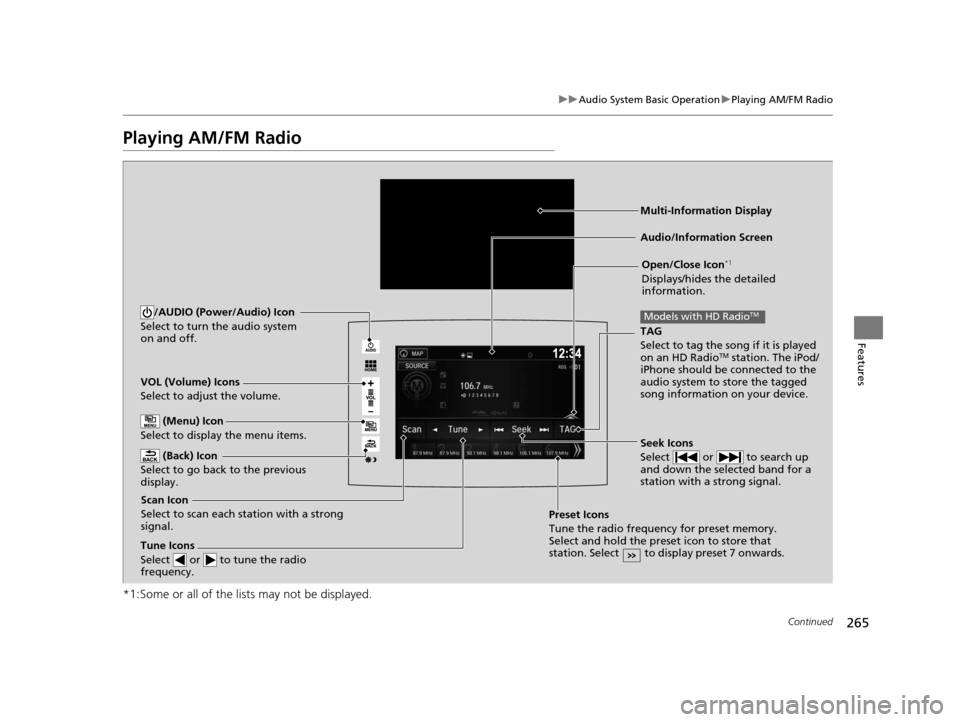
Playing AM/FM Radio
*1:Some or all of the lists may not be displayed.
VOL (Volume) Icons
Select to adjust the volume.
(Back) Icon
Select to go back to the previous
display.
Seek Icons
Select or to search up
and down the selected band for a
station with a strong signal.
/AUDIO (Power/Audio) Icon
Select to turn the audio system
on and off.
Open/Close Icon*1
Displays/hides the detailed
information.
(Menu) Icon
Select to display the menu items.
TAG
Select to tag the song if it is played
on an HD Radio
TM station. The iPod/
iPhone should be connected to the
audio system to store the tagged
song information on your device.
Models with HD RadioTM
Tune Icons
Select or to tune the radio
frequency.
Audio/Information Screen
Scan Icon
Select to scan each station with a strong
signal. Preset Icons
Tune the radio frequency for preset memory.
Select and hold the preset icon to store that
station. Select to display preset 7 onwards.
Multi-Information Display
16 PILOT-31TG76000.book 265 ページ 2015年6月15日 月曜日 午前11時30分
Page 268 of 661
267
uuAudio System Basic Operation uPlaying AM/FM Radio
Continued
Features
Samples each of the strongest stations on the selected band for 10 seconds. To turn
off scan, select Cancel or .
If your iPod/iPhone is connected to the USB port, you can store the TAG information.
If the iPod/iPhone is not connected to the audio system, the information is stored in
the audio system temporarily, then once the device is connected to the system, data
is transferred to the iPod/iPhone.
To store the TAG information to the iP od/iPhone or the audio system, select TAG.
Displays the TAG information saved to the audio system.
1. Select .
2. Select Song Tag List .
■Scan
■Tag Song to Device
■Tagged Song List
Models with HD RadioTM
Models with HD RadioTM
16 PILOT-31TG76000.book 267 ページ 2015年6月15日 月曜日 午前11時30分
Page 271 of 661
270
uuAudio System Basic Operation uPlaying SiriusXM ® Radio
Features
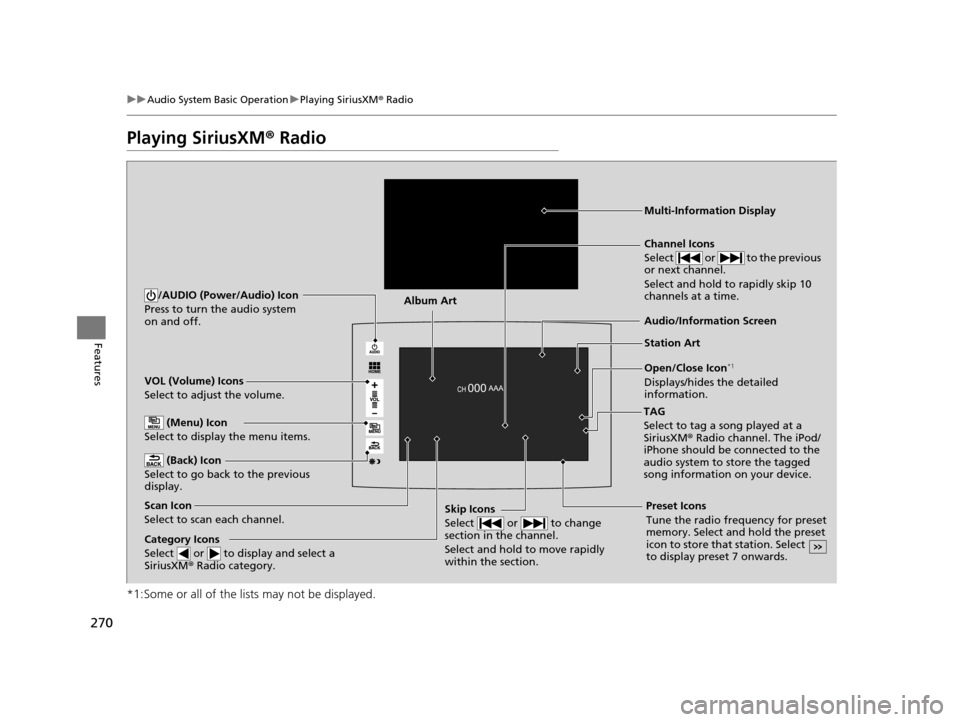
Playing SiriusXM ® Radio
*1:Some or all of the lists may not be displayed.
VOL (Volume) Icons
Select to adjust the volume.
(Back) Icon
Select to go back to the previous
display.
Channel Icons
Select or to the previous
or next channel.
Select and hold to rapidly skip 10
channels at a time.
/AUDIO (Power/Audio) Icon
Press to turn the audio system
on and off.
Open/Close Icon*1
Displays/hides the detailed
information.
(Menu) Icon
Select to display the menu items.
TAG
Select to tag a song played at a
SiriusXM® Radio channel. The iPod/
iPhone should be connected to the
audio system to store the tagged
song information on your device.
Category Icons
Select or to display and select a
SiriusXM ® Radio category.
Audio/Information Screen
Scan Icon
Select to scan each channel. Preset Icons
Tune the radio frequency for preset
memory. Select and hold the preset
icon to store that station. Select
to display preset 7 onwards.Skip Icons
Select or to change
section in the channel.
Select and hold to move rapidly
within the section.
Multi-Information Display
Album Art
Station Art
16 PILOT-31TG76000.book 270 ページ 2015年6月15日 月曜日 午前11時30分
Page 278 of 661
277
uuAudio System Basic Operation uPlaying SiriusXM ® Radio
Features
Sample each channel on the selected mode for 10 seconds.
1. Select Scan.
2. Select Scan Channels.
u You can select the desired channel by songs using Scan Songs in Presets.
To turn off scan, select Cancel.
If your iPhone/iPod is connected to the US B port, you can store the TAG information.
If the iPod/iPhone is not connected to the audio system, the information is stored in
the audio system tempor arily. Once the device is conn ected to the system, data is
transferred to the iPod/iPhone.
To store the TAG information to the iP od/iPhone, or the audio system, select TAG.
Displays the TAG information saved to the audio system.
1. Select .
2. Select Tagged Song List .
■Scan
■Tag Song to Device
■Tagged Song List
1Scan
The “Scan Songs in Preset s” function is based on
TuneScan
TM technology of SiriusXM ®.
The “Featured Channels ” function is based on
Featured Favorites
TM technology of SiriusXM ®.
TuneScan
TM and Featured FavoritesTM are registered
trademarks of SiriusXM ® Radio, Inc.
16 PILOT-31TG76000.book 277 ページ 2015年6月15日 月曜日 午前11時30分
Page 283 of 661
uuAudio System Basic Operation uPlaying an iPod
282
Features
1. Select and select Music Search.
2. Select the items on that menu.
■How to Select a Song from the Music Search List1Playing an iPod
Available operating functi ons vary on models or
versions. Some functions ma y not be available on the
vehicle's audio system.
If there is a problem, you may see an error message
on the audio/information screen. 2 iPod/USB Flash Drive P. 305
If you operate the musi c app on your iPhone/iPod
while the phone is connected to the audio system,
you may no longer be able to operate the same app
on the audio/information screen.
Reconnect the devi ce if necessary.
Category Selection
Item Selection
16 PILOT-31TG76000.book 282 ページ 2015年6月15日 月曜日 午前11時30分
Page 286 of 661
Continued285
uuAudio System Basic Operation uSong By VoiceTM (SBV)
Features
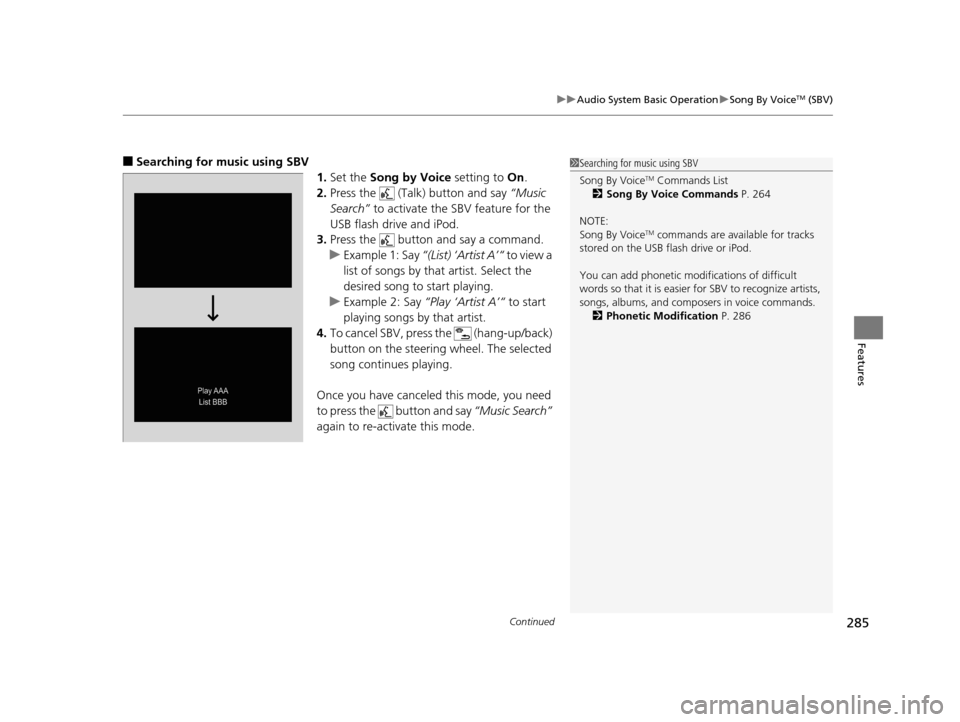
■Searching for music using SBV
1.Set the Song by Voice setting to On.
2. Press the (Talk) button and say “Music
Search” to activate the SBV feature for the
USB flash drive and iPod.
3. Press the button and say a command.
u Example 1: Say “(List) ‘Artist A’“ to view a
list of songs by that artist. Select the
desired song to start playing.
u Example 2: Say “Play ‘Artist A’“ to start
playing songs by that artist.
4. To cancel SBV, pres s the (hang-up/back)
button on the steering wheel. The selected
song continues playing.
Once you have canceled this mode, you need
to press the button and say “Music Search”
again to re-activate this mode.1 Searching for music using SBV
Song By Voice
TM Commands List
2 Song By Voice Commands P. 264
NOTE:
Song By Voice
TM commands are available for tracks
stored on the USB flash drive or iPod.
You can add phonetic modi fications of difficult
words so that it is easier for SBV to recognize artists,
songs, albums, and composers in voice commands. 2 Phonetic Modification P. 286
16 PILOT-31TG76000.book 285 ページ 2015年6月15日 月曜日 午前11時30分
Page 287 of 661
uuAudio System Basic Operation uSong By VoiceTM (SBV)
286
Features
Add phonetic modifications of difficult or foreign words so that it is easier for SBV
to recognize artists, songs, albums, and composers in voice commands when
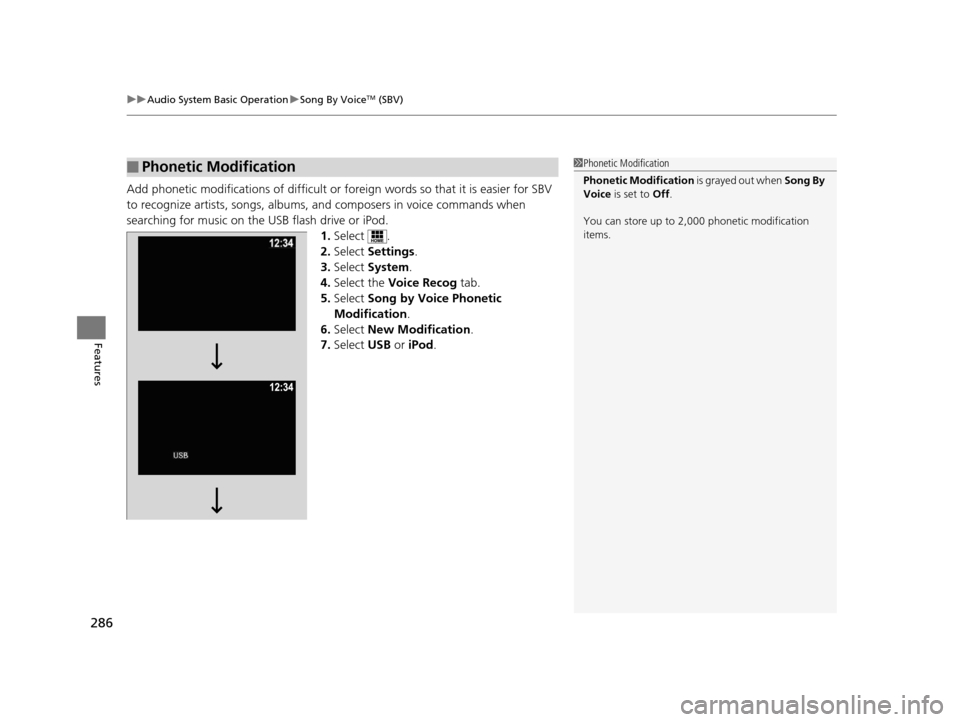
searching for music on the USB flash drive or iPod. 1.Select .
2. Select Settings .
3. Select System .
4. Select the Voice Recog tab.
5. Select Song by Voice Phonetic
Modification .
6. Select New Modification .
7. Select USB or iPod .
■Phonetic Modification1Phonetic Modification
Phonetic Modification is grayed out when Song By
Voice is set to Off.
You can store up to 2, 000 phonetic modification
items.
16 PILOT-31TG76000.book 286 ページ 2015年6月15日 月曜日 午前11時30分