2016 HONDA ODYSSEY light
[x] Cancel search: lightPage 26 of 80

44 || 45
VEHICLE CONTROLS
VEHICLE CONTROLS
INDEX
VOICE COMMAND
INDEX
CUSTOMER
INFORMATION
SPECIFICATIONS
MAINTENANCE
HANDLING THE UNEXPECTED
DRIVING
NAVIGATION
TABLE OF CONTENTS
VISUAL INDEX
SAFETY
INFORMATION
INSTRUMENT PANEL
VEHICLE
CONTROLS
AUDIO AND
CONNECTIVITY
BLUETOOTH®
HANDSFREELINK®
HONDALINK®
Adjusting the Third-Row Passenger’s Seats
Pull up the right strap to change the angle of
the right and center seat-backs, and the left
strap for the left seat-back.
Rear Seats
Adjust second-row seats, access third-row seats, or remove seats for carrying
cargo.
Adjusting the Second-Row Passenger’s SeatsSecond-row
passenger’s seats
can be adjusted
manually.
*if equipped
Sliding the Second-Row Seats OutwardThe second-row outer seats can be moved outward slightly to allow two or\
three
child seats to be installed.
1. For the seat you want to move, lower the head
restraint to its lowest position.
2. Move the seat to its rearmost position.
3. Fold the seat-back down.
4. Pull the lock release lever, and grab the handle
under the rear side of the seat cushion to lift the
rear of the seat.
5. With the front of the seat hooked to the floor,
slide the seat to the outer position until it stops.
6. Lower the seat and push the rear of the seat-
back until it locks into place.
Removing a Second-Row Outer Seat
An outer second-row seat can be removed to increase storage and cargo sp\
ace.
1. For the seat you want to remove, lower the head
restraint to its lowest position.
2. Move the seat to its rearmost position.
3. Fold the seat-back down.
4. Pull the lock release lever, and grab the handle
under the rear side of the seat cushion to lift the
rear of the seat.
5. Pull the seat-back slightly, then pivot it upward to
unhook the front of the seat from the floor.
6. Remove the seat.
To reinstall the seat: First hook the front of the
seat to the floor. Then, push the rear of the seat-
back until it locks into place.
Handle Slide
Handle
Lock release leverSeat-back angle
adjustment lever
Third-Row Seat Access
Pull up on the seat-back angle adjustment lever, or
pull the release strap to tilt the second-row outer
seat forward. Slide the whole seat forward.
Seat-back angle
adjustment
Pull up the lever
to change the
angle.
Seat-back angle
adjustment*
Pull the strap to
change the angle.
Horizontal position adjustment
Pull up the bar to move the seat,
then release the bar.
Lever
Strap
Page 27 of 80

46 || 47
VEHICLE CONTROLS
VEHICLE CONTROLS
INDEX
VOICE COMMAND
INDEX
CUSTOMER
INFORMATION
SPECIFICATIONS
MAINTENANCE
HANDLING THE UNEXPECTED
DRIVING
NAVIGATION
TABLE OF CONTENTS
VISUAL INDEX
SAFETY
INFORMATION
INSTRUMENT PANEL
VEHICLE
CONTROLS
AUDIO AND
CONNECTIVITY
BLUETOOTH®
HANDSFREELINK®
HONDALINK®
Removing the Second-Row Center Seat
The second-row center seat can be removed to increase storage and cargo space
or passenger mobility.
1. Store the center seat belt, and retract it into the
holder on the ceiling (see page 8).
2. Pull up the adjustment strap, and fold down the
seat-back.
3. Pull the lock release strap under the seat
cushion, and hold the seat-back while lifting the
rear of the seat.
4. Pull the seat-back slightly, then pivot it upward to unhook the front of the seat
from the floor.
5. Remove the seat.
To reinstall the seat: First hook the front of the seat to the floor. Then, push the
rear of the seat-back until it locks into place.
Storing the One-Motion Third-Row Magic Seat You can store the third-row seats to create a flat cargo area.
1. Store the center seat belt, and retract it into the
holder on the ceiling (see page 8).
2. Lower the head restraints to their lowest
positions.
3. Pull one or both straps to release the seats to a
flat position. Tuck the seats and straps into the
cargo area.
To reinstall the seats: Grab the outer handle, pull up
the folded seat, and pivot it forward. The front of the
seat automatically locks into place. Pull the strap to
return the seat-back to its upright position.
Adjustment strap
Lock
release
strap
Straps
Handles
Straps
Adjusting the Steering Wheel
The steering wheel height and distance from your body can be adjusted so\
that you
can comfortably grip the steering wheel in an appropriate driving postur\
e.
1. Pull up the steering wheel adjustment lever.
2. Move the steering wheel up or down, and in
or out.
3. Push down the steering wheel adjustment
lever to lock the steering wheel in position.
Adjusting the steering wheel position while driving may cause you to los\
e
control of the vehicle and be seriously injured in a crash.
Adjust the steering wheel only when the vehicle is stopped.
WARNING
Driving Position Memory System*
You can store two driver’s seat and door mirror positions into memory when the
vehicle is on using the buttons on the driver’s door.
1. Adjust the seat and mirrors to your preferred
positions.
2. Press SET.
3. Press and hold memory button 1 or 2. You will hear
two beeps when the memory is set.
4. Press one of the memory buttons to recall
previously stored positions.
Lumbar positions cannot be stored.
When you unlock and open the driver’s door with a remote transmitter, the seat and
door mirrors adjust automatically to one of the two preset positions.
To adjust
To lock
Lever
Memory
button 1
Memory
button 2
SET
button
*if equipped
Page 28 of 80
48 || 49
VEHICLE CONTROLS
VEHICLE CONTROLS
INDEX
VOICE COMMAND
INDEX
CUSTOMER
INFORMATION
SPECIFICATIONS
MAINTENANCE
HANDLING THE UNEXPECTED
DRIVING
NAVIGATION
TABLE OF CONTENTS
VISUAL INDEX
SAFETY
INFORMATION
INSTRUMENT PANEL
VEHICLE
CONTROLS
AUDIO AND
CONNECTIVITY
BLUETOOTH®
HANDSFREELINK®
HONDALINK®
*if equipped
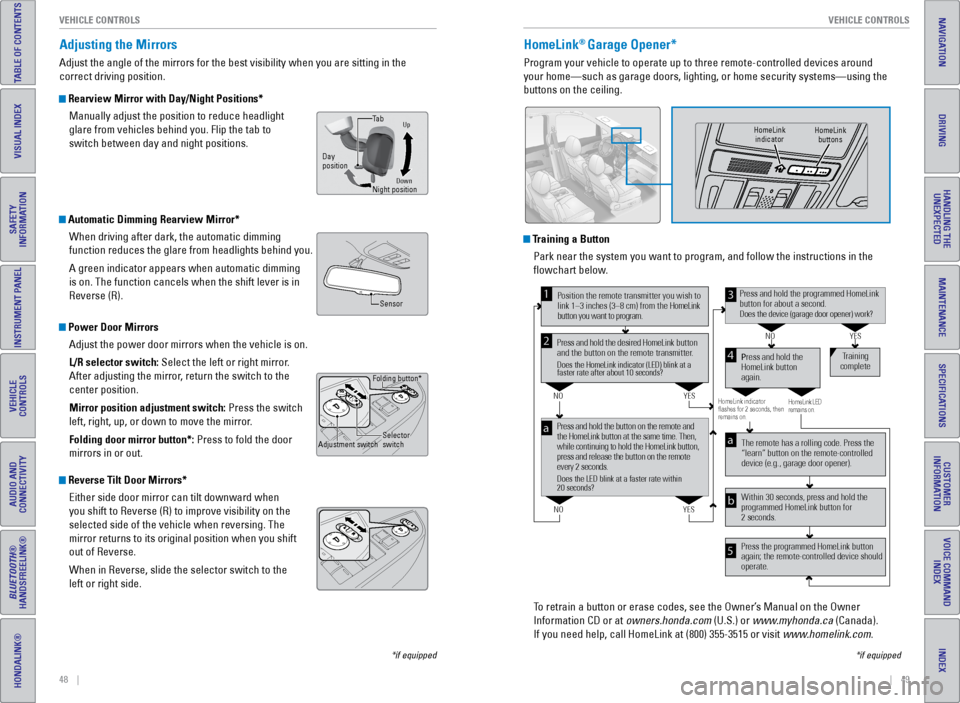
Adjusting the Mirrors
Adjust the angle of the mirrors for the best visibility when you are sit\
ting in the
correct driving position.
Rearview Mirror with Day/Night Positions*
Manually adjust the position to reduce headlight
glare from vehicles behind you. Flip the tab to
switch between day and night positions.
Automatic Dimming Rearview Mirror*When driving after dark, the automatic dimming
function reduces the glare from headlights behind you.
A green indicator appears when automatic dimming
is on. The function cancels when the shift lever is in
Reverse (R).
Power Door MirrorsAdjust the power door mirrors when the vehicle is on.
L/R selector switch: Select the left or right mirror.
After adjusting the mirror, return the switch to the
center position.
Mirror position adjustment switch: Press the switch
left, right, up, or down to move the mirror.
Folding door mirror button*: Press to fold the door
mirrors in or out.
Reverse Tilt Door Mirrors*
Either side door mirror can tilt downward when
you shift to Reverse (R) to improve visibility on the
selected side of the vehicle when reversing. The
mirror returns to its original position when you shift
out of Reverse.
When in Reverse, slide the selector switch to the
left or right side.
HomeLink® Garage Opener*
Program your vehicle to operate up to three remote-controlled devices ar\
ound
your home—such as garage doors, lighting, or home security systems—\
using the
buttons on the ceiling.
Training a ButtonPark near the system you want to program, and follow the instructions in\
the
flowchart below.
To retrain a button or erase codes, see the Owner’s Manual on the Owner
Information CD or at owners.honda.com (U.S.) or www.myhonda.ca (Canada).
If you need help, call HomeLink at (800) 355-3515 or visit www.homelink.com.
Press and hold the button on the remote and
the HomeLink button at the same time. Then,
while continuing to hold the HomeLink button,
press and release the button on the remote
every 2 seconds.
Does the LED blink at a faster rate within
20 seconds?
Press and hold the
HomeLink button
again.Tr
aining
complete
YES
NO
HomeLink indicator
ashes for 2 seconds, then
r emains on. HomeLink LED
remains on.YES
NO
YES
NO
Position the remote transmitter you wish to
link 1–3 inches (3–8 cm) from the HomeLink
button you want to program.1
Press and hold the desired HomeLink button
and the button on the remote transmitter .
Does the HomeLink indicator (LED) blink at a
faster rate after about 10 seconds?
2
a
The remote has a rolling code. Press the
“learn” button on the remote-controlled
device (e.g., garage door opener).
Press the programmed HomeLink button
again; the remote-controlled device should
operate. Within 30 seconds, press and hold the
programmed HomeLink button for
2 seconds.a
Press and hold the programmed HomeLink
button for about a second.
Does the device (garage door opener) work ?
3
b
4
5
*if equipped
HomeLink
indicator HomeLink
buttons
DownNight position
Ta b
Day
position
Up
Sensor
Folding button*
Adjustment switch Selector
switch
Page 29 of 80

50 || 51
VEHICLE CONTROLS
VEHICLE CONTROLS
INDEX
VOICE COMMAND
INDEX
CUSTOMER
INFORMATION
SPECIFICATIONS
MAINTENANCE
HANDLING THE UNEXPECTED
DRIVING
NAVIGATION
TABLE OF CONTENTS
VISUAL INDEX
SAFETY
INFORMATION
INSTRUMENT PANEL
VEHICLE
CONTROLS
AUDIO AND
CONNECTIVITY
BLUETOOTH®
HANDSFREELINK®
HONDALINK®
HondaVAC®*
Clean up dry spills and debris inside your vehicle with the in-car vacuu\
m system.
Operating the Vacuum
1. Make sure the vehicle is in Park (P). Set the
power mode to Accessory, or start the engine.
2. Open the vacuum storage lid in the driver’s side
rear cargo area.
3. Pull out the vacuum hose, and install one of the
attachments if desired.
4. Press the power button and begin to vacuum (dry
use only).
Accessory mode operation
• After 7 minutes, an intermittent beep begins to
sound as a time limit alert.
• After 8 minutes, a beep sounds, PWR SAVE comes
on, and the vacuum turns off. You must start the
engine if you want to continue using the vacuum.
The vacuum will restart after the engine has been
running for about one minute.
Engine on operation
Make sure you are using the vacuum in a well
ventilated, open area to minimize the likelihood of
carbon monoxide exposure.
See the Owner’s Manual on the Owner Information CD or at owners.honda.com
(U.S.) or myhonda.ca (Canada) for instructions on emptying the canister.
PWR SAVE
indicator
Power button
Engine exhaust contains toxic carbon monoxide that builds up rapidly in \
enclosed areas. Breathing it can cause unconsciousness and even kill you\
. If
running the engine to power the vacuum, park the vehicle outdoors and lo\
wer
all windows to ensure adequate ventilation.
Do not vacuum flammable liquids or in an area with flammable vapors.\
A fire
or explosion could result, causing death or serious injury.
WARNING
The vacuum is intended for dry use only. Water and other liquids can damage the
vacuum.
NOTICE
*if equipped
Cool Box*
Store items in a conveniently located box and keep them cool.
Press the button on the center pocket to open the box.
To turn on the Cool Box: Press the COOL BOX button.
An indicator light appears. Cold air from the air
conditioning system flows into and circulates within
the box. Keep the box closed during use for best
results.
To turn off the Cool Box: Press the button again, or
turn the air conditioning system off.
The cool box is not a refrigerator and cannot be
removed for cleaning.
Do not put opened cans, uncovered containers, or loose ice inside the co\
ol box.
Spilled liquids can damage the upholstery and electrical components in a\
nd
around the cool box.
NOTICE
*if equipped
Open
button
Page 32 of 80

56 || 57
AUDIO AND CONNECTIVITY
AUDIO AND CONNECTIVITY
INDEX
VOICE COMMAND
INDEX
CUSTOMER
INFORMATION
SPECIFICATIONS
MAINTENANCE
HANDLING THE UNEXPECTED
DRIVING
NAVIGATION
TABLE OF CONTENTS
VISUAL INDEX
SAFETY
INFORMATION
INSTRUMENT PANEL
VEHICLE
CONTROLS
AUDIO AND
CONNECTIVITY
BLUETOOTH®
HANDSFREELINK®
HONDALINK®
Basic Audio Operation
Connect audio devices and operate buttons and displays for the audio sys\
tem.
USB Port
Connect a USB flash drive or other audio device,
such as an iPod
® or iPhone®. Install the flash drive
or cable connector to the USB port.
Auxiliary Input Jack
Connect standard audio devices with a 1/8-inch
(3.5 mm) stereo miniplug.
1. Open the AUX cover.
2. Insert the miniplug attached to the audio device
into the jack. The audio system switches to
AUX mode. Use the device to control the audio.
iPod and iPhone are trademarks of Apple, Inc.
State or local laws may prohibit the operation
of handheld electronic devices while operating a vehicle.
AUDIO AND CONNECTIVITY
Learn how to operate the vehicle’s audio system.
Adjusting the Sound
Adjust various sound settings using the selector knob.
1. Press the SETTINGS button.
2. Select Audio Settings.
3. Select Sound.
4. Select one of the options, and adjust as necessary.
5. Press the BACK button to exit.
Steering Wheel Controls
You can operate certain functions of the audio
system using the steering wheel controls.
MODE button: Cycle through available audio modes.
VOL (p/q) buttons: Adjust audio volume.
CH (+/-) buttons: Change presets, tracks, albums, or
folders.
FM/AM/XM
® Radio
Press (+) or (-) for the next or previous station.
Press and hold (+) or (-) for the next or previous strong station.
CD/HDD*/iPod
®/USB/Bluetooth® Audio
Press (+) or (-) for the next or previous track.
Press and hold (+) or (-) for the next or previous folder (CD/USB)\
.
Pandora
®
Press (+) for the next song.
Press and hold (+) or (-) for the next or previous station.
*if equipped
Accessory Power Sockets Open the socket cover to use power when the
vehicle is on.
Power sockets are located in the front console and
the driver’s side rear cargo area.
Do not insert an automotive type cigarette lighter element. This can ove\
rheat the
power socket.
NOTICE
AC Power Outlet*The outlet can supply power for appliances up to 115 volts that are rate\
d 150 watts
or less when the engine is running.
1. Open the socket cover located on the driver’s
side rear door.
2. Slightly plug in the appliance, turn it 90 degrees
clockwise, then push it in all the way.
Do not use the AC power outlet for electric appliances that require high\
initial
peak wattage or medical equipment devices.
NOTICE
*if equipped
Page 42 of 80

76 || 77
AUDIO AND CONNECTIVITY
AUDIO AND CONNECTIVITY
INDEX
VOICE COMMAND
INDEX
CUSTOMER
INFORMATION
SPECIFICATIONS
MAINTENANCE
HANDLING THE UNEXPECTED
DRIVING
NAVIGATION
TABLE OF CONTENTS
VISUAL INDEX
SAFETY
INFORMATION
INSTRUMENT PANEL
VEHICLE
CONTROLS
AUDIO AND
CONNECTIVITY
BLUETOOTH®
HANDSFREELINK®
HONDALINK®
Remote Control and Rear Operation
You can operate the system using the rear control panel.
1. Make sure REAR POWER is turned on in the front audio controls.
2. From the rear control panel, press the desired audio source button (or \
the
SOURCE button for Ultrawide RES*).
3. Press the arrow/ENTER buttons to highlight options on the screen and sel\
ect
them. Use the other rear control panel buttons to operate the system.
This vehicle’s overhead mounted display includes mercury-containing
components. Upon removal or replacement, please reuse, recycle, or dispose of
as hazardous waste.
NOTICE
*if equipped
1. Connect a second source through the rear auxiliary or HDMI input (see
page 75).
2. From the rear control panel, press DUAL.
3. Select which side the second source plays on.
4. Press SOURCE to select AUX-VIDEO or AUX-HDMI.
Ultrawide Dual Screen Operation*
Play two different sources side by side on the ultrawide screen. One sid\
e of the
screen can play a source from the front audio system (FM, DVD, etc.). \
The other
side of the screen can play a connected device, such as a video game sys\
tem.
SOURCE button:
Display media
sources. DUAL button:
Display two
sources side
by side on the
screen.
SINGLE button:
Display one
source on the
entire screen.
SWAP button:
Switch the
sources to
opposite sides of
the screen.
*if equipped
DVD/AUX button:
Play a DVD, USB,
iPod, or auxiliary
source.
CD/HDD
button:
Play a CD or
HDD*.XM button:
Play SiriusXM
Radio.*
FM/AM button:
Play FM or AM
radio.MENU button:
Display menu
options.
SETUP button:
Display setup
options.
Arrow/ENTER
buttons:
Highlight and
select items.
CH/FOLDER
button:
Change
channels,
stations, or
folders.
Power button:
Turn the
system on or
off.
Light button:
Illuminate the
remote buttons. TUNE/SKIP
button: Change
DVD chapters,
audio stations,
or tracks.Play/Pause
button
(CD or DVD)
TITLE/
SCROLL
button:
Display the
DVD status
or CD titles. CANCEL
button: Go
back to the
previous
display.
CATEGORY
button:
Select a
category
(SiriusXM).
Page 43 of 80

78 || 79
INDEX
VOICE COMMAND
INDEX
CUSTOMER
INFORMATION
SPECIFICATIONS
MAINTENANCE
HANDLING THE UNEXPECTED
DRIVING
NAVIGATION
TABLE OF CONTENTS
VISUAL INDEX
SAFETY
INFORMATION
INSTRUMENT PANEL
VEHICLE
CONTROLS
AUDIO AND
CONNECTIVITY
BLUETOOTH®
HANDSFREELINK®
HONDALINK®
Learn how to operate the vehicle’s hands-free calling system.
Basic HFL Operation
Make and receive phone calls using the vehicle’s audio system, without handling
your phone. Visit handsfreelink.honda.com (U.S.) or www.handsfreelink.ca (Canada)
to check phone compatibility.
HFL Controls
Use the controls to enter information and make selections.
BLUETOOTH® HANDSFREELINK® (HFL)
Talk Button TipsOn models with navigation, you can say voice commands to operate system
functions. Below are some helpful tips:
• When using the Talk button, wait for the beep before saying a command.
• To bypass the system prompts, simply press the Talk button again to say your
command.
• When the Talk button is pressed, all available voice commands are highlighted
in yellow.
• Speak in a clear, natural voice.
• Reduce all background noise.
• Adjust the dashboard and side vents away from the microphone in the ceil\
ing.
• Close the windows and moonroof.
To reduce the potential for driver distraction, certain manual functions \
may be
inoperable or grayed out while the vehicle is moving. Stop or pull over \
to perform
the function.
Selector knob: Rotate
and press to make
selections.
BACK button: Go back
to the previous display. PHONE button:
Display the phone
screen.
SETTINGS button:
Display phone
settings.
MENU button: Display
menu items.
HFL display
Pick-Up button: Answer an incoming call.
Hang-Up/Back button: End or decline a call, or cancel an
operation.
Talk button: Make a call using a stored voice tag, phonebook
name, or phone number.
Models with one display
PHONE button: Display
the phone screen.
MENU button: Display
menu items.
BACK button: Go back to
the previous display. SETTINGS button:
Display phone settings.
Interface dial (from the Phone
screen): Rotate and press to make
selections in the upper display. Move
up, down, left, or right.
Models with two displays
BLUETOOTH® HANDSFREELINK®BLUETOOTH® HANDSFREELINK®
Page 46 of 80

84 || 85
NAVIGATION
NAVIGATION
INDEX
VOICE COMMAND
INDEX
CUSTOMER
INFORMATION
SPECIFICATIONS
MAINTENANCE
HANDLING THE UNEXPECTED
DRIVING
NAVIGATION
TABLE OF CONTENTS
VISUAL INDEX
SAFETY
INFORMATION
INSTRUMENT PANEL
VEHICLE
CONTROLS
AUDIO AND
CONNECTIVITY
BLUETOOTH®
HANDSFREELINK®
HONDALINK®
Learn how to enter a destination and operate the navigation system.
Basic Navigation Operation
A real-time navigation system uses GPS and a map database to show your current
location and help guide you to a desired destination. You can operate the system
using voice commands or the system controls.
To reduce the potential for driver distraction, certain manual functions \
may be
inoperable or grayed out while the vehicle is moving. Voice commands are always
available.
Steering Wheel Controls
Use the steering wheel controls to give voice commands.
Talk Button Tips• When using the Talk button, wait for the beep before saying a command.
• To bypass the system prompts, simply press the Talk button again to say your
command.
• When the Talk button is pressed, all available voice commands are highlighted
in yellow.
• Speak in a clear, natural voice.
• Reduce all background noise.
• Adjust the dashboard and side vents away from the microphone in the ceil\
ing.
• Close the windows and moonroof.
Using the navigation system while driving can take your attention away f\
rom
the road, causing a crash in which you could be seriously injured or kil\
led.
Operate system controls only when the conditions permit you to safely do\
so.
WARNING
NAVIGATION*
BACK button: Press to cancel
a command or operation.
TALK button: Press to give
navigation commands.
*if equipped
Navigation Display and Controls Use the controls to enter information and make selections.
NAV
NAV button: Display
the map screen or
directions when en
route. INFO button: Select
items such as calendar,
traffic incidents, and
more.
BACK button: Go back
to the previous display.
SETTINGS button:
Change settings for
map and routing
options.
MENU button:
Enter destination
information.
button: Change screen
brightness. Use the
interface dial to make
adjustments. Interface dial (from the map
screen): Rotate to scroll the
map or menus. Move up,
down, left, or right. Press
ENTER to make a selection.
GPS signal
strength Traffic
incident icon
Traffic flow
Current
map scale
Current vehicle
position
Map
orientation
Current
street
Traffic
status Landmark
icon