Page 193 of 585
uuAudio SystemuAudio Remote Controls
192
Features
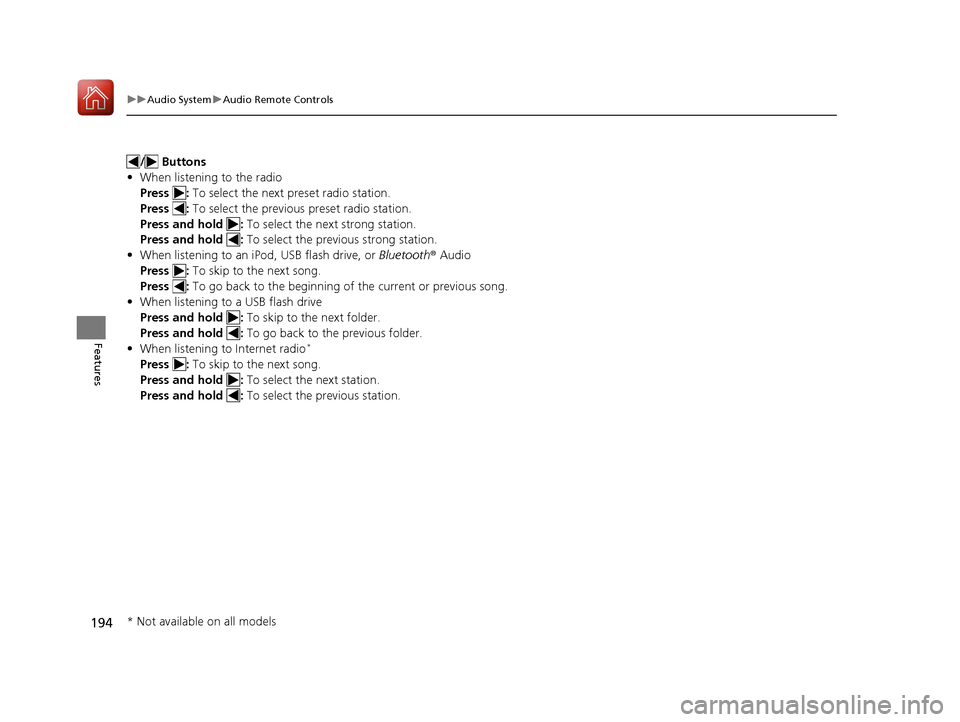
Allow you to operate the audio system wh ile driving. The information is shown on
the driver information interface.
/ Buttons
Press or to cycle through the audio
mode as follows:
FM AM SiriusXM ®*
USB iPod
Bluetooth ®Audio Pandora ®*
Apps *
Audio Apps *
• When listening to the radio and SiriusXM ®*
1. Press ENTER to switch the display to a
preset list you stored in the preset buttons.
2. Press or to select a preset, then press
ENTER .
• When listening to a USB flash drive
1. Press ENTER to display the folder list.
2. Press or to select a folder.
3. Press ENTER to display a list of tracks in that
folder.
4. Press or to select a track, then press
ENTER .
You can also swipe up or down to scroll
through the list of tracks alphabetically.
1Audio Remote Controls
Some modes appear only when an appropriate
device or medium is used. Depending on the Bluetooth® device you connect,
some functions may not be available.
Press the (Hang-up/back) button to go back
to the previous command or cancel a command.
Press the button to switch display. 2 Switching the Display P. 196Models with driver information interface
Button
ENTER Button
Button
(+/(- Bar
Button
Button3
Button4
34
34
34
34
34
* Not available on all models
16 CIVIC 2D HC2 (0A 01 0C)-31TBG6000.book 192 ページ >0>.>/6年>0月>/>0日 金曜日 午後4時>/6分
Page 195 of 585
194
uuAudio SystemuAudio Remote Controls
Features
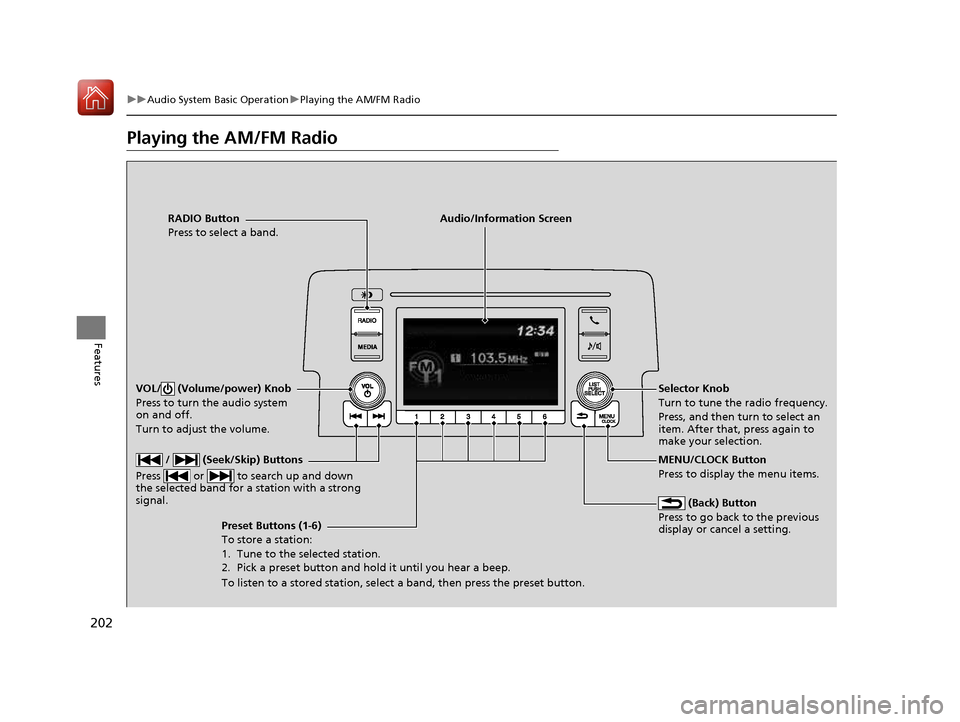
/ Buttons
• When listening to the radio
Press : To select the next preset radio station.
Press : To select the previous preset radio station.
Press and hold : To select the next strong station.
Press and hold : To select the previous strong station.
• When listening to an iPod, USB flash drive, or Bluetooth® Audio
Press : To skip to the next song.
Press : To go back to the beginning of the current or previous song.
• When listening to a USB flash drive
Press and hold : To skip to the next folder.
Press and hold : To go back to the previous folder.
• When listening to Internet radio *
Press : To skip to the next song.
Press and hold : To select the next station.
Press and hold : To select the previous station.
* Not available on all models
16 CIVIC 2D HC2 (0A 01 0C)-31TBG6000.book 194 ページ >0>.>/6年>0月>/>0日 金曜日 午後4時>/6分
Page 203 of 585
202
uuAudio System Basic OperationuPlaying the AM/FM Radio
Features
Playing the AM/FM Radio
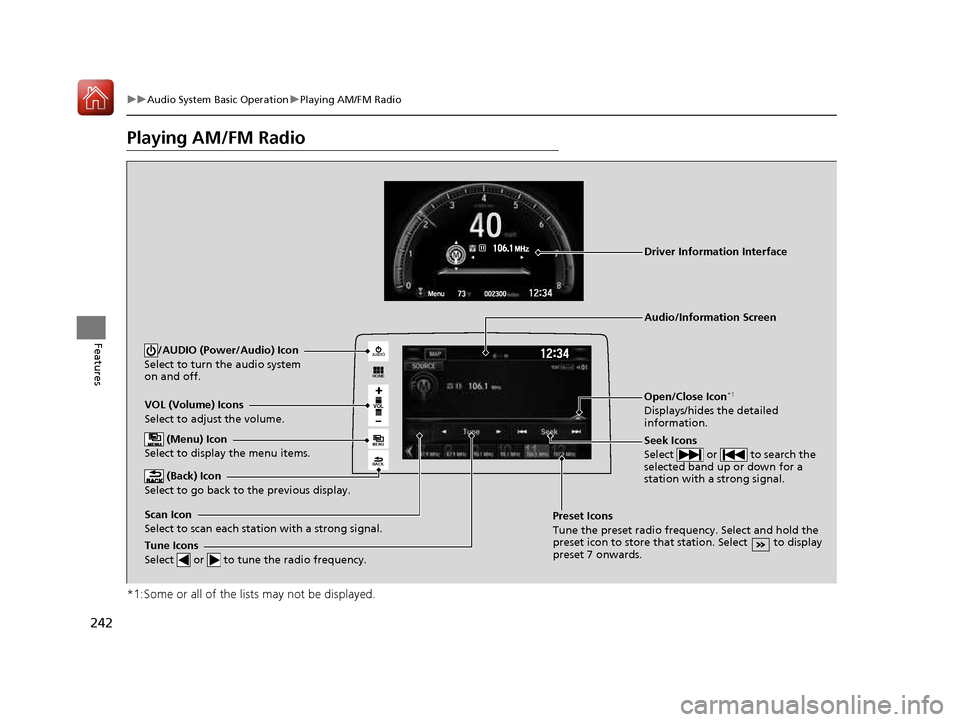
RADIO Button
Press to select a band. (Back) Button
Press to go back to the previous display or cancel a setting.
/ (Seek/Skip) Buttons
Press or to search up and down
the selected band for a station with a strong signal.
VOL/ (Volume/power) Knob
Press to turn the audio system
on and off.
Turn to adjust the volume.
Preset Buttons (1-6) To store a station:
1. Tune to the selected station.
2. Pick a preset button and hold it until you hear a beep.
To listen to a stored station, select a band, then press the preset button. Selector Knob
Turn to tune the radio frequency.
Press, and then turn to select an item. After that, press again to
make your selection.
MENU/CLOCK Button Press to display the menu items.
Audio/Information Screen
16 CIVIC 2D HC2 (0A 01 0C)-31TBG6000.book 202 ページ >0>.>/6年>0月>/>0日
金曜日 午後4時>/6分
Page 204 of 585
203
uuAudio System Basic OperationuPlaying the AM/FM Radio
Features
Provides text data information related to your selected RDS capable FM station. ■To find an RDS station from Station List
1. Press while listening to an FM station.
2. Rotate to select the station, then press .
■ Update List
Updates your available st ation list at any time.
1. Press while listening to an FM station.
2. Rotate to select Update List, then press .
■ Radio text
Displays the radio text information of the selected RDS station. 1. Press the MENU/CLOCK button.
2. Rotate to select Settings, then press .
3. Rotate to select RDS Settings, then press .
4. Rotate to select Radio Text, then press .
■ Scan
Samples each of the strongest stations on the selected band for 10 seconds.
1. Press the MENU/CLOCK button.
2. Rotate to select Scan, then press .
To turn off scan, press .
■Radio Data System (RDS)1Playing the AM/FM Radio
The ST indicator appears on the display indicating
stereo FM broadcasts.
Stereo reproduction in AM is not available.
You can store 6 AM stations and 12 FM stations into
the preset memory.
Switching the Audio Mode
Press the SOURCE button on the steering wheel.
2 Audio Remote Controls P. 191
1Radio Data System (RDS)
When you select an RDS-capable FM station, the RDS
automatically turns on, and the frequency display
changes to the station name. However, when the
signals of that station become weak, the display
changes from the statio n name to the frequency.
16 CIVIC 2D HC2 (0A 01 0C)-31TBG6000.book 203 ページ >0>.>/6年>0月>/>0日 金曜日 午後4時>/6分
Page 211 of 585
210
uuAudio System Basic OperationuPlaying Bluetooth ® Audio
Features
Playing Bluetooth ® Audio
Your audio system allows you to listen to music from your Bluetooth-compatible
phone.
This function is available when the phone is paired and connected to the vehicle’s
Bluetooth ® HandsFreeLink ® (HFL) system.
2 Phone Setup P. 329
1Playing Bluetooth ® Audio
Not all Bluetooth -enabled phones with streaming
audio capabilities are comp atible with the system.
For a list of compatible phones: • U.S.: Visit www.handsfreelink.honda.com , or call
1-888-528-7876.
• Canada: Visit www.handsfreelink.ca , or call 1-888-
528-7876.
In some states, it may be il legal to perform some data
device functions while driving. Only one phone can be used with HFL at a time.
When there are more than two paired phones in the
vehicle, the first paired phone the system finds is
automatically connected.
If more than one phone is paired to the HFL system,
there will be a delay before the system begins to play.
In some cases, the name of the artist, album, or track
may not appear correctly.
Some functions may not be available on some
devices.
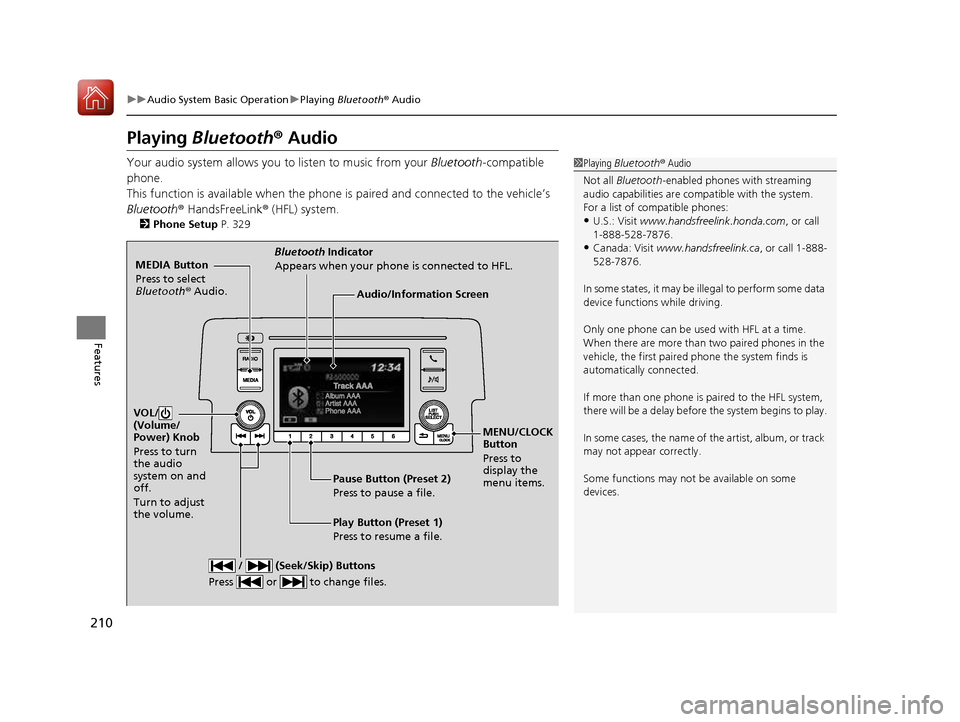
MEDIA Button
Press to select
Bluetooth ® Audio.
VOL/
(Volume/
Power) Knob
Press to turn
the audio
system on and off.
Turn to adjust the volume.
MENU/CLOCK Button
Press to display the
menu items.
Audio/Information Screen
Bluetooth
Indicator
Appears when your phone is connected to HFL.
/ (Seek/Skip) Buttons
Press or to change files.
Play Button (Preset 1)
Press to resume a file.
Pause Button (Preset 2)
Press to pause a file.
16 CIVIC 2D HC2 (0A 01 0C)-31TBG6000.book 210 ページ >0>.>/6年>0月>/>0日
金曜日 午後4時>/6分
Page 217 of 585
216
uuAudio System Basic OperationuAudio/Information Screen
Features
■Info
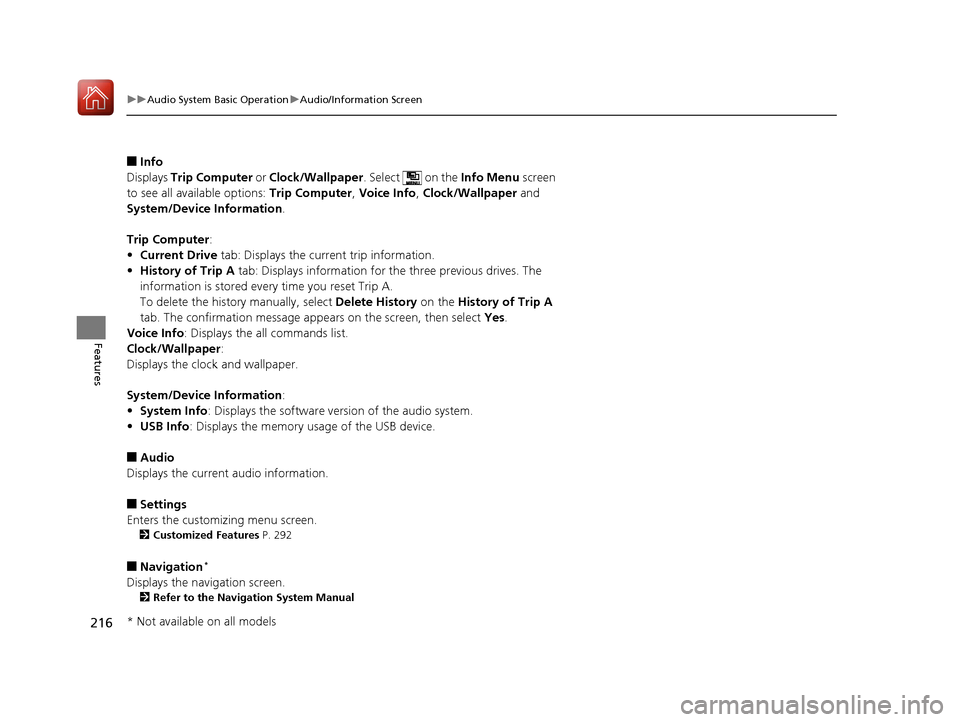
Displays Trip Computer or Clock/Wallpaper . Select on the Info Menu screen
to see all available options: Trip Computer, Voice Info , Clock/Wallpaper and
System/Device Information .
Trip Computer :
• Current Drive tab: Displays the current trip information.
• History of Trip A tab: Displays information for the three previous drives. The
information is stored every time you reset Trip A.
To delete the history manually, select Delete History on the History of Trip A
tab. The confirmation message ap pears on the screen, then select Yes.
Voice Info : Displays the all commands list.
Clock/Wallpaper :
Displays the cloc k and wallpaper.
System/Device Information :
• System Info : Displays the software version of the audio system.
• USB Info : Displays the memory usage of the USB device.
■ Audio
Displays the current audio information.
■ Settings
Enters the customiz ing menu screen.
2 Customized Features P. 292
■ Navigation *
Displays the navigation screen. 2 Refer to the Navigation System Manual
* Not available on all models
16 CIVIC 2D HC2 (0A 01 0C)-31TBG6000.book 216 ページ >0>.>/6年>0月>/>0日 金曜日 午後4時>/6分
Page 227 of 585
uuAudio System Basic OperationuAudio/Information Screen
226
Features
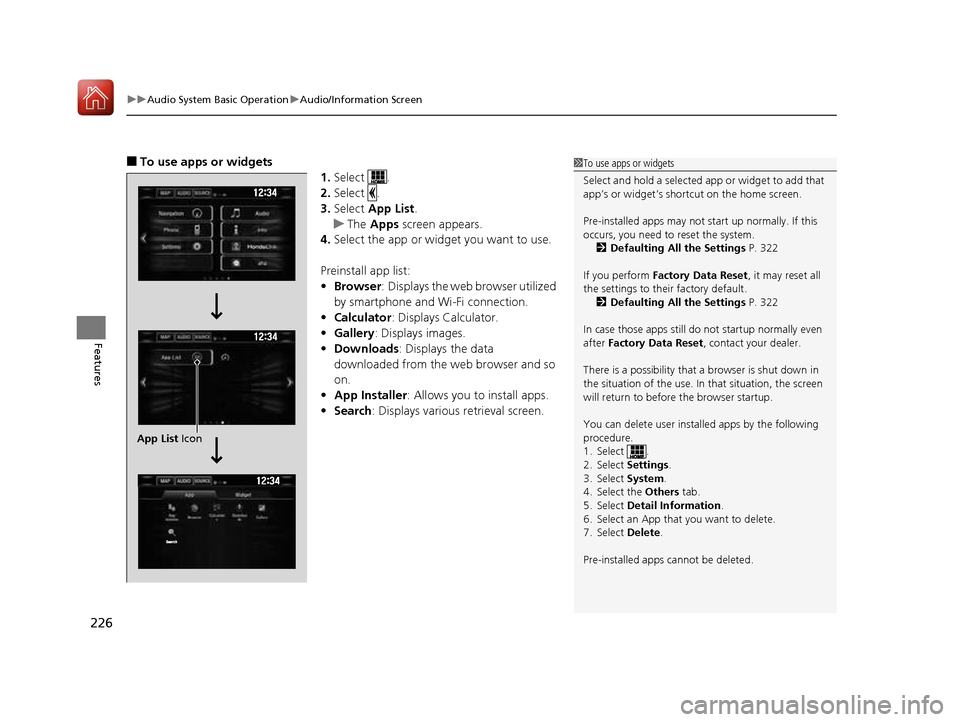
■ To use apps or widgets
1.Select .
2. Select .
3. Select App List .
uThe Apps screen appears.
4. Select the app or widget you want to use.
Preinstall app list: • Browser : Displays the web browser utilized
by smartphone and Wi-Fi connection.
• Calculator : Displays Calculator.
• Gallery : Displays images.
• Downloads : Displays the data
downloaded from the web browser and so
on.
• App Installer : Allows you to install apps.
• Search : Displays various retrieval screen.
1To use apps or widgets
Select and hold a selected app or widget to add that
app’s or widget’s shortcut on the home screen.
Pre-installed apps may not start up normally. If this
occurs, you need to reset the system.
2 Defaulting All the Settings P. 322
If you perform Factory Data Reset , it may reset all
the settings to their factory default.
2 Defaulting All the Settings P. 322
In case those apps still do not startup normally even
after Factory Data Reset , contact your dealer.
There is a possibility that a browser is shut down in
the situation of the use. In that situation, the screen
will return to before the browser startup.
You can delete user installed apps by the following
procedure.
1. Select .
2. Select Settings.
3. Select System.
4. Select the Others tab.
5. Select Detail Information .
6. Select an App that you want to delete.
7. Select Delete.
Pre-installed apps cannot be deleted.
App List Icon
16 CIVIC 2D HC2 (0A 01 0C)-31TBG6000.book 226 ページ >0>.>/6年>0月>/>0日 金曜日 午後4時>/6分
Page 243 of 585
242
uuAudio System Basic OperationuPlaying AM/FM Radio
Features
Playing AM/FM Radio
*1:Some or all of the lists may not be displayed.
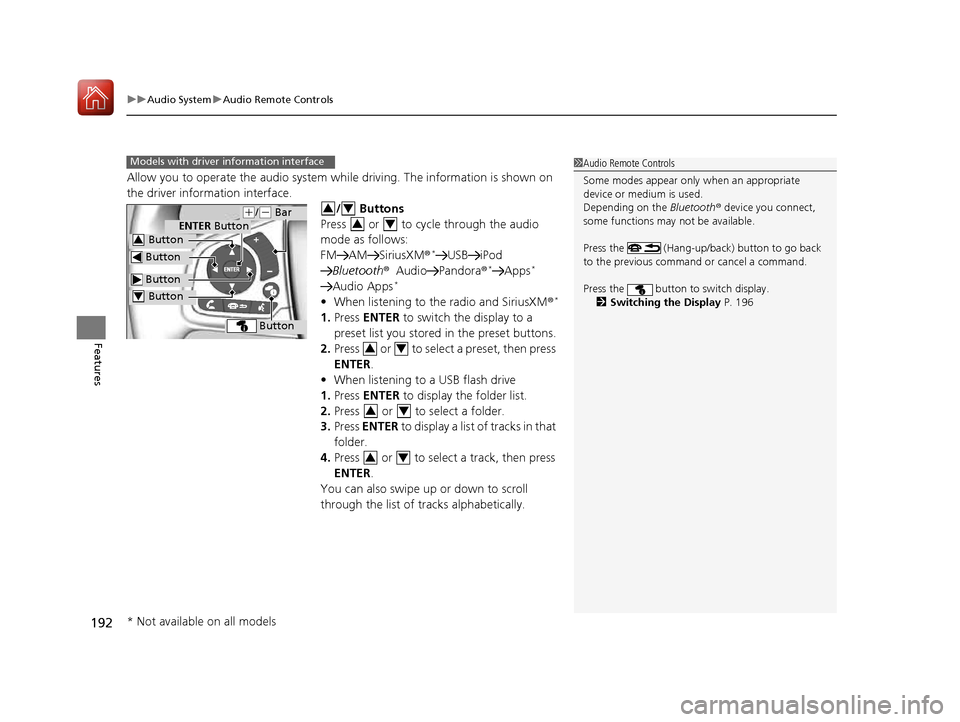
VOL
HOME
MENU
BACK
AUDIO
VOL (Volume) Icons
Select to adjust the volume.
(Back) Icon
Select to go back to the previous display.
Seek Icons
Select or to search the
selected band up or down for a
station with a strong signal.
/AUDIO (Power/Audio) Icon
Select to turn the audio system
on and off.
Open/Close Icon *1
Displays/hides the detailed
information.
(Menu) Icon
Select to display the menu items.
Tune Icons
Select or to tune the radio frequency.
Audio/Information Screen
Scan Icon
Select to scan each station with a strong signal. Preset Icons
Tune the preset radio frequency. Select and hold the
preset icon to store that station. Select to display
preset 7 onwards.
Driver Information Interface
16 CIVIC 2D HC2 (0A 01 0C)-31TBG6000.book 242 ページ >0>.>/6年>0月>/>0日
金曜日 午後4時>/6分