Page 198 of 585
197
uuAudio System Basic OperationuAudio/Information Screen
Continued
Features
■Audio
Shows the current audio information. ■ Clock/Wallpaper
Shows a clock screen or an image you import.■ Change display
1. Press the MENU/CLOCK button.
2. Rotate to select Settings, then press .
3. Rotate to select Display Change, then press .
4. Rotate to select Wallpaper, then press .
uIf you want to return to the audio display, select Audio.
16 CIVIC 2D HC2 (0A 01 0C)-31TBG6000.book 197 ページ >0>.>/6年>0月>/>0日 金曜日 午後4時>/6分
Page 199 of 585
uuAudio System Basic OperationuAudio/Information Screen
198
Features
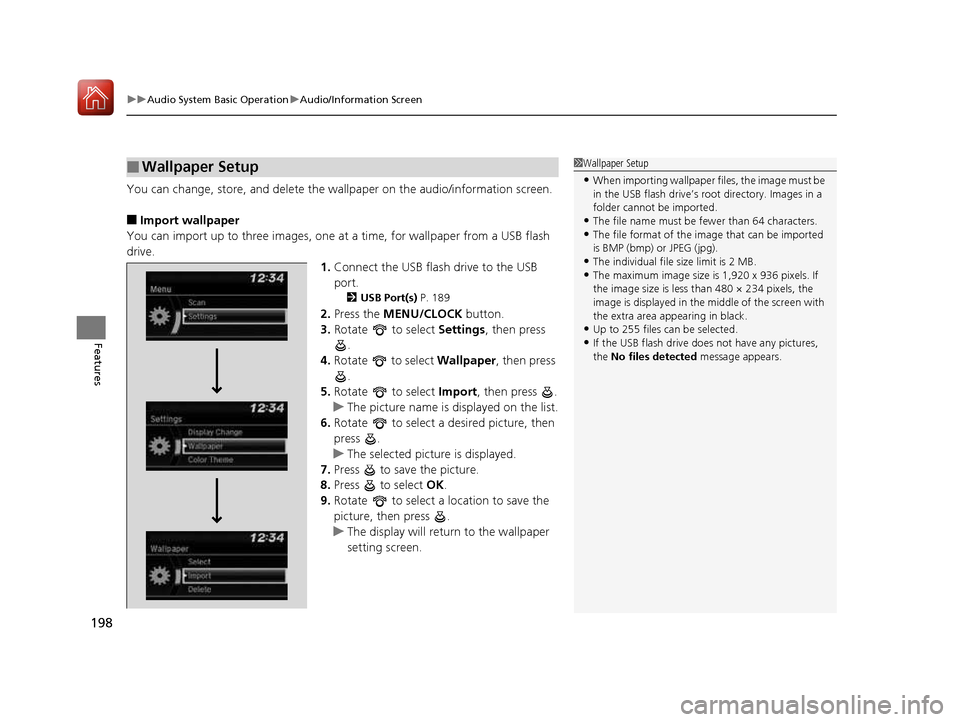
You can change, store, and delete the wa llpaper on the audio/information screen.
■ Import wallpaper
You can import up to three images, one at a time, for wallpaper from a USB flash
drive.
1.Connect the USB flash drive to the USB port.
2 USB Port(s) P. 189
2. Press the MENU/CLOCK button.
3. Rotate to select Settings, then press
.
4. Rotate to select Wallpaper, then press
.
5. Rotate to select Import, then press .
uThe picture name is displayed on the list.
6. Rotate to select a desired picture, then
press .
uThe selected picture is displayed.
7. Press to save the picture.
8. Press to select OK.
9. Rotate to select a location to save the
picture, then press .
uThe display will return to the wallpaper
setting screen.
■Wallpaper Setup1Wallpaper Setup
• When importing wallpaper files, the image must be
in the USB flash drive’s root directory. Images in a
folder cannot be imported.
• The file name must be fewer than 64 characters.
• The file format of the im age that can be imported
is BMP (bmp) or JPEG (jpg).
• The individual file size limit is 2 MB.
• The maximum image size is 1,920 x 936 pixels. If
the image size is less than 480 × 234 pixels, the
image is displayed in the middle of the screen with
the extra area appearing in black.
• Up to 255 files can be selected.
• If the USB flash drive doe s not have any pictures,
the No files detected message appears.
16 CIVIC 2D HC2 (0A 01 0C)-31TBG6000.book 198 ページ >0>.>/6年>0月>/>0日 金曜日 午後4時>/6分
Page 200 of 585
199
uuAudio System Basic OperationuAudio/Information Screen
Features
■Select wallpaper
1. Press the MENU/CLOCK button.
2. Rotate to select Settings, then press .
3. Rotate to select Wallpaper, then press .
4. Rotate to select Select, then press .
uThe screen changes to the wallpaper list.
5. Rotate to select a desired wallpaper, then press .
■ To view wallpaper once it is set
1. Press the MENU/CLOCK button.
2. Rotate to select Settings, then press .
3. Rotate to select Display Change, then press .
4. Rotate to select Wallpaper, then press .
uThe screen changes to the wallpaper list.
5. Rotate to select a wallpaper that you want to set, then press .
■ Delete wallpaper
1. Press the MENU/CLOCK button.
2. Rotate to select Settings, then press .
3. Rotate to select Wallpaper, then press .
4. Rotate to select Delete, then press .
uThe screen changes to the wallpaper list.
5. Rotate to select a wallpaper that you want to delete, then press .
6. Rotate to select Yes, then press .
uThe display will return to the wallpaper setting screen.
1Wallpaper Setup
To go back to the previous screen, press the
(Back) button.
When the file size is large, it takes a while to be previewed.
16 CIVIC 2D HC2 (0A 01 0C)-31TBG6000.book 199 ページ >0>.>/6年>0月>/>0日 金曜日 午後4時>/6分
Page 202 of 585
201
uuAudio System Basic OperationuDisplay Setup
Features
Display Setup
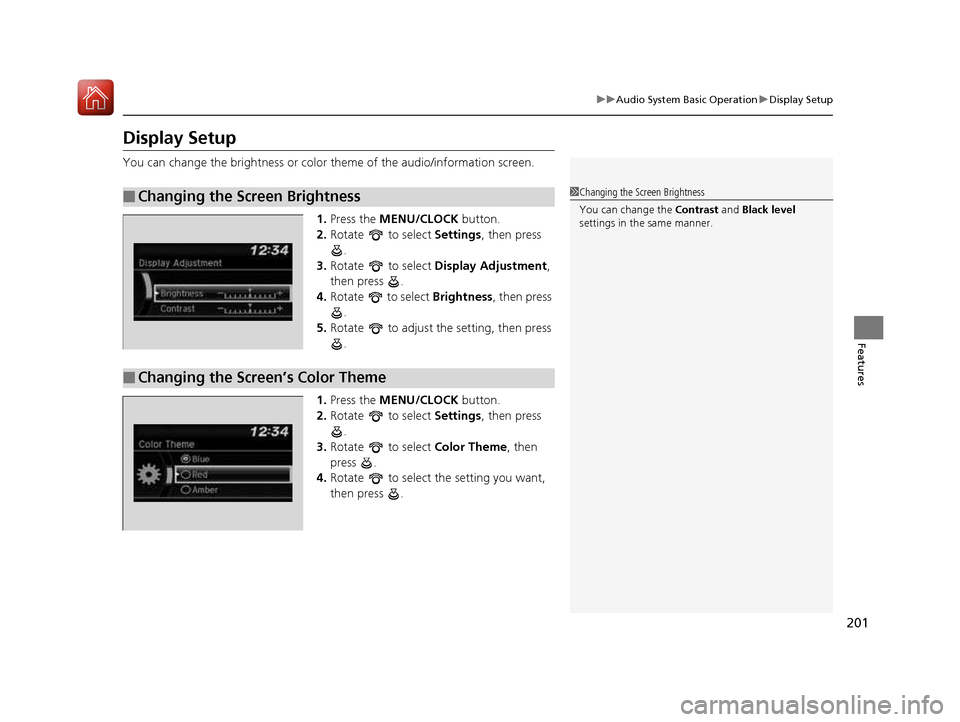
You can change the brightness or color theme of the audio/information screen.
1. Press the MENU/CLOCK button.
2. Rotate to select Settings, then press
.
3. Rotate to select Display Adjustment ,
then press .
4. Rotate to select Brightness, then press
.
5. Rotate to adjust th e setting, then press
.
1. Press the MENU/CLOCK button.
2. Rotate to select Settings, then press
.
3. Rotate to select Color Theme, then
press .
4. Rotate to select the setting you want,
then press .
■Changing the Screen Brightness1Changing the Screen Brightness
You can change the Contrast and Black level
settings in the same manner.
■Changing the Screen’s Color Theme
16 CIVIC 2D HC2 (0A 01 0C)-31TBG6000.book 201 ページ >0>.>/6年>0月>/>0日 金曜日 午後4時>/6分
Page 203 of 585
202
uuAudio System Basic OperationuPlaying the AM/FM Radio
Features
Playing the AM/FM Radio
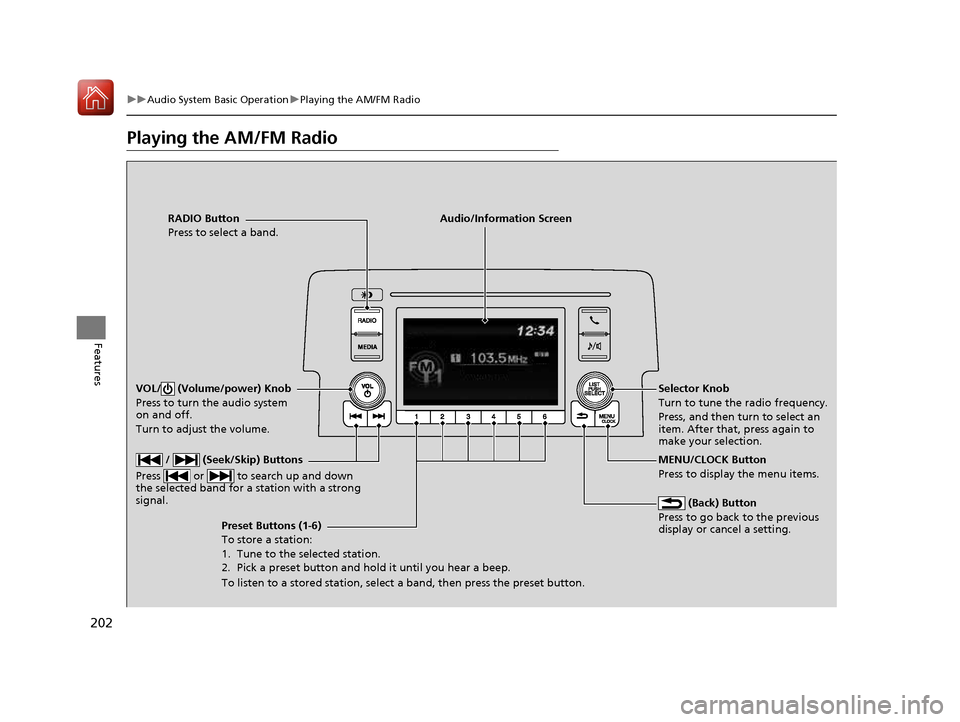
RADIO Button
Press to select a band. (Back) Button
Press to go back to the previous display or cancel a setting.
/ (Seek/Skip) Buttons
Press or to search up and down
the selected band for a station with a strong signal.
VOL/ (Volume/power) Knob
Press to turn the audio system
on and off.
Turn to adjust the volume.
Preset Buttons (1-6) To store a station:
1. Tune to the selected station.
2. Pick a preset button and hold it until you hear a beep.
To listen to a stored station, select a band, then press the preset button. Selector Knob
Turn to tune the radio frequency.
Press, and then turn to select an item. After that, press again to
make your selection.
MENU/CLOCK Button Press to display the menu items.
Audio/Information Screen
16 CIVIC 2D HC2 (0A 01 0C)-31TBG6000.book 202 ページ >0>.>/6年>0月>/>0日
金曜日 午後4時>/6分
Page 204 of 585
203
uuAudio System Basic OperationuPlaying the AM/FM Radio
Features
Provides text data information related to your selected RDS capable FM station. ■To find an RDS station from Station List
1. Press while listening to an FM station.
2. Rotate to select the station, then press .
■ Update List
Updates your available st ation list at any time.
1. Press while listening to an FM station.
2. Rotate to select Update List, then press .
■ Radio text
Displays the radio text information of the selected RDS station. 1. Press the MENU/CLOCK button.
2. Rotate to select Settings, then press .
3. Rotate to select RDS Settings, then press .
4. Rotate to select Radio Text, then press .
■ Scan
Samples each of the strongest stations on the selected band for 10 seconds.
1. Press the MENU/CLOCK button.
2. Rotate to select Scan, then press .
To turn off scan, press .
■Radio Data System (RDS)1Playing the AM/FM Radio
The ST indicator appears on the display indicating
stereo FM broadcasts.
Stereo reproduction in AM is not available.
You can store 6 AM stations and 12 FM stations into
the preset memory.
Switching the Audio Mode
Press the SOURCE button on the steering wheel.
2 Audio Remote Controls P. 191
1Radio Data System (RDS)
When you select an RDS-capable FM station, the RDS
automatically turns on, and the frequency display
changes to the station name. However, when the
signals of that station become weak, the display
changes from the statio n name to the frequency.
16 CIVIC 2D HC2 (0A 01 0C)-31TBG6000.book 203 ページ >0>.>/6年>0月>/>0日 金曜日 午後4時>/6分
Page 205 of 585
204
uuAudio System Basic OperationuPlaying an iPod
Features
Playing an iPod
Connect the iPod using your dock connector to the USB port, then press the MEDIA
button. 2 USB Port(s) P. 189
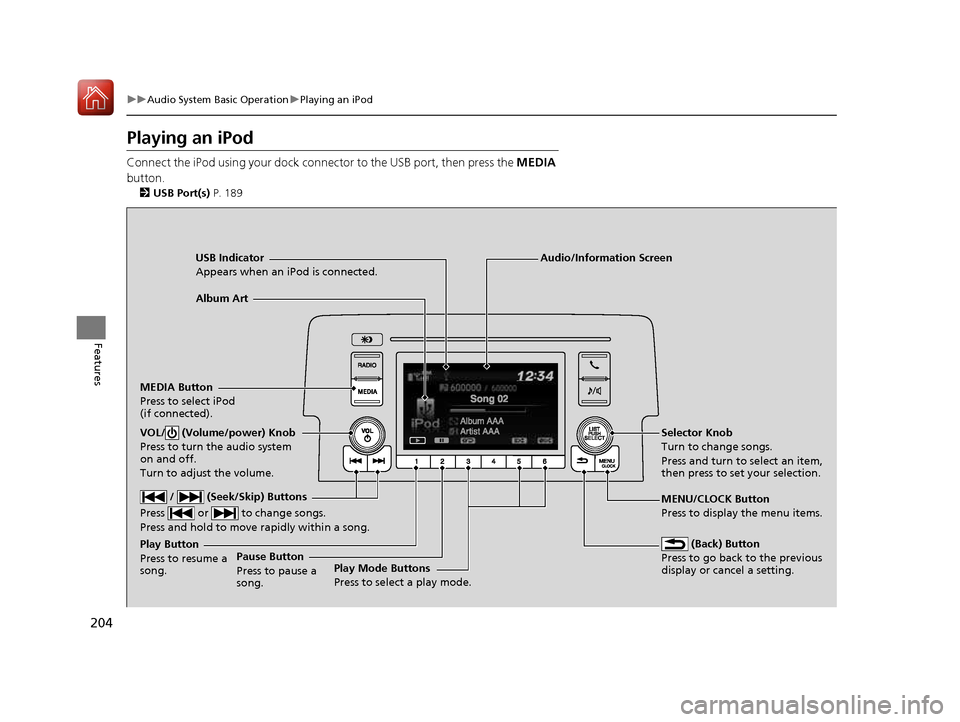
USB Indicator
Appears when an iPod is connected.
MEDIA ButtonPress to select iPod
(if connected).
(Back) Button
Press to go back to the previous display or cancel a setting.
/ (Seek/Skip) Buttons
Press or to change songs. Press and hold to move rapidly within a song.
VOL/ (Volume/power) Knob
Press to turn the audio system
on and off.
Turn to adjust the volume.Selector Knob
Turn to change songs.
Press and turn to select an item,
then press to set your selection.
MENU/CLOCK Button Press to display the menu items.
Audio/Information Screen
Album Art
Play Mode Buttons
Press to select a play mode.
Play Button Press to resume a song.Pause Button
Press to pause a
song.
16 CIVIC 2D HC2 (0A 01 0C)-31TBG6000.book 204 ページ >0>.>/6年>0月>/>0日
金曜日 午後4時>/6分
Page 207 of 585
uuAudio System Basic OperationuPlaying an iPod
206
Features
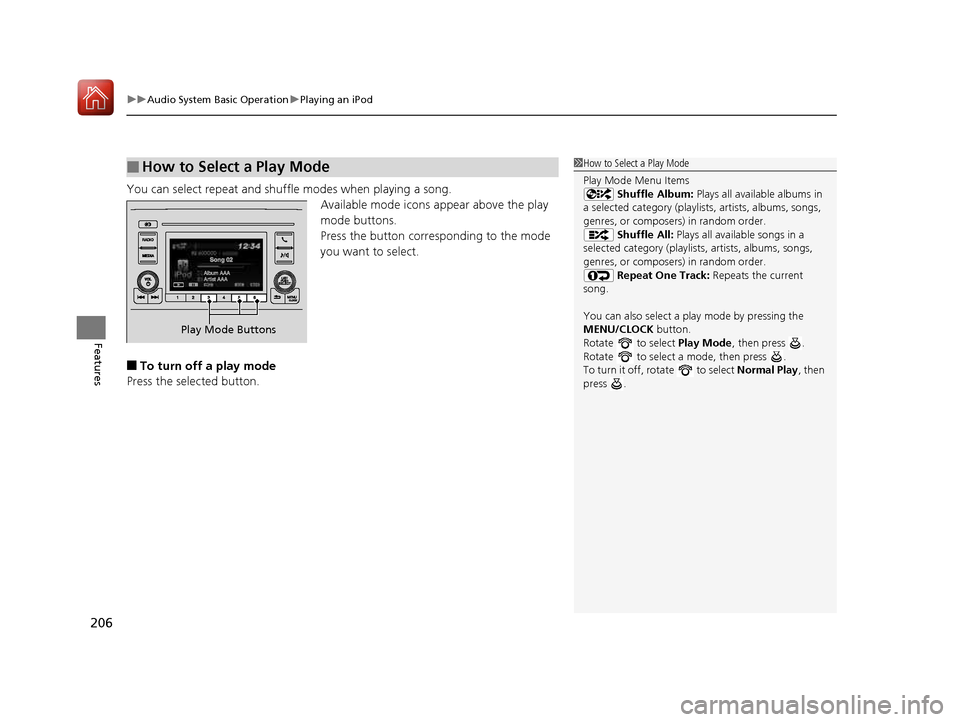
You can select repeat and shuffle modes when playing a song. Available mode icons appear above the play
mode buttons.
Press the button corresponding to the mode
you want to select.
■ To turn off a play mode
Press the selected button.
■How to Select a Play Mode1How to Select a Play Mode
Play Mode Menu Items Shuffle Album: Plays all available albums in
a selected category (playlists, artists, albums, songs,
genres, or composers) in random order. Shuffle All: Plays all available songs in a
selected category (playlists , artists, albums, songs,
genres, or composers) in random order. Repeat One Track: Repeats the current
song.
You can also select a pl ay mode by pressing the
MENU/CLOCK button.
Rotate to select Play Mode, then press .
Rotate to select a mode, then press .
To turn it off, rotate to select Normal Play, then
press .
Play Mode Buttons
16 CIVIC 2D HC2 (0A 01 0C)-31TBG6000.book 206 ページ >0>.>/6年>0月>/>0日 金曜日 午後4時>/6分