2016 FORD TRANSIT CONNECT Parking
[x] Cancel search: ParkingPage 247 of 439

•
Use commercial car washing
equipment.
• Use snow chains on the end of the
vehicle with the dissimilar spare wheel
and tire assembly.
The usage of a full-size dissimilar spare
wheel and tire assembly can lead to
impairment of the following:
• Handling, stability and braking
performance.
• Comfort and noise.
• Ground clearance and parking at curbs.
• Winter weather driving capability.
• Wet weather driving capability.
• All-wheel driving capability.
When driving with the full-size dissimilar
spare wheel and tire assembly additional
caution should be given to:
• Towing a trailer.
• Driving vehicles equipped with a
camper body.
• Driving vehicles with a load on the
cargo rack.
Drive cautiously when using a full-size
dissimilar spare wheel and tire assembly
and seek service as soon as possible.
Changing a Road Wheel WARNINGS
When one of the front wheels is off
the ground, the transmission alone
will not prevent the vehicle from
moving or slipping off the jack, even if the
transmission selector lever is in park (P). To help prevent your vehicle from
moving when you change a tire, be
sure to place the transmission
selector lever in park (P), set the parking
brake and block (in both directions) the
wheel that is diagonally opposite (other
side and end of the vehicle) to the tire
being changed. WARNINGS
Never get underneath a vehicle that
is supported only by a jack. If your
vehicle slips off the jack, you or
someone else could be seriously injured. Do not attempt to change a tire on
the side of the vehicle close to
moving traffic. Pull far enough off the
road to avoid the danger of being hit when
operating the jack or changing the wheel. Always use the jack provided as
original equipment with your vehicle.
If using a jack other than the one
provided as original equipment with your
vehicle, make sure the jack capacity is
adequate for the vehicle weight, including
any vehicle cargo or modifications. Note:
The jack and tools are located behind
a cover in the sidewall at the left rear of the
cargo area. Remove the retention straps and
wing nut before removing the jack.
The jack and tools are located behind a
cover in the left rear of the cargo area.
Remove the wing nut to remove the jack.
Remove the lug nut wrench from the clips
by pulling straight out.
1. Park on a level surface, set the parking
brake and activate the hazard flashers.
2. Move the transmission selector lever to the park (P) position and switch the
ignition off.
244
Tourneo Connect/Transit Connect (CHC) Canada/United States of America, enUSA, First Printing Wheels and Tires
Page 261 of 439

GENERAL INFORMATION
Radio Frequencies and Reception
Factors
AM and FM frequencies are established by
the Federal Communications Commission
(FCC) and the Canadian Radio and
Telecommunications Commission (CRTC).
Those frequencies are:
•
AM: 530, 540-1700, 1710 kHz
• FM: 87.9-107.7, 107.9 MHz Radio Reception Factors
The further you travel from an AM or FM station, the
weaker the signal and the weaker the reception.
Distance and strength
Hills, mountains, tall buildings, bridges, tunnels, freeway
overpasses, parking garages, dense tree foliage and
thunderstorms can interfere with the reception.
Terrain
When you pass a ground-based broadcast repeating
tower, a stronger signal may overtake a weaker one and
result in the audio system muting.
Station overload
CD and CD Player Information
Note: CD units play commercially pressed
4.75-inch (12 centimeter) audio compact
discs only. Due to technical incompatibility,
certain recordable and re-recordable
compact discs may not function correctly
when used in Ford CD players.
Note: Do not insert CDs with homemade
paper (adhesive) labels into the CD player
as the label may peel and cause the CD to
become jammed. You should use a
permanent felt tip marker rather than
adhesive labels on your homemade CDs.
Ballpoint pens may damage CDs. Please
contact an authorized dealer for further
information.
Note: Do not use any irregularly shaped
discs or discs with a scratch protection film
attached.
Always handle discs by their edges only.
Clean the disc with an approved CD
cleaner only. Wipe it from the center of the
disc toward the edge. Do not clean in a
circular motion. Do not expose discs to direct sunlight or
heat sources for extended periods.
MP3 and WMA Track and Folder
Structure
Audio systems capable of recognizing and
playing MP3 and WMA individual tracks
and folder structures work as follows:
•
There are two different modes for MP3
and WMA disc playback: MP3 and
WMA track mode (system default) and
MP3 and WMA folder mode.
• MP3 and WMA track mode ignores any
folder structure on the MP3 and WMA
disc. The player numbers each MP3
and WMA track on the disc (noted by
the MP3 or WMA file extension) from
T001 to a maximum of T255. The
maximum number of playable MP3 and
WMA files may be less depending on
the structure of the CD and exact
model of radio present.
258
Tourneo Connect/Transit Connect (CHC) Canada/United States of America, enUSA, First Printing Audio System
Page 273 of 439

Note:
This receiver includes the eCos
real-time operating system. eCos is
published under the eCos License.
Satellite Radio Reception Factors Potential satellite radio reception issues
For optimal reception performance, keep the antenna
clear of snow and ice build-up and keep luggage and other
material as far away from the antenna as possible.
Antenna obstructions
Hills, mountains, tall buildings, bridges, tunnels, freeway
overpasses, parking garages, dense tree foliage and
thunderstorms can interfere with your reception.
Terrain
When you pass a ground-based broadcast-repeating
tower, a stronger signal may overtake a weaker one and
the audio system may mute.
Station overload
Your display may show ACQUIRING . . . to indicate the
interference and the audio system may mute.
Satellite radio signal interfer-
ence
SIRIUS® Satellite Radio Service
Note: SIRIUS reserves the unrestricted right
to change, rearrange, add or delete
programming including canceling, moving
or adding particular channels, and its prices,
at any time, with or without notice to you.
Ford Motor Company shall not be
responsible for any such programming
changes. SIRIUS satellite radio is a
subscription-based satellite radio service
that broadcasts a variety of music, sports,
news, weather, traffic and entertainment
programming. Your factory-installed
SIRIUS satellite radio system includes
hardware and a limited subscription term,
which begins on the date of sale or lease
of your vehicle. See an authorized dealer
for availability.
For more information on extended
subscription terms (a service fee is
required), the online media player and a
complete list of SIRIUS satellite radio
channels, and other features, please visit
www.siriusxm.com in the United States,
www.siriusxm.ca in Canada, or call SIRIUS
at 1-888-539-7474.
Satellite Radio Electronic Serial
Number (ESN)
You need your ESN to activate, modify or
track your satellite radio account. When in
satellite radio mode, tune to channel 0.
270
Tourneo Connect/Transit Connect (CHC) Canada/United States of America, enUSA, First Printing Audio SystemE142593
Page 282 of 439

USING SYNC™ WITH YOUR
PHONE
Hands-free calling is one of the main
features of SYNC. While the system
supports a variety of features, many are
dependent on your cell phone's
functionality. At a minimum, most cell
phones with Bluetooth wireless technology
support the following functions:
•
Answering an incoming call.
• Ending a call.
• Using privacy mode.
• Dialing a number.
• Redialing.
• Call waiting notification.
• Caller ID. Other features, such as text messaging
using Bluetooth and automatic phonebook
download, are cell phone-dependent
features. To check your cell phone's
compatibility, see your cell phone's manual
and visit www.SYNCMyRide.com,
www.SYNCMyRide.ca or
www.syncmaroute.ca.
Pairing a Cell Phone for the First
Time
Note:
SYNC can support downloading up
to approximately 1000 entries per
Bluetooth-enabled cell phone.
Note: Make sure to switch on the ignition
and the radio. Put the transmission in
position park (P) (automatic transmission)
or neutral with the parking brake applied
(manual transmission).
Note: To scroll through the menus, press
the up and down arrows on your audio
system.
Wirelessly pairing your cell phone with
SYNC allows you to make and receive
hands-free calls.
Press the phone button. When the display indicates there is no cell phone paired,
do the following: Action and Description
Message
Press the
OK button.
No Phone Paired
Find SYNC 1. Press the
OK button.
2. Put your cell phone into Bluetooth discovery mode. See your device's manual if necessary.
3. When prompted on your cell phone's display, enter the six-digit PIN provided by SYNC in the radio display. The
display indicates when the pairing is successful.
279
Tourneo Connect/Transit Connect (CHC) Canada/United States of America, enUSA, First Printing SYNC™
Page 283 of 439

Depending on your cell phone's capability
and your market, the system may prompt
you with questions, such as setting the
current cell phone as the primary cell
phone (the cell phone SYNC automatically
tries to connect with first upon vehicle
start-up) and downloading your
phonebook.
Pairing Subsequent Cell Phones
Note:
To scroll through the menus, press
the up and down arrows on your audio
system.
Note: Make sure to switch on the ignition
and the radio. Put the transmission in
position park (P) (automatic transmission)
or neutral with the parking brake applied
(manual transmission).
Press the phone button, then scroll to: Action
Message
Press the
OK button.
Phone settings
Press the
OK button.
Bluetooth device
Press the
OK button. When the following message appears
in the display.
Add
Find SYNC
1. Press the
OK button.
2. Put your cell phone into Bluetooth discovery mode. See your device's manual if necessary.
3. When prompted on your cell phone's display, enter the six-digit PIN provided by SYNC in the radio display. The
display indicates when the pairing is successful.
The system then prompts with questions, such as if you would like to set the current cell
phone as the primary cell phone (the cell phone SYNC automatically tries to connect
with first upon vehicle start-up) or download your phonebook.
Phone Voice Commands
Press the voice icon and say: Voice Commands
Phone
You can then say any of the following
commands.
Call History Incoming
Call History Missed
Call History Outgoing Voice Commands
Phonebook ___
Phonebook ___ at Home
Phonebook ___ at Work
Phonebook ___ in Office
Phonebook ___ on Cell
___ is a dynamic listing that should be the
name of a contact in your phonebook. For
example you could say "Call Mom".
280
Tourneo Connect/Transit Connect (CHC) Canada/United States of America, enUSA, First Printing SYNC™
Page 333 of 439

Message
Camera Settings Message
Enable Valet Mode
* US only
Vehicle Health Report (If Equipped, US Only)
To make adjustments using the touchscreen, select: Action and Description
Message
Press the settings icon.
Settings
Vehicle
Vehicle Health
Turn on and off and set the mileage interval at which you
would like to receive the reports. Press the ? for more
information on these selections.
Automatic Reminders
Mileage Interval (Miles)
To run the vehicle health report immediately.
Run Vehicle Health
Report Now
You can find more information on Vehicle Health Report in this chapter.
Camera Settings
This menu allows you to access settings
for your rear view camera.
To make adjustments using the touchscreen, select: Action and Description
Message
Press the settings icon.
Settings
Vehicle
Camera Settings
Then select from the following:
Enhanced Park Aids
Rear Camera Delay
You can find more information on the rear view camera system in another chapter. See
Parking Aids
(page 135).
330
Tourneo Connect/Transit Connect (CHC) Canada/United States of America, enUSA, First Printing MyFord Touch
™
Page 337 of 439
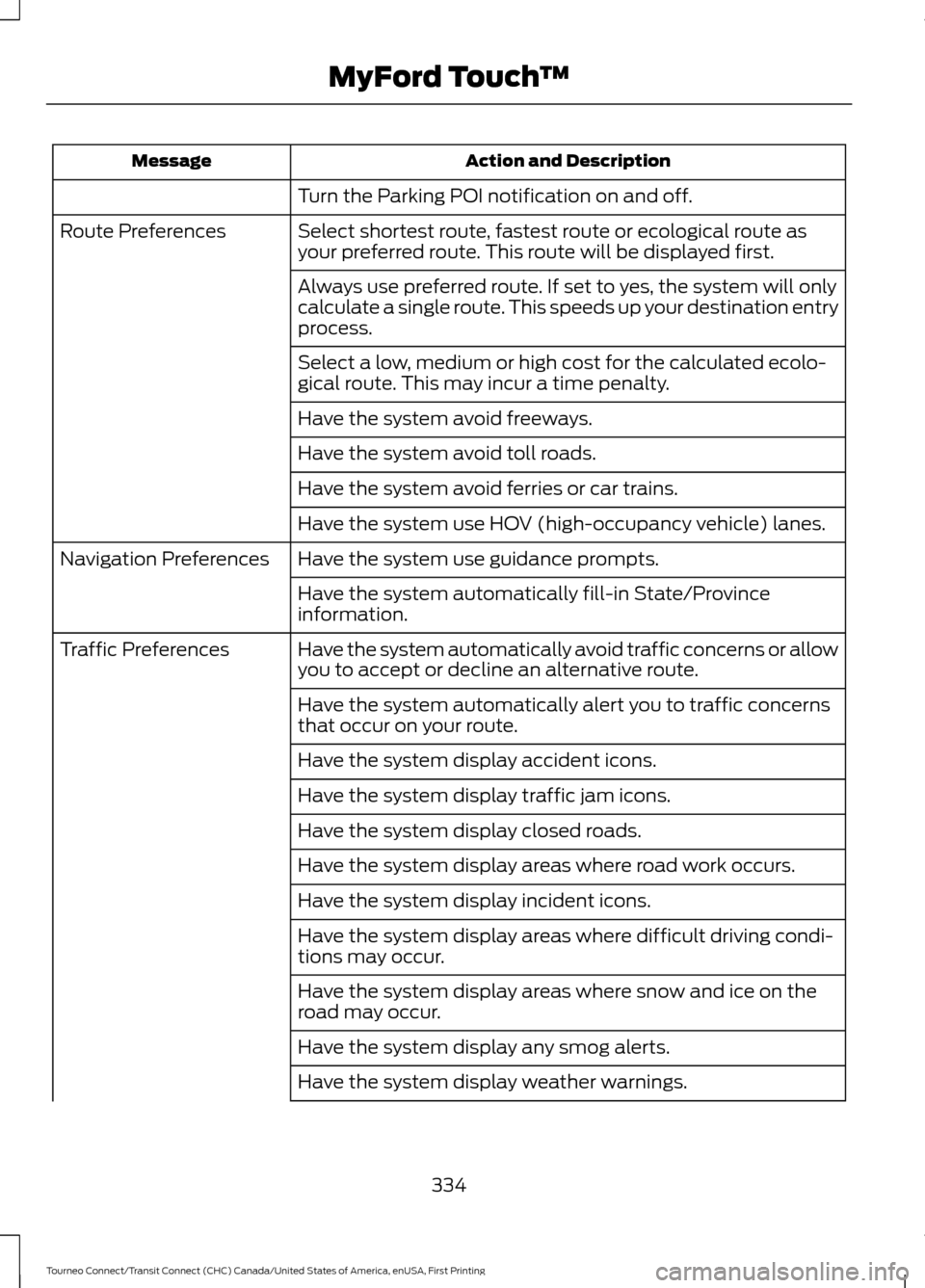
Action and Description
Message
Turn the Parking POI notification on and off.
Select shortest route, fastest route or ecological route as
your preferred route. This route will be displayed first.
Route Preferences
Always use preferred route. If set to yes, the system will only
calculate a single route. This speeds up your destination entry
process.
Select a low, medium or high cost for the calculated ecolo-
gical route. This may incur a time penalty.
Have the system avoid freeways.
Have the system avoid toll roads.
Have the system avoid ferries or car trains.
Have the system use HOV (high-occupancy vehicle) lanes.
Have the system use guidance prompts.
Navigation Preferences
Have the system automatically fill-in State/Province
information.
Have the system automatically avoid traffic concerns or allow
you to accept or decline an alternative route.
Traffic Preferences
Have the system automatically alert you to traffic concerns
that occur on your route.
Have the system display accident icons.
Have the system display traffic jam icons.
Have the system display closed roads.
Have the system display areas where road work occurs.
Have the system display incident icons.
Have the system display areas where difficult driving condi-
tions may occur.
Have the system display areas where snow and ice on the
road may occur.
Have the system display any smog alerts.
Have the system display weather warnings.
334
Tourneo Connect/Transit Connect (CHC) Canada/United States of America, enUSA, First Printing MyFord Touch
™
Page 351 of 439

SIRIUS satellite radio is a
subscription-based satellite radio service
that broadcasts a variety of music, sports,
news, weather, traffic and entertainment
programming. Your factory-installed
SIRIUS satellite radio system includes
hardware and a limited subscription term
that begins on the date of sale or lease of
your vehicle. See an authorized dealer for
availability.
For more information on extended
subscription terms (a service fee is
required), the online media player and a
list of SIRIUS satellite radio channels, and
other features, please visit
www.siriusxm.com in the United States,
www.sirius.ca in Canada, or call SIRIUS at
1-888-539-7474.
Note:
This receiver includes the eCos
real-time operating system. eCos is
published under the eCos License.
Satellite Radio Electronic Serial Number
(ESN)
You need your ESN to activate, modify or
track your satellite radio account. The ESN
is on the System Information Screen (SR
ESN:XXXXXXXXXXXX).
To access your ESN, touch the bottom
left corner of the touchscreen, then
select: Message
SIRIUS
Options
SIRIUS Satellite Radio Reception Factors and Troubleshooting Potential reception issues
For optimal reception performance, keep the antenna clear of snow
and ice build-up and keep luggage and other materials as far away
from the antenna as possible.
Antenna obstruc-
tions
Hills, mountains, tall buildings, bridges, tunnels, freeway overpasses,
parking garages, dense tree foliage and thunderstorms can interfere
with your reception.
Terrain
When you pass a ground-based broadcast-repeating tower, a
stronger signal may overtake a weaker one and the audio system
may mute.
Station overload
Your display may show ACQUIRING... to indicate the interference
and the audio system may mute.
Satellite radio
signal interfer-
ence
348
Tourneo Connect/Transit Connect (CHC) Canada/United States of America, enUSA, First Printing MyFord Touch
™