2016 FORD FUSION (AMERICAS) start
[x] Cancel search: startPage 350 of 518
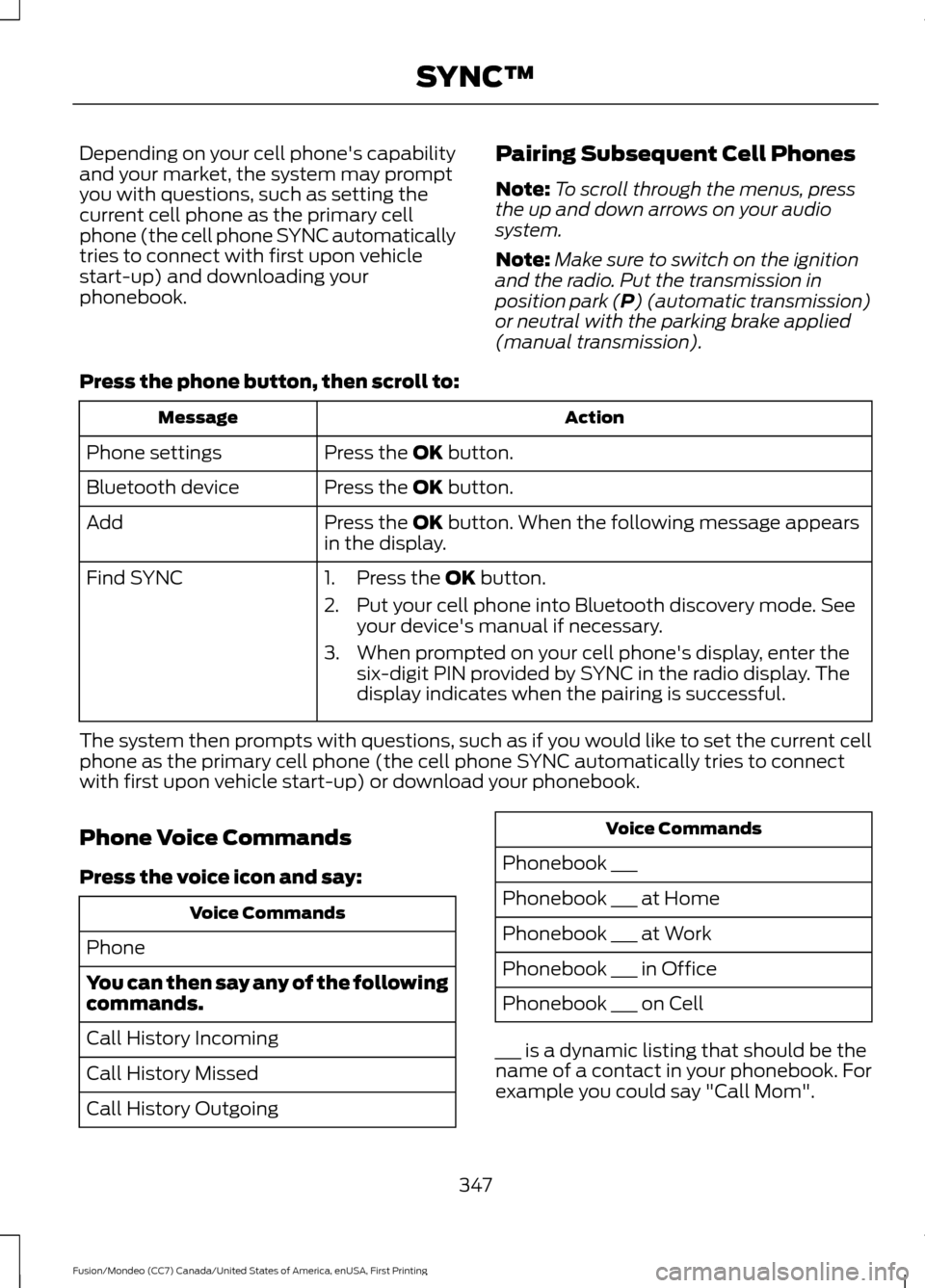
Depending on your cell phone's capability
and your market, the system may prompt
you with questions, such as setting the
current cell phone as the primary cell
phone (the cell phone SYNC automatically
tries to connect with first upon vehicle
start-up) and downloading your
phonebook.
Pairing Subsequent Cell Phones
Note:
To scroll through the menus, press
the up and down arrows on your audio
system.
Note: Make sure to switch on the ignition
and the radio. Put the transmission in
position park (P) (automatic transmission)
or neutral with the parking brake applied
(manual transmission).
Press the phone button, then scroll to: Action
Message
Press the
OK button.
Phone settings
Press the
OK button.
Bluetooth device
Press the
OK button. When the following message appears
in the display.
Add
Find SYNC
1. Press the
OK button.
2. Put your cell phone into Bluetooth discovery mode. See your device's manual if necessary.
3. When prompted on your cell phone's display, enter the six-digit PIN provided by SYNC in the radio display. The
display indicates when the pairing is successful.
The system then prompts with questions, such as if you would like to set the current cell
phone as the primary cell phone (the cell phone SYNC automatically tries to connect
with first upon vehicle start-up) or download your phonebook.
Phone Voice Commands
Press the voice icon and say: Voice Commands
Phone
You can then say any of the following
commands.
Call History Incoming
Call History Missed
Call History Outgoing Voice Commands
Phonebook ___
Phonebook ___ at Home
Phonebook ___ at Work
Phonebook ___ in Office
Phonebook ___ on Cell
___ is a dynamic listing that should be the
name of a contact in your phonebook. For
example you could say "Call Mom".
347
Fusion/Mondeo (CC7) Canada/United States of America, enUSA, First Printing SYNC™
Page 361 of 518
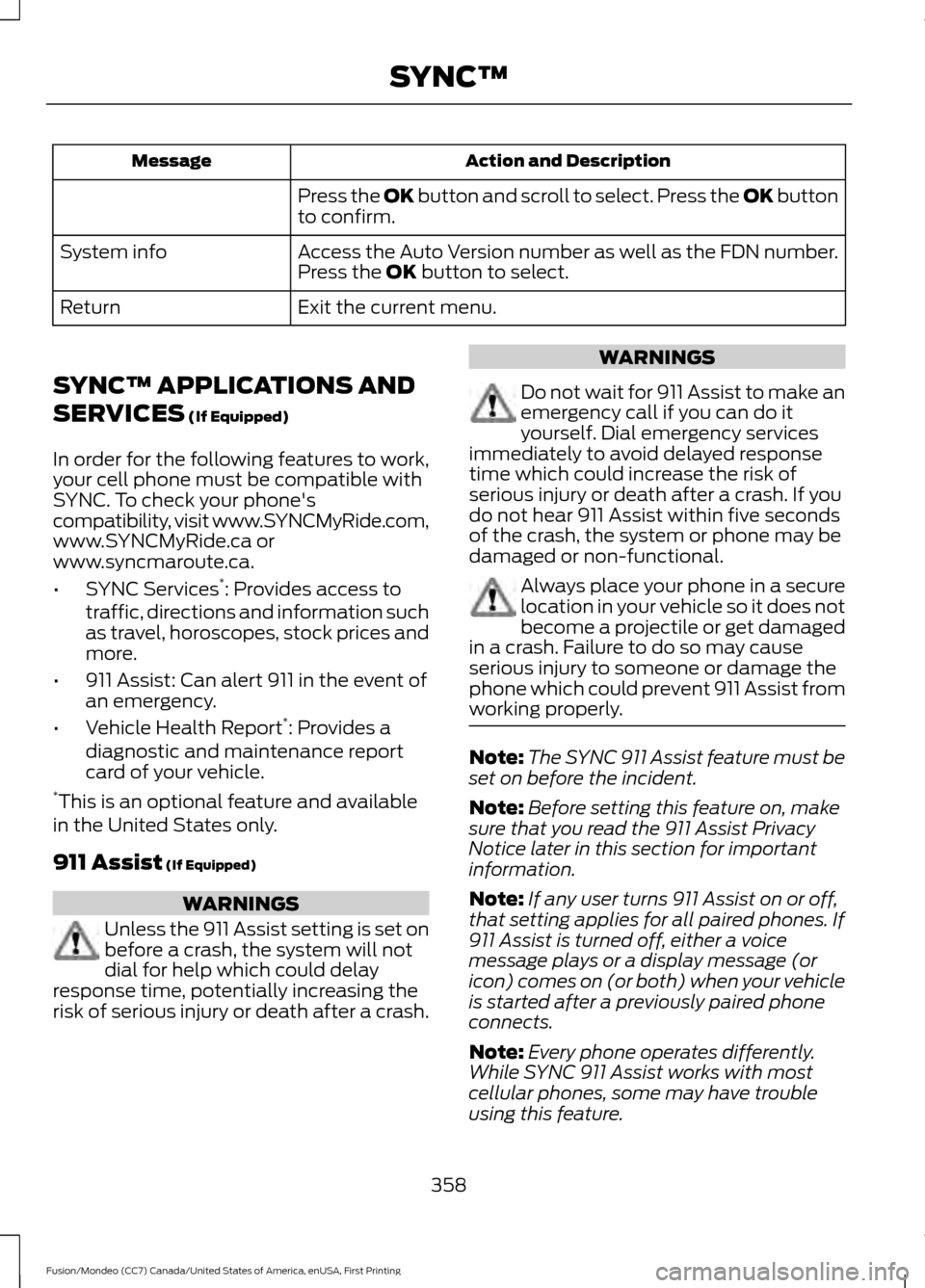
Action and Description
Message
Press the OK button and scroll to select. Press the OK button
to confirm.
Access the Auto Version number as well as the FDN number.
System info
Press the
OK button to select.
Exit the current menu.
Return
SYNC™ APPLICATIONS AND
SERVICES
(If Equipped)
In order for the following features to work,
your cell phone must be compatible with
SYNC. To check your phone's
compatibility, visit www.SYNCMyRide.com,
www.SYNCMyRide.ca or
www.syncmaroute.ca.
• SYNC Services *
: Provides access to
traffic, directions and information such
as travel, horoscopes, stock prices and
more.
• 911 Assist: Can alert 911 in the event of
an emergency.
• Vehicle Health Report *
: Provides a
diagnostic and maintenance report
card of your vehicle.
* This is an optional feature and available
in the United States only.
911 Assist
(If Equipped) WARNINGS
Unless the 911 Assist setting is set on
before a crash, the system will not
dial for help which could delay
response time, potentially increasing the
risk of serious injury or death after a crash. WARNINGS
Do not wait for 911 Assist to make an
emergency call if you can do it
yourself. Dial emergency services
immediately to avoid delayed response
time which could increase the risk of
serious injury or death after a crash. If you
do not hear 911 Assist within five seconds
of the crash, the system or phone may be
damaged or non-functional. Always place your phone in a secure
location in your vehicle so it does not
become a projectile or get damaged
in a crash. Failure to do so may cause
serious injury to someone or damage the
phone which could prevent 911 Assist from
working properly. Note:
The SYNC 911 Assist feature must be
set on before the incident.
Note: Before setting this feature on, make
sure that you read the 911 Assist Privacy
Notice later in this section for important
information.
Note: If any user turns 911 Assist on or off,
that setting applies for all paired phones. If
911 Assist is turned off, either a voice
message plays or a display message (or
icon) comes on (or both) when your vehicle
is started after a previously paired phone
connects.
Note: Every phone operates differently.
While SYNC 911 Assist works with most
cellular phones, some may have trouble
using this feature.
358
Fusion/Mondeo (CC7) Canada/United States of America, enUSA, First Printing SYNC™
Page 362 of 518
![FORD FUSION (AMERICAS) 2016 2.G Owners Manual If a crash deploys an airbag (excluding
knee airbags and rear inflatable safety
belts [if equipped]) or activates the fuel
pump shut-off, your SYNC-equipped
vehicle may be able to contact emergency
se](/manual-img/11/5195/w960_5195-361.png "FORD FUSION (AMERICAS) 2016 2.G Owners Manual If a crash deploys an airbag (excluding
knee airbags and rear inflatable safety
belts [if equipped]) or activates the fuel
pump shut-off, your SYNC-equipped
vehicle may be able to contact emergency
se")
If a crash deploys an airbag (excluding
knee airbags and rear inflatable safety
belts [if equipped]) or activates the fuel
pump shut-off, your SYNC-equipped
vehicle may be able to contact emergency
services by dialing 911 through a paired and
connected Bluetooth-enabled phone. You
can learn more about the 911 Assist
feature, visit www.SYNCMyRide.com,
www.SYNCMyRide.ca or
www.syncmaroute.ca.
See Supplementary Restraints System
(page 38). Important information about
airbag deployment is in this chapter.
See
Roadside Emergencies (page 226).
Important information about the fuel pump
shut-off is in this chapter.
Switching 911 Assist On or Off
Press the phone button to enter the phone menu and scroll to: Action and Description
Message
Press the OK button to confirm and enter the 911 Assist menu.
911 Assist
Press the OK button when the desired option appears in the
radio display.
On
Off
Off selections include: Action and Description
Message
Provides a display and voice reminder at phone connection
at vehicle start.
Off with reminder:
Provides a display reminder only without a voice reminder at
phone connection.
Off without reminder:
To make sure that 911 Assist works
correctly:
• SYNC must be powered and working
properly at the time of the incident and
throughout feature activation and use.
• The 911 Assist feature must be set on
before the incident.
• You must pair and connect a
Bluetooth-enabled and compatible
cell phone to SYNC.
• A connected Bluetooth-enabled phone
must have the ability to make and
maintain an outgoing call at the time
of the incident. •
A connected Bluetooth-enabled phone
must have adequate network coverage,
battery power and signal strength.
• The vehicle must have battery power
and be located in the U.S., Canada or
in a territory in which 911 is the
emergency number.
359
Fusion/Mondeo (CC7) Canada/United States of America, enUSA, First Printing SYNC™
Page 369 of 518

SYNC Services quick tips
You can even access your account outside your vehicle. Just
use the number on your phone's call history. Traffic and
Directions features do not function properly but information
services and the 411 connect and text message features are
available.
SYNC™ APPLINK ™
SYNC Mobile Apps
Note: You must pair and connect your
smartphone to SYNC to access AppLink.
Note: iPhone users need to connect the
phone to the USB port in order to start the
application.
Note: The AppLink feature is not available
if your vehicle is equipped with the MyFord
Touch system.
Note: Depending on your display type, you
can access AppLink from the media menu,
the phone menu, or by using voice
commands. Once an app is running through
AppLink, you can control main features of
the app through voice commands and
steering wheel controls.
To Access Using the Phone Menu
Press the phone button to access the
SYNC phone menu on-screen. You can
then scroll to: Menu item
Press OK to access a list
of available applications.
Mobile Apps Menu item
Scroll through the list of
available applications and
press OK to select a
particular app. Once an
app is running through
SYNC, you can access an
app ’s menu by pressing the
MENU
button to first
access the SYNC menu.
Scroll until the app name followed by
"Menu", is displayed (such as, Pandora
Menu), then press
OK. From here, you can
access an application's features, such as
Thumbs up and Thumbs down.
For more information, please visit: Website
www.SYNCMyRide.com
To Access Using the Media Menu
Press the
AUX button on the center
console.
366
Fusion/Mondeo (CC7) Canada/United States of America, enUSA, First Printing SYNC™
Page 370 of 518
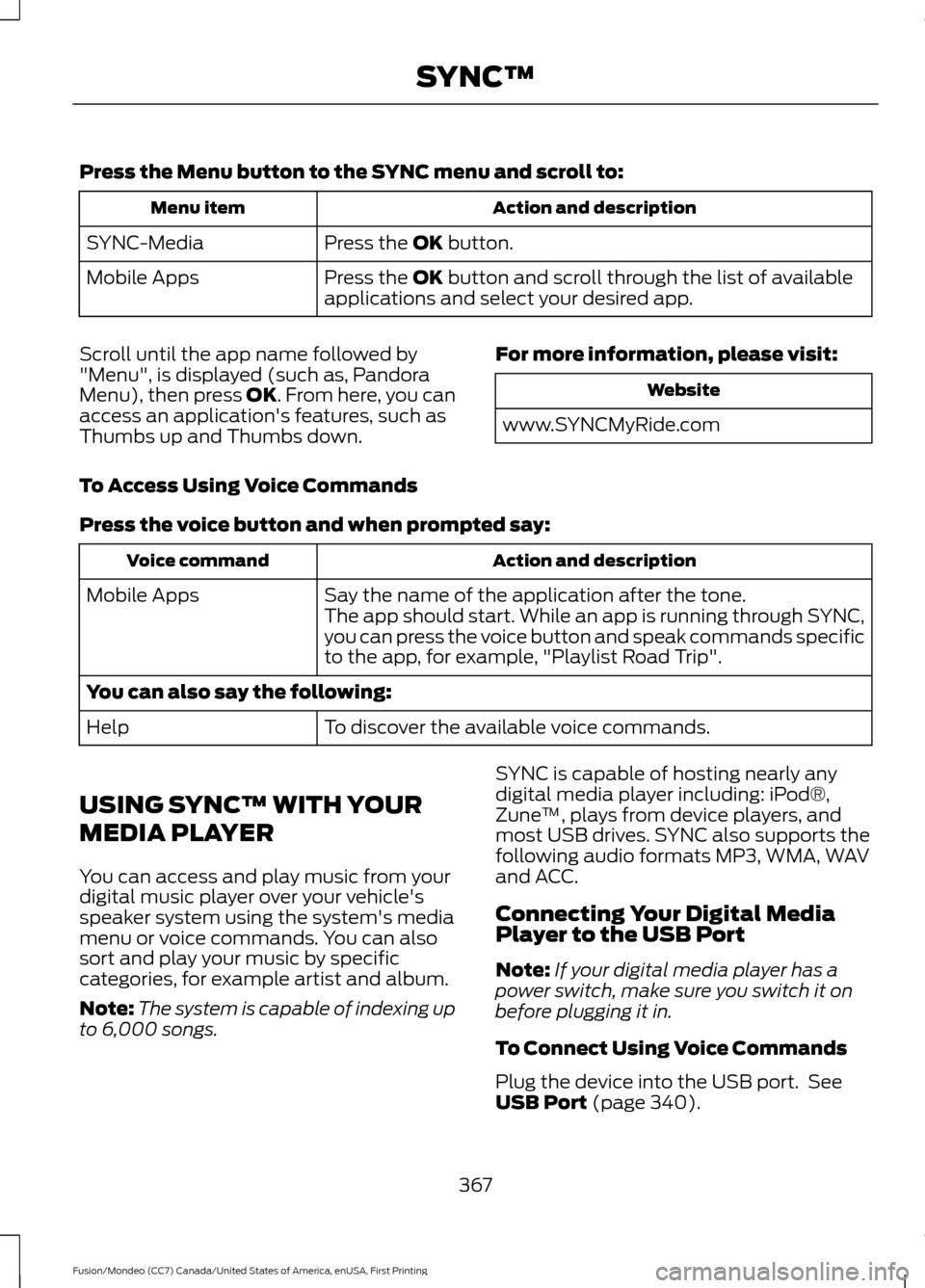
Press the Menu button to the SYNC menu and scroll to:
Action and description
Menu item
Press the OK button.
SYNC-Media
Press the
OK button and scroll through the list of available
applications and select your desired app.
Mobile Apps
Scroll until the app name followed by
"Menu", is displayed (such as, Pandora
Menu), then press
OK. From here, you can
access an application's features, such as
Thumbs up and Thumbs down. For more information, please visit: Website
www.SYNCMyRide.com
To Access Using Voice Commands
Press the voice button and when prompted say: Action and description
Voice command
Say the name of the application after the tone.
The app should start. While an app is running through SYNC,
you can press the voice button and speak commands specific
to the app, for example, "Playlist Road Trip".
Mobile Apps
You can also say the following:
To discover the available voice commands.
Help
USING SYNC™ WITH YOUR
MEDIA PLAYER
You can access and play music from your
digital music player over your vehicle's
speaker system using the system's media
menu or voice commands. You can also
sort and play your music by specific
categories, for example artist and album.
Note: The system is capable of indexing up
to 6,000 songs. SYNC is capable of hosting nearly any
digital media player including: iPod®,
Zune
™, plays from device players, and
most USB drives. SYNC also supports the
following audio formats MP3, WMA, WAV
and ACC.
Connecting Your Digital Media
Player to the USB Port
Note: If your digital media player has a
power switch, make sure you switch it on
before plugging it in.
To Connect Using Voice Commands
Plug the device into the USB port. See
USB Port
(page 340).
367
Fusion/Mondeo (CC7) Canada/United States of America, enUSA, First Printing SYNC™
Page 386 of 518
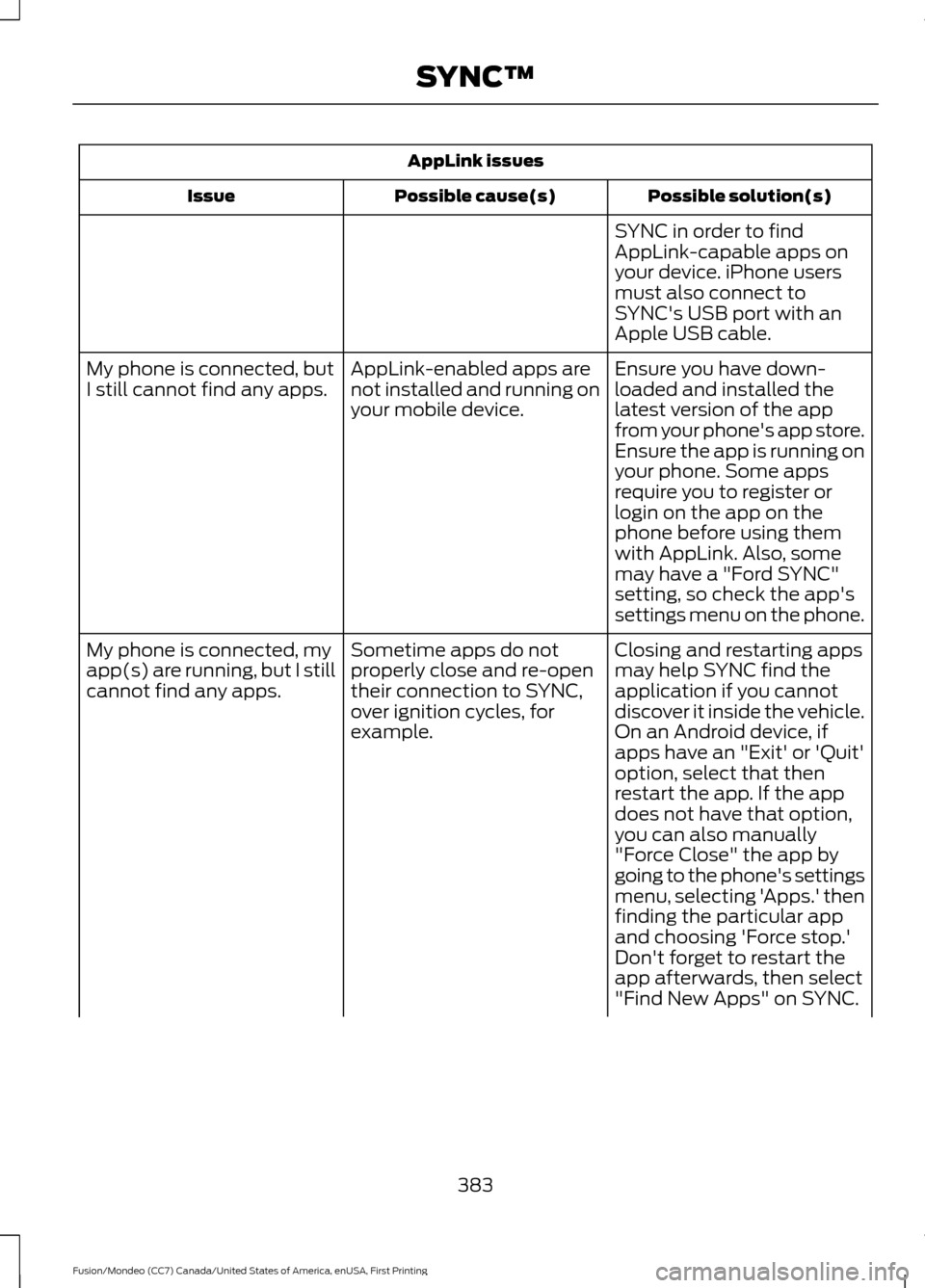
AppLink issues
Possible solution(s)
Possible cause(s)
Issue
SYNC in order to find
AppLink-capable apps on
your device. iPhone users
must also connect to
SYNC's USB port with an
Apple USB cable.
Ensure you have down-
loaded and installed the
latest version of the app
from your phone's app store.
Ensure the app is running on
your phone. Some apps
AppLink-enabled apps are
not installed and running on
your mobile device.
My phone is connected, but
I still cannot find any apps.
require you to register or
login on the app on the
phone before using them
with AppLink. Also, some
may have a "Ford SYNC"
setting, so check the app's
settings menu on the phone.
Closing and restarting apps
may help SYNC find the
application if you cannot
discover it inside the vehicle.
On an Android device, if
apps have an "Exit' or 'Quit'
Sometime apps do not
properly close and re-open
their connection to SYNC,
over ignition cycles, for
example.
My phone is connected, my
app(s) are running, but I still
cannot find any apps.
option, select that then
restart the app. If the app
does not have that option,
you can also manually
"Force Close" the app by
going to the phone's settings
menu, selecting 'Apps.' then
finding the particular app
and choosing 'Force stop.'
Don't forget to restart the
app afterwards, then select
"Find New Apps" on SYNC.
383
Fusion/Mondeo (CC7) Canada/United States of America, enUSA, First Printing SYNC™
Page 387 of 518

AppLink issues
Possible solution(s)
Possible cause(s)
Issue
On an iPhone with iOS7+, to
force close an app, double
tab the home button then
swipe up on the app to close
it. Tab the home button
again, then select the app
again to restart it. After a
few seconds, the app should
then appear in SYNC's
Mobile App's Menu.
Reset the Bluetooth on your
phone by turning it off and
then turning Bluetooth back
on. If you are in your vehicle,
SYNC should be able to
automatically re-connect to
your phone if you press the
"Phone" button.
There is a bluetooth bug on
some order versions of the
Android OS that may cause
apps that were found on
your previous vehicle drive
to not be found again if you
have not turned off
bluetooth.
My Android phone is
connected, my app(s) are
running, I restarted them,
but I still cannot find any
apps.
384
Fusion/Mondeo (CC7) Canada/United States of America, enUSA, First Printing SYNC™
Page 388 of 518
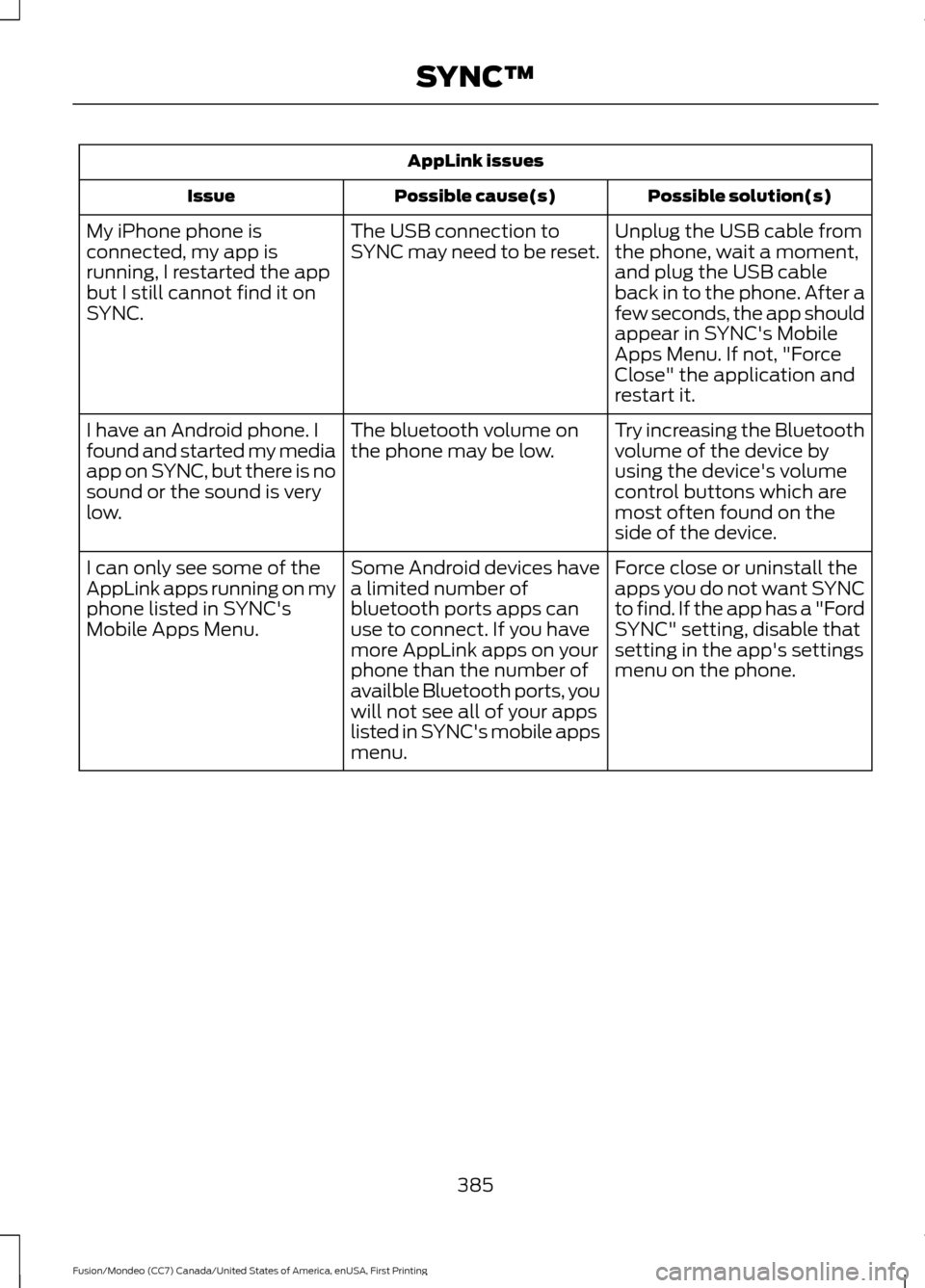
AppLink issues
Possible solution(s)
Possible cause(s)
Issue
Unplug the USB cable from
the phone, wait a moment,
and plug the USB cable
back in to the phone. After a
few seconds, the app should
appear in SYNC's Mobile
Apps Menu. If not, "Force
Close" the application and
restart it.
The USB connection to
SYNC may need to be reset.
My iPhone phone is
connected, my app is
running, I restarted the app
but I still cannot find it on
SYNC.
Try increasing the Bluetooth
volume of the device by
using the device's volume
control buttons which are
most often found on the
side of the device.
The bluetooth volume on
the phone may be low.
I have an Android phone. I
found and started my media
app on SYNC, but there is no
sound or the sound is very
low.
Force close or uninstall the
apps you do not want SYNC
to find. If the app has a "Ford
SYNC" setting, disable that
setting in the app's settings
menu on the phone.
Some Android devices have
a limited number of
bluetooth ports apps can
use to connect. If you have
more AppLink apps on your
phone than the number of
availble Bluetooth ports, you
will not see all of your apps
listed in SYNC's mobile apps
menu.
I can only see some of the
AppLink apps running on my
phone listed in SYNC's
Mobile Apps Menu.
385
Fusion/Mondeo (CC7) Canada/United States of America, enUSA, First Printing SYNC™