2016 FORD FIESTA display
[x] Cancel search: displayPage 261 of 363
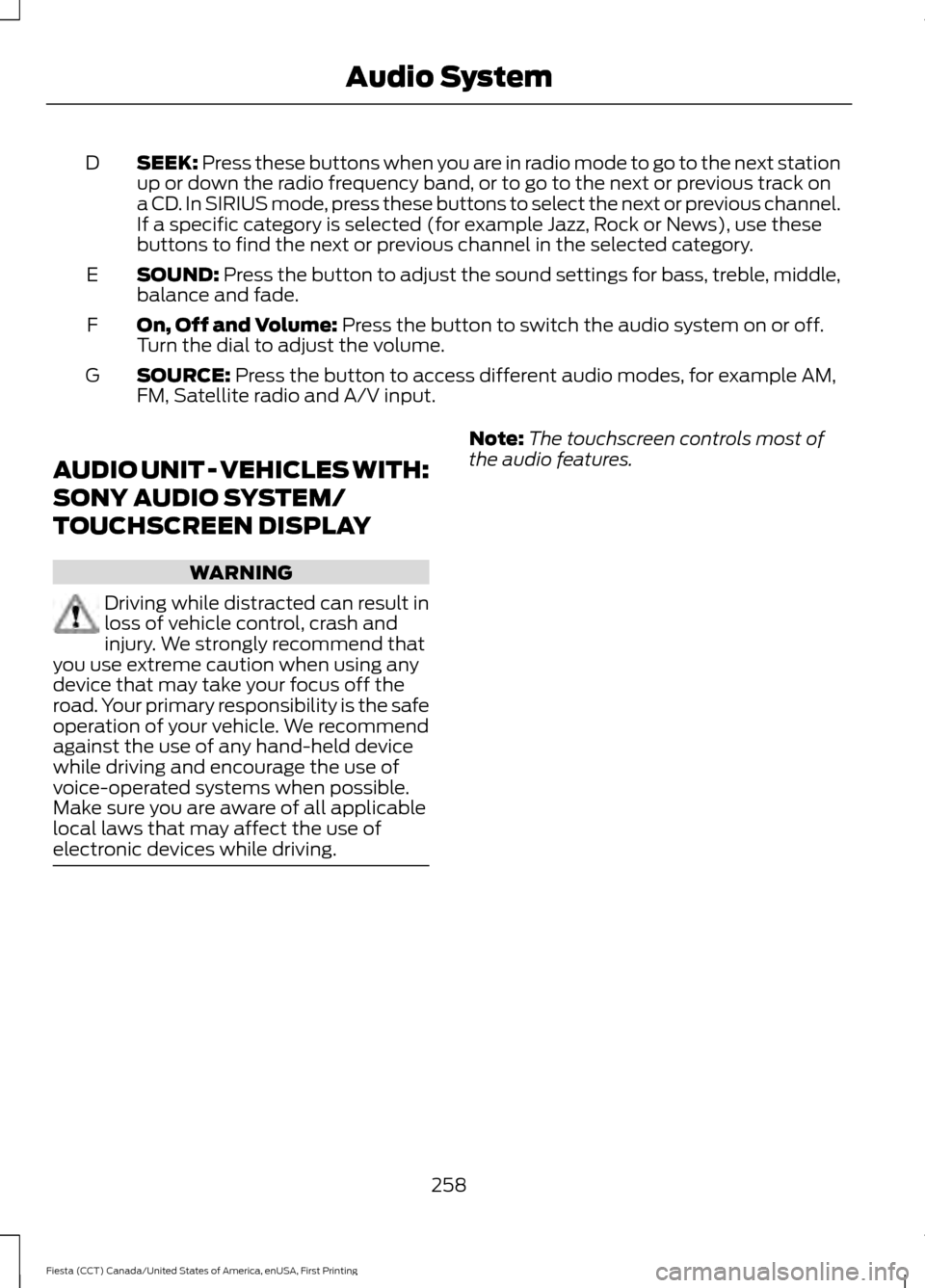
SEEK: Press these buttons when you are in radio mode to go to the next station
up or down the radio frequency band, or to go to the next or previous track on
a CD. In SIRIUS mode, press these buttons to select the next or previous channel.
If a specific category is selected (for example Jazz, Rock or News), use these
buttons to find the next or previous channel in the selected category.
D
SOUND:
Press the button to adjust the sound settings for bass, treble, middle,
balance and fade.
E
On, Off and Volume:
Press the button to switch the audio system on or off.
Turn the dial to adjust the volume.
F
SOURCE:
Press the button to access different audio modes, for example AM,
FM, Satellite radio and A/V input.
G
AUDIO UNIT - VEHICLES WITH:
SONY AUDIO SYSTEM/
TOUCHSCREEN DISPLAY WARNING
Driving while distracted can result in
loss of vehicle control, crash and
injury. We strongly recommend that
you use extreme caution when using any
device that may take your focus off the
road. Your primary responsibility is the safe
operation of your vehicle. We recommend
against the use of any hand-held device
while driving and encourage the use of
voice-operated systems when possible.
Make sure you are aware of all applicable
local laws that may affect the use of
electronic devices while driving. Note:
The touchscreen controls most of
the audio features.
258
Fiesta (CCT) Canada/United States of America, enUSA, First Printing Audio System
Page 266 of 363

Note:
This receiver includes the eCos
real-time operating system. eCos is
published under the eCos License.
Satellite Radio Reception Factors Potential satellite radio reception issues
For optimal reception performance, keep the antenna
clear of snow and ice build-up and keep luggage and other
material as far away from the antenna as possible.
Antenna obstructions
Hills, mountains, tall buildings, bridges, tunnels, freeway
overpasses, parking garages, dense tree foliage and
thunderstorms can interfere with your reception.
Terrain
When you pass a ground-based broadcast-repeating
tower, a stronger signal may overtake a weaker one and
the audio system may mute.
Station overload
Your display may show ACQUIRING . . . to indicate the
interference and the audio system may mute.
Satellite radio signal interfer-
ence
SIRIUS® Satellite Radio Service
Note: SIRIUS reserves the unrestricted right
to change, rearrange, add or delete
programming including canceling, moving
or adding particular channels, and its prices,
at any time, with or without notice to you.
Ford Motor Company shall not be
responsible for any such programming
changes. SIRIUS satellite radio is a
subscription-based satellite radio service
that broadcasts a variety of music, sports,
news, weather, traffic and entertainment
programming. Your factory-installed
SIRIUS satellite radio system includes
hardware and a limited subscription term,
which begins on the date of sale or lease
of your vehicle. See an authorized dealer
for availability.
For more information on extended
subscription terms (a service fee is
required), the online media player and a
complete list of SIRIUS satellite radio
channels, and other features, please visit
www.siriusxm.com in the United States,
www.siriusxm.ca in Canada, or call SIRIUS
at 1-888-539-7474.
Satellite Radio Electronic Serial
Number (ESN)
You need your ESN to activate, modify or
track your satellite radio account. When in
satellite radio mode, tune to channel 0.
263
Fiesta (CCT) Canada/United States of America, enUSA, First Printing Audio SystemE142593
Page 268 of 363

AUDIO INPUT JACK
WARNINGS
Driving while distracted can result in
loss of vehicle control, crash and
injury. We strongly recommend that
you use extreme caution when using any
device that may take your focus off the
road. Your primary responsibility is the safe
operation of your vehicle. We recommend
against the use of any hand-held device
while driving and encourage the use of
voice-operated systems when possible.
Make sure you are aware of all applicable
local laws that may affect the use of
electronic devices while driving. For safety reasons, do not connect
or adjust the settings on your
portable music player while your
vehicle is moving. Store the portable music player in a
secure location, such as the center
console or the glove box, when your
vehicle is moving. Hard objects may
become projectiles in a collision or sudden
stop, which may increase the risk of serious
injury. The audio extension cable must be
long enough to allow the portable music
player to be safely stored while your
vehicle is moving. The auxiliary input jack allows you to
connect and play music from your portable
music player through your vehicle speakers.
You can use any portable music player
designed for use with headphones. Your
audio extension cable must have male
1/8th-inch (3.5 millimeter) connectors at
each end.
1. Switch off the engine, radio and
portable music player. Set the parking
brake and put the transmission in
position P (vehicle with an automatic
transmission) or neutral (vehicle with
a manual transmission).
2. Plug the extension cable from the portable music player into the auxiliary
input jack.
3. Switch the radio on. Select either a tuned FM station or a CD.
4. Adjust the volume as desired.
5. Switch your portable music player on and adjust its volume to half its
maximum level.
6. Press
AUX until LINE or LINE IN
appears in the display. You should hear
music from your device even if it is low.
7. Adjust the volume on your portable music player until it reaches the volume
level of the FM station or CD. Do this
by switching back and forth between
the AUX and FM or CD controls.
265
Fiesta (CCT) Canada/United States of America, enUSA, First Printing Audio SystemE149149
Page 275 of 363

USING SYNC™ WITH YOUR
PHONE
Hands-free calling is one of the main
features of SYNC. While the system
supports a variety of features, many are
dependent on your cell phone's
functionality. At a minimum, most cell
phones with Bluetooth wireless technology
support the following functions:
•
Answering an incoming call.
• Ending a call.
• Using privacy mode.
• Dialing a number.
• Redialing.
• Call waiting notification.
• Caller ID. Other features, such as text messaging
using Bluetooth and automatic phonebook
download, are cell phone-dependent
features. To check your cell phone's
compatibility, see your cell phone's manual
and visit www.SYNCMyRide.com,
www.SYNCMyRide.ca or
www.syncmaroute.ca.
Pairing a Cell Phone for the First
Time
Note:
SYNC can support downloading up
to approximately 1000 entries per
Bluetooth-enabled cell phone.
Note: Make sure to switch on the ignition
and the radio. Put the transmission in
position park (P) (automatic transmission)
or neutral with the parking brake applied
(manual transmission).
Note: To scroll through the menus, press
the up and down arrows on your audio
system.
Wirelessly pairing your cell phone with
SYNC allows you to make and receive
hands-free calls.
Press the phone button. When the display indicates there is no cell phone paired,
do the following: Action and Description
Message
Press the
OK button.
No Phone Paired
Find SYNC 1. Press the
OK button.
2. Put your cell phone into Bluetooth discovery mode. See your device's manual if necessary.
3. When prompted on your cell phone's display, enter the six-digit PIN provided by SYNC in the radio display. The
display indicates when the pairing is successful.
272
Fiesta (CCT) Canada/United States of America, enUSA, First Printing SYNC™
Page 276 of 363

Depending on your cell phone's capability
and your market, the system may prompt
you with questions, such as setting the
current cell phone as the primary cell
phone (the cell phone SYNC automatically
tries to connect with first upon vehicle
start-up) and downloading your
phonebook.
Pairing Subsequent Cell Phones
Note:
To scroll through the menus, press
the up and down arrows on your audio
system.
Note: Make sure to switch on the ignition
and the radio. Put the transmission in
position park (P) (automatic transmission)
or neutral with the parking brake applied
(manual transmission).
Press the phone button, then scroll to: Action
Message
Press the
OK button.
Phone settings
Press the
OK button.
Bluetooth device
Press the
OK button. When the following message appears
in the display.
Add
Find SYNC
1. Press the
OK button.
2. Put your cell phone into Bluetooth discovery mode. See your device's manual if necessary.
3. When prompted on your cell phone's display, enter the six-digit PIN provided by SYNC in the radio display. The
display indicates when the pairing is successful.
The system then prompts with questions, such as if you would like to set the current cell
phone as the primary cell phone (the cell phone SYNC automatically tries to connect
with first upon vehicle start-up) or download your phonebook.
Phone Voice Commands
Press the voice icon and say: Voice Commands
Phone
You can then say any of the following
commands.
Call History Incoming
Call History Missed
Call History Outgoing Voice Commands
Phonebook ___
Phonebook ___ at Home
Phonebook ___ at Work
Phonebook ___ in Office
Phonebook ___ on Cell
___ is a dynamic listing that should be the
name of a contact in your phonebook. For
example you could say "Call Mom".
273
Fiesta (CCT) Canada/United States of America, enUSA, First Printing SYNC™
Page 277 of 363
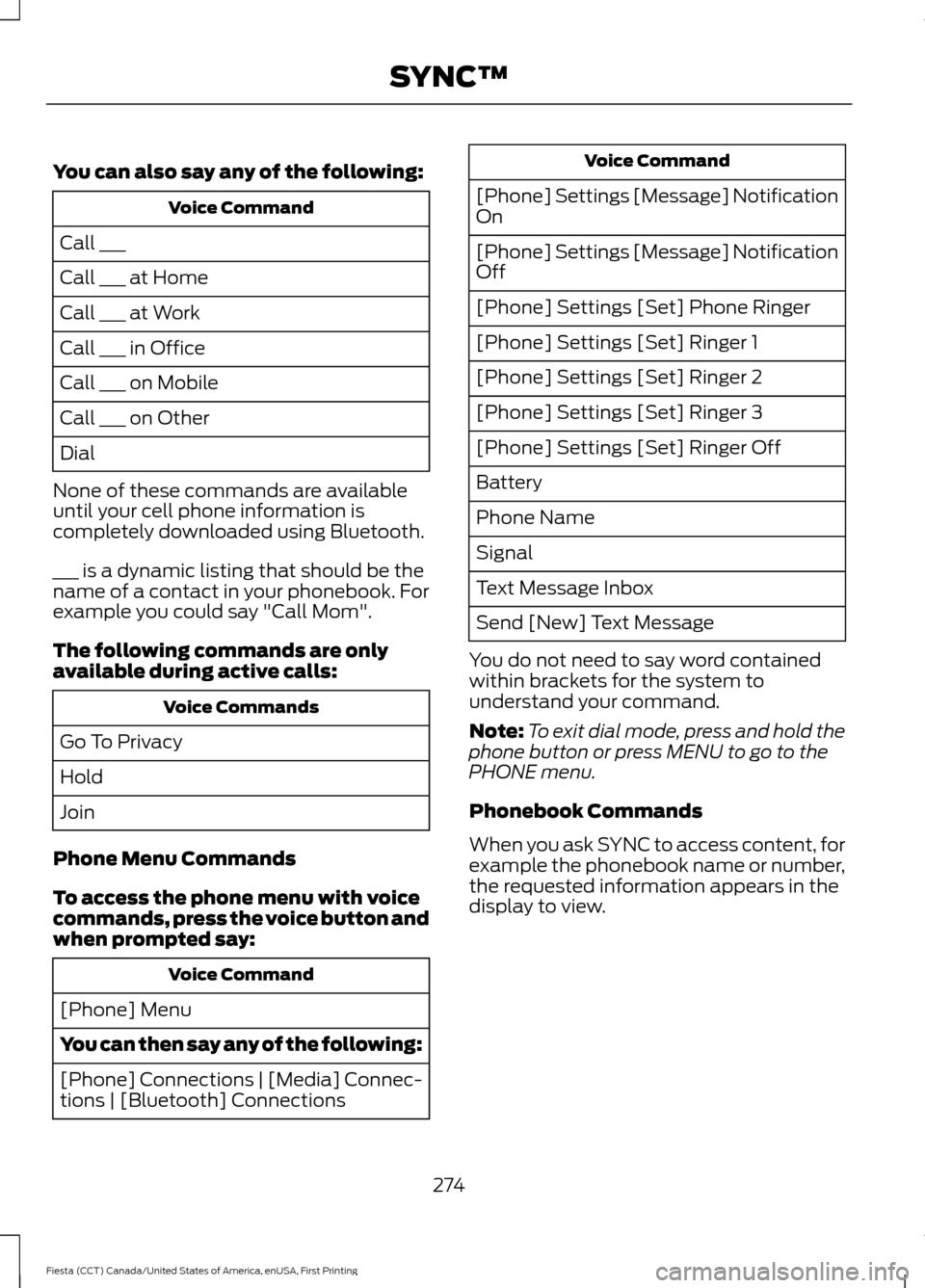
You can also say any of the following:
Voice Command
Call ___
Call ___ at Home
Call ___ at Work
Call ___ in Office
Call ___ on Mobile
Call ___ on Other
Dial
None of these commands are available
until your cell phone information is
completely downloaded using Bluetooth.
___ is a dynamic listing that should be the
name of a contact in your phonebook. For
example you could say "Call Mom".
The following commands are only
available during active calls: Voice Commands
Go To Privacy
Hold
Join
Phone Menu Commands
To access the phone menu with voice
commands, press the voice button and
when prompted say: Voice Command
[Phone] Menu
You can then say any of the following:
[Phone] Connections | [Media] Connec-
tions | [Bluetooth] Connections Voice Command
[Phone] Settings [Message] Notification
On
[Phone] Settings [Message] Notification
Off
[Phone] Settings [Set] Phone Ringer
[Phone] Settings [Set] Ringer 1
[Phone] Settings [Set] Ringer 2
[Phone] Settings [Set] Ringer 3
[Phone] Settings [Set] Ringer Off
Battery
Phone Name
Signal
Text Message Inbox
Send [New] Text Message
You do not need to say word contained
within brackets for the system to
understand your command.
Note: To exit dial mode, press and hold the
phone button or press MENU to go to the
PHONE menu.
Phonebook Commands
When you ask SYNC to access content, for
example the phonebook name or number,
the requested information appears in the
display to view.
274
Fiesta (CCT) Canada/United States of America, enUSA, First Printing SYNC™
Page 279 of 363
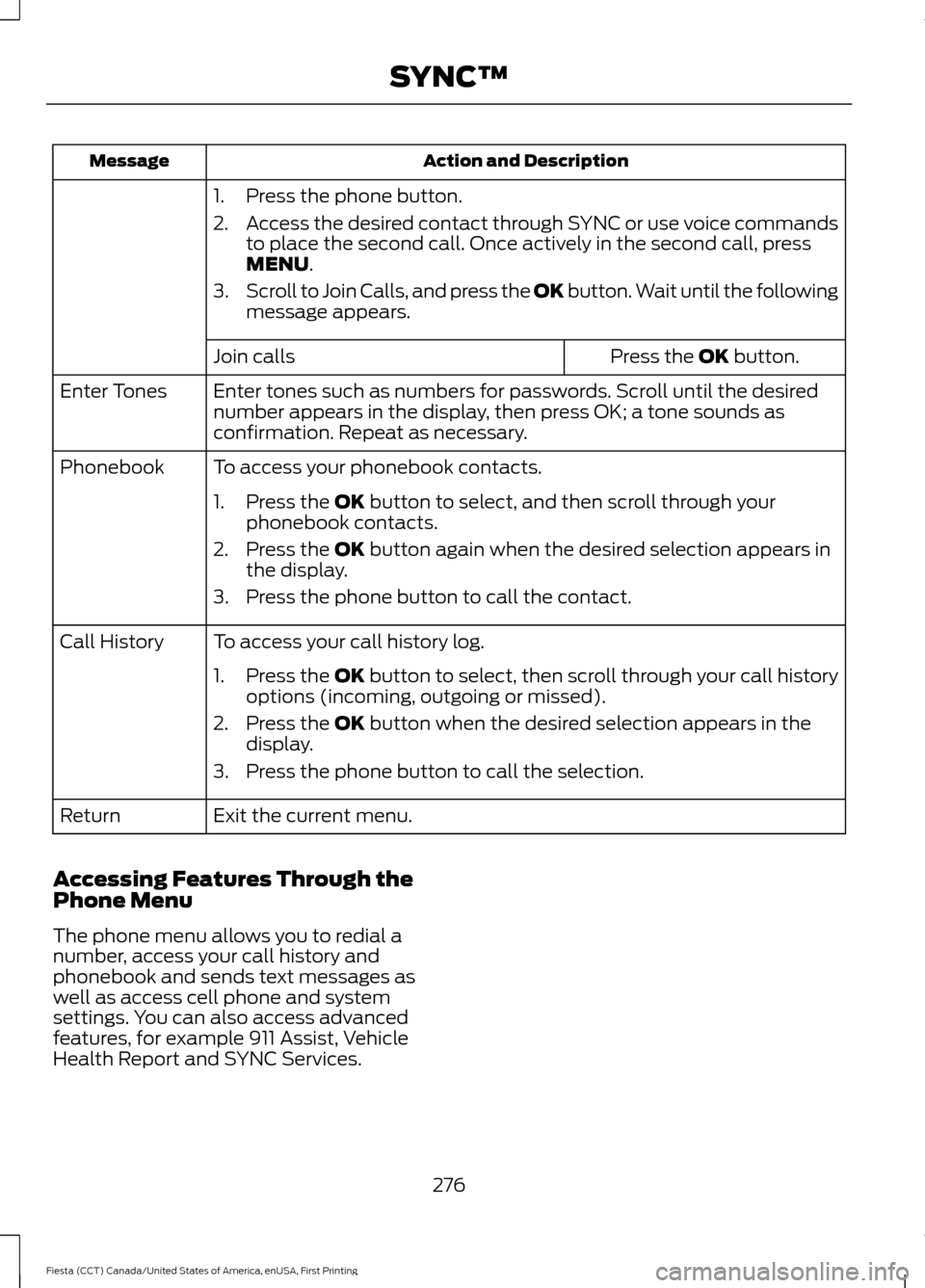
Action and Description
Message
1. Press the phone button.
2.Access the desired contact through SYNC or use voice commands
to place the second call. Once actively in the second call, press
MENU.
3. Scroll to Join Calls, and press the
OK button. Wait until the following
message appears.
Press the
OK button.
Join calls
Enter tones such as numbers for passwords. Scroll until the desired
number appears in the display, then press OK; a tone sounds as
confirmation. Repeat as necessary.
Enter Tones
To access your phonebook contacts.
Phonebook
1. Press the
OK button to select, and then scroll through your
phonebook contacts.
2. Press the
OK button again when the desired selection appears in
the display.
3. Press the phone button to call the contact.
To access your call history log.
Call History
1.Press the OK button to select, then scroll through your call history
options (incoming, outgoing or missed).
2. Press the
OK button when the desired selection appears in the
display.
3. Press the phone button to call the selection.
Exit the current menu.
Return
Accessing Features Through the
Phone Menu
The phone menu allows you to redial a
number, access your call history and
phonebook and sends text messages as
well as access cell phone and system
settings. You can also access advanced
features, for example 911 Assist, Vehicle
Health Report and SYNC Services.
276
Fiesta (CCT) Canada/United States of America, enUSA, First Printing SYNC™
Page 281 of 363
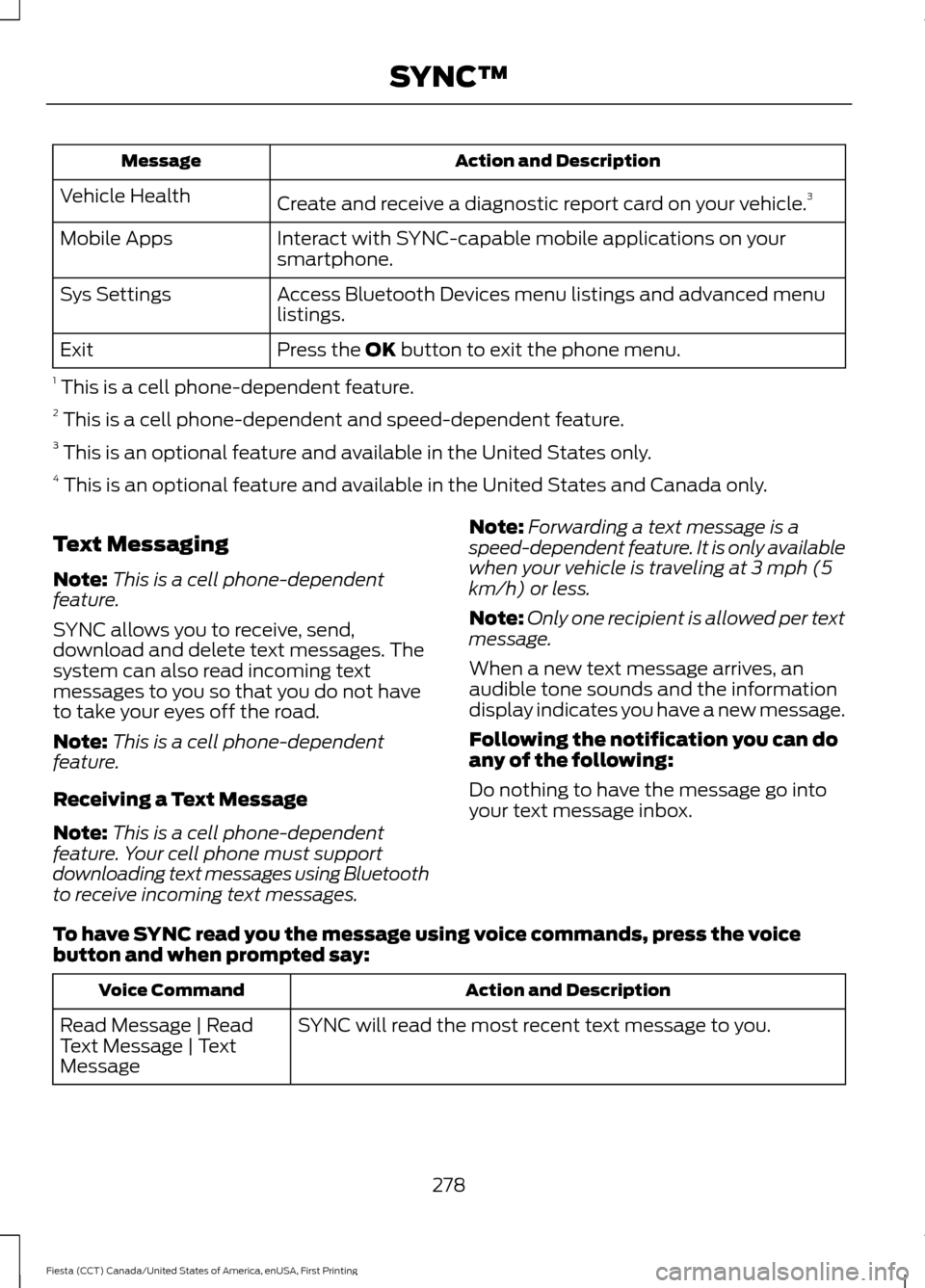
Action and Description
Message
Create and receive a diagnostic report card on your vehicle. 3
Vehicle Health
Interact with SYNC-capable mobile applications on your
smartphone.
Mobile Apps
Access Bluetooth Devices menu listings and advanced menu
listings.
Sys Settings
Press the OK button to exit the phone menu.
Exit
1 This is a cell phone-dependent feature.
2 This is a cell phone-dependent and speed-dependent feature.
3 This is an optional feature and available in the United States only.
4 This is an optional feature and available in the United States and Canada only.
Text Messaging
Note: This is a cell phone-dependent
feature.
SYNC allows you to receive, send,
download and delete text messages. The
system can also read incoming text
messages to you so that you do not have
to take your eyes off the road.
Note: This is a cell phone-dependent
feature.
Receiving a Text Message
Note: This is a cell phone-dependent
feature. Your cell phone must support
downloading text messages using Bluetooth
to receive incoming text messages. Note:
Forwarding a text message is a
speed-dependent feature. It is only available
when your vehicle is traveling at 3 mph (5
km/h) or less.
Note: Only one recipient is allowed per text
message.
When a new text message arrives, an
audible tone sounds and the information
display indicates you have a new message.
Following the notification you can do
any of the following:
Do nothing to have the message go into
your text message inbox.
To have SYNC read you the message using voice commands, press the voice
button and when prompted say: Action and Description
Voice Command
SYNC will read the most recent text message to you.
Read Message | Read
Text Message | Text
Message
278
Fiesta (CCT) Canada/United States of America, enUSA, First Printing SYNC™