2016 FORD F150 CD player
[x] Cancel search: CD playerPage 435 of 505
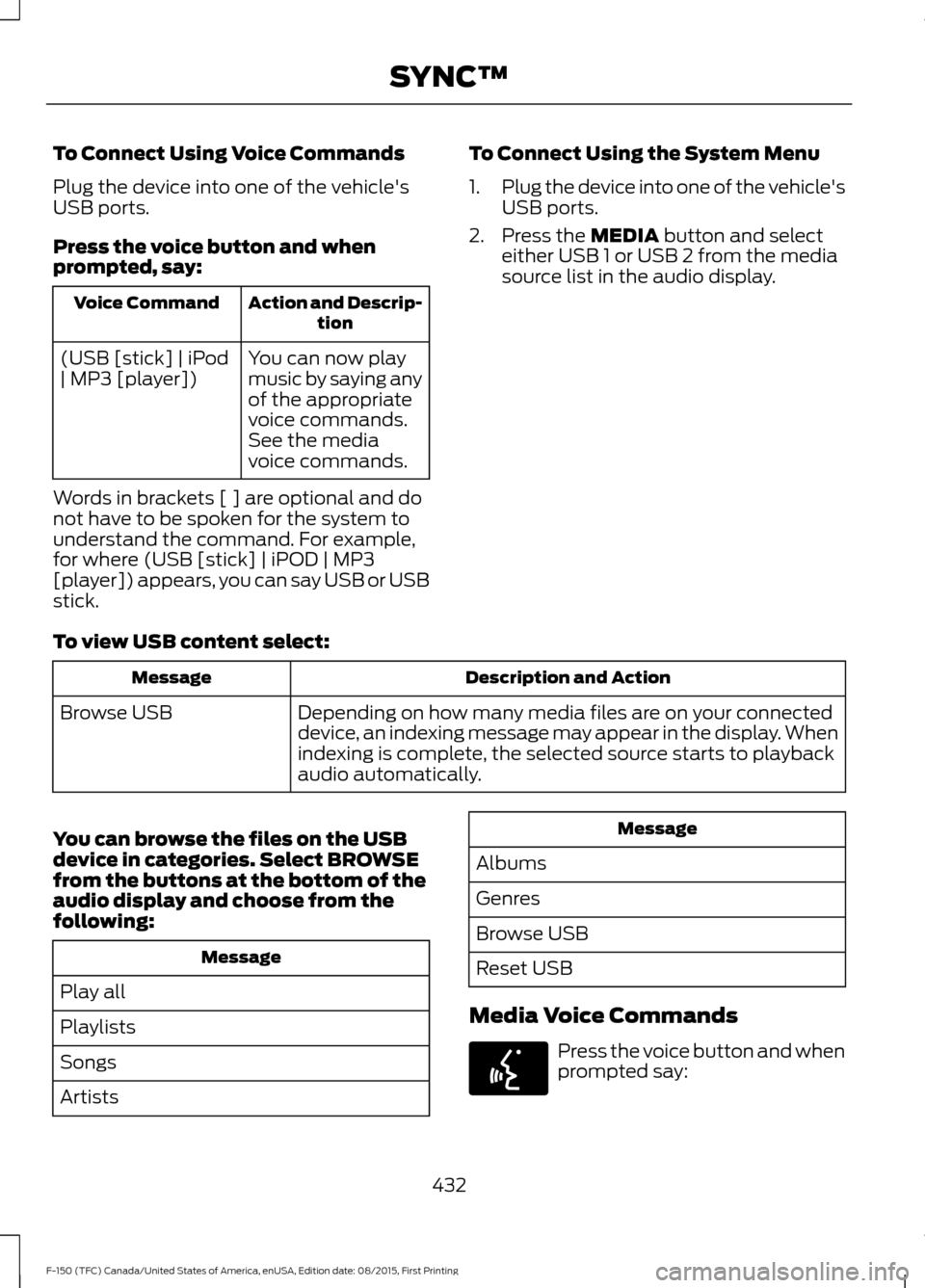
To Connect Using Voice Commands
Plug the device into one of the vehicle's
USB ports.
Press the voice button and when
prompted, say:
Action and Descrip-
tion
Voice Command
You can now play
music by saying any
of the appropriate
voice commands.
See the media
voice commands.
(USB [stick] | iPod
| MP3 [player])
Words in brackets [ ] are optional and do
not have to be spoken for the system to
understand the command. For example,
for where (USB [stick] | iPOD | MP3
[player]) appears, you can say USB or USB
stick. To Connect Using the System Menu
1.
Plug the device into one of the vehicle's
USB ports.
2. Press the MEDIA button and select
either USB 1 or USB 2 from the media
source list in the audio display.
To view USB content select: Description and Action
Message
Depending on how many media files are on your connected
device, an indexing message may appear in the display. When
indexing is complete, the selected source starts to playback
audio automatically.
Browse USB
You can browse the files on the USB
device in categories. Select
BROWSE
from the buttons at the bottom of the
audio display and choose from the
following: Message
Play all
Playlists
Songs
Artists Message
Albums
Genres
Browse USB
Reset USB
Media Voice Commands Press the voice button and when
prompted say:
432
F-150 (TFC) Canada/United States of America, enUSA, Edition date: 08/2015, First Printing SYNC™E142599
Page 436 of 505
![FORD F150 2016 13.G Owners Manual Description and Action
Voice Command
You can now play music by saying any of the appropriate
voice commands.
(USB [stick] | iPod | MP3
[player])
You can say any of the voice commands that appear withi](/manual-img/11/5063/w960_5063-435.png "FORD F150 2016 13.G Owners Manual Description and Action
Voice Command
You can now play music by saying any of the appropriate
voice commands.
(USB [stick] | iPod | MP3
[player])
You can say any of the voice commands that appear withi")
Description and Action
Voice Command
You can now play music by saying any of the appropriate
voice commands.
(USB [stick] | iPod | MP3
[player])
You can say any of the voice commands that appear within open and close brackets that
are separated by |. For example, where; (what's | what is) appears you say; what's or
what is.
You must say any of the voice commands that appear outside of open and close brackets.
For example, where; (what's | what is) playing, you must say either "what's playing" or
"what is playing". Description and Action
Command
Pauses device playback.
pause
Resumes device playback.
play
play [album] ___ Play all media on the device from the first
track to the last.
play all
play [artist] ___
play [genre] ___
play [playlist] ___ Plays the next track on the current media.
next [track | title | song | file | podcast |
chapter | episode]
Plays the previous track on current media.
previous [track | title | song | file |
podcast | chapter | episode]
Creates a playlist with a similar genre to the
one currently playing.
[play] (similar music | more like this)
play [song | track | title | file] ___ repeat off Repeats the current track.
repeat (one | track) [on]
433
F-150 (TFC) Canada/United States of America, enUSA, Edition date: 08/2015, First Printing SYNC™
Page 439 of 505

If there are no media files to access, the display indicates there is no media.
If there are media files, you have the following options:
Description and Action
Display
Play all indexed media files from your device one at a time
in numerical order.*
Play all
Press the OK button to select. The first track title appears
in the display.
Access your playlists (from formats like ASX, M3U, WPL,
or MTP).*
Playlists
1. Press the OK button to select.
2. Scroll to select the desired playlist, and then press the
OK
button.
Search for and play a specific indexed track. *
Songs
1. Press the
OK button to select.
2. Scroll to select the desired track, and then press the OK
button.
Sort all indexed media files by artist. The system then lists
and plays all artists and tracks alphabetically. *
Artists
1. Press the
OK button to select.
2. Scroll to select the desired artist, and then press the OK
button.
Sort all indexed media files by album. *
Albums
1. Press the
OK button to select.
2. Scroll to select the desired album, and then press the
OK
button.
Sort all indexed media files by genre (category) type. *
Genres
1. Press the
OK button to select.
2. Scroll to select the desired genre, and then press the
OK
button.
Browse all supported media files on your media player
connected to the USB port. You can only view media files
that are compatible with SYNC. (Other files are not
visible.)
Browse USB
1. Press the
OK button to select.
436
F-150 (TFC) Canada/United States of America, enUSA, Edition date: 08/2015, First Printing SYNC™
Page 441 of 505
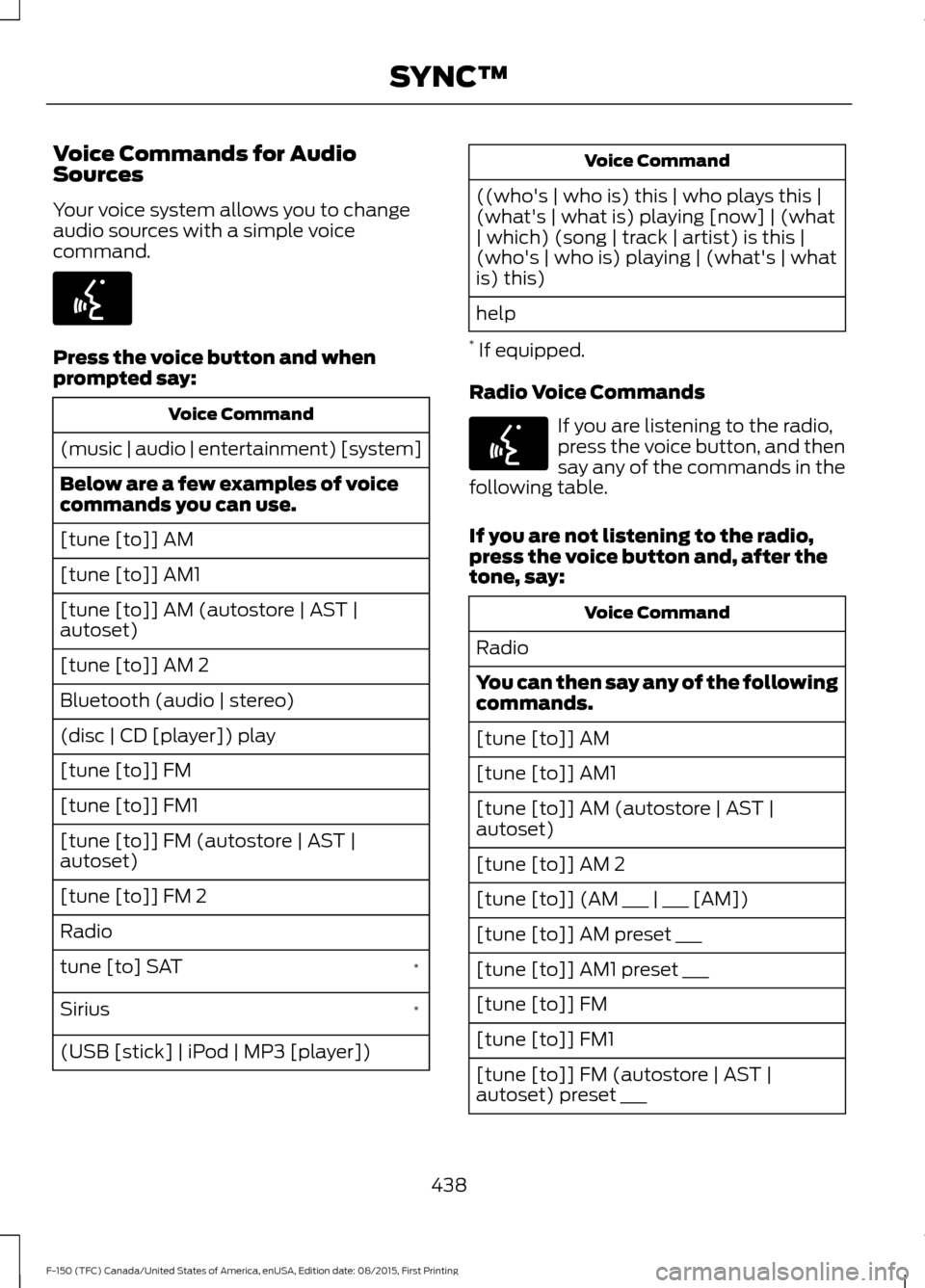
Voice Commands for Audio
Sources
Your voice system allows you to change
audio sources with a simple voice
command.
Press the voice button and when
prompted say:
Voice Command
(music | audio | entertainment) [system]
Below are a few examples of voice
commands you can use.
[tune [to]] AM
[tune [to]] AM1
[tune [to]] AM (autostore | AST |
autoset)
[tune [to]] AM 2
Bluetooth (audio | stereo)
(disc | CD [player]) play
[tune [to]] FM
[tune [to]] FM1
[tune [to]] FM (autostore | AST |
autoset)
[tune [to]] FM 2
Radio *
tune [to] SAT
*
Sirius
(USB [stick] | iPod | MP3 [player]) Voice Command
((who's | who is) this | who plays this |
(what's | what is) playing [now] | (what
| which) (song | track | artist) is this |
(who's | who is) playing | (what's | what
is) this)
help
* If equipped.
Radio Voice Commands If you are listening to the radio,
press the voice button, and then
say any of the commands in the
following table.
If you are not listening to the radio,
press the voice button and, after the
tone, say: Voice Command
Radio
You can then say any of the following
commands.
[tune [to]] AM
[tune [to]] AM1
[tune [to]] AM (autostore | AST |
autoset)
[tune [to]] AM 2
[tune [to]] (AM ___ | ___ [AM])
[tune [to]] AM preset ___
[tune [to]] AM1 preset ___
[tune [to]] FM
[tune [to]] FM1
[tune [to]] FM (autostore | AST |
autoset) preset ___
438
F-150 (TFC) Canada/United States of America, enUSA, Edition date: 08/2015, First Printing SYNC™E142599 E142599
Page 442 of 505
![FORD F150 2016 13.G Owners Manual Voice Command
[tune [to]] FM 2
[tune [to]] (FM ___ | ___ [FM])
[tune [to]] FM preset ___ *
FM ___ HD ___
[tune [to]] FM 2 preset ___
*
HD ___
[tune [to]] preset ___
Tune
help
* If equipped.
Sirius Sa](/manual-img/11/5063/w960_5063-441.png "FORD F150 2016 13.G Owners Manual Voice Command
[tune [to]] FM 2
[tune [to]] (FM ___ | ___ [FM])
[tune [to]] FM preset ___ *
FM ___ HD ___
[tune [to]] FM 2 preset ___
*
HD ___
[tune [to]] preset ___
Tune
help
* If equipped.
Sirius Sa")
Voice Command
[tune [to]] FM 2
[tune [to]] (FM ___ | ___ [FM])
[tune [to]] FM preset ___ *
FM ___ HD ___
[tune [to]] FM 2 preset ___
*
HD ___
[tune [to]] preset ___
Tune
help
* If equipped.
Sirius Satellite Radio Voice Commands
(If equipped) To listen to Sirius satellite radio,
press the voice button and, after
the tone, say:
Voice Commands
Sirius
When you are listening to Sirius
satellite radio, you can press the voice
button, and say any of the commands
in the following table. Voice Commands
tune [to] SAT
[tune [to]] SAT 1
[tune [to]] SAT 2
[tune [to]] SAT 3
[tune [to]] preset ___
[tune [to]] SAT 1 preset ___ Voice Commands
[tune [to]] SAT 2 preset ___
[tune [to]] SAT 3 preset ___
tune [to] [Sirius]
Help You can say the
channel number (0-
233) to listen to that Sirius station.
[tune [to]] Sirius
[channel] ___
CD Voice Commands If you are listening to a CD, press
the voice button, and then say
any of the commands in the
following table.
If you are not listening to a CD, press
the voice button and, after the tone,
say: Voice Command
(disc | CD [player]) play
You can then say any of the following
commands.
pause
play
[play] next track
[play] previous track
[play | change to] track [number] ___
repeat (track | song) [on]
repeat folder [on]
repeat off
(shuffle | random | mix) [on | (tracks |
songs) [on]]
439
F-150 (TFC) Canada/United States of America, enUSA, Edition date: 08/2015, First Printing SYNC™E142599 E142599
Page 443 of 505
![FORD F150 2016 13.G Owners Manual Voice Command
(shuffle | random | mix) (CD [player] |
disc) [on]
(shuffle | random | mix) folder [on]
shuffle off
SYNC™ TROUBLESHOOTING
Your SYNC system is easy to use. However,
should questions ari](/manual-img/11/5063/w960_5063-442.png "FORD F150 2016 13.G Owners Manual Voice Command
(shuffle | random | mix) (CD [player] |
disc) [on]
(shuffle | random | mix) folder [on]
shuffle off
SYNC™ TROUBLESHOOTING
Your SYNC system is easy to use. However,
should questions ari")
Voice Command
(shuffle | random | mix) (CD [player] |
disc) [on]
(shuffle | random | mix) folder [on]
shuffle off
SYNC™ TROUBLESHOOTING
Your SYNC system is easy to use. However,
should questions arise, see the tables
below. Use the website at any time to check your
phone's compatibility, register your
account and set preferences as well as
access a customer representative via an
online chat (during certain hours). Visit
www.SYNCMyRide.com,
www.SYNCMyRide.ca or
www.syncmaroute.ca for more
information.Phone issues
Possible solution(s)
Possible cause(s)
Issue
Review your phone's manualabout audio adjustments.
The audio control settings
on your phone may be
affecting SYNC perform- ance.
There is excessive back-
ground noise during a phone call.
Try turning off the device,resetting the device,
removing the device's
battery, then trying again.
This may be a possible
phone malfunction.
During a call, I can hear the
other person but theycannot hear me.
Go to the website to reviewyour phone's compatibility.
This is a phone-dependent feature.
SYNC is not able to down- load my phonebook. Try turning off the device,
resetting the device orremoving the device's
battery, then trying again.
Try pushing your phonebook contacts to SYNC by usingthe Add Contacts feature.
This may be a possible
phone malfunction. Use the SYNCmyphone
feature available on the website.
Try pushing your phonebook contacts to SYNC by usingthe Add Contacts feature.
This may be a limitation on
your phone's capability.
The system says Phonebook
Downloaded but the
phonebook in SYNC is
empty or missing contacts.
440
F-150 (TFC) Canada/United States of America, enUSA, Edition date: 08/2015, First Printing SYNC™
Page 504 of 505

Using SYNC™ With Your Media
Player.............................................................431
Accessing Your USB Song Library...............435
Bluetooth Devices and System
Settings............................................................. 437
Connecting Your Digital Media Player to the USB Port............................................................ 431
Media Menu Features...................................... 435
Media Voice Commands................................. 432
USB 2...................................................................... 437
Voice Commands for Audio Sources.........438
Using SYNC™ With Your Phone.............414 Accessing Features through the Phone
Menu.................................................................. 419
Accessing Your Phone Settings.................... 422
Bluetooth Devices............................................. 423
Making Calls.......................................................... 417
Pairing a Phone for the First Time................414
Pairing Subsequent Phones........................... 415
Phone Options during an Active Call..........418
Phone Voice Commands................................. 416
Receiving Calls.................................................... 418
System Settings................................................. 424
Text Messaging.................................................. 420
Using Traction Control...............................203 Switching the System Off ............................. 203
System Indicator Lights and Messages......................................................... 203
Using Voice Recognition............................412 Initiating a Voice Session................................. 412
System Interaction and Feedback...............413
Utilizing the Mediation/Arbitration Program (Canada Only)
........................294
V
Vehicle Care
...................................................330
General Information......................................... 330
Vehicle Certification Label........................372
Vehicle Identification Number.................371 Vehicle Storage............................................336
Battery.................................................................... 337
Body........................................................................\
336
Brakes..................................................................... 337
Cooling system................................................... 336
Engine.................................................................... 336
Fuel system.......................................................... 336
General.................................................................. 336
Miscellaneous...................................................... 337
Removing Vehicle From Storage.................. 337
Tires........................................................................\
. 337
Ventilation See: Climate Control......................................... 139
VIN See: Vehicle Identification Number..............371
Voice Control...................................................80
501
F-150 (TFC) Canada/United States of America, enUSA, Edition date: 08/2015, First Printing Index