2016 FORD F150 display
[x] Cancel search: displayPage 220 of 505

Enhanced Park Aids
Selectable settings for this feature are ON
and OFF.
The system uses red, yellow and green
highlights that appear on top of the video
image when any of the sensing systems
detect an object.
Vehicles equipped with MyFord Touch
™
The system will provide an image of your
vehicle and the sensor zones. The zones
will highlight green, yellow and red when
the parking aid sensors detect an object in
the coverage area. For additional information of the zone
coverage and the rear sensing system. See
Parking Aid (page 209).
Rear Camera Delay
Selectable settings for this feature are ON
and OFF.
The default setting for the rear camera
delay is OFF. When shifting the transmission out of
reverse (R) and into any gear other than
park (P), the camera image remains in the
display until your vehicle speed reaches
6 mph (10 km/h)
. This occurs when the
rear camera delay feature is on, or until a
radio button is pressed.
360 DEGREE CAMERA (If Equipped) WARNINGS
The 360 degree camera system is a
supplement system that still requires
the driver to use it in conjunction with
looking out the windows, and checking the
interior and exterior mirrors for maximum
coverage. You may not see objects that are
close to either corner of the bumper
or under the bumper due to the
limited coverage of the camera system. Use caution when turning camera
features ON or OFF while out of park
(P). Make sure your vehicle is not
moving. The 360 degree camera system consists
of front, side and rear cameras. The
system:
•
Allows you to see what is directly in
front or behind your vehicle.
• Provides cross traffic view in front and
behind your vehicle.
• Allows you to see a top-down view of
the area outside your vehicle, including
the blind spots.
• Provides visibility around your vehicle
to you in parking maneuvers such as:
•Centering in a parking space.
• Obstacles near vehicle.
• Parallel parking.
217
F-150 (TFC) Canada/United States of America, enUSA, Edition date: 08/2015, First Printing Parking AidsE190459
Page 221 of 505

The 360 degree camera system
button is located on the
instrument panel and allows you
to toggle through different camera views.
The front and rear cameras have multiple
screens which consist of: Normal view with
360, Normal view, and split view. When in
park (P), neutral (N) or drive (D), only the
front images will be displayed when the
button is pressed. When in reverse (R), only
the rear images will be displayed when the
button is pressed.
Note: The 360 degree camera system will
turn OFF when your vehicle is in motion at
low speed, except when in reverse (R).
Camera Views
The small vehicle icon displayed on the
top left corner of the image illustrates the
camera view being displayed. Camera
views are laid out in the order the screens
will appear once the button is pressed.
Note: The front video image will be
disabled when your vehicle is in motion at
low speed, except when in reverse (R).
• Front 360 + Normal: Contains the
normal front camera view next to a
360 degree camera view. This view will
appear on the screen when the button
is pressed in any gear other than
reverse (R).
• Front Normal View:
Provides an
image of what is directly in front of your
vehicle. Access this view by pressing
the camera button from the Front 360
+ Normal View screen.
• Front Split View:
Provides an
extended view of what is in front of
your vehicle. Access this view by
pressing the camera button from the
Front Normal View screen. •
Rear 360 + Normal:
Contains the
normal rear camera view next to a 360
degree camera view. This view can be
accessed by putting your vehicle in
reverse (R), or by pressing the camera
button from the Rear Split View screen.
• Rear Normal View: Provides an image
of what is directly behind your vehicle.
Access this view by pressing the
camera button from the Rear 360 +
Normal screen.
• Rear Split View:
Provides an
extended view of what is behind your
vehicle. Access this view by pressing
the camera button from the Rear
Normal View screen.
Keep Out Zone The Keep Out Zone is represented by the
yellow dotted lines running parallel to your
vehicle. It is designed to give you the
indication on the ground of the fully
extended outside mirror position.
Front Camera
WARNING
The front camera system is an aid
supplement device that still requires
the driver to use it in conjunction with
looking out your vehicle. 218
F-150 (TFC) Canada/United States of America, enUSA, Edition date: 08/2015, First Printing Parking AidsE183663 E184448
Page 222 of 505

The front video camera, located in the
grille, provides a video image of the area
in front of your vehicle. It adds assistance
to the driver while driving forward at low
speeds. To use the front video camera
system, place the transmission in any gear
except reverse (R). An image will display
once the camera enable button is pressed.
The area displayed on the screen may vary
according to your vehicle's orientation
and/or road condition.
Side Camera
The side view camera, located in the
outside mirror, provide a video image of
the area on the sides of your vehicle as part
of the front 360 + normal view and rear
360 + normal view. It aids you while
parking your vehicle either forward or
backwards. Note:
Use caution when using the 360 view
while any of the doors are ajar. If a door is
ajar, the camera will be out of position and
the video image may be incorrect.
219
F-150 (TFC) Canada/United States of America, enUSA, Edition date: 08/2015, First Printing Parking AidsE184044 E206263
Page 225 of 505

Switching the System On
Press and release ON.
The information display shows
the grey indicator light.
The current gap setting and
SET also
shows.
Setting a Speed
1. Accelerate to the desired speed.
2. Press and release
SET+. The memory
stores the vehicle speed.
3. The information display shows a green
indicator light, current gap setting and
the desired set speed.
4. Take your foot off the accelerator pedal. 5.
A lead vehicle graphic illuminates if the
system detects a vehicle in front of you.
Note: When adaptive cruise control is
active, the speedometer may vary slightly
from the set speed displayed in the
information display.
Following a Vehicle WARNINGS
When following a vehicle in front of
you, your vehicle does not decelerate
automatically to a stop, nor does
your vehicle always decelerate quickly
enough to avoid a crash without driver
intervention. Always apply the brakes when
necessary. Failing to do so may result in a
crash, serious injury or death. Adaptive cruise control only warns
of vehicles detected by the radar
sensor. In some cases there may be
no warning or a delayed warning. You
should always apply the brakes when
necessary. Failing to do so may result in a
crash, serious injury or death. Note:
The brakes may emit a sound when
the adaptive cruise control system is active.
When a vehicle ahead of you enters the
same lane or a slower vehicle is ahead in
the same lane, the vehicle speed adjusts
to maintain a preset gap distance. The
distance setting is adjustable.
The lead vehicle graphic illuminates.
The vehicle maintains a constant distance
from the vehicle ahead until:
• The vehicle in front of you accelerates
to a speed above the set speed.
• The vehicle in front of you moves out
of your lane or out of view.
• The vehicle speed falls below 12.4 mph
(20 km/h)
.
• You set a new gap distance.
222
F-150 (TFC) Canada/United States of America, enUSA, Edition date: 08/2015, First Printing Cruise Control
(If Equipped)E144529 E183738 E183738
Page 226 of 505
The system applies the brakes to slow the
vehicle to maintain a safe distance from
the vehicle in front. The system applies
only limited maximum braking. Press the
brake pedal to override the system.
If the system predicts that its maximum
braking level is insufficient, an audible
warning sounds while the system
continues to brake. A red warning bar
appears on the windshield heads-up
display. Take immediate action to slow or
stop the vehicle.
The system may provide slight temporary
acceleration when you use your driver side
directional indicator while following a lead
vehicle, to aid in passing the vehicle.
Setting the Gap Distance
Note:
It is your responsibility to select a gap
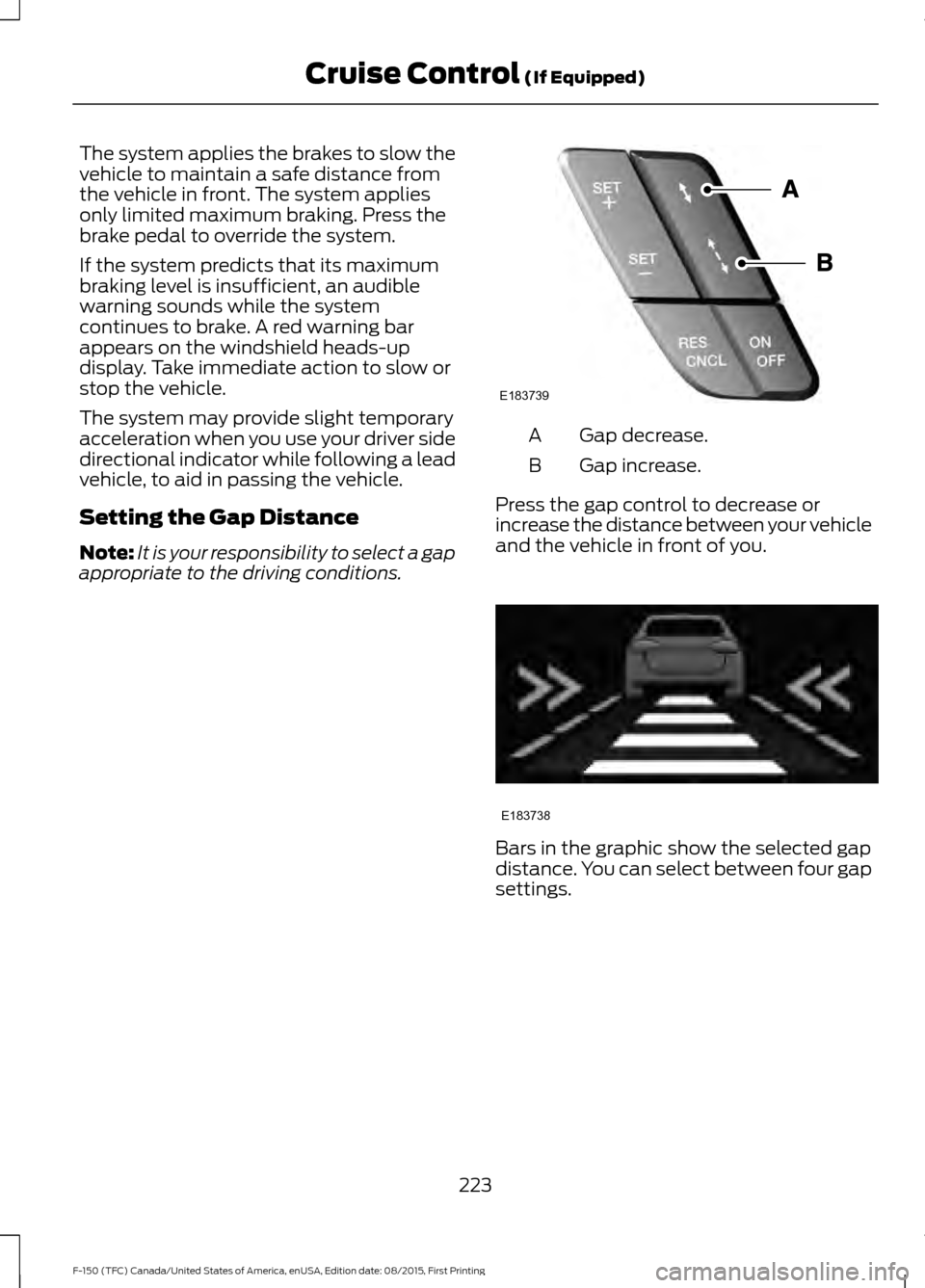
appropriate to the driving conditions. Gap decrease.
A
Gap increase.
B
Press the gap control to decrease or
increase the distance between your vehicle
and the vehicle in front of you. Bars in the graphic show the selected gap
distance. You can select between four gap
settings.
223
F-150 (TFC) Canada/United States of America, enUSA, Edition date: 08/2015, First Printing Cruise Control (If Equipped)E183739 E183738
Page 227 of 505
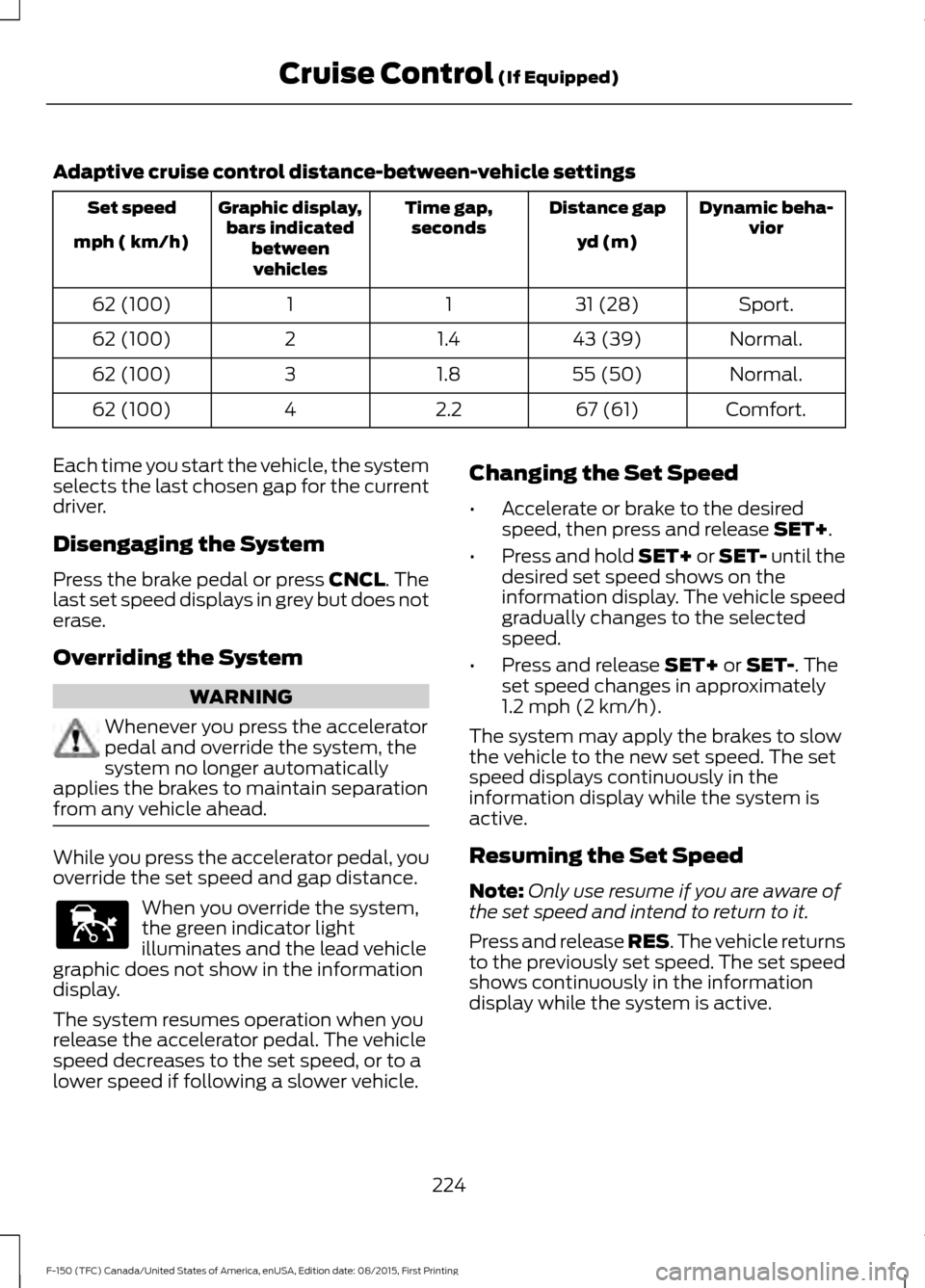
Adaptive cruise control distance-between-vehicle settings
Dynamic beha-
vior
Distance gap
Time gap,
seconds
Graphic display,
bars indicated betweenvehicles
Set speed
yd (m)
mph ( km/h)
Sport.
31 (28)
1
1
62 (100)
Normal.
43 (39)
1.4
2
62 (100)
Normal.
55 (50)
1.8
3
62 (100)
Comfort.
67 (61)
2.2
4
62 (100)
Each time you start the vehicle, the system
selects the last chosen gap for the current
driver.
Disengaging the System
Press the brake pedal or press CNCL. The
last set speed displays in grey but does not
erase.
Overriding the System WARNING
Whenever you press the accelerator
pedal and override the system, the
system no longer automatically
applies the brakes to maintain separation
from any vehicle ahead. While you press the accelerator pedal, you
override the set speed and gap distance.
When you override the system,
the green indicator light
illuminates and the lead vehicle
graphic does not show in the information
display.
The system resumes operation when you
release the accelerator pedal. The vehicle
speed decreases to the set speed, or to a
lower speed if following a slower vehicle. Changing the Set Speed
•
Accelerate or brake to the desired
speed, then press and release
SET+.
• Press and hold SET+ or SET- until the
desired set speed shows on the
information display. The vehicle speed
gradually changes to the selected
speed.
• Press and release
SET+ or SET-. The
set speed changes in approximately
1.2 mph (2 km/h)
.
The system may apply the brakes to slow
the vehicle to the new set speed. The set
speed displays continuously in the
information display while the system is
active.
Resuming the Set Speed
Note: Only use resume if you are aware of
the set speed and intend to return to it.
Press and release RES. The vehicle returns
to the previously set speed. The set speed
shows continuously in the information
display while the system is active.
224
F-150 (TFC) Canada/United States of America, enUSA, Edition date: 08/2015, First Printing Cruise Control
(If Equipped)E144529
Page 229 of 505

In these cases the system may brake late
or unexpectedly. Stay alert and take action
when necessary.
If something hits the front end of your
vehicle or damage occurs, the
radar-sensing zone may change. This could
cause missed or false vehicle detections.
Contact an authorized dealer to have them
check for proper coverage and operation.
System Not Available
Conditions that can cause the system to
deactivate or prevent the system from
activating when requested include:
•
A blocked sensor.
• High brake temperature.
• A failure in the system or a related
system.
Note: If you disable electronic stability
control, adaptive cruise control is not
available. See Using Stability Control
(page 205).
Blocked Sensor WARNINGS
Do not use the system when towing
a trailer with aftermarked trailer
brake controls. Aftermarket trailer
brakes will not function properly when you
switch the system on because the brakes
are electronically controlled. Failing to do
so may result in loss of vehicle control,
which could result in serious injury. WARNINGS
Do not use adaptive cruise control
while you have a snow plow blade
installed.
Do not use tire sizes other than those
recommended because this can
affect the normal operation of the
system. Failing to do so may result in a loss
of vehicle control, which could result in
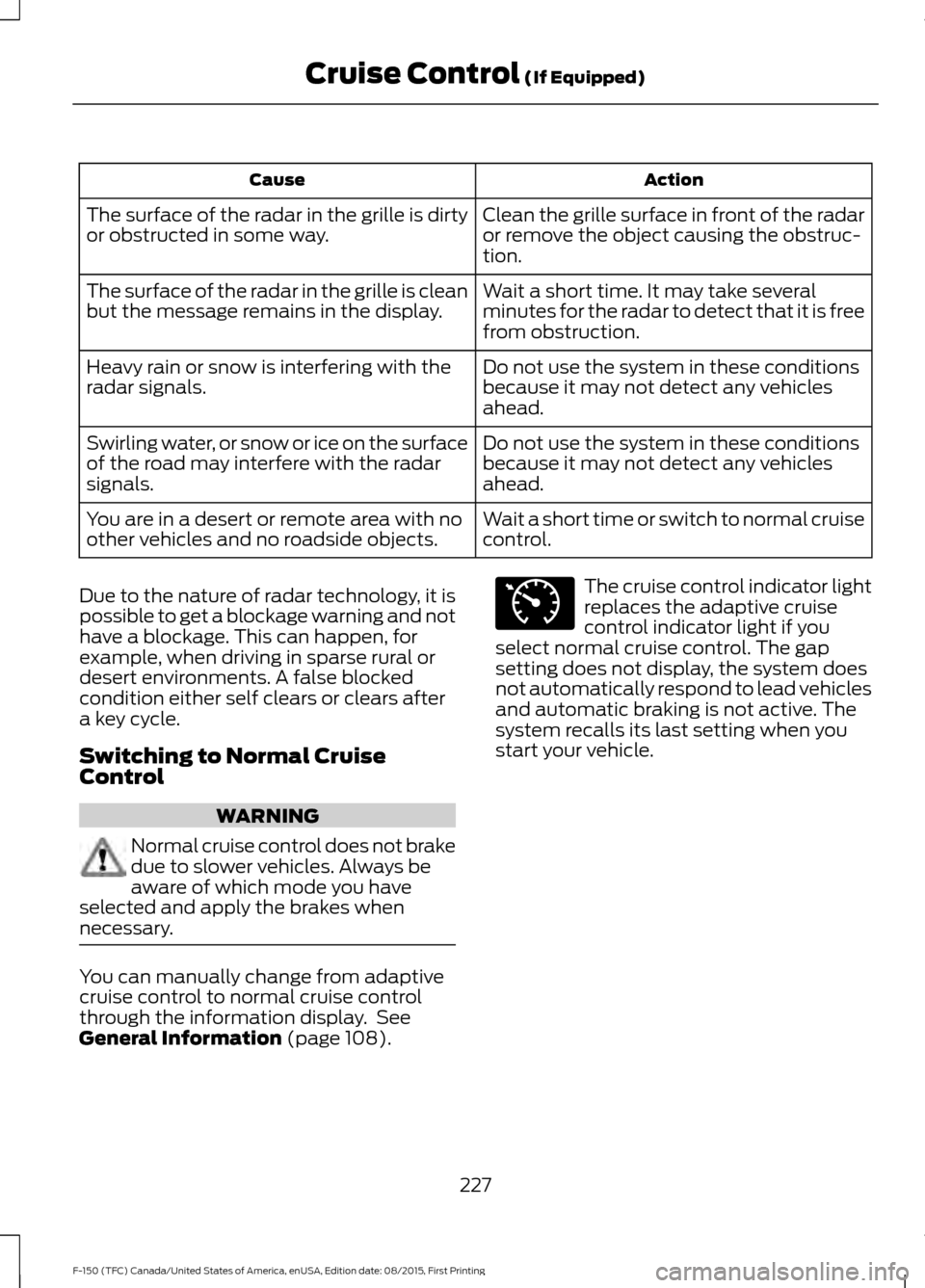
serious injury. A message displays if something obstructs
the radar signals from the sensor. The
sensor is behind a cover near the driver side
of the lower grille. The system cannot
detect a vehicle ahead and does not
function when something obstructs the
radar signals. The following table lists
possible causes and actions for this
message displaying.
226
F-150 (TFC) Canada/United States of America, enUSA, Edition date: 08/2015, First Printing Cruise Control
(If Equipped)E183741
Page 230 of 505
Action
Cause
Clean the grille surface in front of the radar
or remove the object causing the obstruc-
tion.
The surface of the radar in the grille is dirty
or obstructed in some way.
Wait a short time. It may take several
minutes for the radar to detect that it is free
from obstruction.
The surface of the radar in the grille is clean
but the message remains in the display.
Do not use the system in these conditions
because it may not detect any vehicles
ahead.
Heavy rain or snow is interfering with the
radar signals.
Do not use the system in these conditions
because it may not detect any vehicles
ahead.
Swirling water, or snow or ice on the surface
of the road may interfere with the radar
signals.
Wait a short time or switch to normal cruise
control.
You are in a desert or remote area with no
other vehicles and no roadside objects.
Due to the nature of radar technology, it is
possible to get a blockage warning and not
have a blockage. This can happen, for
example, when driving in sparse rural or
desert environments. A false blocked
condition either self clears or clears after
a key cycle.
Switching to Normal Cruise
Control WARNING
Normal cruise control does not brake
due to slower vehicles. Always be
aware of which mode you have
selected and apply the brakes when
necessary. You can manually change from adaptive
cruise control to normal cruise control
through the information display. See
General Information (page 108). The cruise control indicator light
replaces the adaptive cruise
control indicator light if you
select normal cruise control. The gap
setting does not display, the system does
not automatically respond to lead vehicles
and automatic braking is not active. The
system recalls its last setting when you
start your vehicle.
227
F-150 (TFC) Canada/United States of America, enUSA, Edition date: 08/2015, First Printing Cruise Control
(If Equipped)E71340