2016 FORD EXPLORER reset
[x] Cancel search: resetPage 436 of 541
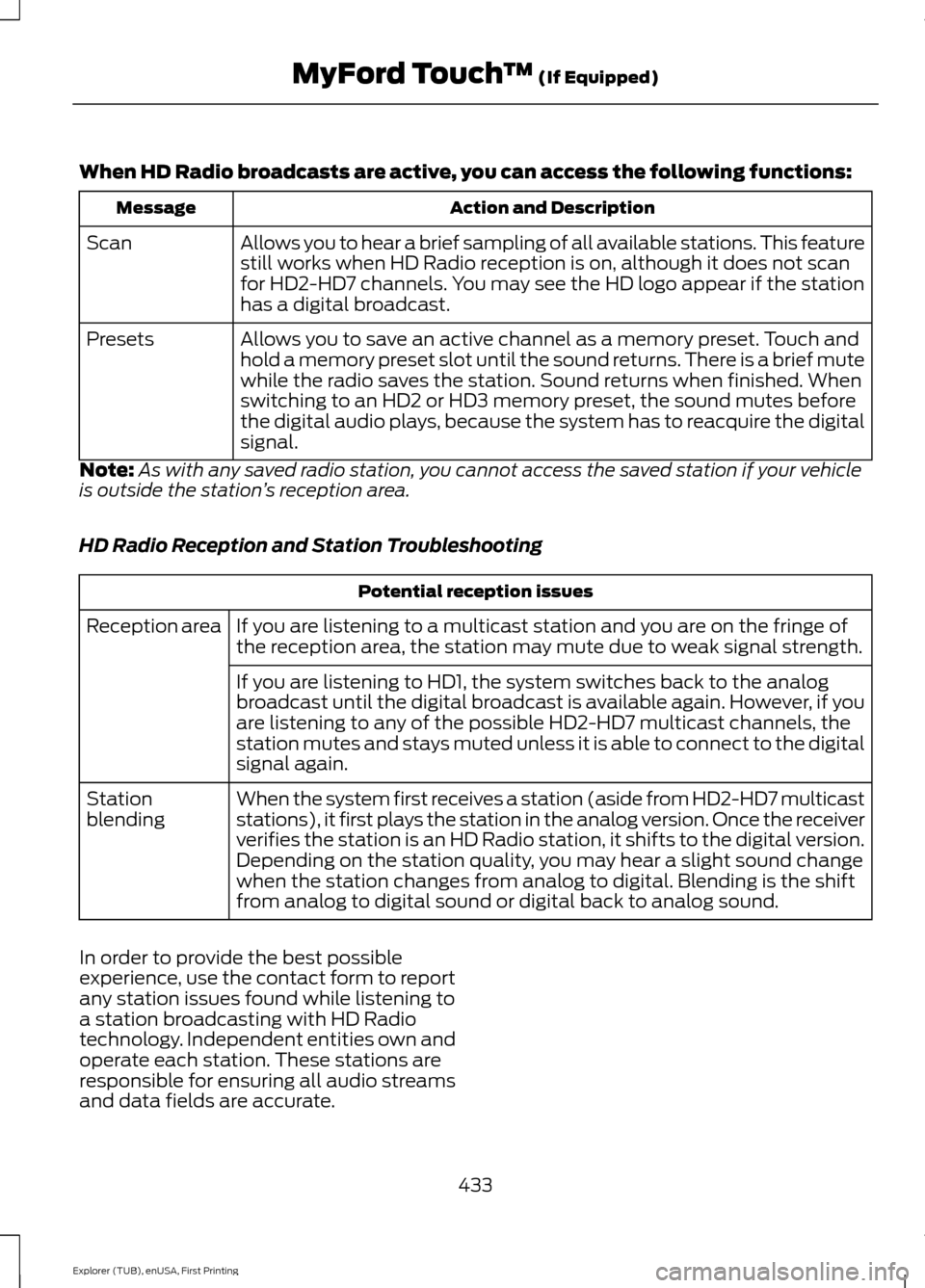
When HD Radio broadcasts are active, you can access the following functions:
Action and Description
Message
Allows you to hear a brief sampling of all available stations. This feature
still works when HD Radio reception is on, although it does not scan
for HD2-HD7 channels. You may see the HD logo appear if the station
has a digital broadcast.
Scan
Allows you to save an active channel as a memory preset. Touch and
hold a memory preset slot until the sound returns. There is a brief mute
while the radio saves the station. Sound returns when finished. When
switching to an HD2 or HD3 memory preset, the sound mutes before
the digital audio plays, because the system has to reacquire the digital
signal.
Presets
Note: As with any saved radio station, you cannot access the saved station if your vehicle
is outside the station ’s reception area.
HD Radio Reception and Station Troubleshooting Potential reception issues
If you are listening to a multicast station and you are on the fringe of
the reception area, the station may mute due to weak signal strength.
Reception area
If you are listening to HD1, the system switches back to the analog
broadcast until the digital broadcast is available again. However, if you
are listening to any of the possible HD2-HD7 multicast channels, the
station mutes and stays muted unless it is able to connect to the digital
signal again.
When the system first receives a station (aside from HD2-HD7 multicast
stations), it first plays the station in the analog version. Once the receiver
verifies the station is an HD Radio station, it shifts to the digital version.
Depending on the station quality, you may hear a slight sound change
when the station changes from analog to digital. Blending is the shift
from analog to digital sound or digital back to analog sound.
Station
blending
In order to provide the best possible
experience, use the contact form to report
any station issues found while listening to
a station broadcasting with HD Radio
technology. Independent entities own and
operate each station. These stations are
responsible for ensuring all audio streams
and data fields are accurate. 433
Explorer (TUB), enUSA, First Printing MyFord Touch
™ (If Equipped)
Page 437 of 541
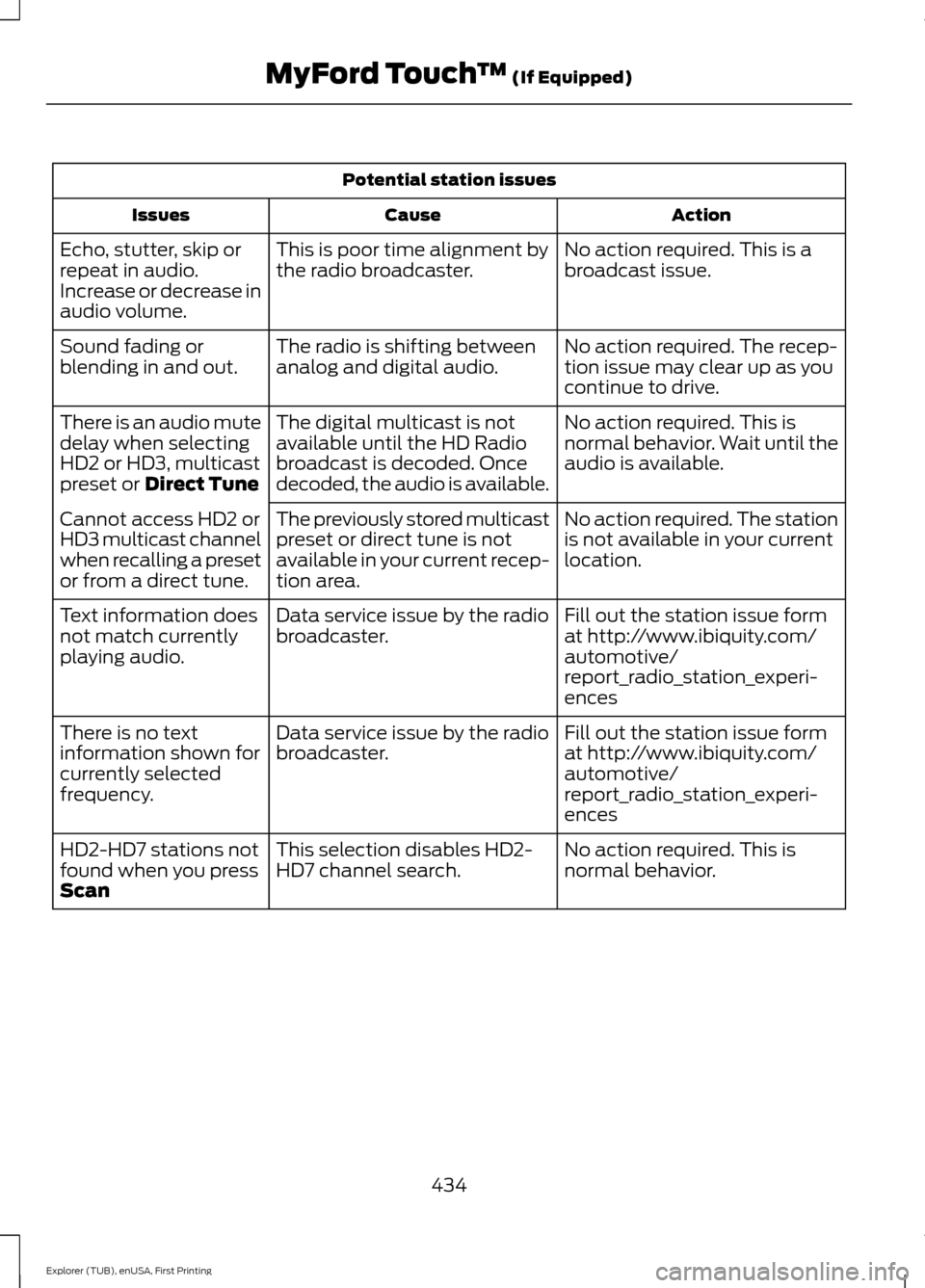
Potential station issues
Action
Cause
Issues
No action required. This is a
broadcast issue.
This is poor time alignment by
the radio broadcaster.
Echo, stutter, skip or
repeat in audio.
Increase or decrease in
audio volume.
No action required. The recep-
tion issue may clear up as you
continue to drive.
The radio is shifting between
analog and digital audio.
Sound fading or
blending in and out.
No action required. This is
normal behavior. Wait until the
audio is available.
The digital multicast is not
available until the HD Radio
broadcast is decoded. Once
decoded, the audio is available.
There is an audio mute
delay when selecting
HD2 or HD3, multicast
preset or Direct Tune
No action required. The station
is not available in your current
location.
The previously stored multicast
preset or direct tune is not
available in your current recep-
tion area.
Cannot access HD2 or
HD3 multicast channel
when recalling a preset
or from a direct tune.
Fill out the station issue form
at http://www.ibiquity.com/
automotive/
report_radio_station_experi-
ences
Data service issue by the radio
broadcaster.
Text information does
not match currently
playing audio.
Fill out the station issue form
at http://www.ibiquity.com/
automotive/
report_radio_station_experi-
ences
Data service issue by the radio
broadcaster.
There is no text
information shown for
currently selected
frequency.
No action required. This is
normal behavior.
This selection disables HD2-
HD7 channel search.
HD2-HD7 stations not
found when you press
Scan
434
Explorer (TUB), enUSA, First Printing MyFord Touch
™
(If Equipped)
Page 438 of 541
HD Radio Technology manufactured under
license from iBiquity Digital Corp. U.S. and
foreign patents. HD Radio and the HD and
HD Radio logos are proprietary trademarks
of iBiquity Digital Corp. Ford Motor
Company and iBiquity Digital Corp. are not
responsible for the content sent using HD
Radio technology. Content may be
changed, added or deleted at any time at
the station owner's discretion.
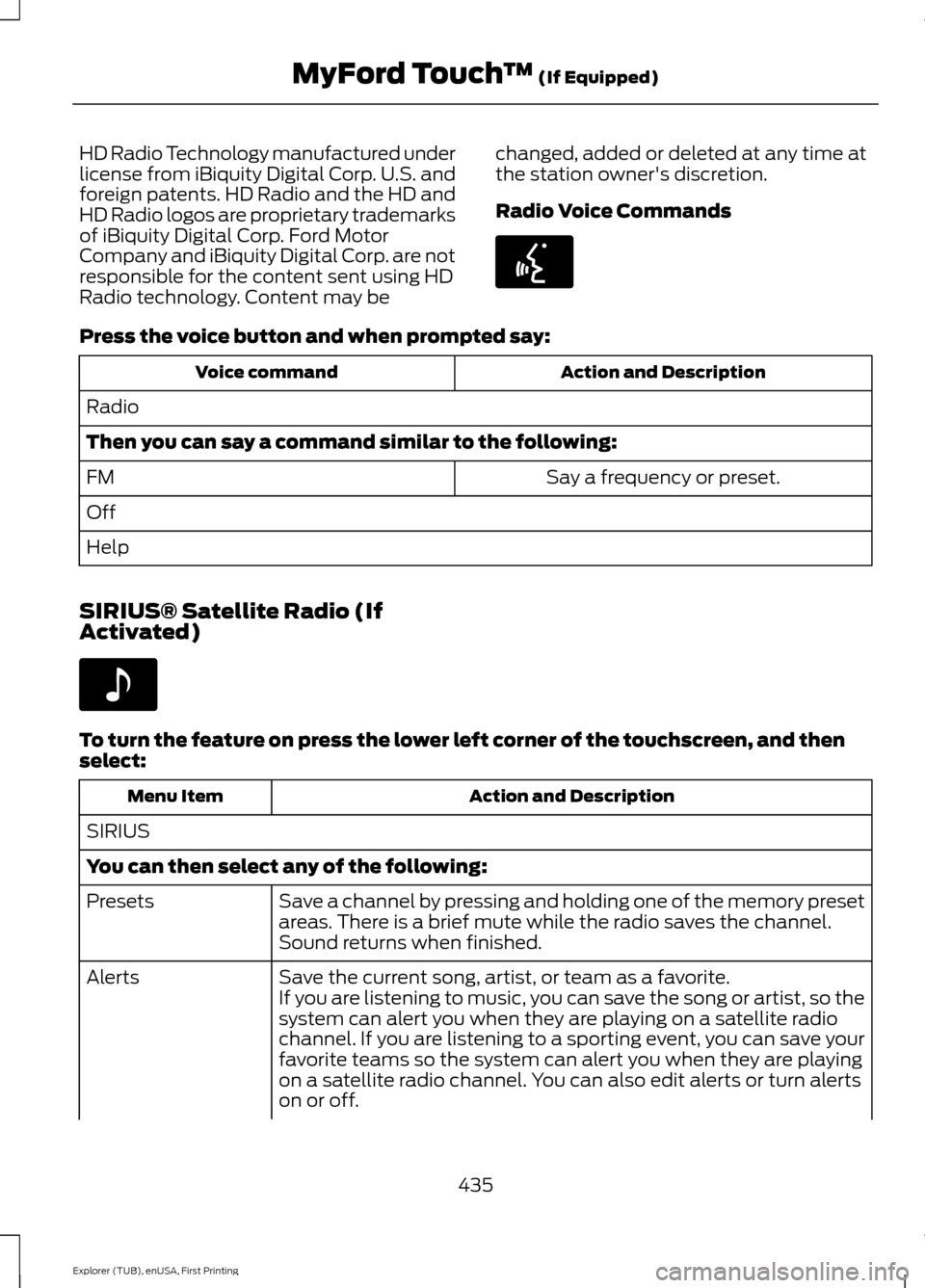
Radio Voice CommandsPress the voice button and when prompted say:
Action and Description
Voice command
Radio
Then you can say a command similar to the following: Say a frequency or preset.
FM
Off
Help
SIRIUS® Satellite Radio (If
Activated) To turn the feature on press the lower left corner of the touchscreen, and then
select:
Action and Description
Menu Item
SIRIUS
You can then select any of the following: Save a channel by pressing and holding one of the memory preset
areas. There is a brief mute while the radio saves the channel.
Sound returns when finished.
Presets
Save the current song, artist, or team as a favorite.
Alerts
If you are listening to music, you can save the song or artist, so the
system can alert you when they are playing on a satellite radio
channel. If you are listening to a sporting event, you can save your
favorite teams so the system can alert you when they are playing
on a satellite radio channel. You can also edit alerts or turn alerts
on or off.
435
Explorer (TUB), enUSA, First Printing MyFord Touch
™ (If Equipped)E142599 E142611
Page 440 of 541
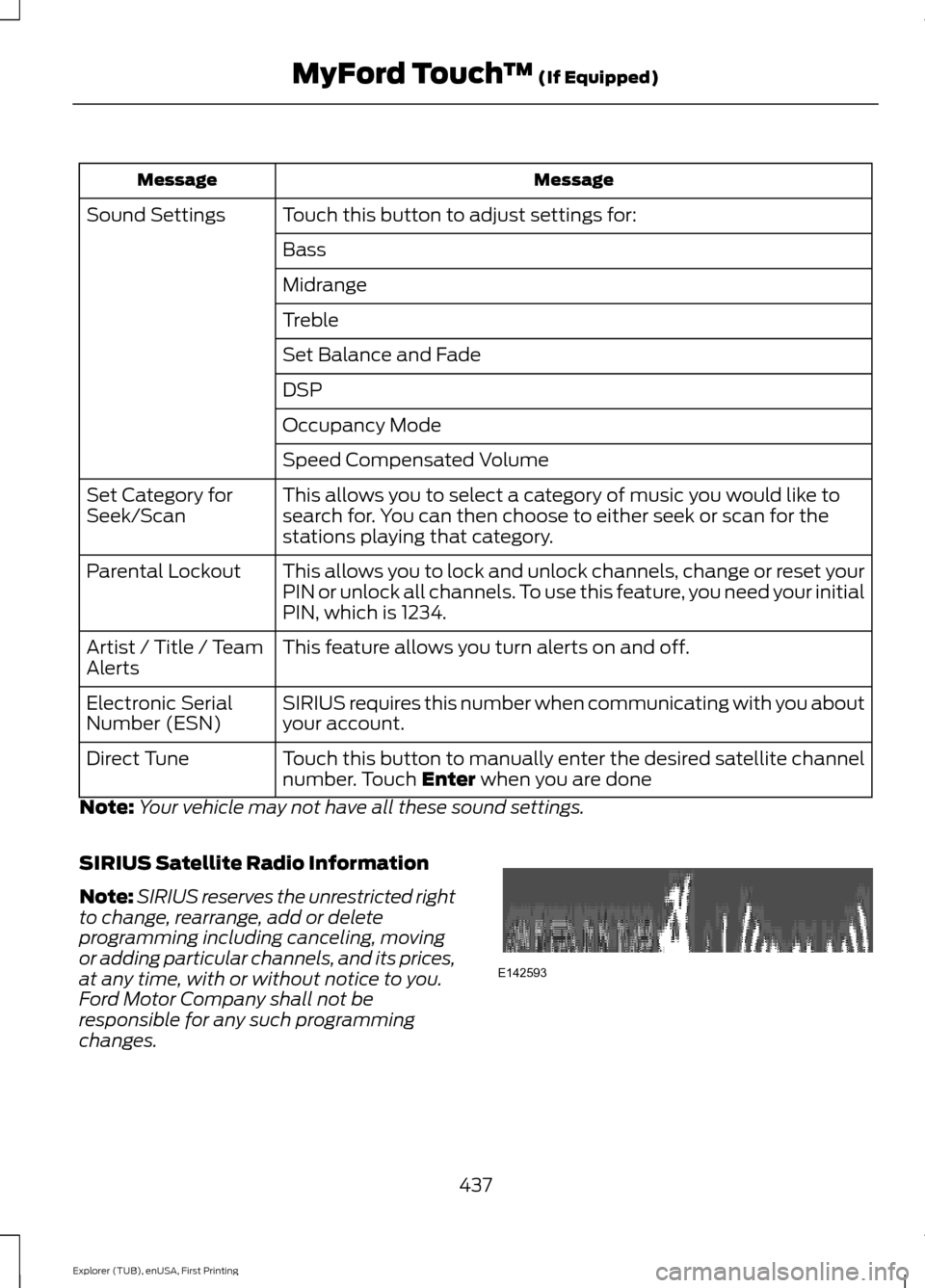
Message
Message
Touch this button to adjust settings for:
Sound Settings
Bass
Midrange
Treble
Set Balance and Fade
DSP
Occupancy Mode
Speed Compensated Volume
This allows you to select a category of music you would like to
search for. You can then choose to either seek or scan for the
stations playing that category.
Set Category for
Seek/Scan
This allows you to lock and unlock channels, change or reset your
PIN or unlock all channels. To use this feature, you need your initial
PIN, which is 1234.
Parental Lockout
This feature allows you turn alerts on and off.
Artist / Title / Team
Alerts
SIRIUS requires this number when communicating with you about
your account.
Electronic Serial
Number (ESN)
Touch this button to manually enter the desired satellite channel
number. Touch Enter when you are done
Direct Tune
Note: Your vehicle may not have all these sound settings.
SIRIUS Satellite Radio Information
Note: SIRIUS reserves the unrestricted right
to change, rearrange, add or delete
programming including canceling, moving
or adding particular channels, and its prices,
at any time, with or without notice to you.
Ford Motor Company shall not be
responsible for any such programming
changes. 437
Explorer (TUB), enUSA, First Printing MyFord Touch
™
(If Equipped)E142593
Page 442 of 541
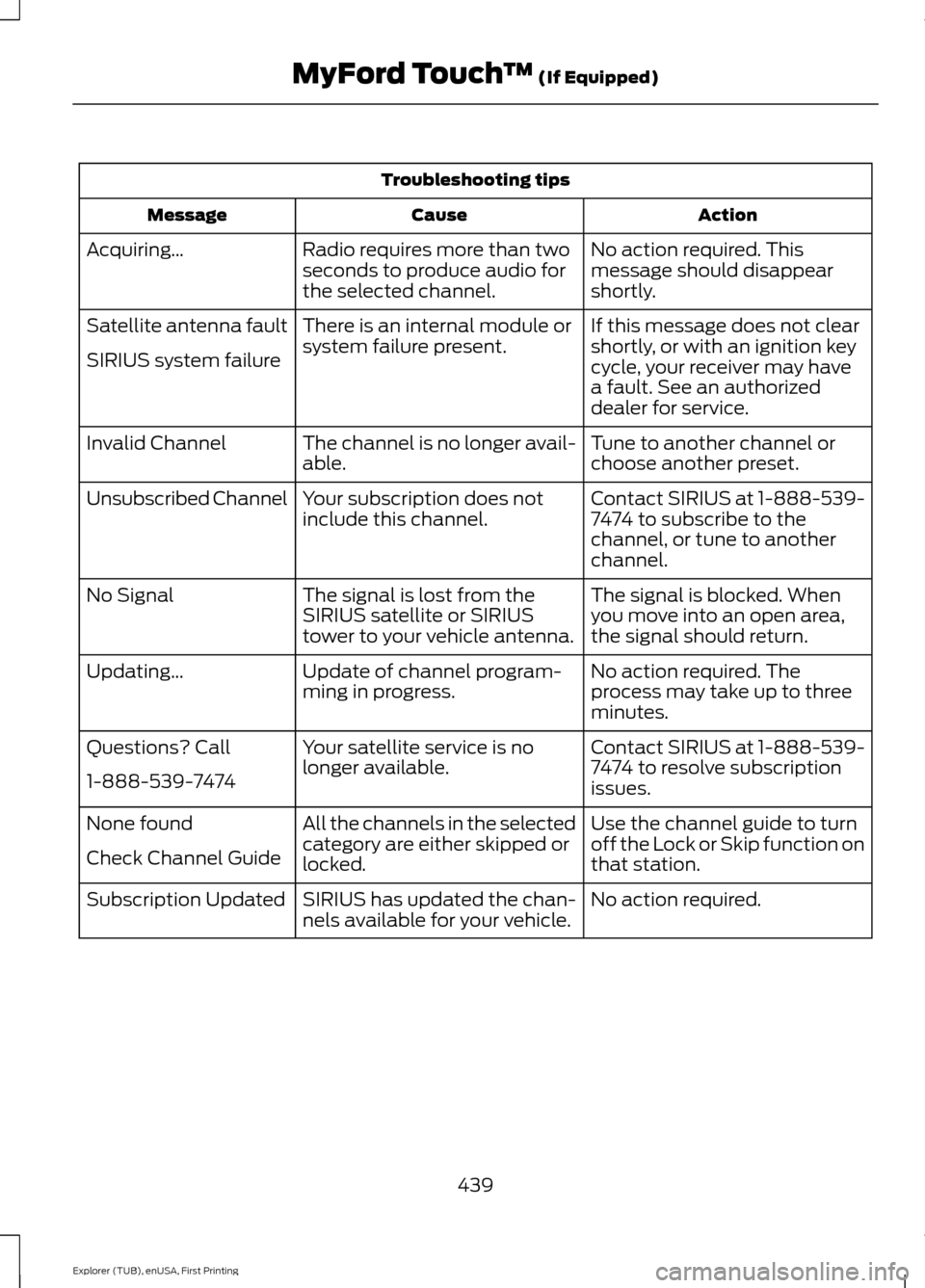
Troubleshooting tips
Action
Cause
Message
No action required. This
message should disappear
shortly.
Radio requires more than two
seconds to produce audio for
the selected channel.
Acquiring…
If this message does not clear
shortly, or with an ignition key
cycle, your receiver may have
a fault. See an authorized
dealer for service.
There is an internal module or
system failure present.
Satellite antenna fault
SIRIUS system failure
Tune to another channel or
choose another preset.
The channel is no longer avail-
able.
Invalid Channel
Contact SIRIUS at 1-888-539-
7474 to subscribe to the
channel, or tune to another
channel.
Your subscription does not
include this channel.
Unsubscribed Channel
The signal is blocked. When
you move into an open area,
the signal should return.
The signal is lost from the
SIRIUS satellite or SIRIUS
tower to your vehicle antenna.
No Signal
No action required. The
process may take up to three
minutes.
Update of channel program-
ming in progress.
Updating…
Contact SIRIUS at 1-888-539-
7474 to resolve subscription
issues.
Your satellite service is no
longer available.
Questions? Call
1-888-539-7474
Use the channel guide to turn
off the Lock or Skip function on
that station.
All the channels in the selected
category are either skipped or
locked.
None found
Check Channel Guide
No action required.
SIRIUS has updated the chan-
nels available for your vehicle.
Subscription Updated
439
Explorer (TUB), enUSA, First Printing MyFord Touch
™ (If Equipped)
Page 468 of 541
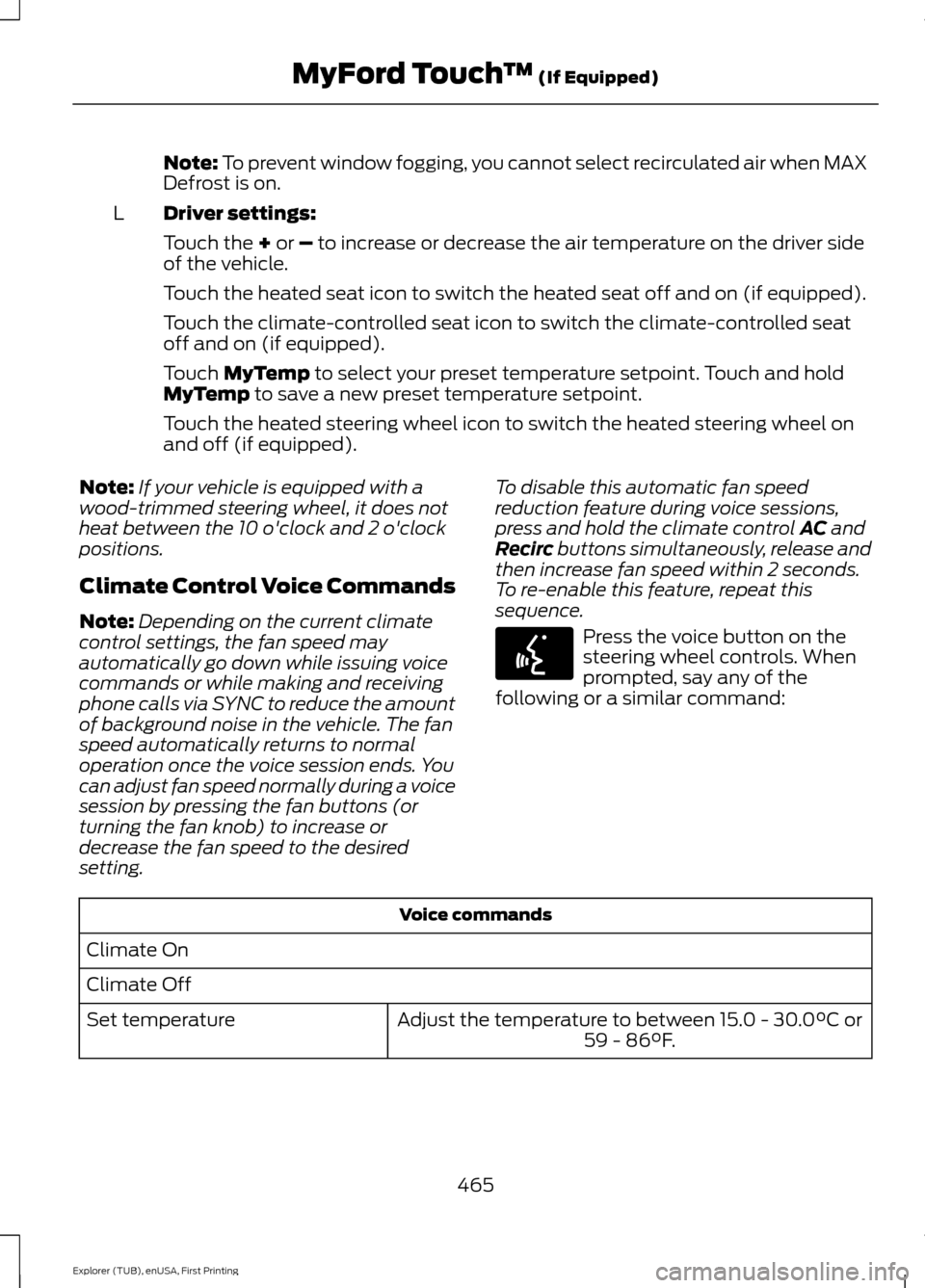
Note: To prevent window fogging, you cannot select recirculated air when MAX
Defrost is on.
Driver settings:
L
Touch the
+ or – to increase or decrease the air temperature on the driver side
of the vehicle.
Touch the heated seat icon to switch the heated seat off and on (if equipped).
Touch the climate-controlled seat icon to switch the climate-controlled seat
off and on (if equipped).
Touch
MyTemp to select your preset temperature setpoint. Touch and hold
MyTemp to save a new preset temperature setpoint.
Touch the heated steering wheel icon to switch the heated steering wheel on
and off (if equipped).
Note: If your vehicle is equipped with a
wood-trimmed steering wheel, it does not
heat between the 10 o'clock and 2 o'clock
positions.
Climate Control Voice Commands
Note: Depending on the current climate
control settings, the fan speed may
automatically go down while issuing voice
commands or while making and receiving
phone calls via SYNC to reduce the amount
of background noise in the vehicle. The fan
speed automatically returns to normal
operation once the voice session ends. You
can adjust fan speed normally during a voice
session by pressing the fan buttons (or
turning the fan knob) to increase or
decrease the fan speed to the desired
setting. To disable this automatic fan speed
reduction feature during voice sessions,
press and hold the climate control
AC and
Recirc buttons simultaneously, release and
then increase fan speed within 2 seconds.
To re-enable this feature, repeat this
sequence. Press the voice button on the
steering wheel controls. When
prompted, say any of the
following or a similar command: Voice commands
Climate On
Climate Off Adjust the temperature to between 15.0 - 30.0°C or59 - 86°F.
Set temperature
465
Explorer (TUB), enUSA, First Printing MyFord Touch
™
(If Equipped)E142599
Page 479 of 541
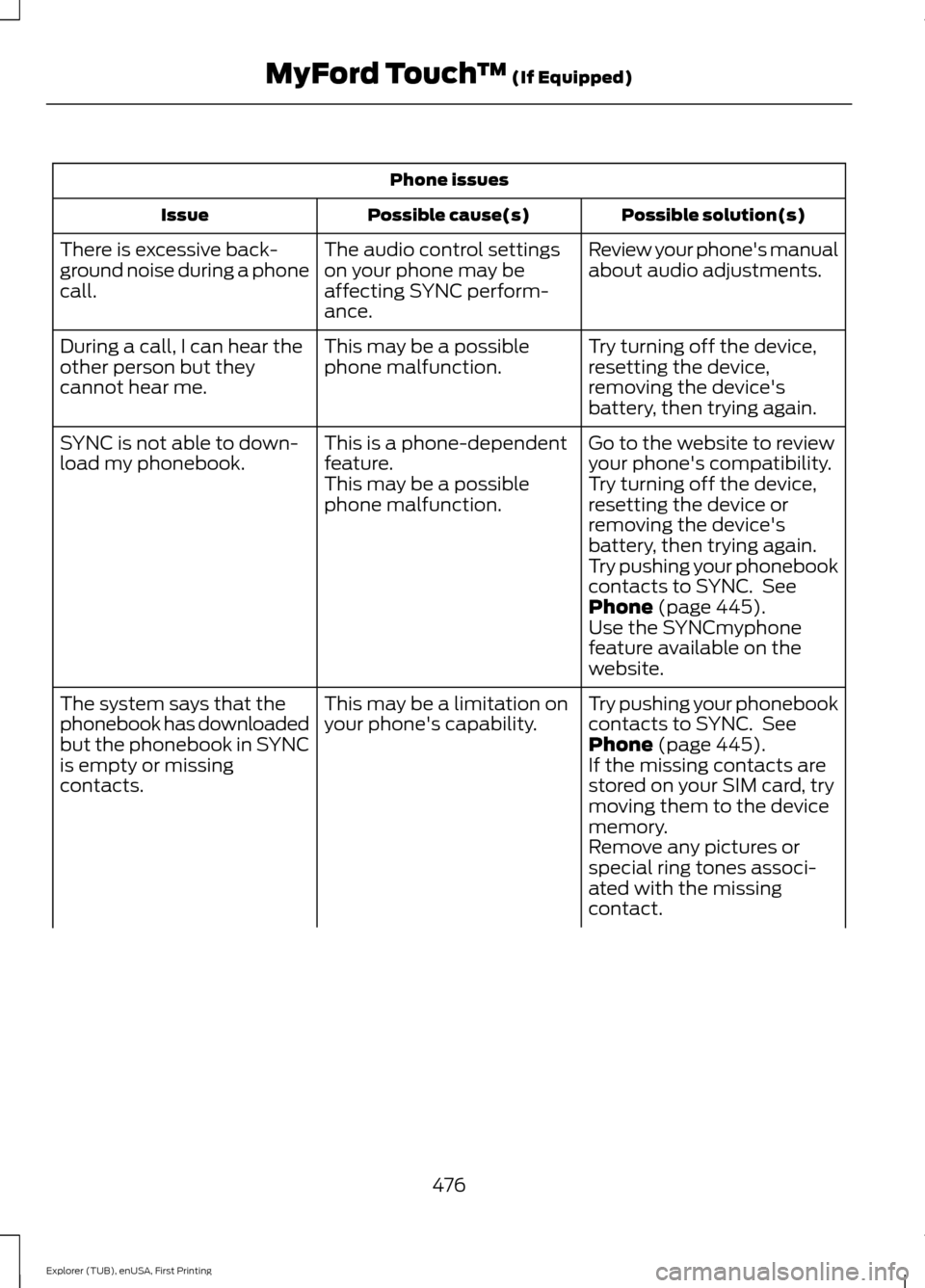
Phone issues
Possible solution(s)
Possible cause(s)
Issue
Review your phone's manual
about audio adjustments.
The audio control settings
on your phone may be
affecting SYNC perform-
ance.
There is excessive back-
ground noise during a phone
call.
Try turning off the device,
resetting the device,
removing the device's
battery, then trying again.
This may be a possible
phone malfunction.
During a call, I can hear the
other person but they
cannot hear me.
Go to the website to review
your phone's compatibility.
This is a phone-dependent
feature.
SYNC is not able to down-
load my phonebook.
Try turning off the device,
resetting the device or
removing the device's
battery, then trying again.
This may be a possible
phone malfunction.
Try pushing your phonebook
contacts to SYNC. See
Phone (page 445).
Use the SYNCmyphone
feature available on the
website.
Try pushing your phonebook
contacts to SYNC. See
Phone
(page 445).
This may be a limitation on
your phone's capability.
The system says that the
phonebook has downloaded
but the phonebook in SYNC
is empty or missing
contacts. If the missing contacts are
stored on your SIM card, try
moving them to the device
memory.
Remove any pictures or
special ring tones associ-
ated with the missing
contact.
476
Explorer (TUB), enUSA, First Printing MyFord Touch
™
(If Equipped)
Page 480 of 541
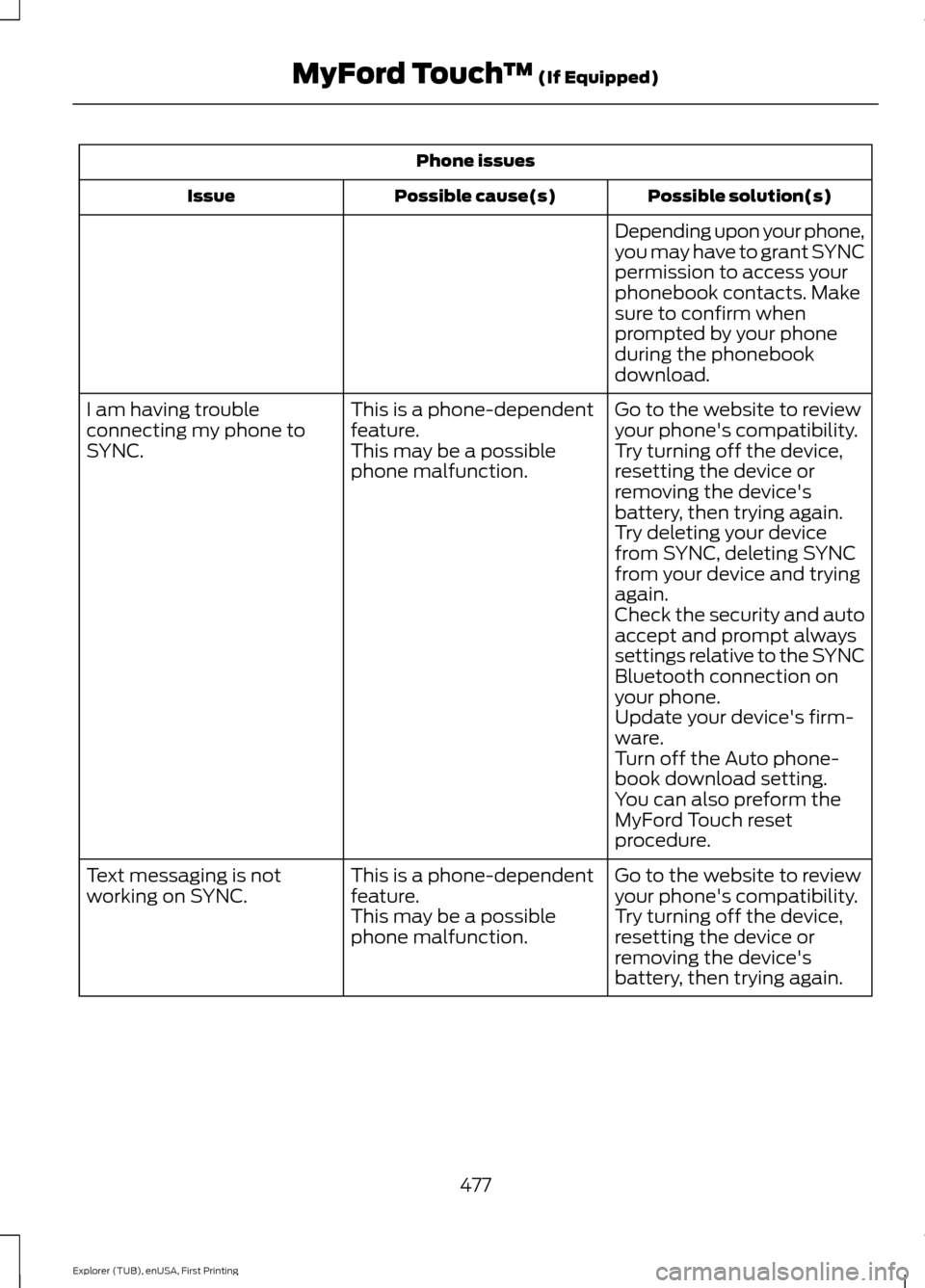
Phone issues
Possible solution(s)
Possible cause(s)
Issue
Depending upon your phone,
you may have to grant SYNC
permission to access your
phonebook contacts. Make
sure to confirm when
prompted by your phone
during the phonebook
download.
Go to the website to review
your phone's compatibility.
This is a phone-dependent
feature.
I am having trouble
connecting my phone to
SYNC.
Try turning off the device,
resetting the device or
removing the device's
battery, then trying again.
This may be a possible
phone malfunction.
Try deleting your device
from SYNC, deleting SYNC
from your device and trying
again.
Check the security and auto
accept and prompt always
settings relative to the SYNC
Bluetooth connection on
your phone.
Update your device's firm-
ware.
Turn off the Auto phone-
book download setting.
You can also preform the
MyFord Touch reset
procedure.
Go to the website to review
your phone's compatibility.
This is a phone-dependent
feature.
Text messaging is not
working on SYNC.
Try turning off the device,
resetting the device or
removing the device's
battery, then trying again.
This may be a possible
phone malfunction.
477
Explorer (TUB), enUSA, First Printing MyFord Touch
™ (If Equipped)