2016 FORD EXPLORER reset
[x] Cancel search: resetPage 403 of 541
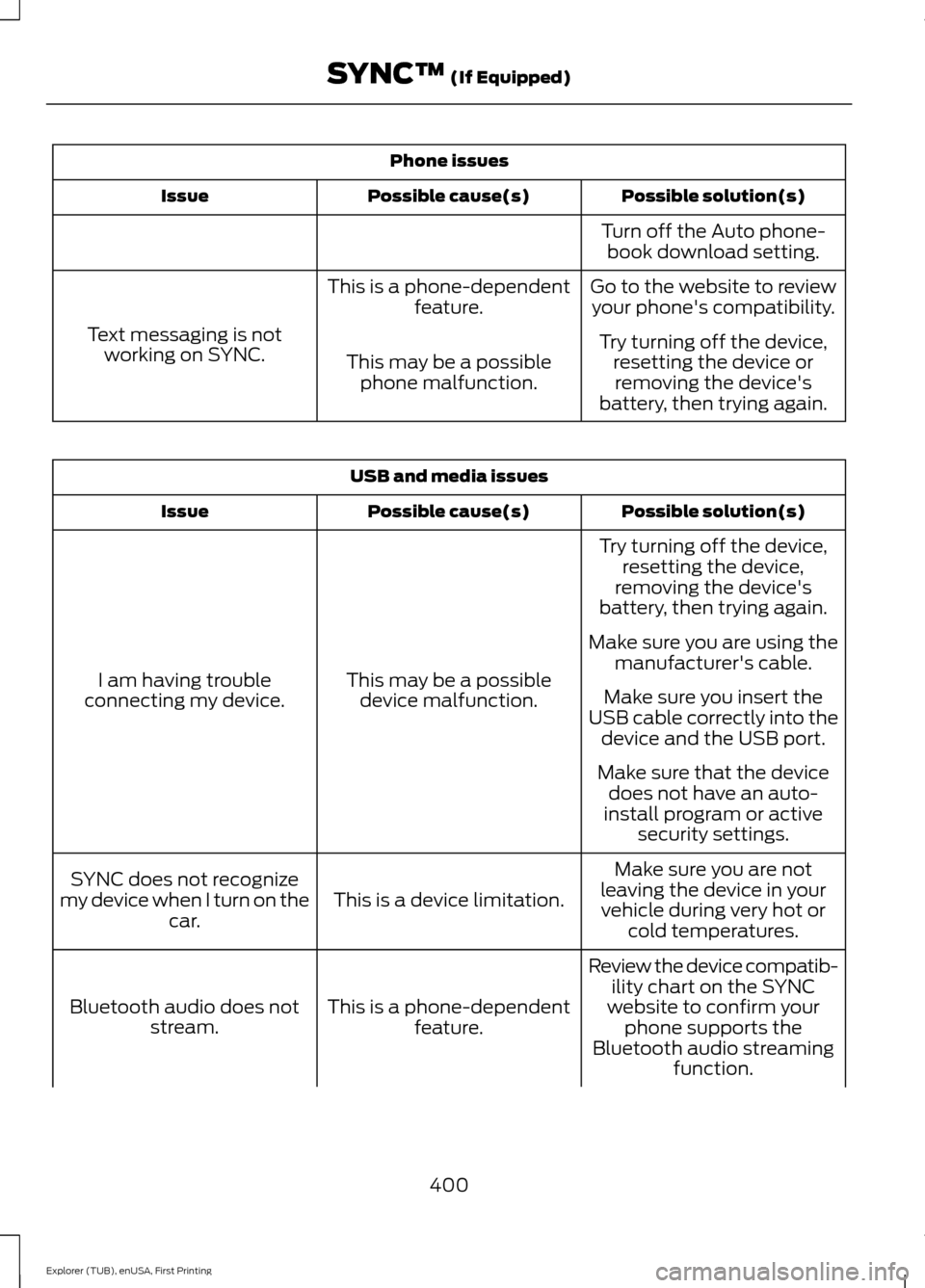
Phone issues
Possible solution(s)
Possible cause(s)
Issue
Turn off the Auto phone-book download setting.
Go to the website to review your phone's compatibility.
This is a phone-dependent
feature.
Text messaging is not working on SYNC. Try turning off the device,
resetting the device orremoving the device's
battery, then trying again.
This may be a possible
phone malfunction. USB and media issues
Possible solution(s)
Possible cause(s)
Issue
Try turning off the device,resetting the device,
removing the device's
battery, then trying again.
This may be a possible device malfunction.
I am having trouble
connecting my device. Make sure you are using the
manufacturer's cable.
Make sure you insert the
USB cable correctly into the device and the USB port.
Make sure that the device does not have an auto-
install program or active security settings.
Make sure you are not
leaving the device in your vehicle during very hot or cold temperatures.
This is a device limitation.
SYNC does not recognize
my device when I turn on the car.
Review the device compatib-ility chart on the SYNC
website to confirm your phone supports the
Bluetooth audio streaming function.
This is a phone-dependent
feature.
Bluetooth audio does not
stream.
400
Explorer (TUB), enUSA, First Printing SYNC™ (If Equipped)
Page 407 of 541
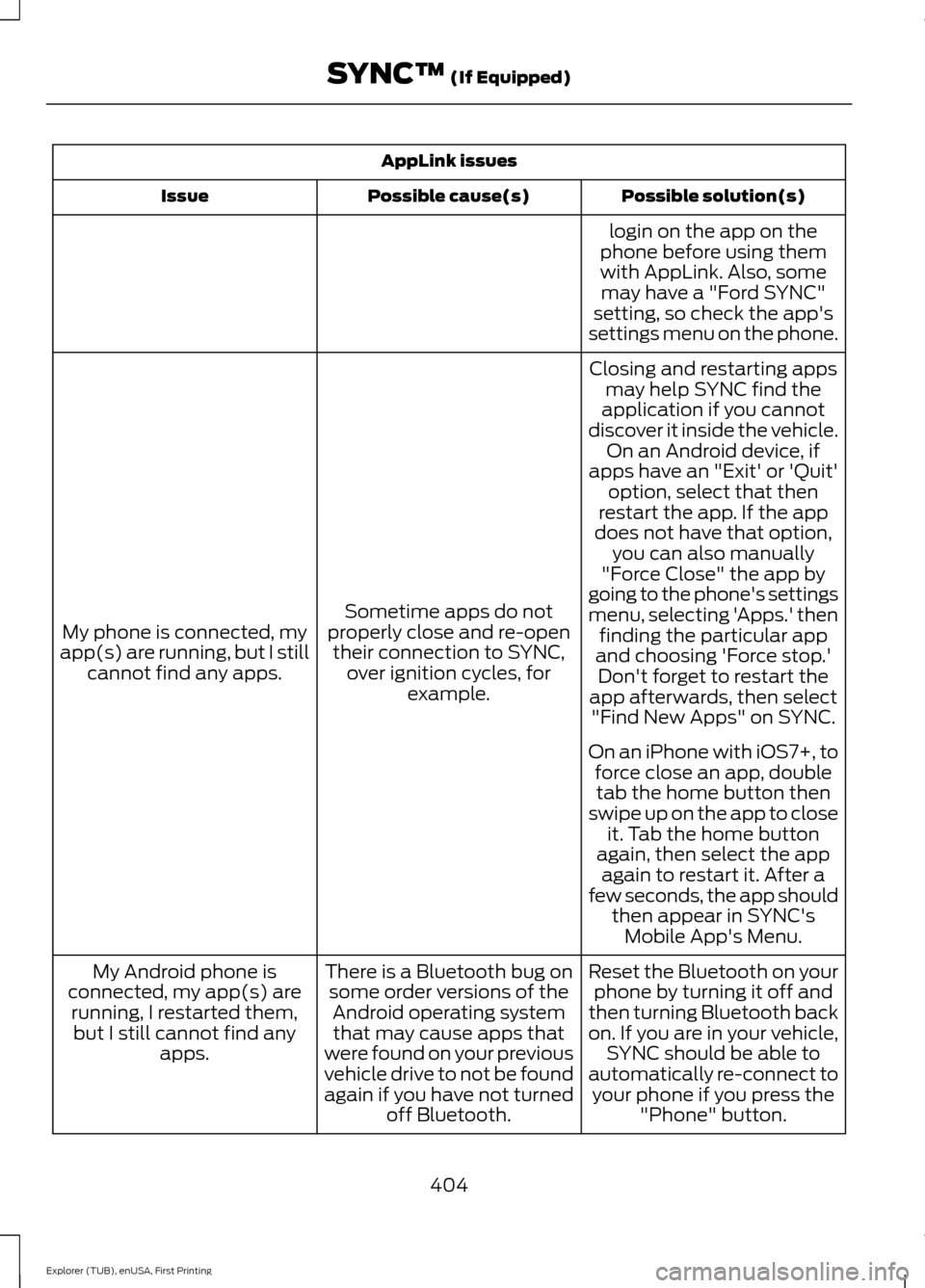
AppLink issues
Possible solution(s)
Possible cause(s)
Issue
login on the app on the
phone before using them with AppLink. Also, some may have a "Ford SYNC"
setting, so check the app's
settings menu on the phone.
Closing and restarting apps may help SYNC find the
application if you cannot
discover it inside the vehicle. On an Android device, if
apps have an "Exit' or 'Quit'
Sometime apps do not
properly close and re-open their connection to SYNC, over ignition cycles, for example.
My phone is connected, my
app(s) are running, but I still cannot find any apps. option, select that then
restart the app. If the app
does not have that option, you can also manually
"Force Close" the app by
going to the phone's settings
menu, selecting 'Apps.' then finding the particular app
and choosing 'Force stop.' Don't forget to restart the
app afterwards, then select "Find New Apps" on SYNC.
On an iPhone with iOS7+, to force close an app, doubletab the home button then
swipe up on the app to close it. Tab the home button
again, then select the app again to restart it. After a
few seconds, the app should then appear in SYNC'sMobile App's Menu.
Reset the Bluetooth on your phone by turning it off and
then turning Bluetooth back
on. If you are in your vehicle, SYNC should be able to
automatically re-connect to your phone if you press the "Phone" button.
There is a Bluetooth bug on
some order versions of theAndroid operating systemthat may cause apps that
were found on your previous
vehicle drive to not be found
again if you have not turned off Bluetooth.
My Android phone is
connected, my app(s) are running, I restarted them,but I still cannot find any apps.
404
Explorer (TUB), enUSA, First Printing SYNC™ (If Equipped)
Page 408 of 541
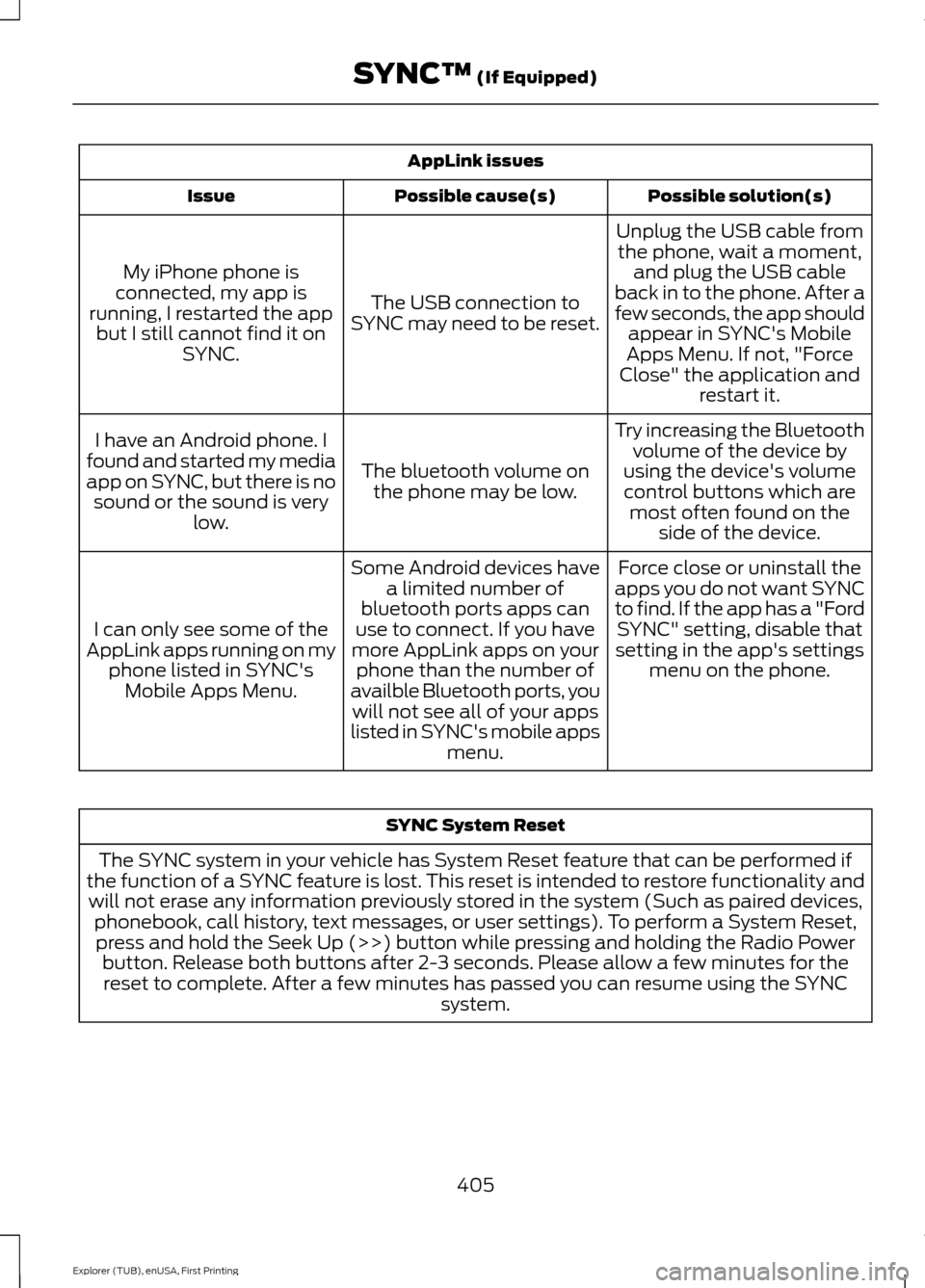
AppLink issues
Possible solution(s)
Possible cause(s)
Issue
Unplug the USB cable fromthe phone, wait a moment, and plug the USB cable
back in to the phone. After a
few seconds, the app should appear in SYNC's Mobile
Apps Menu. If not, "Force
Close" the application and restart it.
The USB connection to
SYNC may need to be reset.
My iPhone phone is
connected, my app is
running, I restarted the app but I still cannot find it on SYNC.
Try increasing the Bluetoothvolume of the device by
using the device's volume control buttons which are most often found on the side of the device.
The bluetooth volume on
the phone may be low.
I have an Android phone. I
found and started my media
app on SYNC, but there is no sound or the sound is very low.
Force close or uninstall the
apps you do not want SYNC
to find. If the app has a "Ford SYNC" setting, disable that
setting in the app's settings menu on the phone.
Some Android devices have
a limited number of
bluetooth ports apps can
use to connect. If you have
more AppLink apps on your phone than the number of
availble Bluetooth ports, you will not see all of your apps
listed in SYNC's mobile apps menu.
I can only see some of the
AppLink apps running on my phone listed in SYNC'sMobile Apps Menu. SYNC System Reset
The SYNC system in your vehicle has System Reset feature that can be performed if
the function of a SYNC feature is lost. This reset is intended to restore functionality and will not erase any information previously stored in the system (Such as paired devices, phonebook, call history, text messages, or user settings). To perform a System Reset,press and hold the Seek Up (>>) button while pressing and holding the Radio Power button. Release both buttons after 2-3 seconds. Please allow a few minutes for thereset to complete. After a few minutes has passed you can resume using the SYNC system.
405
Explorer (TUB), enUSA, First Printing SYNC™ (If Equipped)
Page 414 of 541

Speed-restricted Features
Adding or editing wallpaper
Photos and Graphics
Composing text messages
Text Messages
Viewing received text messages
Editing preset text messages
Using the keyboard to enter a destination
Navigation
Demo navigation route
Adding or editing Address Book or Avoid Area entries
Privacy Information
When you connect a cell phone to SYNC,
the system creates a profile within your
vehicle that links to that cell phone. This
profile helps in offering you more cellular
features and operating more efficiently.
Among other things, this profile may
contain data about your cell phone book,
text messages (read and unread), and call
history, including history of calls when your
cell phone was not connected to the
system. In addition, if you connect a media
device, the system creates and retains an
index of supported media content. The
system also records a short development
log of approximately 10 minutes of all
recent system activity. The log profile and
other system data may be used to improve
the system and help diagnose any
problems that may occur. The cellular profile, media device index,
and development log remain in your
vehicle unless you delete them, and are
generally accessible only in your vehicle
when your cell phone or media player is
connected. If you no longer plan to use the
system or your vehicle, we recommend you
carry out a Master Reset to erase all stored
information.
System data cannot be accessed without
special equipment and access to your
vehicle's SYNC module. Ford Motor
Company and Ford of Canada do not
access the system data for any purpose
other than as described without consent,
a court order, or where required by law
enforcement, other government
authorities, or other third parties acting
with lawful authority. Other parties may
seek to access the information
independently of Ford Motor Company and
Ford of Canada. For further privacy
information, see the sections on 911
Assist®, Vehicle Health Report, and Traffic,
Directions and Information.
411
Explorer (TUB), enUSA, First Printing MyFord Touch
™ (If Equipped)
Page 416 of 541
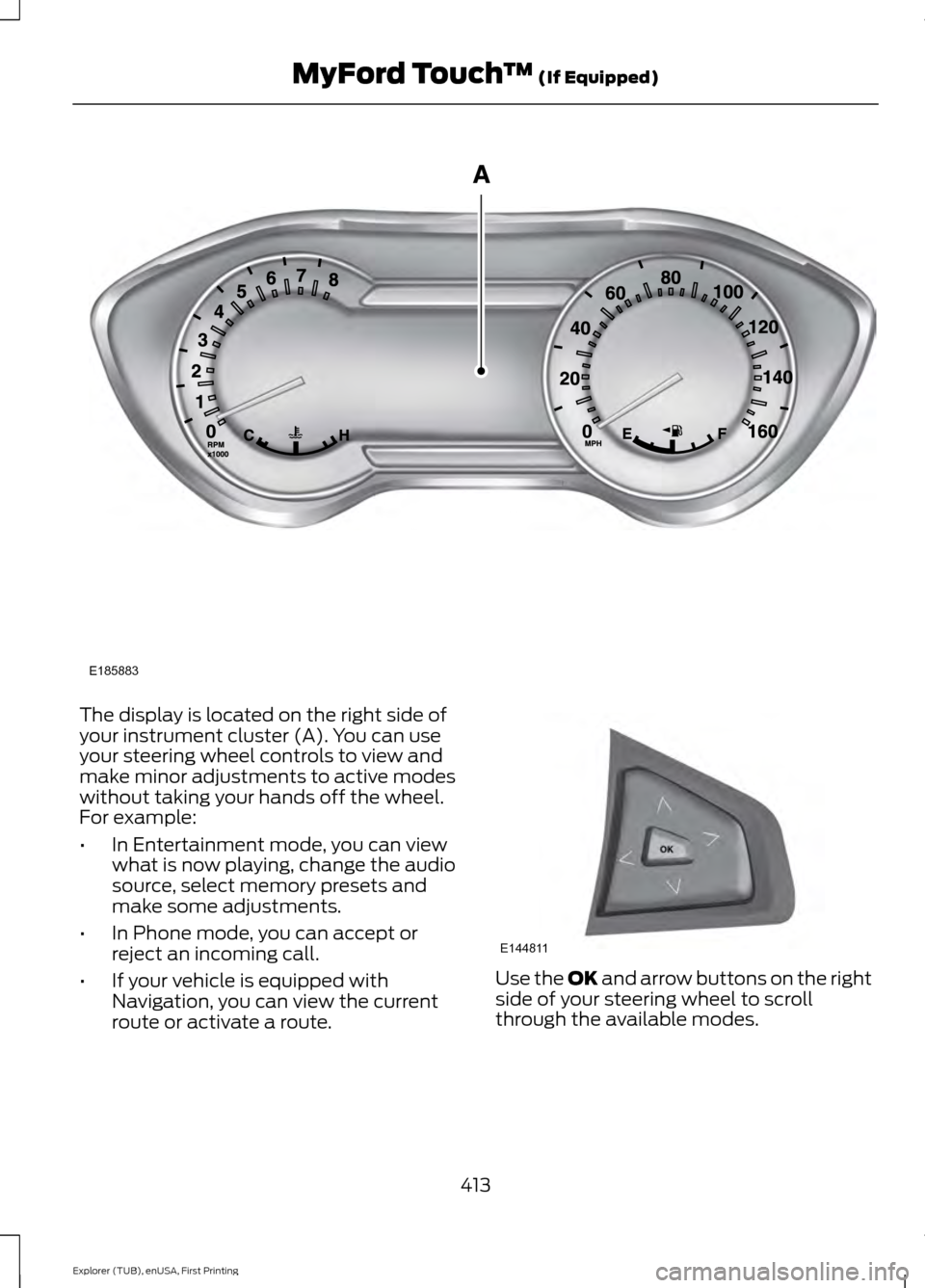
The display is located on the right side of
your instrument cluster (A). You can use
your steering wheel controls to view and
make minor adjustments to active modes
without taking your hands off the wheel.
For example:
•
In Entertainment mode, you can view
what is now playing, change the audio
source, select memory presets and
make some adjustments.
• In Phone mode, you can accept or
reject an incoming call.
• If your vehicle is equipped with
Navigation, you can view the current
route or activate a route. Use the OK and arrow buttons on the right
side of your steering wheel to scroll
through the available modes.
413
Explorer (TUB), enUSA, First Printing MyFord Touch
™
(If Equipped)E185883 E144811
Page 423 of 541
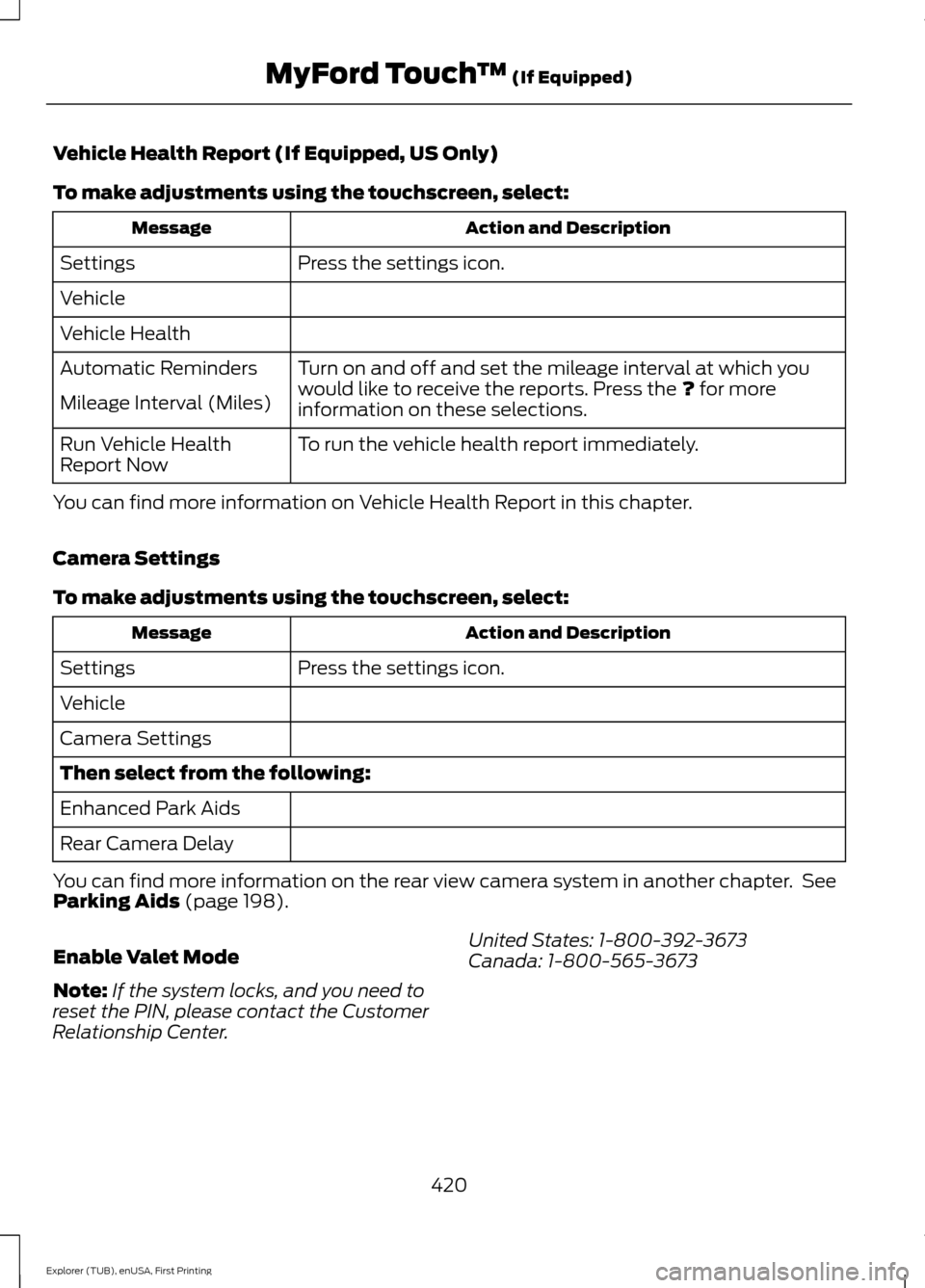
Vehicle Health Report (If Equipped, US Only)
To make adjustments using the touchscreen, select:
Action and Description
Message
Press the settings icon.
Settings
Vehicle
Vehicle Health
Turn on and off and set the mileage interval at which you
would like to receive the reports. Press the ? for more
information on these selections.
Automatic Reminders
Mileage Interval (Miles)
To run the vehicle health report immediately.
Run Vehicle Health
Report Now
You can find more information on Vehicle Health Report in this chapter.
Camera Settings
To make adjustments using the touchscreen, select: Action and Description
Message
Press the settings icon.
Settings
Vehicle
Camera Settings
Then select from the following:
Enhanced Park Aids
Rear Camera Delay
You can find more information on the rear view camera system in another chapter. See
Parking Aids
(page 198).
Enable Valet Mode
Note: If the system locks, and you need to
reset the PIN, please contact the Customer
Relationship Center. United States: 1-800-392-3673
Canada: 1-800-565-3673
420
Explorer (TUB), enUSA, First Printing MyFord Touch
™
(If Equipped)
Page 424 of 541

To make adjustments using the touchscreen, select:
Action and Description
Menu Item
Press the settings icon.
Settings
Vehicle
Then enter a four digit PIN twice, as prompted.
Enable Valet Mode
After you press Continue the system locks until you enter the
PIN again.
Continue
Settings
Access and adjust system settings, voice
features, as well as phone, navigation and
wireless settings.
System
To make adjustments using the touchscreen, select: Action and Description
Message
Press the settings icon.
Settings
System
Then select from the following:
Select to have the touchscreen display in English, Spanish or
French.
Language
Select to display units in kilometers or miles.
Distance
Select to display units in Celsius or Fahrenheit.
Temperature
Adjust the volume of voice prompts from the system.
System Prompt Volume
Select to have the system beep to confirm choices made
through the touchscreen.
Touch Screen Button
Beep
Have the touchscreen keyboard display in QWERTY or ABC
format.
Keyboard Layout
Install any downloaded applications or view the current
software licenses.
Install Applications
Select to restore factory defaults. This erases all personal
settings and personal data.
Master reset
421
Explorer (TUB), enUSA, First Printing MyFord Touch
™ (If Equipped)
Page 433 of 541
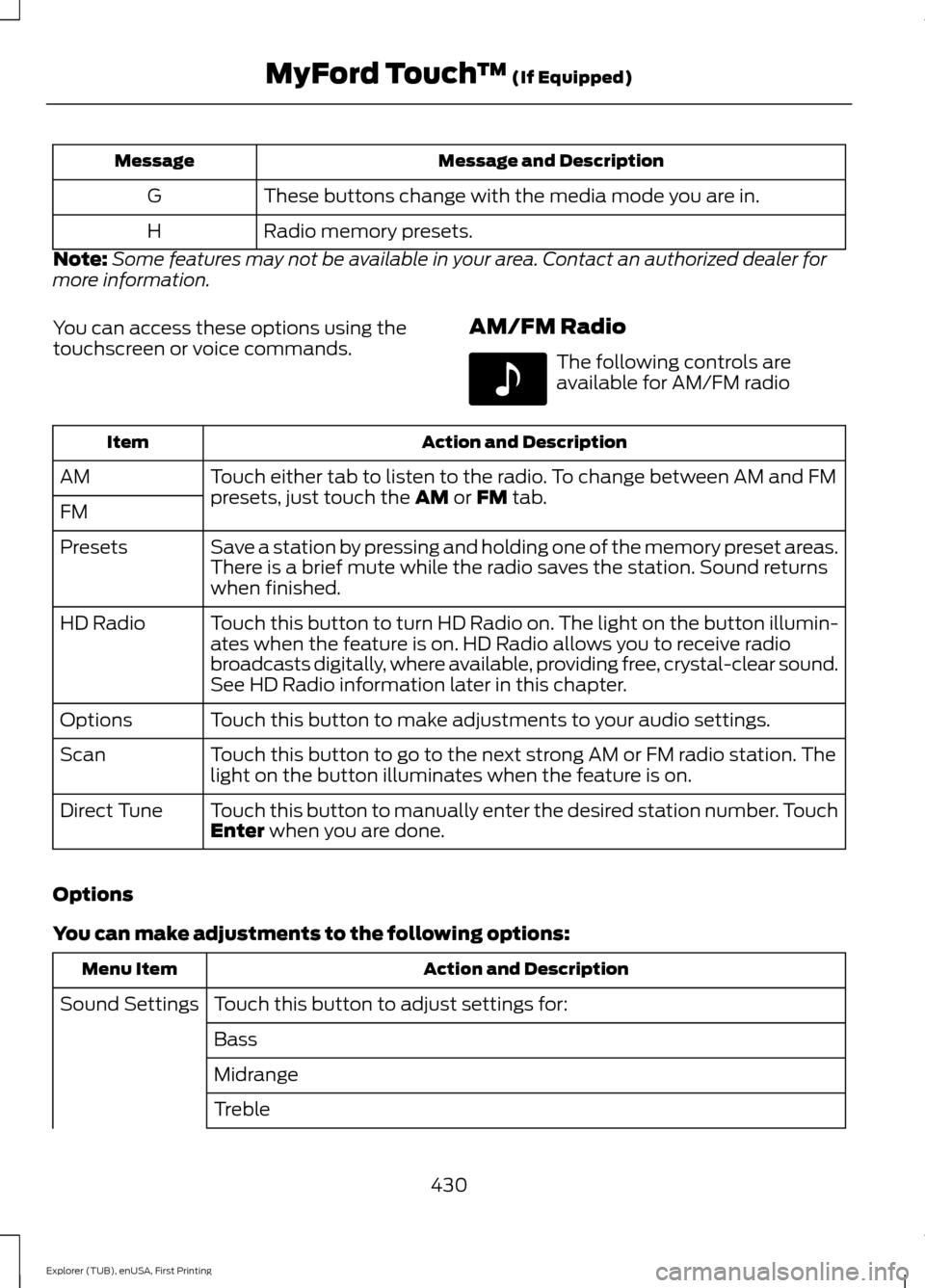
Message and Description
Message
These buttons change with the media mode you are in.
G
Radio memory presets.
H
Note: Some features may not be available in your area. Contact an authorized dealer for
more information.
You can access these options using the
touchscreen or voice commands. AM/FM Radio The following controls are
available for AM/FM radio
Action and Description
Item
Touch either tab to listen to the radio. To change between AM and FM
presets, just touch the AM or FM tab.
AM
FM
Save a station by pressing and holding one of the memory preset areas.
There is a brief mute while the radio saves the station. Sound returns
when finished.
Presets
Touch this button to turn HD Radio on. The light on the button illumin-
ates when the feature is on. HD Radio allows you to receive radio
broadcasts digitally, where available, providing free, crystal-clear sound.
See HD Radio information later in this chapter.
HD Radio
Touch this button to make adjustments to your audio settings.
Options
Touch this button to go to the next strong AM or FM radio station. The
light on the button illuminates when the feature is on.
Scan
Touch this button to manually enter the desired station number. Touch
Enter
when you are done.
Direct Tune
Options
You can make adjustments to the following options: Action and Description
Menu Item
Touch this button to adjust settings for:
Sound Settings
Bass
Midrange
Treble
430
Explorer (TUB), enUSA, First Printing MyFord Touch
™
(If Equipped)E142611