Page 429 of 541

Wireless and Internet
Your system has a Wi-Fi feature that
creates a wireless network within your
vehicle, thereby allowing other devices
(such as personal computers or phones)
in your vehicle to speak to each other,
share files or play games. Using this Wi-Fi
feature, everyone in your vehicle can also
access the internet if you have a USB
mobile broadband connection inside your
vehicle, your phone supports personal area
networking or if you park outside a wireless
hotspot.
To make adjustments using the touchscreen, select: Action and Description
Menu Item
Press the settings icon.
Settings
Wireless & Internet
Then select from the following:
Wi-Fi Network (Client) Mode
Wi-Fi Settings
Turns the Wi-Fi feature on and off in your vehicle. Make sure
you switch it on for connectivity purposes.
Choose a Wireless Network
Allows you to use a previously stored wireless network. You
can categorize by alphabetical listing, priority and signal
strength. You can also choose to search for a network,
connect to a network, disconnect from a network, receive
more information, prioritize a network or delete a network.
Gateway (Access Point) Mode
Makes SYNC an access point for a phone or a computer when
turned on. This forms the local area network within your
vehicle for things, such as game playing, file transfer and
internet browsing. Press ? for more information.
Gateway (Access Point) Settings
Allows you to view and change settings for using SYNC as
the internet gateway.
Gateway (Access Point) Devices List
Allows you to view recent connections to your Wi-Fi system.
426
Explorer (TUB), enUSA, First Printing MyFord Touch
™
(If Equipped)
Page 430 of 541
Action and Description
Menu Item
Instead of using Wi-Fi, your system can also use a USB mobile
broadband connection to access the internet. (You must
switch on your mobile broadband device on your personal
computer before connecting it to the system.) This screen
allows you to set up what is your typical area for your USB
mobile broadband connection. (USB mobile broadband
settings may not display if the device is already on.) You can
select the following:
USB Mobile Broadband
Country
Carrier
Phone Number
User Name
Password
Shows you the currently paired devices as well as giving you
your typical Bluetooth options to connect, disconnect, set as
favorite, delete and add device. Bluetooth is a registered
trademark of the Bluetooth SIG.
Bluetooth Settings
Choose your connection methods and change them as
needed. You can select to change order and have the system
either always attempt to connect using a USB, mobile
broadband, or using Wi-Fi.
Prioritize Connection
Methods The Wi-Fi CERTIFIED Logo is a certification
mark of the Wi-Fi Alliance.
427
Explorer (TUB), enUSA, First Printing MyFord Touch
™ (If Equipped)E142626
Page 432 of 541
You can also access Help using
the voice commands. The
system provides allowable voice
commands for the current mode. Press the voice button and when
prompted say: Voice command
Help
You can say help at any time to get
assistance with commands, menus or
other information.
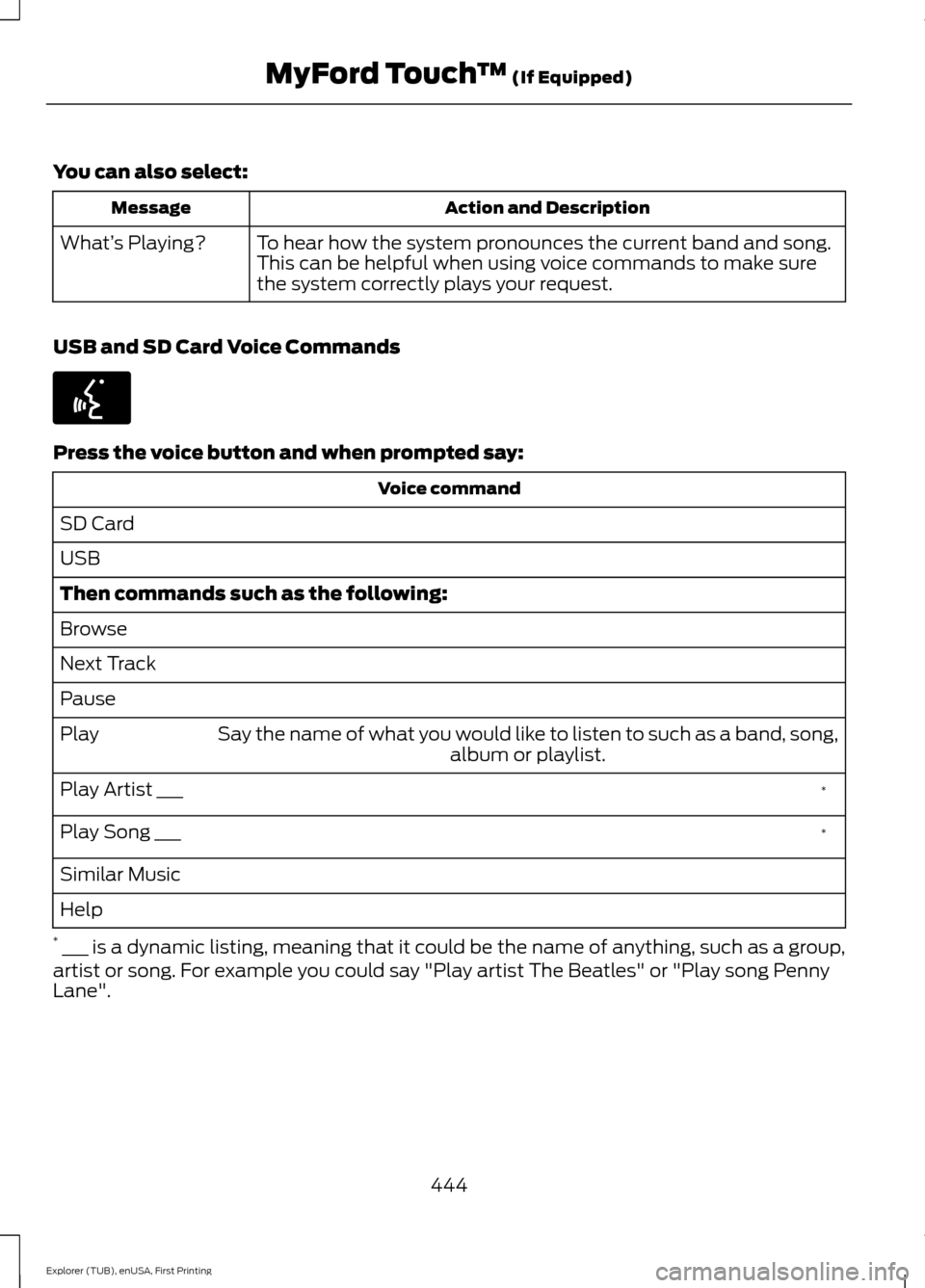
ENTERTAINMENT Message and Description
Message
AM
A
FM
B
SIRIUS
C
CD
D
USB
E
Touch this button to scroll down for more options, for example
SD Card and USB
F
429
Explorer (TUB), enUSA, First Printing MyFord Touch
™ (If Equipped)E142599 A
B
C
D
E
F
G
H
E161892
Page 444 of 541
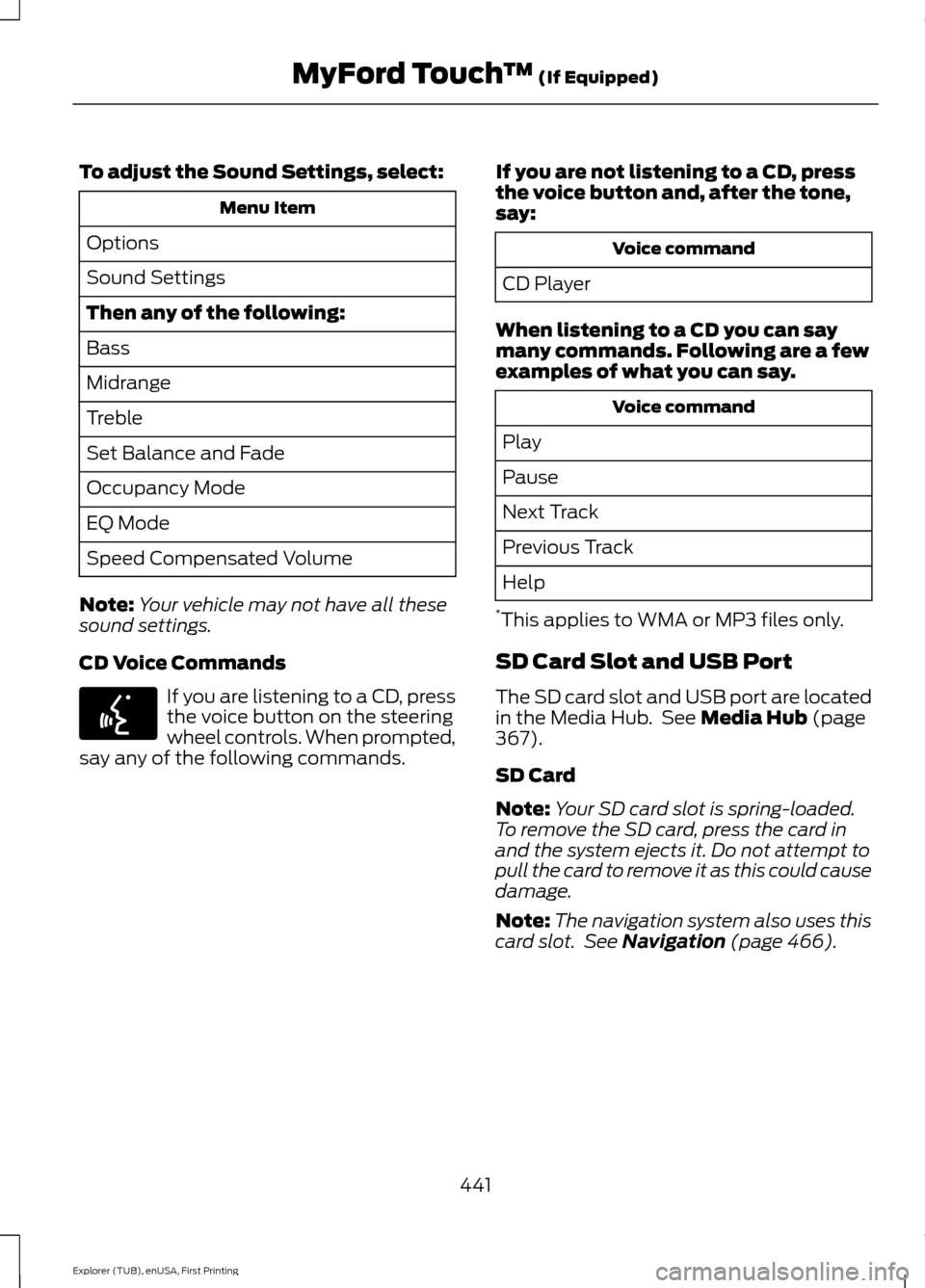
To adjust the Sound Settings, select:
Menu Item
Options
Sound Settings
Then any of the following:
Bass
Midrange
Treble
Set Balance and Fade
Occupancy Mode
EQ Mode
Speed Compensated Volume
Note: Your vehicle may not have all these
sound settings.
CD Voice Commands If you are listening to a CD, press
the voice button on the steering
wheel controls. When prompted,
say any of the following commands. If you are not listening to a CD, press
the voice button and, after the tone,
say: Voice command
CD Player
When listening to a CD you can say
many commands. Following are a few
examples of what you can say. Voice command
Play
Pause
Next Track
Previous Track
Help
* This applies to WMA or MP3 files only.
SD Card Slot and USB Port
The SD card slot and USB port are located
in the Media Hub. See Media Hub (page
367).
SD Card
Note: Your SD card slot is spring-loaded.
To remove the SD card, press the card in
and the system ejects it. Do not attempt to
pull the card to remove it as this could cause
damage.
Note: The navigation system also uses this
card slot. See
Navigation (page 466).
441
Explorer (TUB), enUSA, First Printing MyFord Touch
™
(If Equipped)E142599
Page 445 of 541
To access and play music from your device,
press the lower left corner of the
touchscreen.
SD logo is a trademark of SD-3C, LLC. USB Port To access and play music from your device,
press the lower left corner of the
touchscreen.
This feature allows you to plug in media
playing devices, memory sticks, flash drives
or thumb drives, and charge devices if they
support this feature.
Playing Music from Your Device
Note:
The system is capable of indexing up
to 30,000 songs. Insert your device and select:
Action and Description
Message
Once the system recognizes your USB or SD card you can then
select from the following options:
USB
SD Card
This feature replays the currently playing song or album.
Repeat
Touch this button to play music on the selected album or folder
in random order.
Shuffle
442
Explorer (TUB), enUSA, First Printing MyFord Touch
™ (If Equipped)E196637 E142620 E196638 E142611
Page 447 of 541
You can also select:
Action and Description
Message
To hear how the system pronounces the current band and song.
This can be helpful when using voice commands to make sure
the system correctly plays your request.
What’
s Playing?
USB and SD Card Voice Commands Press the voice button and when prompted say:
Voice command
SD Card
USB
Then commands such as the following:
Browse
Next Track
Pause Say the name of what you would like to listen to such as a band, song, album or playlist.
Play
*
Play Artist ___
*
Play Song ___
Similar Music
Help
* ___ is a dynamic listing, meaning that it could be the name of anything, such as a group,
artist or song. For example you could say "Play artist The Beatles" or "Play song Penny
Lane".
444
Explorer (TUB), enUSA, First Printing MyFord Touch
™ (If Equipped)E142599
Page 448 of 541
Supported Media Players, Formats
and Metadata Information
SYNC is capable of hosting nearly any
digital media player, including iPod,
Zune
™, plays from device players, and
most USB drives. Supported audio formats
include MP3, WMA, WAV and AAC.
It is also able to organize your indexed
media from your playing device by
metadata tags. Metadata tags, which are
descriptive software identifiers embedded
in the media files, provide information
about the file.
If your indexed media files contain no
information embedded in these metadata
tags, SYNC may classify the empty
metadata tags as unknown. Bluetooth Audio The system allows you to stream
audio over your vehicle's
speakers from your connected,
Bluetooth-enabled cell phone.
To access, press the lower left corner
on the touchscreen, then select: Message
BT Stereo
Bluetooth Audio Voice Commands The voice system allows you to
control your media with a simple
voice command. For example to
change songs, press the voice button and
follow the system prompts.
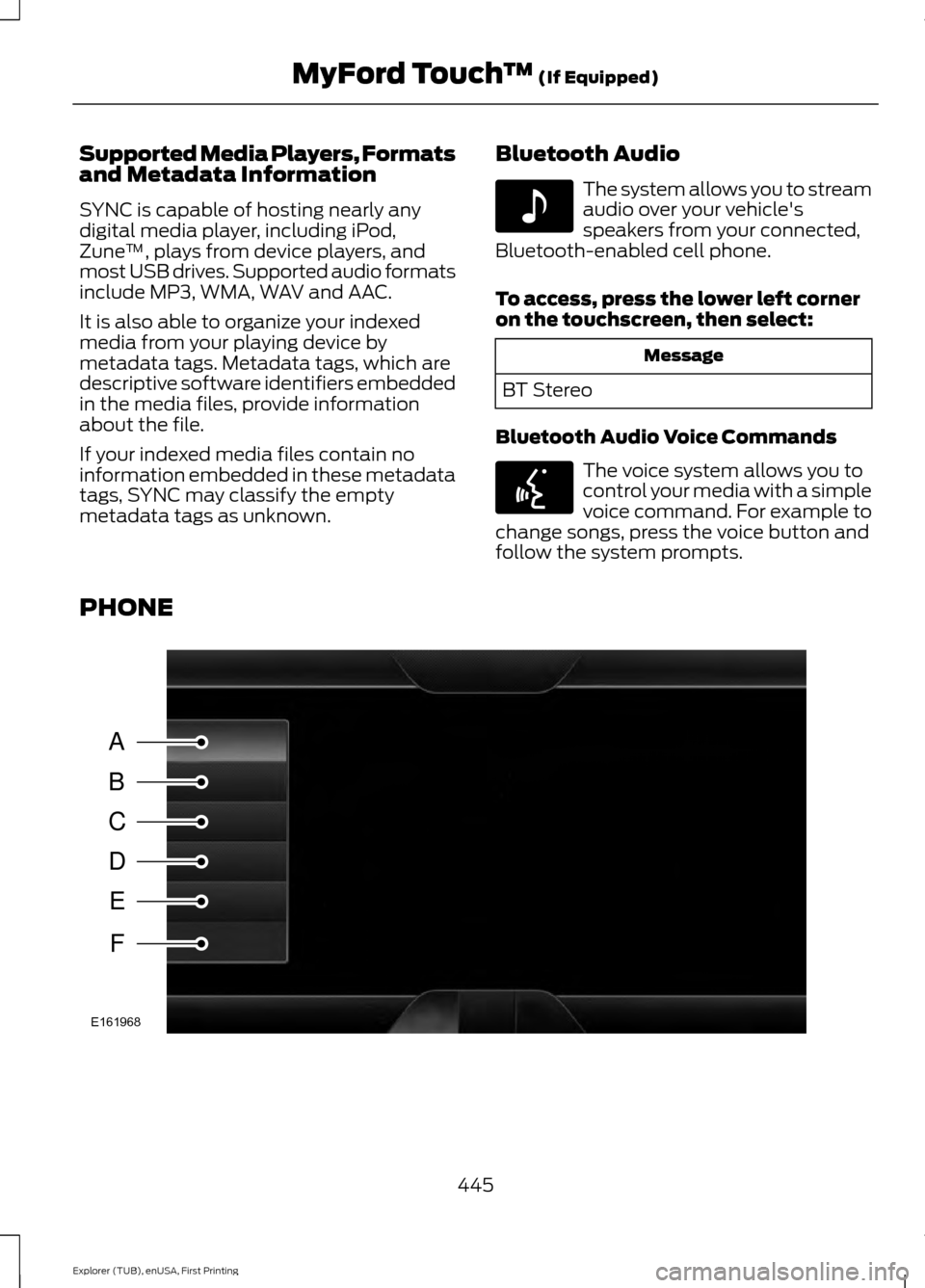
PHONE 445
Explorer (TUB), enUSA, First Printing MyFord Touch
™ (If Equipped)E142611 E142599 A
B
C
D
E
F
E161968
Page 481 of 541
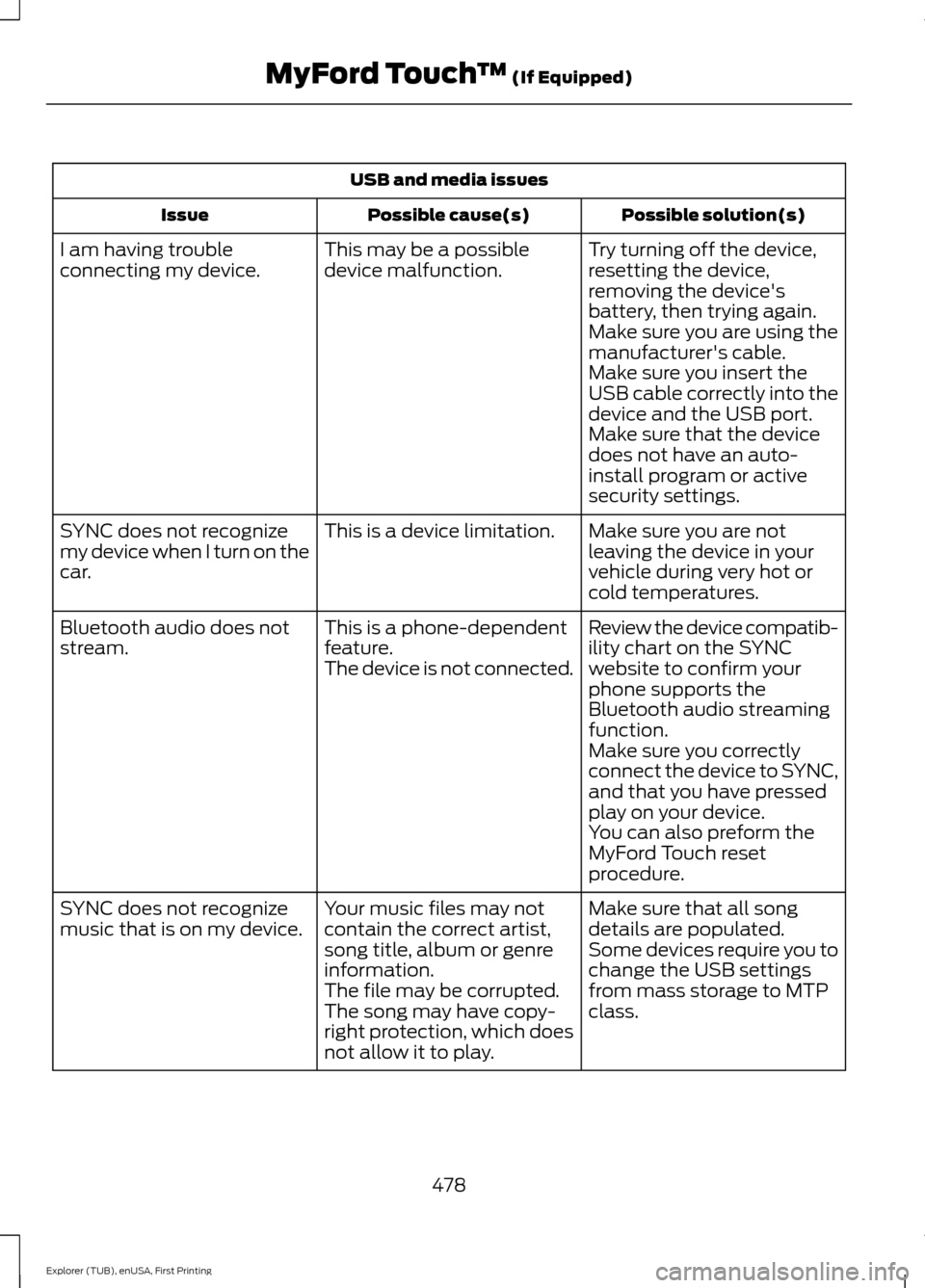
USB and media issues
Possible solution(s)
Possible cause(s)
Issue
Try turning off the device,
resetting the device,
removing the device's
battery, then trying again.
This may be a possible
device malfunction.
I am having trouble
connecting my device.
Make sure you are using the
manufacturer's cable.
Make sure you insert the
USB cable correctly into the
device and the USB port.
Make sure that the device
does not have an auto-
install program or active
security settings.
Make sure you are not
leaving the device in your
vehicle during very hot or
cold temperatures.
This is a device limitation.
SYNC does not recognize
my device when I turn on the
car.
Review the device compatib-
ility chart on the SYNC
website to confirm your
phone supports the
Bluetooth audio streaming
function.
This is a phone-dependent
feature.
The device is not connected.
Bluetooth audio does not
stream.
Make sure you correctly
connect the device to SYNC,
and that you have pressed
play on your device.
You can also preform the
MyFord Touch reset
procedure.
Make sure that all song
details are populated.
Your music files may not
contain the correct artist,
song title, album or genre
information.
SYNC does not recognize
music that is on my device.
Some devices require you to
change the USB settings
from mass storage to MTP
class.
The file may be corrupted.
The song may have copy-
right protection, which does
not allow it to play.
478
Explorer (TUB), enUSA, First Printing MyFord Touch
™ (If Equipped)