2016 FORD EXPLORER mirror
[x] Cancel search: mirrorPage 149 of 541
To access and make adjustments to the
massage setting:
1.
Press the Menu Settings icon > Vehicle
>Multi-contour Seat.
2. Choose the desired seat to adjust.
3. Press Off, Lo or Hi.
MEMORY FUNCTION (If Equipped) WARNINGS
Before activating the seat memory,
make sure that the area immediately
surrounding the seat is clear of
obstructions and that all occupants are
clear of moving parts. Do not use the memory function
when your vehicle is moving.
This feature automatically recalls the
position of the following:
•
Driver seat.
• Power mirrors.
• Optional power adjustable foot pedals.
• Optional steering column.
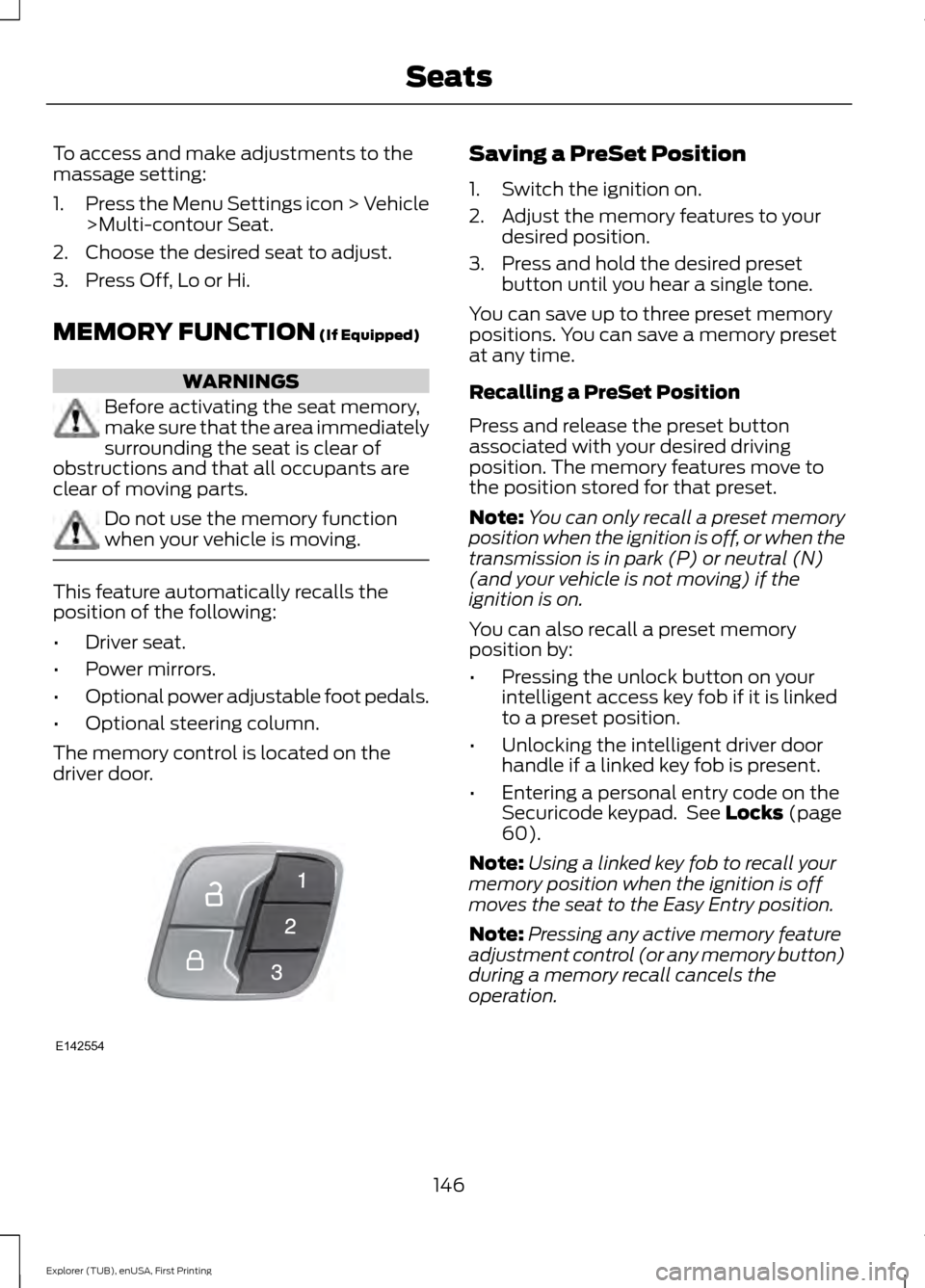
The memory control is located on the
driver door. Saving a PreSet Position
1. Switch the ignition on.
2. Adjust the memory features to your
desired position.
3. Press and hold the desired preset button until you hear a single tone.
You can save up to three preset memory
positions. You can save a memory preset
at any time.
Recalling a PreSet Position
Press and release the preset button
associated with your desired driving
position. The memory features move to
the position stored for that preset.
Note: You can only recall a preset memory
position when the ignition is off, or when the
transmission is in park (P) or neutral (N)
(and your vehicle is not moving) if the
ignition is on.
You can also recall a preset memory
position by:
• Pressing the unlock button on your
intelligent access key fob if it is linked
to a preset position.
• Unlocking the intelligent driver door
handle if a linked key fob is present.
• Entering a personal entry code on the
Securicode keypad. See
Locks (page
60).
Note: Using a linked key fob to recall your
memory position when the ignition is off
moves the seat to the Easy Entry position.
Note: Pressing any active memory feature
adjustment control (or any memory button)
during a memory recall cancels the
operation.
146
Explorer (TUB), enUSA, First Printing SeatsE142554
Page 211 of 541
REAR VIEW CAMERA
WARNINGS
The rear view camera system is a
reverse aid supplement device that
still requires the driver to use it in
conjunction with the interior and exterior
mirrors for maximum coverage. Objects that are close to either
corner of the bumper or under the
bumper, might not be seen on the
screen due to the limited coverage of the
camera system. Back up as slow as possible since
higher speeds might limit your
reaction time to stop your vehicle.
Use caution when using the rear
video camera and the luggage
compartment door is ajar. If the
luggage compartment door is ajar, the
camera will be out of position and the
video image may be incorrect. All
guidelines disappear when the luggage
compartment door is ajar. Use caution when turning camera
features on or off. Make sure your
vehicle is not moving.
The rear view camera system provides a
video image of the area behind your
vehicle.
During operation, lines appear in the
display which represent your vehicle
’s path
and proximity to objects behind your
vehicle. The camera is located on the luggage
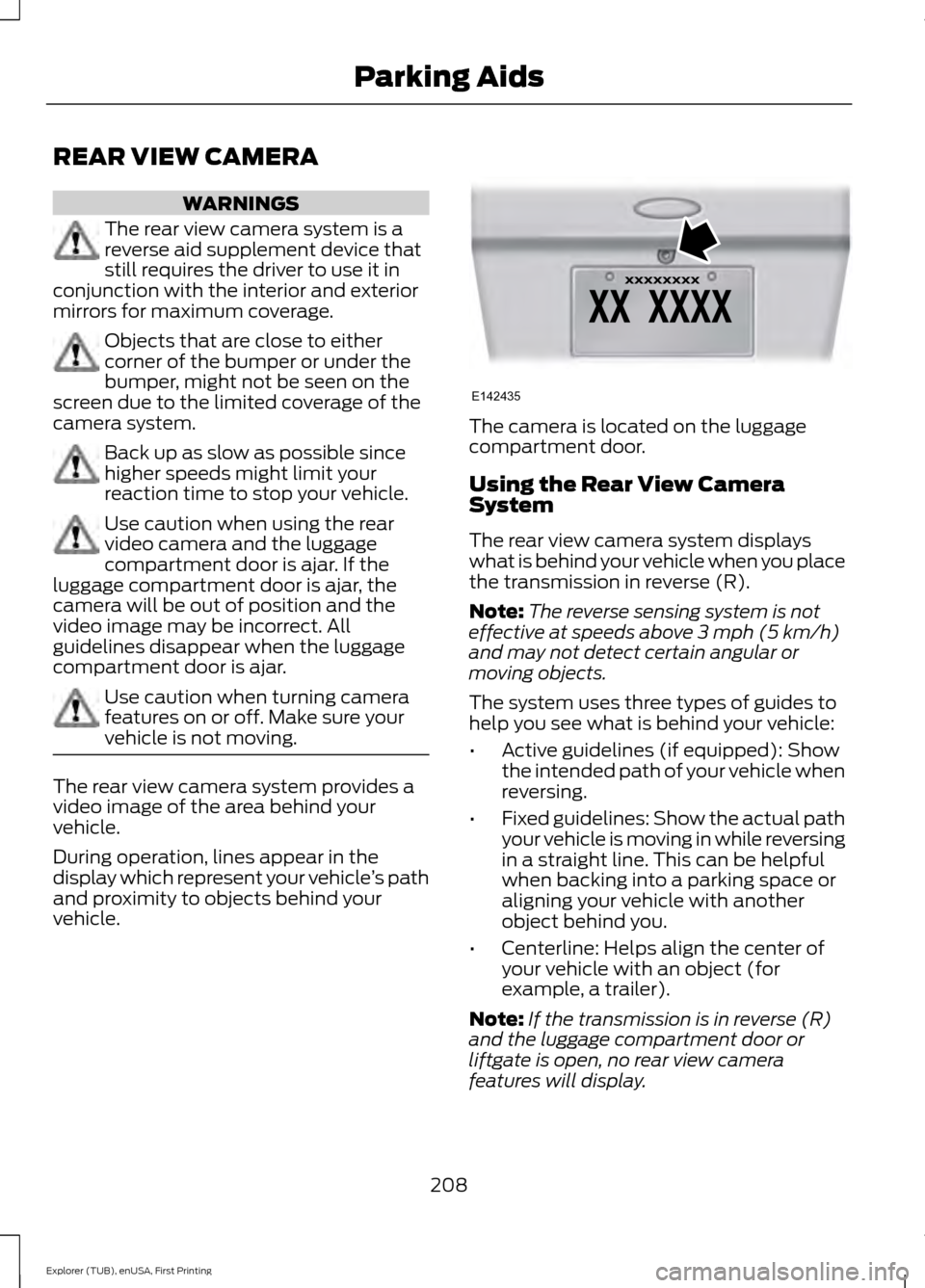
compartment door.
Using the Rear View Camera
System
The rear view camera system displays
what is behind your vehicle when you place
the transmission in reverse (R).
Note:
The reverse sensing system is not
effective at speeds above 3 mph (5 km/h)
and may not detect certain angular or
moving objects.
The system uses three types of guides to
help you see what is behind your vehicle:
• Active guidelines (if equipped): Show
the intended path of your vehicle when
reversing.
• Fixed guidelines: Show the actual path
your vehicle is moving in while reversing
in a straight line. This can be helpful
when backing into a parking space or
aligning your vehicle with another
object behind you.
• Centerline: Helps align the center of
your vehicle with an object (for
example, a trailer).
Note: If the transmission is in reverse (R)
and the luggage compartment door or
liftgate is open, no rear view camera
features will display.
208
Explorer (TUB), enUSA, First Printing Parking AidsE142435
Page 213 of 541

The fixed and active guidelines fade in and
out depending on the steering wheel
position. The active guidelines do not
display when the steering wheel position
is straight.
Always use caution while reversing.
Objects in the red zone are closest to your
vehicle and objects in the green zone are
farther away. Objects are getting closer to
your vehicle as they move from the green
zone to the yellow or red zones. Use the
side view mirrors and rear view mirror to
get better coverage on both sides and rear
of the vehicle.
Manual Zoom
WARNING
When manual zoom is on, the full
area behind your vehicle may not
show. Be aware of your surroundings
when using the manual zoom feature. Note:
Manual zoom is only available when
the transmission is in reverse (R).
Note: When you enable manual zoom, only
the centerline is shown.
Selectable settings for this feature are
Zoom in (+) and Zoom out (-). Press the
symbol in the camera screen to change the
view. The default setting is Zoom OFF.
This allows you to get a closer view of an
object behind your vehicle. The zoomed
image keeps the bumper in the image to
provide a reference. The zoom is only
active while the transmission is in reverse
(R).
Camera System Settings
To access any of the rear view camera
system settings, make the following
selections in the multifunctional display
when the transmission is not in reverse (R): Main Menu
SettingsVehicle
Camera Settings
Enhanced Park Aids or Park Pilot
Selectable settings for this feature are ON
and OFF.
The system uses red, yellow and green
highlights that appear on top of the video
image when any of the sensing systems
detect an object.
Vehicles equipped with MyFord Touch ™
The system will provide an image of your
vehicle and the sensor zones. The zones
will highlight green, yellow and red when
the parking aid sensors detect an object in
the coverage area.
The coverage area is up to 6 ft (1.8 m) from
the rear bumper. There is decreased
coverage area at the outer corners of the
bumper. For additional information of the zone
coverage and the rear sensing system. See
Rear Parking Aid (page 198).
210
Explorer (TUB), enUSA, First Printing Parking AidsE130178
Page 214 of 541
Rear Camera Delay
Selectable settings for this feature are ON
and OFF.
The default setting for the rear camera
delay is OFF.
When shifting the transmission out of
reverse (R) and into any gear other than
park (P), the camera image remains in the
display until:
•
Your vehicle speed reaches
approximately 5 mph (8 km/h).
• You shift your vehicle into park (P).
180 DEGREE PARKING AID
CAMERA WARNINGS
The camera system is a supplement
system that still requires the driver
to use it in conjunction with looking
out the windows, and checking the interior
and exterior mirrors for maximum
coverage. You may not see objects that are
close to either corner of the bumper
or under the bumper due to the
limited coverage of the camera system. Use caution when turning camera
features ON or OFF while out of park
(P). Make sure your vehicle is not
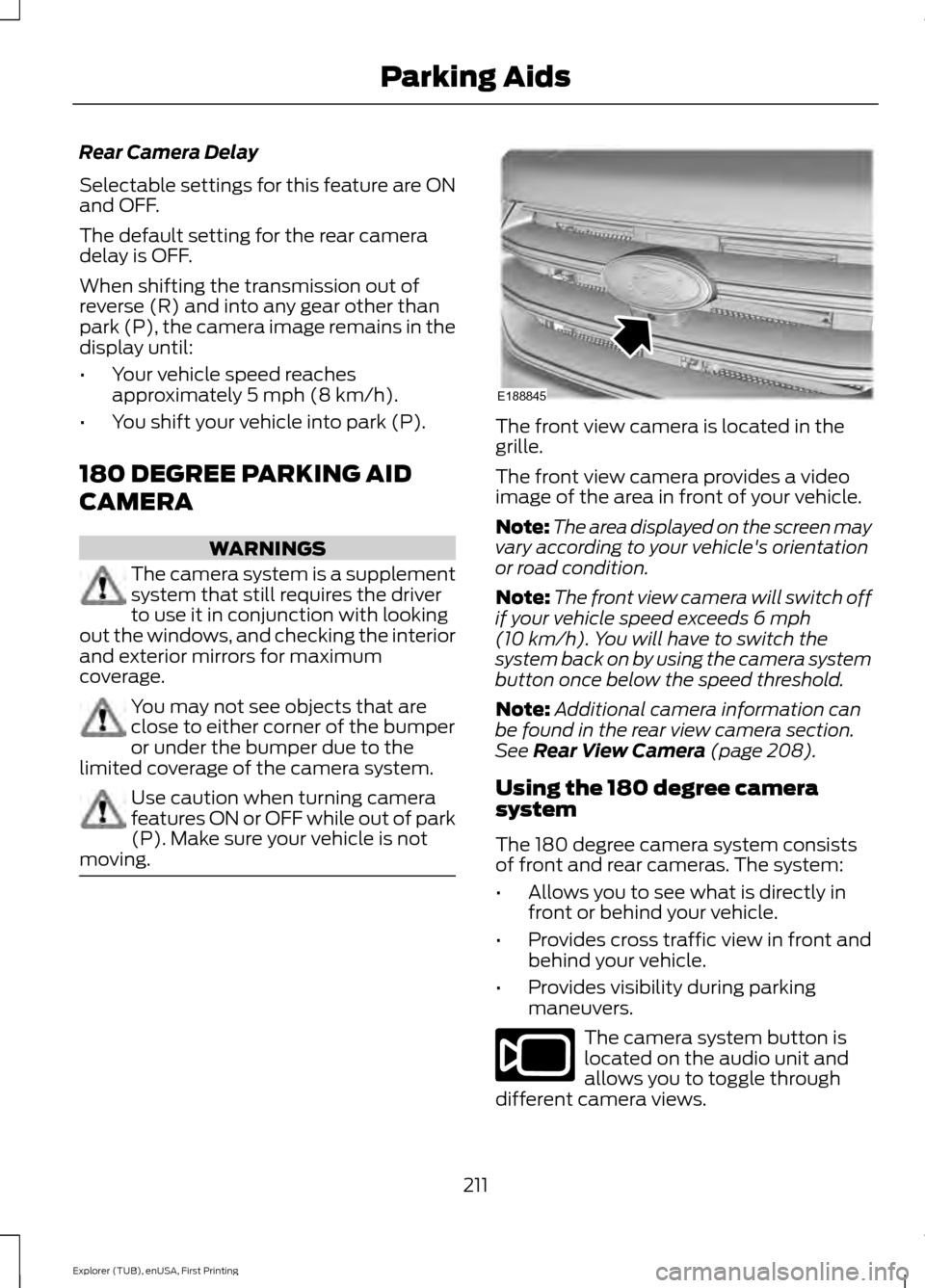
moving. The front view camera is located in the
grille.
The front view camera provides a video
image of the area in front of your vehicle.
Note:
The area displayed on the screen may
vary according to your vehicle's orientation
or road condition.
Note: The front view camera will switch off
if your vehicle speed exceeds
6 mph
(10 km/h). You will have to switch the
system back on by using the camera system
button once below the speed threshold.
Note: Additional camera information can
be found in the rear view camera section.
See
Rear View Camera (page 208).
Using the 180 degree camera
system
The 180 degree camera system consists
of front and rear cameras. The system:
• Allows you to see what is directly in
front or behind your vehicle.
• Provides cross traffic view in front and
behind your vehicle.
• Provides visibility during parking
maneuvers. The camera system button is
located on the audio unit and
allows you to toggle through
different camera views.
211
Explorer (TUB), enUSA, First Printing Parking AidsE188845 E188847
Page 224 of 541

WARNINGS
Large contrasts in lighting can limit
sensor performance.
The system will not operate if the
sensor cannot track the road lane
markings.
The vehicle should be taken to an
authorized dealer for inspection if
damage occurs in the immediate
area surrounding the sensor. Note:
The system works above 40 mph
(64 km/h).
Note: The system works as long as the
camera can detect one lane marking.
Note: The system may not function if the
camera is blocked or there is damage to the
windshield.
Note: When Aid mode is on and the system
detects no steering activity for a short
period, the system will alert you to put your
hands on the steering wheel. The system
may detect a light grip or touch on the
steering wheel as hands off driving.
The system notifies you to stay in your lane
through the steering system and the
instrument cluster display when the front
camera detects an unintentional drift out
of your lane is likely to occur. The system
automatically detects and tracks the road
lane markings using a camera mounted
behind the interior rear view mirror.
Switching the System On and Off
Note: The system on or off setting is stored
until it is manually changed, unless a MyKey
is detected. If the system detects a MyKey
it defaults to on and the mode is set to Alert.
Note: If a MyKey is detected, pressing the
button will not affect the on or off status of
the system. Press the button located on the
left steering wheel stalk to
switch the system on or off.
System Settings
The system has optional setting menus
available. To view or adjust the settings,
See General Information (page 101). The
system stores the last-known selection for
each of these settings. You do not need to
readjust your settings each time you turn
on the system.
Mode: This setting allows you to select
which of the system features you can
enable. Alert only – Provides a steering wheel
vibration when the system detects an
unintended lane departure.
221
Explorer (TUB), enUSA, First Printing Driving AidsE144813 E165515 E165516
Page 227 of 541
Why is the feature not available (line markings are gray) when I can see the lane markings
on the road?
Lane width too narrow or too wide
Camera not calibrated after a windshield replacement
Driving on tight roads or on uneven roads Why does the vehicle not come back toward the middle of the lane, as expected, in the
Aid or Aid + Alert mode?
High cross winds
Large road crown
Rough roads, grooves, shoulder drop-offs
Heavy uneven loading of the vehicle or improper tire inflation pressure
If the tires have been exchanged (including snow tires), or the suspension has been
modified
BLIND SPOT INFORMATION
SYSTEM WARNING
Do not use the system as a
replacement for using the mirrors or
looking over your shoulder before
changing lanes. You should only use the
system as an aid. It is not a replacement
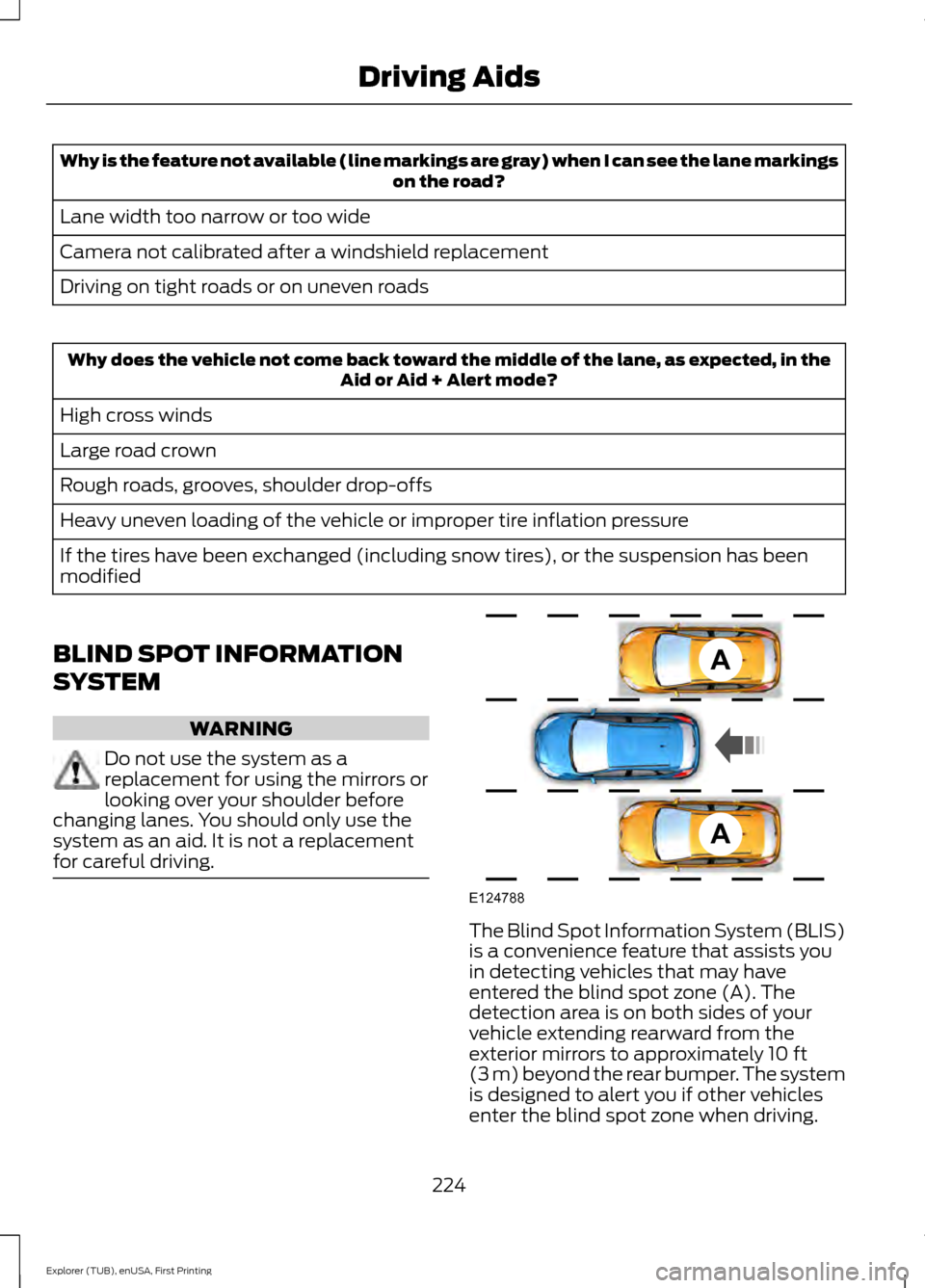
for careful driving. The Blind Spot Information System (BLIS)
is a convenience feature that assists you
in detecting vehicles that may have
entered the blind spot zone (A). The
detection area is on both sides of your
vehicle extending rearward from the
exterior mirrors to approximately 10 ft
(3 m) beyond the rear bumper. The system
is designed to alert you if other vehicles
enter the blind spot zone when driving.
224
Explorer (TUB), enUSA, First Printing Driving AidsA
A
E124788
Page 228 of 541

Note:
The Blind Spot Information System
does not prevent contact with other vehicles
or objects; nor detect parked vehicles,
people, animals or infrastructure (fences,
guardrails, trees). It's only designed to alert
you to vehicles in the blind zones.
Note: Vehicles that pass through the blind
spot zone quickly (typically less than 2
seconds) will not trigger the alert.
Using the System
The Blind Spot Information System turns
on when you start the engine and you drive
your vehicle forward above approximately
6 mph (10 km/h).
Note: The Blind Spot Information System
does not function in reverse (R) or park (P)
or provide any additional warning when a
turn signal is on.
System Lights and Messages The system displays a yellow warning
indicator located in the exterior mirrors.
Note:
It will dim when the ambient light
decreases. System Sensors WARNING
Prior to the system recognizing a
blocked condition and issuing a
warning, the number of missed
objects will increase. Note:
It is possible to get a blockage
warning with no blockage present; this is
rare and known as a false blockage warning.
A false blocked condition either
self-corrects or clears after a key cycle. The system uses radar sensors which are
located behind the bumper fascia on each
side of your vehicle. Do not allow mud,
snow or bumper stickers to obstruct these
areas, this can cause degraded system
performance.
225
Explorer (TUB), enUSA, First Printing Driving AidsE142442 E205199
Page 231 of 541

Zone coverage decreases when parking at
shallow angles. Here, the left sensor is
mostly obstructed; zone coverage on that
side is severely limited.
System Lights, Messages and
Audible Alerts Cross traffic alert illuminates an amber
alert indicator in the outside mirror on the
side of your vehicle the approaching
vehicle is coming from. Cross traffic alert
also sounds an audible alert and a
message appears in the information
display indicating a vehicle is coming from
the right or left. Cross traffic alert works
with the reverse sensing system that
sounds its own series of tones. See
Principle of Operation (page 198).
System Sensors
The system uses radar sensors that are
located behind the bumper fascia on each
side of your vehicle. Do not allow mud,
snow or bumper stickers to obstruct these
areas, as this can cause degraded system
performance.
System Limitations
Cross traffic alert has its own limitations;
situations such as severe weather
conditions or debris build-up on the sensor
area may limit vehicle detection.
228
Explorer (TUB), enUSA, First Printing Driving AidsE142441 E142442