2016 FORD EXPEDITION EL AUX
[x] Cancel search: AUXPage 353 of 421
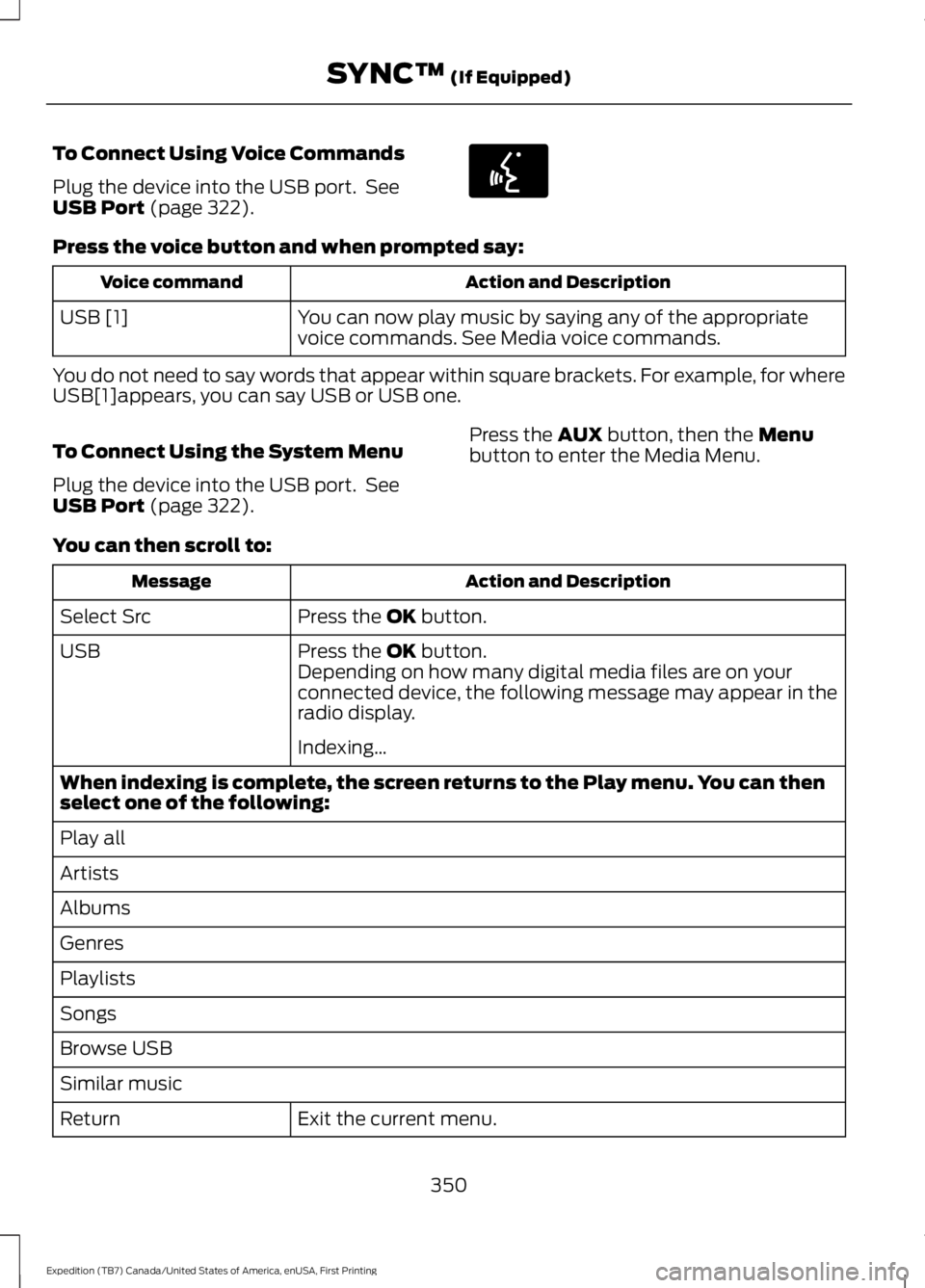
To Connect Using Voice Commands
Plug the device into the USB port. SeeUSB Port (page 322).
Press the voice button and when prompted say:
Action and DescriptionVoice command
You can now play music by saying any of the appropriatevoice commands. See Media voice commands.USB [1]
You do not need to say words that appear within square brackets. For example, for whereUSB[1]appears, you can say USB or USB one.
To Connect Using the System Menu
Plug the device into the USB port. SeeUSB Port (page 322).
Press the AUX button, then the Menubutton to enter the Media Menu.
You can then scroll to:
Action and DescriptionMessage
Press the OK button.Select Src
Press the OK button.USBDepending on how many digital media files are on yourconnected device, the following message may appear in theradio display.
Indexing…
When indexing is complete, the screen returns to the Play menu. You can thenselect one of the following:
Play all
Artists
Albums
Genres
Playlists
Songs
Browse USB
Similar music
Exit the current menu.Return
350
Expedition (TB7) Canada/United States of America, enUSA, First Printing
SYNC™ (If Equipped)E142599
Page 356 of 421
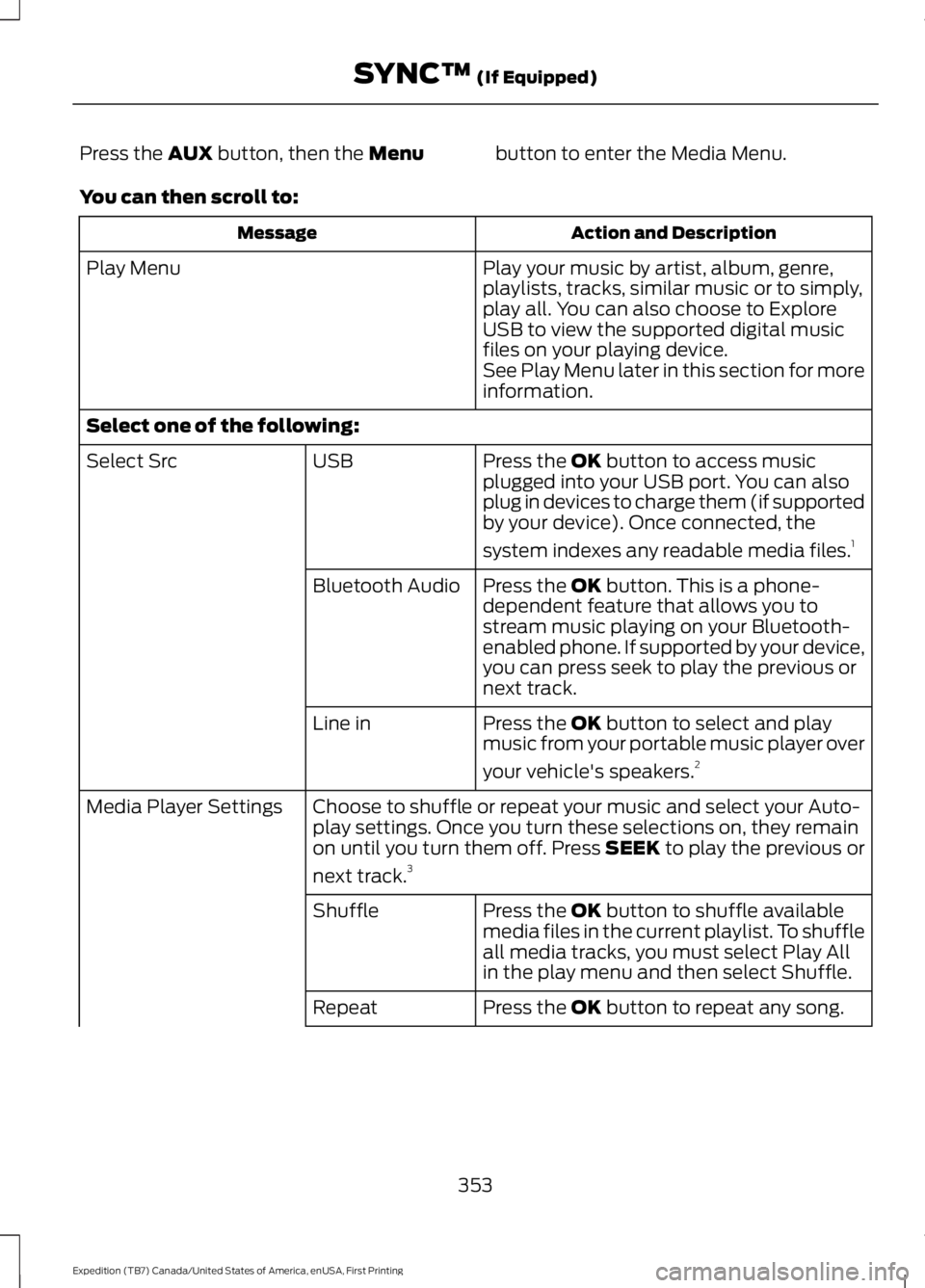
Press the AUX button, then the Menubutton to enter the Media Menu.
You can then scroll to:
Action and DescriptionMessage
Play your music by artist, album, genre,playlists, tracks, similar music or to simply,play all. You can also choose to ExploreUSB to view the supported digital musicfiles on your playing device.
Play Menu
See Play Menu later in this section for moreinformation.
Select one of the following:
Press the OK button to access musicplugged into your USB port. You can alsoplug in devices to charge them (if supportedby your device). Once connected, the
system indexes any readable media files.1
USBSelect Src
Press the OK button. This is a phone-dependent feature that allows you tostream music playing on your Bluetooth-enabled phone. If supported by your device,you can press seek to play the previous ornext track.
Bluetooth Audio
Press the OK button to select and playmusic from your portable music player over
your vehicle's speakers.2
Line in
Choose to shuffle or repeat your music and select your Auto-play settings. Once you turn these selections on, they remainon until you turn them off. Press SEEK to play the previous or
next track.3
Media Player Settings
Press the OK button to shuffle availablemedia files in the current playlist. To shuffleall media tracks, you must select Play Allin the play menu and then select Shuffle.
Shuffle
Press the OK button to repeat any song.Repeat
353
Expedition (TB7) Canada/United States of America, enUSA, First Printing
SYNC™ (If Equipped)
Page 357 of 421
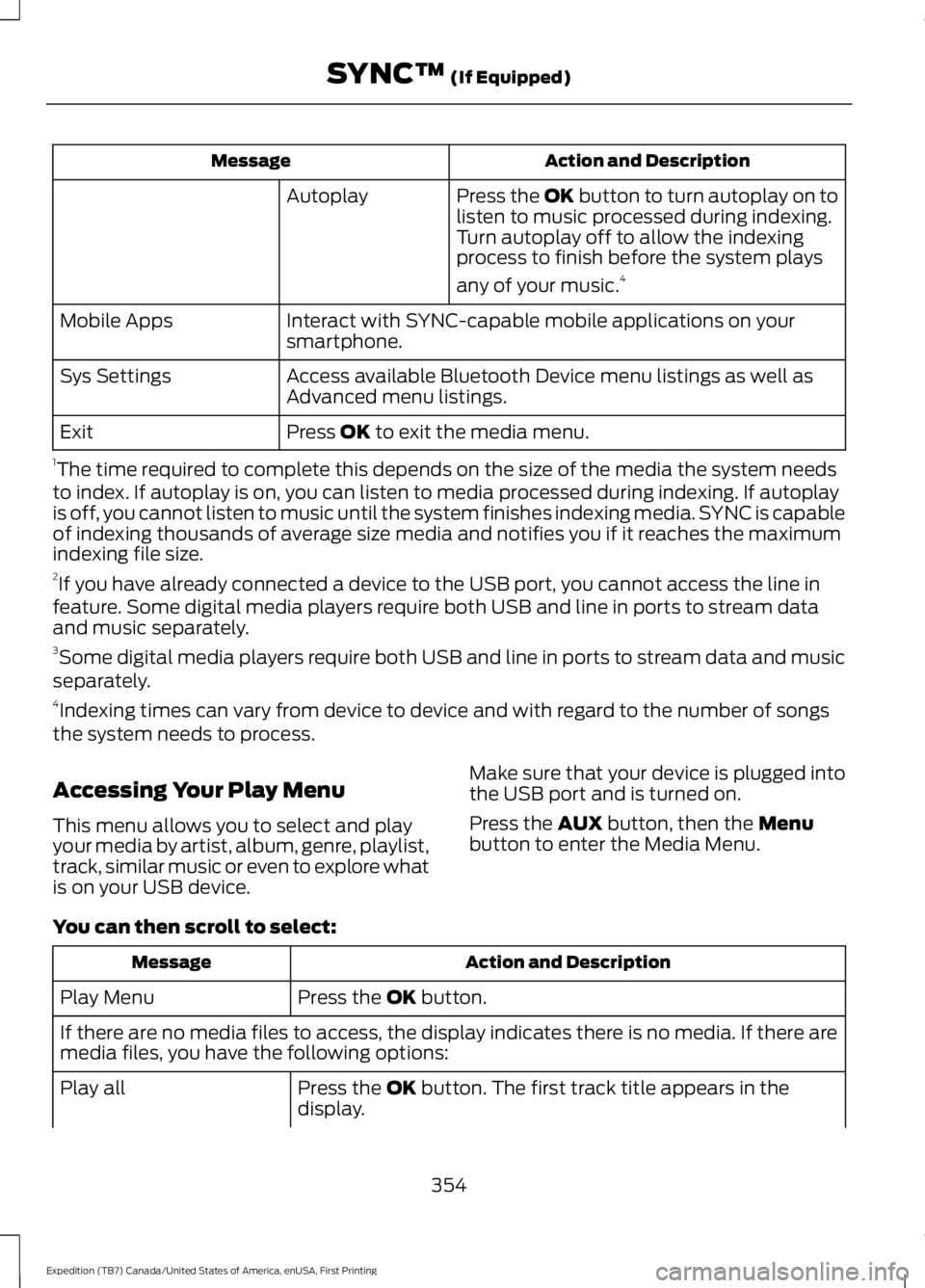
Action and DescriptionMessage
Press the OK button to turn autoplay on tolisten to music processed during indexing.Turn autoplay off to allow the indexingprocess to finish before the system plays
any of your music.4
Autoplay
Interact with SYNC-capable mobile applications on yoursmartphone.Mobile Apps
Access available Bluetooth Device menu listings as well asAdvanced menu listings.Sys Settings
Press OK to exit the media menu.Exit
1The time required to complete this depends on the size of the media the system needsto index. If autoplay is on, you can listen to media processed during indexing. If autoplayis off, you cannot listen to music until the system finishes indexing media. SYNC is capableof indexing thousands of average size media and notifies you if it reaches the maximumindexing file size.2If you have already connected a device to the USB port, you cannot access the line infeature. Some digital media players require both USB and line in ports to stream dataand music separately.3Some digital media players require both USB and line in ports to stream data and musicseparately.4Indexing times can vary from device to device and with regard to the number of songsthe system needs to process.
Accessing Your Play Menu
This menu allows you to select and playyour media by artist, album, genre, playlist,track, similar music or even to explore whatis on your USB device.
Make sure that your device is plugged intothe USB port and is turned on.
Press the AUX button, then the Menubutton to enter the Media Menu.
You can then scroll to select:
Action and DescriptionMessage
Press the OK button.Play Menu
If there are no media files to access, the display indicates there is no media. If there aremedia files, you have the following options:
Press the OK button. The first track title appears in thedisplay.Play all
354
Expedition (TB7) Canada/United States of America, enUSA, First Printing
SYNC™ (If Equipped)
Page 359 of 421
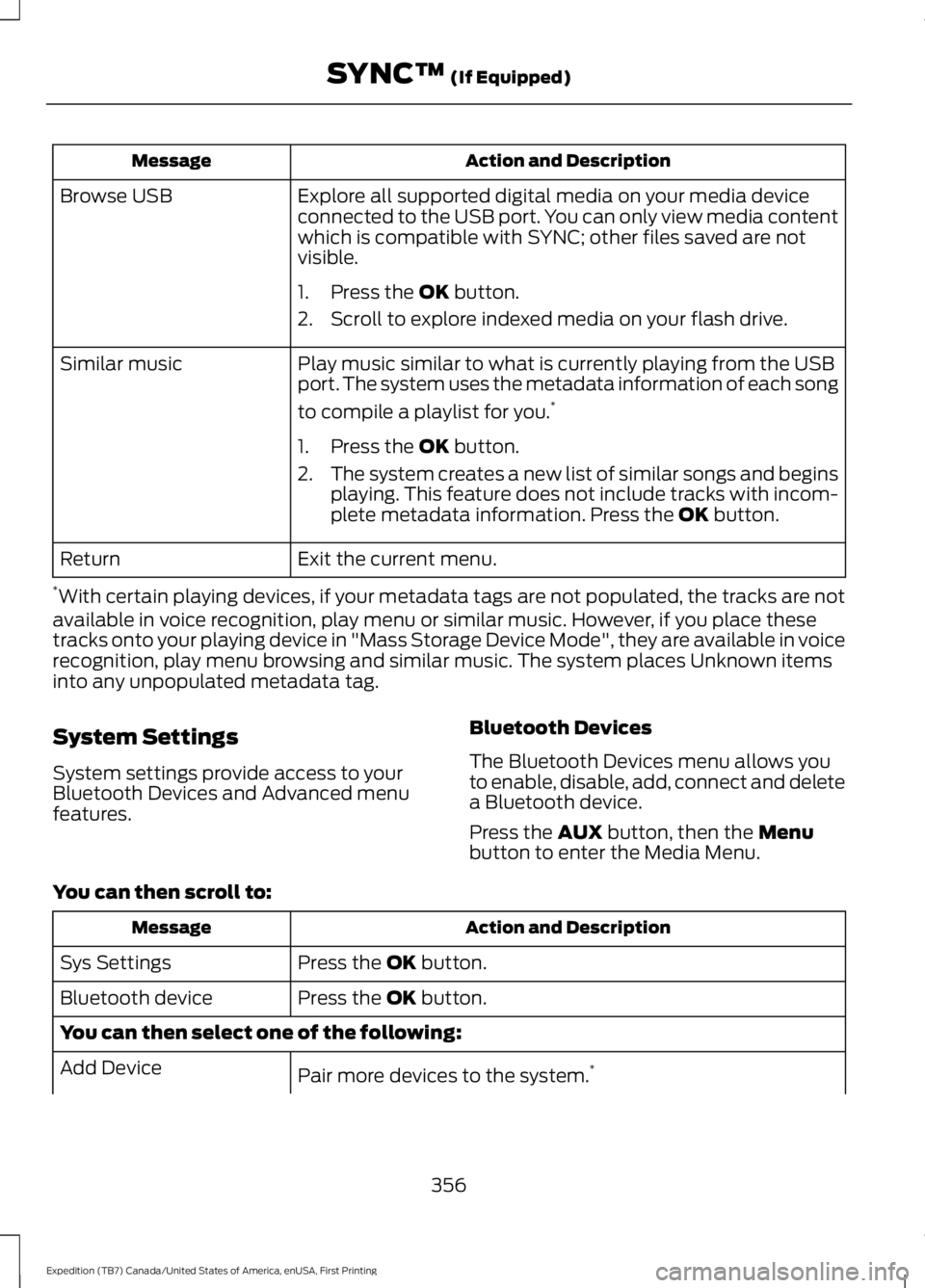
Action and DescriptionMessage
Explore all supported digital media on your media deviceconnected to the USB port. You can only view media contentwhich is compatible with SYNC; other files saved are notvisible.
Browse USB
1. Press the OK button.
2. Scroll to explore indexed media on your flash drive.
Play music similar to what is currently playing from the USBport. The system uses the metadata information of each song
to compile a playlist for you.*
Similar music
1. Press the OK button.
2.The system creates a new list of similar songs and beginsplaying. This feature does not include tracks with incom-plete metadata information. Press the OK button.
Exit the current menu.Return
*With certain playing devices, if your metadata tags are not populated, the tracks are notavailable in voice recognition, play menu or similar music. However, if you place thesetracks onto your playing device in "Mass Storage Device Mode", they are available in voicerecognition, play menu browsing and similar music. The system places Unknown itemsinto any unpopulated metadata tag.
System Settings
System settings provide access to yourBluetooth Devices and Advanced menufeatures.
Bluetooth Devices
The Bluetooth Devices menu allows youto enable, disable, add, connect and deletea Bluetooth device.
Press the AUX button, then the Menubutton to enter the Media Menu.
You can then scroll to:
Action and DescriptionMessage
Press the OK button.Sys Settings
Press the OK button.Bluetooth device
You can then select one of the following:
Pair more devices to the system.*Add Device
356
Expedition (TB7) Canada/United States of America, enUSA, First Printing
SYNC™ (If Equipped)
Page 360 of 421
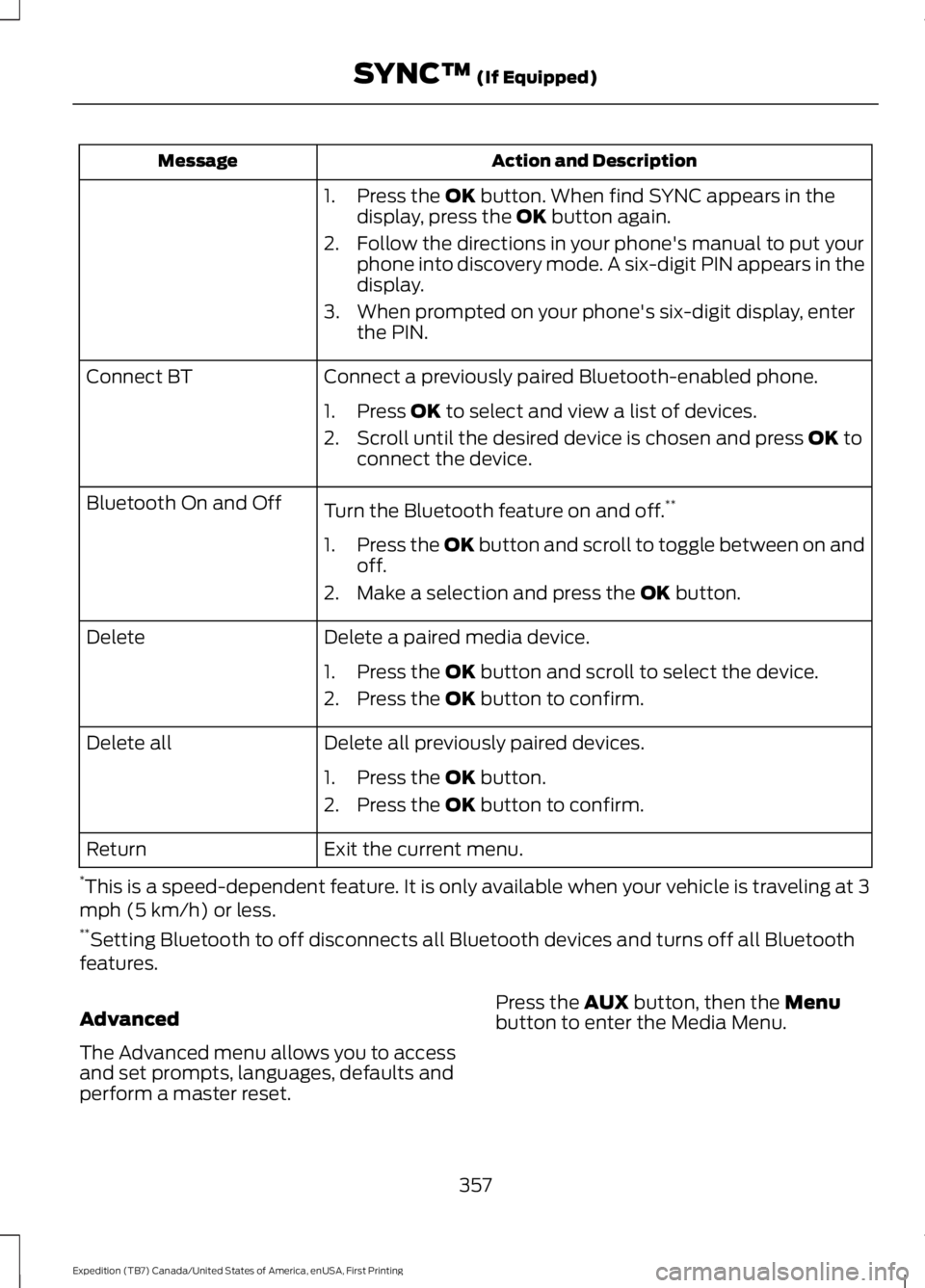
Action and DescriptionMessage
1. Press the OK button. When find SYNC appears in thedisplay, press the OK button again.
2. Follow the directions in your phone's manual to put yourphone into discovery mode. A six-digit PIN appears in thedisplay.
3. When prompted on your phone's six-digit display, enterthe PIN.
Connect a previously paired Bluetooth-enabled phone.Connect BT
1. Press OK to select and view a list of devices.
2. Scroll until the desired device is chosen and press OK toconnect the device.
Turn the Bluetooth feature on and off.**Bluetooth On and Off
1.Press the OK button and scroll to toggle between on andoff.
2. Make a selection and press the OK button.
Delete a paired media device.Delete
1. Press the OK button and scroll to select the device.
2. Press the OK button to confirm.
Delete all previously paired devices.Delete all
1. Press the OK button.
2. Press the OK button to confirm.
Exit the current menu.Return
*This is a speed-dependent feature. It is only available when your vehicle is traveling at 3mph (5 km/h) or less.**Setting Bluetooth to off disconnects all Bluetooth devices and turns off all Bluetoothfeatures.
Advanced
The Advanced menu allows you to accessand set prompts, languages, defaults andperform a master reset.
Press the AUX button, then the Menubutton to enter the Media Menu.
357
Expedition (TB7) Canada/United States of America, enUSA, First Printing
SYNC™ (If Equipped)
Page 410 of 421
4
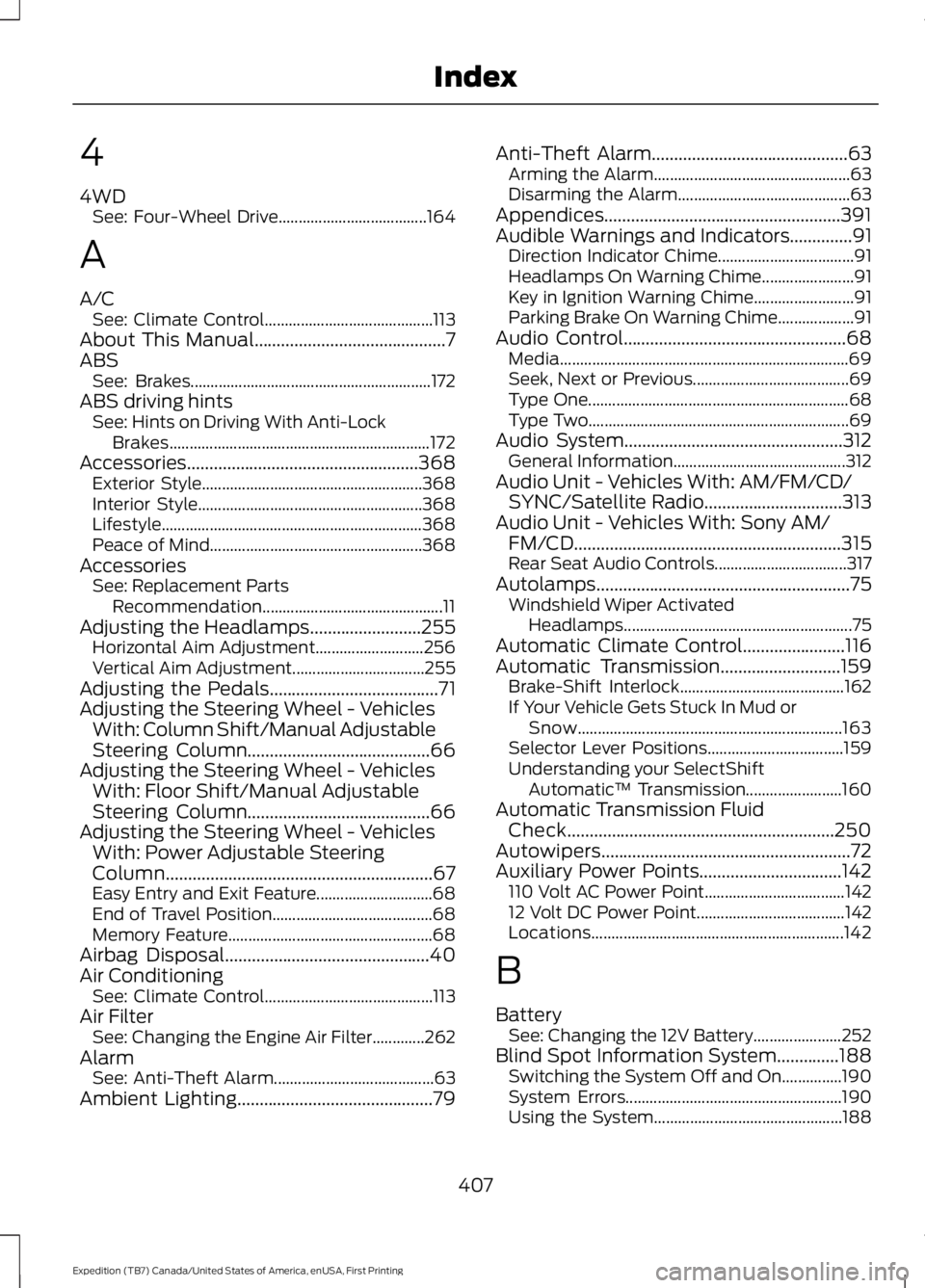
4WDSee: Four-Wheel Drive.....................................164
A
A/CSee: Climate Control..........................................113About This Manual...........................................7ABSSee: Brakes............................................................172ABS driving hintsSee: Hints on Driving With Anti-LockBrakes.................................................................172Accessories....................................................368Exterior Style.......................................................368Interior Style........................................................368Lifestyle.................................................................368Peace of Mind.....................................................368AccessoriesSee: Replacement PartsRecommendation.............................................11Adjusting the Headlamps.........................255Horizontal Aim Adjustment...........................256Vertical Aim Adjustment.................................255Adjusting the Pedals......................................71Adjusting the Steering Wheel - VehiclesWith: Column Shift/Manual AdjustableSteering Column.........................................66Adjusting the Steering Wheel - VehiclesWith: Floor Shift/Manual AdjustableSteering Column.........................................66Adjusting the Steering Wheel - VehiclesWith: Power Adjustable SteeringColumn............................................................67Easy Entry and Exit Feature.............................68End of Travel Position........................................68Memory Feature...................................................68Airbag Disposal..............................................40Air ConditioningSee: Climate Control..........................................113Air FilterSee: Changing the Engine Air Filter.............262AlarmSee: Anti-Theft Alarm........................................63Ambient Lighting............................................79
Anti-Theft Alarm............................................63Arming the Alarm.................................................63Disarming the Alarm...........................................63Appendices.....................................................391Audible Warnings and Indicators..............91Direction Indicator Chime..................................91Headlamps On Warning Chime.......................91Key in Ignition Warning Chime.........................91Parking Brake On Warning Chime...................91Audio Control..................................................68Media........................................................................69Seek, Next or Previous.......................................69Type One.................................................................68Type Two.................................................................69Audio System.................................................312General Information...........................................312Audio Unit - Vehicles With: AM/FM/CD/SYNC/Satellite Radio...............................313Audio Unit - Vehicles With: Sony AM/FM/CD............................................................315Rear Seat Audio Controls.................................317Autolamps.........................................................75Windshield Wiper ActivatedHeadlamps.........................................................75Automatic Climate Control.......................116Automatic Transmission...........................159Brake-Shift Interlock.........................................162If Your Vehicle Gets Stuck In Mud orSnow..................................................................163Selector Lever Positions..................................159Understanding your SelectShiftAutomatic™ Transmission........................160Automatic Transmission FluidCheck............................................................250Autowipers........................................................72Auxiliary Power Points................................142110 Volt AC Power Point...................................14212 Volt DC Power Point.....................................142Locations...............................................................142
B
BatterySee: Changing the 12V Battery......................252Blind Spot Information System..............188Switching the System Off and On...............190System Errors......................................................190Using the System...............................................188
407
Expedition (TB7) Canada/United States of America, enUSA, First Printing
Index