2016 FORD EXPEDITION EL wheel
[x] Cancel search: wheelPage 302 of 421
Park on a level surface, activate the hazardflashers and set the parking brake. Then,place the transmission in park (P) and turnthe engine off.
Removing the Jack and Tools
Note:Pay close attention to the orientationof the bag, because it will have to bereinstalled after changing the tire.
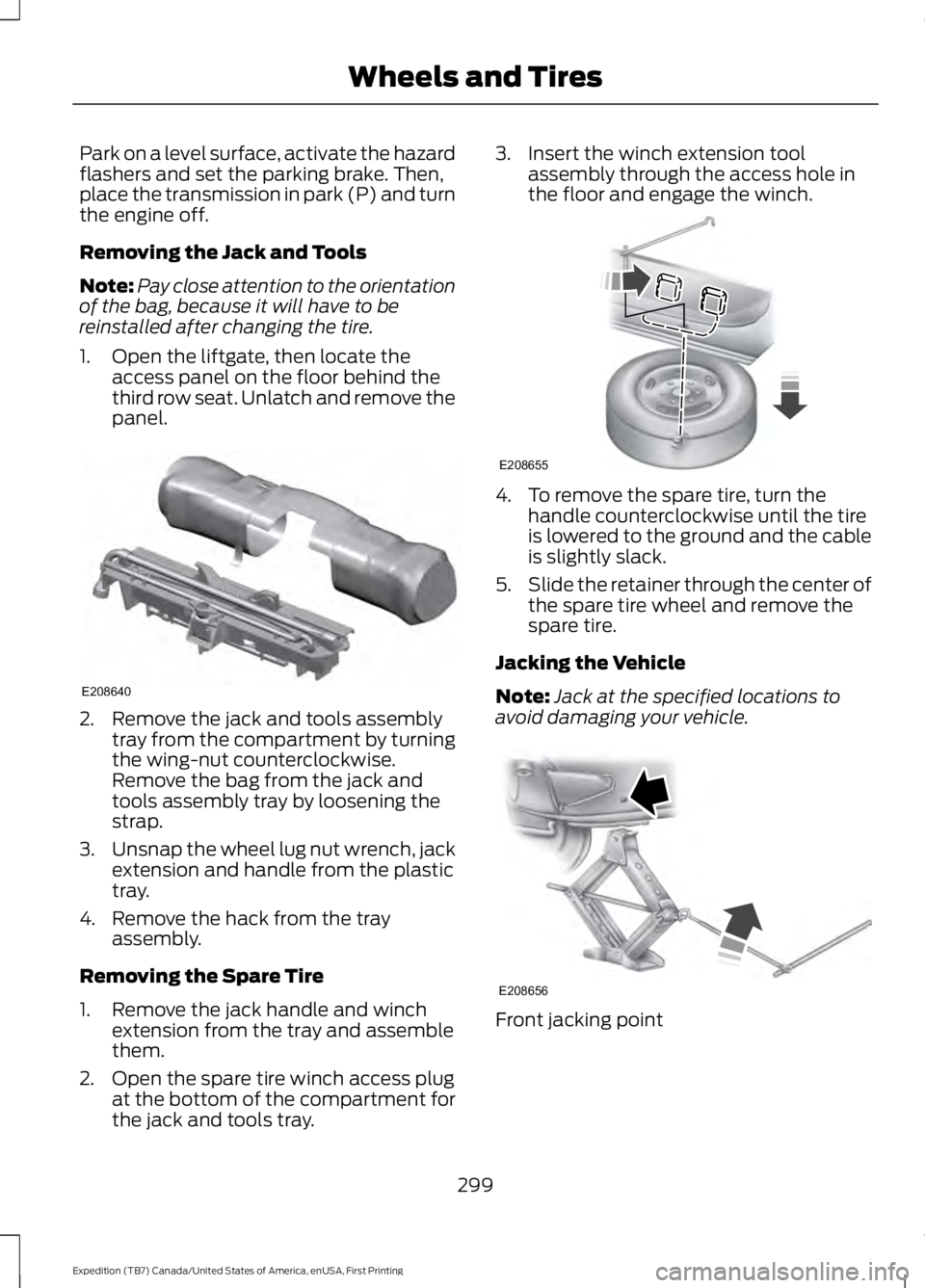
1. Open the liftgate, then locate theaccess panel on the floor behind thethird row seat. Unlatch and remove thepanel.
2. Remove the jack and tools assemblytray from the compartment by turningthe wing-nut counterclockwise.Remove the bag from the jack andtools assembly tray by loosening thestrap.
3.Unsnap the wheel lug nut wrench, jackextension and handle from the plastictray.
4. Remove the hack from the trayassembly.
Removing the Spare Tire
1. Remove the jack handle and winchextension from the tray and assemblethem.
2. Open the spare tire winch access plugat the bottom of the compartment forthe jack and tools tray.
3. Insert the winch extension toolassembly through the access hole inthe floor and engage the winch.
4. To remove the spare tire, turn thehandle counterclockwise until the tireis lowered to the ground and the cableis slightly slack.
5.Slide the retainer through the center ofthe spare tire wheel and remove thespare tire.
Jacking the Vehicle
Note:Jack at the specified locations toavoid damaging your vehicle.
Front jacking point
299
Expedition (TB7) Canada/United States of America, enUSA, First Printing
Wheels and TiresE208640 E208655 E208656
Page 303 of 421
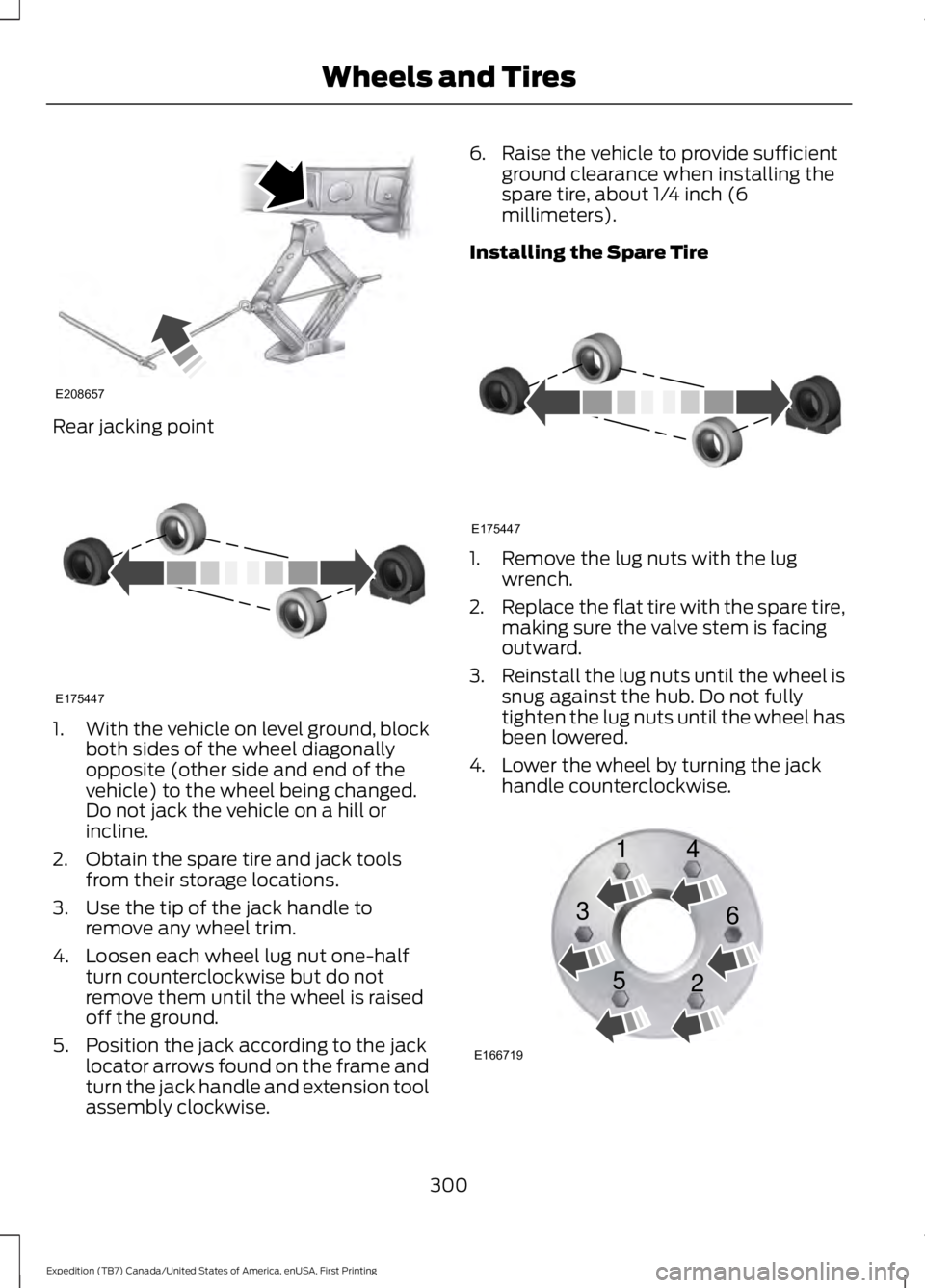
Rear jacking point
1.With the vehicle on level ground, blockboth sides of the wheel diagonallyopposite (other side and end of thevehicle) to the wheel being changed.Do not jack the vehicle on a hill orincline.
2. Obtain the spare tire and jack toolsfrom their storage locations.
3. Use the tip of the jack handle toremove any wheel trim.
4. Loosen each wheel lug nut one-halfturn counterclockwise but do notremove them until the wheel is raisedoff the ground.
5. Position the jack according to the jacklocator arrows found on the frame andturn the jack handle and extension toolassembly clockwise.
6. Raise the vehicle to provide sufficientground clearance when installing thespare tire, about 1/4 inch (6millimeters).
Installing the Spare Tire
1. Remove the lug nuts with the lugwrench.
2.Replace the flat tire with the spare tire,making sure the valve stem is facingoutward.
3.Reinstall the lug nuts until the wheel issnug against the hub. Do not fullytighten the lug nuts until the wheel hasbeen lowered.
4. Lower the wheel by turning the jackhandle counterclockwise.
300
Expedition (TB7) Canada/United States of America, enUSA, First Printing
Wheels and TiresE208657 E175447 E175447 E166719
1
3
5 4
6
2
Page 304 of 421
5. Remove the jack and fully tighten thelug nuts in the order shown. SeeTechnical Specifications (page 301).
Stowing the Flat or Spare Tire
1.Lay the tire on the ground, near the rearof the vehicle, with the valve stem sidefacing up.
2. Slide the wheel partially under thevehicle and install the retainer throughthe wheel center. If equipped, you mayhave to remove the wheel center capprior to pushing the retainer throughthe center of the wheel. To remove thecenter cap, press it off with the jacktool from the inner side of the wheel.Pull on the cable to align thecomponents at the end of the cable.
3. Assemble the jack handle and winchextension, then insert the winchextension through the access holebehind the third row seat and engagethe winch.
4. Turn the jack handle clockwise untilthe tire is raised to its stowed positionunderneath the vehicle. The wrenchwill become harder to turn and thespare tire winch will rachet or slip whenthe tire is raised to maximum tightness.A clicking sound will be heard from thewinch indicating that the tire is properlystowed.
5. Disassembly the jack tool and winchextension and snap them back into thetool tray.
6. Reinstall the jack bag properly aroundthe jack and tool assembly tray, makingsure the strap is fastened.
7. Close the access hole with the rubberplug.
8. Reinstall the tray into the vehicle andsecure it with the wing nut.
TECHNICAL SPECIFICATIONS
Wheel Lug Nut Torque Specifications
WARNING
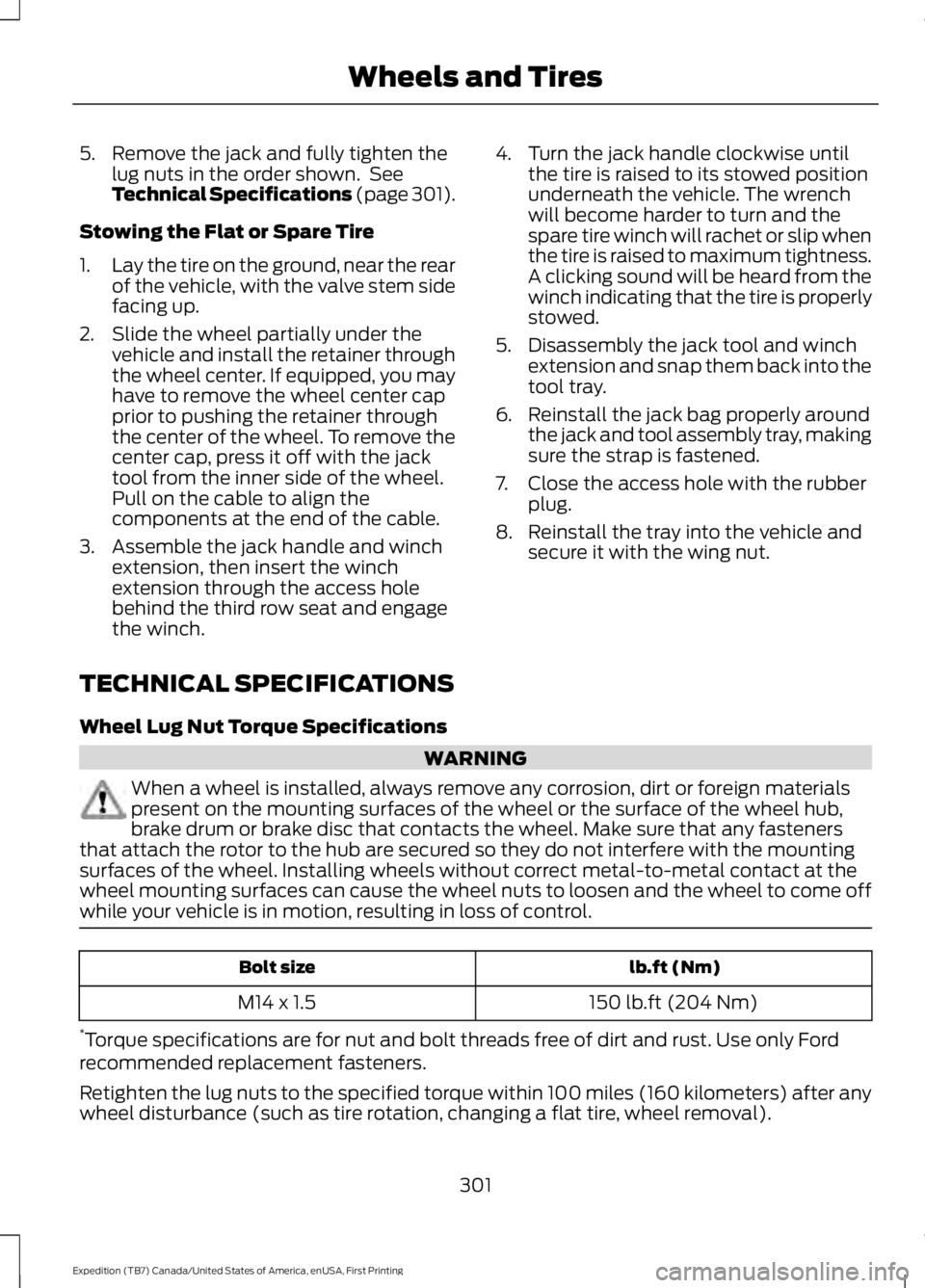
When a wheel is installed, always remove any corrosion, dirt or foreign materialspresent on the mounting surfaces of the wheel or the surface of the wheel hub,brake drum or brake disc that contacts the wheel. Make sure that any fastenersthat attach the rotor to the hub are secured so they do not interfere with the mountingsurfaces of the wheel. Installing wheels without correct metal-to-metal contact at thewheel mounting surfaces can cause the wheel nuts to loosen and the wheel to come offwhile your vehicle is in motion, resulting in loss of control.
lb.ft (Nm)Bolt size
150 lb.ft (204 Nm)M14 x 1.5
*Torque specifications are for nut and bolt threads free of dirt and rust. Use only Fordrecommended replacement fasteners.
Retighten the lug nuts to the specified torque within 100 miles (160 kilometers) after anywheel disturbance (such as tire rotation, changing a flat tire, wheel removal).
301
Expedition (TB7) Canada/United States of America, enUSA, First Printing
Wheels and Tires
Page 305 of 421
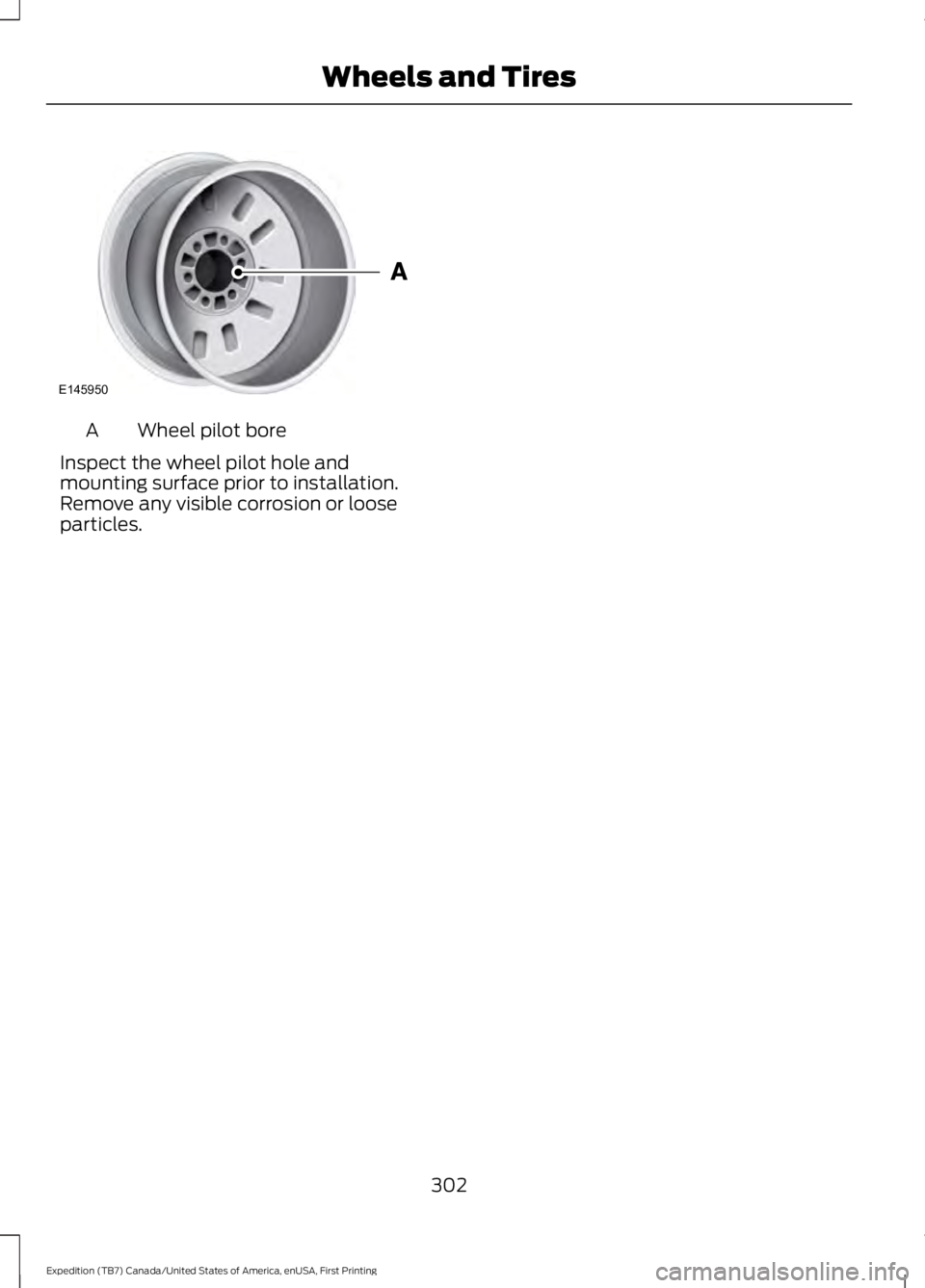
Wheel pilot boreA
Inspect the wheel pilot hole andmounting surface prior to installation.Remove any visible corrosion or looseparticles.
302
Expedition (TB7) Canada/United States of America, enUSA, First Printing
Wheels and TiresE145950
Page 328 of 421
System data cannot be accessed withoutspecial equipment and access to thevehicle's SYNC module. Ford MotorCompany and Ford of Canada will notaccess the system data for any purposeother than as described absent consent, acourt order, or where required by lawenforcement, other governmentauthorities, or other third parties actingwith lawful authority. Other parties mayseek to access the informationindependently of Ford Motor Company andFord of Canada. For further privacyinformation, see the sections on 911 Assist,Vehicle Health Report, and Traffic,Directions and Information.
USING VOICE RECOGNITION
This system helps you control manyfeatures using voice commands. Thisallows you to keep your hands on thewheel and focus on what is in front of you.
Helpful Hints
•Make sure the interior of your vehicle isas quiet as possible. Wind noise fromopen windows and road vibrations mayprevent the system from correctlyrecognizing spoken commands.
•After pressing the voice button, waituntil after the tone sounds andListening appears before saying acommand. Any command spokenbefore this does not register with thesystem.
•Speak naturally, without long pausesbetween words.
•At any time, you can interrupt thesystem while it is speaking by pressingthe voice button.
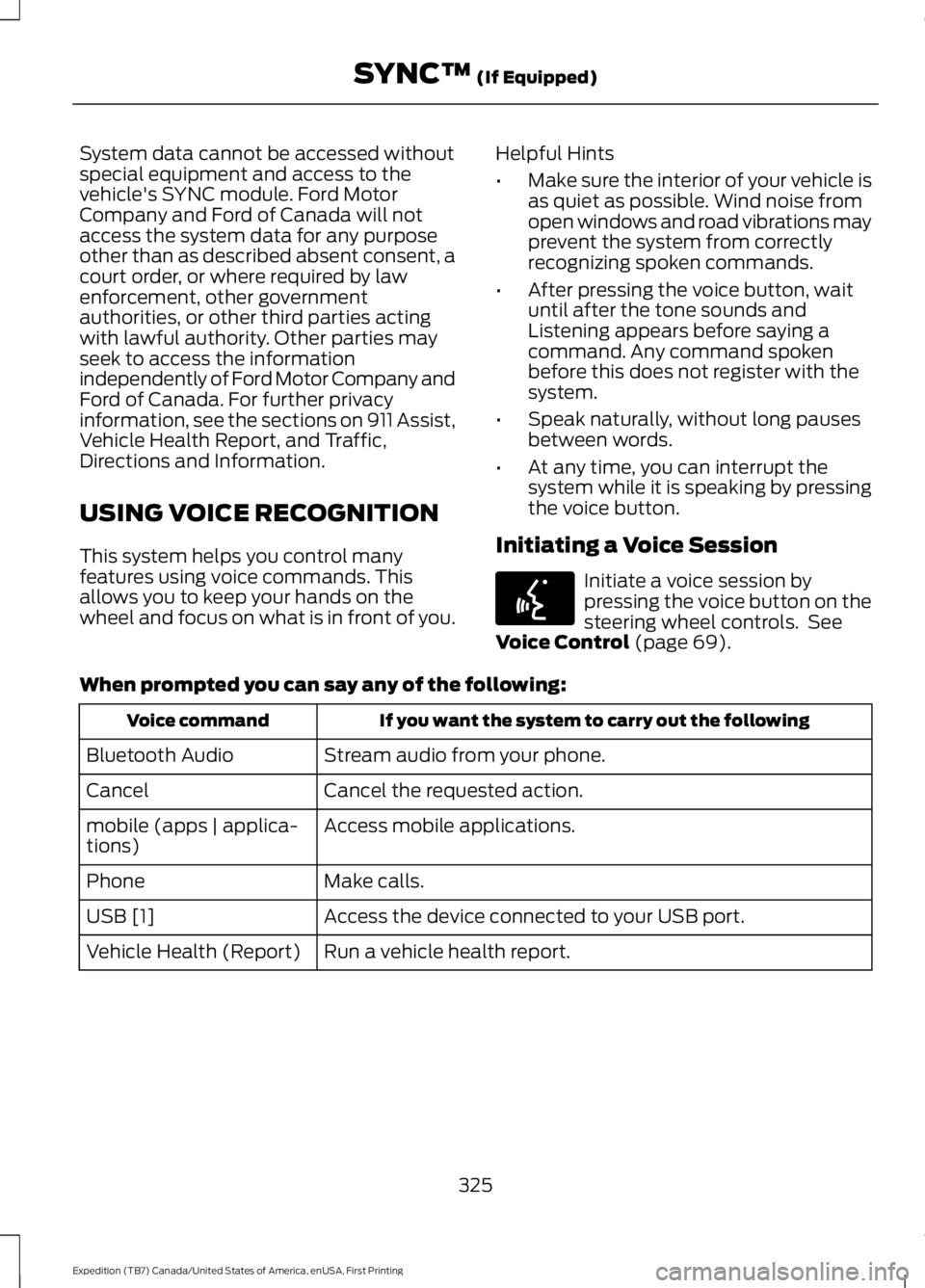
Initiating a Voice Session
Initiate a voice session bypressing the voice button on thesteering wheel controls. SeeVoice Control (page 69).
When prompted you can say any of the following:
If you want the system to carry out the followingVoice command
Stream audio from your phone.Bluetooth Audio
Cancel the requested action.Cancel
Access mobile applications.mobile (apps | applica-tions)
Make calls.Phone
Access the device connected to your USB port.USB [1]
Run a vehicle health report.Vehicle Health (Report)
325
Expedition (TB7) Canada/United States of America, enUSA, First Printing
SYNC™ (If Equipped)E142599
Page 329 of 421

If you want the system to carry out the followingVoice command
Adjust the level of voice interaction and feedback.Voice Settings | VoicePreferences
Hear a list of voice commands available in the current mode.Help
You can say any of the voice commands that appear within open and close brackets thatare separated by |. For example, where (cancel | stop | exit) appears you say; cancel orstop or exit.
You must say any of the voice commands that appear outside of open and close brackets.For example, where mobile (apps | applications) appears, you must say mobile followedby either apps or applications.
You do not need to say words that appear within square brackets. For example, for where(USB [stick] | iPOD | MP3 [player]) appears, you can say USB or USB stick.
Note:SYNC Services and Vehicle health report are only available in the United States ofAmerica.
System Interaction and Feedback
The system provides feedback throughaudible tones, prompts, questions andspoken confirmations depending on thesituation and the chosen level ofinteraction (voice settings). You cancustomize the voice recognition system toprovide more or less instruction andfeedback.
The default setting is to a higher level ofinteraction in order to help you learn to usethe system. You can change these settingsat any time.
Adjusting the Interaction Level
Initiate a voice session bypressing the voice button on thesteering wheel controls. SeeVoice Control (page 69).
When prompted say the following:
If you want the system to carry out the followingVoice command
Voice Settings | Voice Preferences
Followed by either of the following:
Provide more detailed interaction and guidance.Interaction ModeStandard
Provide less audible interaction and more tone prompts.Interaction ModeAdvanced
The system defaults to the standard interaction mode.
326
Expedition (TB7) Canada/United States of America, enUSA, First Printing
SYNC™ (If Equipped)E142599
Page 345 of 421
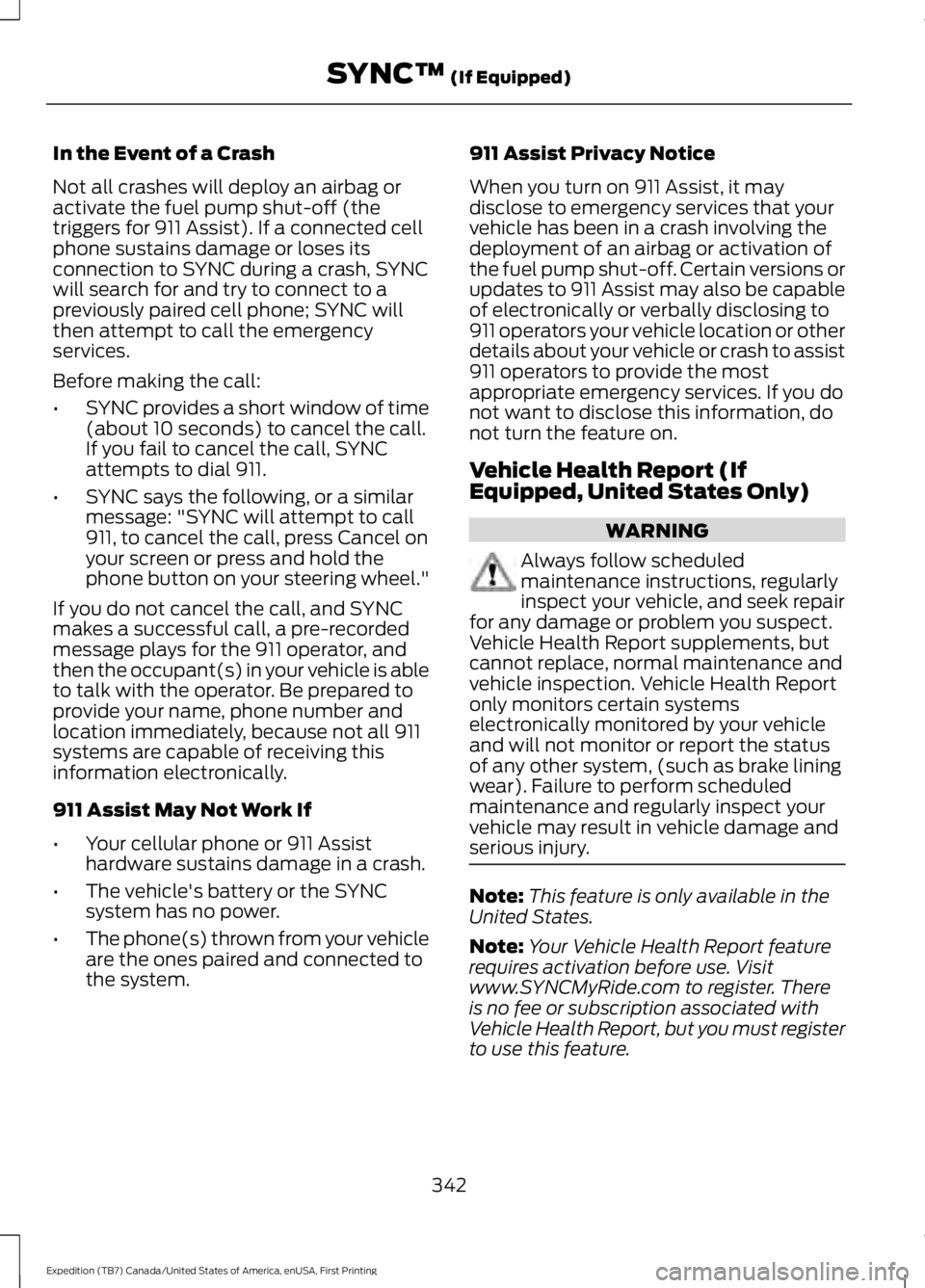
In the Event of a Crash
Not all crashes will deploy an airbag oractivate the fuel pump shut-off (thetriggers for 911 Assist). If a connected cellphone sustains damage or loses itsconnection to SYNC during a crash, SYNCwill search for and try to connect to apreviously paired cell phone; SYNC willthen attempt to call the emergencyservices.
Before making the call:
•SYNC provides a short window of time(about 10 seconds) to cancel the call.If you fail to cancel the call, SYNCattempts to dial 911.
•SYNC says the following, or a similarmessage: "SYNC will attempt to call911, to cancel the call, press Cancel onyour screen or press and hold thephone button on your steering wheel."
If you do not cancel the call, and SYNCmakes a successful call, a pre-recordedmessage plays for the 911 operator, andthen the occupant(s) in your vehicle is ableto talk with the operator. Be prepared toprovide your name, phone number andlocation immediately, because not all 911systems are capable of receiving thisinformation electronically.
911 Assist May Not Work If
•Your cellular phone or 911 Assisthardware sustains damage in a crash.
•The vehicle's battery or the SYNCsystem has no power.
•The phone(s) thrown from your vehicleare the ones paired and connected tothe system.
911 Assist Privacy Notice
When you turn on 911 Assist, it maydisclose to emergency services that yourvehicle has been in a crash involving thedeployment of an airbag or activation ofthe fuel pump shut-off. Certain versions orupdates to 911 Assist may also be capableof electronically or verbally disclosing to911 operators your vehicle location or otherdetails about your vehicle or crash to assist911 operators to provide the mostappropriate emergency services. If you donot want to disclose this information, donot turn the feature on.
Vehicle Health Report (IfEquipped, United States Only)
WARNING
Always follow scheduledmaintenance instructions, regularlyinspect your vehicle, and seek repairfor any damage or problem you suspect.Vehicle Health Report supplements, butcannot replace, normal maintenance andvehicle inspection. Vehicle Health Reportonly monitors certain systemselectronically monitored by your vehicleand will not monitor or report the statusof any other system, (such as brake liningwear). Failure to perform scheduledmaintenance and regularly inspect yourvehicle may result in vehicle damage andserious injury.
Note:This feature is only available in theUnited States.
Note:Your Vehicle Health Report featurerequires activation before use. Visitwww.SYNCMyRide.com to register. Thereis no fee or subscription associated withVehicle Health Report, but you must registerto use this feature.
342
Expedition (TB7) Canada/United States of America, enUSA, First Printing
SYNC™ (If Equipped)
Page 350 of 421
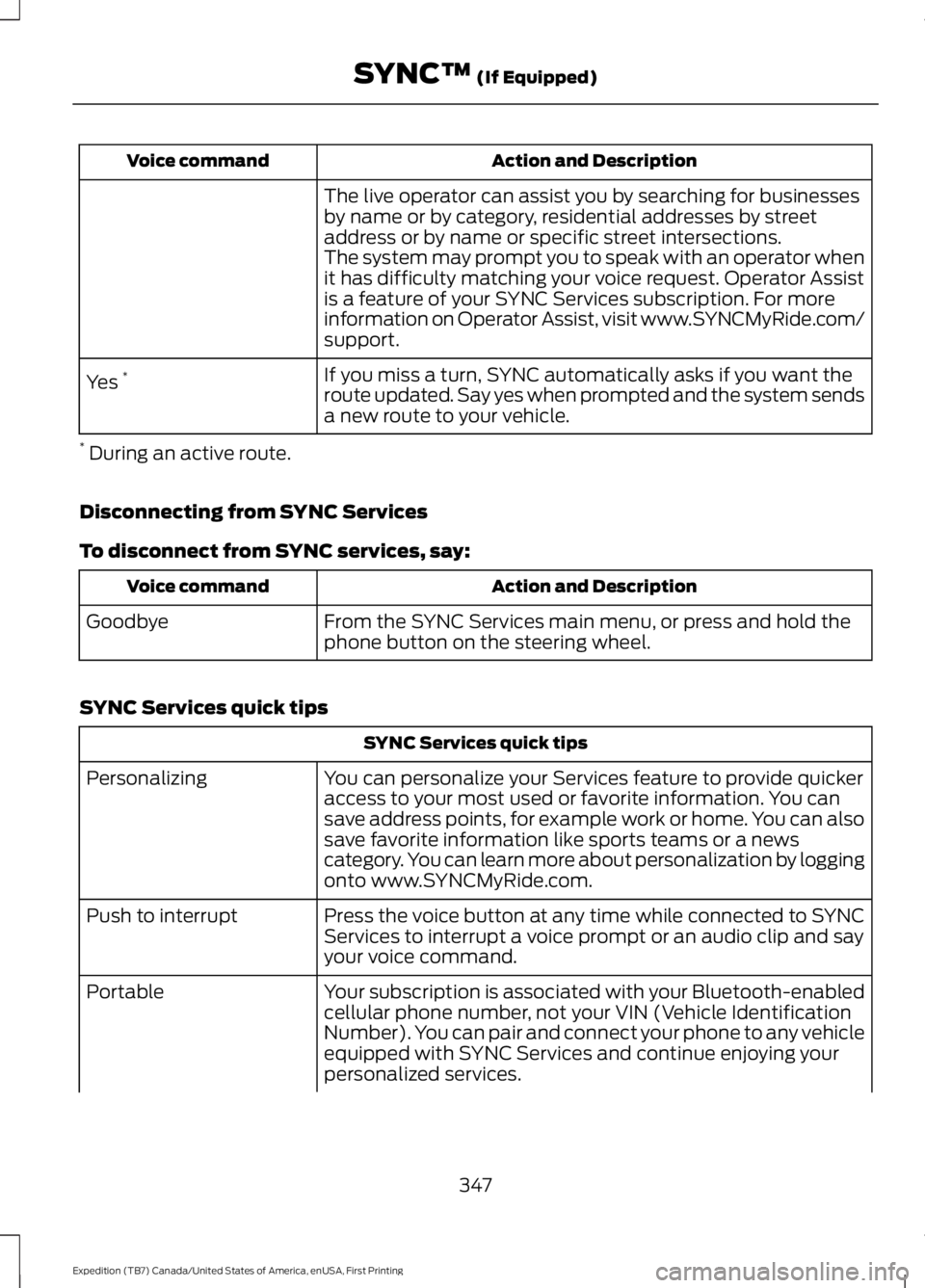
Action and DescriptionVoice command
The live operator can assist you by searching for businessesby name or by category, residential addresses by streetaddress or by name or specific street intersections.The system may prompt you to speak with an operator whenit has difficulty matching your voice request. Operator Assistis a feature of your SYNC Services subscription. For moreinformation on Operator Assist, visit www.SYNCMyRide.com/support.
If you miss a turn, SYNC automatically asks if you want theroute updated. Say yes when prompted and the system sendsa new route to your vehicle.
Yes *
* During an active route.
Disconnecting from SYNC Services
To disconnect from SYNC services, say:
Action and DescriptionVoice command
From the SYNC Services main menu, or press and hold thephone button on the steering wheel.Goodbye
SYNC Services quick tips
SYNC Services quick tips
You can personalize your Services feature to provide quickeraccess to your most used or favorite information. You cansave address points, for example work or home. You can alsosave favorite information like sports teams or a newscategory. You can learn more about personalization by loggingonto www.SYNCMyRide.com.
Personalizing
Press the voice button at any time while connected to SYNCServices to interrupt a voice prompt or an audio clip and sayyour voice command.
Push to interrupt
Your subscription is associated with your Bluetooth-enabledcellular phone number, not your VIN (Vehicle IdentificationNumber). You can pair and connect your phone to any vehicleequipped with SYNC Services and continue enjoying yourpersonalized services.
Portable
347
Expedition (TB7) Canada/United States of America, enUSA, First Printing
SYNC™ (If Equipped)