Page 191 of 432
To set the desired headlight setting, proceed as follows:
1. Briefly push and release theMENUbutton. Push and
release the UP
orDOWNarrow button to
highlight Headlight Adjustment. Push and release
the MENU button to enter the Headlight Adjust-
ment MENU.
2. Push and release the UPorDOWNarrow
button to select the desired setting (0 – 3.)”
3. Briefly push and release the MENUbutton to go back
to the menu screen, or push and hold the MENU
button (approximately one second) to go back to the
main screen.
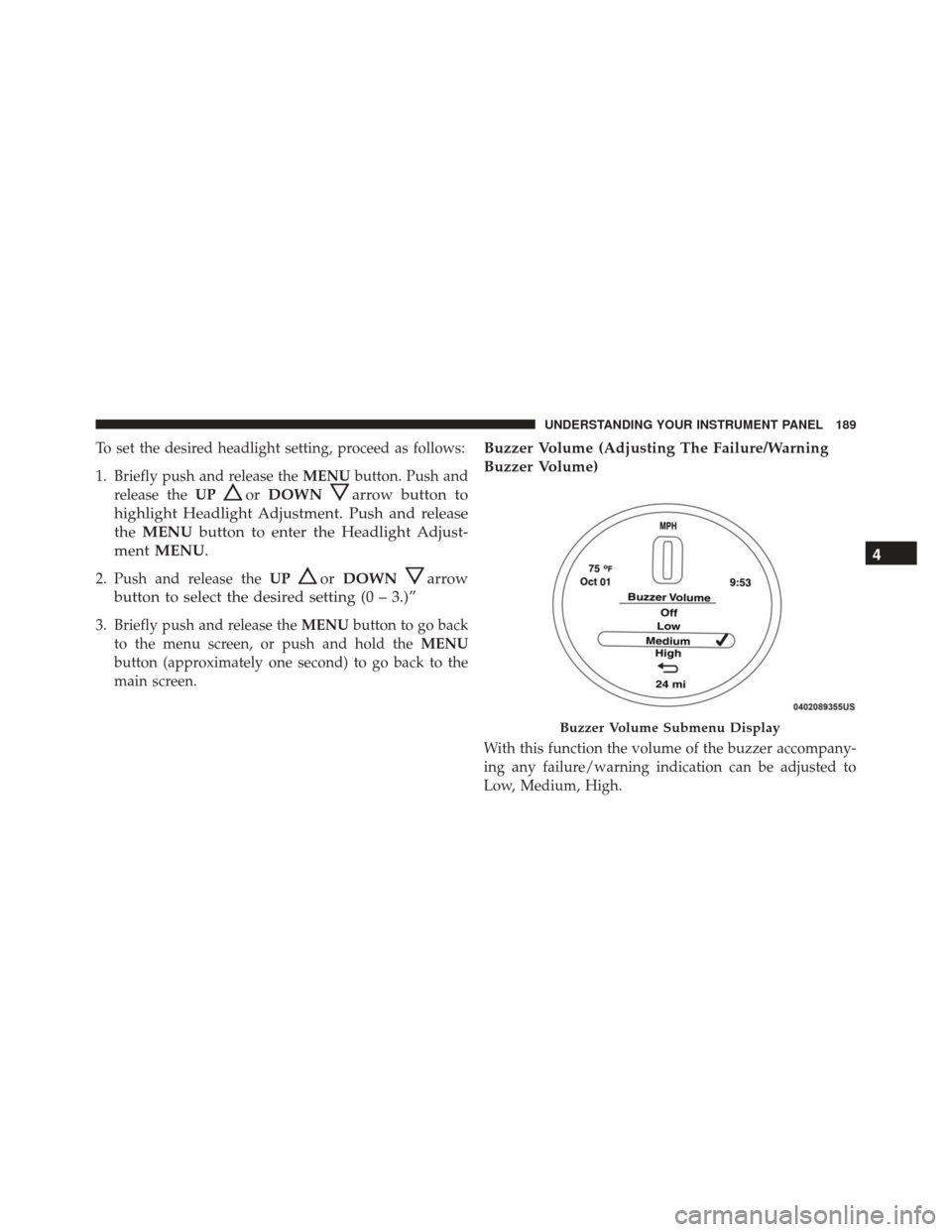
Buzzer Volume (Adjusting The Failure/Warning
Buzzer Volume)
With this function the volume of the buzzer accompany-
ing any failure/warning indication can be adjusted to
Low, Medium, High.
Buzzer Volume Submenu Display
4
UNDERSTANDING YOUR INSTRUMENT PANEL 189
Page 192 of 432
To adjust the volume proceed as follows:
1. Briefly push and release theMENUbutton. Push and
release the UP
orDOWNarrow button, then
highlight the Buzzer Volume. Push and release the
MENU button to enter the Buzzer Volume MENU.
2. Push and release theUPorDOWNarrow
button for setting.
3. Briefly push and release the MENUbutton to go back
to the menu screen, or push and hold the MENU
button (approximately one second) to go back to the
main screen without storing the settings.
GSI (Gear Shift Indicator)
This function may be used to set the Gear Shift Indicator
in two submenus: “On” and “Off.” •
On – turns on a fuel economy upshift light in the
instrument cluster, for optimum fuel economy, when
operating in base driving mode.
• Off – the fuel economy upshift light is disabled.
To set the required option, proceed as follows:
1. Briefly push and release the MENUbutton to display
the two sub-menus.
2. Push and release the UP
orDOWNarrow
button to navigate the two sub-menus.
3. Select the required sub-menu and then briefly push and release the MENUbutton.
4. Push and release the UP
orDOWNarrow
button for setting.
190 UNDERSTANDING YOUR INSTRUMENT PANEL
Page 194 of 432
•The distance to next maneuver
• The name of the street (1 or 2 lines)
To activate (On) or to deactivate (Off) the navigation
system info displaying, proceed as follows:
1. Briefly push and release the MENUbutton. Push and
release the UP
orDOWNbutton to highlight
Navigation Repetition and push and release the
MENU button
2. Push and release the UPorDOWNbutton for
setting.
3. Briefly push and release the MENUbutton to go back
to the menu screen, or push and hold the MENU
button (approximately one second) to go back to the
main screen without storing the settings
Exit Menu
This function closes the initial menu screen.
Push and release the UP
orDOWNarrow button
when the Exit icon
is displayed, then push and
release the MENUbutton to exit the menu screen.
CYBERSECURITY
Your vehicle may be a connected vehicle and may be
equipped with both wired and wireless networks. These
networks allow your vehicle to send and receive infor-
mation. This information allows systems and features in
your vehicle to function properly.
192 UNDERSTANDING YOUR INSTRUMENT PANEL
Page 200 of 432

press the “X” button on the touchscreen to close out of
the settings screen. Pressing the Up or Down Arrow
buttons on the right side of the screen will allow you to
toggle up or down through the available settings.
NOTE:All settings should be changed with the ignition
in the “AVV/ACC” position.
Display
After pressing the “Display” button on the touchscreen
the following settings will be available.
• Display Mode
When in this display you may select the “Auto” or
“Manual” display settings. To change Mode status, press
and release the “Auto” or “Manual” button on the
touchscreen. •
Brightness
When in this display, you may select the overall screen
brightness with the headlights on or off. Adjust the
brightness with the “+” and “–” setting buttons on the
touchscreen or by selecting any point on the scale be-
tween the “+” and “–” buttons on the touchscreen.
• Language
When in this display, you may select one of multiple
languages (English/Español/Français) for all display no-
menclature, including the trip functions and the naviga-
tion system (if equipped). Press the “Language” button
on the touchscreen, then press the desired language
button on the touchscreen.
• Touchscreen Beep
When in this display, you may turn on or shut off the
sound heard when a touchscreen button is pressed. Press
the “Touchscreen Beep” button on the touchscreen then
“On” or “Off.”
198 UNDERSTANDING YOUR INSTRUMENT PANEL
Page 203 of 432

and operating information. To make your selection, press
the “Hill Start Assist” button on the touchscreen and
select “On” or “Off.” Press the back arrow button on the
touchscreen to return to the previous menu.
Lights
After pressing the “Lights” button on the touchscreen the
following settings will be available.
•Daytime Running Lights
When this feature is selected, the headlights will turn on
while the engine is running. To make your selection,
press the “Daytime Running Lights” button on the touch-
screen, then choose “On” or “Off.” The button will
highlight indicating that the setting has been selected.
Doors & Locks
After pressing the “Doors & Locks” button on the touch-
screen the following setting will be available. •
Auto Door Locks
When this feature is selected, all doors will lock auto-
matically when the vehicle reaches a speed of 12 mph
(20 km/h). To make your selection, press the “Auto Door
Locks” button on the touchscreen and select from “On”
or “Off.”
• Remote Door Unlock/Door Unlock
When “Driver” is selected, only the driver ’s door will
unlock on the first push of the Remote Keyless Entry
(RKE) transmitter UNLOCK button, you must push the
RKE transmitter UNLOCK button twice to unlock the
passenger ’s doors. When “All” is selected, all of the
doors will unlock on the first press of the RKE transmitter
UNLOCK button.Engine Off Options
After pressing the “Engine Off Options” button on the
touchscreen the following settings will be available.
4
UNDERSTANDING YOUR INSTRUMENT PANEL 201
Page 211 of 432
Media
Uconnect offers connections via USB, Bluetooth and
Auxiliary ports (If Equipped). Voice operation is only
available for connected USB and iPod devices.
Push the VR button
. After the beep, say one of the
following commands and follow the prompts to
switch your media source or choose an artist.
• Change source to Bluetooth
• Change source to iPod
• Change source to USB
• Play artist Beethoven; Play album Greatest Hits; Play
song Moonlight Sonata; Play genreClassical TIP:
Press the “Browse” button on the touchscreen to see
all of the music on your iPod or USB device. Your Voice
Command must match exactlyhow the artist, album,
song and genre information is displayed.
Uconnect 5.0 Media
4
UNDERSTANDING YOUR INSTRUMENT PANEL 209
Page 217 of 432
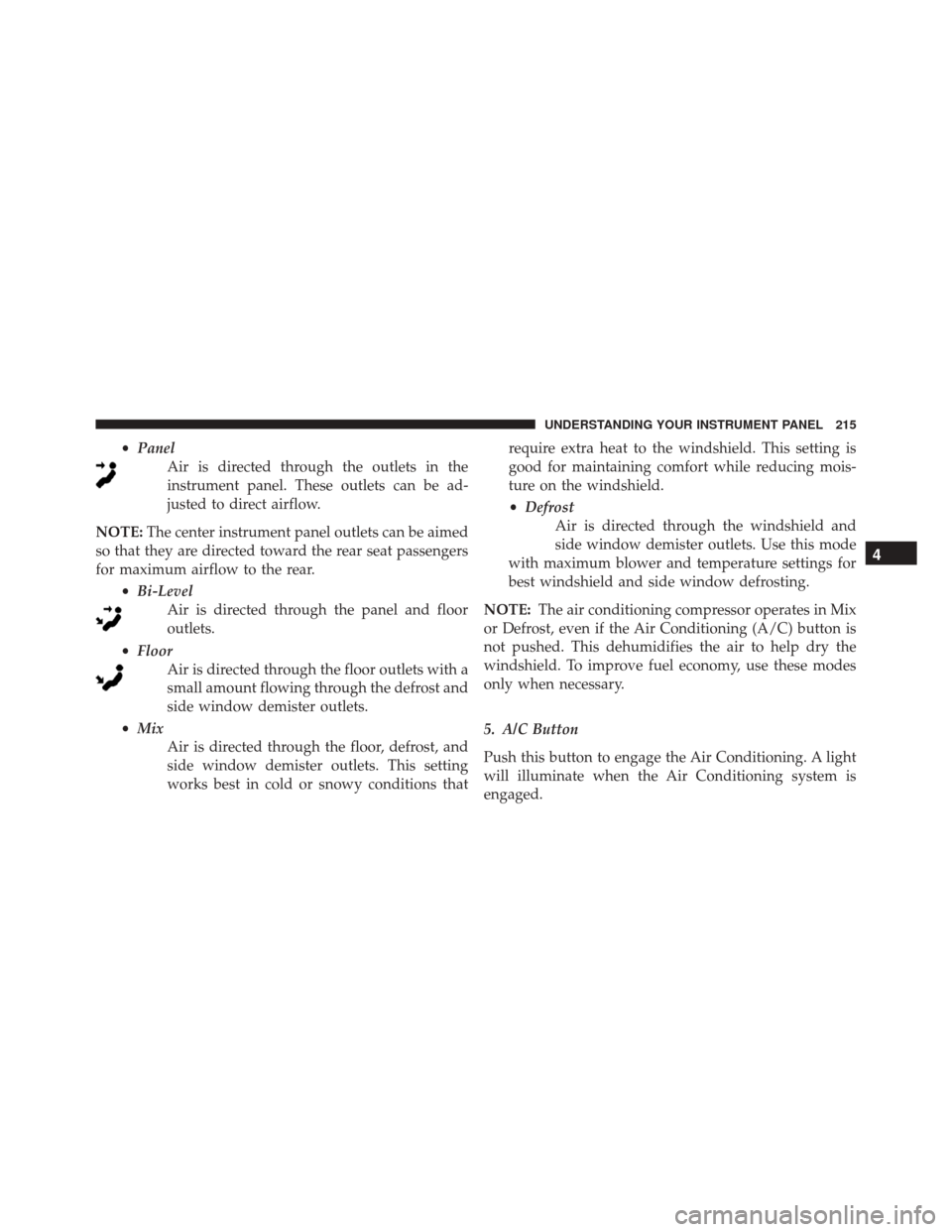
•Panel
Air is directed through the outlets in the
instrument panel. These outlets can be ad-
justed to direct airflow.
NOTE: The center instrument panel outlets can be aimed
so that they are directed toward the rear seat passengers
for maximum airflow to the rear.
•Bi-Level
Air is directed through the panel and floor
outlets.
• Floor
Air is directed through the floor outlets with a
small amount flowing through the defrost and
side window demister outlets.
• Mix
Air is directed through the floor, defrost, and
side window demister outlets. This setting
works best in cold or snowy conditions that require extra heat to the windshield. This setting is
good for maintaining comfort while reducing mois-
ture on the windshield.
•
Defrost
Air is directed through the windshield and
side window demister outlets. Use this mode
with maximum blower and temperature settings for
best windshield and side window defrosting.
NOTE: The air conditioning compressor operates in Mix
or Defrost, even if the Air Conditioning (A/C) button is
not pushed. This dehumidifies the air to help dry the
windshield. To improve fuel economy, use these modes
only when necessary.
5. A/C Button
Push this button to engage the Air Conditioning. A light
will illuminate when the Air Conditioning system is
engaged.
4
UNDERSTANDING YOUR INSTRUMENT PANEL 215
Page 218 of 432

MAX A/C
For maximum cooling, use the A/C and recirculation
modes at the same time.
ECONOMY MODE
If economy mode is desired, push the A/C button to turn
OFF the indicator light and the A/C compressor. Then,
move the temperature control to the desired temperature.
Automatic Temperature Control (ATC)
•The Automatic Temperature Control (ATC) allows the
occupant to select a comfort settings.
• The system provides set-and-forget operation for op-
timum comfort and convenience.
• The system can be controlled manually, if desired.
The ATC system automatically maintains the interior
comfort level desired by the occupant. 1. AUTO Temperature Control (ATC) Button
Controls airflow, temperature, distribution, and air recir-
culation automatically. Push and release to select. Per-
forming this function will cause the ATC to switch
between manual mode and automatic modes. Refer to
“Automatic Operation” for more information.
Automatic Temperature Controls
216 UNDERSTANDING YOUR INSTRUMENT PANEL