Page 184 of 423
•Oil Temperature
• Battery
• Coolant Temperature
• RIGHT Arrow Button
Restore To Defaults (Restores All Settings To Default
Settings) Push and release the RIGHTarrow button to
confirm.
Digital Speed
• On
• Off
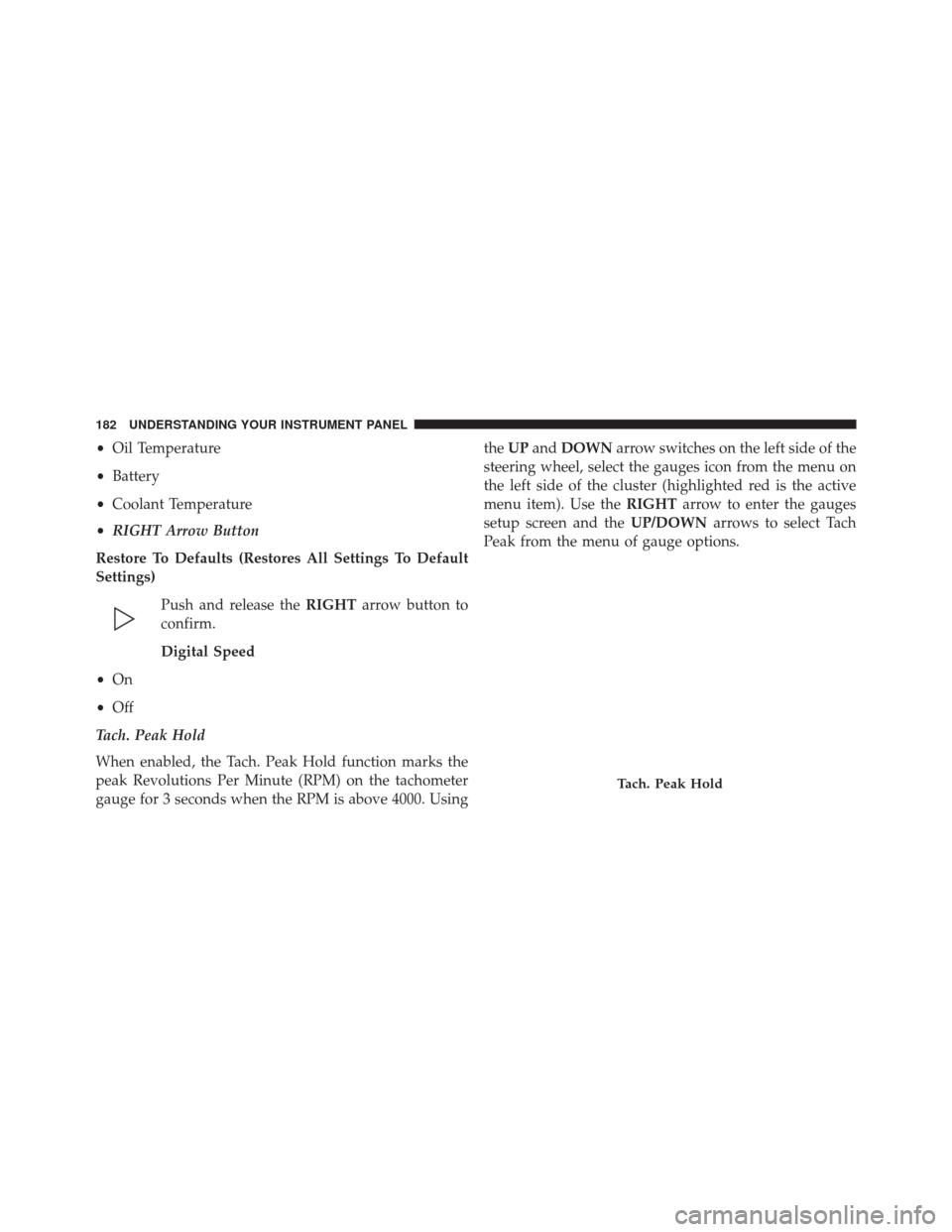
Tach. Peak Hold
When enabled, the Tach. Peak Hold function marks the
peak Revolutions Per Minute (RPM) on the tachometer
gauge for 3 seconds when the RPM is above 4000. Using the
UP and DOWN arrow switches on the left side of the
steering wheel, select the gauges icon from the menu on
the left side of the cluster (highlighted red is the active
menu item). Use the RIGHTarrow to enter the gauges
setup screen and the UP/DOWNarrows to select Tach
Peak from the menu of gauge options.
Tach. Peak Hold
182 UNDERSTANDING YOUR INSTRUMENT PANEL
Page 186 of 423

1/4 Mile Elapsed Time
Push and release theLEFTandRIGHT arrow button
until the last 1/4 Mile Top Speed & Duration information
is displayed.
1/8 Mile Elapsed Time
Push and release the LEFTandRIGHT arrow button
until the last 1/8 Mile Top Speed & Duration information
is displayed.
G-Force Instant
Push and release the LEFTandRIGHT arrow button
until the Current G-Forces are displayed.
G-Force Peak
Push and release the LEFTandRIGHT arrow button
until the Peak G-Forces are displayed.Diagnostic Codes
Push and release the UPorDOWN arrow
button until the Diagnostic Code icon is high-
lighted in the DID. Push and release the
RIGHT arrow button to display any present
diagnostic trouble codes along with a brief definition.
Vehicle Hibernation
To Activate Hibernation Mode
1. Cycle the ignition switch to (ACC).
2. Select Hibernation mode within the Driver Information Display (DID).
3. Push the RIGHTarrow button on the steering wheel
controls for one second. Vehicle will countdown from
ten seconds and enter Hibernation Mode.
184 UNDERSTANDING YOUR INSTRUMENT PANEL
Page 187 of 423
NOTE:You may push the RIGHTarrow button on the
steering wheel controls during the countdown to abort
Hibernation Mode.
To Deactivate Hibernation Mode
1. Push the RKE UNLOCK button to unlock the vehicle.
2. Push the Keyless Push Button Ignition to the ON/ RUN position.
UCONNECT SETTINGS
The Uconnect system uses a combination of buttons on
the touchscreen and buttons on the faceplate located on
the center of the instrument panel that allow you to
access and change the customer programmable features.
NOTE: Features can vary by vehicle, depending on
vehicle configuration.
Uconnect 8.4AN Buttons On The Touchscreen And
Buttons On The Faceplate
1 — Uconnect Buttons On The Touchscreen
2 — Uconnect Buttons On The Faceplate
4
UNDERSTANDING YOUR INSTRUMENT PANEL 185
Page 206 of 423
iPod/USB/MP3 CONTROL — IF EQUIPPEDLocated at the rear area of the center console, this feature
allows an iPod or external USB device to be plugged into
the USB port.
iPod control supports Mini, 4G, Photo, Nano, 5G iPod
and iPhone devices. Some iPod software versions may
not fully support the iPod control features. Please visit
Apple’s website for software updates.
For further information, refer to the Uconnect Supple-
ment Manual.
STEERING WHEEL AUDIO CONTROLS
The remote sound system controls are located on the rear
surface of the steering wheel. Reach behind the wheel to
access the switches.
SD Card Slot, AUX Jack, And USB Port
1 — SD Card Slot
2 — AUX Jack
3 — USB Port 204 UNDERSTANDING YOUR INSTRUMENT PANEL
Page 207 of 423
The right hand control is a rocker type switch with a
push-button in the center. Pushing the top of the switch
will increase the volume, and pushing the bottom of the
switch will decrease the volume.The button located in the center of the right hand control
will switch modes to Radio or other valid audio source.
The left hand control is a rocker type switch with a
push-button in the center. The function of the left hand
control is different depending on which mode you are in.
The following describes the left hand control operation in
each mode.
Radio Operation
Pushing the top of the switch will SEEK up for the next
listenable station and pushing the bottom of the switch
will SEEK down for the next listenable station.
The button located in the center of the left hand control
will tune to the next pre-set station that you have
programmed in the radio pre-set buttons.
Remote Sound System Controls (Back View Of Steering
Wheel)
4
UNDERSTANDING YOUR INSTRUMENT PANEL 205
Page 212 of 423
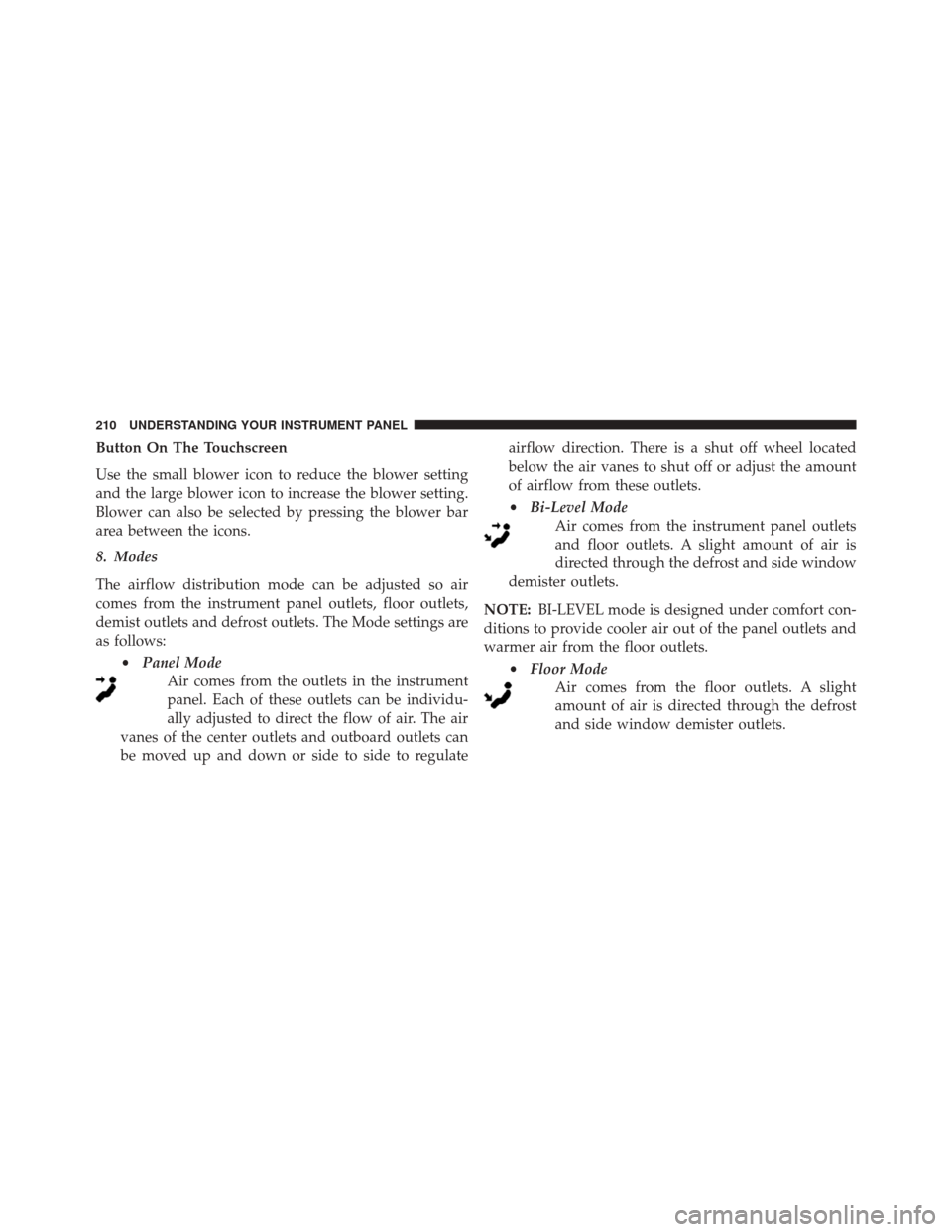
Button On The Touchscreen
Use the small blower icon to reduce the blower setting
and the large blower icon to increase the blower setting.
Blower can also be selected by pressing the blower bar
area between the icons.
8. Modes
The airflow distribution mode can be adjusted so air
comes from the instrument panel outlets, floor outlets,
demist outlets and defrost outlets. The Mode settings are
as follows:•Panel Mode
Air comes from the outlets in the instrument
panel. Each of these outlets can be individu-
ally adjusted to direct the flow of air. The air
vanes of the center outlets and outboard outlets can
be moved up and down or side to side to regulate airflow direction. There is a shut off wheel located
below the air vanes to shut off or adjust the amount
of airflow from these outlets.
•
Bi-Level Mode
Air comes from the instrument panel outlets
and floor outlets. A slight amount of air is
directed through the defrost and side window
demister outlets.
NOTE: BI-LEVEL mode is designed under comfort con-
ditions to provide cooler air out of the panel outlets and
warmer air from the floor outlets.
•Floor Mode
Air comes from the floor outlets. A slight
amount of air is directed through the defrost
and side window demister outlets.
210 UNDERSTANDING YOUR INSTRUMENT PANEL
Page 234 of 423

Do Not Disturb
With Do Not Disturb, you can disable notifications from
incoming calls and texts, allowing you to keep your eyes
on the road and hands on the wheel. For your conve-
nience there is a counter display to keep track of your
missed calls and text messages while you were using Do
Not Disturb.
Do Not Disturb can automatically reply with a text
message, a call or both, when declining an incoming call
and send it to voicemail.Automatic reply messages can be:
•
“I am driving right now, I will get back to you shortly.”
• Create a custom auto reply message up to 160 charac-
ters.
NOTE: Only the first 25 characters can been seen on the
touchscreen while typing a custom message.
While in Do Not Disturb, Conference Call can be selected
so you can still place a second call without being inter-
rupted by incoming calls.
NOTE:
• Reply with text message is not compatible with iP-
hones.
• Auto reply with text message is only available on
phones that supporting Bluetooth MAP.
232 UNDERSTANDING YOUR INSTRUMENT PANEL
Page 239 of 423
�TIRE PRESSURE MONITOR SYSTEM (TPMS) . .291
▫ Premium System ..................... .294
� FUEL REQUIREMENTS ..................297
▫ 8.4L Engine ......................... .297
▫ Reformulated Gasoline .................297
▫ Gasoline/Oxygenate Blends ..............298
▫ E-85 Usage In Non-Flex Fuel Vehicles .......298
▫ MMT In Gasoline .....................299
▫ Materials Added To Fuel ................299
▫ Fuel System Cautions ...................300 ▫
Carbon Monoxide Warnings .............301
� ADDING FUEL ....................... .301
▫ Emergency Fuel Filler Door Release .........303
� TRAILER TOWING .....................306
� RECREATIONAL TOWING (BEHIND
MOTORHOME, ETC.) ...................306
▫ Towing This Vehicle Behind Another Vehicle
(Flat Towing With All Four Wheels On The
Ground) .......................... .306
� GROUND CLEARANCE .................307
5
STARTING AND OPERATING 237