Page 417 of 707
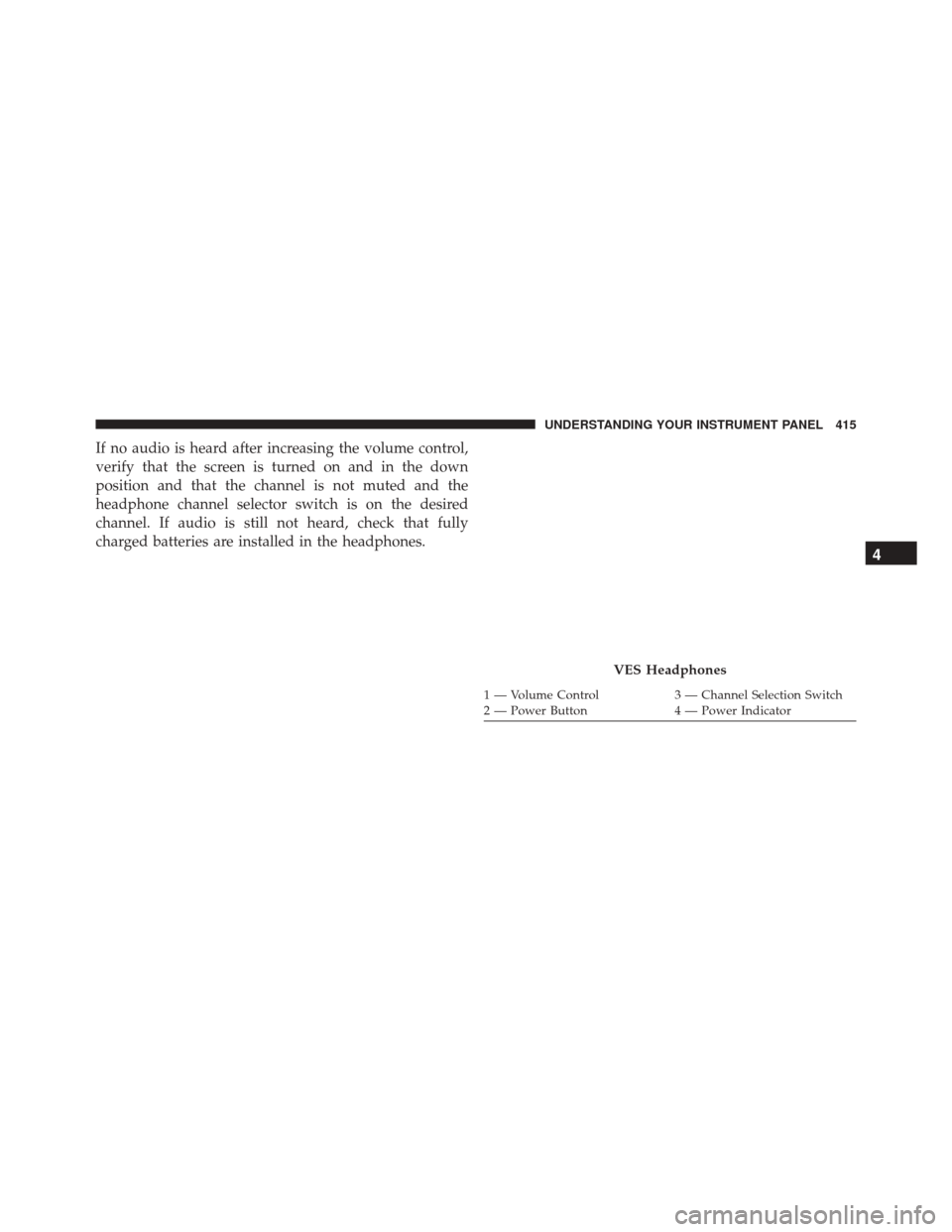
If no audio is heard after increasing the volume control,
verify that the screen is turned on and in the down
position and that the channel is not muted and the
headphone channel selector switch is on the desired
channel. If audio is still not heard, check that fully
charged batteries are installed in the headphones.
VES Headphones
1 — Volume Control3 — Channel Selection Switch
2 — Power Button 4 — Power Indicator
4
UNDERSTANDING YOUR INSTRUMENT PANEL 415
Page 418 of 707
Blu-ray Headphones Operation
The headphones receive two separate channels of audio
using an infrared transmitter from the video screen.
Front seat occupants receive some headphone audio
coverage to allow them to adjust the headphone volume
for the young rear seat occupants that may not be able to
do so for themselves.
If no audio is heard after increasing the volume control,
verify that the screen is turned on and in the down
position and that the channel is not muted and the
headphone channel selector switch is on the desired
channel. If audio is still not heard, check that fully
charged batteries are installed in the headphones.
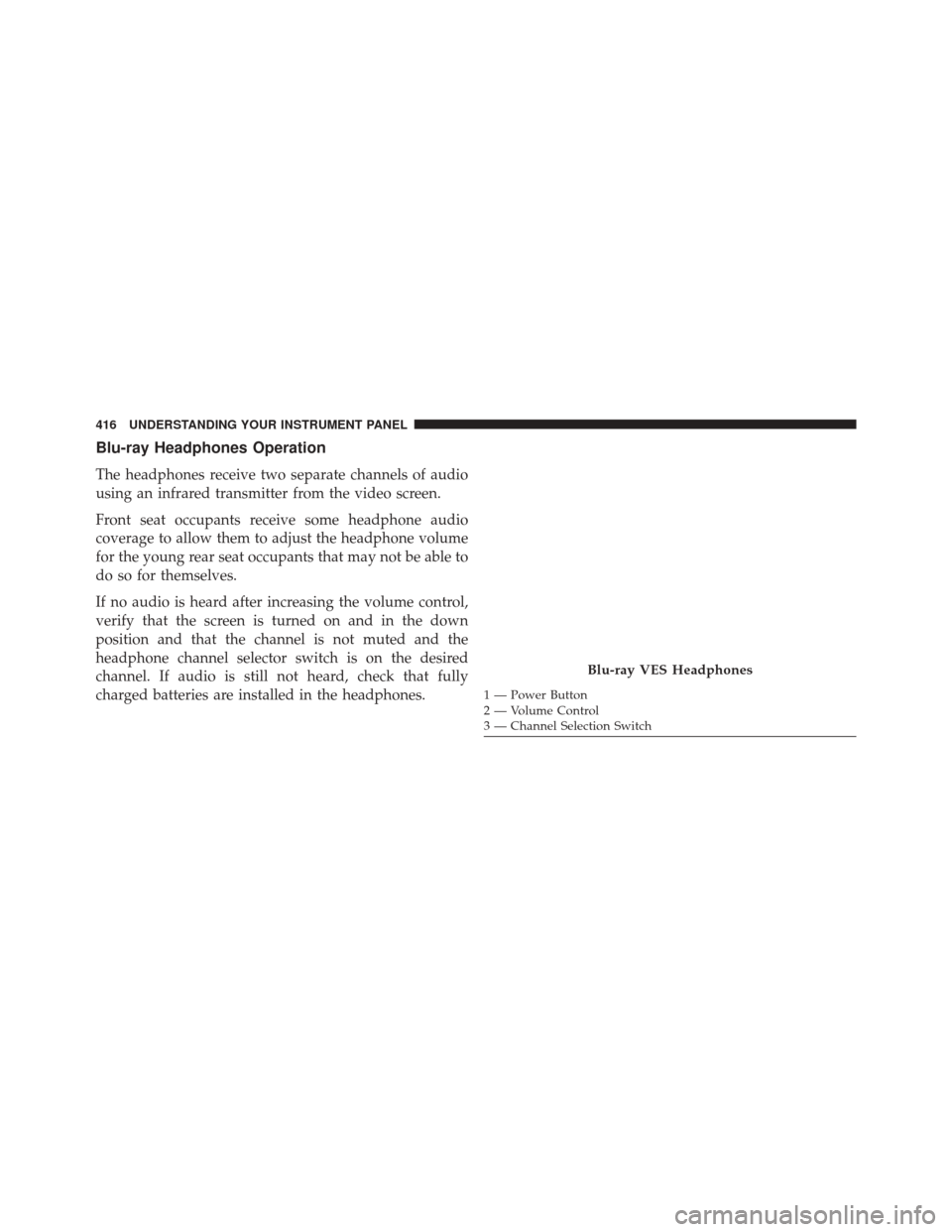
Blu-ray VES Headphones
1 — Power Button
2 — Volume Control
3 — Channel Selection Switch
416 UNDERSTANDING YOUR INSTRUMENT PANEL
Page 419 of 707
Controls
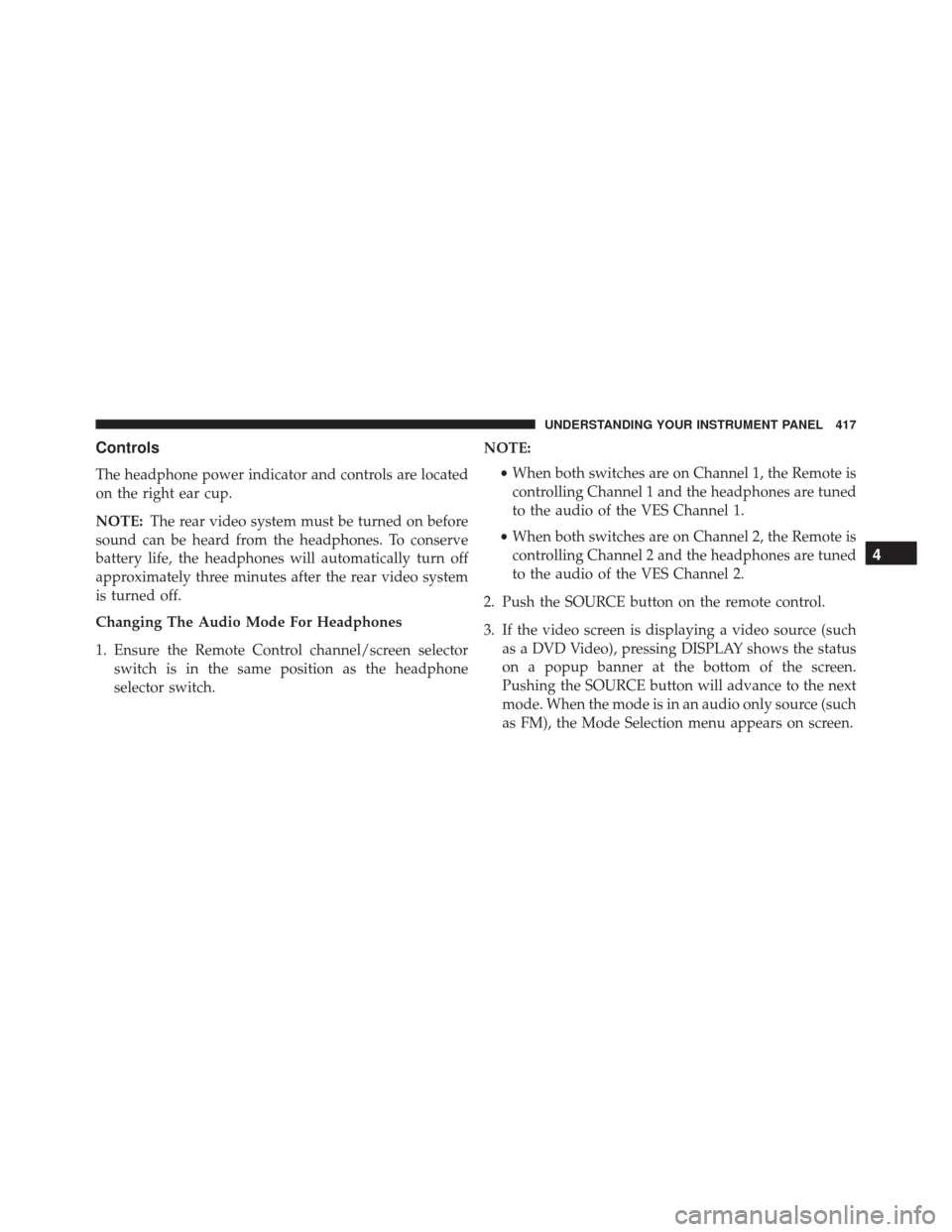
The headphone power indicator and controls are located
on the right ear cup.
NOTE:The rear video system must be turned on before
sound can be heard from the headphones. To conserve
battery life, the headphones will automatically turn off
approximately three minutes after the rear video system
is turned off.
Changing The Audio Mode For Headphones
1. Ensure the Remote Control channel/screen selector switch is in the same position as the headphone
selector switch. NOTE:
•When both switches are on Channel 1, the Remote is
controlling Channel 1 and the headphones are tuned
to the audio of the VES Channel 1.
• When both switches are on Channel 2, the Remote is
controlling Channel 2 and the headphones are tuned
to the audio of the VES Channel 2.
2. Push the SOURCE button on the remote control.
3. If the video screen is displaying a video source (such as a DVD Video), pressing DISPLAY shows the status
on a popup banner at the bottom of the screen.
Pushing the SOURCE button will advance to the next
mode. When the mode is in an audio only source (such
as FM), the Mode Selection menu appears on screen.
4
UNDERSTANDING YOUR INSTRUMENT PANEL 417
Page 420 of 707

4. When the Mode Selection menu appears on screen,use the cursor buttons on the remote control to navi-
gate to the available modes and push the OK button to
select the new mode.
5. To cancel out of the Mode Selection menu, push the BACK button on the remote control.
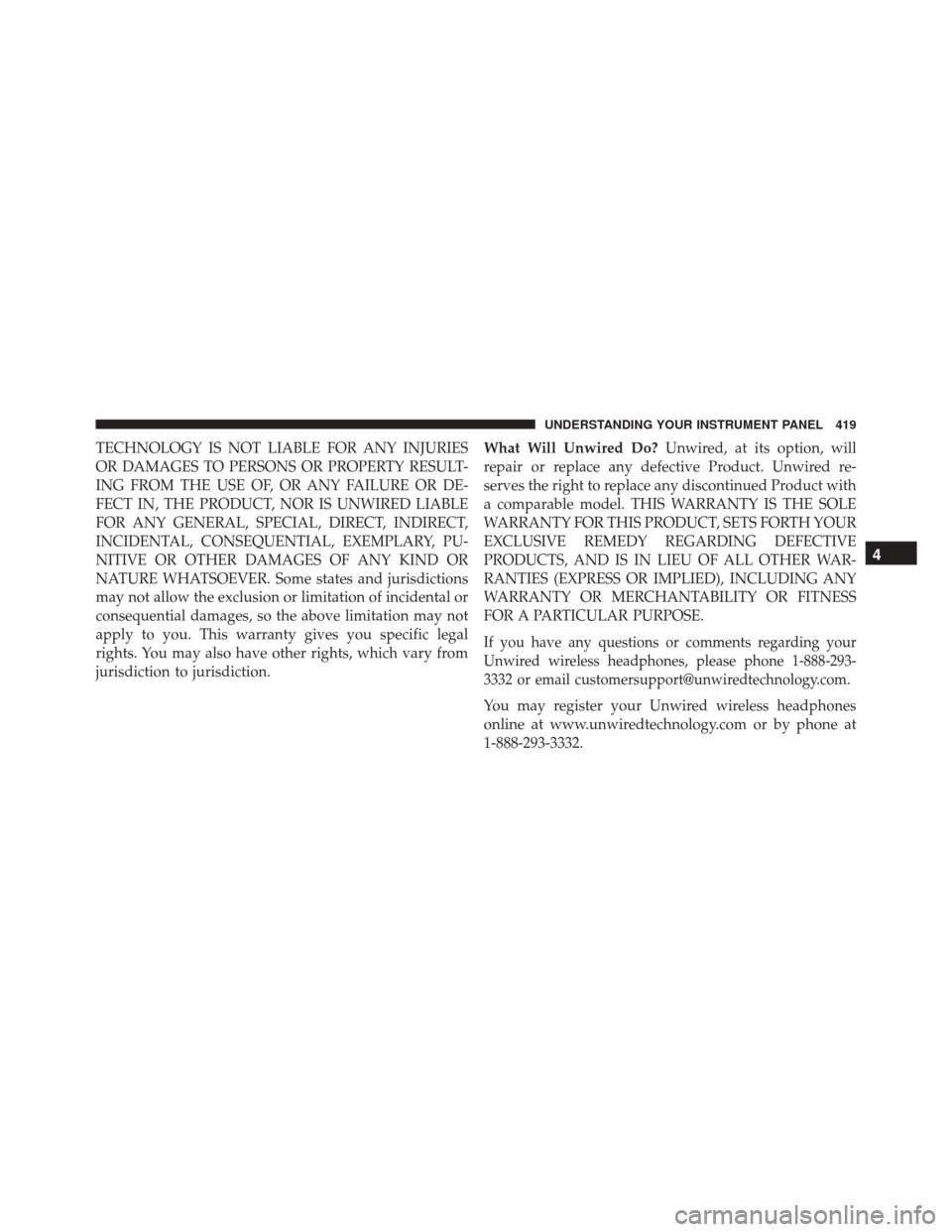
Replacing The Headphone Batteries
Each set of headphones requires two AAA batteries for
operation. To replace the batteries:
1. Locate the battery compartment on the left ear cup ofthe headphones, and then slide the battery cover
downward.
2. Replace the batteries, making sure to orient them according to the polarity diagram shown.
3. Replace the battery compartment cover.
Unwired Stereo Headphone Lifetime Limited
Warranty
Who Does This Warranty Cover? This warranty covers
the initial user or purchaser (�you� or�your�) of this
particular Unwired Technology LLC (�Unwired�) wire-
less headphone (�Product�). The warranty is not transfer-
able.
How Long Does The Coverage Last? This warranty lasts
as long as you own the Product.
What Does This Warranty Cover? Except as specified
below, this warranty covers any Product that in normal
use is defective in workmanship or materials.
What Does This Warranty Not Cover? This warranty
does not cover any damage or defect that results from
misuse, abuse or modification of the Product other than
by Unwired. Foam earpieces, which will wear over time
through normal use, are specifically not covered (replace-
ment foam is available for a nominal charge). UNWIRED
418 UNDERSTANDING YOUR INSTRUMENT PANEL
Page 421 of 707
TECHNOLOGY IS NOT LIABLE FOR ANY INJURIES
OR DAMAGES TO PERSONS OR PROPERTY RESULT-
ING FROM THE USE OF, OR ANY FAILURE OR DE-
FECT IN, THE PRODUCT, NOR IS UNWIRED LIABLE
FOR ANY GENERAL, SPECIAL, DIRECT, INDIRECT,
INCIDENTAL, CONSEQUENTIAL, EXEMPLARY, PU-
NITIVE OR OTHER DAMAGES OF ANY KIND OR
NATURE WHATSOEVER. Some states and jurisdictions
may not allow the exclusion or limitation of incidental or
consequential damages, so the above limitation may not
apply to you. This warranty gives you specific legal
rights. You may also have other rights, which vary from
jurisdiction to jurisdiction.What Will Unwired Do?
Unwired, at its option, will
repair or replace any defective Product. Unwired re-
serves the right to replace any discontinued Product with
a comparable model. THIS WARRANTY IS THE SOLE
WARRANTY FOR THIS PRODUCT, SETS FORTH YOUR
EXCLUSIVE REMEDY REGARDING DEFECTIVE
PRODUCTS, AND IS IN LIEU OF ALL OTHER WAR-
RANTIES (EXPRESS OR IMPLIED), INCLUDING ANY
WARRANTY OR MERCHANTABILITY OR FITNESS
FOR A PARTICULAR PURPOSE.
If you have any questions or comments regarding your
Unwired wireless headphones, please phone 1-888-293-
3332 or email [email protected].
You may register your Unwired wireless headphones
online at www.unwiredtechnology.com or by phone at
1-888-293-3332.
4
UNDERSTANDING YOUR INSTRUMENT PANEL 419
Page 422 of 707
System Information
Shared Modes
This allows the VES to output radio sources to the
headphones and the radio to output VES sources to the
vehicle speakers. When the radio and VES channel 1 or 2
are in the same (shared) mode, a VES icon will be visible
on the radio’s display for that channel, and the shared
icon will be visible on the VES screen. When in shared
mode, the same audio source is heard in the shared
headphone channel 1 or channel 2.
If the radio functions (FM, AM, or SAT) are in the shared
mode with the VES, only the radio is able to control the
radio functions. In this case, VES can share the radio
mode, but not change stations until the radio mode is
changed to a mode that is different from the VES selected
radio mode. When shared, the radio has priority over the
VES or all radio modes (FM, AM, and SAT). The VES hasthe ability to switch tuner (AM/FM), SEEK, SCAN,
TUNE, and recall presets in radio modes as long as it is
not in shared mode.
When in shared disc mode both the radio and the VES
have control of the video functions. The VES has the
ability to control the following video modes:
1. CD: Ability to Fast Forward, Rewind, Scan, and Track
Up/Down.
2. CD Changer (in radio): Ability to Disk Up/Down and program all listed CD controls (Fast Forward, Rewind,
Scan, and Track Up/Down).
The VES can even control radio modes or video modes
while the radio is turned off. The VES can access the
radio modes or disc modes by navigating to those modes
on the VES and activating a radio mode or disc mode.
420 UNDERSTANDING YOUR INSTRUMENT PANEL
Page 426 of 707
Listening To Audio With The Screen Closed
To listen to only audio portion of the channel with the
screen closed:
1. Set the audio to the desired source and channel.
2. Close the video screen.
3. To change the current audio mode, push the remotecontrol’s MODE button. This will automatically select
the next available audio mode without using the
MODE/SOURCE Select menu.
If the screen is closed and there is no audio heard, verify
that the headphones are turned on (the ON indicator is
illuminated) and the headphone selector switch is on the
desired channel. If the headphones are turned on, push
the remote control’s power button to turn audio on. If
audio is still not heard, check that fully charged batteries
are installed in the headphones.
Disc Formats
The DVD player is capable of playing the following types
of discs (12 cm or 8 cm diameter):
• DVD-Video discs (MPEG-2 video compression) (see
notes about DVD Region Codes)
• DVD-Audio discs (2 channel audio output only)
• Audio Compact Discs (CDs)
• CD Data discs with MP3 and WMA compressed audio
format files
• Video CDs (MPEG-1 video compression)
The Blu-Ray Player is capable of the playing the follow-
ing types of discs (12 cm diameter):
• BD: BDMV (Profile 1.1), BDAV
• DVD: DVD-Video, DVD-Audio, AVCREC, AVCHD,
DVD-VR
424 UNDERSTANDING YOUR INSTRUMENT PANEL
Page 441 of 707
CD/DVD/Blu-ray Disc MAINTENANCE
To keep a CD/DVD/Blu-ray Disc in good condition, take
the following precautions:
1. Handle the disc by its edge; avoid touching thesurface.
2. If the disc is stained, clean the surface with a soft cloth, wiping from center to edge.
3. Do not apply paper or tape to the disc; avoid scratch- ing the disc.
4. Do not use solvents such as benzene, thinner, cleaners, or anti-static sprays.
5. Store the disc in its case after playing.
6. Do not expose the disc to direct sunlight.
7. Do not store the disc where temperatures may become too high. NOTE:
If you experience difficulty in playing a particular
disc, it may be damaged (i.e., scratched, reflective coating
removed, a hair, moisture or dew on the disc) oversized,
or have protection encoding. Try a known good disc
before considering disc player service.
RADIO OPERATION AND MOBILE PHONES
Under certain conditions, the mobile phone being on in
your vehicle can cause erratic or noisy performance from
your radio. This condition may be lessened or eliminated
by relocating the mobile phone antenna. This condition is
not harmful to the radio. If your radio performance does
not satisfactorily “clear” by the repositioning of the
antenna, it is recommended that the radio volume be
turned down or off during mobile phone operation when
not using Uconnect (if equipped).
4
UNDERSTANDING YOUR INSTRUMENT PANEL 439