Page 168 of 707
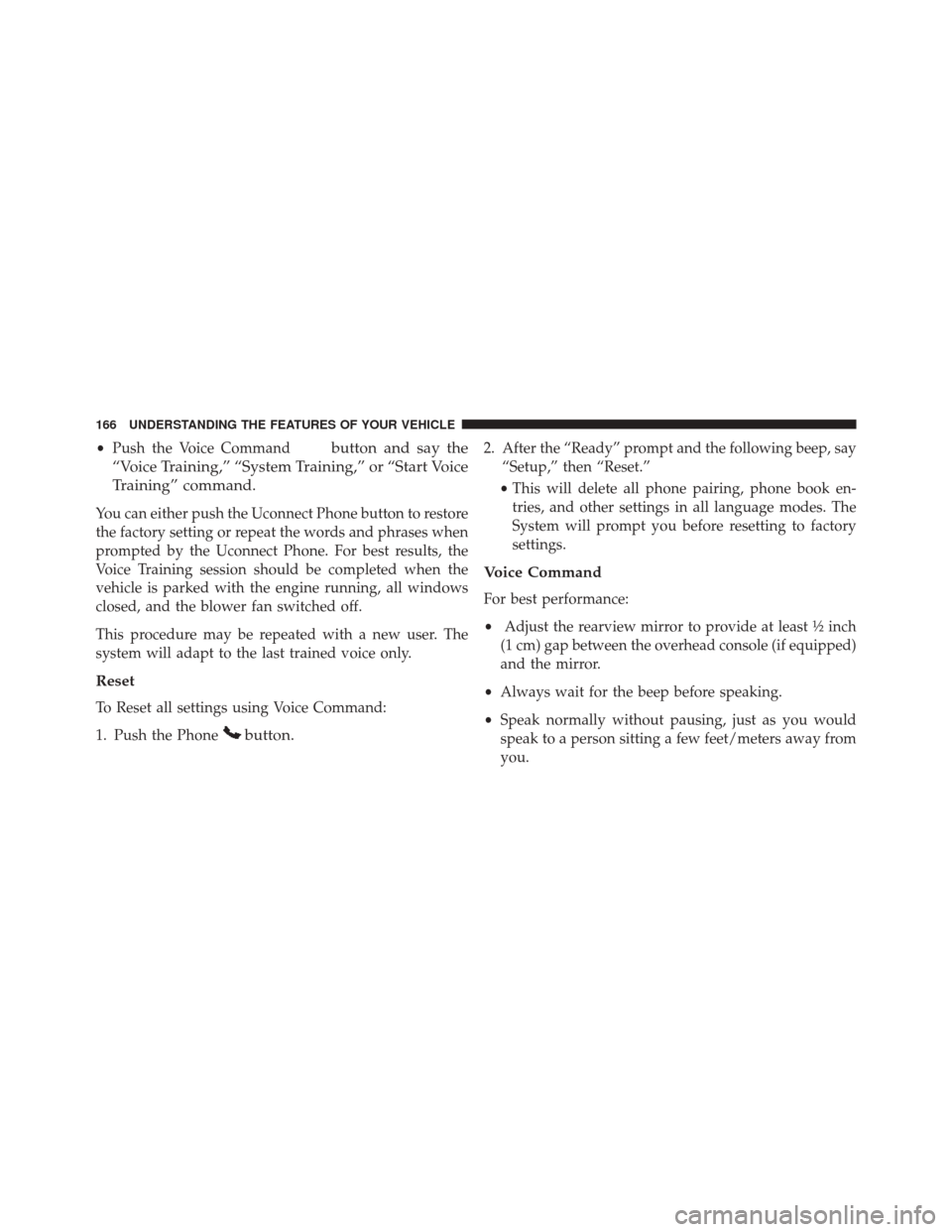
•Push the Voice Commandbutton and say the
“Voice Training,” “System Training,” or “Start Voice
Training” command.
You can either push the Uconnect Phone button to restore
the factory setting or repeat the words and phrases when
prompted by the Uconnect Phone. For best results, the
Voice Training session should be completed when the
vehicle is parked with the engine running, all windows
closed, and the blower fan switched off.
This procedure may be repeated with a new user. The
system will adapt to the last trained voice only.
Reset
To Reset all settings using Voice Command:
1. Push the Phone
button.
2. After the “Ready” prompt and the following beep, say “Setup,” then “Reset.”
• This will delete all phone pairing, phone book en-
tries, and other settings in all language modes. The
System will prompt you before resetting to factory
settings.
Voice Command
For best performance:
• Adjust the rearview mirror to provide at least ½ inch
(1 cm) gap between the overhead console (if equipped)
and the mirror.
• Always wait for the beep before speaking.
• Speak normally without pausing, just as you would
speak to a person sitting a few feet/meters away from
you.
166 UNDERSTANDING THE FEATURES OF YOUR VEHICLE
Page 171 of 707
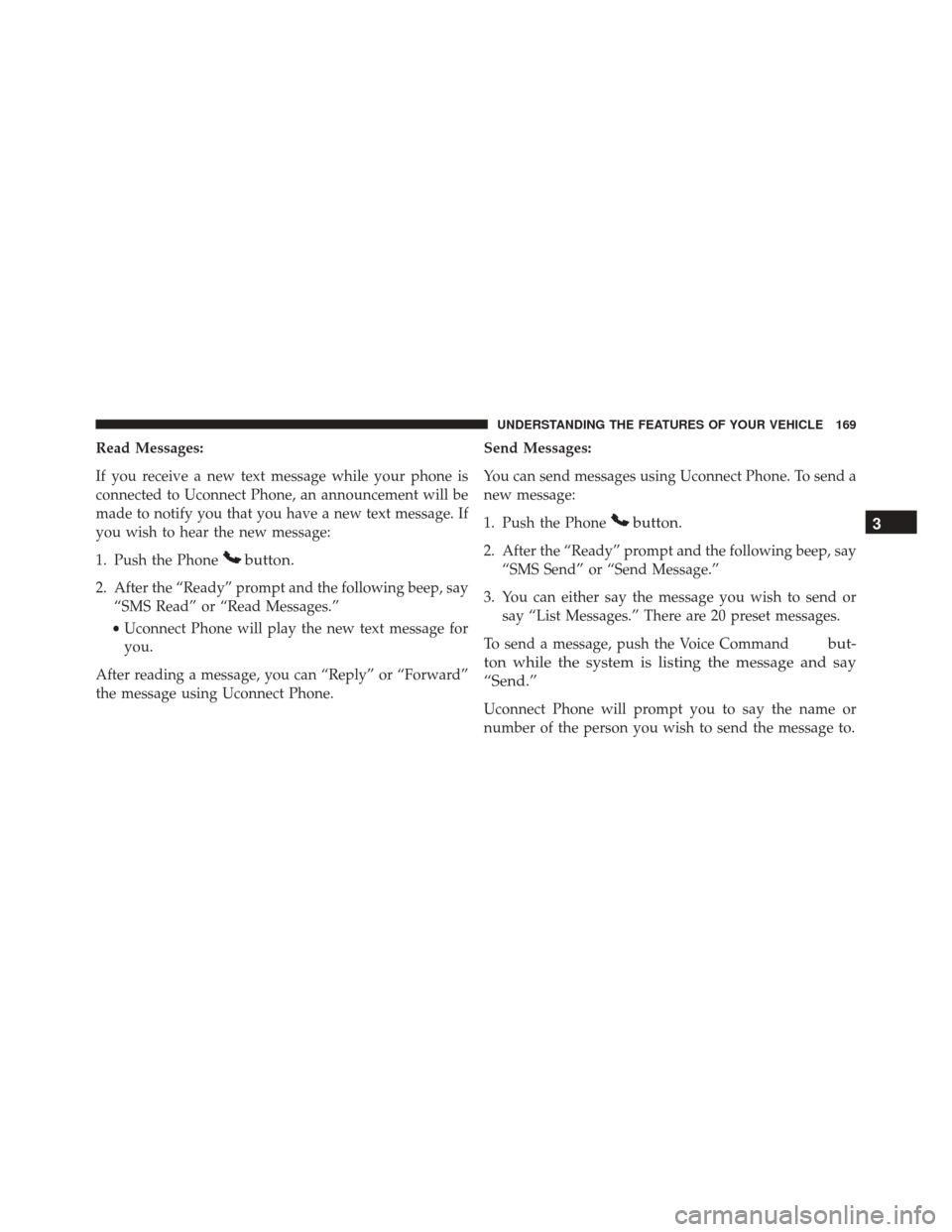
Read Messages:
If you receive a new text message while your phone is
connected to Uconnect Phone, an announcement will be
made to notify you that you have a new text message. If
you wish to hear the new message:
1. Push the Phone
button.
2. After the “Ready” prompt and the following beep, say“SMS Read” or “Read Messages.”
• Uconnect Phone will play the new text message for
you.
After reading a message, you can “Reply” or “Forward”
the message using Uconnect Phone. Send Messages:
You can send messages using Uconnect Phone. To send a
new message:
1. Push the Phone
button.
2. After the “Ready” prompt and the following beep, say
“SMS Send” or “Send Message.”
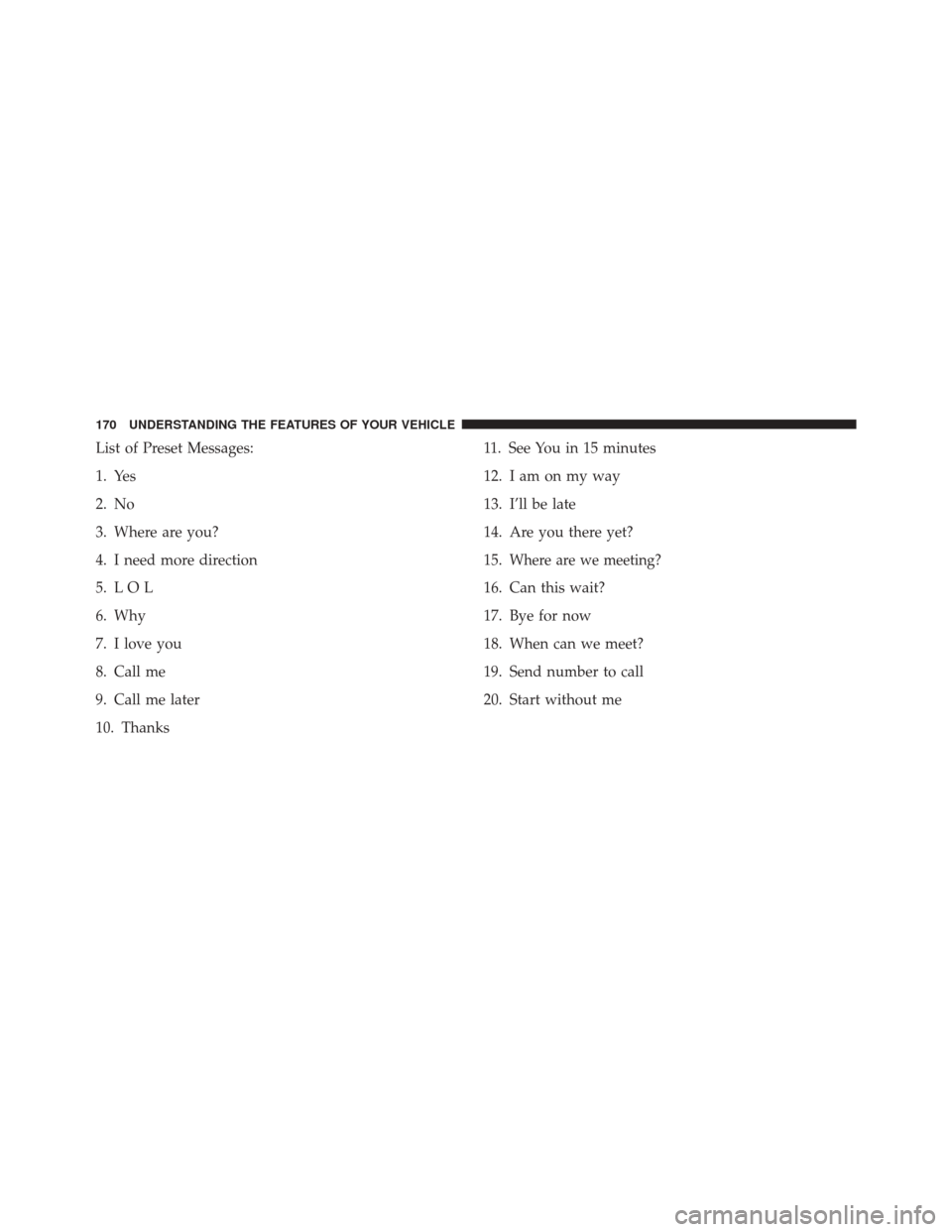
3. You can either say the message you wish to send or say “List Messages.” There are 20 preset messages.
To send a message, push the Voice Command
but-
ton while the system is listing the message and say
“Send.”
Uconnect Phone will prompt you to say the name or
number of the person you wish to send the message to.
3
UNDERSTANDING THE FEATURES OF YOUR VEHICLE 169
Page 172 of 707
List of Preset Messages:
1. Yes
2. No
3. Where are you?
4. I need more direction
5. L O L
6. Why
7. I love you
8. Call me
9. Call me later
10. Thanks11. See You in 15 minutes
12. I am on my way
13. I’ll be late
14. Are you there yet?
15.
Where are we meeting?
16. Can this wait?
17. Bye for now
18. When can we meet?
19. Send number to call
20. Start without me
170 UNDERSTANDING THE FEATURES OF YOUR VEHICLE
Page 198 of 707
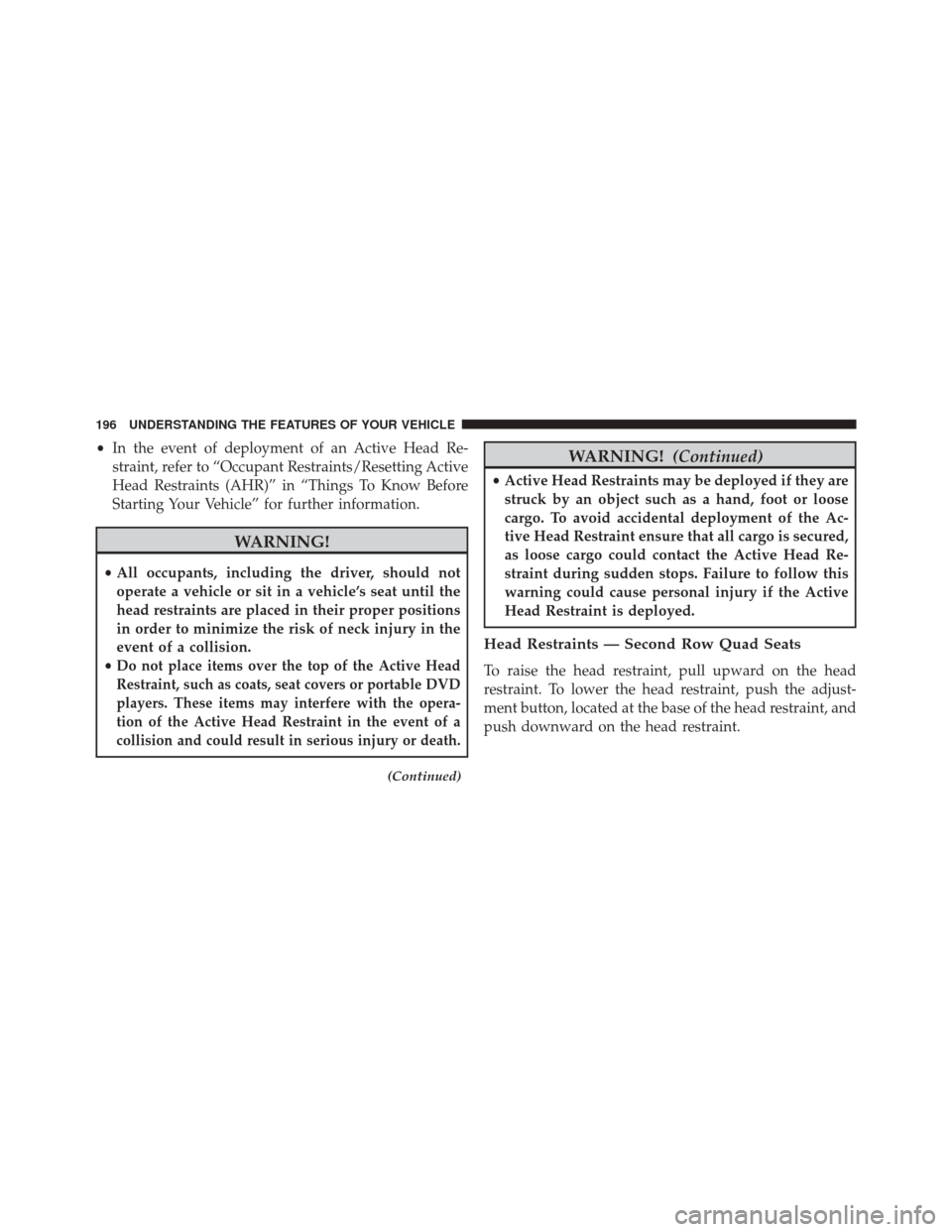
•In the event of deployment of an Active Head Re-
straint, refer to “Occupant Restraints/Resetting Active
Head Restraints (AHR)” in “Things To Know Before
Starting Your Vehicle” for further information.
WARNING!
• All occupants, including the driver, should not
operate a vehicle or sit in a vehicle’s seat until the
head restraints are placed in their proper positions
in order to minimize the risk of neck injury in the
event of a collision.
•
Do not place items over the top of the Active Head
Restraint, such as coats, seat covers or portable DVD
players. These items may interfere with the opera-
tion of the Active Head Restraint in the event of a
collision and could result in serious injury or death.
(Continued)
WARNING! (Continued)
•Active Head Restraints may be deployed if they are
struck by an object such as a hand, foot or loose
cargo. To avoid accidental deployment of the Ac-
tive Head Restraint ensure that all cargo is secured,
as loose cargo could contact the Active Head Re-
straint during sudden stops. Failure to follow this
warning could cause personal injury if the Active
Head Restraint is deployed.
Head Restraints — Second Row Quad Seats
To raise the head restraint, pull upward on the head
restraint. To lower the head restraint, push the adjust-
ment button, located at the base of the head restraint, and
push downward on the head restraint.
196 UNDERSTANDING THE FEATURES OF YOUR VEHICLE
Page 218 of 707
DRIVER MEMORY SEAT — IF EQUIPPED
The Memory Buttons 1 and 2 on the driver’s door panel
can be programmed to recall the driver’s seat, outside
mirrors, adjustable brake and accelerator pedals (if
equipped), and radio station preset settings. Your Remote
Keyless Entry (RKE) transmitters can also be pro-
grammed to recall the same positions when the UN-
LOCK button is pushed.Your vehicle may have been delivered with two RKE
transmitters, one RKE transmitter can be linked to each of
the memory positions.
Driver Memory Switch
216 UNDERSTANDING THE FEATURES OF YOUR VEHICLE
Page 219 of 707

Programming The Memory Feature
NOTE:To create a new memory profile, perform the
following:
1. Cycle the vehicles ignition to the ON/RUN position (do not start the engine).
2. Adjust all memory profile settings to desired prefer- ences (i.e., driver ’s seat, outside mirrors, adjustable
pedals [if equipped] and radio station presets).
3. Push and release the S (Set) button on the memory switch.
4. Within five seconds, push and release either of the memory buttons (1) or (2). The Electronic Vehicle
Information Center (EVIC) will display which
memory position has been set. NOTE:
•
Memory profiles can be set without the vehicle in
PARK, but the vehicle must be in PARK to recall a
memory profile.
• To set a memory profile to your RKE transmitter, refer
to “Linking And Unlinking The Remote Keyless Entry
Transmitter To Memory” in this section.
Linking And Unlinking The Remote Keyless Entry
Transmitter To Memory
Your RKE transmitters can be programmed to recall one
of two pre-programmed memory profiles by pushing the
UNLOCK button on the RKE transmitter.
3
UNDERSTANDING THE FEATURES OF YOUR VEHICLE 217
Page 238 of 707
NOTE:In order to ensure proper operation, the Elec-
tronic Speed Control System has been designed to shut
down if multiple Speed Control functions are operated at
the same time. If this occurs, the Electronic Speed Control
System can be reactivated by pushing the Electronic
Speed Control ON/OFF button and resetting the desired
vehicle set speed.
To Activate
Push the ON/OFF button. The Cruise Indicator Light in
the instrument cluster will illuminate. To turn the system
off, push the ON/OFF button a second time. The Cruise
Indicator Light will turn off. The system should be
turned off when not in use.
Electronic Speed Control Buttons
1 — ON/OFF 3 — SET -
2 — RES + 4 — CANCEL
236 UNDERSTANDING THE FEATURES OF YOUR VEHICLE
Page 274 of 707
To turn on the power outlet, push the switch once. Push
the switch a second time to turn the power outlet off.
This outlet can power cellular phones, electronics and
other low power devices requiring power up to 150
Watts. Certain high-end video games, such as Playsta-
tion3 and XBox360 will exceed this power limit, as will
most power tools.
The power inverter is designed with built-in overload
protection. If the power rating of 150 Watts is exceeded,
the power inverter will automatically shut down. Once
the electrical device has been removed from the outlet,
the inverter should automatically reset. If the power
rating exceeds approximately 170 Watts, the power in-
verter may have to be reset manually. To reset the
inverter manually push the power inverter button OFF
and ON. To avoid overloading the circuit, check the
power ratings on electrical devices prior to using the
inverter.WARNING!
To avoid serious injury or death:
•Do not insert any objects into the receptacles.
• Do not touch with wet hands.
• Close the lid when not in use.
• If this outlet is mishandled, it may cause an electric
shock and failure.
CUPHOLDERS
There are cupholders located throughout the interior. All
liners are removable for cleaning. Pull the flexible liner
from the cupholder drawer or tray starting at one edge
for easy removal. Refer to “Cleaning The Instrument
Panel Cupholders” in “Maintaining Your Vehicle” for
further information.
272 UNDERSTANDING THE FEATURES OF YOUR VEHICLE