Page 201 of 739

WARNING!(Continued)
•The ACC system:
• Does not react to pedestrians, oncoming vehicles,
and stationary objects (e.g., a stopped vehicle in a
traffic jam or a disabled vehicle).
• Cannot take street, traffic, and weather condi-
tions into account, and may be limited upon
adverse sight distance conditions.
• Does not always fully recognize complex driving
conditions, which can result in wrong or missing
distance warnings.
• Will bring the vehicle to a complete stop while
following a target vehicle and hold the vehicle
for 2 seconds in the stop position. If the target
vehicle does not start moving within two seconds
the ACC system will display a message that the
system will release the brakes and that the
(Continued)
WARNING! (Continued)
brakes must be applied manually. An audible
chime will sound when the brakes are released.
You should switch off the ACC system:
• When driving in fog, heavy rain, heavy snow, sleet,
heavy traffic, and complex driving situations (i.e.,
in highway construction zones).
• When entering a turn lane or highway off ramp;
when driving on roads that are winding, icy, snow-
covered, slippery, or have steep uphill or downhill
slopes.
• When towing a trailer up or down steep slopes.
• When circumstances do not allow safe driving at a
constant speed.
Adaptive Cruise Control (ACC) Operation
The speed control buttons (located on the right side of the
steering wheel) operates the ACC system.
3
UNDERSTANDING THE FEATURES OF YOUR VEHICLE 199
Page 214 of 739

Adaptive Cruise Control (ACC) Menu
The DID displays the current ACC system settings. The
DID is located in the center of the instrument cluster. The
information it displays depends on ACC system status.
Push the ADAPTIVE CRUISE CONTROL (ACC) ON/
OFF button (located on the steering wheel) until one of
the following displays in the DID:
Adaptive Cruise Control Off
When ACC is deactivated, the display will read “Adap-
tive Cruise Control Off.”
Adaptive Cruise Control Ready
When ACC is activated but the vehicle speed setting has
not been selected, the display will read “Adaptive Cruise
Control Ready.”Push the SET + or the SET- button (located on the steering
wheel) and the following will display in the DID:
ACC SET
When ACC is set, the set speed will display in the
instrument cluster.
The ACC screen may display once again if any ACC
activity occurs, which may include any of the following:
•
System Cancel
• Driver Override
• System Off
• ACC Proximity Warning
• ACC Unavailable Warning
• The DID will return to the last display selected after
five seconds of no ACC display activity
212 UNDERSTANDING THE FEATURES OF YOUR VEHICLE
Page 242 of 739

When enabled, active guide lines are overlaid on the
image to illustrate the width of the vehicle and its
projected backup path based on the steering wheel
position. A dashed center line overlay indicates the centerof the vehicle to assist with parking or aligning to a
hitch/receiver.
�Different colored zones indicate the dis-
tance to the rear of the vehicle.� The following table
shows the approximate distances for each zone:
Zone Distance to the rear of the vehicle
Red 0 - 1 ft (0 - 30 cm)
Yellow 1 ft - 6.5 ft (30 cm - 2 m)
Green 6.5 ft or greater (2 m or greater)
WARNING!
Drivers must be careful when backing up even when
using the ParkView Rear Back Up Camera. Always
check carefully behind your vehicle, and be sure to
check for pedestrians, animals, other vehicles, ob-
structions, or blind spots before backing up. You are
(Continued)
WARNING!(Continued)
responsible for the safety of your surroundings and
must continue to pay attention while backing up.
Failure to do so can result in serious injury or death.
240 UNDERSTANDING THE FEATURES OF YOUR VEHICLE
Page 293 of 739
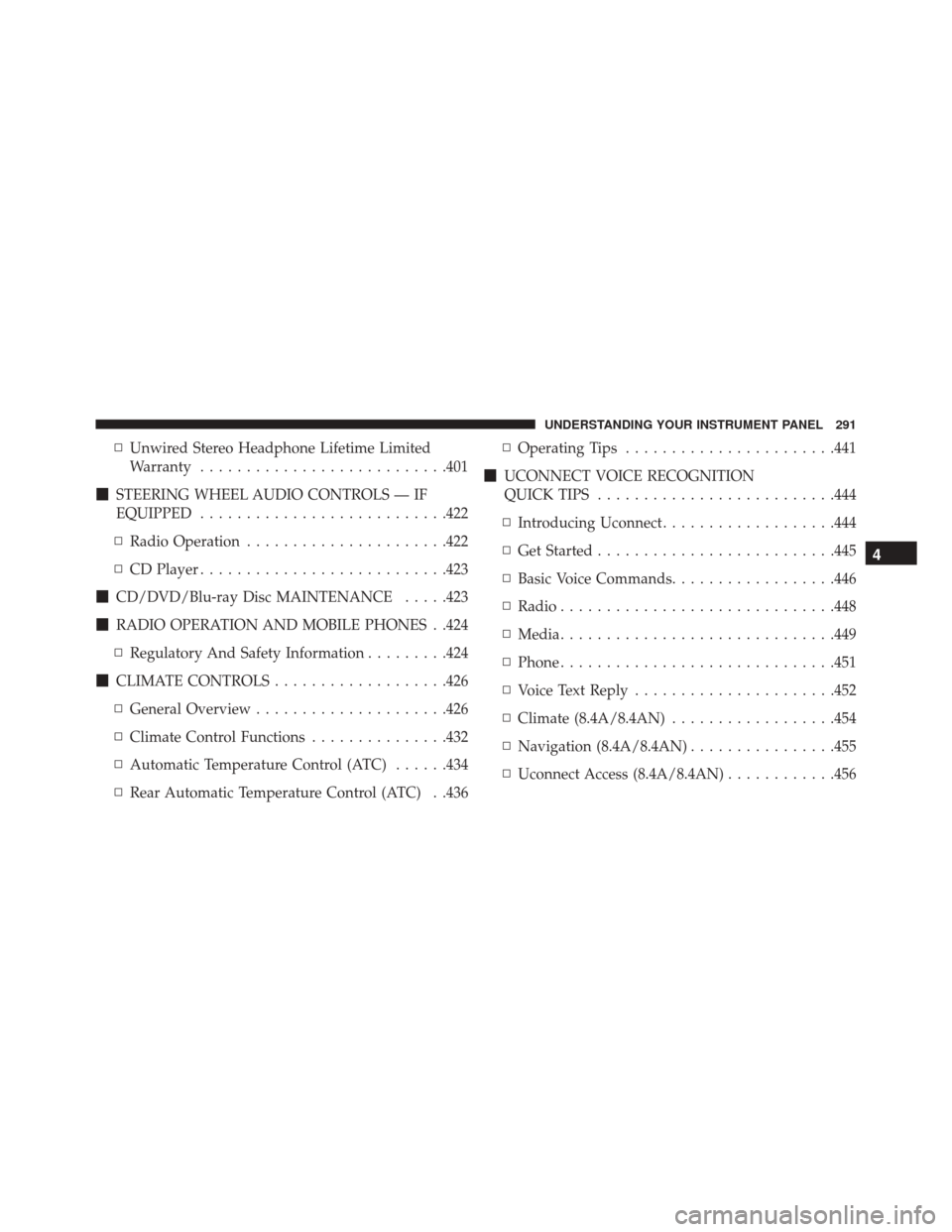
▫Unwired Stereo Headphone Lifetime Limited
Warranty .......................... .401
� STEERING WHEEL AUDIO CONTROLS — IF
EQUIPPED .......................... .422
▫ Radio Operation ..................... .422
▫ CD Player .......................... .423
� CD/DVD/Blu-ray Disc MAINTENANCE .....423
� RADIO OPERATION AND MOBILE PHONES . .424
▫ Regulatory And Safety Information .........424
� CLIMATE CONTROLS ...................426
▫ General Overview .....................426
▫ Climate Control Functions ...............432
▫ Automatic Temperature Control (ATC) ......434
▫ Rear Automatic Temperature Control (ATC) . .436 ▫
Operating Tips ...................... .441
� UCONNECT VOICE RECOGNITION
QUICK TIPS ......................... .444
▫ Introducing Uconnect ...................444
▫ Get Started ......................... .445
▫ Basic Voice Commands ..................446
▫ Radio ............................. .448
▫ Media ............................. .449
▫ Phone ............................. .451
▫ Voice Text Reply ..................... .452
▫ Climate (8.4A/8.4AN) ..................454
▫ Navigation (8.4A/8.4AN) ................455
▫ Uconnect Access (8.4A/8.4AN) ............456
4
UNDERSTANDING YOUR INSTRUMENT PANEL 291
Page 328 of 739
The system allows the driver to select information by
pushing the following buttons mounted on the steering
wheel:•
UP Arrow Button
Push and release the UParrow button to scroll
upward through the main menu.
• DOWN Arrow Button
Push and release the DOWNarrow button to
scroll downward through the main menu.
• RIGHT Arrow Button
Push and release the RIGHTarrow button to
access the information screens or submenu
screens of a main menu item.
• LEFT Arrow Button
Push the LEFTarrow button to return to the
main menu from an info screen or submenu
item.
DID Steering Wheel Buttons
326 UNDERSTANDING YOUR INSTRUMENT PANEL
Page 357 of 739

Auto Comfort Systems — If Equipped
After pressing the “Auto-On Comfort & Remote Start”
button on the touchscreen the following settings will be
available:
•Auto-On Driver Heated/Ventilated Seat & Steering
Wheel With Vehicle Start — If Equipped
When this feature is selected the driver’s heated seat and
heated steering wheel will automatically turn ON when
temperatures are below 40° F (4.4° C). When tempera-
tures are above 80° F (26.7° C) the driver vented seat will
turn ON. To make your selection, press the “Auto Heated
Seats” button on the touchscreen, then select either “Off,”
“Remote Start” or “All Starts.”
Engine Off Options
After pressing the “Engine Off Options” button on the
touchscreen the following settings will be available. •
Easy Exit Seats — If Equipped
When this feature is selected, the Driver ’s seat will
automatically move rearward once the engine is shut off.
To make your selection, press the “Easy Exit Seats”
button on the touchscreen and make your selection.
• Headlight Off Delay
When this feature is selected, the driver can choose to
have the headlights remain on for 0, 30, 60, or 90 seconds
when exiting the vehicle. Press the “Headlight Off Delay”
button on the touchscreen and choose from “0,” “30,”
“60,” or “90” seconds to select your desired time interval.
• Engine Off Power Delay
When this feature is selected, the power window
switches, radio, Uconnect phone system (if equipped),
DVD video system (if equipped), power sunroof (if
equipped), and power outlets will remain active for up to
10 minutes after the ignition is cycled to OFF. Opening
4
UNDERSTANDING YOUR INSTRUMENT PANEL 355
Page 376 of 739

•Personal Settings Linked to Key Fob — If Equipped
This feature provides automatic recall of all settings
stored to a memory location (driver ’s seat, exterior
mirrors, steering column position and radio station pre-
sets) to enhance driver mobility when entering and
exiting the vehicle. To make your selection, press the
“Personal Settings Linked to Key Fob” button on the
touchscreen, until a check-mark appears next to setting,
showing that setting has been selected.
NOTE: The seat will return to the memorized seat
location (if Recall Memory with Remote Key Unlock is set
to ON) when the Remote Keyless Entry (RKE) transmitter
is used to unlock the door. Refer to “Driver Memory
Seat” in “Understanding The Features Of Your Vehicle”
for further information. •
Power Lift Gate Chime — If Equipped
This feature plays an alert when the power lift gate is
raising or lowering. To make your selection, press the
“Power Lift Gate Chime” button on the touchscreen, until
a check-mark appears next to setting, showing that
setting has been selected.
Auto-On Comfort — If Equipped
After pressing the “Auto-On Comfort” button on the
touchscreen the following settings will be available:
• Auto-On Driver Heated/Ventilated Seat & Steering
Wheel With Vehicle Start — If Equipped
When this feature is selected the driver’s heated seat will
automatically turn on when temperatures are below 40° F
(4.4° C). When temperatures are above 80° F (26.7° C) the
driver vented seat will turn on. To make your selection,
press the “Auto-On Driver Heated/Ventilated Seat &
374 UNDERSTANDING YOUR INSTRUMENT PANEL
Page 377 of 739

Steering Wheel With Vehicle Start” button on the touch-
screen, then select either “Off,” “Remote Start” or “All
Starts” until a check-mark appears next to setting, show-
ing that setting has been selected.
Engine Off Options
After pressing the Engine Off Options button on the
touchscreen the following settings will be available.
•Easy Entry/Exit Seat — If Equipped
This feature provides automatic driver seat positioning to
enhance driver mobility when entering and exiting the
vehicle. To make your selection, press the “Easy Exit
Seat” button on the touchscreen until a check-mark
appears next to setting, showing that setting has been
selected. •
Engine Off Power Delay
When this feature is selected, the power window
switches, radio, Uconnect phone system (if equipped),
DVD video system (if equipped), power sunroof (if
equipped), and power outlets will remain active for up to
10 minutes after the ignition is cycled to OFF. Opening
either front door will cancel this feature. To change the
Engine Off Power Delay status press the press the “+” or
“-” button to choose from “0 seconds,” “45 seconds,”
“5 minutes,” or “10 minutes.”
• Headlight Off Delay
When this feature is selected, the driver can choose to
have the headlights remain on for 0, 30, 60, or 90 seconds
when exiting the vehicle. To change the Headlight Off
Delay status press the “+” or “-” button on the touch-
screen to select your desired time interval.4
UNDERSTANDING YOUR INSTRUMENT PANEL 375
