Page 217 of 634
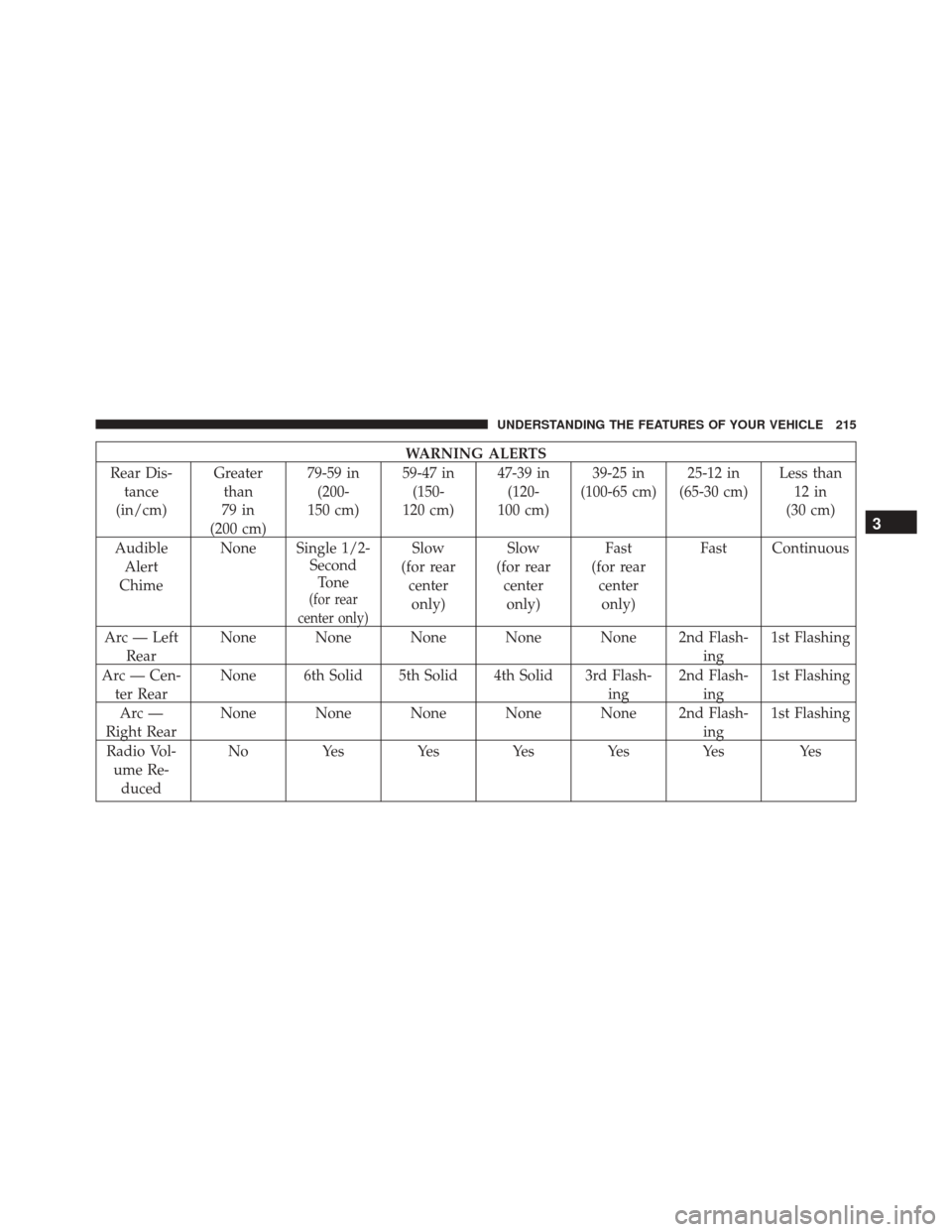
WARNING ALERTS
Rear Dis- tance
(in/cm) Greater
than
79 in
(200 cm) 79-59 in
(200-
150 cm) 59-47 in
(150-
120 cm) 47-39 in
(120-
100 cm) 39-25 in
(100-65 cm) 25-12 in
(65-30 cm) Less than
12 in
(30 cm)
Audible Alert
Chime None Single 1/2-
SecondTone
(for rear
center only)
Slow
(for rear centeronly) Slow
(for rear centeronly) Fast
(for rear centeronly) Fast Continuous
Arc — Left Rear None None None None None 2nd Flash-
ing1st Flashing
Arc — Cen- ter Rear None 6th Solid 5th Solid 4th Solid 3rd Flash-
ing2nd Flash-
ing 1st Flashing
Arc —
Right Rear None None None None None 2nd Flash-
ing1st Flashing
Radio Vol- ume Re- duced No
Yes Yes Yes Yes Yes Yes
3
UNDERSTANDING THE FEATURES OF YOUR VEHICLE 215
Page 220 of 634

•When you turn ParkSense off in DRIVE, the instru-
ment cluster will display �PARKSENSE OFF�for five
seconds. Furthermore, once you turn ParkSense off, it
remains off until you turn it on again, even if you cycle
the ignition.
• When you move the gear selector to the REVERSE
position and ParkSense is turned off, the Driver Infor-
mation Display (DID) will display “PARKSENSE OFF”
message for as long as the vehicle is in REVERSE.
• ParkSense will reduce the volume of the radio when it
is sounding an audio tone.
• Clean the ParkSense sensors regularly, taking care not
to scratch or damage them. The sensors must not be
covered with ice, snow, slush, mud, dirt or debris.
Failure to do so can result in the system not working
properly. The ParkSense system might not detect an obstacle behind the fascia/bumper, or it could provide
a false indication that an obstacle is behind the fascia/
bumper.
• Ensure the ParkSense system is OFF if objects such as
bicycle carriers, trailer hitches, etc., are placed within
12 inches 30 (cm) from the rear fascia/bumper. Failure
to do so can result in the system misinterpreting a
close object as a sensor problem, causing the
“PARKSENSE UNAVAILABLE SERVICE REQUIRED”
message to be displayed in the Driver Information
Display (DID).
CAUTION!
• ParkSense is only a parking aid and it is unable to
recognize every obstacle, including small obstacles.
Parking curbs might be temporarily detected or not
detected at all. Obstacles located above or below
(Continued)
218 UNDERSTANDING THE FEATURES OF YOUR VEHICLE
Page 227 of 634
NOTE:HomeLink is disabled when the Vehicle Security
Alarm is active.
Before You Begin Programming HomeLink
Be sure that your vehicle is parked outside of the garage
before you begin programming. For more efficient programming and accurate transmis-
sion of the radio-frequency signal it is recommended that
a new battery be placed in the hand-held transmitter of
the device that is being programmed to the HomeLink
system.
To erase the channels place the ignition in the ON/RUN
position and push and hold the two outside HomeLink
buttons (I and III) for up 20 seconds or until the red
indicator flashes.
NOTE:
•
Erasing all channels should only be performed when
programming HomeLink for the first time. Do not
erase channels when programming additional buttons.
• If you have any problems, or require assistance, please
call toll-free 1-800-355-3515 or, on the Internet at
HomeLink.com for information or assistance.
Overhead Console HomeLink Buttons
3
UNDERSTANDING THE FEATURES OF YOUR VEHICLE 225
Page 231 of 634
•To program the two remaining HomeLink buttons,
repeat each step for each remaining button. DO NOT
erase the channels.
Reprogramming A Single HomeLink Button
(Non-Rolling Code)
To reprogram a channel that has been previously trained,
follow these steps:
1. Cycle the ignition to the ON/RUN position.
2. Push and hold the desired HomeLink button until the indicator light begins to flash after 20 seconds. Do not
release the button.
3. Without releasing the button proceed with “Program-
ming A Non-Rolling Code” step 2 and follow all
remaining steps.
Canadian/Gate Operator Programming
For programming transmitters in Canada/United States
that require the transmitter signals to “time-out” after
several seconds of transmission.
Canadian radio frequency laws require transmitter sig-
nals to time-out (or quit) after several seconds of trans-
mission – which may not be long enough for HomeLink
to pick up the signal during programming. Similar to this
Canadian law, some U.S. gate operators are designed to
time-out in the same manner.
It may be helpful to unplug the device during the cycling
process to prevent possible overheating of the garage
door or gate motor.
1. Cycle the ignition to the ON/RUN position.
3
UNDERSTANDING THE FEATURES OF YOUR VEHICLE 229
Page 250 of 634
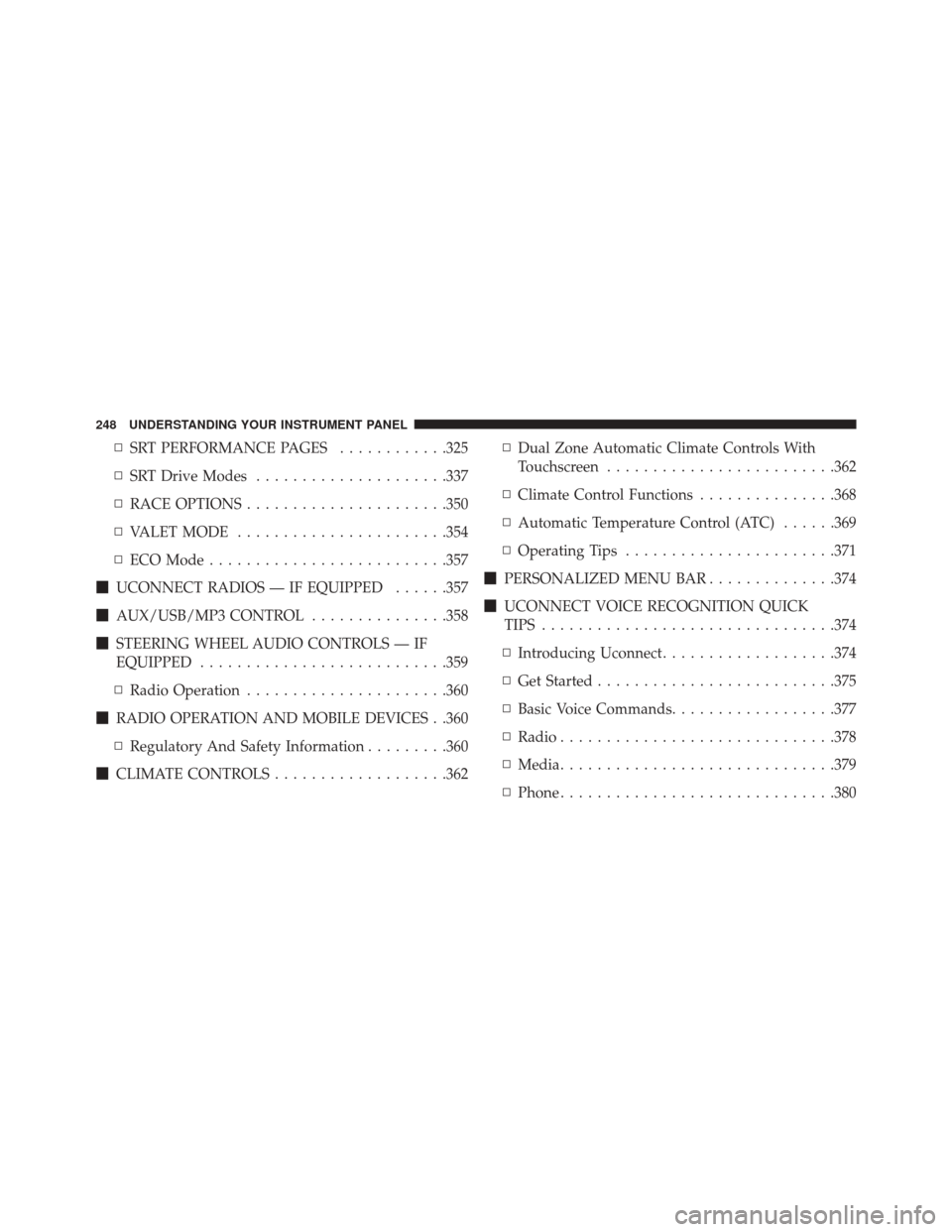
▫SRT PERFORMANCE PAGES ............325
▫ SRT Drive Modes .....................337
▫ RACE OPTIONS ..................... .350
▫ VALET MODE ...................... .354
▫ ECO Mode ......................... .357
� UCONNECT RADIOS — IF EQUIPPED ......357
� AUX/USB/MP3 CONTROL ...............358
� STEERING WHEEL AUDIO CONTROLS — IF
EQUIPPED .......................... .359
▫ Radio Operation ..................... .360
� RADIO OPERATION AND MOBILE DEVICES . .360
▫ Regulatory And Safety Information .........360
� CLIMATE CONTROLS ...................362 ▫
Dual Zone Automatic Climate Controls With
Touchscreen ........................ .362
▫ Climate Control Functions ...............368
▫ Automatic Temperature Control (ATC) ......369
▫ Operating Tips ...................... .371
� PERSONALIZED MENU BAR ..............374
� UCONNECT VOICE RECOGNITION QUICK
TIPS ............................... .374
▫ Introducing Uconnect ...................374
▫ Get Started ......................... .375
▫ Basic Voice Commands ..................377
▫ Radio ............................. .378
▫ Media ............................. .379
▫ Phone ............................. .380
248 UNDERSTANDING YOUR INSTRUMENT PANEL
Page 307 of 634
WARNING!(Continued)
may result in an accident involving serious injury
or death.
• ONLY insert media (e.g., USB, SD card, or CD) into
your vehicle if it came from a trusted source. Media
of unknown origin could possibly contain mali-
cious software, and if installed in your vehicle, it
may increase the possibility for vehicle systems to
be breached.
• As always, if you experience unusual vehicle be-
havior, take your vehicle to your nearest authorized
dealer immediately.
NOTE:
• FCA or your dealer may contact you directly regarding
software updates. •
To help further improve vehicle security and minimize
the potential risk of a security breach, vehicle owners
should:
• Routinely check www.driveuconnect.com/software-
update to learn about available Uconnect software
updates.
• Only connect and use trusted media devices (e.g.
personal mobile phones, USBs, CDs).
Privacy of any wireless and wired communications can-
not be assured. Third parties may unlawfully intercept
information and private communications without your
consent. For further information, refer to “Privacy Prac-
tices – If Equipped with Uconnect 8.4 radio” in “All
About Uconnect Access” in your Owner ’s Manual Radio
Supplement and “Onboard Diagnostic System (OBD II)
Cybersecurity” in “Maintaining Your Vehicle”.
4
UNDERSTANDING YOUR INSTRUMENT PANEL 305
Page 313 of 634
•Torque
Select from: “lb-ft” or “Nm.”
Voice
After pressing the “Voice” button on the touchscreen the
following settings will be available:
• Voice Response Length
When in this display, you may change the Voice Re-
sponse Length settings. To change the Voice Response
Length, press the “Brief” or “Detailed” button on the
touchscreen until a check-mark appears next to the
setting, showing that setting has been selected.
• Show Command List
When in this display, you may change the Show Com-
mand List settings. To change the Show Command List
settings, press the “Always,” “With Help” or “Never” button on the touchscreen until a check-mark appears
next to the setting, showing that setting has been se-
lected.
Clock
After pressing the “Clock” button on the touchscreen the
following settings will be available:
•
Sync Time With GPS — If Equipped
This feature will allow you to automatically have the
radio set the time. To change the Sync Time setting, press
the “Sync time with GPS” button on the touchscreen until
a check-mark appears next to the setting, showing that
setting has been selected.
• Set Time Hours
This feature will allow you to adjust the hours. The “Sync
time with GPS” button on the touchscreen must be4
UNDERSTANDING YOUR INSTRUMENT PANEL 311
Page 317 of 634

•Blind Spot Alert — If Equipped
When this feature is selected, the Blind Spot Alert feature
Provides alerts, visual and/or audible, to indicate objects
in your blind spot. The Blind Spot Alert feature can be
activated in “Lights” mode. When this mode is selected,
the Blind Spot Monitor (BSM) system is activated and
will only show a visual alert in the exterior mirrors.
When “Lights & Chime” mode is activated, the Blind
Spot Monitor (BSM) will show a visual alert in the
exterior mirrors as well as an audible alert when the turn
signal is on. When “Off” is selected, the Blind Spot
Monitor (BSM) system is deactivated. To change the
Blind Spot Alert status, press the “Off,” “Lights” or
“Lights & Chime” button on the touchscreen. NOTE:
If your vehicle has experienced any damage in
the area where the sensor is located, even if the fascia is
not damaged, the sensor may have become misaligned.
Take your vehicle to an authorized dealer to verify sensor
alignment. Having a sensor that is misaligned will result
in the BSM not operating to specification.
• ParkView Backup Camera Active Guidelines
Your vehicle may be equipped with the ParkView Rear
Back Up Camera Active Guidelines that allows you to see
active guidelines over the ParkView Back up camera
display whenever the shift lever is put into REVERSE.
The image will be displayed on the radio touchscreen
display along with a caution note to “check entire sur-
roundings” across the top of the screen. After five sec-
onds, this note will disappear. To make your selection,
press the “ParkView Backup Camera Active Guidelines”
4
UNDERSTANDING YOUR INSTRUMENT PANEL 315