Page 342 of 661

•Loudness — If Equipped
Loudness improves sound quality at lower volumes. To
make your selection, press the “Loudness” button on the
touchscreen, until a check-mark appears next to the
setting, showing that the setting has been selected.
Phone/Bluetooth
After pressing the “Phone/Bluetooth” button on the
touchscreen the following settings will be available:
• Paired Phones
This feature shows which phones are paired to the
Phone/Bluetooth system. For further information, refer
to the “Uconnect Supplement Manual.”
• Paired Audio Sources
This feature shows which audio devices are paired to the
Phone/Bluetooth system. For further information, refer
to the “Uconnect Supplement Manual.”
SiriusXM Setup — If Equipped
After pressing the “SiriusXM Setup” button on the touch-
screen, the following settings will be available:
• Channel Skip
SiriusXM can be programmed to skip channels. To make
your selection, press the “Channel Skip” button on the
touchscreen, select the channels you would like to skip.
• Subscription Information
New vehicle purchasers or lessees will receive a free
limited time subscription to SiriusXM Satellite Radio
with your radio. Following the expiration of the free
services, it will be necessary to access the information on
the Subscription Information screen to re-subscribe.
Press the “Subscription Info” button on the touchscreen
to access the Subscription Information screen.
340 UNDERSTANDING YOUR INSTRUMENT PANEL
Page 353 of 661
•Instantaneous Horsepower/Kilowatts
Shows the instantaneous horsepower.
• Instantaneous Torque
Shows the instantaneous torque.
• Oil Pressure
Shows the actual engine oil pressure.
• Gear (Automatic Transmission Only)
Shows the current (or pending) operating gear of the
vehicle.PERFORMANCE CONTROL — IF EQUIPPED
Your vehicle is equipped with a Performance Control
feature which allows for coordinating the operation of
various vehicle systems depending upon the type of
driving behavior desired. The Performance Control fea-
ture is controlled through the Uconnect radio and may be
accessed by performing any of the following:
• Pushing the Super Track Pack button on the instru-
ment panel switch bank.
• Selecting “Performance Control” from the “Apps”
menu.
• Selecting “Performance Control” from within the Per-
formance Pages menu.
You will be able to enable, disable, and customize the
functionality of the Launch Control and Drive Mode
Set-Up features within Performance Control.
4
UNDERSTANDING YOUR INSTRUMENT PANEL 351
Page 362 of 661
Steering
•Sport
Press the “Sport” button on the touchscreen to provide an
increased amount of steering feel, requiring a higher
amount of steering effort. •
Normal
Press the “Norm” button on the touchscreen to provide a
balanced steering feel and steering effort. This is also
your vehicles pre-set steering setting.
• Comfort
Press the “Comf” button on the touchscreen to provide a
lower steering effort.
UCONNECT RADIOS — IF EQUIPPED
For detailed information about your Uconnect radio,
refer to your Uconnect Supplement Manual.
Steering
360 UNDERSTANDING YOUR INSTRUMENT PANEL
Page 365 of 661
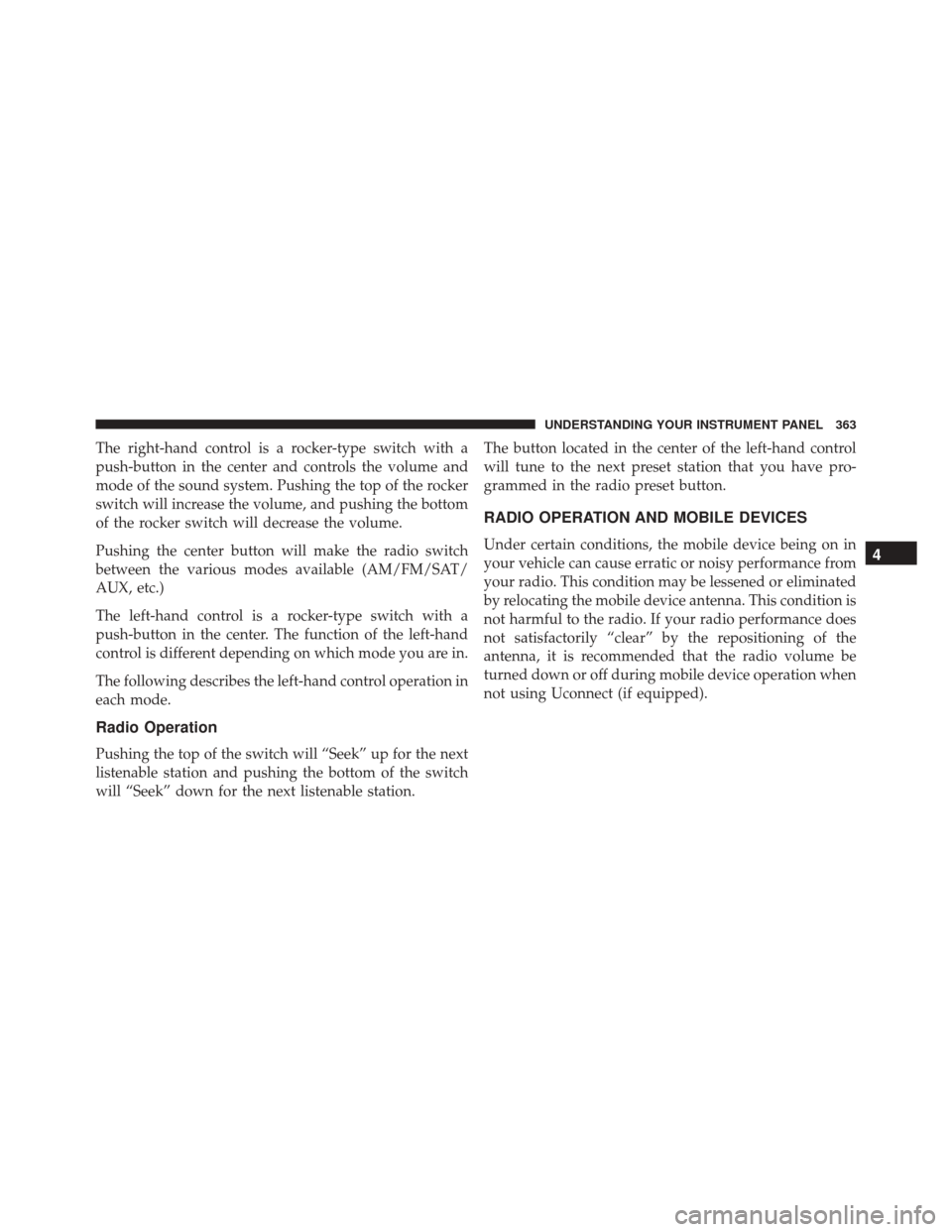
The right-hand control is a rocker-type switch with a
push-button in the center and controls the volume and
mode of the sound system. Pushing the top of the rocker
switch will increase the volume, and pushing the bottom
of the rocker switch will decrease the volume.
Pushing the center button will make the radio switch
between the various modes available (AM/FM/SAT/
AUX, etc.)
The left-hand control is a rocker-type switch with a
push-button in the center. The function of the left-hand
control is different depending on which mode you are in.
The following describes the left-hand control operation in
each mode.
Radio Operation
Pushing the top of the switch will “Seek” up for the next
listenable station and pushing the bottom of the switch
will “Seek” down for the next listenable station.The button located in the center of the left-hand control
will tune to the next preset station that you have pro-
grammed in the radio preset button.
RADIO OPERATION AND MOBILE DEVICES
Under certain conditions, the mobile device being on in
your vehicle can cause erratic or noisy performance from
your radio. This condition may be lessened or eliminated
by relocating the mobile device antenna. This condition is
not harmful to the radio. If your radio performance does
not satisfactorily “clear” by the repositioning of the
antenna, it is recommended that the radio volume be
turned down or off during mobile device operation when
not using Uconnect (if equipped).4
UNDERSTANDING YOUR INSTRUMENT PANEL 363
Page 366 of 661
CLIMATE CONTROLS
The air conditioning and heating system is designed to
make you comfortable in all types of weather. This
system can be operated through either the controls on the
instrument panel or through the Uconnect system dis-
play.
When the Uconnect system is in different modes (Radio,
Player, Settings, More, etc.) the driver and passenger
temperature settings will be indicated at the top of the
display.
Manual Climate Controls With Touchscreen — If
Equipped
Buttons On Your Uconnect Faceplate
The buttons on the faceplate are located below the
Uconnect screen.
Uconnect Manual Climate Controls — Buttons On TheFaceplate
364 UNDERSTANDING YOUR INSTRUMENT PANEL
Page 376 of 661
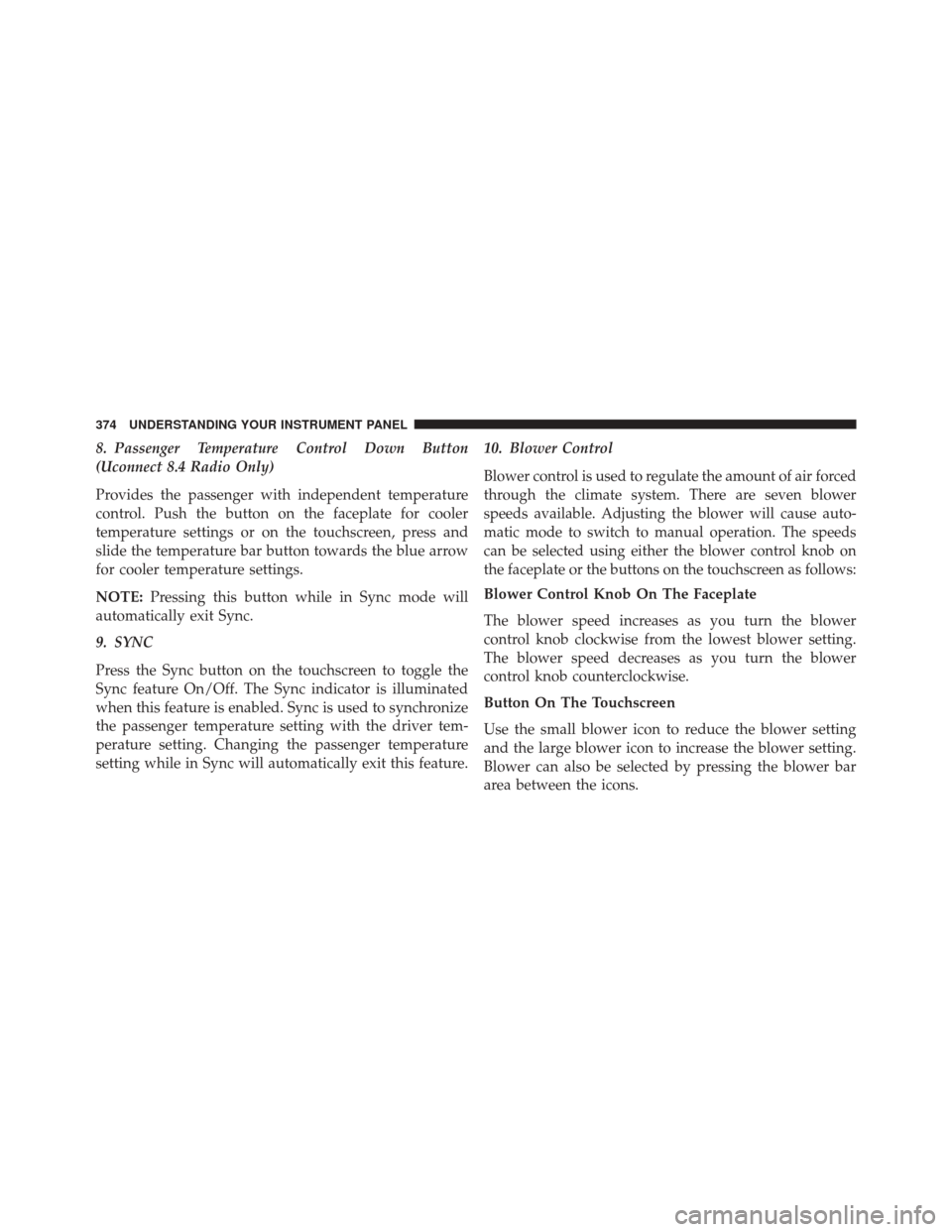
8. Passenger Temperature Control Down Button
(Uconnect 8.4 Radio Only)
Provides the passenger with independent temperature
control. Push the button on the faceplate for cooler
temperature settings or on the touchscreen, press and
slide the temperature bar button towards the blue arrow
for cooler temperature settings.
NOTE:Pressing this button while in Sync mode will
automatically exit Sync.
9. SYNC
Press the Sync button on the touchscreen to toggle the
Sync feature On/Off. The Sync indicator is illuminated
when this feature is enabled. Sync is used to synchronize
the passenger temperature setting with the driver tem-
perature setting. Changing the passenger temperature
setting while in Sync will automatically exit this feature. 10. Blower Control
Blower control is used to regulate the amount of air forced
through the climate system. There are seven blower
speeds available. Adjusting the blower will cause auto-
matic mode to switch to manual operation. The speeds
can be selected using either the blower control knob on
the faceplate or the buttons on the touchscreen as follows:
Blower Control Knob On The Faceplate
The blower speed increases as you turn the blower
control knob clockwise from the lowest blower setting.
The blower speed decreases as you turn the blower
control knob counterclockwise.
Button On The Touchscreen
Use the small blower icon to reduce the blower setting
and the large blower icon to increase the blower setting.
Blower can also be selected by pressing the blower bar
area between the icons.
374 UNDERSTANDING YOUR INSTRUMENT PANEL
Page 387 of 661
Basic Voice Commands
The basic Voice Commands below can be given at any
point while using your Uconnect system.
Push the VR button
. After the beep, say�
•Cancel to stop a current voice session
• Help to hear a list of suggested Voice Commands
• Repeat to listen to the system prompts again
Uconnect Voice Command Buttons
1 — Push To Initiate Or To Answer A Phone Call, Send Or Re-
ceive A Text
2 — For All Radios: Push To Begin Radio Or Media functions. For
8.4A/8.4AN Only: Push To Begin Navigation, Apps And Climate
Functions.
3 — Push To End Call
4
UNDERSTANDING YOUR INSTRUMENT PANEL 385
Page 388 of 661
Notice the visual cues that inform you of your voice
recognition system’s status. Cues appear on the touch-
screen.
Radio
Use your voice to quickly get to the AM, FM or SiriusXM
Satellite Radio stations you would like to hear. (Subscrip-
tion or included SiriusXM Satellite Radio trial required.)
Push the VR button
. After the beep, say�
•Tune to ninety-five-point-five FM
Uconnect 5.0
Uconnect 8.4A/8.4AN
386 UNDERSTANDING YOUR INSTRUMENT PANEL