Page 219 of 661
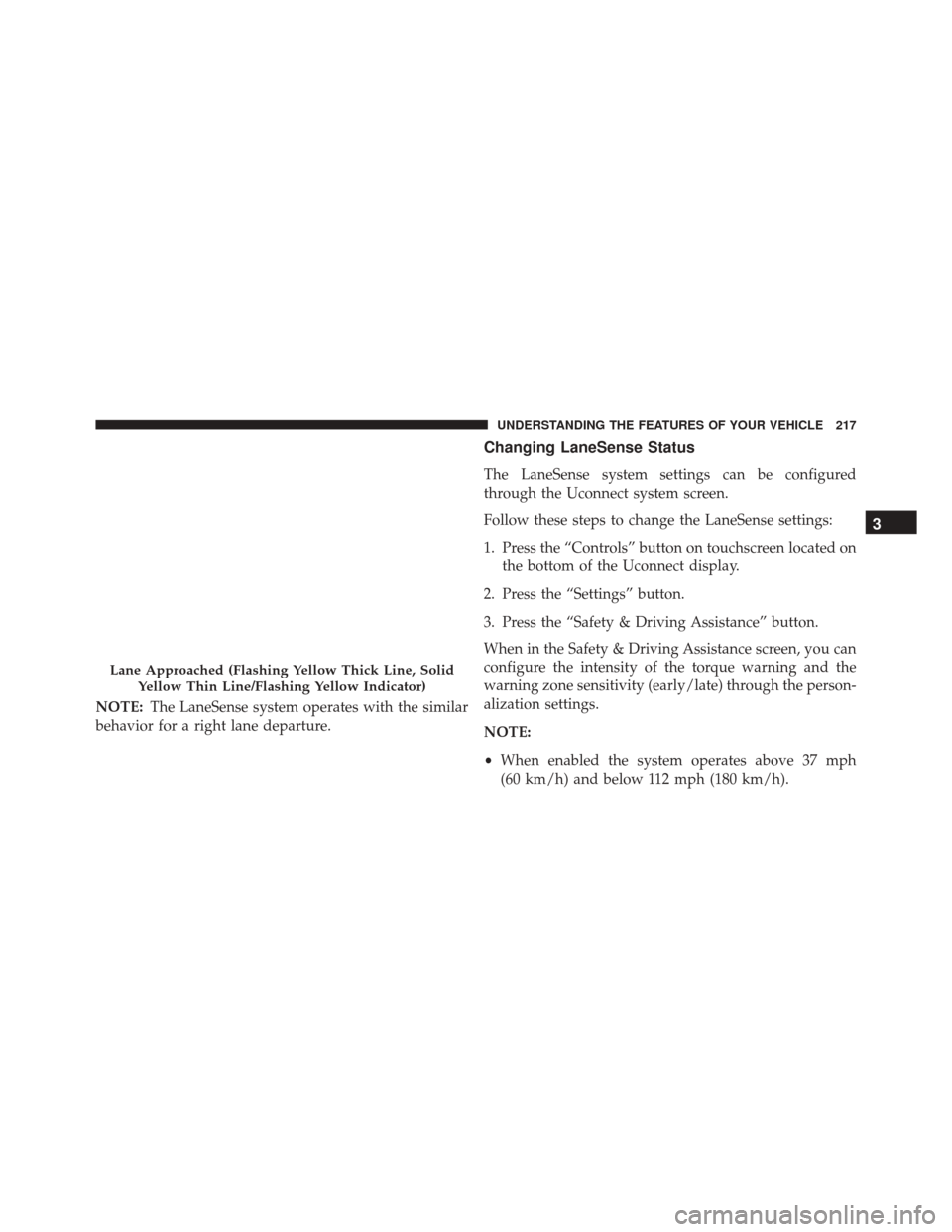
NOTE:The LaneSense system operates with the similar
behavior for a right lane departure.
Changing LaneSense Status
The LaneSense system settings can be configured
through the Uconnect system screen.
Follow these steps to change the LaneSense settings:
1. Press the “Controls” button on touchscreen located on the bottom of the Uconnect display.
2. Press the “Settings” button.
3. Press the “Safety & Driving Assistance” button.
When in the Safety & Driving Assistance screen, you can
configure the intensity of the torque warning and the
warning zone sensitivity (early/late) through the person-
alization settings.
NOTE:
• When enabled the system operates above 37 mph
(60 km/h) and below 112 mph (180 km/h).
Lane Approached (Flashing Yellow Thick Line, Solid
Yellow Thin Line/Flashing Yellow Indicator)
3
UNDERSTANDING THE FEATURES OF YOUR VEHICLE 217
Page 221 of 661
ParkSense Warning Display
The ParkSense Warning screen will only be displayed if
Sound and Display is selected from the Uconnect System.
Refer to�Uconnect Settings” in “Understanding Your
Instrument Panel” for further information.
The ParkSense Warning screen is located within the
Driver Information Display (DID). It provides visual
warnings to indicate the distance between the rear
fascia/bumper and the detected obstacle. Refer to
“Driver Information Display (DID)” in “Understanding
Your Instrument Panel” for further information.
ParkSense Display
When the vehicle is in REVERSE and an obstacle has
been detected, the warning display will turn ON indicat-
ing the system status.
The system will indicate a detected obstacle by showing
a single arc in one or more regions based on the obstacle’s
distance and location relative to the vehicle.
If an obstacle is detected in the center rear region, the
display will show a single solid arc in the center rear
region and will produce a one-half second tone. As the
vehicle moves closer to the obstacle, the display will
show the single arc moving closer to the vehicle and the
sound tone will change from slow, to fast, to continuous.
3
UNDERSTANDING THE FEATURES OF YOUR VEHICLE 219
Page 222 of 661
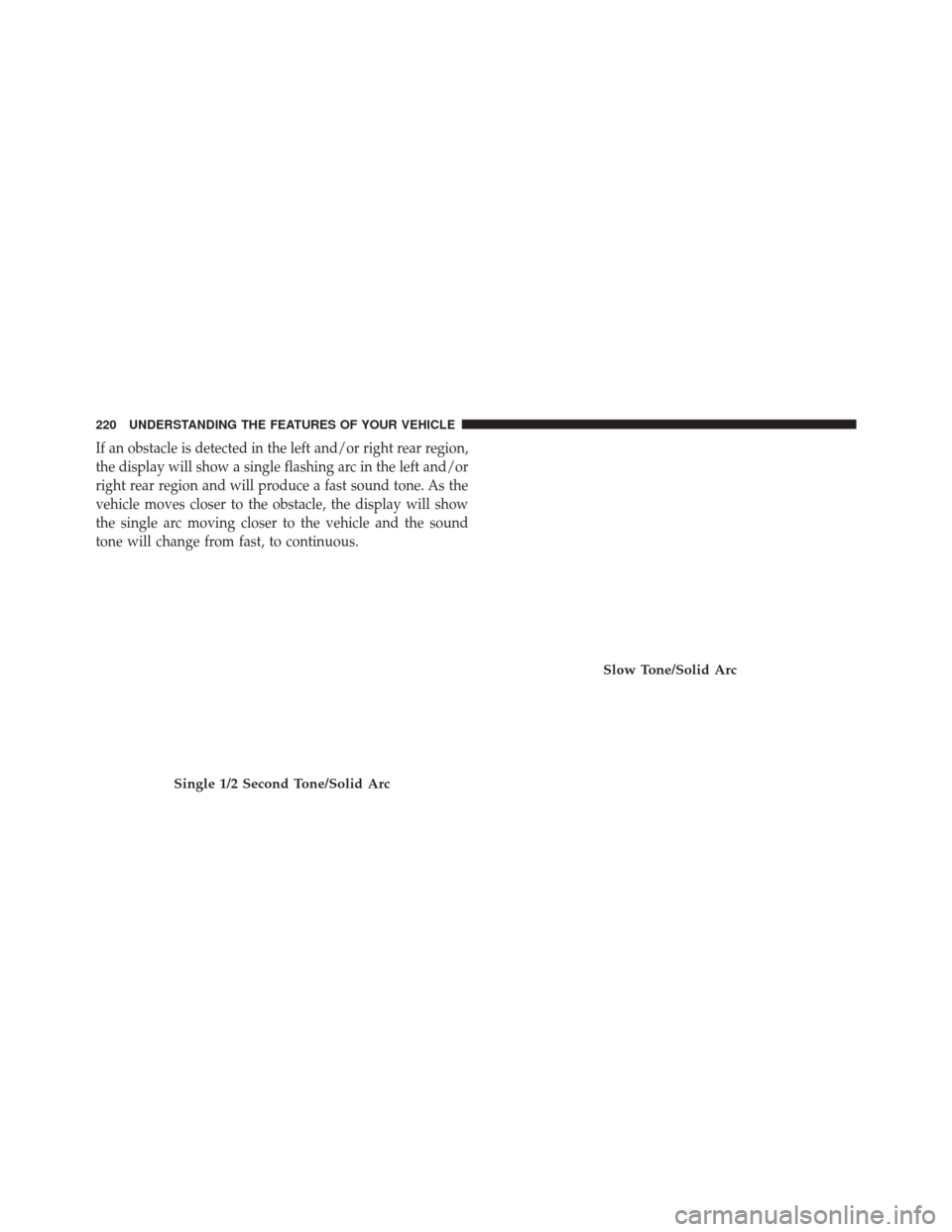
If an obstacle is detected in the left and/or right rear region,
the display will show a single flashing arc in the left and/or
right rear region and will produce a fast sound tone. As the
vehicle moves closer to the obstacle, the display will show
the single arc moving closer to the vehicle and the sound
tone will change from fast, to continuous.
Single 1/2 Second Tone/Solid Arc
Slow Tone/Solid Arc
220 UNDERSTANDING THE FEATURES OF YOUR VEHICLE
Page 223 of 661
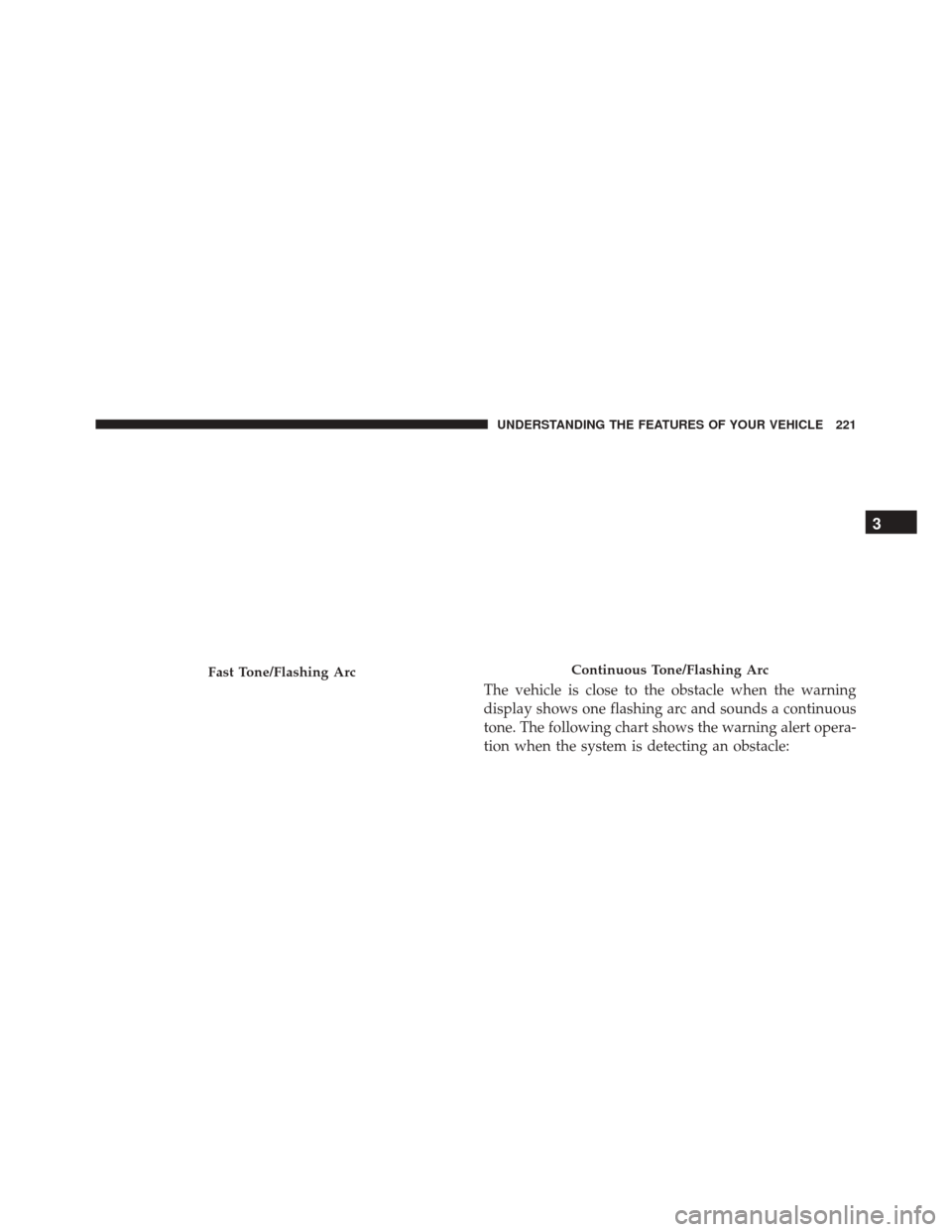
The vehicle is close to the obstacle when the warning
display shows one flashing arc and sounds a continuous
tone. The following chart shows the warning alert opera-
tion when the system is detecting an obstacle:
Fast Tone/Flashing ArcContinuous Tone/Flashing Arc
3
UNDERSTANDING THE FEATURES OF YOUR VEHICLE 221
Page 225 of 661
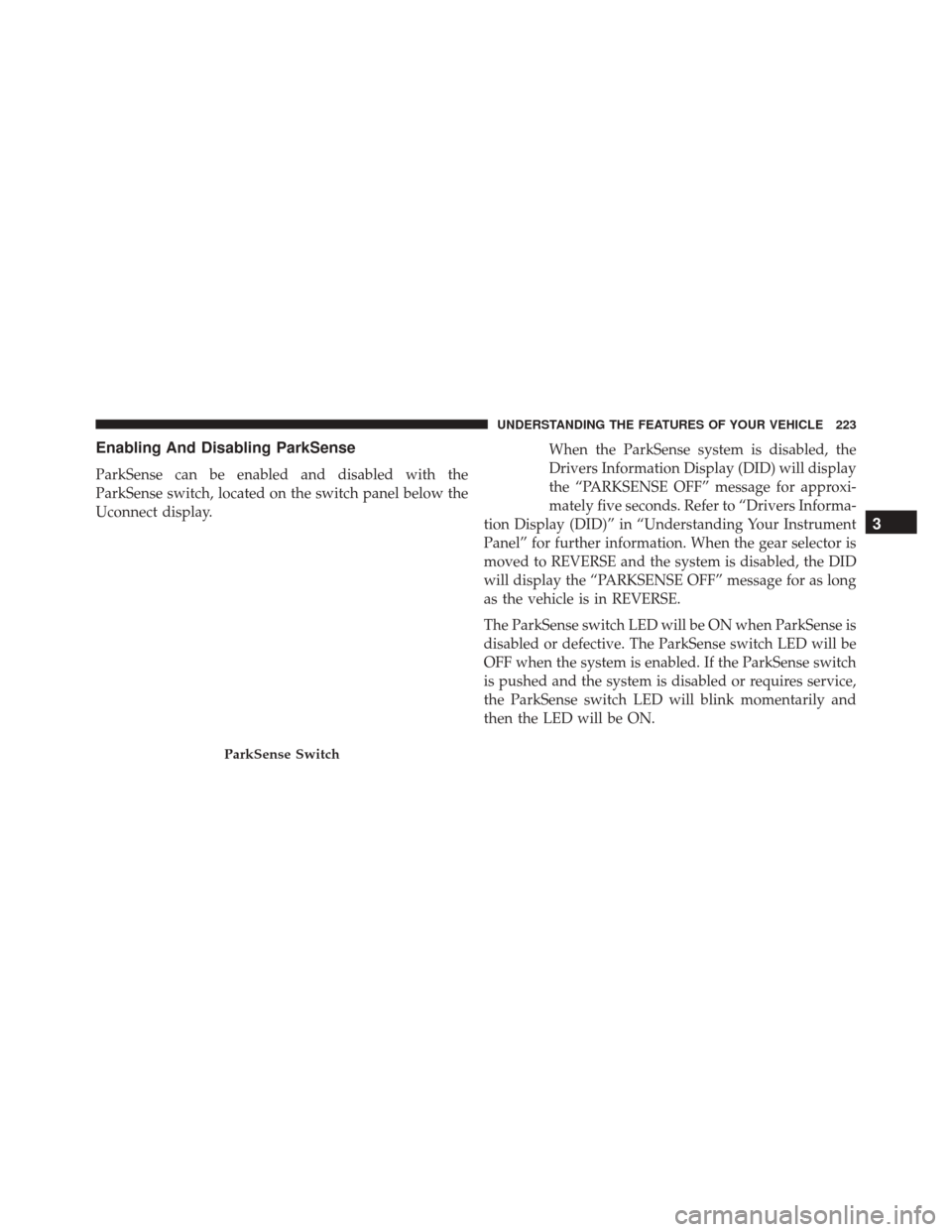
Enabling And Disabling ParkSense
ParkSense can be enabled and disabled with the
ParkSense switch, located on the switch panel below the
Uconnect display.When the ParkSense system is disabled, the
Drivers Information Display (DID) will display
the “PARKSENSE OFF” message for approxi-
mately five seconds. Refer to “Drivers Informa-
tion Display (DID)” in “Understanding Your Instrument
Panel” for further information. When the gear selector is
moved to REVERSE and the system is disabled, the DID
will display the “PARKSENSE OFF” message for as long
as the vehicle is in REVERSE.
The ParkSense switch LED will be ON when ParkSense is
disabled or defective. The ParkSense switch LED will be
OFF when the system is enabled. If the ParkSense switch
is pushed and the system is disabled or requires service,
the ParkSense switch LED will blink momentarily and
then the LED will be ON.
ParkSense Switch
3
UNDERSTANDING THE FEATURES OF YOUR VEHICLE 223
Page 226 of 661
Service The ParkSense Rear Park Assist System
During vehicle start up, when the ParkSense Rear Park
Assist System has detected a faulted condition, the
instrument cluster will actuate a single chime, once per
ignition cycle and it will display the “PARKSENSE
UNAVAILABLE WIPE REAR SENSORS” or
“PARKSENSE UNAVAILABLE SERVICE REQUIRED”
message for five seconds. Refer to “Driver Information
Display (DID)” in “Understanding Your Instrument
Panel” for further information.
When the gear selector is moved to REVERSE and the
system has detected a faulted condition, the Driver
Information Display (DID) will display the
“PARKSENSE UNAVAILABLE WIPE REAR SENSORS”
or “PARKSENSE UNAVAILABLE SERVICE REQUIRED”
message for as long as the vehicle is in REVERSE. Under
this condition, ParkSense will not operate.If “PARKSENSE UNAVAILABLE WIPE REAR SEN-
SORS” appears in the Driver Information Display (DID),
make sure the outer surface and the inside of the rear
fascia/bumper is clean and clear of snow, ice, mud, dirt
or other obstruction, and then cycle the ignition. If the
message continues to appear see an authorized dealer.
If “PARKSENSE UNAVAILABLE SERVICE REQUIRED”
appears in the DID, see an authorized dealer.
Cleaning The ParkSense System
Clean the ParkSense sensors with water, car wash soap
and a soft cloth. Do not use rough or hard cloths. Do not
scratch or poke the sensors. Otherwise, you could dam-
age the sensors.
224 UNDERSTANDING THE FEATURES OF YOUR VEHICLE
Page 227 of 661
ParkSense System Usage Precautions
NOTE:
•Ensure that the rear bumper is free of snow, ice, mud,
dirt and debris to keep the ParkSense system operating
properly.
• Jackhammers, large trucks, and other vibrations could
affect the performance of ParkSense or render the
system temporarily unavailable.
• When you turn ParkSense off in DRIVE, the instru-
ment cluster will display �PARKSENSE OFF�for five
seconds. Furthermore, once you turn ParkSense off, it
remains off until you turn it on again, even if you cycle
the ignition.
• When you move the gear selector to the REVERSE
position and ParkSense is turned off, the Driver Infor-
mation Display (DID) will display “PARKSENSE OFF”
message for as long as the vehicle is in REVERSE. •
ParkSense will reduce the volume of the radio when it
is sounding an audio tone.
• Clean the ParkSense sensors regularly, taking care not
to scratch or damage them. The sensors must not be
covered with ice, snow, slush, mud, dirt or debris.
Failure to do so can result in the system not working
properly. The ParkSense system might not detect an
obstacle behind the fascia/bumper, or it could provide
a false indication that an obstacle is behind the fascia/
bumper.
• Ensure the ParkSense system is OFF if objects such as
bicycle carriers, trailer hitches, etc., are placed within
12 inches 30 (cm) from the rear fascia/bumper. Failure
to do so can result in the system misinterpreting a
close object as a sensor problem, causing the
“PARKSENSE UNAVAILABLE SERVICE REQUIRED”
message to be displayed in the Driver Information
Display (DID).
3
UNDERSTANDING THE FEATURES OF YOUR VEHICLE 225
Page 229 of 661
PARKVIEW REAR BACK UP CAMERA — IF
EQUIPPED
Your vehicle may be equipped with the ParkView Rear
Back Up Camera that allows you to see an on-screen
image of the rear surroundings of your vehicle whenever
the gear selector is put into REVERSE. The ParkView
camera is located on the rear of the vehicle above the rear
license plate. The image will be displayed in the touch-
screen display along with a caution note to “check entire
surroundings” across the top of the screen. After five
seconds this note will disappear.
NOTE:The ParkView Rear Back Up Camera has pro-
grammable modes of operation that may be selected
through the Uconnect System. Refer to “Uconnect Set-
tings” in “Understanding Your Instrument Panel” for
further information.
If your vehicle is equipped with the Camera Delay
feature and it is turned ON, the rear camera image will be displayed for up to 10 seconds when the vehicle is shifted
out of REVERSE unless the forward vehicle speed ex-
ceeds 8 mph (13 km/h), the transmission is shifted into
�PARK�
or the vehicle’s ignition is cycled to the OFF
position.
When the Vehicle is shifted out of Reverse (with camera
delay turned OFF) the rear camera mode is exited and the
last touchscreen appears again.
When enabled, active guide lines are overlaid on the
image to illustrate the width of the vehicle and its
projected backup path based on the steering wheel
position. The active guide lines will show separate zones
that will help indicate the distance to the rear of the
vehicle.
Different colored zones indicate the distance to the rear of
the vehicle.
3
UNDERSTANDING THE FEATURES OF YOUR VEHICLE 227