Page 296 of 616

•AUX Volume Offset — If Equipped
This feature provides the ability to tune the audio level
for portable devices connected through the AUX input.
To make your selection, press the AUX Volume Match
button on the touchscreen, choose a level from –3 to +3.
• Loudness — If Equipped
Loudness improves sound quality at lower volumes. To
make your selection, press the “Loudness” button on the
touchscreen, until a check-mark appears next to the
setting, showing that the setting has been selected.
Phone/Bluetooth
After pressing the “Phone/Bluetooth” button on the
touchscreen the following settings will be available: •
Paired Phones
This feature shows which phones are paired to the
Phone/Bluetooth system. For further information, refer
to the “Uconnect Supplement Manual.”
• Paired Audio Sources
This feature shows which audio devices are paired to the
Phone/Bluetooth system. For further information, refer
to the “Uconnect Supplement Manual.”
SiriusXM Setup — If Equipped
After pressing the “SiriusXM Setup” button on the touch-
screen, the following settings will be available:
• Channel Skip
SiriusXM can be programmed to skip channels. To make
your selection, press the “Channel Skip” button on the
touchscreen, select the channels you would like to skip.
294 UNDERSTANDING YOUR INSTRUMENT PANEL
Page 336 of 616
iPod control supports Mini, 4G, Photo, Nano, 5G iPod
and iPhone devices. Some iPod software versions may
not fully support the iPod control features. Please visit
Apple’s website for software updates.
For further information, refer to the Uconnect User ’s
Manual.
STEERING WHEEL AUDIO CONTROLS — IF
EQUIPPED
The remote sound system controls are located on the rear
surface of the steering wheel. Reach behind the wheel to
access the switches.
USB/AUX/SD Card Ports
1 — Aux Jack
2 — USB Port3 — SD Card Slot
334 UNDERSTANDING YOUR INSTRUMENT PANEL
Page 339 of 616
emitted is far less than the electromagnetic energy emit-
ted by wireless devices such as mobile phones. However,
the use of wireless radios may be restricted in some
situations or environments, such as aboard airplanes. If
you are unsure of restrictions, you are encouraged to ask
for authorization before turning on the wireless radio.
This device complies with Part 15 of the FCC Rules and
with Industry Canada license-exempt RSS standard(s).
Operation is subject to the following two conditions:
1. This device may not cause harmful interference.
2. This device must accept any interference received,including interference that may cause undesired op-
eration.
NOTE:
• This equipment has been tested and found to comply
with the limits for a Class B digital device, pursuant to
Part 15 of the FCC Rules. These limits are designed to provide reasonable protection against harmful inter-
ference in a residential installation. This equipment
generates, uses and can radiate radio frequency energy
and, if not installed and used in accordance with the
instructions, may cause harmful interference to radio
communications. However, there is no guarantee that
interference will not occur in a particular installation.
• If this equipment does cause harmful interference to
radio or television reception, which can be determined
by turning the equipment off and on, the user is
encouraged to try to correct the interference by one or
more of the following measures:
• Increase the separation between the equipment and
receiver.
• Consult the dealer or an experienced radio technician
for help.
4
UNDERSTANDING YOUR INSTRUMENT PANEL 337
Page 353 of 616
If you see theicon on your touchscreen, you have
the Uconnect 8.4AN system. If not, you have a
Uconnect 8.4A system. Get Started
All you need to control your Uconnect system with your
voice are the buttons on your steering wheel.
1. Visit
UconnectPhone.com to check mobile device and
feature compatibility and to find phone pairing
instructions.
2. Reduce background noise. Wind and passenger con- versations are examples of noise that may impact
recognition.
3. Speak clearly at a normal pace and volume while facing straight ahead. The microphone is positioned
on the rearview mirror and aimed at the driver.
Uconnect 8.4AN
4
UNDERSTANDING YOUR INSTRUMENT PANEL 351
Page 354 of 616
4. Each time you give a Voice Command, you must firstpush either the VR or Phone button, wait until after
the beep, then say your Voice Command.
5. You can interrupt the help message or system prompts by pushing the VR or Phone button and saying a Voice
Command from current category.
Uconnect Voice Command Buttons
1 — Push To Initiate Or To Answer A Phone Call, Send Or Re-
ceive A Text
2 — For All Radios: Push To Begin Radio Or Media functions. For
8.4A/8.4AN Only: Push To Begin Navigation, Apps And Climate
Functions.
3 — Push To End Call
352 UNDERSTANDING YOUR INSTRUMENT PANEL
Page 358 of 616
Phone
Making and answering hands-free phone calls is easy
with Uconnect. When the Phonebook button is illumi-
nated on your touchscreen, your system is ready. Check
UconnectPhone.com for mobile phone compatibility and
pairing instructions.
Push the Phone button
. After the beep, say one of
the following commands �
•Call John Smith
• Dial 123-456-7890 and follow the system prompts
• Redial (call previous outgoing phone number)
• Call back (call previous incoming phone number) TIP:
When providing a Voice Command, push the Phone
button
and say “Call,”then pronounce the name
exactly as it appears in your phone book. When a
contact has multiple phone numbers, you can say
“Call John Smith work.”
Uconnect 8.4A/8.4AN Phone
356 UNDERSTANDING YOUR INSTRUMENT PANEL
Page 359 of 616
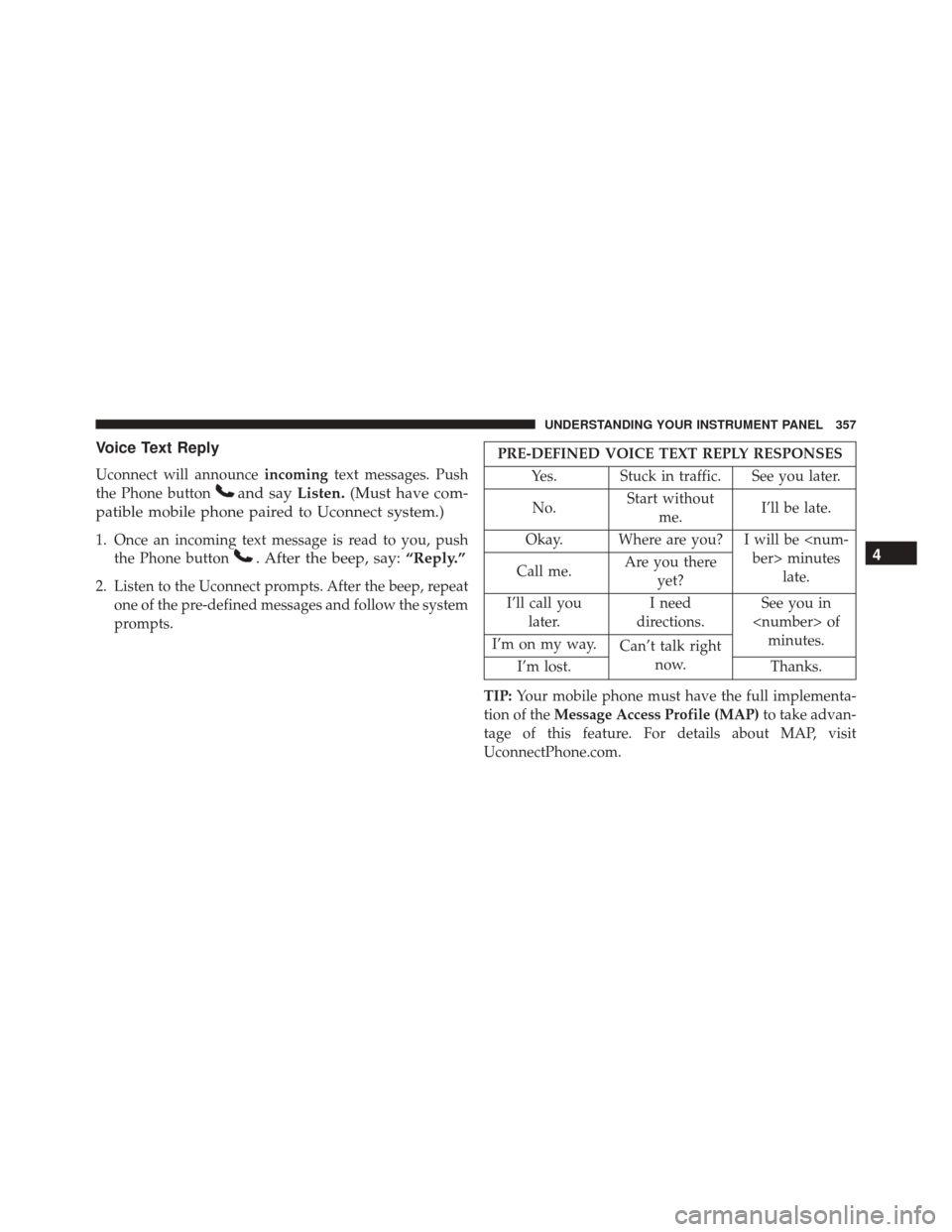
Voice Text Reply
Uconnect will announceincomingtext messages. Push
the Phone button
and say Listen.(Must have com-
patible mobile phone paired to Uconnect system.)
1. Once an incoming text message is read to you, push the Phone button
. After the beep, say: “Reply.”
2. Listen to the Uconnect prompts. After the beep, repeat
one of the pre-defined messages and follow the system
prompts.
PRE-DEFINED VOICE TEXT REPLY RESPONSES
Yes. Stuck in traffic. See you later.
No. Start without
me. I’ll be late.
Okay. Where are you? I will be minuteslate.
Call me. Are you there
yet?
I’ll call you later. I need
directions. See you in
of minutes.
I’m on my way. Can’t talk right
now.
I’m lost. Thanks.
TIP: Your mobile phone must have the full implementa-
tion of the Message Access Profile (MAP) to take advan-
tage of this feature. For details about MAP, visit
UconnectPhone.com.
4
UNDERSTANDING YOUR INSTRUMENT PANEL 357
Page 360 of 616
Apple iPhone iOS 6 or later supports readingincoming
text messages only. To enable this feature on your Apple
iPhone, follow these 4 simple steps:
iPhone Notification Settings
1 — Select “Settings”
2 — Select “Bluetooth”
3 — Select the (i) for the paired vehicle
4 — Turn on “Show Notifications”
358 UNDERSTANDING YOUR INSTRUMENT PANEL