Page 324 of 380
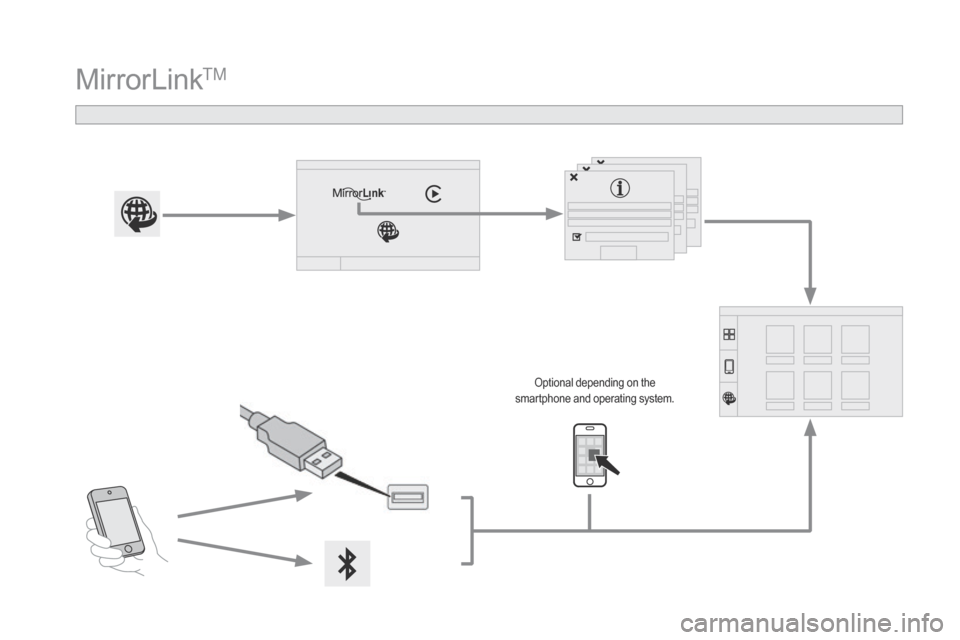
MirrorLinkTM
Optional depending on the s
martphone and operating system.
Page 325 of 380

323
As a safety measure and because it requires sustained attention by the
d
river, using a smartphone when
d
riving is prohibited.
All
operations must be done with the
v
ehicle stationary .
The
synchronisation of a smartphone
a
llows applications on a smartphone
t
hat are adapted to the MirrorLink
TM
technology
to
be
displayed
in
the
v
ehicle's
s
creen.
The
principles
and
standards
a
re
constantly
evolving.
For
the
c
ommunication
process
between
the
s
martphone
and
the
system
to
work
c
orrectly,
the
smartphone
must
be
u
nlocked;
update
the
operating
system
o
f
your
smartphone
as
well
as
the
date
a
nd
time
in
the
smartphone
and
the
s
ystem.
For
the
list
of
eligible
smartphones,
c
onnect
to
the
brand's
internet
website
i
n
your
country. Please
note:
-
i
f your smartphone is supported, to
m
ake it "MirrorLink
TM" compatible, s
ome
phone
manufacturers
n
evertheless invite you to first
download
a
dedicated application.
When connecting a smartphone to the system, it is recommended that Bl
uetooth
® be started on the smartphone.
Start the application on the
smartphone (optional, depending
o
n the smartphone and operating
s
yste m).
During
the procedure, several screen
p
ages relating to certain functions
a
re displayed.
Accept
to start and end the
c
onnection.
Connect
a
USB
cable.
The
s
martphone
charges
when
c
onnected
by
a
USB
cable.
Press " MirrorLink
TM" to start
the
application
in
the system. Once
connection is established, an page
i
s displayed with the applications already
d
ownloaded to your smartphone and adapted
t
o MirrorLink
TM technology.
If
only
one
application has been downloaded to
t
he
smartphone, it starts automatically.
MirrorLinkTM smartphone
connection
Access to the different audio sources remains a
ccessible in the margin of the MirrorLinkTM
display,
using
touch
buttons
in
the
upper
bar.
Access
to
the
menus
for
the
system
is
possible
a
t
any
time
using
the
dedicated
buttons.
From
the
system,
press
" Connected
services "
to
display
the
primary
pag
e.
As
a
safety
measure,
applications
c
an
only
be
viewed
with
the
vehicle
s
tationary;
display
is
interrupted
once
t
he
vehicle
is
moving.
Voice recognition
Press the end of the lighting control stalk to s
tart voice recognition of your smartphone via
t
he system.
Voice
recognition requires a compatible
s
martphone connected to the vehicle by
Bl
uetooth.
Audio and Telematics
Page 327 of 380
325
Level 1Level 2 Level 3 Comments
Connected services
MirrorLink
TM
Access or return to the applications already d ownloaded to your smartphone and adapted to
M
irrorLink
TM technology.
Access
to
a
menu list depending on the
a
pplication
c
hosen.
"Back":
abandon the current operation, go up
o
ne
level.
"Home":
access or return to the "Car mode"
pag
e.
Access
to
the "Connected services" primary
pag
e.
Audio and Telematics
Page 329 of 380

327
Press on "CarPlay" to display the C
arPlay® inter face.
C
onnect
a USB cable. The
s
martphone charges when
c
onnected by a USB cable.
Press the end of the lighting control stalk to
s
tart voice recognition of your smartphone via
t
he system.
CarPlay® smartphone
connection
From the system, press " C onnected
services "
to display the primary
pag
e.
Connect
the USB cable. The
s
martphone is charged while
c
onnected by the USB cable.
Or
Voice recognition
As a safety measure, applications c
an only be viewed with the vehicle
s
tationary; display is interrupted once
t
he vehicle is moving.
The
synchronisation of a smartphone
a
llows applications on a smartphone
t
hat are adapted to the CarPlay
®
technology
to
be
displayed
in
the
v
ehicle's
s
creen.
As
the
principles
and
standards
are
c
onstantly
evolving,
it
is
recommended
t
hat
you
update
the
operating
system of
y
our
smartphone.
For
the
list
of
eligible
smartphones,
c
onnect
to
the
brand's
internet
website
i
n
your
country.
As
a
safety
measure
and
because it
r
equires
sustained
attention
by
the
d
river,
using
a
smartphone
when
d
riving
is
prohibited.
All
operations
must
be
done
with
the
v
ehicle stationary
.
During the procedure, one or more
s
creen pages relating to certain
f
unctions are displayed on connection.
On
connecting the USB cable, the
"
T
elephone
" function changes to
"
C
arPlay
" in the menu carrousel.
Press on " CarPlay" to display the
C
arPlay
® inter face.
Audio and Telematics
Page 331 of 380
329
Level 1Level 2 Level 3 Comments
Connected services
Apple
® CarPlay®
Telephone Favourites
The "Telephone" function is placed automatically i
n "Siri" voice mode.
Press on "Display contacts" for access to the
t
elephone
me
nus.
Calls
Contacts
Keypad
Messages
Music Lists
Press
on "Music" to browse and select the tracks
o
n your smartphone.
Press
on "Playing" for access to the track
c
urrently playing.
Artists
Tr a c k s
Albums
Other...
Plan
de
stinationsPress
on "Destinations" to search for an address
b
y "Siri" voice command or by using the keypad.
The
GPS function is through the telephone's 3G,
4
G or Wi-Fi internet connection.
Messages
d
isplay messagesThe
"Messages" function is place automatically
i
n "Siri" voice mode to speak the message and
t
he
a
ddressee.
Press
on "Display messages" for access to the
m
essages.
Playing Access
to the track currently playing.
Audio and Telematics
Page 332 of 380
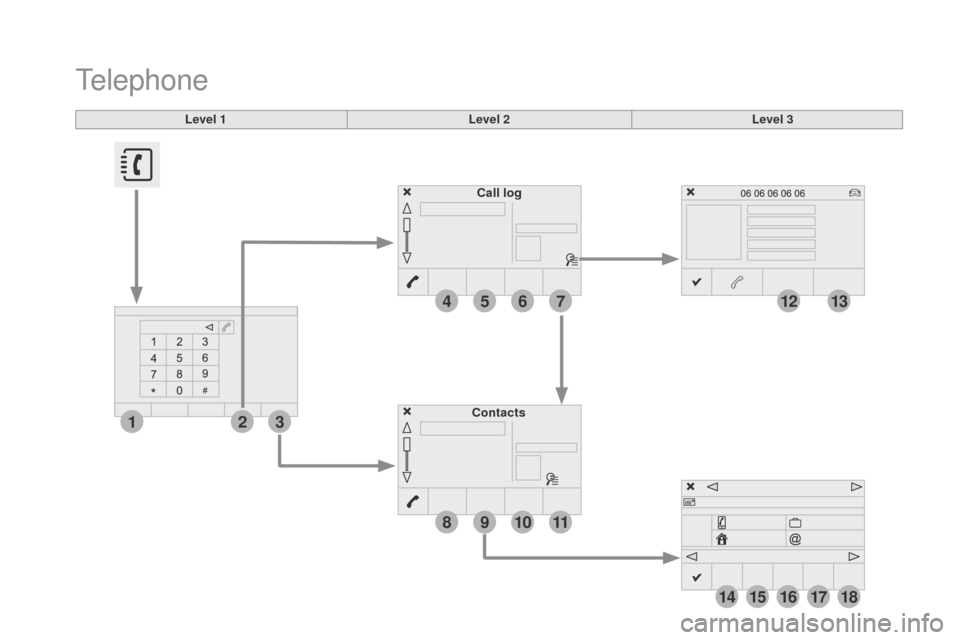
4
1
8
14
5
3
9
12
15
6
2
10
16
7
11
13
1718
Level 1Level 2Level 3
Contacts Call log
Telephone
Page 333 of 380
4
5
6
7
8
12
13
14
15
16
17
18
9
10
11
3
2
331
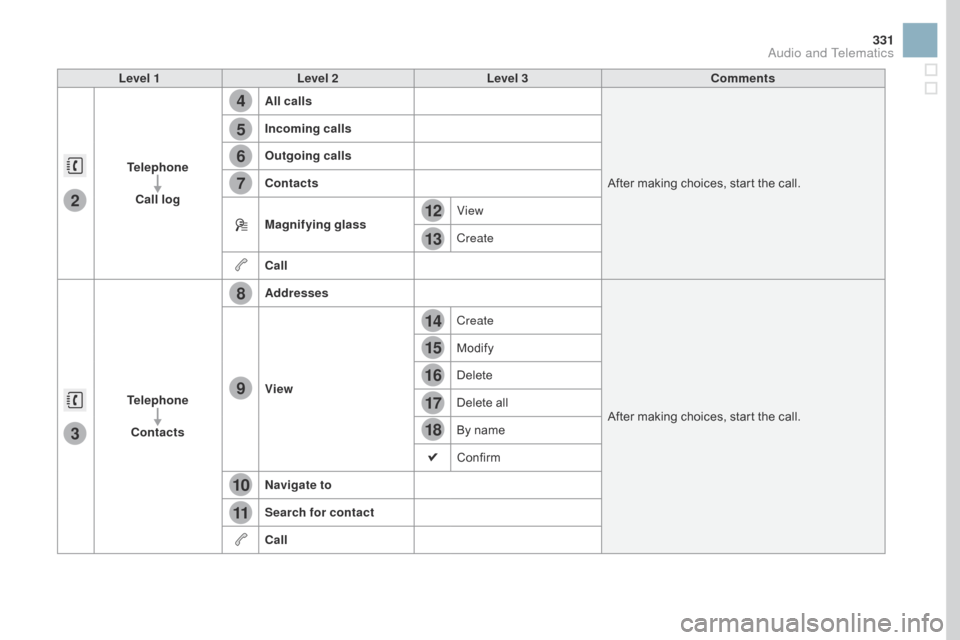
Level 1Level 2 Level 3 Comments
Telephone Call log All calls
After
making choices, start the call.
Incoming calls
Outgoing calls
Contacts
Magnifying glass
View
Create
Call
Telephone Contacts Addresses
After
making choices, start the call.
View Create
Modify
Delete
Delete
all
By
name
Confirm
n
avigate to
Search for contact
Call
Audio and Telematics
Page 334 of 380
19
23
20
24
21
25
22
26
1
Bluetooth (devices)
Telephone Options
de
vices detected
Telephone connection
Level 1
Level 2Level 3