2016 Citroen DS3 RHD audio
[x] Cancel search: audioPage 355 of 380

353
Use only USB memory sticks formatted FAT32 (File Allocation Table).
It
is recommended that you use
g
enuine
A
pple
® USB cables for correct
operation.
*
I
n certain cases, play of the audio files must
b
e initiated from the keypad.
**
If the telephone supports the function.
Bluetooth® audio streaming
Streaming allows music files on the telephone to be played via the audio system.
Connect
the telephone: see the "Telephone "
section.
Select in the " Bluetooth: Telephone - Audio "
menu
the telephone to be connected.
The
audio system connects to a newly paired
t
elephone
a
utomatically.
Control
of tracks to be played is via the buttons
o
n the audio system control panel and the
s
teering mounted controls**. The contextual
i
nformation can be displayed in the screen.
Activate
the streaming source by
p
ressing the SOURCE
b
ut to n*.
Connecting Apple® players
Connect the Apple® player to the USB port
using
a
suitable
cable (not supplied).
Play
starts
automatically.
Control
is
via
the
audio system.
The classifications available are those of the
portable
device
connected (artists / albums /
g
enres
/
playlists
/
audiobooks / podcasts).
The
version
of
software in the audio system
m
ay
not
be
compatible with the generation of
y
our Apple
® player.
Audio and Telematics
Page 356 of 380

Telephone
Pairing a Bluetooth® telephone
Screen C
(Available according to model and version)
As a safety measure and because they require prolonged attention on the part
o
f the driver, the operations for pairing
o
f the Bluetooth mobile telephone with
t
he Bluetooth hands-free system of
y
our audio equipment must be carried
o
ut with the vehicle stationary and the
ig
nition
o
n.
Go
to
www.citroen.co.uk for more information
(
compatibility, more help, ...).
Activate
the telephone's Bluetooth function
a
nd
ensure that it is "visible to all" (telephone
c
onfiguration). Press the ME
n
U
button. In
the menu, select:
- "Bl
uetooth: Telephone - Audio "
-
"B
luetooth configuration"
-
"P
erform a Bluetooth search"
A
window is displayed with a message that a
s
earch is in progress.
The
services available depend on
t
he network, the SIM card and the
c
ompatibility of the Bluetooth device
u
sed.
Consult
your telephone's manual and
y
our operator to find out which services
a
re available to you.
*
If
your telephone is fully compatible. The
first 4 telephones recognised are displayed
i
n this window.
The "Telephone"
menu permits access to the
f
ollowing functions in particular: "
dir
ectory" *,
" Calls list ", "Consult the paired equipment ".Select
the telephone to be connected from the l
ist. Only one telephone can be connected at
a
time.
A
virtual keypad is displayed in the screen:
e
nter a code with at least 4 digits.
Confirm
by pressing OK.
A
message
in
the
screen
indicates
the
telephone
c
hosen. To accept the pairing, enter the same
c
ode on the telephone, then confirm with OK.
If
pairing fails, the number of attempts is not
l
imited.
A
message that the pairing has been
s
uccessful appears in the screen.
The
automatic connection authorised is only
a
ctive after the telephone has been configured.
The
directory and the call list can be accessed
a
fter the necessary synchronisation period.
Page 357 of 380

355
Receiving a call
An incoming call is announced by a ring and a superimposed display in the screen.
Select the YES
tab on the display
u
sing the buttons.
Confirm
by pressing OK.
Press
this button at the steering
m
ounted controls to accept the call.
Making a call
From the "Bl uetooth: Telephone - Audio "
menu.
Select " Manage the telephone call".
Select " Call".
Or
Select " Calls list ".
Or
Select "
dir
ectory".
Press
this button for more than
t
wo seconds for access to your
d
irectory, then navigate using the
t
humb wheel.
Or
To
dial a number, use your telephone's keypad,
w
ith the vehicle stationary.
Ending a call
During a call, press this button for more than 2 seconds.
Confirm
with OK
to end the call.
The
system accesses the telephone's
c
ontacts directory, depending on its
c
ompatibility, and while it is connected
b
y
Bluetooth.
With
certain telephones connected by
B
luetooth you can send a contact to the
d
irectory of the audio system.
Contacts
imported in this way are
s
aved in a permanent directory
v
isible to all, whatever the telephone
connected.
The
menu for the directory is not
a
ccessible if it is empty.
Audio and Telematics
Page 359 of 380

357
Screen C
Press the OK dial for access to s
hort-cut menus according to the
d
isplay on the screen.
activate / deactivate R
dS
a
ctivate / deactivate RE
g
mode
activate / deactivate radiotext
Radio
activate / deactivate Intro
Cd / MP3 Cd
activate / deactivate track repeat
(the entire current CD for CD, the entire
c
urrent folder for MP3 CD)
activate / deactivate random play
(the entire
current CD for CD, the entire
c
urrent folder for MP3 CD) activate / deactivate track repeat (of
the c
urrent folder / artist / genre / playlist)
USB
activate / deactivate random play (of the c
urrent folder / artist / genre / playlist)
1
1
1
1
1
1
1
1
Audio and Telematics
Page 360 of 380
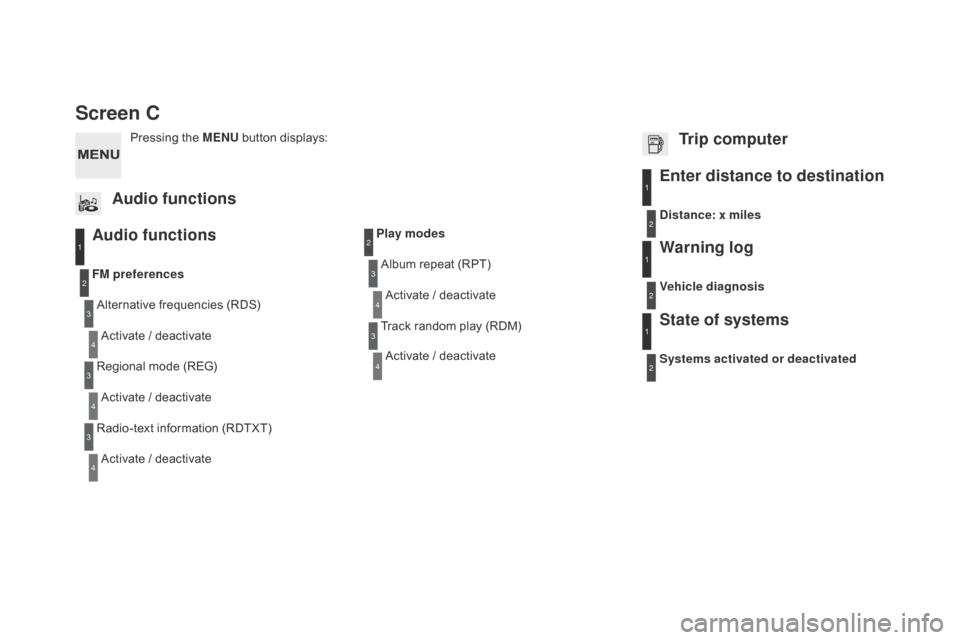
Screen C
Audio functions
Alternative frequencies (RDS)
A ctivate / deactivate
FM
preferences
Regional mode (REG)
Activate
/ deactivate
Radio-text
information (RDTXT)
Activate
/ deactivate
1
2
3
4
3
4
3
4
Play modesAlbum repeat (RPT)
Activate
/ deactivate
Track
random play (RDM)
Activate
/ deactivate2
3
4
3
4
Enter distance to destination1
1
1
2
2
2
Pressing the MEn U button displays:
Audio functions Trip computerdistance: x miles
Vehicle diagnosis
Warning log
Systems activated or deactivated
State of systems
Page 361 of 380

359
Bluetooth configuration11
1
22
22
2
3
3
3
2
3
Normal video
Brightness-video adjustment
Display configuration Define the vehicle parameters*
Inverse video
B rightness (- +) adjustment
da
te and time adjustment
Setting
the day/month/year
Setting
the hour/minute
Choice
of 12 h / 24 h mode
Choice of units
l/100
km - mpg - km/l
°Celsius
/ °
Fahrenheit
1
1
3
3
2
3
2
3
3
2
3
3
3
Personalisation-
configuration Bluetooth: Telephone -
Audio
Telephone function
Delete a paired equipment
Connect/
di
sconnect an equipment
Audio Streaming function Consult
the paired equipment
Per form
a Bluetooth search
Calls list
Call
Directory Terminate the current call
Manage the telephone call
Activate secret mode
*
The
settings
vary
according
to
vehicle.
Choice of language1
Audio and Telematics
Page 362 of 380

The table below gives answers to the most frequently asked questions on your audio system.
Q UESTIO
nAnSW
ERSOLUTIO
n
W
ith the engine off, the
a
udio system switches off
a
fter a few minutes of use.When
the engine is switched off, the audio system operating time
d
epends on the state of charge of the battery.
The
switch-off is normal: the audio equipment switches to economy
m
ode and switches off to prevent discharging of the vehicle's
b
attery. Start
the vehicle's engine to increase the battery
c
harge.
The
message "the audio
s
ystem is overheated"
a
ppears on the display.In
order to protect the installation if the surrounding temperature
i
s too high, the audio system switches to an automatic thermal
p
rotection mode leading to a reduction in volume or CD play
s
topping. Switch
the audio system off for a few minutes to
a
llow the system to cool.
Frequently asked questions
QUESTIOnAnSWERSOLUTIOn
T
here
is a difference in
s
ound
quality between the
d
ifferent audio sources
(
radio,
C
D...). For
optimum sound quality, the audio settings (Volume, Bass,
T
reble, Ambience, Loudness) can be adapted to the different sound
s
ources, which may result in audible differences when changing
s
ource (radio, CD...). Check
that the audio settings (Volume, Bass,
T
reble, Ambience, Loudness) are adapted to
t
he sources listened to. It is advisable to set
t
he audio functions (Bass, Treble, Front-Rear
B
alance, Left-Right Balance) to the middle
p
osition, select the musical ambience "None"
a
nd set the loudness correction to the "Active"
p
osition in CD mode or to the "Inactive" position
i
n radio mode.
Radio
Page 363 of 380

361
QUESTIOnAnSWERSOLUTIOn
T
he
stored stations do
n
ot
function (no sound,
87
.5 Mhz is displayed...). An
incorrect waveband is selected.Press
the BAND AST button to return to the
w
aveband (AM, FM1, FM2, FMAST) on which the
s
tations are stored.
The
traffic announcement
(
TA)
is
displayed. I
d
o
n
ot receive any traffic
information. The
radio station is not part of the regional traffic information
n
etwork. Tune
to a radio station which broadcasts traffic
i
nformation.
The
quality of reception of
t
he
radio station listened
t
o
gradually deteriorates
o
r
the
stored stations do
n
ot
function (no sound,
87
.5 Mhz is displayed...). The
vehicle is too far from the transmitter used by the station
l
istened to or there is no transmitter in the geographical area
t
hrough which the vehicle is travelling.Activate
the RDS function to enable the system
t
o check whether there is a more power ful
t
ransmitter in the geographical area.
The
environment (hills, buildings, tunnels, underground car parks...)
b
lock reception, including in RDS mode.This
phenomenon is normal and does not
i
ndicate a failure of the audio equipment.
The
aerial is absent or has been damaged (for example when going
t
hrough an automatic car wash or into an underground car park).Have
the aerial checked by a CITROËN dealer.
Sound
cut-outs of 1 to
2 s
econds in radio mode.During
this brief sound cut-out, the RDS searches for another
f
requency giving better reception of the station.Deactivate
the RDS function if the phenomenon
i
s too frequent and always on the same route.
Audio and Telematics