Page 204 of 268
202
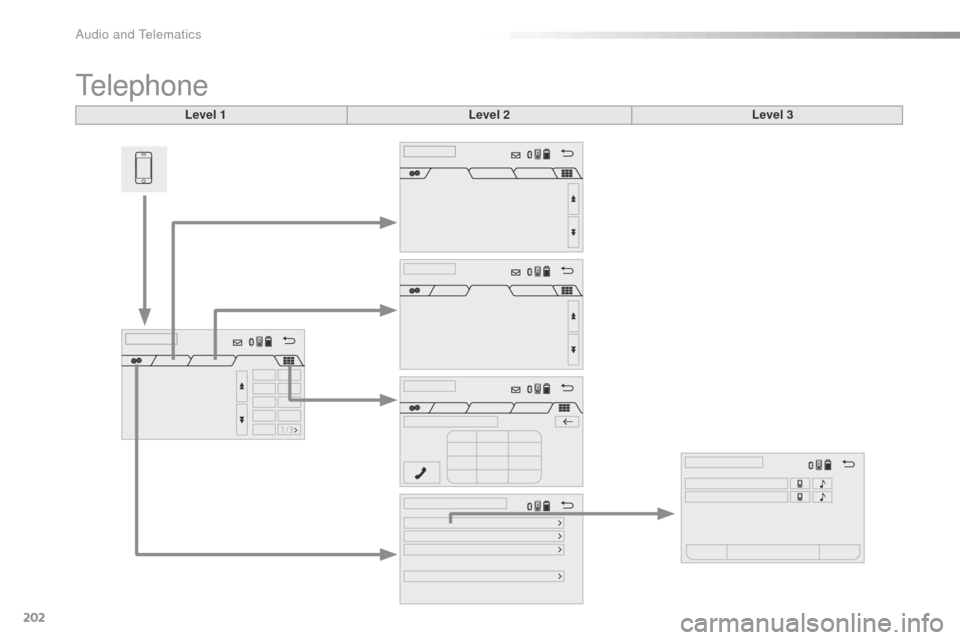
Telephone
Level 1Level 2Level 3
Audio and Telematics
Page 205 of 268
203
Level 1Level 2 Level 3 Comment
Contacts
After
making choices, start the call.
Favourites
Call history
Enter a number Call Enter
a number then start the call.
Telephone/ message
configuration Connect the
telephone
Telephone
Select the services to use on the
peripheral
d
evice.
Audio
player
Sounds
configuration Ringtone
Choose
settings, activate or
d
eactivate
o
ptions.
Ringtone
volume
Incoming
SMS/MMS tone
Incoming
SMS/MMS volume
Incoming
e-mail tone
Incoming
e-mail volume
Incoming
call volume
Contacts/
call histor y
configuration Automatic
transfer
Update
telephone contacts
Sort contacts by
Add
favourite
Remove
favourite
Message
configuration Display
of incoming calls
Contacts/call
history transfer state
Telephone
display
configuration Display
of incoming calls
Contacts/call
history transfer state
.
Audio and Telematics
Page 206 of 268

204
Press on "Audio source " to display t
he carousel of audio sources.
Select " Bluetooth audio ".
Select " Bluetooth configuration "
Activate
the telephone's Bluetooth function
a
nd
ensure that it is "visible to all" (telephone
c
onfiguration).
Select the telephone in the list.
Select "
Connect telephone ".
Select the "
Telephone/message
configuration " tab.
Select your choice.
Select the " Add"
tab in the system. Press "
OK"
to confirm.
If the telephone is not detected, it is recommended that you switch the Bluetooth f
unction on your telephone off and then on again.
As a safety measure and because they require prolonged attention on the part
o
f the driver, the operations for pairing
t
he Bluetooth mobile telephone to the
h
ands-free system of the audio system
m
ust be carried out with the vehicle
stationary .
Pairing a Bluetooth® telephone
A waiting screen is displayed with the B
luetooth settings of the system and a default
B
luetooth PIN.
Once
detected, select the name of the system
i
n your telephone.
The
system displays that the services to be
u
sed on the telephone are: "Telephone "
and
"A
udio player ".
The
system offers to connect the telephone:
-
w
ith "Connect all",
-
w
ith "Connect as telephone "
(hands-free
k
it, telephone only),
-
w
ith "Connect as audio player "
(streaming:
wireless play of audio files on
t
he
t
elephone).
Enter
the PIN code in the telephone then accept
t
he connection (depending on the telephone).To
change the connection choice, Sel
ect "Telephone ".
Audio and Telematics
Page 207 of 268

205
The services available depend on the network, the SIM card and the
c
ompatibility of the Bluetooth telephone
u
sed. Check the telephone manual and
w
ith your network provider for details of
t
he services available to you.
The
profiles compatible with the system
a
re: HFP, OPP, PBAP, A2DP, AVRCP,
M
A P. This function allows the connection or
disconnection
of a peripheral device as
w
ell as the deletion of a pairing.
Automatic reconnection
When the ignition is switched on, the last telephone connected when the ignition was
s
witched off reconnects automatically, if this
c
onnection made had been activated during the
p
airing procedure (see previous pages).
Connection
is confirmed by the display of a
m
essage and the name of the telephone.
Managing paired
telephones
Press "Telephone ".
Select " Telephone/message
configuration ".
Select " Connect telephone " to
display
the list of paired devices.
Select " Remove "
then select the device in the
l
ist
and
confirm.
.
Audio and Telematics
Page 208 of 268
206
Make a short press on this steering mounted button to accept an
inc
oming
c
all.
Press
on this steering mounted
b
utton to reject a call or to end a call.Press on "Telephone ".
Press
the keypad tab.
Enter
the phone number using the
k
eypad then press the telephone
b
utton to start the call.
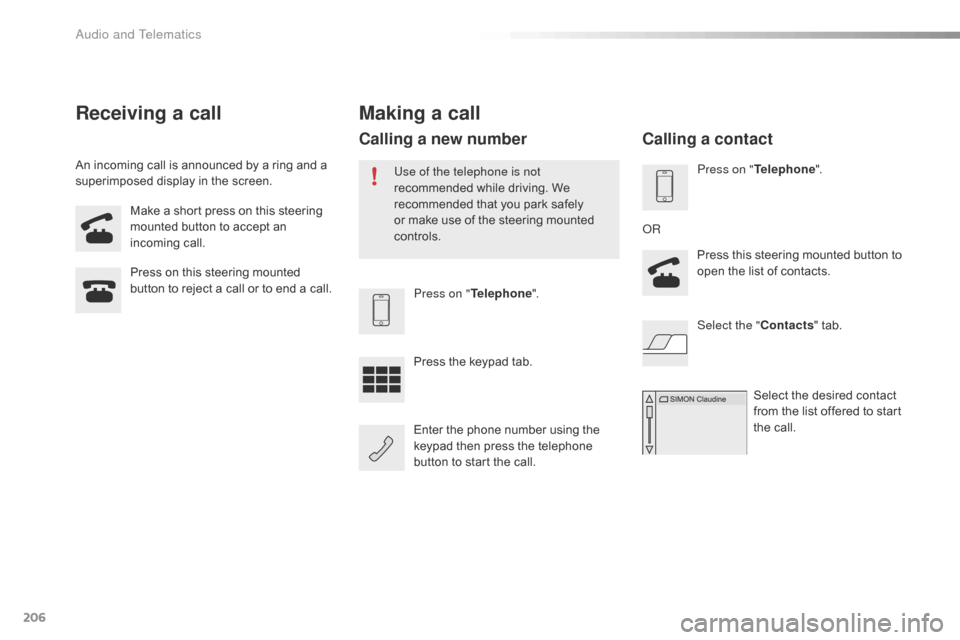
Receiving a call
An incoming call is announced by a ring and a superimposed display in the screen.
Making a call
Use of the telephone is not
recommended while driving. We
r
ecommended that you park safely
o
r make use of the steering mounted
c
ontrols.
Calling a new number
Press on " Telephone ".
Press this steering mounted button to
o
pen the list of contacts.
OR
Select the " Contacts"
tab.
Select
the desired contact
f
rom the list offered to start
t
he call.
Calling a contact
Audio and Telematics
Page 209 of 268

207
Press on "Telephone ".
Press this steering mounted button
t
o open the list of contacts; a second
p
ress opens the calls history.
OR
Select the " Calls history "
tab.
Select
the desired contact
f
rom the list offered to start
t
he call.
Calling a recently used number
Managing contacts / Entries
Press on "Telephone " to display the p
rimary pag e.
Select " Telephone/message
configuration ".
Select " Contacts config./calls
history ".
Select:
-
"A
utomatic transfer " to
automatically
transfer the
c
ontacts from your smartphone
o
r
t
elephone.
-
" U
pdate telephone contacts " to
update
the list of contacts.
-
" S
or t contacts by " to sort by
first
or second name.
-
"A
dd favorites "
to add favorites
t
o the list in the system.
-
" R
emove favorite "
to remove
f
avorites from the list in the
s
ystem.
Ringtones
Press on " Telephone ".
Select " Telephone/message
configuration ".
Select " Sound configuration " to
display
the list of audio sources.
You
can select the ringtone used and
a
djust its volume.
.
Audio and Telematics
Page 213 of 268
211
Level 1Level 2 Level 3 Comment
Configuration Bluetooth Telephone
Select the services to use on the peripheral
device.
Audio player
Add Connect
a new peripheral device.
System configuration Telephone
Select the services to use on the peripheral
device.
Audio
player
Cancel
Remove Disconnect
and remove a peripheral device
f
rom the list.
Configuration Telephone Connect the telephone
See
the telephone section.
Sounds configuration
Contacts/call history configuration
Message configuration
Telephone display configuration
Configuration Screen off Select
this mode to switch off the screen, touch
t
he screen to restore.
.
Audio and Telematics
Page 214 of 268
212
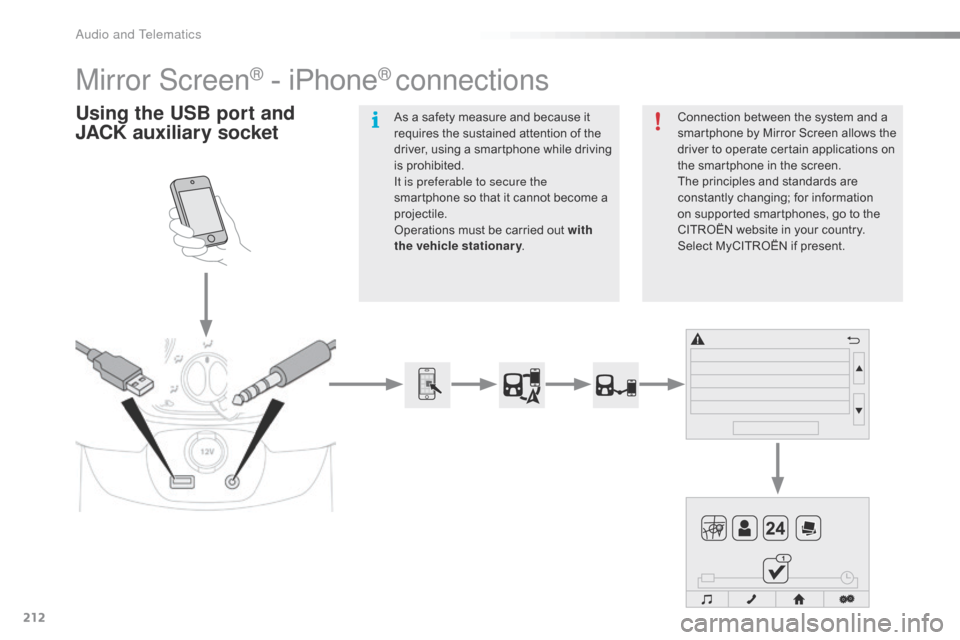
Mirror Screen® - iPhone® connections
Using the USB port and
J ACK auxiliary socketConnection between the system and a s
martphone by Mirror Screen allows the
d
river to operate certain applications on
t
he smartphone in the screen.
The
principles and standards are
c
onstantly
c
hanging;
fo
r
in
formation
o
n supported smartphones, go to the
C
ITROËN website in your country.
S
elect MyCITROËN if present.
As
a
safety
measure
and
because
it
r
equires
the
sustained
attention
of
the
d
river,
using
a
smartphone
while
driving
i
s
prohibited.
It is preferable to secure the
smartphone
so
that
it
cannot
become
a
pro
jectile.
Operations
must
be
carried
out
with
the vehicle stationary .
Audio and Telematics