Page 267 of 620
UNDERSTANDING YOUR INSTRUMENT PANEL
CONTENTS
�INSTRUMENT PANEL FEATURES ..........268
� INSTRUMENT CLUSTER .................269
� WARNING AND INDICATOR LIGHTS .......271
▫ Red Telltale Indicator Lights ..............272
▫ Yellow Telltale Indicator Lights ............283
▫ Green Telltale Indicator Lights ............296
▫ White Telltale Indicator Lights ............298
▫ Blue Telltale Indicator Lights ..............301
� DRIVER INFORMATION DISPLAY (DID) .....301
▫ Engine Oil Life Reset ..................303 ▫
Gear Shift Indicator (GSI) — If Equipped . . . .306
▫ DID Selectable Menu Items ..............306
� CYBERSECURITY ...................... .312
� SETTING THE ANALOG CLOCK ...........314
� UCONNECT SETTINGS ..................314
▫ Buttons On The Faceplate ................315
▫ Buttons On The Touchscreen ..............316
▫ Customer Programmable Features — Uconnect 8.4
Settings ............................ .316
� UCONNECT RADIOS — IF EQUIPPED ......3344
Page 303 of 620
Blue Telltale Indicator Lights
High Beam Indicator Light
Blue TelltaleLight What It Means
High Beam Indicator Light
This indicator shows that the high beam headlights are on. Push the multifunction control
lever away from you to switch the headlights to high beam. Pull the lever toward you to
switch the headlights back to low beam. Pull the lever toward you for a temporary high
beam on,
�flash to pass� scenario.
DRIVER INFORMATION DISPLAY (DID)
The Driver Information Display (DID) features an inter-
active display which is located in the instrument cluster.
This system conveniently allows the driver to select a
variety of useful information by pushing the arrow
buttons located on the left side of the steering wheel. The
DID Menu Items consists of the following: •
Speedometer
• Vehicle Info
• Driver Assist — If Equipped
• Fuel Economy
• Trip
• Audio
4
UNDERSTANDING YOUR INSTRUMENT PANEL 301
Page 318 of 620

Buttons On The Touchscreen
Buttons on the touchscreen are accessible on the
Uconnect Touchscreen.
CAUTION!
Do not attach any object to touchscreen, doing so can
result in damage to the touchscreen.
Customer Programmable Features — Uconnect
8.4 Settings
Press the “Apps” button, then press the “Settings”
button on the touchscreen to display the menu setting
screen. In this mode the Uconnect system allows you
to access programmable features that may be
equipped such as Display, Units, Voice, Clock, Safety
& Driving Assistance, Lights, Doors & Locks, Auto-On Comfort, Engine Off Options, Audio, Phone/
Bluetooth, SiriusXM Setup, Restore Settings, Clear
Personal Data and System Information.
NOTE:
•
Only one touchscreen area may be selected at a time.
• Depending on the vehicles options, feature settings
may vary.
When making a selection, press the button on the touch-
screen to enter the desired mode. Once in the desired
mode, press and release the preferred setting “option”
until a check-mark appears next to the setting, showing
that setting has been selected. Once the setting is com-
plete, either press the Back Arrow button on the touch-
screen to return to the previous menu, or press the “X”
button on the touchscreen to close out of the settings
316 UNDERSTANDING YOUR INSTRUMENT PANEL
Page 334 of 620
•Speed Adjusted Volume
This feature increases or decreases volume relative to
vehicle speed. To change the Speed Adjusted Volume
press the “Off,” “1,” “2” or “3” button on the touchscreen.
• Surround Sound — If Equipped
This feature provides simulated surround sound mode.
To make your selection, press the “Surround Sound”
button on the touchscreen, select “On” or “Off.”
• AUX Volume Offset — If Equipped
This feature provides the ability to tune the audio level
for portable devices connected through the AUX input.
To make your selection, press the AUX Volume Match
button on the touchscreen, choose a level from –3 to +3.
• Loudness — If Equipped
Loudness improves sound quality at lower volumes. To
make your selection, press the “Loudness” button on the touchscreen, until a check-mark appears next to the
setting, showing that the setting has been selected.
Phone/Bluetooth
After pressing the “Phone/Bluetooth” button on the
touchscreen the following settings will be available:
•
Paired Phones
This feature shows which phones are paired to the
Phone/Bluetooth system. For further information, refer
to the “Uconnect Supplement Manual.”
• Paired Audio Sources
This feature shows which audio devices are paired to the
Phone/Bluetooth system. For further information, refer
to the “Uconnect Supplement Manual.”
332 UNDERSTANDING YOUR INSTRUMENT PANEL
Page 336 of 620
“Cancel” or “X” to exit without making changes. Once
the settings are restored, a pop up appears stating
�Settings reset to default.�
Clear Personal Data
After pressing the “Clear Personal Data Settings” button
on the touchscreen the following settings will be avail-
able:
•Clear Personal Data
When this feature is selected it will remove all personal
data including Bluetooth devices and presets. To remove
personal information, press the “Clear Personal Data”
button and a pop-up will appear asking �Are you sure
you want to clear all personal data?” select “OK” to clear,
“Cancel” or “X” to exit without making changes. Once
the data has been cleared, a pop up appears stating
�Personal data cleared”.
System Information
After pressing the “System Information” button on the
touchscreen the following information will be available:
• System Information
When System Information is selected, a System Informa-
tion screen will appear displaying the system software
version.
UCONNECT RADIOS — IF EQUIPPED
For detailed information about your Uconnect radio,
refer to your Uconnect Supplement Manual.
AUX/USB/MP3 CONTROL
This feature allows an external USB device to be plugged
into the USB port.
334 UNDERSTANDING YOUR INSTRUMENT PANEL
Page 343 of 620
CAUTION!(Continued)
•Do not use scrapers, sharp instruments, or abrasive
window cleaners on the interior surface of the
window.
• Keep all objects a safe distance from the window.
7. Passenger Temperature Control Up Button
Provides the passenger with independent temperature
control. Push the button on the faceplate for warmer
temperature settings or on the touchscreen, press and
slide the temperature bar button towards the red arrow
for warmer temperature settings.
NOTE: Pressing this button while in Sync mode will
automatically exit Sync.
8. Passenger Temperature Control Down Button
Provides the passenger with independent temperature
control. Push the button on the faceplate for cooler temperature settings or on the touchscreen, press and
slide the temperature bar button towards the blue arrow
for cooler temperature settings.
NOTE:
Pressing this button while in Sync mode will
automatically exit Sync.
9. SYNC
Press the Sync button on the touchscreen to toggle the
Sync feature On/Off. The Sync indicator is illuminated
when this feature is enabled. Sync is used to synchronize
the passenger temperature setting with the driver tem-
perature setting. Changing the passenger temperature
setting while in Sync will automatically exit this feature.
10. Blower Control
Blower control is used to regulate the amount of air
forced through the climate system. There are seven
blower speeds available. Adjusting the blower will cause
automatic mode to switch to manual operation. The
4
UNDERSTANDING YOUR INSTRUMENT PANEL 341
Page 345 of 620
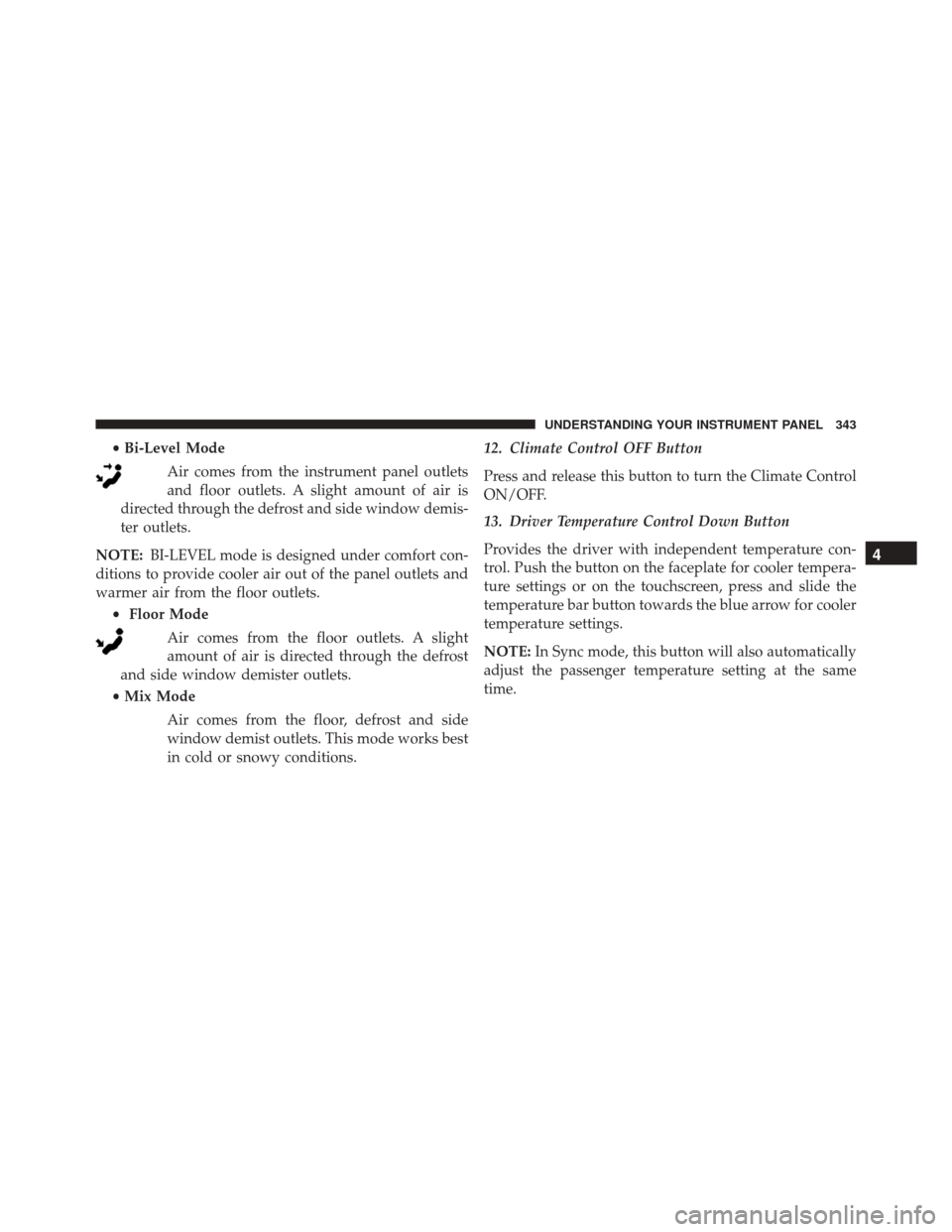
•Bi-Level Mode
Air comes from the instrument panel outlets
and floor outlets. A slight amount of air is
directed through the defrost and side window demis-
ter outlets.
NOTE: BI-LEVEL mode is designed under comfort con-
ditions to provide cooler air out of the panel outlets and
warmer air from the floor outlets.
• Floor Mode
Air comes from the floor outlets. A slight
amount of air is directed through the defrost
and side window demister outlets.
• Mix Mode
Air comes from the floor, defrost and side
window demist outlets. This mode works best
in cold or snowy conditions. 12. Climate Control OFF Button
Press and release this button to turn the Climate Control
ON/OFF.
13. Driver Temperature Control Down Button
Provides the driver with independent temperature con-
trol. Push the button on the faceplate for cooler tempera-
ture settings or on the touchscreen, press and slide the
temperature bar button towards the blue arrow for cooler
temperature settings.
NOTE:
In Sync mode, this button will also automatically
adjust the passenger temperature setting at the same
time.
4
UNDERSTANDING YOUR INSTRUMENT PANEL 343
Page 357 of 620
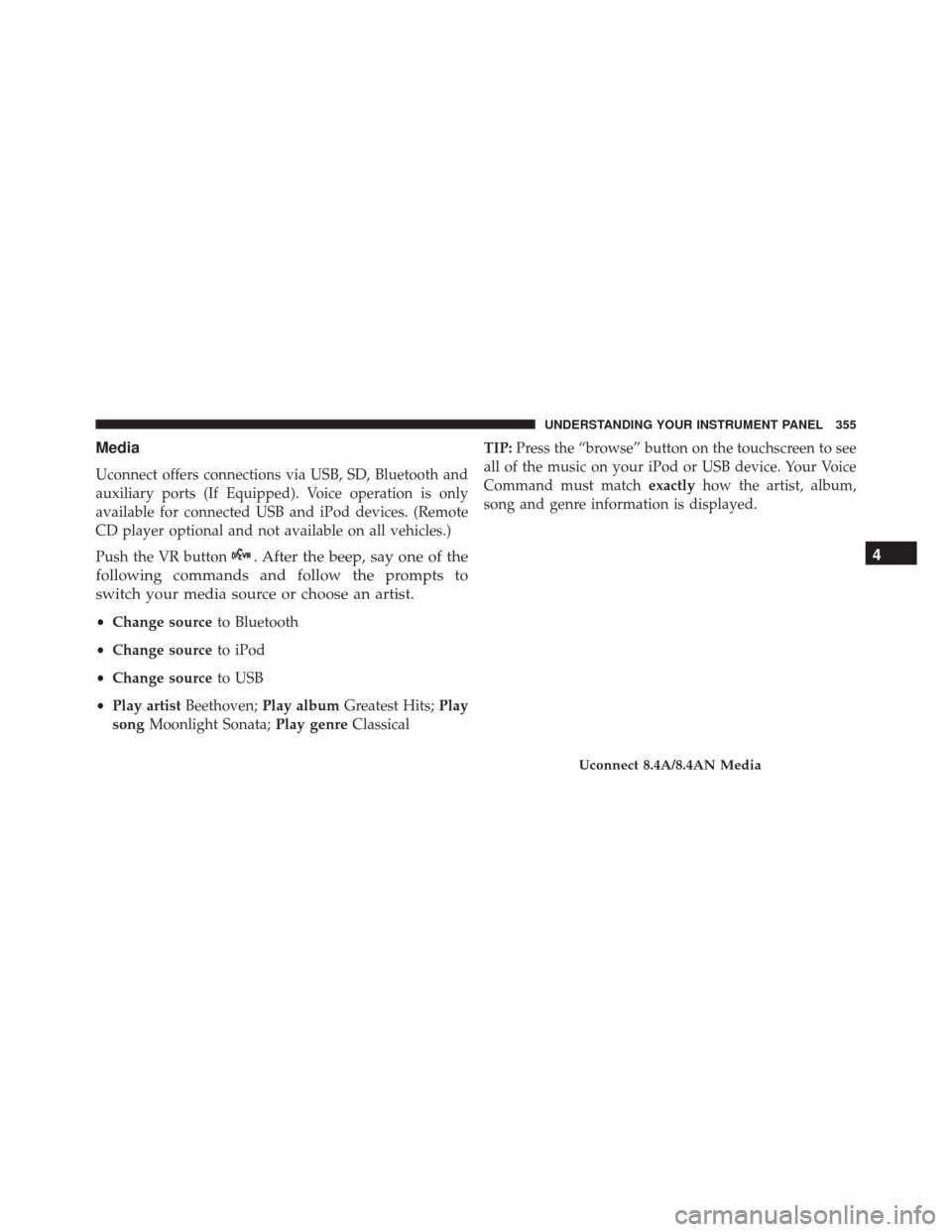
Media
Uconnect offers connections via USB, SD, Bluetooth and
auxiliary ports (If Equipped). Voice operation is only
available for connected USB and iPod devices. (Remote
CD player optional and not available on all vehicles.)
Push the VR button
. After the beep, say one of the
following commands and follow the prompts to
switch your media source or choose an artist.
• Change source to Bluetooth
• Change source to iPod
• Change source to USB
• Play artist Beethoven; Play album Greatest Hits; Play
song Moonlight Sonata; Play genreClassical TIP:
Press the “browse” button on the touchscreen to see
all of the music on your iPod or USB device. Your Voice
Command must match exactlyhow the artist, album,
song and genre information is displayed.
Uconnect 8.4A/8.4AN Media
4
UNDERSTANDING YOUR INSTRUMENT PANEL 355