Page 298 of 620
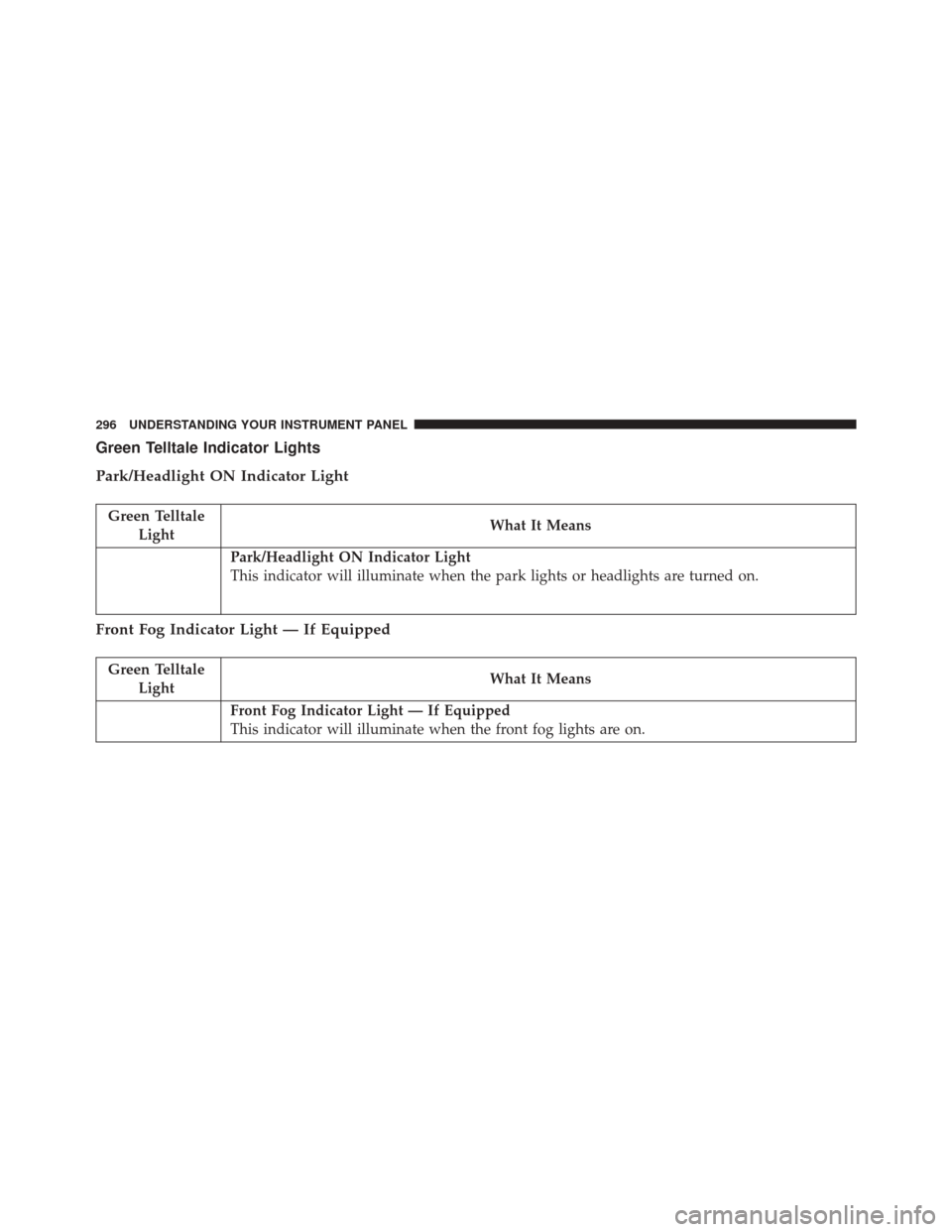
Green Telltale Indicator Lights
Park/Headlight ON Indicator Light
Green TelltaleLight What It Means
Park/Headlight ON Indicator Light
This indicator will illuminate when the park lights or headlights are turned on.
Front Fog Indicator Light — If Equipped
Green Telltale
Light What It Means
Front Fog Indicator Light — If Equipped
This indicator will illuminate when the front fog lights are on.
296 UNDERSTANDING YOUR INSTRUMENT PANEL
Page 299 of 620
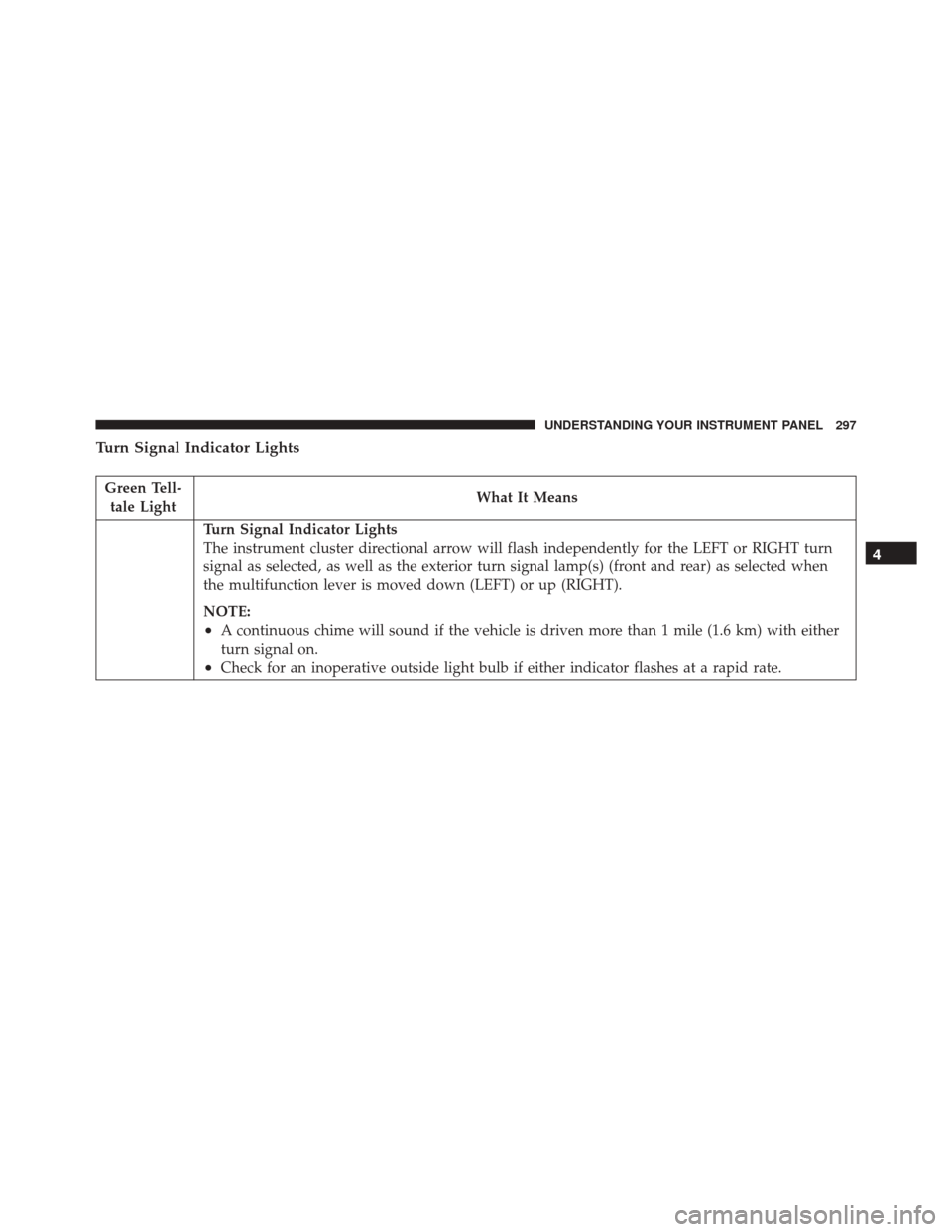
Turn Signal Indicator Lights
Green Tell-tale Light What It Means
Turn Signal Indicator Lights
The instrument cluster directional arrow will flash independently for the LEFT or RIGHT turn
signal as selected, as well as the exterior turn signal lamp(s) (front and rear) as selected when
the multifunction lever is moved down (LEFT) or up (RIGHT).
NOTE:
•A continuous chime will sound if the vehicle is driven more than 1 mile (1.6 km) with either
turn signal on.
•Check for an inoperative outside light bulb if either indicator flashes at a rapid rate.
4
UNDERSTANDING YOUR INSTRUMENT PANEL 297
Page 300 of 620
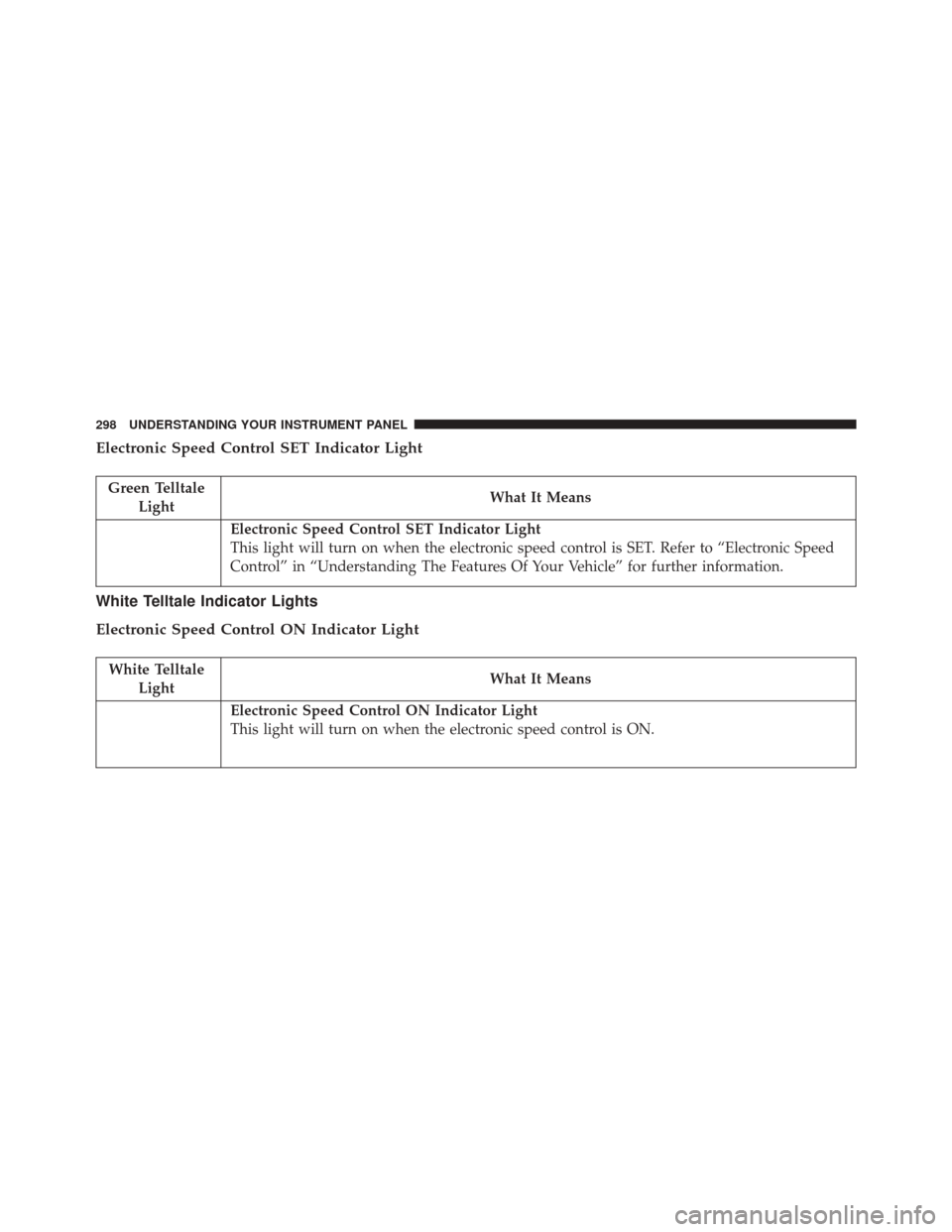
Electronic Speed Control SET Indicator Light
Green TelltaleLight What It Means
Electronic Speed Control SET Indicator Light
This light will turn on when the electronic speed control is SET. Refer to “Electronic Speed
Control” in “Understanding The Features Of Your Vehicle” for further information.
White Telltale Indicator Lights
Electronic Speed Control ON Indicator Light
White Telltale
Light What It Means
Electronic Speed Control ON Indicator Light
This light will turn on when the electronic speed control is ON.
298 UNDERSTANDING YOUR INSTRUMENT PANEL
Page 301 of 620
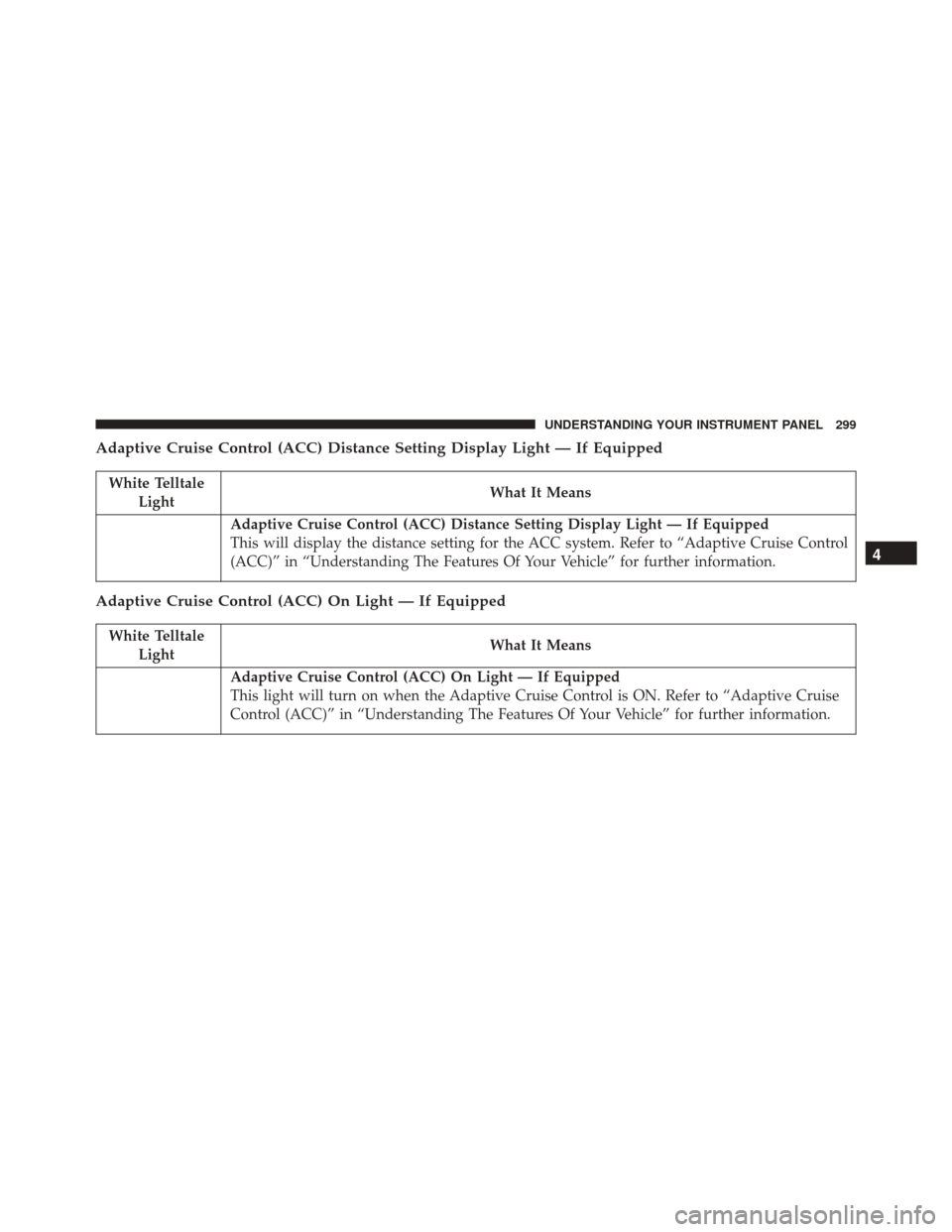
Adaptive Cruise Control (ACC) Distance Setting Display Light — If Equipped
White TelltaleLight What It Means
Adaptive Cruise Control (ACC) Distance Setting Display Light — If Equipped
This will display the distance setting for the ACC system. Refer to “Adaptive Cruise Control
(ACC)” in “Understanding The Features Of Your Vehicle” for further information.
Adaptive Cruise Control (ACC) On Light — If Equipped
White Telltale
Light What It Means
Adaptive Cruise Control (ACC) On Light — If Equipped
This light will turn on when the Adaptive Cruise Control is ON. Refer to “Adaptive Cruise
Control (ACC)” in “Understanding The Features Of Your Vehicle” for further information.
4
UNDERSTANDING YOUR INSTRUMENT PANEL 299
Page 302 of 620
Adaptive Cruise Control (ACC) Ready Light — If Equipped
White TelltaleLight What It Means
Adaptive Cruise Control (ACC) Ready Light — If Equipped
This light will turn on when the vehicle equipped with Adaptive Cruise Control (ACC) has
been turned on and in the READY state. Refer to “Electronic Speed Control” in “Under-
standing The Features Of Your Vehicle” for further information.
Adaptive Cruise Control (ACC) Set Light — If Equipped
White Telltale
Light What It Means
Adaptive Cruise Control (ACC) Set Light — If Equipped
This light will turn on when the Adaptive Cruise Control is ON and the target vehicle is de-
tected. Refer to
�Adaptive Cruise Control (ACC)� in�Understanding The Features Of Your
Vehicle� for further information.
300 UNDERSTANDING YOUR INSTRUMENT PANEL
Page 303 of 620
Blue Telltale Indicator Lights
High Beam Indicator Light
Blue TelltaleLight What It Means
High Beam Indicator Light
This indicator shows that the high beam headlights are on. Push the multifunction control
lever away from you to switch the headlights to high beam. Pull the lever toward you to
switch the headlights back to low beam. Pull the lever toward you for a temporary high
beam on,
�flash to pass� scenario.
DRIVER INFORMATION DISPLAY (DID)
The Driver Information Display (DID) features an inter-
active display which is located in the instrument cluster.
This system conveniently allows the driver to select a
variety of useful information by pushing the arrow
buttons located on the left side of the steering wheel. The
DID Menu Items consists of the following: •
Speedometer
• Vehicle Info
• Driver Assist — If Equipped
• Fuel Economy
• Trip
• Audio
4
UNDERSTANDING YOUR INSTRUMENT PANEL 301
Page 318 of 620

Buttons On The Touchscreen
Buttons on the touchscreen are accessible on the
Uconnect Touchscreen.
CAUTION!
Do not attach any object to touchscreen, doing so can
result in damage to the touchscreen.
Customer Programmable Features — Uconnect
8.4 Settings
Press the “Apps” button, then press the “Settings”
button on the touchscreen to display the menu setting
screen. In this mode the Uconnect system allows you
to access programmable features that may be
equipped such as Display, Units, Voice, Clock, Safety
& Driving Assistance, Lights, Doors & Locks, Auto-On Comfort, Engine Off Options, Audio, Phone/
Bluetooth, SiriusXM Setup, Restore Settings, Clear
Personal Data and System Information.
NOTE:
•
Only one touchscreen area may be selected at a time.
• Depending on the vehicles options, feature settings
may vary.
When making a selection, press the button on the touch-
screen to enter the desired mode. Once in the desired
mode, press and release the preferred setting “option”
until a check-mark appears next to the setting, showing
that setting has been selected. Once the setting is com-
plete, either press the Back Arrow button on the touch-
screen to return to the previous menu, or press the “X”
button on the touchscreen to close out of the settings
316 UNDERSTANDING YOUR INSTRUMENT PANEL
Page 319 of 620
screen. Pressing the Up or Down Arrow button on the
right side of the screen will allow you to toggle up or
down through the available settings.
Display
After pressing the “Display” button on the touchscreen
the following settings will be available:
•Display Mode
When in this display you may select one of the display
mode settings. To change Mode status, press and release
the “Manual” or “Auto” button on the touchscreen.
• Display Brightness With Headlights ON
When in this display, you may select the brightness with
the headlights on. Adjust the brightness from (1–10) with
the “+” and “–” buttons on the touchscreen. NOTE:
To make changes to the �Display Brightness with
Headlights ON� setting, the headlights must be on and
the interior dimmer switch must not be in the �party�or
�parade� positions.
• Display Brightness With Headlights OFF
When in this display, you may select the brightness with
the headlights off. Adjust the brightness from (1–10) with
the “+” and “–” buttons on the touchscreen.
NOTE: To make changes to the �Display Brightness with
Headlights OFF� setting, the headlights must be off and
the interior dimmer switch must not be in the �party�or
�parade� positions.
• Set Theme
When in this display, you may select the theme for the
display screen. To make your selection, press the �Set4
UNDERSTANDING YOUR INSTRUMENT PANEL 317