Page 386 of 702

•Blind Spot Alert — If Equipped
When this feature is selected, the Blind Spot Alert feature
can be set to Off, Lights Only or Lights and Chime. The
Blind Spot Alert feature can be activated in Lights category.
When this category is selected, the Blind Spot Monitor
(BSM) system is activated and will only show a visual alert
in the outside mirrors. When Lights & Chime category is
activated, the Blind Spot Monitor (BSM) will show a visual
alert in the outside mirrors as well as an audible alert when
the turn signal is on. When Off is selected, the Blind Spot
Monitor (BSM) system is deactivated. To change the Blind
Spot Alert status, press the “Off,” “Lights” or “Lights &
Chime” button on the touchscreen.
NOTE: If your vehicle has experienced any damage in
the area where the sensor is located, even if the fascia is
not damaged, the sensor may have become misaligned.
Take your vehicle to an authorized dealer to verify sensor
alignment. Having a sensor that is misaligned will result
in the BSM not operating to specification. •
ParkView Backup Camera Active Guidelines — If
Equipped
When this feature is enabled, active (dynamic) grid lines
are overlaid on the Rear Backup Camera image to
illustrate the width of the vehicle and its projected back
up path based on the steering wheel position. A dashed
center line overlay indicates the center of the vehicle to
assist with parking or aligning to a hitch/receiver.
• ParkView Backup Camera Fixed Guidelines — If
Equipped
When this feature is enabled, fixed (static) grid lines are
overlaid on the Rear Backup Camera image to illustrate
the width of the vehicle.
• ParkView Backup Camera Delay
When this feature is enabled, it will allow the ParkView
Backup Camera display to remain on while in drive for
up to 10 seconds, or 8 mph (13 km/h).
384 UNDERSTANDING YOUR INSTRUMENT PANEL
Page 391 of 702

•Passive Entry — If Equipped
This feature allows you to lock and unlock the vehicles
door(s) without having to press the Remote Keyless
Entry (RKE) transmitter lock or unlock buttons. To make
your selection, press the “Passive Entry” button on the
touchscreen, until a check-mark appears next to setting,
showing that setting has been selected. Refer to “Keyless
Enter-N-Go” in “Things To Know Before Starting Your
Vehicle”.
• Personal Settings Linked to Key Fob On/Off — If
Equipped
This feature provides automatic driver seat positioning to
enhance driver mobility when entering and exiting the
vehicle. To make your selection, press the “Memory
Linked To FOB” button on the touchscreen, until a
check-mark appears next to setting, showing that setting
has been selected. NOTE:
The seat will return to the memorized seat
location (if Recall Memory with Remote Key Unlock is set
to ON) when the Remote Keyless Entry (RKE) transmitter
is used to unlock the door. Refer to “Driver Memory
Seat” in “Understanding The Features Of Your Vehicle”
for further information.
Auto-On Comfort — If Equipped
After pressing the “Auto-On Comfort” button on the
touchscreen, one of the following settings will be avail-
able:
• Auto-On Driver Heated Seat OR Auto-On Driver
Heated Seat & Steering wheel OR Auto-On Driver
Heated/Vented Seat OR Auto-On Driver Heated/Vented
Seat & Steering Wheel
When this feature is selected the driver’s heated/vented
seat and heated steering wheel will automatically turn on
when temperatures are below 40° F (4.4° C). When
4
UNDERSTANDING YOUR INSTRUMENT PANEL 389
Page 397 of 702
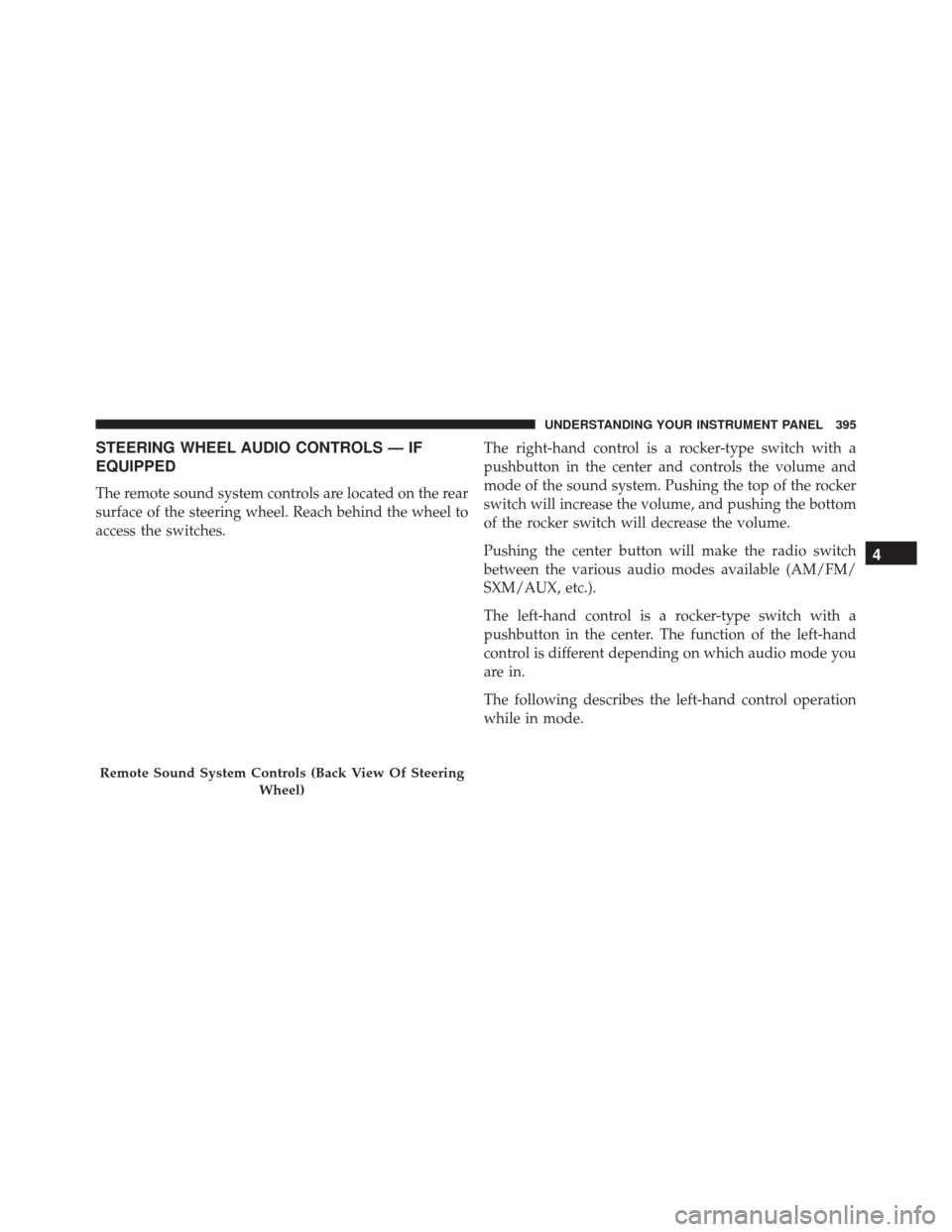
STEERING WHEEL AUDIO CONTROLS — IF
EQUIPPED
The remote sound system controls are located on the rear
surface of the steering wheel. Reach behind the wheel to
access the switches.The right-hand control is a rocker-type switch with a
pushbutton in the center and controls the volume and
mode of the sound system. Pushing the top of the rocker
switch will increase the volume, and pushing the bottom
of the rocker switch will decrease the volume.
Pushing the center button will make the radio switch
between the various audio modes available (AM/FM/
SXM/AUX, etc.).
The left-hand control is a rocker-type switch with a
pushbutton in the center. The function of the left-hand
control is different depending on which audio mode you
are in.
The following describes the left-hand control operation
while in mode.
Remote Sound System Controls (Back View Of Steering
Wheel)
4
UNDERSTANDING YOUR INSTRUMENT PANEL 395
Page 408 of 702

6. Blower Control
Blower control is used to regulate the amount of air forced
through the climate system. There are seven blower speeds
available. Adjusting the blower will cause automatic mode
to switch to manual operation. The speeds can be selected
using either the blower control knob on the faceplate or
buttons on the touchscreens as follows:
Blower Control Knob On The Faceplate
The blower speed increases as you turn the control
clockwise from the lowest blower setting. The blower
speed decreases as you turn the blower control knob
counterclockwise.
Buttons On The Touchscreen
Use the small blower icon to reduce the blower setting
and the large blower icon to increase the blower setting.
Blower can also be selected by pressing the blower bar
area between the icons.7. Modes
The airflow distribution mode can be adjusted so air
comes from the instrument panel outlets, floor outlets,
demist outlets and defrost outlets. The Mode settings are
as follows:
•Panel Mode
Air comes from the outlets in the instrument
panel. Each of these outlets can be individually
adjusted to direct the flow of air. The air vanes of the
center outlets and outboard outlets can be moved up and
down or side to side to regulate airflow direction. There
is a shut off wheel located adjacent to the air vanes to
shut off or adjust the amount of airflow from these
outlets.
406 UNDERSTANDING YOUR INSTRUMENT PANEL
Page 415 of 702
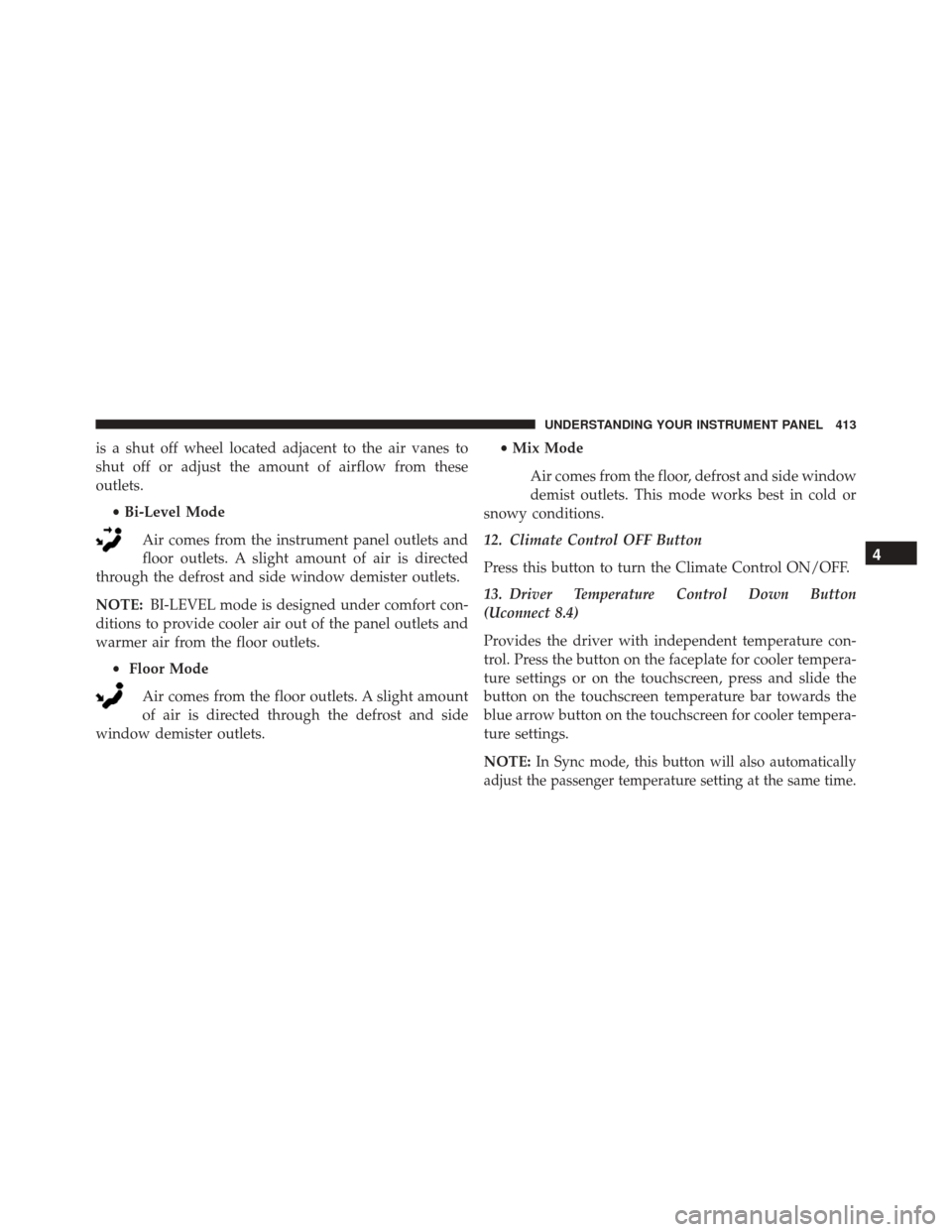
is a shut off wheel located adjacent to the air vanes to
shut off or adjust the amount of airflow from these
outlets.•Bi-Level Mode
Air comes from the instrument panel outlets and
floor outlets. A slight amount of air is directed
through the defrost and side window demister outlets.
NOTE: BI-LEVEL mode is designed under comfort con-
ditions to provide cooler air out of the panel outlets and
warmer air from the floor outlets.
• Floor Mode
Air comes from the floor outlets. A slight amount
of air is directed through the defrost and side
window demister outlets. •
Mix Mode
Air comes from the floor, defrost and side window
demist outlets. This mode works best in cold or
snowy conditions.
12. Climate Control OFF Button
Press this button to turn the Climate Control ON/OFF.
13. Driver Temperature Control Down Button
(Uconnect 8.4)
Provides the driver with independent temperature con-
trol. Press the button on the faceplate for cooler tempera-
ture settings or on the touchscreen, press and slide the
button on the touchscreen temperature bar towards the
blue arrow button on the touchscreen for cooler tempera-
ture settings.
NOTE:
In Sync mode, this button will also automatically
adjust the passenger temperature setting at the same time.
4
UNDERSTANDING YOUR INSTRUMENT PANEL 413
Page 425 of 702

Get Started
All you need to control your Uconnect system with your
voice are the buttons on your steering wheel.
1. VisitUconnectPhone.com to check mobile device and
feature compatibility and to find phone pairing in-
structions.
2.
Reduce background noise. Wind and passenger conversa-
tions are examples of noise that may impact recognition.
3. Speak clearly at a normal pace and volume while facing straight ahead. The microphone is positioned
on the rearview mirror and aimed at the driver.
4. Each time you give a Voice Command, you must first push either the VR or Phone button, wait until after
the beep, then say your Voice Command.
5. You can interrupt the help message or system prompts by pushing the VR or Phone button and saying a Voice
Command from current category.
Uconnect Voice Command Buttons
1 — Push To Initiate Or To Answer A Phone Call, Send Or Re-
ceive A Text
2 — For All Radios: Push To Begin Radio Or Media functions. For
8.4A/8.4AN Only: Push To Begin Navigation, Apps And Climate
Functions.
3 — Push To End Call
4
UNDERSTANDING YOUR INSTRUMENT PANEL 423
Page 434 of 702
TIP:Voice Command for Climate may only be used to
adjust the interior temperature of your vehicle. Voice
Command will not work to adjust the heated seats or
steering wheel if equipped.Navigation (8.4A/8.4AN)
The Uconnect navigation feature helps you save time and
become more productive when you know exactly how to
get to where you want to go. (Navigation is optional on
the Uconnect 8.4A system. See your dealer to activate
navigation at any time.)
1. To enter a destination, push the VR button
. After
the beep, say:
• For the 8.4A Uconnect System, say: “Enter state.”
• For the 8.4AN Uconnect System, say: “Find address
800 Chrysler Drive Auburn Hills, Michigan.”
2. Then follow the system prompts.
Uconnect 8.4A/8.4AN Climate
432 UNDERSTANDING YOUR INSTRUMENT PANEL
Page 442 of 702
TIP:Traffic alerts are not accessible with Voice Com-
mand.Siri Eyes Free — If Equipped
If your vehicle is equipped with Siri Eyes Free, you can use
your voice to send text messages, schedule meetings, set
reminders, and more. For further information go to the
Mopar Owner Connect website moparownerconnect.com.
Do Not Disturb
With Do Not Disturb, you can disable notifications from
incoming calls and texts, allowing you to keep your eyes
on the road and hands on the wheel. For your conve-
nience there is a counter display to keep track of your
missed calls and text messages while you were using Do
Not Disturb.
Do Not Disturb can automatically reply with a text
message, a call or both, when declining an incoming call
and send it to voicemail.
Automatic reply messages can be:
• “I am driving right now, I will get back to you shortly.”
SiriusXM Travel Link
440 UNDERSTANDING YOUR INSTRUMENT PANEL