Page 282 of 702
5. Push and hold the programmed HomeLink buttonand observe the indicator light.
• If the indicator light stays on constantly, program-
ming is complete and the garage door/device should
activate when the HomeLink button is pushed.
• To program the two remaining HomeLink buttons,
repeat each step for each remaining button. DO NOT
erase the channels.
Reprogramming A Single HomeLink Button
(Non-Rolling Code)
To reprogram a channel that has been previously trained,
follow these steps:
1. Cycle the ignition to the ON/RUN position.
2. Push and hold the desired HomeLink button until the indicator light begins to flash after 20 seconds. Do not
release the button. 3.
Without releasing the button proceed with “Program-
ming A Non-Rolling Code” step 2 and follow all
remaining steps.
Canadian/Gate Operator Programming
For programming transmitters in Canada/United States
that require the transmitter signals to “time-out” after
several seconds of transmission.
Canadian radio frequency laws require transmitter sig-
nals to time-out (or quit) after several seconds of trans-
mission – which may not be long enough for HomeLink
to pick up the signal during programming. Similar to this
Canadian law, some U.S. gate operators are designed to
time-out in the same manner.
It may be helpful to unplug the device during the cycling
process to prevent possible overheating of the garage
door or gate motor.
1. Cycle the ignition to the ON/RUN position.
280 UNDERSTANDING THE FEATURES OF YOUR VEHICLE
Page 314 of 702

▫DID Selectable Menu Items ..............370
▫ Screen Setup Driver Selectable Items ........374
� UCONNECT SETTINGS ..................376
▫ Buttons On The Faceplate ................377
▫ Buttons On The Touchscreen ..............378
▫ Customer Programmable Features/Personal
Settings — Uconnect 5.0/8.4A/8.4AN
Settings ............................ .378
� UCONNECT RADIOS — IF EQUIPPED ......394
� USB PORT AND AUX JACK — IF EQUIPPED . .394
� STEERING WHEEL AUDIO CONTROLS — IF
EQUIPPED .......................... .395
▫ Radio Operation ..................... .396
▫ Media Mode ........................ .396�
RADIO OPERATION AND MOBILE DEVICES . .396
▫ Regulatory And Safety Information .........396
� CLIMATE CONTROLS ...................398
▫ Manual Climate Controls ................398
▫ Manual Climate Controls With Touchscreen —
If Equipped ........................ .403
▫ Automatic Climate Controls With Touchscreen —
If Equipped ......................... .408
▫ Climate Control Functions ...............414
▫ Automatic Temperature Control (ATC) ......416
▫ Operating Tips ...................... .418
� PERSONALIZED MENU BAR .............421
� UCONNECT VOICE RECOGNITION QUICK
TIPS ............................... .421
312 UNDERSTANDING YOUR INSTRUMENT PANEL
Page 315 of 702
▫Introducing Uconnect ...................421
▫ Get Started ......................... .423
▫ Basic Voice Commands ..................424
▫ Radio ............................. .425
▫ Media ............................. .427
▫ Phone ............................. .428
▫ Voice Text Reply ..................... .430
▫ Climate (8.4A/8.4AN) ..................431
▫ Navigation (8.4A/8.4AN) ................432
▫ Uconnect Access (8.4A/8.4AN) ............433▫
Vehicle Health Alert ...................434
▫ Register (8.4A/8.4AN) ..................434
▫ Mobile App (8.4A/8.4AN) ...............435
▫ Voice Texting (8.4A/8.4AN) ..............436
▫ Yelp (8.4A/8.4AN) .....................438
▫ SiriusXM Travel Link (8.4A/8.4AN) .........439
▫ Siri Eyes Free — If Equipped .............440
▫ Do Not Disturb ..................... .440
▫ General Information ...................441
▫ Additional Information .................442
4
UNDERSTANDING YOUR INSTRUMENT PANEL 313
Page 316 of 702
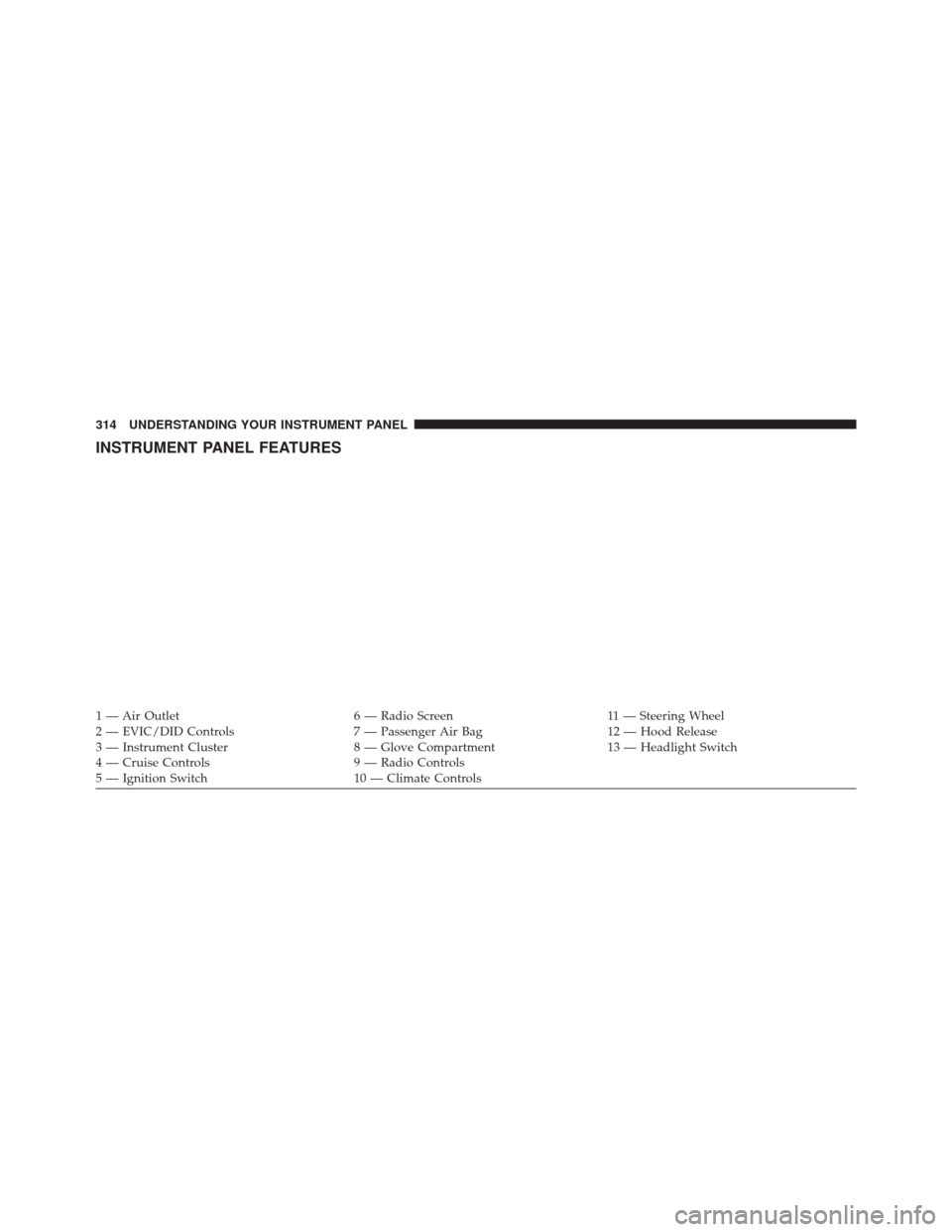
INSTRUMENT PANEL FEATURES
1 — Air Outlet6 — Radio Screen11 — Steering Wheel
2 — EVIC/DID Controls 7 — Passenger Air Bag12 — Hood Release
3 — Instrument Cluster 8 — Glove Compartment13 — Headlight Switch
4 — Cruise Controls 9 — Radio Controls
5 — Ignition Switch 10 — Climate Controls
314 UNDERSTANDING YOUR INSTRUMENT PANEL
Page 382 of 702

“Touchscreen Beep” button on the touchscreen until a
check-mark appears next to the setting, showing that
setting has been selected.
•Navigation Turn-By-Turn In Cluster — If Equipped
When this feature is selected, the turn-by-turn directions
will appear in the driver screen/EVIC/DID/Cluster dis-
play as the vehicle approaches a designated turn within
a programmed route. To turn on or enable, press the
“Navigation Turn-By-Turn In Cluster” button on the
touchscreen, until a check-mark appears next to the
setting, showing that setting has been selected.
• Voice
This feature allows you to change the Voice Response
Length settings. To change the Voice Response Length,
press the “Brief” (Brief is a shortened response for
advanced users) or “Detailed” (Detailed provides more
comprehensive responses for new users) button on the touchscreen until a check-mark appears next to the
setting, showing that setting has been selected.
Clock
After pressing the “Clock” button on the touchscreen the
following settings will be available:
•
Sync Time With GPS
This feature allows you to automatically have the radio
set the time. To change the Sync Time setting, press the
“Sync with GPS Time” button on the touchscreen until a
check-mark appears next to the setting, showing that
setting has been selected.
• Set Time Hours
This feature allows you to adjust the hours. The “Sync
with GPS Time” button on the touchscreen must be
unchecked. To make your selection, press the “+” or “–”
buttons on the touchscreen to adjust the hours up or
down.
380 UNDERSTANDING YOUR INSTRUMENT PANEL
Page 392 of 702

temperatures are above 80° F (26.7° C) the driver vented
seat will turn on. To make your selection, press “Off,”
“Remote Start Only,” OR “All Starts” checkbox until a
check-mark appears next to the setting option. Select
“Off,” “Remote Start Only” OR “All Starts” to determine
when the feature is activated.
Engine Off Options
After pressing the “Engine Off Options” button on the
touchscreen the following settings will be available:
•Easy Exit Seat
This feature provides automatic driver seat positioning to
enhance driver mobility when entering and exiting the
vehicle. To make your selection, press the “Easy Exit
Seats” button on the touchscreen, until a check-mark
appears next to setting, showing that setting has been
selected. •
Engine Off Power Delay
When this feature is selected, the power window
switches, radio, Uconnect Phone system (if equipped),
DVD video system (if equipped), power sunroof (if
equipped), and power outlets will remain active for up to
10 minutes after the ignition is cycled to OFF. Opening
either front door will cancel this feature. To change the
Engine Off Power Delay status, press the “0 seconds,”
“45 seconds,” “5 minutes” or “10 minutes” button on the
touchscreen.
• Headlight Off Delay
When this feature is selected, it allows the adjustment of
the amount of time the headlights remain on after the
engine is shut off. To change the Headlights Off Delay
setting, press the “Headlights Off Delay” button on the
touchscreen, and choose either 0 sec, 30 sec, 60 sec or 90
seconds. A check-mark appears next to setting indicating
that the setting has been selected.
390 UNDERSTANDING YOUR INSTRUMENT PANEL
Page 394 of 702

Phone/Bluetooth
After pressing the “Phone/Bluetooth” button on the
touchscreen the following settings will be available:
•Paired Phones
This feature shows which phones are paired to the
Phone/Bluetooth system. For further information, refer
to the Uconnect Supplement Manual.
• Paired Audio Sources
This feature shows which audio devices are paired to the
Phone/Bluetooth system. For further information, refer
to the Uconnect Supplement Manual.
SiriusXM Setup
After pressing the SIRIUS Setup button on the touch-
screen the following settings will be available. •
Channel Skip
SiriusXM can be programmed to designate a group of
channels that are the most desirable to listen to, or to
exclude undesirable channels while scanning. To make
your selection, press the Channel Skip button on the
touchscreen, select the channels you would like to skip.
• Subscription Information
New vehicle purchasers or lessees will receive a free
limited time subscription to SiriusXM Satellite Radio
with your radio. Following the expiration of the free
services, it will be necessary to access the information on
the Subscription Information screen in order to re-
subscribe.
Press the Subscription Info button on the touchscreen to
access the Subscription Information screen.
392 UNDERSTANDING YOUR INSTRUMENT PANEL
Page 395 of 702

Write down the SIRIUS ID numbers for your receiver. To
reactivate your service, either call the number listed on
the screen or visit the provider online.
NOTE:SiriusXM Travel Link is a separate subscription
and is available for U.S. residents only.
Restore Settings
After pressing the “Restore Settings” button on the
touchscreen the following settings will be available:
• Restore Settings
When this feature is selected it will reset the Display,
Clock, Audio, and Radio Settings to their default settings.
To restore the settings to their default setting, press the
Restore Settings button. A pop-up will appear asking
�Are you sure you want to reset your settings to default?”
select Yes to restore, or Cancel to exit. Once the settings are restored, a pop up appears stating
�settings reset to
default.� Press the okay button on the touchscreen to exit.
Clear Personal Data
After pressing the “Clear Personal Data Settings” button
on the touchscreen the following settings will be avail-
able:
•Clear Personal Data
When this feature is selected it will remove personal data
including Bluetooth devices and presets. To Clear Per-
sonal Data press the “Yes” or “No” button on the
touchscreen. A check mark will appear in the box when
selected.
4
UNDERSTANDING YOUR INSTRUMENT PANEL 393