Page 357 of 702

Secondary Method Of Navigating To The Oil Life
Screen In The DID And Holding OK
1. Without pushing the brake pedal, push the ENGINESTART/STOP button and cycle the ignition to the
ON/RUN position (do not start the engine).
2. Push and release the DOWNarrow button to scroll
downward through the main menu to “Vehicle Info.”
3. Push and release the RIGHTarrow button to access
the “Oil Life” screen.
4. Push and hold the OKbutton to reset of the Oil Life.
5. Push and release the UParrow button to exit the
screen.
NOTE: If the indicator message illuminates when you
start the vehicle, the oil change indicator system did not
reset. If necessary, repeat this procedure.Instrument Cluster Messages For (EVIC) And
(DID)
• Front Seatbelts Unbuckled
• Driver Seatbelt Unbuckled
• Passenger Seatbelt Unbuckled
• Service Airbag System
• Traction Control Off
• Washer Fluid Low
• Oil Pressure Low
• Oil Change Due
• Fuel Low
• Service Antilock Brake System
• Service Electronic Throttle Control
4
UNDERSTANDING YOUR INSTRUMENT PANEL 355
Page 362 of 702

Stored Messages
Push and release theUPorDOWN arrow button until
the Messages Menu displays in the EVIC/DID. This
feature shows the number of stored warning messages.
Pushing the RIGHTarrow button will allow you to see
what the stored messages are.
Screen Setup
Push and release the UPorDOWN arrow button until
the Screen Setup Menu displays in the EVIC/DID. Push
and release the OKbutton to enter the sub-menus. The
Screen Setup feature allows you to change what informa-
tion is displayed in the instrument cluster as well as the
location that information is displayed.
Vehicle Settings (EVIC) — If Equipped
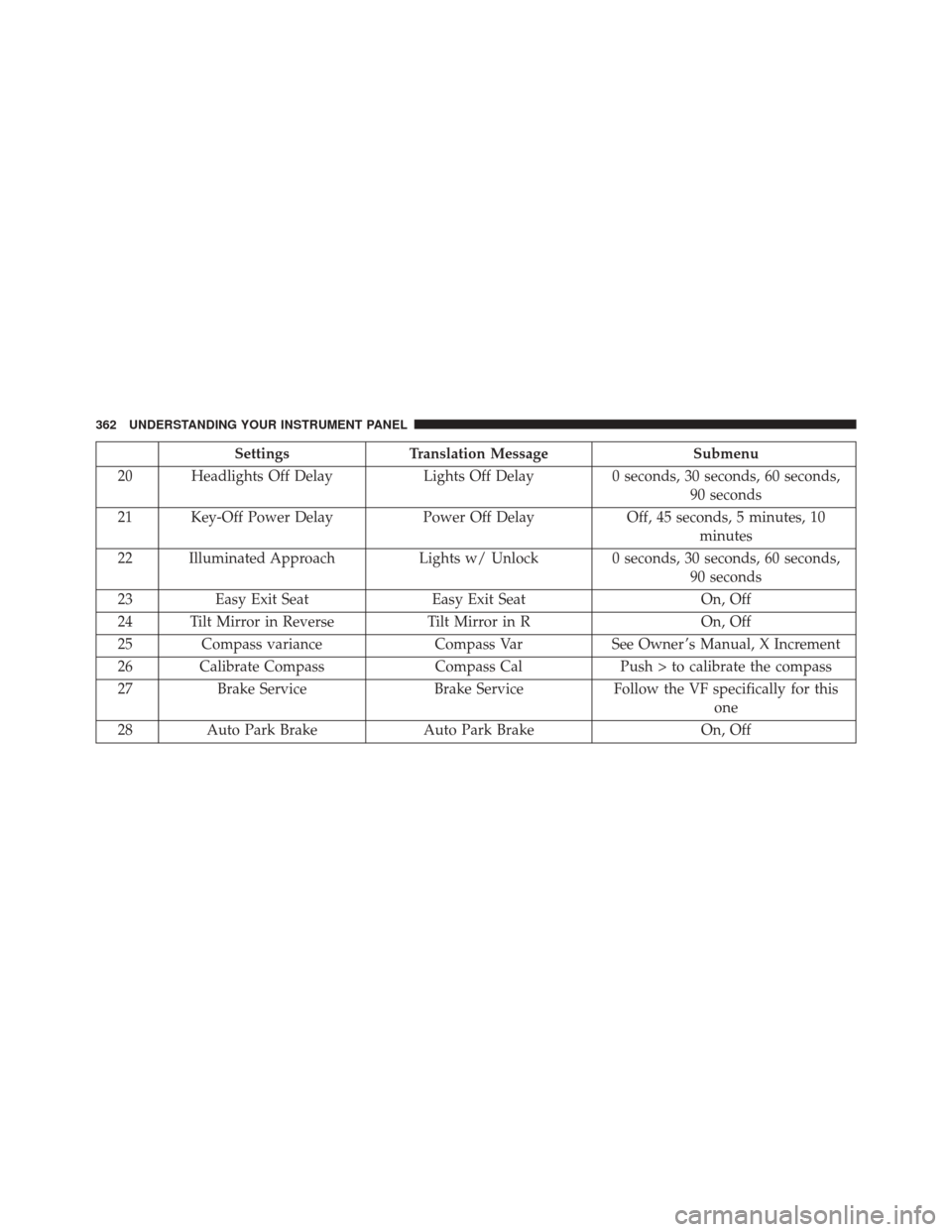
Settings Translation Message Submenu
1 Language Select LanguageEnglish, Spanish, French
2 Units Select UnitsU.S., Metric
3 FCW Sensitivity FCW Sensitivity Near, Far
4 ParkSense ParkSenseOff, Sound Only, Sound & Display
5 Blind Spot Alert Blind Spot AlertOff, Lights Only, Lights & Chime
6 Hill Start Assist Hill Start Asst On, Off
7 Auto Lock Doors Auto Lock Doors On, Off
360 UNDERSTANDING YOUR INSTRUMENT PANEL
Page 363 of 702
SettingsTranslation Message Submenu
8 Auto Unlock Doors Auto Unlock DoorsOn, Off
9 Passive Entry Passive Entry On, Off
10 Remote Unlock Sequence Remote UnlockDriver Door, All Doors
11 Key Fob Linked to Memory Key in Memory On, Off
12 Remote Start Comfort System Rmt Start Comfort Off, Remote Starts Only, All Starts
13 Sound Horn with Remote Start Horn w/ Rmt Start
On, Off
14 Sound Horn with Remote Lock Horn w/ Rmt Lock
Off, 1st Press, 2nd Press
15 Flash Lights with Lock Lights w/ LockOn, Off
16 Daytime Running Lights Daytime LightsOn, Off
17 Automatic Highbeams Auto HighbeamsOn, Off
18 Headlights On with Wipers Lights w/ Wipers On, Off
19 Rain Sensing Wipers Auto WipersOn, Off
4
UNDERSTANDING YOUR INSTRUMENT PANEL 361
Page 364 of 702
SettingsTranslation Message Submenu
20 Headlights Off Delay Lights Off Delay0 seconds, 30 seconds, 60 seconds,
90 seconds
21 Key-Off Power Delay Power Off DelayOff, 45 seconds, 5 minutes, 10
minutes
22 Illuminated Approach Lights w/ Unlock 0 seconds, 30 seconds, 60 seconds,
90 seconds
23 Easy Exit Seat Easy Exit Seat On, Off
24 Tilt Mirror in Reverse Tilt Mirror in ROn, Off
25 Compass variance Compass VarSee Owner ’s Manual, X Increment
26 Calibrate Compass Compass CalPush > to calibrate the compass
27 Brake Service Brake ServiceFollow the VF specifically for this
one
28 Auto Park Brake Auto Park Brake On, Off
362 UNDERSTANDING YOUR INSTRUMENT PANEL
Page 369 of 702
OKbutton. To reset the oil change indicator system (after
performing the scheduled maintenance), refer to the
following procedure.
1. Without pushing the brake pedal, push the ENGINE START/STOP button and cycle the ignition to the
ON/RUN position (do not start the engine).
2. Fully push the accelerator pedal, slowly, three times within 10 seconds.
3. Without pushing the brake pedal, push the ENGINE START/STOP button once to return the ignition to the
OFF/LOCK position.
Secondary Method Of Navigating To The Oil Life
Screen In The DID And Holding OK
1. Without pushing the brake pedal, push the ENGINE START/STOP button and cycle the ignition to the
ON/RUN position (do not start the engine). 2. Push and release the
DOWNarrow button to scroll
downward through the main menu to “Vehicle Info.”
3. Push and release the RIGHTarrow button to access
the “Oil Life” screen.
4. Push and hold the OKbutton to reset of the Oil Life.
5. Push and release the UParrow button to exit the
screen.
NOTE: If the indicator message illuminates when you
start the vehicle, the oil change indicator system did not
reset. If necessary, repeat this procedure.
Instrument Cluster Messages For (EVIC) And
(DID)
• Front Seatbelts Unbuckled
• Driver Seatbelt Unbuckled
• Passenger Seatbelt Unbuckled
4
UNDERSTANDING YOUR INSTRUMENT PANEL 367
Page 370 of 702
•Service Airbag System
• Traction Control Off
• Washer Fluid Low
• Oil Pressure Low
• Oil Change Due
• Fuel Low
• Service Antilock Brake System
• Service Electronic Throttle Control
• Service Power Steering
• Cruise Off
• Cruise Ready
• Cruise Set To XXX MPH
• Cruise Set To XXX KM/H •
Tire Pressure Screen With Low Tire(s) “Inflate Tire to
XX”
• Service Tire Pressure System
• Parking Brake Engaged
• Brake Fluid Low
• Service Electronic Braking System
• Engine Temperature Hot
• Battery Voltage Low
• Service Electronic Throttle Control
• Lights On
• Right Turn Signal Light Out
• Left Turn Signal Light Out
• Turn Signal On
368 UNDERSTANDING YOUR INSTRUMENT PANEL
Page 380 of 702

Buttons On The Touchscreen
Buttons on the touchscreen are accessible on the
Uconnect display.
Customer Programmable Features/Personal
Settings — Uconnect 5.0/8.4A/8.4AN Settings
Uconnect 5.0 — If a SETTINGS button on the faceplate
exists, push this button. If not, push the MORE button on
the faceplate and press the�Settings�button on the touch-
screen. The remaining settings are defined for the Uconnect
8.4A/8.4AN — Press the “Apps” button on the touch-
screen, then press the “Settings” button on the touchscreen
to display the menu setting screen. In this mode the
Uconnect system allows you to access programmable fea-
tures that may be equipped such as Display, Voice, Clock,
Safety & Driving Assistance (if equipped), Lights, Doors &
Locks, Auto-On Comfort (if equipped), Engine Off Op-
tions, Audio, Phone/Bluetooth, SiriusXM Setup, Restore
Settings, Clear Personal Data (if equipped).
NOTE: Only one category may be selected at a time.
To adjust the setting of a programmable feature, press the
desired setting option. Once in the desired setting option,
press and release the preferred setting until a check-mark
appears next to the setting, showing that the setting has
been selected. Once the setting is complete, either press
the back arrow button on the touchscreen or the Back
button on the faceplate to return to the previous menu or
press the “X” button on the touchscreen to close out of
the settings screen. Pressing the Up or Down Arrow
buttons on the right side of the screen will allow you to
toggle up or down through the list of available settings.
378 UNDERSTANDING YOUR INSTRUMENT PANEL
Page 382 of 702

“Touchscreen Beep” button on the touchscreen until a
check-mark appears next to the setting, showing that
setting has been selected.
•Navigation Turn-By-Turn In Cluster — If Equipped
When this feature is selected, the turn-by-turn directions
will appear in the driver screen/EVIC/DID/Cluster dis-
play as the vehicle approaches a designated turn within
a programmed route. To turn on or enable, press the
“Navigation Turn-By-Turn In Cluster” button on the
touchscreen, until a check-mark appears next to the
setting, showing that setting has been selected.
• Voice
This feature allows you to change the Voice Response
Length settings. To change the Voice Response Length,
press the “Brief” (Brief is a shortened response for
advanced users) or “Detailed” (Detailed provides more
comprehensive responses for new users) button on the touchscreen until a check-mark appears next to the
setting, showing that setting has been selected.
Clock
After pressing the “Clock” button on the touchscreen the
following settings will be available:
•
Sync Time With GPS
This feature allows you to automatically have the radio
set the time. To change the Sync Time setting, press the
“Sync with GPS Time” button on the touchscreen until a
check-mark appears next to the setting, showing that
setting has been selected.
• Set Time Hours
This feature allows you to adjust the hours. The “Sync
with GPS Time” button on the touchscreen must be
unchecked. To make your selection, press the “+” or “–”
buttons on the touchscreen to adjust the hours up or
down.
380 UNDERSTANDING YOUR INSTRUMENT PANEL