2016 CHEVROLET TRAX Steering wheel controls
[x] Cancel search: Steering wheel controlsPage 103 of 358

Chevrolet TRAX Owner Manual (GMNA-Localizing-U.S./Canada/Mexico-
9159371) - 2016 - crc - 5/21/15
102 Instruments and Controls
Caution
If the vehicle is driven continually
with this light on, the emission
control system may not work as
well, the fuel economy may be
lower, and the vehicle may not
run smoothly. This could lead to
costly repairs that might not be
covered by the vehicle warranty.
Caution
Modifications to the engine,
transmission, exhaust, intake,
or fuel system, or the use of
replacement tires that do not
meet the original tire
specifications, can cause this light
to come on. This could lead to
costly repairs not covered by the
vehicle warranty. This could also
affect the vehicle’s ability to pass
an Emissions Inspection/
Maintenance test. See
Accessories and Modifications
0232. If the light is flashing :
A
malfunction has been detected that
could damage the emission control
system and increase vehicle
emissions. Diagnosis and service
may be required.
To help prevent damage, reduce
vehicle speed and avoid hard
accelerations and uphill grades.
If the light continues to flash, find a
safe place to park. Turn the vehicle
off and wait at least 10 seconds
before restarting the engine. If the
light is still flashing, follow the
previous guidelines and see your
dealer for service as soon as
possible.
If the light is on steady : A
malfunction has been detected.
Diagnosis and service may be
required.
Check the following:
. A loose or missing fuel cap may
cause the light to come on. See
Filling the Tank 0227. A few
driving trips with the cap
properly installed may turn the
light off. .
Poor fuel quality can cause
inefficient engine operation and
poor driveability, which may go
away once the engine is warmed
up. If this occurs, change the
fuel brand. It may require at
least one full tank of the proper
fuel to turn the light off. See Fuel
0 226.
If the light remains on, see your
dealer.
Emissions Inspection and
Maintenance Programs
If the vehicle requires an Emissions
Inspection/Maintenance test, the
test equipment will likely connect to
the vehicle's Data Link
Connector (DLC).
The DLC is under the instrument
panel to the left of the steering
wheel. Connecting devices that are
Page 106 of 358

Chevrolet TRAX Owner Manual (GMNA-Localizing-U.S./Canada/Mexico-
9159371) - 2016 - crc - 5/21/15
Instruments and Controls 105
Power Steering Warning
Light
If equipped, this light comes on
briefly when the ignition is turned to
ON/RUN as a check to show it is
working.
If it does not come on have the
vehicle serviced by your dealer.
If this light stays on, or comes on
while driving, the system may not be
working. If this happens, see your
dealer for service.
Ultrasonic Parking
Sensor Light
If equipped, this light comes on to
indicate that there is a malfunction
in the system. See your dealer for
service.
SeeParking Assist 0224.
Traction Off Light
If equipped, this light comes on
briefly while starting the engine. If it
does not, have the vehicle serviced
by your dealer. If the system is
working normally, the indicator light
then turns off. The traction off light comes on when
the Traction Control System (TCS)
has been turned off by pressing and
releasing the TCS/StabiliTrak
button.
This light and the StabiliTrak OFF
light come on when StabiliTrak is
turned off.
If the TCS is off, wheel spin is not
limited. Adjust driving accordingly.
See
Traction Control/Electronic
Stability Control 0218.
StabiliTrak®OFF Light
If equipped, this light comes on
briefly while starting the engine. If it
does not, have the vehicle serviced
by your dealer.
Page 110 of 358
Chevrolet TRAX Owner Manual (GMNA-Localizing-U.S./Canada/Mexico-
9159371) - 2016 - crc - 5/21/15
Instruments and Controls 109
The light goes out when the front
fog lamps are turned off. SeeFront
Fog Lamps 0125 for more
information.
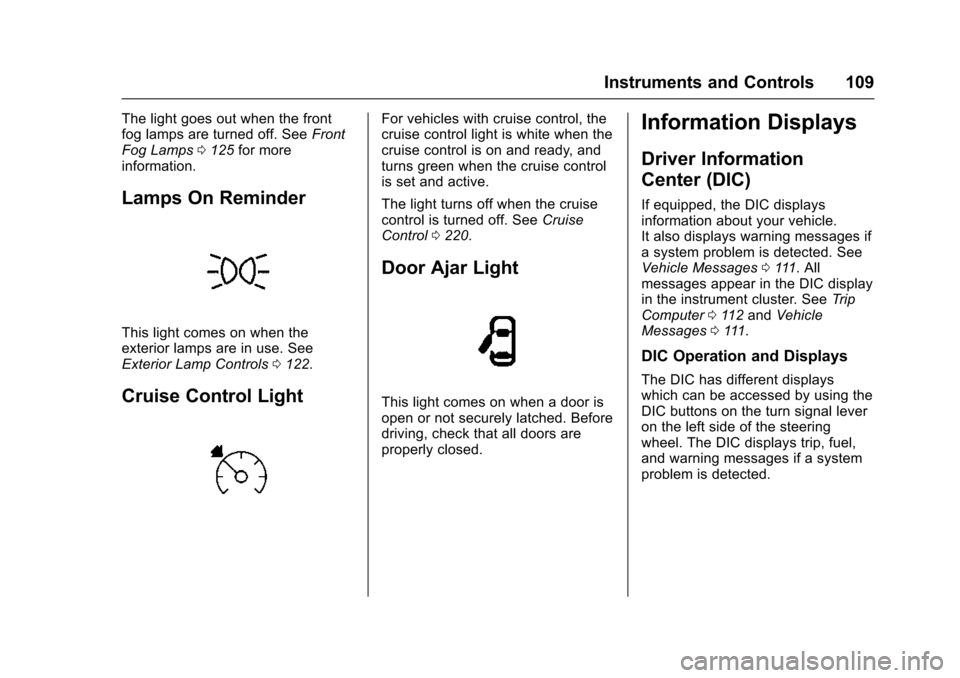
Lamps On Reminder
This light comes on when the
exterior lamps are in use. See
Exterior Lamp Controls 0122.
Cruise Control Light
For vehicles with cruise control, the
cruise control light is white when the
cruise control is on and ready, and
turns green when the cruise control
is set and active.
The light turns off when the cruise
control is turned off. See Cruise
Control 0220.
Door Ajar Light
This light comes on when a door is
open or not securely latched. Before
driving, check that all doors are
properly closed.
Information Displays
Driver Information
Center (DIC)
If equipped, the DIC displays
information about your vehicle.
It also displays warning messages if
a system problem is detected. See
Vehicle Messages 0111. All
messages appear in the DIC display
in the instrument cluster. See Trip
Computer 0112 and Vehicle
Messages 0111.
DIC Operation and Displays
The DIC has different displays
which can be accessed by using the
DIC buttons on the turn signal lever
on the left side of the steering
wheel. The DIC displays trip, fuel,
and warning messages if a system
problem is detected.
Page 127 of 358

Chevrolet TRAX Owner Manual (GMNA-Localizing-U.S./Canada/Mexico-
9159371) - 2016 - crc - 5/21/15
126 Lighting
Interior Lighting
Instrument Panel
Illumination Control
This feature controls the brightness
of the instrument panel controls and
infotainment display screen. The
thumbwheel is to the left of the
steering column on the instrument
panel.
D(Instrument Panel
Brightness) : Move the
thumbwheel up or down and hold, to
brighten or dim the instrument panel
controls and infotainment display
screen.
Courtesy Lamps
The courtesy lamps come on
automatically when any door is
opened and the dome lamp is in the
door position.
Dome Lamps
Front and Rear Dome Lamps
The front dome lamp controls are in
the overhead console.
((Dome Lamp Override) : Press
to turn the lamps off, even when a
door is open.
H(Door) : When the button is
returned to the middle position, the
lamps turn on automatically when a
door is opened.
'(On) : Press to turn on the
dome lamps.
The rear dome lamp controls are in
the headliner above the rear seats.
9(Dome Lamp Override) : Press
to turn the lamps off, even when a
door is open.
H(Door) : When the button is
returned to the middle position, the
lamps turn on automatically when a
door is opened.
Page 131 of 358

Chevrolet TRAX Owner Manual (GMNA-Localizing-U.S./Canada/Mexico-
9159371) - 2016 - crc - 5/21/15
130 Infotainment System
features are also available through
the instrument cluster and steering
wheel controls.
Before driving:
.Become familiar with the
operation, faceplate buttons, and
screen buttons.
. Set up the audio by presetting
favorite stations, setting the
tone, and adjusting the
speakers.
. Set up phone numbers in
advance so they can be called
easily by touching a single
button or by using a single voice
command if equipped with
Bluetooth phone capability.
See Defensive Driving 0193.
To play the infotainment system with
the ignition off, see Retained
Accessory Power (RAP) 0207.Theft-Deterrent Feature
The infotainment system has an
electronic security system installed
to prevent theft.
The infotainment system only works
in the vehicle in which it was first
installed, and cannot be used in
another vehicle.
Page 138 of 358

Chevrolet TRAX Owner Manual (GMNA-Localizing-U.S./Canada/Mexico-
9159371) - 2016 - crc - 5/21/15
Infotainment System 137
.Press and hold to delete the
entire character sequence.
Submenus
An arrow on the right-hand edge of
the menu indicates that it has a
submenu with other options.
Audio Settings
The audio settings can be set for
each radio band and each audio
player source.
Adjusting the Bass, Midrange,
Treble, Fader, and Balance 1. Press the TONE button.
2. Turn the MENU/TUNE knob to the desired tone.
3. Press the MENU/TUNE knob to select the desired tone.
4. Turn the MENU/TUNE knob to adjust the desired tone.
5. Press the MENU/TUNE knob to save the setting.
Press the
/BACK button to go
back to the Tone Settings menu. Adjusting the EQ (Equalizer)
1. Press the TONE button.
2. Turn the MENU/TUNE knob to EQ.
3. Press the MENU/TUNE knob.
4. Turn the MENU/TUNE knob to the desired setting.
5. Press the MENU/TUNE knob it select it.
Press the
/BACK button to go
back to the Tone Settings menu.
System Settings
Configuring the Number of
Favorite Pages
Up to six favorite pages can be
saved, and each page can store up
to six radio stations.
To configure the number of available
favorite pages:
1. Press the CONFIG button.
2. Select Radio Settings.
3. Select Radio Favorites.
4. Select the number of available favorite pages to display. 5. Press the
/BACK button to go
back to the System
Configuration menu.
Auto Volume
This feature automatically adjusts
the radio volume to compensate for
road and wind noise.
The level of volume compensation
can be selected, or the feature can
be turned off. 1. Press the CONFIG button.
2. Select Radio Settings.
3. Select Auto Volume.
4. Select the setting.
5. Press the
/BACK button to go
back to the System
Configuration menu.
Radio Controls with
Touchscreen
The infotainment system is operated
by using the pushbuttons, menus
shown on the display, and steering
wheel controls.
Page 154 of 358

Chevrolet TRAX Owner Manual (GMNA-Localizing-U.S./Canada/Mexico-
9159371) - 2016 - crc - 5/21/15
Infotainment System 153
Phone
Bluetooth (Overview)
For vehicles equipped with
Bluetooth capability, the system can
interact with many cell phones,
allowing:
.Placement and receipt of calls in
a hands-free mode.
. Sharing of the cell phone’s
address book or contact list with
the vehicle.
To minimize driver distraction,
before driving, and with the vehicle
parked:
. Become familiar with the
features of the cell phone.
Organize the phone book and
contact lists clearly and delete
duplicate or rarely used entries.
If possible, program speed dial
or other shortcuts.
. Review the controls and
operation of the infotainment
system. .
Pair cell phone(s) to the vehicle.
The system may not work with
all cell phones. See “Pairing”in
this section.
. If the cell phone has voice
dialing capability, learn to use
that feature to access the
address book or contact list. See
“Voice Pass-Thru” in this
section.
. See “Storing and Deleting Phone
Numbers” in this section.
{Warning
When using a cell phone, it can
be distracting to look too long or
too often at the screen of the
phone or the infotainment system.
Taking your eyes off the road too
long or too often could cause a
crash resulting in injury or death.
Focus your attention on driving.
Vehicles with a Bluetooth system
can use a Bluetooth-capable cell
phone with a Hands-Free Profile to
make and receive phone calls. The
infotainment system and voice recognition are used to control the
system. The system can be used
while in ON/RUN or ACC/
ACCESSORY. The range of the
Bluetooth system can be up to 9.1 m
(30 ft). Not all phones support all
functions and not all phones work
with the Bluetooth system. See
www.gm.com/bluetooth for more
information about compatible
phones.
Bluetooth Controls
Use the buttons located on the
infotainment system and the
steering wheel to operate the
Bluetooth system.
Steering Wheel Controls
b/g(Press to Talk) :
Press to
answer incoming calls, confirm
system information, and start voice
recognition.
$/i(Mute/End Call) : Press to
end a call, reject a call, or cancel an
operation.
Page 169 of 358

Chevrolet TRAX Owner Manual (GMNA-Localizing-U.S./Canada/Mexico-
9159371) - 2016 - crc - 5/21/15
168 Infotainment System
Sending a Number or Name Tag
During a Call1. Press
b/g. The system
responds “Ready,”followed by
a tone.
2. Say “Dial.”
3. Say the number or name tag to send.
Clearing the System
Unless information is deleted out of
the in-vehicle Bluetooth system, it
will be retained indefinitely. This
includes all saved name tags in the
phone book and phone pairing
information. For information on how
to delete this information, see the
previous sections on deleting a
paired phone and deleting
name tags.
Hands-Free Phone
General Information with
Touchscreen
Vehicles with a Hands-Free Phone
system can use a Bluetooth-capable
cell phone with a hands-free profile to make and receive phone calls.
The infotainment system and voice
control are used to operate the
system. Not all phones support all
functions and not all phones work
with the Hands-Free Phone system.
Hands-Free Phone Controls
Use the buttons on the infotainment
system and the steering wheel to
operate the Hands-Free Phone
system.
Steering Wheel Controls
Steering wheel controls can be
used to:
.
Answer incoming calls. .
Confirm system information.
. End a call.
. Decline a call.
. Cancel an operation.
. Make outgoing calls using the
call list.
b/g(Press to Talk) : Press to
answer incoming calls and to
confirm system information. Press
and hold for two to three seconds to
access the call list.
$/i(Mute/End Call) : Press to
end a call, decline a call, or cancel
an operation.
Making a Call by Entering a Phone
Number