2016 CHEVROLET SS wheel
[x] Cancel search: wheelPage 91 of 397

Chevrolet SS Sedan Owner Manual (GMNA-Localizing-U.S.-9234782) - 2016 -
CRC - 8/24/15
90 Instruments and Controls
_SRC^(Thumbwheel Control) :
Press to select an audio source.
Use the thumbwheel to select the
next or previous favorite radio
station, MP3 track, USB track, and
Bluetooth Audio track.
Use
_SRC to skip to the next song
or show using Pandora or Stitcher®.
See Pandora Internet Radio 0146iior Stitcher Internet Radio 0150ii.
+
x− (Volume) : Press + to
increase the volume. Press −to
decrease.
Horn
Pressaon the steering wheel pad
to sound the horn.
Windshield Wiper/Washer
With the ignition in ACC/
ACCESSORY or ON/RUN/START,
move the lever to select the wiper
speed.
HI : Use for fast wipes.
LO : Use for slow wipes.
INT (Rainsense Wipe Sensitivity
Control) : Move the windshield
wiper lever to INT. Turn the
xINT
band on the wiper lever to adjust the
sensitivity.
OFF : Use to turn the wipers off.
1X (Mist) : For a single wipe, briefly
move the wiper lever down. For
several wipes, hold the wiper
lever down.
Clear snow and ice from the wiper
blades and windshield before using
them. If frozen to the windshield,
carefully loosen or thaw them. Damaged blades should be
replaced. See
Wiper Blade
Replacement 0287
ii.
Heavy snow or ice can overload the
wiper motor.
Rainsense™
With Rainsense, a sensor near the
top center of the windshield detects
the amount of water on the
windshield and controls the
frequency of the windshield wiper.
Keep this area of the windshield
clear of debris to allow for best
system performance.
INT (Rainsense Wipe Sensitivity
Control) : Move the windshield
wiper lever to INT. Turn the
xINT
band on the wiper lever to adjust the
sensitivity.
. Turn the band up for more
sensitivity to moisture.
ProCarManuals.com
Page 100 of 397

Chevrolet SS Sedan Owner Manual (GMNA-Localizing-U.S.-9234782) - 2016 -
CRC - 8/24/15
Instruments and Controls 99
If the light remains on, see your
dealer.
Emissions Inspection and
Maintenance Programs
If the vehicle requires an Emissions
Inspection/Maintenance test, the
test equipment will likely connect to
the vehicle's Data Link
Connector (DLC).
The DLC is under the instrument
panel to the left of the steering
wheel. Connecting devices that are
not used to perform an Emissions
Inspection/Maintenance test or to
service the vehicle may affect
vehicle operation SeeAdd-On
Electrical Equipment 0265
ii. See
your dealer if assistance is needed. The vehicle may not pass
inspection if:
.
The light is on when the engine
is running.
. The light does not come on
when the ignition is in Service
Only Mode.
. Critical emission control systems
have not been completely
diagnosed. If this happens, the
vehicle would not be ready for
inspection and might require
several days of routine driving
before the system is ready for
inspection. This can happen if
the 12-volt battery has recently
been replaced or run down, or if
the vehicle has been recently
serviced.
See your dealer if the vehicle will
not pass or cannot be made ready
for the test.
Service Vehicle Soon
Light
For vehicles with this light, it comes
on if a condition exists that may
require the vehicle to be taken in for
service.
If the light comes on, take the
vehicle to your dealer for service as
soon as possible.
Brake System Warning
Light
The vehicle brake system consists
of two hydraulic circuits. If one
circuit is not working, the remaining
circuit can still work to stop the
vehicle. For normal braking
performance, both circuits need to
be working.
ProCarManuals.com
Page 103 of 397
Chevrolet SS Sedan Owner Manual (GMNA-Localizing-U.S.-9234782) - 2016 -
CRC - 8/24/15
102 Instruments and Controls
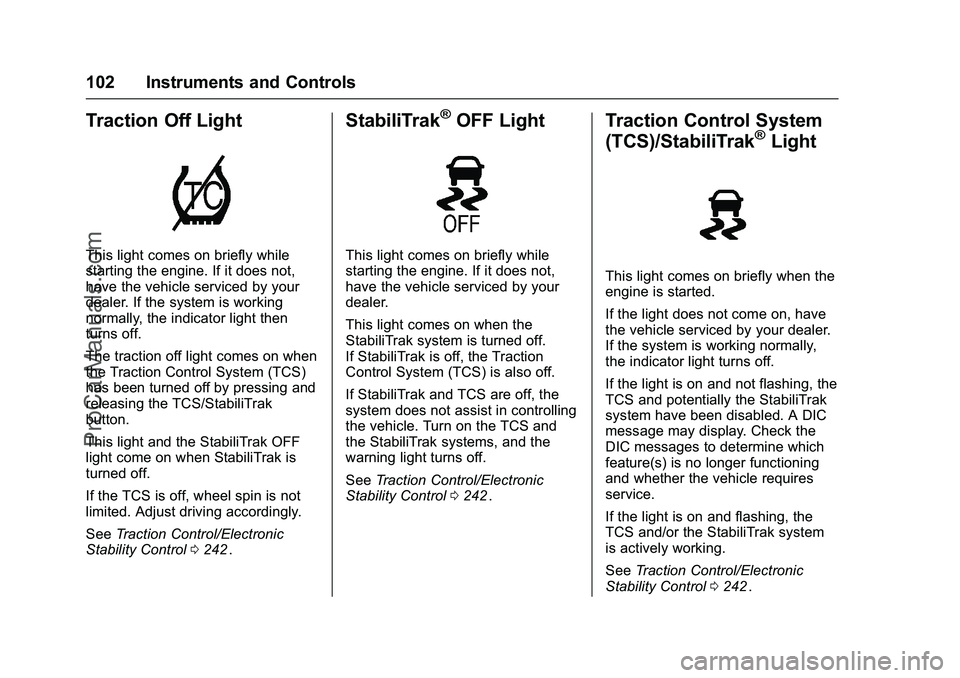
Traction Off Light
This light comes on briefly while
starting the engine. If it does not,
have the vehicle serviced by your
dealer. If the system is working
normally, the indicator light then
turns off.
The traction off light comes on when
the Traction Control System (TCS)
has been turned off by pressing and
releasing the TCS/StabiliTrak
button.
This light and the StabiliTrak OFF
light come on when StabiliTrak is
turned off.
If the TCS is off, wheel spin is not
limited. Adjust driving accordingly.
SeeTraction Control/Electronic
Stability Control 0242
ii.
StabiliTrak®OFF Light
This light comes on briefly while
starting the engine. If it does not,
have the vehicle serviced by your
dealer.
This light comes on when the
StabiliTrak system is turned off.
If StabiliTrak is off, the Traction
Control System (TCS) is also off.
If StabiliTrak and TCS are off, the
system does not assist in controlling
the vehicle. Turn on the TCS and
the StabiliTrak systems, and the
warning light turns off.
See Traction Control/Electronic
Stability Control 0242
ii.
Traction Control System
(TCS)/StabiliTrak®Light
This light comes on briefly when the
engine is started.
If the light does not come on, have
the vehicle serviced by your dealer.
If the system is working normally,
the indicator light turns off.
If the light is on and not flashing, the
TCS and potentially the StabiliTrak
system have been disabled. A DIC
message may display. Check the
DIC messages to determine which
feature(s) is no longer functioning
and whether the vehicle requires
service.
If the light is on and flashing, the
TCS and/or the StabiliTrak system
is actively working.
See Traction Control/Electronic
Stability Control 0242
ii.
ProCarManuals.com
Page 106 of 397

Chevrolet SS Sedan Owner Manual (GMNA-Localizing-U.S.-9234782) - 2016 -
CRC - 8/24/15
Instruments and Controls 105
Door Ajar Light
If equipped, this light comes on
when a door is open or not securely
latched. Before driving, check that
all doors are properly closed. See
Door Ajar Messages0111
ii.
Information Displays
Driver Information
Center (DIC)
The DIC displays information about
the vehicle. It also displays warning
messages if a system problem is
detected. See Vehicle Messages
0 110
ii. All messages appear in the
DIC display in the center of the
instrument cluster.
The vehicle may also have features
that can be customized through the
controls on the radio. See Vehicle
Personalization 0117
ii.
DIC Operation and Displays
The DIC has different displays,
which can be accessed by using the
DIC buttons on the turn signal lever
to the left of the steering wheel. The
DIC displays trip, fuel, vehicle
system information, and warning
messages if a system problem is
detected.
1. SET/CLR: Press to set,
or press and hold to clear, the
menu item displayed.
2.
\: Use the band to scroll
through the items in
each menu.
3. MENU: Press to display the
DIC menus. This button is also
used to return to or exit the last
screen displayed on the DIC.
Trip/Fuel Menu Items
Press MENU on the turn signal
lever until Trip/Fuel Menu is
displayed. Use
\to scroll through
the following possible menu items:
. Digital Speedometer
. Trip
. Fuel Range
. Average Fuel Economy
. Instantaneous Fuel Economy
ProCarManuals.com
Page 109 of 397
Chevrolet SS Sedan Owner Manual (GMNA-Localizing-U.S.-9234782) - 2016 -
CRC - 8/24/15
108 Instruments and Controls
Head-Up Display (HUD)
{Warning
If the HUD image is too bright or
too high in your field of view, it
may take you more time to see
things you need to see when it is
dark outside. Be sure to keep the
HUD image dim and placed low in
your field of view.
With HUD, some information
concerning the operation of the
vehicle is projected onto the
windshield. The image is projected
through the HUD lens on top of the
instrument panel. The information
appears as an image focused out
toward the front of the vehicle.
Caution
If you try to use the HUD image
as a parking aid, you may
misjudge the distance and
damage your vehicle. Do not use
the HUD image as a parking aid. The HUD may display some of the
following alerts or information for
vehicles equipped with these
features:
.
Speedometer
. Tachometer
. High Beam Indicator Symbol
. Forward Collision Alert Warnings
. Audio Functions
. Navigation
. Transmission Position
. Shift Up Meter
. Cruise Control Active
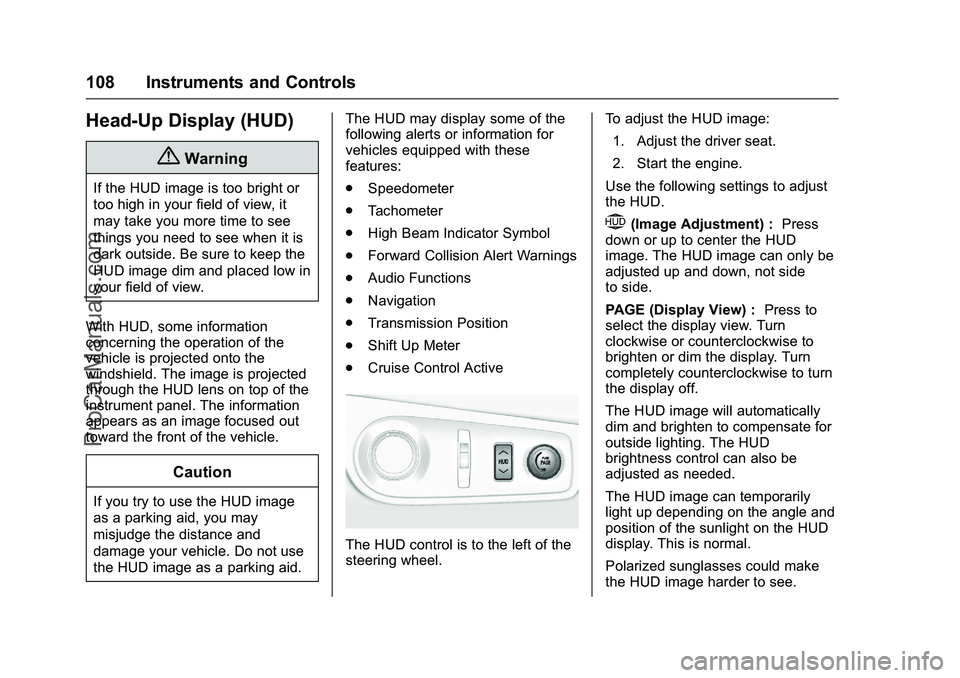
The HUD control is to the left of the
steering wheel. To adjust the HUD image:
1. Adjust the driver seat.
2. Start the engine.
Use the following settings to adjust
the HUD.
$(Image Adjustment) : Press
down or up to center the HUD
image. The HUD image can only be
adjusted up and down, not side
to side.
PAGE (Display View) : Press to
select the display view. Turn
clockwise or counterclockwise to
brighten or dim the display. Turn
completely counterclockwise to turn
the display off.
The HUD image will automatically
dim and brighten to compensate for
outside lighting. The HUD
brightness control can also be
adjusted as needed.
The HUD image can temporarily
light up depending on the angle and
position of the sunlight on the HUD
display. This is normal.
Polarized sunglasses could make
the HUD image harder to see.
ProCarManuals.com
Page 124 of 397

Chevrolet SS Sedan Owner Manual (GMNA-Localizing-U.S.-9234782) - 2016 -
CRC - 8/24/15
Lighting 123
Lighting
Exterior Lighting
Exterior Lamp Controls . . . . . . . 123
Headlamp High/Low-BeamChanger . . . . . . . . . . . . . . . . . . . . 123
Flash-to-Pass . . . . . . . . . . . . . . . . 123
Daytime Running Lamps (DRL) . . . . . . . . . . . . . . . 124
Automatic Headlamp System . . . . . . . . . . . . . . . . . . . . . . 124
Hazard Warning Flashers . . . . . 124
Turn and Lane-Change Signals . . . . . . . . . . . . . . . . . . . . . . 125
Interior Lighting
Instrument Panel IlluminationControl . . . . . . . . . . . . . . . . . . . . . . 125
Dome Lamps . . . . . . . . . . . . . . . . . 126
Reading Lamps . . . . . . . . . . . . . . 126
Lighting Features
Entry Lighting . . . . . . . . . . . . . . . . 127
Exit Lighting . . . . . . . . . . . . . . . . . . 127
Battery Power Protection . . . . . 127
Exterior Lighting
Exterior Lamp Controls
The exterior lamp control is on the
instrument panel to the left of the
steering wheel.
There are four positions:
O(Off) : Briefly turn to this position
to turn the automatic light control off
or on again.
AUTO (Automatic) : Automatic
operation of the headlamps at
normal brightness and other exterior
lamps.
;(Parking Lamps) : Turns on the
parking lamps including all lamps,
except the headlamps.
5(Headlamps) : Turns on the
headlamps together with the parking
lamps.
Headlamp High/
Low-Beam Changer
The headlamps must be on for this
feature to work.
Push the turn signal lever away
from you to turn the high beams on.
The
3indicator light turns on in the
instrument cluster when the
high-beam headlamps are on.
Push the lever away from you to
return to low beams.
Flash-to-Pass
To flash the high beams, pull the
lever toward you. The lamps remain
on high beam as long as the lever
is held.
ProCarManuals.com
Page 126 of 397

Chevrolet SS Sedan Owner Manual (GMNA-Localizing-U.S.-9234782) - 2016 -
CRC - 8/24/15
Lighting 125
Turn and Lane-Change
Signals
Move the turn signal lever all the
way up or down to signal a turn.
An arrow on the instrument cluster
flashes in the direction of the turn or
lane change.Raise or lower the lever until the
arrow starts to flash to signal a lane
change. Hold it there until the lane
change is completed. If the lever is
briefly pressed and released, the
turn signal flashes three times.
The turn signal can be turned off
manually by moving the lever back
to its original position.
If after signaling a turn or lane
change, the arrow flashes rapidly or
does not come on, a signal bulb
may be burned out.
Have any burned out bulbs
replaced. If a bulb is not burned out,
check the fuse. See
Fuses0291
ii.
Interior Lighting
Instrument Panel
Illumination Control
This feature controls the brightness
of the instrument panel controls and
infotainment display screen. The
thumbwheel is to the left of the
steering column on the instrument
panel.
D(Instrument Panel
Brightness) : Move the
thumbwheel up or down to brighten
or dim the instrument panel controls
and infotainment display screen.
ProCarManuals.com
Page 129 of 397

Chevrolet SS Sedan Owner Manual (GMNA-Localizing-U.S.-9234782) - 2016 -
CRC - 8/24/15
128 Infotainment System
Infotainment
System
Introduction
Infotainment . . . . . . . . . . . . . . . . . . 128
Overview . . . . . . . . . . . . . . . . . . . . . 129
Steering Wheel Controls . . . . . . 131
Using the System . . . . . . . . . . . . 131
Software Updates . . . . . . . . . . . . 136
Radio
AM-FM Radio . . . . . . . . . . . . . . . . 136
Radio Data System (RDS) . . . . 138
Satellite Radio . . . . . . . . . . . . . . . . 139
Radio Reception . . . . . . . . . . . . . . 144
Backglass Antenna . . . . . . . . . . . 145
Multi-Band Antenna . . . . . . . . . . 145
Quick Info . . . . . . . . . . . . . . . . . . . . 145
Pandora Internet Radio . . . . . . . 146
Stitcher Internet Radio . . . . . . . . 150
Pictures . . . . . . . . . . . . . . . . . . . . . . 154
Audio Players
USB . . . . . . . . . . . . . . . . . . . . . . . . . . 155
Bluetooth Audio . . . . . . . . . . . . . . 161
OnStar System
OnStar System . . . . . . . . . . . . . . . 162
Navigation
Using the NavigationSystem . . . . . . . . . . . . . . . . . . . . . . 163
Maps . . . . . . . . . . . . . . . . . . . . . . . . . 166
Navigation Symbols . . . . . . . . . . 167
Destination . . . . . . . . . . . . . . . . . . . 169
OnStar
®Destination
Download . . . . . . . . . . . . . . . . . . . 179
Configure Menu . . . . . . . . . . . . . . 180
Global Positioning System (GPS) . . . . . . . . . . . . . . 185
Vehicle Positioning . . . . . . . . . . . 185
Problems with Route Guidance . . . . . . . . . . . . . . . . . . . 186
If the System Needs Service . . . . . . . . . . . . . . . . . . . . . 186
Map Data Updates . . . . . . . . . . . 186
Database Coverage Explanations . . . . . . . . . . . . . . . . 187
Voice Recognition
Voice Recognition . . . . . . . . . . . . 187
Bluetooth Phone/Devices
Bluetooth . . . . . . . . . . . . . . . . . . . . . 193
Text Messaging . . . . . . . . . . . . . . . 200
Trademarks and License
Agreements
Trademarks and LicenseAgreements . . . . . . . . . . . . . . . . . 203
Introduction
Infotainment
Read the following pages to
become familiar with these features.
{Warning
Taking your eyes off the road for
too long or too often while using
any infotainment feature can
cause a crash. You or others
could be injured or killed. Do not
give extended attention to
infotainment tasks while driving.
Limit your glances at the vehicle
displays and focus your attention
on driving. Use voice commands
whenever possible.
The infotainment system has built-in
features intended to help avoid
distraction by disabling some
functions when driving. These
functions may gray out when they
are unavailable. Many infotainment
ProCarManuals.com