2016 CHEVROLET SILVERADO key
[x] Cancel search: keyPage 171 of 533
Chevrolet Silverado Owner Manual (GMNA-Localizing-U.S./Canada/Mexico-
9159338) - 2016 - crc - 10/21/15
170 Instruments and Controls
door to lock the vehicle. See
Remote Keyless Entry (RKE)
System Operation036.
Select Off, On with Horn
Chirp, or On.
Remote Left in Vehicle Alert
This feature sounds an alert when
the RKE transmitter is left in the
vehicle.
Select Off or On.
Bluetooth
Select and the following may
display:
. Pair New Device
. Discoverable
. Device Management
. Ringtones
. Voice Mail Numbers
. Text Message Alerts Pair New Device
Select to pair a new device. See
“Pairing”
in“Infotainment Controls”
under Bluetooth (Voice Recognition
- Base Radio) 0227 orBluetooth
(Infotainment Controls - Base
Radio) 0223 orBluetooth
(Overview) 0222 orBluetooth
(Infotainment Controls - Base Radio
with Touchscreen) 0232 or“Pairing”
in “Infotainment Controls” under
“Bluetooth” in the infotainment
manual.
Discoverable
This allows the system to find a
device.
Select Off or On.
Device Management
Select to connect to a different
phone source, disconnect a phone,
or delete a phone.
Ringtones
Select to change the ring tone for
the specific phone. The phone does
not need to be connected to change
the ring tones. Voice Mail Numbers
This feature displays the voice mail
number for all connected phones.
To change the voice mail number,
select EDIT. Type a new number,
then select SAVE.
Text Message Alerts
This allows the feature to be turned
on or off.
Select Off or On.
Apple CarPlay™
Select and the following may
display:
.
Apple CarPlay
. Manage Apple CarPlay Devices
Apple CarPlay
This feature allows Apple devices to
be connected to the infotainment
system through a USB port.
Select Off or On.
Manage Apple CarPlay Devices
Select to manage Apple devices.
Apple CarPlay must be on for this
feature to be accessed.
Page 180 of 533

Chevrolet Silverado Owner Manual (GMNA-Localizing-U.S./Canada/Mexico-
9159338) - 2016 - crc - 10/21/15
Lighting 179
lights, roof marker lamps (if
equipped), front/rear sidemarker
lamps, and license plate lamps.
When the vehicle is turned off and
the headlamps are in AUTO, the
headlamps turn off. When the key is
removed, they automatically turn on
for a set time. The time of the delay
can be changed using the DIC. See
Driver Information Center (DIC)
(Base Level)0150 orDriver
Information Center (DIC)
(Uplevel) 0152.
;(Parking Lamps) : Turns on the
parking lamps including all lamps,
except the headlamps.
2(Headlamps) : Turns on the
headlamps together with the parking
lamps and instrument panel lights.
When the headlamps are turned on
while the vehicle is on, the
headlamps turn off automatically
10 minutes after the ignition is
turned off. When the headlamps are
turned on while the vehicle is off,
the headlamps will stay on for
10 minutes before turning off to
prevent the battery from being
drained. Turn the headlamp control off and then back to the headlamp
on position to make the headlamps
stay on for an additional 10 minutes.
To keep the lamps on for more than
10 minutes, the ignition must be in
the ACC/ACCESSORY or ON/RUN
position.
#(Fog Lamps) (If Equipped) :
Turns on the fog lamps. See Fog
Lamps 0183.
IntelliBeam®System
If equipped, this system turns the
vehicle's high-beam headlamps on
and off according to surrounding
traffic conditions.
The system turns the high-beam
headlamps on when it is dark
enough and there is no other traffic
present.
This light comes on in the
instrument cluster when the
IntelliBeam system is enabled.
Turning On and Enabling
IntelliBeam
To enable the IntelliBeam system,
with the turn signal lever in the
neutral position, turn the exterior
lamp control to AUTO. The blue
high-beam on light appears on the
instrument cluster when the high
beams are on.
Driving with IntelliBeam
The system only activates the high
beams when driving over 40 km/h
(25 mph).
There is a sensor near the top
center of the windshield that
automatically controls the system.
Keep this area of the windshield
clear of debris to allow for best
system performance.
Page 187 of 533
Chevrolet Silverado Owner Manual (GMNA-Localizing-U.S./Canada/Mexico-
9159338) - 2016 - crc - 10/21/15
186 Lighting
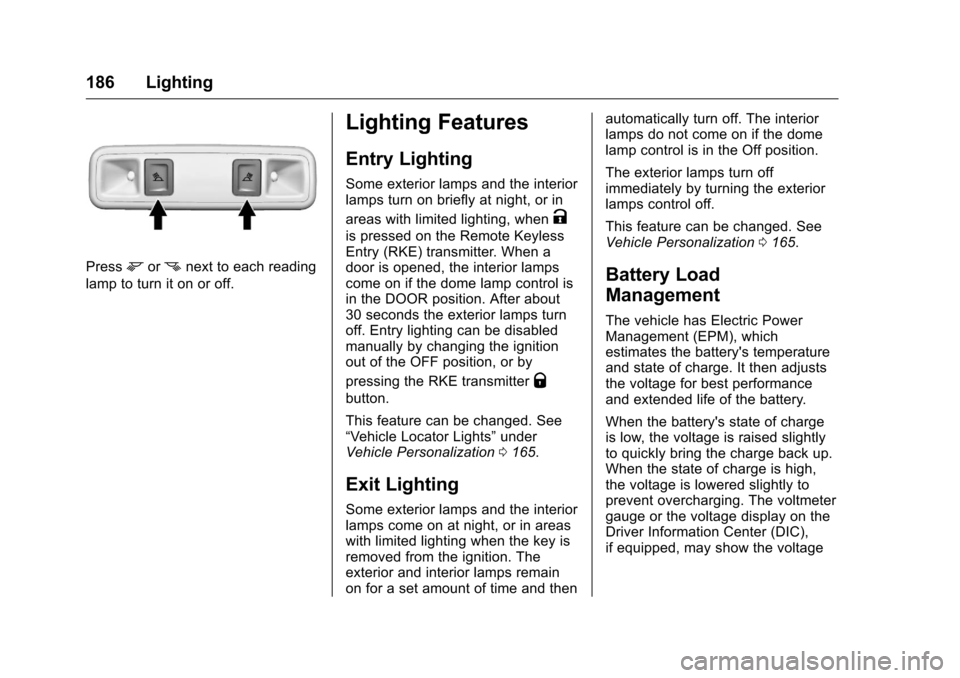
Pressmornnext to each reading
lamp to turn it on or off.
Lighting Features
Entry Lighting
Some exterior lamps and the interior
lamps turn on briefly at night, or in
areas with limited lighting, when
K
is pressed on the Remote Keyless
Entry (RKE) transmitter. When a
door is opened, the interior lamps
come on if the dome lamp control is
in the DOOR position. After about
30 seconds the exterior lamps turn
off. Entry lighting can be disabled
manually by changing the ignition
out of the OFF position, or by
pressing the RKE transmitter
Q
button.
This feature can be changed. See
“Vehicle Locator Lights” under
Vehicle Personalization 0165.
Exit Lighting
Some exterior lamps and the interior
lamps come on at night, or in areas
with limited lighting when the key is
removed from the ignition. The
exterior and interior lamps remain
on for a set amount of time and then automatically turn off. The interior
lamps do not come on if the dome
lamp control is in the Off position.
The exterior lamps turn off
immediately by turning the exterior
lamps control off.
This feature can be changed. See
Vehicle Personalization
0165.
Battery Load
Management
The vehicle has Electric Power
Management (EPM), which
estimates the battery's temperature
and state of charge. It then adjusts
the voltage for best performance
and extended life of the battery.
When the battery's state of charge
is low, the voltage is raised slightly
to quickly bring the charge back up.
When the state of charge is high,
the voltage is lowered slightly to
prevent overcharging. The voltmeter
gauge or the voltage display on the
Driver Information Center (DIC),
if equipped, may show the voltage
Page 192 of 533
Chevrolet Silverado Owner Manual (GMNA-Localizing-U.S./Canada/Mexico-
9159338) - 2016 - crc - 10/21/15
Infotainment System 191
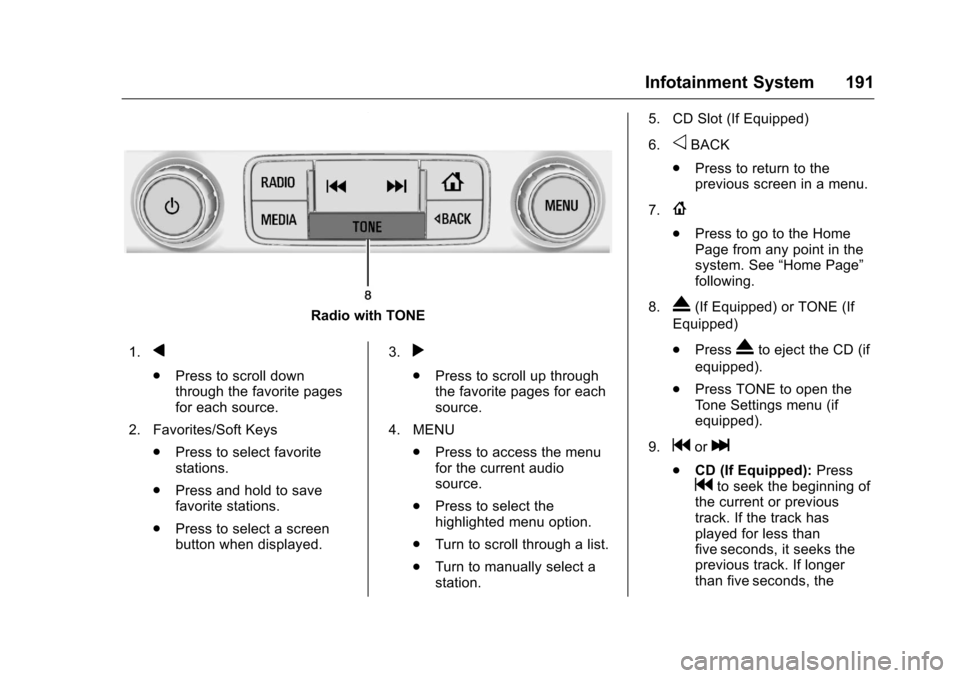
Radio with TONE
1.
q
. Press to scroll down
through the favorite pages
for each source.
2. Favorites/Soft Keys .Press to select favorite
stations.
. Press and hold to save
favorite stations.
. Press to select a screen
button when displayed. 3.
r
.
Press to scroll up through
the favorite pages for each
source.
4. MENU .Press to access the menu
for the current audio
source.
. Press to select the
highlighted menu option.
. Turn to scroll through a list.
. Turn to manually select a
station. 5. CD Slot (If Equipped)
6.
oBACK
. Press to return to the
previous screen in a menu.
7.
{
. Press to go to the Home
Page from any point in the
system. See “Home Page”
following.
8.
X(If Equipped) or TONE (If
Equipped)
. Press
Xto eject the CD (if
equipped).
. Press TONE to open the
Tone Settings menu (if
equipped).
9.
gorl
. CD (If Equipped): Press
gto seek the beginning of
the current or previous
track. If the track has
played for less than
five seconds, it seeks the
previous track. If longer
than five seconds, the
Page 196 of 533
Chevrolet Silverado Owner Manual (GMNA-Localizing-U.S./Canada/Mexico-
9159338) - 2016 - crc - 10/21/15
Infotainment System 195
Valet Mode:
Using the circular numeric keypad,
enter a four-digit code:1. Turn the MENU knob to highlight a number.
2. Press the MENU knob to select it. Do this for each one of the
four digits. Select Enter to go to
the confirmation screen.
3. Re-enter the four-digit code. Select LOCK to lock the
system.
4. Enter the four-digit code to unlock the system. Select
o
BACK to go back to the
previous menu.
Radio : See“Radio Setup” later in
this section.
Vehicle : SeeVehicle
Personalization 0165.
Display : Press the MENU knob to
turn the display on or off.
Return to Factory Settings : See
“Return to Factory Settings” later in
this section. Software Information (If
Equipped) :
Press the MENU knob
to select Save Vehicle Info to USB.
Press the MENU knob again to start
downloading the vehicle information
to the USB.
Radio Setup
Press the RADIO button and the
following may display:
Manage Favorites:
. Turn the MENU knob and press
to select a favorite.
.To delete a favorite, press
the button just below the
DELETE screen button.
. To move a favorite, press the
MOVE screen button. Turn
the MENU knob to select a
new location, then press the
DROP screen button to
select the new location.
. Select
oBACK to go back to
the previous menu.
Number of Favorites Shown :
Select Auto and the system will
automatically adjust the number of
favorite pages when favorites are added and removed, or select a
number from 5–25 to manually
adjust the number of favorites
shown.
Audible Touch Feedback (If
Equipped) :
Select Audible Touch
Feedback to turn feedback off or on.
Auto Volume (If Equipped) : This
feature adjusts the volume based on
vehicle speed. The options are Off,
Low, Medium-Low, Medium,
Medium-High, or High. Select the
desired volume.
Maximum Startup Volume : This
feature sets the maximum startup
volume. If the vehicle is started and
the volume is greater than this level,
the volume is adjusted to this level.
To set the maximum startup volume,
Turn the MENU knob to increase or
decrease startup volume.
Rear Camera (If Equipped)
From the Rear Camera screen
button, the following may display:
Park Assist Symbols (If
Equipped) : This feature will display
symbols where objects are detected
Page 200 of 533
Chevrolet Silverado Owner Manual (GMNA-Localizing-U.S./Canada/Mexico-
9159338) - 2016 - crc - 10/21/15
Infotainment System 199
Tuning a Station
Turn the MENU knob to manually
find a station.
Storing Radio Station Presets
Up to 25 preset stations from all
bands can be stored in the favorite
lists in any order. Up to five stations
can be stored in each favorite page
and the number of favorites can
be set.
AM, FM, or SiriusXM (If
Equipped) :While on the active
source main page, such as AM, FM,
or SiriusXM (if equipped), press and
hold a favorites/soft key button on
the faceplate.
Mixed-Audio Favorites
Media (if equipped) and Broadcast
favorites can be stored.
To display the favorites page, press
qorron the radio faceplate.
To manage favorites, see “Manage
Favorites” underHome Page (Base
Radio) 0194 orHome Page (Base
Radio with Touchscreen) 0196.
AM-FM Radio (Base
Radio with Touchscreen)
Playing the Radio
Audio Source Menu
{:Press to go to the Home Page.
O:Press to turn on, mute,
or unmute the system. Press and
hold to turn off the system.
Selecting a Band
Press{, then touch AUDIO,
Source, then select AM, FM,
or SXM, if equipped. The last station
that was playing starts playing
again.
System Settings
Auto Volume
This feature automatically adjusts
the radio volume to compensate for
road and wind noise.
The level of volume compensation
can be selected, or the feature can
be turned off.
1. Touch MENU from a source screen. 2. Select Auto Volume.
3. Select the desired setting.
4. Touch
3to go back to the
source screen.
Tone Settings
The tone settings can be set for
each radio band and each audio
player source.
Preset Tone Settings
. Touch MENU.
. Touch Tone Settings.
. Select a preset tone setting.
. Bass, Midrange, or Treble:
Touch −or +.
. Fader or Balance: Adjust the
front/rear or left/right speakers
by dragging the dot in the
vehicle image on the screen.
Custom Tone Settings
. Touch MENU.
. Touch Tone Settings.
. Touch Custom.
Page 206 of 533
Chevrolet Silverado Owner Manual (GMNA-Localizing-U.S./Canada/Mexico-
9159338) - 2016 - crc - 10/21/15
Infotainment System 205
Pandora Menus
Press MENU.
Pandora has a menu with the
following:
Tone Settings :Select to adjust the
tone settings. See AM-FM Radio
(Base Radio with Touchscreen)
0 199 orAM-FM Radio (Base
Radio) 0197.
Bookmark Artist : Select to
bookmark the artist.
Bookmark Song : Select to
bookmark the song.
Auto Volume : This feature sets the
auto volume based on the speed of
the vehicle and noise in the vehicle.
See AM-FM Radio (Base Radio with
Touchscreen) 0199 orAM-FM
Radio (Base Radio) 0197.
Pandora Features
Pandora service has features to rate
tracks, skip tracks, or change
stations.
}: When selected during a track, a
choice displays to bookmark the
artist or track. This sends the
bookmark to the Pandora account.
,: When selected, Pandora stores
this information, changes to the next
track, and does not play this track
on this station again. This helps
Pandora choose which tracks
should not play on this station. This
feature is only available on user
created stations.
-: When selected, Pandora stores
this information and
-is
highlighted for the remainder of the
track. This helps Pandora choose
which tracks should play on this
station.
d: When selected, Pandora
changes to the next track.
rorj: Select to play or pause
playback.
Pandora Skip Limit
Pandora limits the number of skips
allowed on their service. When the
skip limit is reached,
,or next
arrow will not skip the currently
playing track, but the
,feedback
will be recorded. Advertisement on Pandora
Pandora may display
advertisements. The artist name
and track title will not be displayed
and the skip track button will not be
available.
Pandora Troubleshooting
Unable to Connect Device to
Vehicle
If the device is unable to connect to
the USB or Bluetooth:
1. Turn the vehicle off.
2. Take the Remote Keyless Entry (RKE) transmitter at least 6 m
(20 ft) away from the vehicle.
3. Wait about 30 seconds, and try to connect the device again.
See Bluetooth (Voice
Recognition - Base Radio)
0 227 orBluetooth
(Infotainment Controls - Base
Radio) 0223 orBluetooth
(Overview) 0222 orBluetooth
(Infotainment Controls - Base
Radio with
Touchscreen) 0232.
Page 217 of 533
Chevrolet Silverado Owner Manual (GMNA-Localizing-U.S./Canada/Mexico-
9159338) - 2016 - crc - 10/21/15
216 Infotainment System
Voice Recognition
If equipped, voice recognition allows
for hands-free operation within the
audio and phone applications. This
feature can be started by pressing
either the
gbutton on the steering
wheel or by selecting the
gon the
screen display.
However, not all features within
these areas are supported by voice
commands. Generally, only complex
tasks that require multiple manual
interactions to complete are
supported by voice commands.
For example, tasks that take more
than one or two button presses such
as selecting a song or artist to play
from a media device would be
supported by voice commands.
Other tasks, like adjusting the
volume or seeking up or down are
audio features that are easily
performed by pressing one or two
buttons, and are not supported by
voice commands.
In general there are flexible ways to
speak commands for completing the
tasks. Most of them, except destination entry and voice keypad,
can be completed in a single
command. If the task takes more
than one command to complete, the
first command would be to indicate
the kind of task that is to be
performed. The system replies with
prompts that lead through a dialog
to enter the necessary information.
Voice recognition can be used when
the ignition is on or when Retained
Accessory Power (RAP) is active.
See
Retained Accessory Power
(RAP) 0284.
Using Voice Recognition
Voice recognition becomes available
once the system has been
initialized. This begins when the
ignition is turned on. Initialization
may take a few moments.
1. Press
gon the steering wheel
control to activate voice
recognition, or select
gon the
infotainment screen on the
center stack.
. If voice recognition is
started from the steering
wheel control, the instrument cluster displays
the selections and visual
dialog content.
. If voice recognition is
started from the
infotainment screen, the
selections and visual dialog
content are displayed on
both the center stack
display and the instrument
cluster display.
2. The audio system mutes and the system plays a prompt
followed by a beep.
3. Wait until after the beep completes, then clearly speak
one of the commands
described in this section.
Press
gto interrupt any voice
recognition system prompt. For
example, if the prompt seems
to be taking too long to finish,
press
gagain and the beep
should happen right away.