2016 CHEVROLET MALIBU steering
[x] Cancel search: steeringPage 175 of 420
Chevrolet Malibu Owner Manual (GMNA-Localizing-U.S./Canada/Mexico-
9087641) - 2016 - crc - 9/3/15
174 Infotainment System
Adjusting the Bass, Midrange,
Treble, Fader, and Balance1. Press MENU.
2. Turn MENU to Settings.
3. Press MENU.
4. Turn MENU to Tone Settings.
5. Press MENU.
6. Turn MENU to the desired tone.
7. Press MENU to select the desired tone.
8. Turn MENU to adjust the desired tone.
9. Press MENU to save the setting.
10. Press BACK to go back to the Tone Settings menu.
Adjusting the EQ (Equalizer) 1. Press MENU.
2. Turn MENU to Settings.
3. Press MENU.
4. Turn MENU to Tone Settings.
5. Press MENU. 6. Turn MENU to EQ.
7. Press MENU.
8. Turn MENU to the desired
setting, then press MENU to
select it.
9. Continue pressing BACK to go back to the Tone
Settings menu.
System Settings
Configuring the Number of
Favorite Pages
Up to six favorite pages can be
saved, and each page can store up
to four radio stations.
To configure the number of available
favorite pages:
1. Press MENU.
2. Turn MENU to Set Number of Favorites Pages.
3. Press MENU.
4. Turn MENU to the desired number of pages.
5. Press MENU to select the desired number of pages.
6. Press BACK to exit. Auto Volume Control
This feature automatically adjusts
the radio volume to compensate for
road and wind noise.
The level of volume compensation
can be selected, or the feature can
be turned off.
1. Press MENU.
2. Turn MENU to Settings.
3. Press MENU.
4. Turn MENU to Auto Volume Control.
5. Press MENU.
6. Select the desired setting.
7. Press BACK to exit.
Radio Controls with
Touchscreen
The infotainment system is operated
by using the pushbuttons, menus
shown on the display, and steering
wheel controls.
Turning the System On or Off
O: Press to turn the radio on.
Press and hold to turn the radio off.
Page 184 of 420
Chevrolet Malibu Owner Manual (GMNA-Localizing-U.S./Canada/Mexico-
9087641) - 2016 - crc - 9/3/15
Infotainment System 183
.See “Deleting a Bluetooth
Device” under“Bluetooth
(Infotainment Controls)” in
Bluetooth (Overview) 0182
iior
Bluetooth (Infotainment Controls
Radio with Touchscreen) 0188
iior Bluetooth (Infotainment
Controls Radio without
Touchscreen) 0184
ii.
{Warning
When using a cell phone, it can
be distracting to look too long or
too often at the screen of the
phone or the infotainment system.
Taking your eyes off the road too
long or too often could cause a
crash resulting in injury or death.
Focus your attention on driving.
Vehicles with a Bluetooth system
can use a Bluetooth-capable cell
phone with a Hands-Free Profile to
make and receive phone calls. The
infotainment system is used to
control the system. The system can
be used while in ACC/ACCESSORY
or ON/RUN. See Retained
Accessory Power (RAP) 0231
ii. Not all phones support all functions and
not all phones work with the
Bluetooth system. See
www.gm.com/bluetooth for more
information about compatible
phones.
The Bluetooth system range can be
up to 9.1 m (30 ft).
There may be restrictions on using
Bluetooth wireless technology in
some locations.
Due to the variety of Bluetooth
devices and their firmware versions,
the device may respond differently
when performing over Bluetooth.
On a current phone call, an image
of the current contact from the
phone's contact list may be
displayed. Not all phones are
compatible with this feature.
Refer to the cell phone
manufacturer
’s user guide for
questions about the phone's
Bluetooth functionality.
Bluetooth Controls
If equipped with Bluetooth capability,
use the buttons on the infotainment
system and the steering wheel to
operate the system.
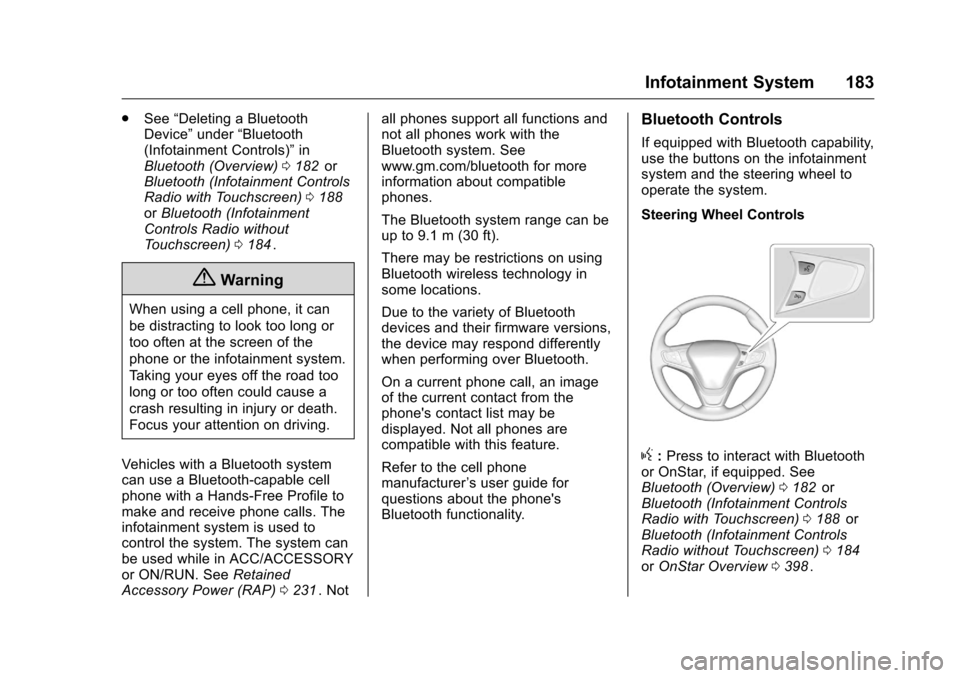
Steering Wheel Controls
g: Press to interact with Bluetooth
or OnStar, if equipped. See
Bluetooth (Overview) 0182
iior
Bluetooth (Infotainment Controls
Radio with Touchscreen) 0188
iior
Bluetooth (Infotainment Controls
Radio without Touchscreen) 0184
iior OnStar Overview 0398ii.
Page 185 of 420
Chevrolet Malibu Owner Manual (GMNA-Localizing-U.S./Canada/Mexico-
9087641) - 2016 - crc - 9/3/15
184 Infotainment System
c:Press to silence the vehicle
speakers only. Press again to turn
the sound on. Press to reject an
incoming call or end a current call.
Bluetooth (Infotainment
Controls Radio without
Touchscreen)
To use infotainment controls to
access the menu system, see
Overview 0170
ii.
Pairing
A Bluetooth-enabled cell phone
must be paired to the Bluetooth
system and then connected to the
vehicle before it can be used. See
your cell phone manufacturer's user
guide for Bluetooth functions before
pairing the cell phone. If a Bluetooth
phone is not connected, calls will be
made using OnStar Hands-Free
Calling, if available. See OnStar
Overview 0398
ii. Pairing Information
.
A Bluetooth phone with MP3
capability cannot be paired to
the vehicle as a phone and an
MP3 player at the same time.
. Up to five cell phones can be
paired to the Bluetooth system.
. The pairing process is disabled
when the vehicle is moving.
. Pairing only needs to be
completed once, unless the
pairing information on the cell
phone changes or the cell phone
is deleted from the system.
. Only one paired cell phone can
be connected to the Bluetooth
system at a time.
. If multiple paired cell phones are
within range of the system, the
system connects to the first
available paired cell phone in the
order that they were first paired.
When the Bluetooth device and
infotainment system are
successfully paired, the phone book
is downloaded automatically. This is
dependent on the type of phone
paired. If the automatic download does not occur, proceed with the
phone book download on the
phone.
Pairing a Phone
–SSP and No
Paired Device
When there is no paired device on
the infotainment system and Simple
Secure Pairing (SSP) is supported:
1. Press PHONE or press
gon
the steering wheel without
OnStar.
2. Press Pair to search for Bluetooth Devices.
3. When the Bluetooth device and infotainment system are
successfully paired, the phone
screen is displayed on the
infotainment system.
Pairing a Phone –SSP and Paired
Device
When a paired device is on the
infotainment system and SSP is
supported:
1. Press PHONE or press
gon
the steering wheel without
OnStar.
Page 186 of 420
Chevrolet Malibu Owner Manual (GMNA-Localizing-U.S./Canada/Mexico-
9087641) - 2016 - crc - 9/3/15
Infotainment System 185
2. Press MENU, then selectBluetooth Devices.
3. Turn MENU to the desired device to pair.
4. Press MENU to select the desired device to pair.
5. When the Bluetooth device and infotainment system are
successfully paired, the phone
screen is displayed on the
infotainment system. If no
desired device is available go
to Step 6.
6. Press Add to search for the desired device.
. The connected phone is
highlighted by
5.
.
Z/5indicates the hands-free
and phone music functions are
enabled.
.
5indicates only the hands-free
function is enabled.
.
Zindicates only Bluetooth
music is enabled. Pairing a Phone
–No SSP and No
Paired Device
When there is no paired device on
the infotainment system and SSP is
not supported:
1. Press PHONE or press
gon
the steering wheel without
OnStar.
2. Press Pair to search for Bluetooth Devices.
3. Input the Personal Identification Number (PIN)
code (default: 1234) to the
Bluetooth device. When the
Bluetooth device and
infotainment system are
successfully paired, the
PHONE screen is displayed on
the infotainment system.
When the connection fails, a failure
message is displayed on the
infotainment system.
If a Bluetooth device was previously
connected, the infotainment system
executes the auto connection.
However, if the Bluetooth setting on the Bluetooth device is turned off, a
failure message is displayed on the
infotainment system.
Pairing a Phone
–No SSP and
Paired Device
When a paired device is on the
infotainment system and SSP is not
supported:
1. Press PHONE or press
gon
the steering wheel without
OnStar.
2. Press MENU, then select Bluetooth Devices.
3. Turn MENU to the desired device to pair.
4. Press MENU to select the desired device to pair.
5. Input the Personal Identification Number (PIN)
code (default: 1234) to the
Bluetooth device. When the
Bluetooth device and
infotainment system are
successfully paired,
Z/5is
displayed on the pair device
screen. If no desired device is
available go to Step 6.
Page 189 of 420
Chevrolet Malibu Owner Manual (GMNA-Localizing-U.S./Canada/Mexico-
9087641) - 2016 - crc - 9/3/15
188 Infotainment System
.Sounds may be cut off during
the Bluetooth music playback.
. The infotainment system outputs
the audio from the cell phone or
Bluetooth device as it is
transmitted.
Bluetooth (Infotainment
Controls Radio with
Touchscreen)
To use infotainment controls to
access the menu system, see
Overview 0170
ii.
Pairing
A Bluetooth-enabled cell phone
must be paired to the Bluetooth
system and then connected to the
vehicle before it can be used. See
your cell phone manufacturer's user
guide for Bluetooth functions before
pairing the cell phone. If a Bluetooth
phone is not connected, calls will be
made using OnStar Hands-Free
Calling, if available. See OnStar
Overview 0398
ii. Pairing Information
.
A Bluetooth phone with MP3
capability cannot be paired to
the vehicle as a phone and an
MP3 player at the same time.
. Up to 10 cell phones can be
paired to the Bluetooth system.
. The pairing process is disabled
when the vehicle is moving.
. Pairing only needs to be
completed once, unless the
pairing information on the cell
phone changes or the cell phone
is deleted from the system.
. Only one paired cell phone can
be connected to the Bluetooth
system at a time.
. If multiple paired cell phones are
within range of the system, the
system connects to the first
available paired cell phone in the
order that they were first paired.
When the Bluetooth device and
infotainment system are
successfully paired, the phone book
is downloaded automatically. This is
dependent on the type of phone
paired. If the automatic download does not occur, proceed with the
phone book download on the
phone.
Pairing a Phone
–SSP and No
Paired Device
When there is no paired device on
the infotainment system and Simple
Secure Pairing (SSP) is supported:
1. Press
{.
2. Touch PHONE, press
5on the
faceplate, or press
gon the
steering wheel without OnStar.
3. Touch Search Device.
4. Touch the desired device to pair on the searched list
screen.
5. Touch Yes on the pop-up screen of the Bluetooth device
and infotainment system.
6. When the Bluetooth device and infotainment system are
successfully paired, the phone
screen is displayed on the
infotainment system.
Page 190 of 420
Chevrolet Malibu Owner Manual (GMNA-Localizing-U.S./Canada/Mexico-
9087641) - 2016 - crc - 9/3/15
Infotainment System 189
Pairing a Phone–SSP and Paired
Device
When a paired device is on the
infotainment system and SSP is
supported:
1. Press
{.
2. Touch Settings.
3. Touch Bluetooth, then Device Management.
4. Touch the desired device to pair. When the Bluetooth
device and infotainment system
are successfully paired,
Z/5
is displayed on the pair device
screen. If no desired device is
available go to Step 5.
5. Touch Search Device to search for the desired device.
6. Touch the desired device to pair on the searched list
screen.
7. Touch Yes on the pop-up screen of the Bluetooth device
and infotainment system.
. The connected phone is
highlighted by
5. .
Z/5indicates the hands-free
and phone music functions are
enabled.
.
5indicates only the hands-free
function is enabled.
.
Zindicates only Bluetooth
music is enabled.
Pairing a Phone –No SSP and No
Paired Device
When there is no paired device on
the infotainment system and SSP is
not supported:
1. Press
{.
2. Touch PHONE, press
5on the
faceplate, or press
gon the
steering wheel without OnStar.
3. Touch Search Device.
4. Touch the desired device to pair on the searched list
screen.
5. Input the Personal Identification Number (PIN)
code (default: 1234) to the
Bluetooth device. When the
Bluetooth device and infotainment system are
successfully paired, the
PHONE screen is displayed on
the infotainment system.
When the connection fails, a failure
message is displayed on the
infotainment system.
If a Bluetooth device was previously
connected, the infotainment system
executes the auto connection.
However, if the Bluetooth setting on
the Bluetooth device is turned off, a
failure message is displayed on the
infotainment system.
Pairing a Phone –No SSP and
Paired Device
When a paired device is on the
infotainment system and SSP is not
supported:
1. Press
{.
2. Touch Settings.
3. Touch Bluetooth, then Device Management.
4. Touch the desired device to pair. When the Bluetooth
device and infotainment system
Page 194 of 420
Chevrolet Malibu Owner Manual (GMNA-Localizing-U.S./Canada/Mexico-
9087641) - 2016 - crc - 9/3/15
Infotainment System 193
Hands-Free Phone Controls
Use the buttons on the infotainment
system and the steering wheel to
operate the Hands-Free Phone
system.
Steering Wheel Controls
Steering wheel controls can be
used to:
.Answer incoming calls.
. Confirm system information.
. End a call.
. Decline a call.
. Cancel an operation.
. Make outgoing calls using the
call list.
g:Press to answer incoming calls.
c:Press to end a call, decline a
call, or cancel an operation.
Making a Call by Entering a Phone
Number
. Press
5on the faceplate
. Press
{, then touch PHONE on
the screen. .
Press
gon the steering wheel.
If a wrong number is entered,
touch
}to delete the number one
digit at a time, or touch and hold
}
to delete all digits of the number.
Switching a Call to the Cell Phone
(Private Mode)
To switch the call from the cell
phone to hands-free:
1. Touch
0.
2. Touch
0again to switch back
to hands-free.
Turning the Microphone On
and Off
Touch
3to turn the microphone on
or off.
Calling by Redial
To call by using redial:
. Press
gon the steering wheel
controls to display the redial
guidance screen.
. Touch
5on the phone screen. Redialing is not possible when there
is no call history.
Taking Calls
When a phone call comes through
the connected Bluetooth cell phone,
the audio system will be muted or
paused and the phone will ring with
the relevant information displayed.
To accept the call, press
gon the
steering wheel controls, touch
5on
the screen, or press
5on the
faceplate.
To decline the call, press
con the
steering wheel controls or touch
Reject on the screen.
Using the Contacts Menu
1. Touch Contacts on the phone screen.
2. Touch
QorRto scroll through
the list.
3. Touch the phone book entry to call.
4. Touch the number to dial.
Page 216 of 420
Chevrolet Malibu Owner Manual (GMNA-Localizing-U.S./Canada/Mexico-
9087641) - 2016 - crc - 9/3/15
Driving and Operating 215
Driving and
Operating
Driving Information
Distracted Driving . . . . . . . . . . . . 216
Defensive Driving . . . . . . . . . . . . . 217
Drunk Driving . . . . . . . . . . . . . . . . . 217
Control of a Vehicle . . . . . . . . . . . 217
Braking . . . . . . . . . . . . . . . . . . . . . . . 217
Steering . . . . . . . . . . . . . . . . . . . . . . 218
Off-Road Recovery . . . . . . . . . . . 218
Loss of Control . . . . . . . . . . . . . . . 219
Driving on Wet Roads . . . . . . . . 219
Hill and Mountain Roads . . . . . 220
Winter Driving . . . . . . . . . . . . . . . . 221
If the Vehicle Is Stuck . . . . . . . . 222
Vehicle Load Limits . . . . . . . . . . . 222
Starting and Operating
New Vehicle Break-In . . . . . . . . . 226
Ignition Positions . . . . . . . . . . . . . 226
Starting the Engine . . . . . . . . . . . 228
Engine Heater . . . . . . . . . . . . . . . . 230
Retained AccessoryPower (RAP) . . . . . . . . . . . . . . . . 231
Shifting Into Park . . . . . . . . . . . . . 231
Shifting out of Park . . . . . . . . . . . 232
Parking over Things That Burn . . . . . . . . . . . . . . . . . . . 232
Engine Exhaust
Engine Exhaust . . . . . . . . . . . . . . 233
Running the Vehicle WhileParked . . . . . . . . . . . . . . . . . . . . . . 233
Automatic Transmission
Automatic Transmission . . . . . . 234
Manual Mode . . . . . . . . . . . . . . . . . 235
Brakes
Antilock BrakeSystem (ABS) . . . . . . . . . . . . . . . 237
Parking Brake . . . . . . . . . . . . . . . . 238
Electric Parking Brake . . . . . . . . 238
Brake Assist . . . . . . . . . . . . . . . . . . 240
Hill Start Assist (HSA) . . . . . . . . 240
Regenerative Braking (Hybrid Only) . . . . . . . . . . . . . . . . 241
Ride Control Systems
Traction Control/ElectronicStability Control . . . . . . . . . . . . . 241
Cruise Control
Cruise Control . . . . . . . . . . . . . . . . 243
Adaptive Cruise Control . . . . . . 246
Driver Assistance Systems
Driver Assistance Systems . . . 253
Assistance Systems forParking or Backing . . . . . . . . . . 253 Assistance Systems for
Driving . . . . . . . . . . . . . . . . . . . . . . 257
Forward Collision Alert (FCA) System . . . . . . . . . . . . . . . . . . . . . . 257
Front Automatic Braking (FAB)
System . . . . . . . . . . . . . . . . . . . . . . 259
Front Pedestrian Braking (FPB) System . . . . . . . . . . . . . . . 261
Side Blind Zone Alert (SBZA) . . . . . . . . . . . . . . . . 263
Lane Change Alert (LCA) . . . . . 263
Lane Departure Warning (LDW) . . . . . . . . . . . . . 265
Lane Keep Assist (LKA) . . . . . . 265
Fuel
Fuel . . . . . . . . . . . . . . . . . . . . . . . . . . 267
California Fuel Requirements . . . . . . . . . . . . . . . 268
Fuels in Foreign Countries . . . 269
Fuel Additives . . . . . . . . . . . . . . . . 269
Filling the Tank . . . . . . . . . . . . . . . 269
Filling a Portable Fuel Container . . . . . . . . . . . . . . . . . . . 272
Trailer Towing
General TowingInformation . . . . . . . . . . . . . . . . . . 273
Driving Characteristics and
Towing Tips . . . . . . . . . . . . . . . . . 273
Trailer Towing . . . . . . . . . . . . . . . . 276