2016 CHEVROLET MALIBU radio
[x] Cancel search: radioPage 183 of 420
Chevrolet Malibu Owner Manual (GMNA-Localizing-U.S./Canada/Mexico-
9087641) - 2016 - crc - 9/3/15
182 Infotainment System
4. Touch the desired Movie.
Viewing Pictures
Pictures are not available while
driving.
If the USB storage device is already
connected:
1. Press
{.
2. Touch GALLERY.
3. Touch
\.
Phone
Bluetooth (Overview)
If equipped with Bluetooth®
capability, the system can interact
with many Bluetooth phones, PDAs,
or other devices to:
. Place and receive hands-free
calls.
. Transmit hands-free data.
. Play audio streaming files.
. Placing outgoing calls by voice
recognition.
The device must be paired first. See
“Pairing” under“Bluetooth
(Infotainment Controls)” inBluetooth
(Overview) 0182
iior Bluetooth
(Infotainment Controls Radio with
Touchscreen) 0188
iior Bluetooth
(Infotainment Controls Radio without
Touchscreen) 0184
ii.
To minimize driver distraction,
before driving, and with the vehicle
parked: .
Become familiar with the
features of the cell phone.
Organize the phone book and
contact lists clearly and delete
duplicate or rarely used entries.
If possible, program speed dial
or other shortcuts.
. Review the controls and
operation of the infotainment
system.
. Pair cell phone(s) to the vehicle.
The system may not work with
all cell phones. See “Pairing”
under “Bluetooth (Infotainment
Controls)” inBluetooth
(Overview) 0182
iior Bluetooth
(Infotainment Controls Radio
with Touchscreen) 0188
iior
Bluetooth (Infotainment Controls
Radio without Touchscreen)
0 184
ii.
Page 184 of 420
Chevrolet Malibu Owner Manual (GMNA-Localizing-U.S./Canada/Mexico-
9087641) - 2016 - crc - 9/3/15
Infotainment System 183
.See “Deleting a Bluetooth
Device” under“Bluetooth
(Infotainment Controls)” in
Bluetooth (Overview) 0182
iior
Bluetooth (Infotainment Controls
Radio with Touchscreen) 0188
iior Bluetooth (Infotainment
Controls Radio without
Touchscreen) 0184
ii.
{Warning
When using a cell phone, it can
be distracting to look too long or
too often at the screen of the
phone or the infotainment system.
Taking your eyes off the road too
long or too often could cause a
crash resulting in injury or death.
Focus your attention on driving.
Vehicles with a Bluetooth system
can use a Bluetooth-capable cell
phone with a Hands-Free Profile to
make and receive phone calls. The
infotainment system is used to
control the system. The system can
be used while in ACC/ACCESSORY
or ON/RUN. See Retained
Accessory Power (RAP) 0231
ii. Not all phones support all functions and
not all phones work with the
Bluetooth system. See
www.gm.com/bluetooth for more
information about compatible
phones.
The Bluetooth system range can be
up to 9.1 m (30 ft).
There may be restrictions on using
Bluetooth wireless technology in
some locations.
Due to the variety of Bluetooth
devices and their firmware versions,
the device may respond differently
when performing over Bluetooth.
On a current phone call, an image
of the current contact from the
phone's contact list may be
displayed. Not all phones are
compatible with this feature.
Refer to the cell phone
manufacturer
’s user guide for
questions about the phone's
Bluetooth functionality.
Bluetooth Controls
If equipped with Bluetooth capability,
use the buttons on the infotainment
system and the steering wheel to
operate the system.
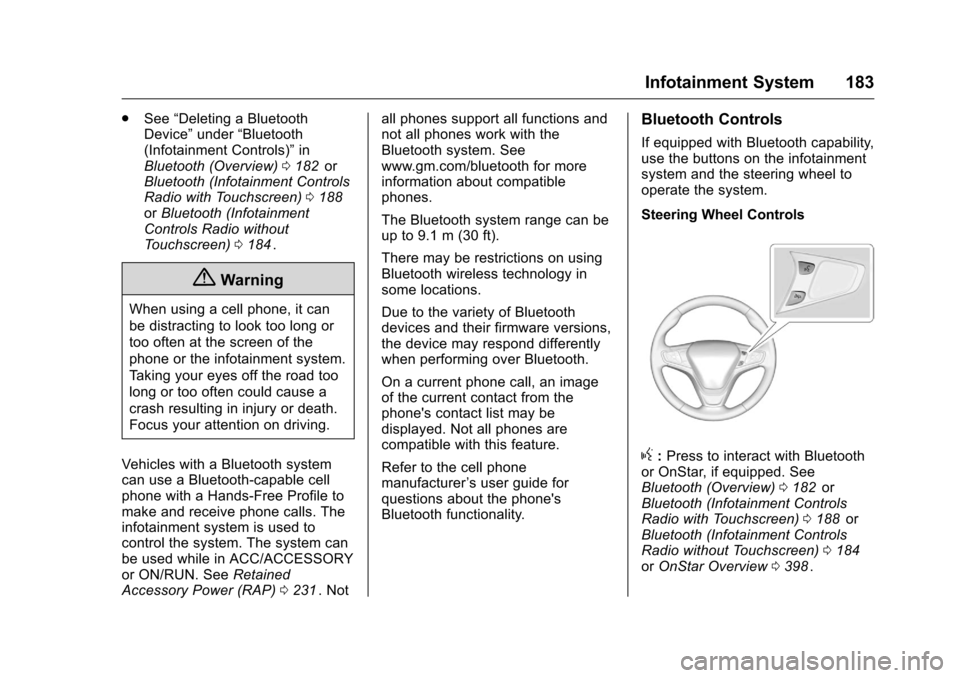
Steering Wheel Controls
g: Press to interact with Bluetooth
or OnStar, if equipped. See
Bluetooth (Overview) 0182
iior
Bluetooth (Infotainment Controls
Radio with Touchscreen) 0188
iior
Bluetooth (Infotainment Controls
Radio without Touchscreen) 0184
iior OnStar Overview 0398ii.
Page 185 of 420
Chevrolet Malibu Owner Manual (GMNA-Localizing-U.S./Canada/Mexico-
9087641) - 2016 - crc - 9/3/15
184 Infotainment System
c:Press to silence the vehicle
speakers only. Press again to turn
the sound on. Press to reject an
incoming call or end a current call.
Bluetooth (Infotainment
Controls Radio without
Touchscreen)
To use infotainment controls to
access the menu system, see
Overview 0170
ii.
Pairing
A Bluetooth-enabled cell phone
must be paired to the Bluetooth
system and then connected to the
vehicle before it can be used. See
your cell phone manufacturer's user
guide for Bluetooth functions before
pairing the cell phone. If a Bluetooth
phone is not connected, calls will be
made using OnStar Hands-Free
Calling, if available. See OnStar
Overview 0398
ii. Pairing Information
.
A Bluetooth phone with MP3
capability cannot be paired to
the vehicle as a phone and an
MP3 player at the same time.
. Up to five cell phones can be
paired to the Bluetooth system.
. The pairing process is disabled
when the vehicle is moving.
. Pairing only needs to be
completed once, unless the
pairing information on the cell
phone changes or the cell phone
is deleted from the system.
. Only one paired cell phone can
be connected to the Bluetooth
system at a time.
. If multiple paired cell phones are
within range of the system, the
system connects to the first
available paired cell phone in the
order that they were first paired.
When the Bluetooth device and
infotainment system are
successfully paired, the phone book
is downloaded automatically. This is
dependent on the type of phone
paired. If the automatic download does not occur, proceed with the
phone book download on the
phone.
Pairing a Phone
–SSP and No
Paired Device
When there is no paired device on
the infotainment system and Simple
Secure Pairing (SSP) is supported:
1. Press PHONE or press
gon
the steering wheel without
OnStar.
2. Press Pair to search for Bluetooth Devices.
3. When the Bluetooth device and infotainment system are
successfully paired, the phone
screen is displayed on the
infotainment system.
Pairing a Phone –SSP and Paired
Device
When a paired device is on the
infotainment system and SSP is
supported:
1. Press PHONE or press
gon
the steering wheel without
OnStar.
Page 189 of 420
Chevrolet Malibu Owner Manual (GMNA-Localizing-U.S./Canada/Mexico-
9087641) - 2016 - crc - 9/3/15
188 Infotainment System
.Sounds may be cut off during
the Bluetooth music playback.
. The infotainment system outputs
the audio from the cell phone or
Bluetooth device as it is
transmitted.
Bluetooth (Infotainment
Controls Radio with
Touchscreen)
To use infotainment controls to
access the menu system, see
Overview 0170
ii.
Pairing
A Bluetooth-enabled cell phone
must be paired to the Bluetooth
system and then connected to the
vehicle before it can be used. See
your cell phone manufacturer's user
guide for Bluetooth functions before
pairing the cell phone. If a Bluetooth
phone is not connected, calls will be
made using OnStar Hands-Free
Calling, if available. See OnStar
Overview 0398
ii. Pairing Information
.
A Bluetooth phone with MP3
capability cannot be paired to
the vehicle as a phone and an
MP3 player at the same time.
. Up to 10 cell phones can be
paired to the Bluetooth system.
. The pairing process is disabled
when the vehicle is moving.
. Pairing only needs to be
completed once, unless the
pairing information on the cell
phone changes or the cell phone
is deleted from the system.
. Only one paired cell phone can
be connected to the Bluetooth
system at a time.
. If multiple paired cell phones are
within range of the system, the
system connects to the first
available paired cell phone in the
order that they were first paired.
When the Bluetooth device and
infotainment system are
successfully paired, the phone book
is downloaded automatically. This is
dependent on the type of phone
paired. If the automatic download does not occur, proceed with the
phone book download on the
phone.
Pairing a Phone
–SSP and No
Paired Device
When there is no paired device on
the infotainment system and Simple
Secure Pairing (SSP) is supported:
1. Press
{.
2. Touch PHONE, press
5on the
faceplate, or press
gon the
steering wheel without OnStar.
3. Touch Search Device.
4. Touch the desired device to pair on the searched list
screen.
5. Touch Yes on the pop-up screen of the Bluetooth device
and infotainment system.
6. When the Bluetooth device and infotainment system are
successfully paired, the phone
screen is displayed on the
infotainment system.
Page 197 of 420
Chevrolet Malibu Owner Manual (GMNA-Localizing-U.S./Canada/Mexico-
9087641) - 2016 - crc - 9/3/15
196 Infotainment System
displays. If Unregister is
selected, the transmitter
key is no longer
registered and a
confirmation message
displays.
In vehicles with a pushbutton start
system, if a Teen Driver transmitter
key and a non-Teen Driver
transmitter key are both present at
start up, the vehicle will recognize
the non-Teen Driver transmitter key
to start the vehicle. The Teen Driver
settings will not be active.
For a keyed ignition system: 1. Start the engine.
2. For automatic transmissions, the vehicle must be in P (Park).
For manual transmissions, the
vehicle must be stopped with
the parking brake set.
3. From the Settings menu, select Teen Driver.
4. Enter the PIN. 5. Select Key Registration. The
system displays instructions for
registering or unregistering a
key. A confirmation message
displays.
Manage Settings
Use the PIN to change the following
settings:
Audio Volume Limit : Allows a
maximum radio volume to be set.
Teen Driver Speed Warning :
Allows for setting a visual and
audible warning when a certain
speed is exceeded. The speed
warning is selectable from 64 km/h
(40 mph) to 121 km/h (75 mph). The
speed warning does not limit the
speed of the vehicle.
When Teen Driver is Active:
. The radio will mute when the
driver safety belt is not fastened,
and in some vehicles, when the
right front passenger safety belt
is not fastened.
. Certain electronic devices
placed on the front passenger
seat could cause the passenger sensing system to falsely sense
an unbuckled front passenger
and mute the radio. See
Passenger Sensing System
0
75
ii.
. Some vehicle features, such as
Park Assist, if equipped, cannot
be turned off.
. The gap setting for the Forward
Collision Alert and Adaptive
Cruise Control, if equipped,
cannot be changed.
Report Card
The vehicle owner must secure the
driver ’s consent to record certain
vehicle data when the vehicle is
driven with a registered Teen Driver
key. There is one Report Card per
vehicle. Data is not recorded when
Teen Driver is not active.
The Report Card data is collected
from the time Teen Driver is
activated or the last time the Report
Card was reset. The following items
may be recorded:
. Distance Driven –the total
distance driven.
Page 201 of 420
Chevrolet Malibu Owner Manual (GMNA-Localizing-U.S./Canada/Mexico-
9087641) - 2016 - crc - 9/3/15
200 Infotainment System
Changing to Next/Previous Files
.Touch
lto change to the
next file.
. Touch
gwithin five seconds of
the playback time to play the
previous file.
Returning to the Beginning of the
Current File
Touch
gafter five seconds of the
playback time.
Scanning Forward or Backward
Touch and hold
gorlduring
playback to rewind or fast forward.
Release the button to resume
playback at normal speed.
Playing a File Randomly
Touch
Zduring playback.
. ON: Plays all files randomly.
. OFF: Returns to normal
playback.
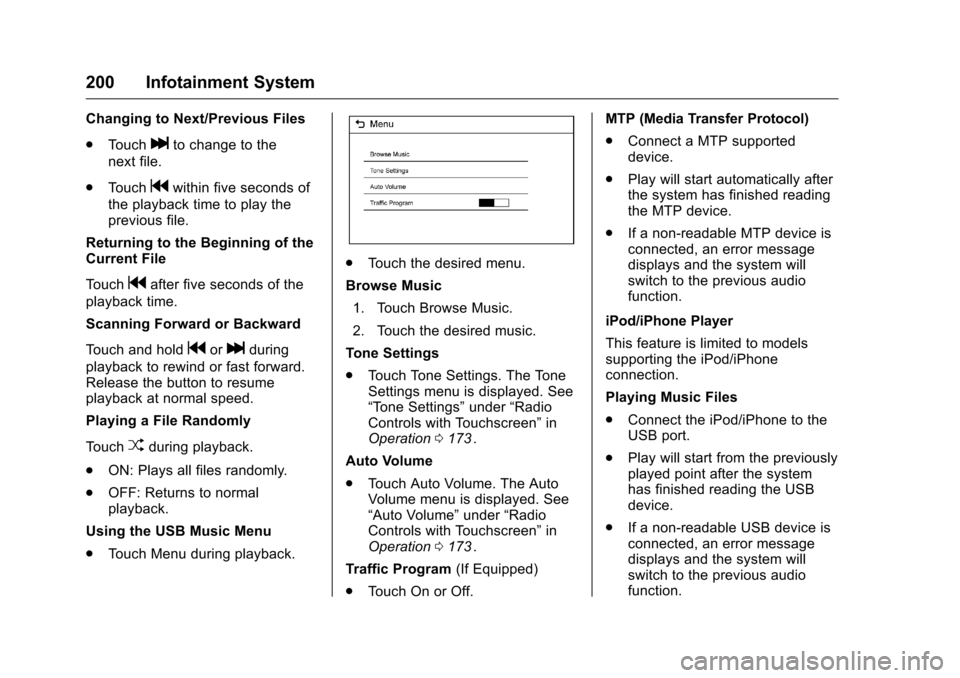
Using the USB Music Menu
. Touch Menu during playback.
.Touch the desired menu.
Browse Music 1. Touch Browse Music.
2. Touch the desired music.
Tone Settings
. Touch Tone Settings. The Tone
Settings menu is displayed. See
“Tone Settings” under“Radio
Controls with Touchscreen” in
Operation 0173
ii.
Auto Volume
. Touch Auto Volume. The Auto
Volume menu is displayed. See
“Auto Volume” under“Radio
Controls with Touchscreen” in
Operation 0173
ii.
Traffic Program (If Equipped)
. Touch On or Off. MTP (Media Transfer Protocol)
.
Connect a MTP supported
device.
. Play will start automatically after
the system has finished reading
the MTP device.
. If a non-readable MTP device is
connected, an error message
displays and the system will
switch to the previous audio
function.
iPod/iPhone Player
This feature is limited to models
supporting the iPod/iPhone
connection.
Playing Music Files
. Connect the iPod/iPhone to the
USB port.
. Play will start from the previously
played point after the system
has finished reading the USB
device.
. If a non-readable USB device is
connected, an error message
displays and the system will
switch to the previous audio
function.
Page 202 of 420
Chevrolet Malibu Owner Manual (GMNA-Localizing-U.S./Canada/Mexico-
9087641) - 2016 - crc - 9/3/15
Infotainment System 201
If the iPod/iPhone is already
connected:1. Press
{.
2. Touch AUDIO.
3. Touch Source.
4. Touch iPod.
To stop the device and select
another media source, touch
Source, then select the other
source.
To remove the device, select
another function, then remove the
device.
Pause
. Touch
jto pause.
. Touch
rto resume.
Changing to Next/Previous Song
. Touch
lto change to the
next song.
. Touch
gwithin three seconds
of the playback time to play the
previous file. Returning to the Beginning of the
Current File
Touch
gafter three seconds of the
playback time.
Scanning Forward or Backward
Touch and hold
gorlduring
playback to rewind or fast forward.
Release the button to resume
playback at normal speed.
Playing a File Randomly
Touch
Zduring playback.
. ON: Plays all files randomly.
. OFF: Returns to normal
playback.
Using the iPod Menu
. Touch Menu during playback.
. Touch the appropriate
play mode.
Browse Music 1. Touch Browse Music.
2. Touch the desired music. Tone Settings
.
Touch Tone Settings. The Tone
Settings menu is displayed. See
“Tone Settings” under“Radio
Controls with Touchscreen” in
Operation 0173
ii.
Auto Volume
. Touch Auto Volume. The Auto
Volume menu is displayed. See
“Auto Volume” under“Radio
Controls with Touchscreen” in
Operation 0173
ii.
Pictures and Movies
(Picture System with
Touchscreen)
The infotainment system can view
picture files stored on a USB
storage device and devices that
support Media Transfer
Protocol (MTP).
Picture System Information
.
Supported file extensions: .jpg,
.bmp, .png, .gif.
. Animated GIF files are not
supported.
Page 205 of 420
Chevrolet Malibu Owner Manual (GMNA-Localizing-U.S./Canada/Mexico-
9087641) - 2016 - crc - 9/3/15
204 Infotainment System
Trademarks and
License Agreements
FCC Information
SeeRadio Frequency Statement
0 394
ii.
Bluetooth
®
The Bluetooth word mark and logos
are owned by the Bluetooth®SIG,
Inc. and any use of such marks by
General Motors is under license.
Other trademarks and trade names
are those of their respective owners.
DivX Certified®to play DivX®video,
including premium content.
Covered by one or more of the
following U.S. patents: 7,295,673;
7,460,668; 7,515,710; 7,519,274. DivX
®, DivX Certified®and
associated logos are trademarks of
Rovi Corporation or its subsidiaries
and are used under license.
“Made for iPod” and“Made for
iPhone” mean that an electronic
accessory has been designed to
connect specifically to iPod or
iPhone and has been certified by
the developer to meet Apple
performance standards.
iPod and iPhone are trademarks of
Apple Computer, Inc., registered in
the U.S. and other countries.
Fees and Taxes: Subscription fee,
taxes, one time activation fee, and
other fees may apply. Subscription
fee is consumer only. All fees and
programming subject to change.
Subscriptions subject to Customer
Agreement available at
www.siriusxm.com. SiriusXM
®
service only available in the
48 contiguous United States and
Canada.
In Canada: Some deterioration of
service may occur in extreme
northern latitudes. This is beyond
the control of SiriusXM
®Satellite
Radio.
It is prohibited to copy, decompile,
disassemble, reverse engineer,
hack, manipulate, or otherwise
make available any technology or
software incorporated in receivers
compatible with the SiriusXM
Satellite Radio System or that
support the SiriusXM website, the
Online Service or any of its content.
Furthermore, the AMBER voice
compression software included in
this product is protected by
intellectual property rights including