2016 CHEVROLET MALIBU phone
[x] Cancel search: phonePage 199 of 420
Chevrolet Malibu Owner Manual (GMNA-Localizing-U.S./Canada/Mexico-
9087641) - 2016 - crc - 9/3/15
198 Infotainment System
.To display album title, track title,
and artist information, the file
should be compatible with the
ID3 Tag V1 and V2 formats.
Using USB Storage Devices and
iPod/iPhone
. Use a USB or flash memory type
storage device. Do not connect
using a USB adaptor.
. Do not connect and reconnect
the USB device repeatedly in a
short time, as this may cause
static electricity and problems
using the device.
. Use a USB device with a metal
connecting terminal.
. Connection with i-Stick Type
USB storage devices may be
faulty due to vehicle vibration.
. Do not touch the USB
connecting terminal.
. Only USB storage devices
formatted in FAT16/32 or exFAT
file system are recognized.
NTFS and other file systems are
not recognized. .
The time it takes to process files
will depend on the USB storage
device type and capacity, and
the type of files stored.
. Some USB storage device files
may not be compatible.
. Up to two USB devices and one
iPod can be played through a
USB hub. All devices may not be
supported, depending on the
performance of the USB hub.
If there is not enough power
supply, it may not operate
normally.
. Do not disconnect the USB
storage device while it is playing.
This may cause damage to the
product or affect the
performance of the USB device.
. Disconnect the USB storage
device when the ignition is
turned off. If the ignition is turned
on while the USB device is
connected, the USB device may
be damaged or may not operate
normally. .
USB storage devices can only
be connected for playing music/
movies, viewing photo files,
or upgrading.
. Do not use the USB terminal to
charge USB accessory
equipment. The heat generated
may cause performance issues
or damage.
. Music files to which Digital Right
Management (DRM) is applied
cannot be played.
. USB storage device capacity
limit is 2,500 music files, 2,500
photo files, 250 movie files,
2,500 folders, and 10 stages of
folder structure. The iPod/iPhone
can play all music files
supported, but will only display
up to 2,500 files on the screen in
alphabetical order.
. Some iPod/iPhone product
models may not support the
connectivity or functionality of
this product.
Page 200 of 420
Chevrolet Malibu Owner Manual (GMNA-Localizing-U.S./Canada/Mexico-
9087641) - 2016 - crc - 9/3/15
Infotainment System 199
.Only connect the iPod/iPhone
with connection cables
supported by iPod/iPhone
products. Other connection
cables cannot be used.
. The iPod/iPhone may be
damaged if it is connected to the
vehicle with the ignition on.
When not in use, disconnect the
iPod/iPhone.
. When the iPod/iPhone is
connected to the USB port by
using the iPod/iPhone cable, the
Bluetooth music is not
supported.
. The iPod/iPhone playback
functions and the information
displayed may be different when
played on the infotainment
system.
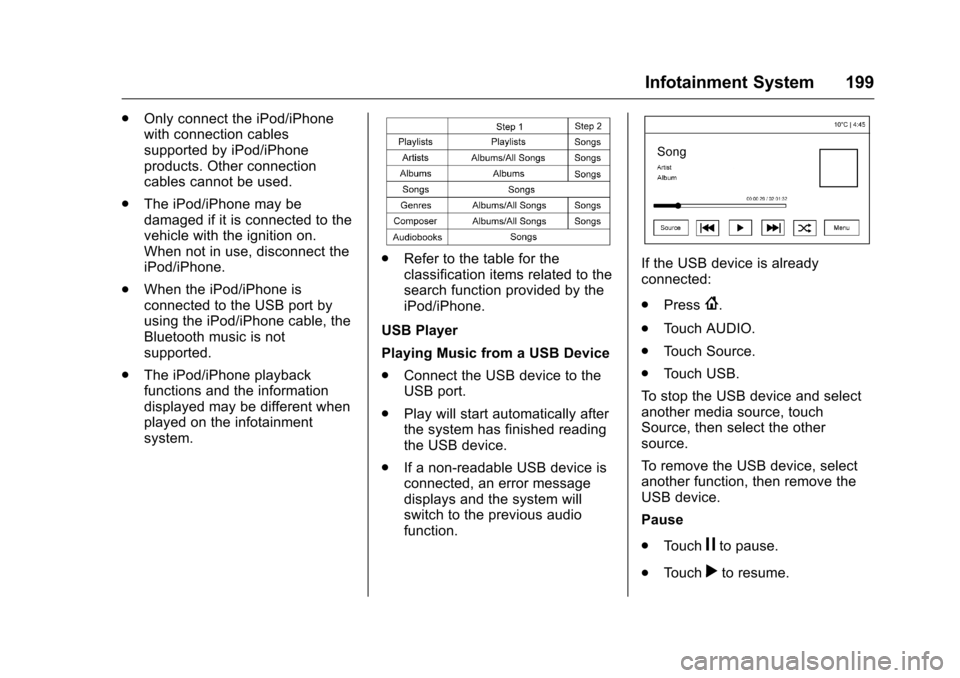
.Refer to the table for the
classification items related to the
search function provided by the
iPod/iPhone.
USB Player
Playing Music from a USB Device
. Connect the USB device to the
USB port.
. Play will start automatically after
the system has finished reading
the USB device.
. If a non-readable USB device is
connected, an error message
displays and the system will
switch to the previous audio
function.If the USB device is already
connected:
.Press
{.
. Touch AUDIO.
. Touch Source.
. Touch USB.
To stop the USB device and select
another media source, touch
Source, then select the other
source.
To remove the USB device, select
another function, then remove the
USB device.
Pause
. Touch
jto pause.
. Touch
rto resume.
Page 201 of 420
Chevrolet Malibu Owner Manual (GMNA-Localizing-U.S./Canada/Mexico-
9087641) - 2016 - crc - 9/3/15
200 Infotainment System
Changing to Next/Previous Files
.Touch
lto change to the
next file.
. Touch
gwithin five seconds of
the playback time to play the
previous file.
Returning to the Beginning of the
Current File
Touch
gafter five seconds of the
playback time.
Scanning Forward or Backward
Touch and hold
gorlduring
playback to rewind or fast forward.
Release the button to resume
playback at normal speed.
Playing a File Randomly
Touch
Zduring playback.
. ON: Plays all files randomly.
. OFF: Returns to normal
playback.
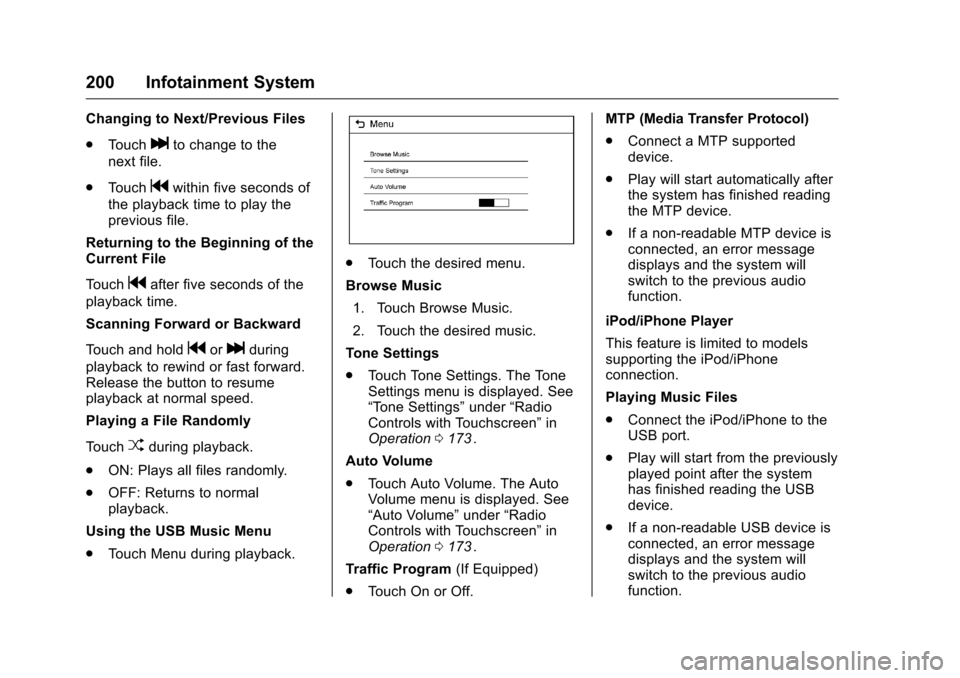
Using the USB Music Menu
. Touch Menu during playback.
.Touch the desired menu.
Browse Music 1. Touch Browse Music.
2. Touch the desired music.
Tone Settings
. Touch Tone Settings. The Tone
Settings menu is displayed. See
“Tone Settings” under“Radio
Controls with Touchscreen” in
Operation 0173
ii.
Auto Volume
. Touch Auto Volume. The Auto
Volume menu is displayed. See
“Auto Volume” under“Radio
Controls with Touchscreen” in
Operation 0173
ii.
Traffic Program (If Equipped)
. Touch On or Off. MTP (Media Transfer Protocol)
.
Connect a MTP supported
device.
. Play will start automatically after
the system has finished reading
the MTP device.
. If a non-readable MTP device is
connected, an error message
displays and the system will
switch to the previous audio
function.
iPod/iPhone Player
This feature is limited to models
supporting the iPod/iPhone
connection.
Playing Music Files
. Connect the iPod/iPhone to the
USB port.
. Play will start from the previously
played point after the system
has finished reading the USB
device.
. If a non-readable USB device is
connected, an error message
displays and the system will
switch to the previous audio
function.
Page 202 of 420
Chevrolet Malibu Owner Manual (GMNA-Localizing-U.S./Canada/Mexico-
9087641) - 2016 - crc - 9/3/15
Infotainment System 201
If the iPod/iPhone is already
connected:1. Press
{.
2. Touch AUDIO.
3. Touch Source.
4. Touch iPod.
To stop the device and select
another media source, touch
Source, then select the other
source.
To remove the device, select
another function, then remove the
device.
Pause
. Touch
jto pause.
. Touch
rto resume.
Changing to Next/Previous Song
. Touch
lto change to the
next song.
. Touch
gwithin three seconds
of the playback time to play the
previous file. Returning to the Beginning of the
Current File
Touch
gafter three seconds of the
playback time.
Scanning Forward or Backward
Touch and hold
gorlduring
playback to rewind or fast forward.
Release the button to resume
playback at normal speed.
Playing a File Randomly
Touch
Zduring playback.
. ON: Plays all files randomly.
. OFF: Returns to normal
playback.
Using the iPod Menu
. Touch Menu during playback.
. Touch the appropriate
play mode.
Browse Music 1. Touch Browse Music.
2. Touch the desired music. Tone Settings
.
Touch Tone Settings. The Tone
Settings menu is displayed. See
“Tone Settings” under“Radio
Controls with Touchscreen” in
Operation 0173
ii.
Auto Volume
. Touch Auto Volume. The Auto
Volume menu is displayed. See
“Auto Volume” under“Radio
Controls with Touchscreen” in
Operation 0173
ii.
Pictures and Movies
(Picture System with
Touchscreen)
The infotainment system can view
picture files stored on a USB
storage device and devices that
support Media Transfer
Protocol (MTP).
Picture System Information
.
Supported file extensions: .jpg,
.bmp, .png, .gif.
. Animated GIF files are not
supported.
Page 205 of 420
Chevrolet Malibu Owner Manual (GMNA-Localizing-U.S./Canada/Mexico-
9087641) - 2016 - crc - 9/3/15
204 Infotainment System
Trademarks and
License Agreements
FCC Information
SeeRadio Frequency Statement
0 394
ii.
Bluetooth
®
The Bluetooth word mark and logos
are owned by the Bluetooth®SIG,
Inc. and any use of such marks by
General Motors is under license.
Other trademarks and trade names
are those of their respective owners.
DivX Certified®to play DivX®video,
including premium content.
Covered by one or more of the
following U.S. patents: 7,295,673;
7,460,668; 7,515,710; 7,519,274. DivX
®, DivX Certified®and
associated logos are trademarks of
Rovi Corporation or its subsidiaries
and are used under license.
“Made for iPod” and“Made for
iPhone” mean that an electronic
accessory has been designed to
connect specifically to iPod or
iPhone and has been certified by
the developer to meet Apple
performance standards.
iPod and iPhone are trademarks of
Apple Computer, Inc., registered in
the U.S. and other countries.
Fees and Taxes: Subscription fee,
taxes, one time activation fee, and
other fees may apply. Subscription
fee is consumer only. All fees and
programming subject to change.
Subscriptions subject to Customer
Agreement available at
www.siriusxm.com. SiriusXM
®
service only available in the
48 contiguous United States and
Canada.
In Canada: Some deterioration of
service may occur in extreme
northern latitudes. This is beyond
the control of SiriusXM
®Satellite
Radio.
It is prohibited to copy, decompile,
disassemble, reverse engineer,
hack, manipulate, or otherwise
make available any technology or
software incorporated in receivers
compatible with the SiriusXM
Satellite Radio System or that
support the SiriusXM website, the
Online Service or any of its content.
Furthermore, the AMBER voice
compression software included in
this product is protected by
intellectual property rights including
Page 217 of 420
Chevrolet Malibu Owner Manual (GMNA-Localizing-U.S./Canada/Mexico-
9087641) - 2016 - crc - 9/3/15
216 Driving and Operating
Towing Equipment . . . . . . . . . . . . 277
Conversions and Add-Ons
Add-On ElectricalEquipment . . . . . . . . . . . . . . . . . . 278
Driving Information
Distracted Driving
Distraction comes in many forms
and can take your focus from the
task of driving. Exercise good
judgment and do not let other
activities divert your attention away
from the road. Many local
governments have enacted laws
regarding driver distraction. Become
familiar with the local laws in
your area.
To avoid distracted driving, always
keep your eyes on the road, hands
on the wheel, and mind on the drive.
. Do not use a phone in
demanding driving situations.
Use a hands-free method to
place or receive necessary
phone calls.
. Watch the road. Do not read,
take notes, or look up
information on phones or other
electronic devices.
. Designate a front seat
passenger to handle potential
distractions. .
Become familiar with vehicle
features before driving, such as
programming favorite radio
stations and adjusting climate
control and seat settings.
Program all trip information into
any navigation device prior to
driving.
. Wait until the vehicle is parked
to retrieve items that have fallen
to the floor.
. Stop or park the vehicle to tend
to children.
. Keep pets in an appropriate
carrier or restraint.
. Avoid stressful conversations
while driving, whether with a
passenger or on a cell phone.
{Warning
Taking your eyes off the road too
long or too often could cause a
crash resulting in injury or death.
Focus your attention on driving.
Page 218 of 420
Chevrolet Malibu Owner Manual (GMNA-Localizing-U.S./Canada/Mexico-
9087641) - 2016 - crc - 9/3/15
Driving and Operating 217
Refer to the Infotainment section for
more information on using that
system, including pairing and using
a cell phone.
Defensive Driving
Defensive driving means“always
expect the unexpected.” The first
step in driving defensively is to wear
the safety belt. See Safety Belts
0 63
ii.
. Assume that other road users
(pedestrians, bicyclists, and
other drivers) are going to be
careless and make mistakes.
Anticipate what they might do
and be ready.
. Allow enough following distance
between you and the driver in
front of you.
. Focus on the task of driving.
Drunk Driving
Death and injury associated with
drinking and driving is a global
tragedy.
{Warning
Drinking and then driving is very
dangerous. Your reflexes,
perceptions, attentiveness, and
judgment can be affected by even
a small amount of alcohol. You
can have a serious —or even
fatal —collision if you drive after
drinking.
Do not drink and drive or ride with
a driver who has been drinking.
Ride home in a cab; or if you are
with a group, designate a driver
who will not drink.
Control of a Vehicle
Braking, steering, and accelerating
are important factors in helping to
control a vehicle while driving.
Braking
Braking action involves perception
time and reaction time. Deciding to
push the brake pedal is perception
time. Actually doing it is
reaction time. Average driver reaction time is
about three-quarters of a second. In
that time, a vehicle moving at
100 km/h (60 mph) travels 20 m
(66 ft), which could be a lot of
distance in an emergency.
Helpful braking tips to keep in mind
include:
.
Keep enough distance between
you and the vehicle in front
of you.
. Avoid needless heavy braking.
. Keep pace with traffic.
If the engine ever stops while the
vehicle is being driven, brake
normally but do not pump the
brakes. Doing so could make the
pedal harder to push down. If the
engine stops, there will be some
power brake assist but it will be
used when the brake is applied.
Once the power assist is used up, it
can take longer to stop and the
brake pedal will be harder to push.
Page 271 of 420
Chevrolet Malibu Owner Manual (GMNA-Localizing-U.S./Canada/Mexico-
9087641) - 2016 - crc - 9/3/15
270 Driving and Operating
1.5L and 2.0L Engines–Cap Type
Fuel System
{Warning
Fuel vapors and fuel fires burn
violently and can cause injury or
death.
. To help avoid injuries to you
and others, read and follow
all the instructions on the
fuel pump island.
. Turn off the engine when
refueling.
. Keep sparks, flames, and
smoking materials away
from fuel.
. Do not leave the fuel pump
unattended.
. Do not use a cell phone
while refueling.
. Do not reenter the vehicle
while pumping fuel.
. Keep children away from
the fuel pump and never let
children pump fuel.
(Continued)
Warning (Continued)
.Fuel can spray out if the fuel
cap is opened too quickly.
This spray can happen if the
tank is nearly full, and is
more likely in hot weather.
Open the fuel cap slowly
and wait for any hiss noise
to stop, then unscrew the
cap all the way.
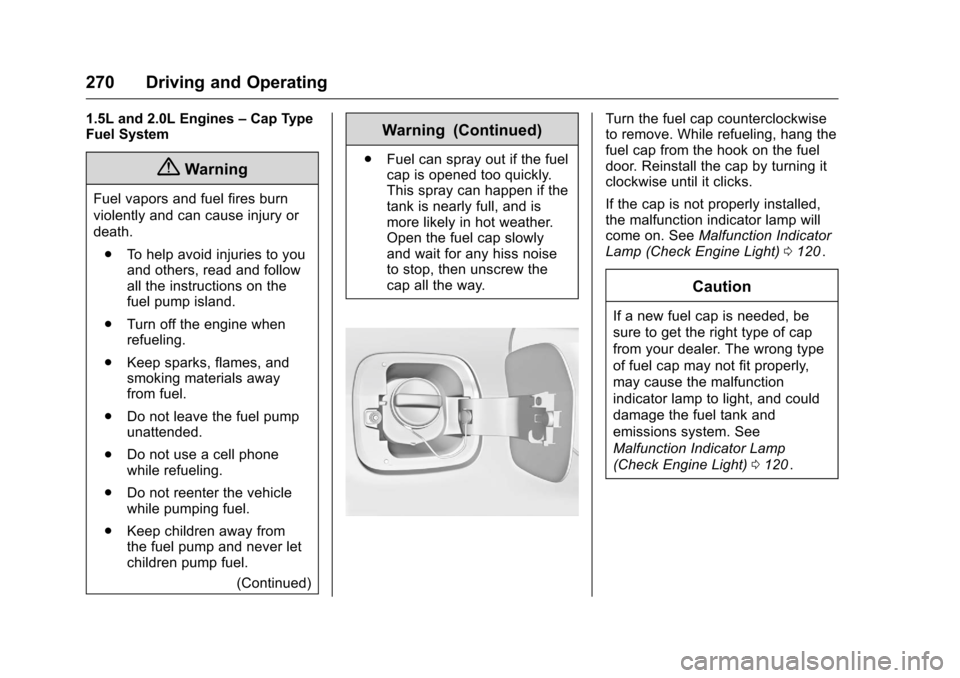
Turn the fuel cap counterclockwise
to remove. While refueling, hang the
fuel cap from the hook on the fuel
door. Reinstall the cap by turning it
clockwise until it clicks.
If the cap is not properly installed,
the malfunction indicator lamp will
come on. See Malfunction Indicator
Lamp (Check Engine Light) 0120
ii.
Caution
If a new fuel cap is needed, be
sure to get the right type of cap
from your dealer. The wrong type
of fuel cap may not fit properly,
may cause the malfunction
indicator lamp to light, and could
damage the fuel tank and
emissions system. See
Malfunction Indicator Lamp
(Check Engine Light) 0120
ii.