2016 CHEVROLET MALIBU change time
[x] Cancel search: change timePage 201 of 420
Chevrolet Malibu Owner Manual (GMNA-Localizing-U.S./Canada/Mexico-
9087641) - 2016 - crc - 9/3/15
200 Infotainment System
Changing to Next/Previous Files
.Touch
lto change to the
next file.
. Touch
gwithin five seconds of
the playback time to play the
previous file.
Returning to the Beginning of the
Current File
Touch
gafter five seconds of the
playback time.
Scanning Forward or Backward
Touch and hold
gorlduring
playback to rewind or fast forward.
Release the button to resume
playback at normal speed.
Playing a File Randomly
Touch
Zduring playback.
. ON: Plays all files randomly.
. OFF: Returns to normal
playback.
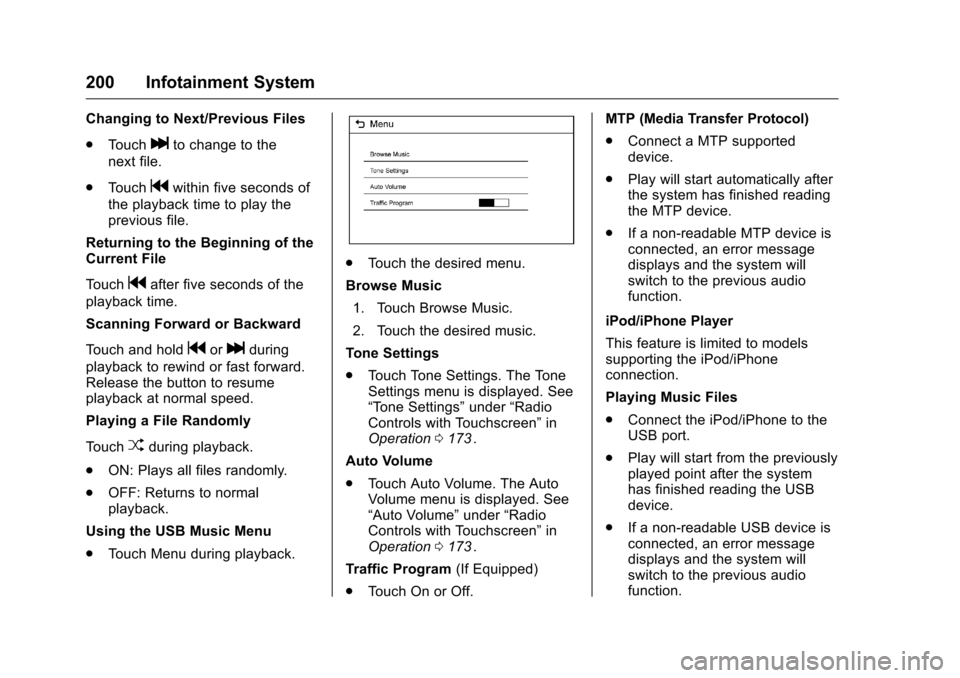
Using the USB Music Menu
. Touch Menu during playback.
.Touch the desired menu.
Browse Music 1. Touch Browse Music.
2. Touch the desired music.
Tone Settings
. Touch Tone Settings. The Tone
Settings menu is displayed. See
“Tone Settings” under“Radio
Controls with Touchscreen” in
Operation 0173
ii.
Auto Volume
. Touch Auto Volume. The Auto
Volume menu is displayed. See
“Auto Volume” under“Radio
Controls with Touchscreen” in
Operation 0173
ii.
Traffic Program (If Equipped)
. Touch On or Off. MTP (Media Transfer Protocol)
.
Connect a MTP supported
device.
. Play will start automatically after
the system has finished reading
the MTP device.
. If a non-readable MTP device is
connected, an error message
displays and the system will
switch to the previous audio
function.
iPod/iPhone Player
This feature is limited to models
supporting the iPod/iPhone
connection.
Playing Music Files
. Connect the iPod/iPhone to the
USB port.
. Play will start from the previously
played point after the system
has finished reading the USB
device.
. If a non-readable USB device is
connected, an error message
displays and the system will
switch to the previous audio
function.
Page 202 of 420
Chevrolet Malibu Owner Manual (GMNA-Localizing-U.S./Canada/Mexico-
9087641) - 2016 - crc - 9/3/15
Infotainment System 201
If the iPod/iPhone is already
connected:1. Press
{.
2. Touch AUDIO.
3. Touch Source.
4. Touch iPod.
To stop the device and select
another media source, touch
Source, then select the other
source.
To remove the device, select
another function, then remove the
device.
Pause
. Touch
jto pause.
. Touch
rto resume.
Changing to Next/Previous Song
. Touch
lto change to the
next song.
. Touch
gwithin three seconds
of the playback time to play the
previous file. Returning to the Beginning of the
Current File
Touch
gafter three seconds of the
playback time.
Scanning Forward or Backward
Touch and hold
gorlduring
playback to rewind or fast forward.
Release the button to resume
playback at normal speed.
Playing a File Randomly
Touch
Zduring playback.
. ON: Plays all files randomly.
. OFF: Returns to normal
playback.
Using the iPod Menu
. Touch Menu during playback.
. Touch the appropriate
play mode.
Browse Music 1. Touch Browse Music.
2. Touch the desired music. Tone Settings
.
Touch Tone Settings. The Tone
Settings menu is displayed. See
“Tone Settings” under“Radio
Controls with Touchscreen” in
Operation 0173
ii.
Auto Volume
. Touch Auto Volume. The Auto
Volume menu is displayed. See
“Auto Volume” under“Radio
Controls with Touchscreen” in
Operation 0173
ii.
Pictures and Movies
(Picture System with
Touchscreen)
The infotainment system can view
picture files stored on a USB
storage device and devices that
support Media Transfer
Protocol (MTP).
Picture System Information
.
Supported file extensions: .jpg,
.bmp, .png, .gif.
. Animated GIF files are not
supported.
Page 204 of 420
Chevrolet Malibu Owner Manual (GMNA-Localizing-U.S./Canada/Mexico-
9087641) - 2016 - crc - 9/3/15
Infotainment System 203
.Max audio bitrate:
‐MP3: 320 Kbps
‐ WMA: 768 Kbps
‐ AC-3: 640 Kbps
‐ AAC: 320 Kbps
. Movie files to which Digital Right
Management (DRM) is applied
may not be played.
Playing a Movie File 1. Connect the USB device to the USB port.
2. Touch the screen to open to full screen. Touch the screen again
to return to the previous
screen.
If the USB device is already
connected:
1. Press
{.
2. Touch GALLERY.
3. Touch
z.
Movie is not available while driving.
Pause
. Touch
jto pause. .
Touch
rto resume.
Changing to Next/Previous Movie
. Touch
uto change to the
next file.
. Touch
twithin five seconds of
the playback time to play the
previous file.
Returning to the Beginning of the
Current Movie
Touch
tafter five seconds of the
playback time.
Scanning Forward or Backward
Touch and hold
toruduring
playback to rewind or fast forward.
Release the button to resume
playback at normal speed.
Viewing Full Screen
Touch
tfrom the movie screen.
Touch
tagain to return to the
previous screen.
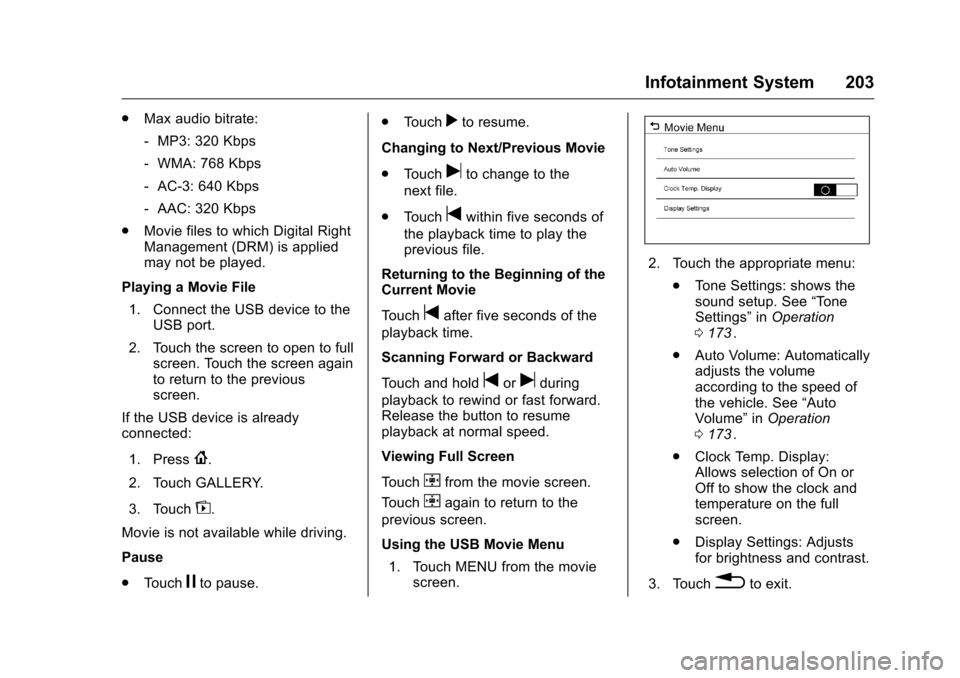
Using the USB Movie Menu
1. Touch MENU from the movie screen.
2. Touch the appropriate menu:
.Tone Settings: shows the
sound setup. See “Tone
Settings” inOperation
0 173
ii.
. Auto Volume: Automatically
adjusts the volume
according to the speed of
the vehicle. See “Auto
Volume” inOperation
0 173
ii.
. Clock Temp. Display:
Allows selection of On or
Off to show the clock and
temperature on the full
screen.
. Display Settings: Adjusts
for brightness and contrast.
3. Touch
0to exit.
Page 205 of 420
Chevrolet Malibu Owner Manual (GMNA-Localizing-U.S./Canada/Mexico-
9087641) - 2016 - crc - 9/3/15
204 Infotainment System
Trademarks and
License Agreements
FCC Information
SeeRadio Frequency Statement
0 394
ii.
Bluetooth
®
The Bluetooth word mark and logos
are owned by the Bluetooth®SIG,
Inc. and any use of such marks by
General Motors is under license.
Other trademarks and trade names
are those of their respective owners.
DivX Certified®to play DivX®video,
including premium content.
Covered by one or more of the
following U.S. patents: 7,295,673;
7,460,668; 7,515,710; 7,519,274. DivX
®, DivX Certified®and
associated logos are trademarks of
Rovi Corporation or its subsidiaries
and are used under license.
“Made for iPod” and“Made for
iPhone” mean that an electronic
accessory has been designed to
connect specifically to iPod or
iPhone and has been certified by
the developer to meet Apple
performance standards.
iPod and iPhone are trademarks of
Apple Computer, Inc., registered in
the U.S. and other countries.
Fees and Taxes: Subscription fee,
taxes, one time activation fee, and
other fees may apply. Subscription
fee is consumer only. All fees and
programming subject to change.
Subscriptions subject to Customer
Agreement available at
www.siriusxm.com. SiriusXM
®
service only available in the
48 contiguous United States and
Canada.
In Canada: Some deterioration of
service may occur in extreme
northern latitudes. This is beyond
the control of SiriusXM
®Satellite
Radio.
It is prohibited to copy, decompile,
disassemble, reverse engineer,
hack, manipulate, or otherwise
make available any technology or
software incorporated in receivers
compatible with the SiriusXM
Satellite Radio System or that
support the SiriusXM website, the
Online Service or any of its content.
Furthermore, the AMBER voice
compression software included in
this product is protected by
intellectual property rights including
Page 229 of 420
Chevrolet Malibu Owner Manual (GMNA-Localizing-U.S./Canada/Mexico-
9087641) - 2016 - crc - 9/3/15
228 Driving and Operating
the vehicle in Service Only Mode.
The instruments and audio systems
will operate as they do in ON/RUN,
but the vehicle will not be able to be
driven. The engine will not start in
Service Only Mode. Press the
button again to turn the vehicle off.
Starting the Engine
Move the shift lever to P (Park) or
N (Neutral). The engine will not start
in any other position. To restart the
engine when the vehicle is already
moving, use N (Neutral) only.
For hybrid vehicles, the engine will
only start if required for cabin
warming or high voltage battery
charging. The Vehicle Ready
indicator will be illuminated when
the vehicle is ready to be driven.
Caution
Do not try to shift to P (Park) if the
vehicle is moving. If you do, you
could damage the transmission.
Shift to P (Park) only when the
vehicle is stopped.
Caution
If you add electrical parts or
accessories, you could change
the way the engine operates. Any
resulting damage would not be
covered by the vehicle warranty.
SeeAdd-On Electrical Equipment
0 278
ii.
Caution
If the steering wheel is turned
until it reaches the end of its
travel, and is held in that position
while starting the vehicle, damage
may occur to the hydraulic power
steering system and there may be
loss of power steering assist.
Starting Procedure 1. With the Keyless Access System, the RKE transmitter
must be in the vehicle. Press
the ENGINE START/STOP
button with the brake pedal applied. When the engine
begins cranking, let go of the
button.
The idle speed will go down as
the engine gets warm. Do not
race the engine immediately
after starting it.
If the RKE transmitter is not in
the vehicle, if there is
interference, or the RKE
transmitter battery is low, the
Driver Information Center (DIC)
will display a message. See
Driver Information Center (DIC)
(Base Level)
0129iior Driver
Information Center (DIC)
(Uplevel) 0132
iiand Remote
Keyless Entry (RKE) System
Operation 031
ii.
Caution
Cranking the engine for long
periods of time, by returning the
ignition to the START position
immediately after cranking has
ended, can overheat and damage
the cranking motor, and drain the
(Continued)
Page 238 of 420
Chevrolet Malibu Owner Manual (GMNA-Localizing-U.S./Canada/Mexico-
9087641) - 2016 - crc - 9/3/15
Driving and Operating 237
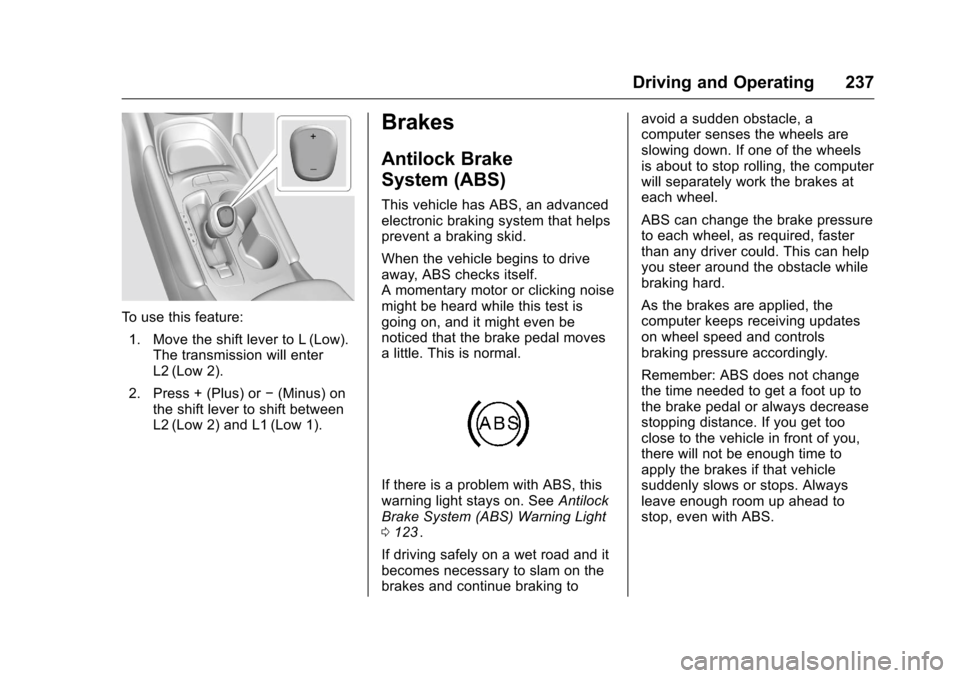
To use this feature:1. Move the shift lever to L (Low). The transmission will enter
L2 (Low 2).
2. Press + (Plus) or −(Minus) on
the shift lever to shift between
L2 (Low 2) and L1 (Low 1).
Brakes
Antilock Brake
System (ABS)
This vehicle has ABS, an advanced
electronic braking system that helps
prevent a braking skid.
When the vehicle begins to drive
away, ABS checks itself.
A momentary motor or clicking noise
might be heard while this test is
going on, and it might even be
noticed that the brake pedal moves
a little. This is normal.
If there is a problem with ABS, this
warning light stays on. See Antilock
Brake System (ABS) Warning Light
0 123
ii.
If driving safely on a wet road and it
becomes necessary to slam on the
brakes and continue braking to avoid a sudden obstacle, a
computer senses the wheels are
slowing down. If one of the wheels
is about to stop rolling, the computer
will separately work the brakes at
each wheel.
ABS can change the brake pressure
to each wheel, as required, faster
than any driver could. This can help
you steer around the obstacle while
braking hard.
As the brakes are applied, the
computer keeps receiving updates
on wheel speed and controls
braking pressure accordingly.
Remember: ABS does not change
the time needed to get a foot up to
the brake pedal or always decrease
stopping distance. If you get too
close to the vehicle in front of you,
there will not be enough time to
apply the brakes if that vehicle
suddenly slows or stops. Always
leave enough room up ahead to
stop, even with ABS.
Page 247 of 420
Chevrolet Malibu Owner Manual (GMNA-Localizing-U.S./Canada/Mexico-
9087641) - 2016 - crc - 9/3/15
246 Driving and Operating
Adaptive Cruise Control
If equipped with Adaptive Cruise
Control (ACC), it allows you to
select the cruise control set speed
and following gap. Read this entire
section before using this system.
The following gap is the following
time between your vehicle and a
vehicle detected directly ahead in
your path moving in the same
direction. If no vehicle is detected in
your path, ACC works like regular
cruise control. ACC uses camera
and radar sensors. SeeRadio
Frequency Statement 0394
ii.
If a vehicle is detected in your path,
ACC can apply acceleration or
limited, moderate braking to
maintain the selected following gap.
To disengage ACC, apply the brake.
If ACC is controlling your vehicle
speed when the Traction Control
System (TCS) or StabiliTrak system
activates, the ACC may
automatically disengage. See
Traction Control/Electronic Stability
Control 0241
ii. When road conditions allow ACC to be safely
used, the ACC can be turned
back on.
ACC will not engage if the TCS or
StabiliTrak system is disabled.
{Warning
ACC has limited braking ability
and may not have time to slow
the vehicle down enough to avoid
a collision with another vehicle
you are following. This can occur
when vehicles suddenly slow or
stop ahead, or enter your lane.
Also see
“Alerting the Driver” in
this section. Complete attention is
always required while driving and
you should be ready to take
action and apply the brakes. See
Defensive Driving 0217
ii.
{Warning
ACC will not detect or brake for
children, pedestrians, animals,
or other objects.
(Continued)
Warning (Continued)
Do not use ACC when:
. On winding and hilly roads
or when the sensors are
blocked by snow, ice, or dirt.
The system may not detect
a vehicle ahead. Keep the
entire front of the vehicle
clean.
. Visibility is low, such as in
fog, rain, or snow
conditions. ACC
performance is limited under
these conditions.
. On slippery roads where
fast changes in tire traction
can cause excessive
wheel slip.
Page 249 of 420
Chevrolet Malibu Owner Manual (GMNA-Localizing-U.S./Canada/Mexico-
9087641) - 2016 - crc - 9/3/15
248 Driving and Operating
Increasing Speed While ACC is at
a Set Speed
If ACC is already activated, do one
of the following:
.Use the accelerator to get to the
higher speed. Press -SET.
Release the control and the
accelerator pedal. The vehicle
will now cruise at the higher
speed.
When the accelerator pedal is
pressed, ACC will not brake
because it is overridden.
A warning message will appear
on the Driver Information Center
(DIC). See Cruise Control
Messages 0137
ii.
. Press and hold +RES until the
desired set speed appears on
the display, then release it.
. To increase vehicle speed in
small increments, briefly press
+RES. For each press, the
vehicle goes 1 km/h or (1 mph)
faster. When it is determined that there is
no vehicle ahead inside the selected
following gap, then the vehicle
speed will increase to the set speed.
Reducing Speed While ACC is at a
Set Speed
If ACC is already activated, do one
of the following:
.
Use the brake to get to the
desired lower speed. Press -SET
and release the accelerator
pedal. The vehicle will now
cruise at the lower speed.
. Press and hold -SET until the
desired lower speed is reached,
then release it.
. To decrease the vehicle speed in
smaller increments, press -SET
down briefly. For each press, the
vehicle goes about 1 km/h or
(1 mph) slower.
Selecting the Follow Distance
When a slower moving vehicle is
detected ahead within the selected
following gap, ACC will adjust the vehicle's speed and attempt to
maintain the follow distance gap
selected.
Press
[on the steering wheel to
adjust the following gap. When
pressed, the current gap setting
displays briefly on the instrument
cluster. Subsequent presses cycle
the gap button through three
settings: Far, Medium, or Near. The
gap setting will be maintained until it
is changed.
Since each gap setting corresponds
to a following time (Far, Medium,
or Near), the following distance will
vary based on vehicle speed. The
faster the vehicle speed, the further
back your vehicle will follow a
vehicle detected ahead. Consider
traffic and weather conditions when
selecting the following gap. The
range of selectable gaps may not be
appropriate for all drivers and
driving conditions.
Changing the gap setting
automatically changes the alert
timing sensitivity (Far, Medium,